
How to fix "Incorrect function" error in Windows?

Prefer to fix it yourself? The manual steps follow.
- 7methods
- 2 to 60 minutes
- Medium
Applies to Windows 11 and Windows 10: the "Incorrect function" message from Win32Bridge.Server.exe at sign-in, from setup.exe on a virtual drive, when opening a drive, when turning off BitLocker, and DISM "Error: 1"
7 methods in this guide
Hello. Every time I boot up my Windows PC, I receive an error "Incorrect function" and it points to Windows apps > Win32Bridge.Server.exe. I am not sure what it is or how to fix it, but it is really annoying that it shows up every time. Please help me.
"Incorrect function" is the text of Windows system error 1 (ERROR_INVALID_FUNCTION): a program asked Windows, a drive or a driver for something it cannot do. The fix depends on where you see it. A pop-up at sign-in that names Win32Bridge.Server.exe is the most common case, and resetting Cortana usually ends it.
"Incorrect function" is Windows error code 1. Read the path in the same window. If it ends in Win32Bridge.Server.exe, open Settings > Apps > Installed apps > Cortana > Advanced options and select Repair, then Reset (Fix 1); Cortana is retired, so removing it is safe (Fix 2). If it appears when you run setup.exe from a virtual drive, mount the ISO with Windows' own Mount instead (Fix 3).
| Error | "Incorrect function." It is Windows system error 1, 0x1, named ERROR_INVALID_FUNCTION in Microsoft's list of system error codes. |
|---|---|
| Where it appears | Most often in a pop-up at sign-in whose path ends in Win32Bridge.Server.exe. Also when you run setup.exe from a virtual drive, open a drive in File Explorer, turn off BitLocker, or run DISM ("Error: 1"). |
| Main cause | A broken Cortana app package (Win32Bridge.Server.exe), a third-party virtual drive that does not support what setup asks for, or a drive Windows cannot read. |
| Fastest fix | For the sign-in pop-up: repair or reset Cortana in Settings (Fix 1, two minutes). For setup.exe: eject the virtual drive and use Windows' built-in Mount (Fix 3). |
| Also written as | incorrect function., incorect function, incorrect funtion, Error 1: Incorrect function, error incorrect function, función incorrecta (Spanish Windows). |
| Affects | Windows 11 and Windows 10. Windows 10 left support on 14 October 2025, so it no longer gets fixes for any of these cases. |
| Vendor status | No single known issue. Microsoft retired Cortana as a standalone Windows app in spring 2023, so the app behind the Win32Bridge pop-up is no longer needed. |
| Time to fix | 2 to 10 minutes for Fixes 1 to 5. BitLocker decryption (Fix 6) runs from minutes to hours, depending on the drive. |
Facts checked on 15 October 2026. Steps written for Windows 11 (25H2 and 26H2) and Windows 10 22H2.
What the "Incorrect function" error means
"Incorrect function." is not a message that one program writes. It is the text Windows gives for system error code 1. Microsoft's list of system error codes reads: ERROR_INVALID_FUNCTION, 1 (0x1), Incorrect function. Any program that gets this code back from Windows and shows it to you prints the same two words. That is why people see it at sign-in, during setup, in File Explorer and in DISM.
- Code
- 1 (hex
0x1),ERROR_INVALID_FUNCTION - Text
- "Incorrect function." (with a full stop). DISM shows it as "Error: 1" followed by the same text.
- In plain words
- The program asked Windows, a drive or a driver to do something that this target does not support or cannot do right now.
- What names the cause
- The path, program or drive letter in the same window, never the two words alone.
The most common window looks like this. Its title and first line show the path of the program that failed, and the last line is the error. The version number in the path differs from PC to PC:
C:\Program Files\WindowsApps\Microsoft.549981C3F5F10_3.2106.14307.0_x64__8wekyb3d8bbwe\Win32Bridge.Server.exe
Incorrect function.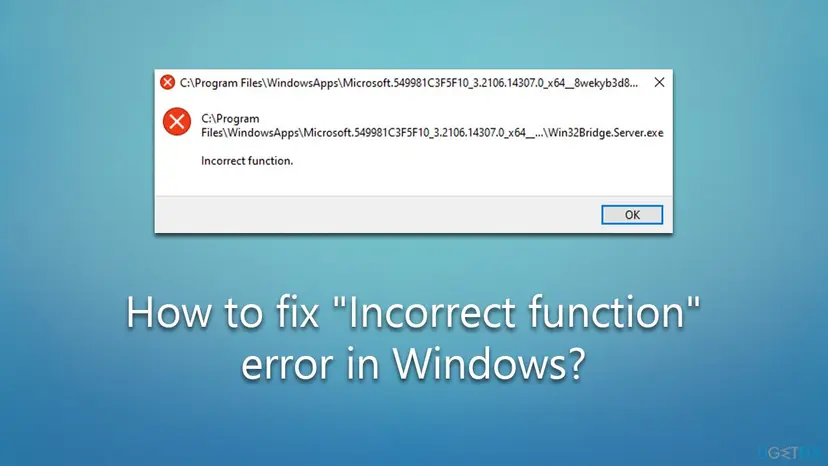
Microsoft.549981C3F5F10 is the package name of the Cortana app, so this pop-up is Cortana failing to start, not a virus and not a problem with your files. People who search "incorrect function error", "windows incorrect function" or the misspelled "incorect function" usually have this window.
Why you get "Incorrect function", most likely first
| Where you see it | Likely cause | Fix |
|---|---|---|
| Pop-up at every start or sign-in, path ends in Win32Bridge.Server.exe | The Cortana app package is damaged or half updated and fails when it starts with Windows | Fix 1, then Fix 2 |
| Running setup.exe from a D:, E: or other virtual drive | A third-party ISO tool's virtual drive does not answer a request the installer makes; users report this most with PowerISO | Fix 3 |
| File Explorer says the drive is not accessible | Windows cannot read the disk: an unknown file system, a stale driver, a read-only flag or a failing disk | Fix 4, then Fix 5 |
| Turning off BitLocker | Decryption cannot start or continue while the drive is in use or locked | Fix 6 |
| DISM shows "Error: 1", or another program fails | Damaged system files or a request the program cannot make in this situation | Fix 7 |
- Most often: the Win32Bridge.Server.exe pop-up. It is the case the reader above has, and the one most search queries describe ("incorrect function when logging in windows 11").
- Often: setup.exe on a virtual drive. Queries such as "setup.exe incorrect function" and "d setup exe incorrect function" point to an installer started from a mounted image.
- Sometimes: a drive that will not open, usually a newly installed, moved or external disk.
- Rarely: BitLocker and DISM. These show the code in a command window, and the program's own log says more.
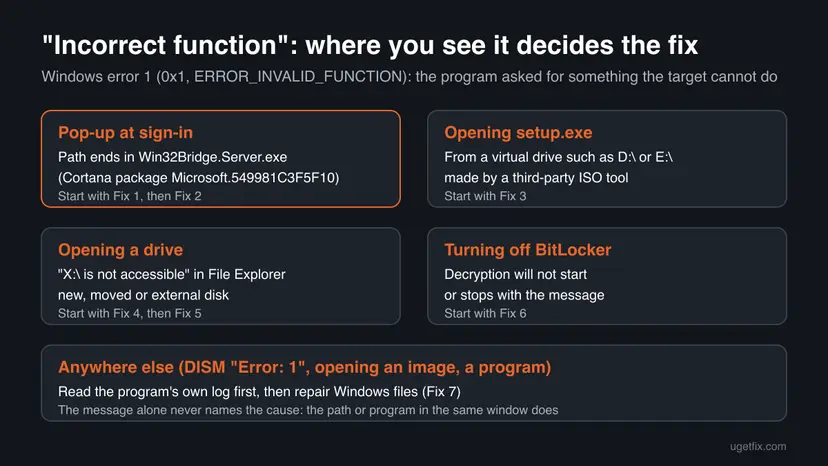
"Incorrect function" is not a sign of malware, and it is not a licence or account problem. When it names Win32Bridge.Server.exe inside C:\Program Files\WindowsApps\Microsoft.549981C3F5F10_..., it is Microsoft's own Cortana package.
How to fix the "Incorrect function" error
Pick the fix by the window you see. The sign-in pop-up needs Fix 1 or Fix 2 only. The other cases each have their own fix, and Fix 7 is the general repair when nothing else matches.
| What you see | Start with |
|---|---|
| Pop-up at start or sign-in with Win32Bridge.Server.exe in the path | Fix 1 |
| The pop-up came back after Fix 1, or Cortana cannot be repaired | Fix 2 |
| "Incorrect function" when you open setup.exe on a mounted ISO | Fix 3 |
| A drive does not open in File Explorer | Fix 4 |
| The drive opens but nothing can be written to it | Fix 5 |
| BitLocker will not turn off | Fix 6 |
| DISM "Error: 1" or any other program | Fix 7 |
Fix 1. Repair or reset the Cortana app (Win32Bridge.Server.exe pop-up)
2 minutesNo riskThe "Incorrect function" pop-up appears at every start or sign-in and its path ends in Win32Bridge.Server.exe.
Win32Bridge.Server.exe lives inside the Cortana package (Microsoft.549981C3F5F10). Repair checks the app's files and Reset clears its data, which ends a broken start. On Microsoft Q&A, resetting Cortana is the accepted answer that over 100 users marked as helpful, and one reported that Repair alone was enough.
- Press Win + I to open Settings.
- On Windows 11, open Apps > Installed apps. On Windows 10, open Apps > Apps & features.
- Find Cortana. On Windows 11, select the three dots next to it and then Advanced options. On Windows 10, select Cortana and then Advanced options.
- Select Terminate to stop the app.
- Select Repair and restart the PC. If the pop-up does not appear, you are done.
- If it appears again, go back to the same page and select Reset, then restart.
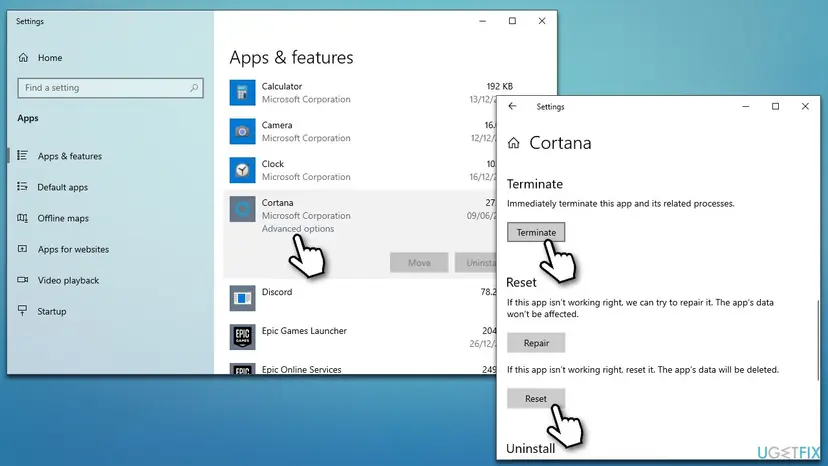
Reset deletes the app's local data, which for Cortana means only its settings. The general steps for any app are here: How to repair or reset an app in Windows
It worked if: The PC starts and you sign in with no "Incorrect function" window.
If not: If Cortana is not in the list, or the pop-up returns after a few days, remove Cortana with Fix 2.
Fix 2. Stop Cortana from starting, or remove it
5 minutesLow riskFix 1 did not help, the pop-up returns, or you never use Cortana.
Microsoft retired Cortana as a standalone Windows app in spring 2023 and points users to Copilot and voice access instead. The app no longer does anything useful, so keeping it from starting removes the only thing that runs Win32Bridge.Server.exe.
- Press Ctrl + Shift + Esc to open Task Manager.
- Open Startup apps in the left column on Windows 11, or the Startup tab on Windows 10.
- Right-click Cortana and select Disable. Restart the PC.
- If the pop-up still appears, remove the app. Right-click Start, select Terminal on Windows 11 or Windows PowerShell on Windows 10.
- Remove Cortana for your account:
Get-AppxPackage *Microsoft.549981C3F5F10* | Remove-AppxPackage - Restart the PC.
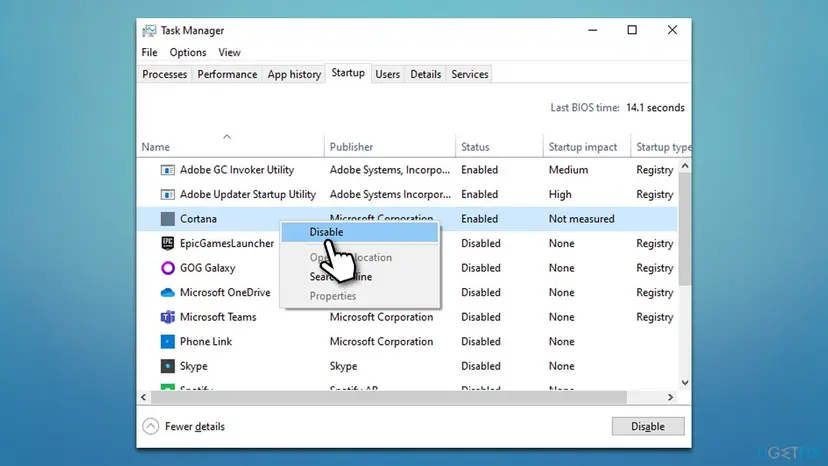
Startup apps in general: Stop apps from opening at startup. More about removing built-in apps with PowerShell, and how to get one back from the Microsoft Store: Remove built-in Windows apps with PowerShell
It worked if: Cortana is no longer in Startup apps or Installed apps, and no pop-up appears at sign-in.
If not: If a pop-up with a different path still says "Incorrect function", note the program in the path and use Fix 7.
Fix 3. Fix setup.exe "Incorrect function" on a mounted ISO
5 minutesNo riskYou opened an ISO or BIN image with a third-party tool and running setup.exe from the new drive (often D: or E:) gives "Incorrect function".
The error comes from the virtual drive, not from the installer: the drive driver of the ISO tool does not support a request setup.exe makes. Users on Windows forums report it mostly with PowerISO and say it goes away with Windows' own Mount, which has been built into Windows 10 and Windows 11 for ISO files.
- Open File Explorer > This PC, right-click the virtual drive and select Eject, or unmount it in the ISO tool.
- Right-click the
.isofile and select Mount. On Windows 11, it may be under Show more options. - Open the new drive in This PC and run setup.exe again.
- If it still fails, copy all files from the mounted drive to a new folder such as
C:\Setupand run setup.exe from there. - If the publisher lists a checksum for the ISO, compare it. Run this in Terminal, with your own file path:
Get-FileHash "C:\Users\you\Downloads\file.iso" -Algorithm SHA256 - If the hash differs, download the image again from the publisher.
Windows' Mount opens ISO and VHD files only. For other image formats, update the ISO tool to its latest version or convert the image to ISO, then mount it with Windows. If you need an installer to run as administrator: How to run a program as administrator or in compatibility mode
It worked if: The installer opens its first page instead of the "Incorrect function" window.
If not: If setup.exe fails even from a local folder, the image is damaged or blocked: check the hash, then run Fix 7.
Fix 4. Make Windows see the drive again: rescan disks and reinstall the driver
10 minutesLow riskFile Explorer says the drive is not accessible with "Incorrect function", usually right after you added, moved or connected a disk.
When Windows' picture of the disk is stale, or its driver did not load cleanly, every request to the drive fails with error 1. A rescan and a fresh driver make Windows read the disk again. Disk Management also shows whether the disk has a file system Windows can read at all.
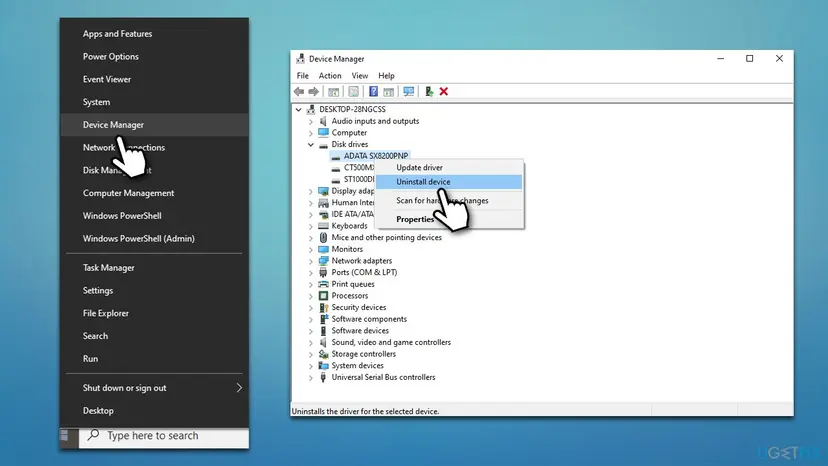
- Right-click Start and select Disk Management.
- Select Action > Rescan Disks and wait until the list refreshes.
- Look at the drive. If its partition shows RAW or no file system, Windows cannot read it: see the warning below.
- Right-click Start, select Device Manager and expand Disk drives.
- Right-click the drive, select Uninstall device and confirm. Restart the PC: Windows installs the driver again.
- If the drive now opens but shows errors, check it: Check a disk for errors (chkdsk)
Windows may offer to format a drive it cannot read. Formatting deletes what is on it. A drive used by a Mac or Linux PC also shows as unreadable; copy the files off on that system first. For lost files, start here: Recover deleted files (Recycle Bin, backups, OneDrive)
The full driver steps, including updating and rolling back: Update, roll back or reinstall a driver
It worked if: The drive letter opens in File Explorer and shows your folders.
If not: If the drive opens but cannot be written to, use Fix 5. If it disappears again or makes noises, see "Still there" below.
Fix 5. Clear the read-only flag on the disk with DiskPart
5 minutesLow riskThe drive opens but copying or saving to it fails, or DiskPart reports it as read-only.
A disk marked read-only refuses every write, and some programs report that refusal as "Incorrect function". DiskPart shows the flag and clears it.
- Right-click Start and select Terminal (Admin) on Windows 11 or Windows PowerShell (Admin) on Windows 10. Select Yes.
- Type
diskpartand press Enter. - Type
list diskand press Enter. Find your drive by its size. - Type
select disk 1, using your disk's number, not its drive letter, and press Enter. - Type
attributes diskand press Enter. Look at Current Read-only State. - If it says Yes, type
attributes disk clear readonlyand press Enter. - Type
exitand test the drive.
These commands change only the read-only flag, but always check the size in list disk before select disk. Some USB sticks and SD cards have a lock switch on the side: slide it to unlocked first.
It worked if: attributes disk shows Current Read-only State: No and you can save files to the drive.
If not: If the flag comes back after a restart, the disk itself may be failing or locked by its controller; see "Still there".
Fix 6. Turn off BitLocker when it fails with "Incorrect function"
15 minutes plus decryption timeRead the warningTurning off BitLocker in Control Panel or Settings stops with "Incorrect function".
Decryption needs the drive unlocked and not busy. Running manage-bde from Windows Recovery, where the system drive is not in use, lets the decryption start where it failed inside Windows.
Without the 48-digit recovery key you cannot open the drive in Windows Recovery and can lose access to everything on it. Save it to a USB stick, print it or write it down before you start, and keep the PC on mains power until decryption ends. A copy of your files elsewhere is safer still: Back up your files (Windows Backup, File History, Time Machine)
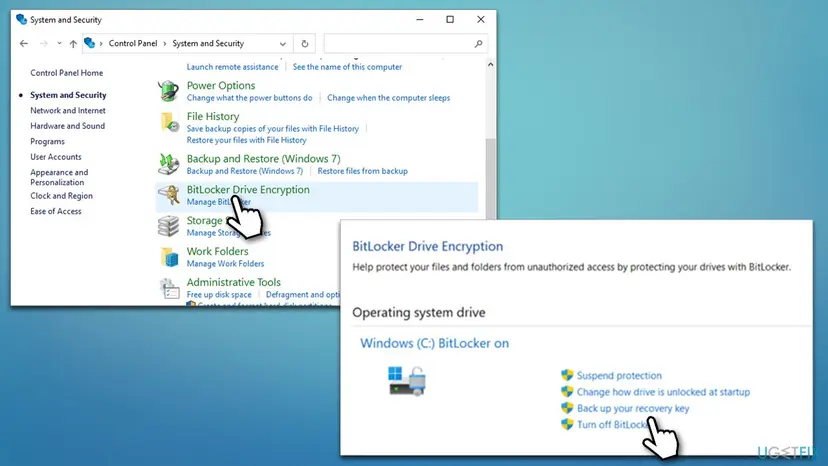
- Open Control Panel > System and Security > BitLocker Drive Encryption and select Back up your recovery key. Save or print it.
- Try in Windows first. Open Terminal (Admin) and run:
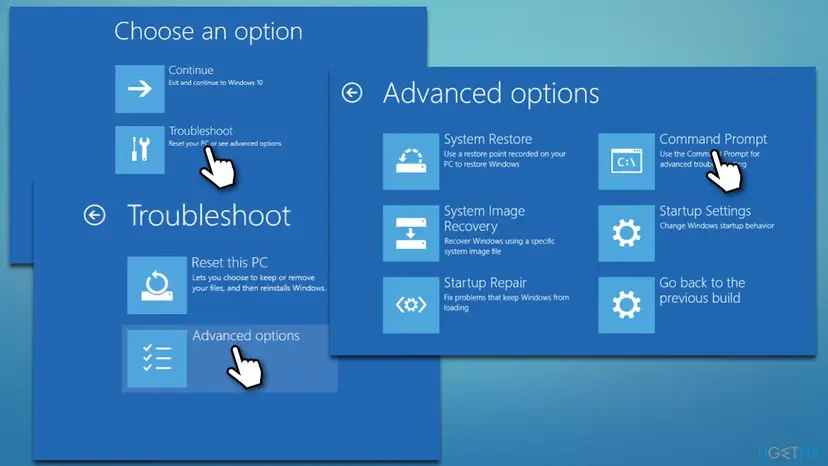
manage-bde -status C: manage-bde -off C: - If that fails with "Incorrect function", hold Shift and select Start > Power > Restart.
- Select Troubleshoot > Advanced options > Command Prompt. Enter the recovery key if Windows asks.
- Find the drive letter (it can differ from C: in Windows Recovery), open it with your key and start decryption:
manage-bde -status manage-bde -unlock C: -RecoveryPassword 111111-222222-333333-444444-555555-666666-777777-888888 manage-bde -off C: - Use your own key and drive letter. Run
manage-bde -statusfrom time to time and restart only when it shows Fully Decrypted.
It worked if: manage-bde -status shows Conversion Status: Fully Decrypted and Protection Off.
If not: If decryption stops again, check the disk (Fix 4) and read the BitLocker log described under "Still there".
Fix 7. Repair Windows system files (DISM "Error: 1" and other programs)
20 to 40 minutesLow riskDISM ends with "Error: 1 Incorrect function", or another Windows program shows the message and none of the cases above fits.
When a Windows component itself is damaged, its requests fail with error 1. SFC and DISM replace damaged system files; if DISM is the program that fails, its log names the step that went wrong.
- Run DISM and SFC from an administrator window as shown here: Run DISM and SFC to repair Windows system files
- If DISM ends with Error: 1, open
C:\Windows\Logs\DISM\dism.login Notepad and search for Error near the end. The line before it names the operation that failed. - Run DISM only from an administrator window inside Windows when you use
/Online. In Windows Recovery, point it at the offline system with/Image:C:\instead. - Restart and try the program that showed the error again.

If the error started after an update or a new program, a restore point from before that day is the quickest way back: Undo recent changes with System Restore
It worked if: SFC reports no integrity violations or that it repaired them, and the program runs without "Incorrect function".
If not: If the error stays, collect the details below and ask on Microsoft Q&A or the program's support.
Still seeing "Incorrect function": where the real cause is written
- Event Viewer: press Win + R, type
eventvwr.msc, open Windows Logs > Application and System, and look for errors at the time the message appeared. The source name tells you which program or driver failed. - BitLocker: Applications and Services Logs > Microsoft > Windows > BitLocker-API > Management records why encryption or decryption stopped.
- DISM and SFC:
C:\Windows\Logs\DISM\dism.logandC:\Windows\Logs\CBS\CBS.log. - What to send to support: the full text of the window including the path, your Windows version from
winver, the matching Event Viewer entry and the fixes you already tried.
A drive that keeps vanishing, clicks, turns read-only by itself or fails on a second PC too is failing. Stop writing to it, copy what you can and replace it. Checking its health first: Check a disk for errors (chkdsk)
How to keep "Incorrect function" from coming back
- Remove Cortana if you do not use it; Microsoft retired the app in 2023.
- Mount ISO files with Windows' own Mount instead of an old virtual drive tool.
- Keep the BitLocker recovery key somewhere other than the encrypted PC.
- Use Safely remove before you unplug an external drive.
- Do not download Win32Bridge.Server.exe or any system file from a DLL site.
- Do not format a drive that shows as RAW while it still holds files you need.
- Do not cut power during BitLocker decryption.
- Do not run installers from unofficial repacks; a modified setup is a common cause of failures.
Frequently asked questions
What does "Incorrect function" mean in Windows?
It is the text of Windows system error code 1, ERROR_INVALID_FUNCTION, hex 0x1. A program asked Windows, a driver or a drive for an action that this target does not support or cannot do at that moment. The message is shared by many programs, so the two words alone do not tell you the cause. The path or program named in the same window does. Win32Bridge.Server.exe points to Cortana (Fix 1), setup.exe on a virtual drive points to the ISO tool (Fix 3).
What is Win32Bridge.Server.exe and is it safe?
Win32Bridge.Server.exe is a file inside the Cortana app package, Microsoft.549981C3F5F10, in C:\Program Files\WindowsApps. It is a Microsoft file, not malware, when it sits in that folder. The "Incorrect function" pop-up means Cortana failed when it tried to start with Windows. Repair or reset Cortana (Fix 1), or remove it (Fix 2). Microsoft retired Cortana as a standalone Windows app in spring 2023, so you lose nothing by removing it.
Why do I get "Incorrect function" when logging in to Windows 11?
Almost always because the Cortana app starts at sign-in and fails, and the pop-up names Win32Bridge.Server.exe. Windows 11 still carries the Cortana package on many PCs that were upgraded from Windows 10. Open Settings > Apps > Installed apps > Cortana > Advanced options and select Repair, then Reset if needed (Fix 1). If the pop-up returns, disable Cortana in Task Manager's Startup apps or remove it with PowerShell (Fix 2).
How do I fix setup.exe "Incorrect function" on Windows 11?
Eject the virtual drive that a third-party tool created, right-click the ISO file and select Mount, then run setup.exe from the new drive (Fix 3). Users report this error mostly with PowerISO virtual drives, and the built-in Mount avoids it. If it still fails, copy all files to a local folder such as C:\Setup and run setup.exe there. If that fails too, compare the ISO's SHA256 hash with the publisher's and download it again if they differ.
Why does PowerISO show "Incorrect function"?
Users on Windows forums report that setup.exe opened from a PowerISO virtual drive fails with "Incorrect function", while the same image works when mounted another way. The virtual drive driver does not answer a request the installer makes. Update PowerISO to its latest version, or eject its drive and use Windows' own Mount for ISO files. We could not find a statement from PowerISO's maker about this error, so treat it as a user report.
What is DISM "Error: 1 Incorrect function"?
It is the same error code 1, reported by DISM. The DISM log at C:\Windows\Logs\DISM\dism.log names the operation that failed: open it and search for Error near the end. Make sure you run DISM from an administrator window inside Windows when you use /Online, and use /Image:C:\ when you run it from Windows Recovery. We could not confirm one single cause from Microsoft, so the log is the place to look (Fix 7).
Why does a drive say "not accessible, Incorrect function"?
Windows cannot read the disk. Most often the disk is new or moved and Windows has a stale view of it, the driver did not load, the disk uses a file system Windows does not read, or the disk is failing. Rescan disks in Disk Management and reinstall the driver in Device Manager (Fix 4). If the partition shows RAW and holds files you need, do not format it. A disk that fails on a second PC is a hardware problem.
Can "Incorrect function" stop BitLocker from turning off?
Yes, some users get it when they turn off BitLocker. Back up the recovery key first, then try manage-bde -off C: from an administrator Terminal. If that fails, start Windows Recovery, open Command Prompt, open the drive with manage-bde -unlock and your recovery key, and run manage-bde -off there (Fix 6). Watch progress with manage-bde -status and keep the PC on power until it shows Fully Decrypted.
I saw "Incorrect function" when opening an image or a program. What now?
Look at the path in the error window. If it names a Store app, repair or reset that app in Settings > Apps > Installed apps > Advanced options, as in Fix 1. If it names a file on an external or network drive, test the drive with Fix 4. If it names a Windows program, run SFC and DISM (Fix 7). The error itself only says the request failed; the path tells you which part to repair.
I searched in another language. Is this the same error?
Yes. Searches such as "ارور incorrect function" and "رفع ارور incorrect function" (Persian for "incorrect function error" and "fix the incorrect function error"), "incorrect function แก้ยังไง" (Thai, "how to fix") and the Spanish Windows text "función incorrecta" all describe Windows error 1. The fixes on this page are the same on any Windows language; only the menu names are translated. Start with the window the message appears in and the chooser above.
Sources
- Microsoft Learn: System Error Codes (0-499), ERROR_INVALID_FUNCTION 1 (0x1) Incorrect function (learn.microsoft.com)
- Microsoft Support: End of support for Cortana (standalone app retired in spring 2023) (support.microsoft.com)
- Microsoft Q&A: Win32Bridge.Server.exe incorrect function on startup (accepted answer: reset or repair Cortana) (learn.microsoft.com)
Did this fix work?
One click, no account. It tells the next reader which guides are worth their time.
Questions and experiences: fix "Incorrect function" error in Windows
Still broken, or found a fix we did not cover? Ask here: members and our editors answer. Reading is open; writing needs a free account.
…