How to fix
Fix Insta360 Link camera not working after January 2025 Windows updates
on Windows
Resolve Insta360 Link camera issues following January 2025 Windows updates. Get expert-tested solutions for smooth operation on Windows 10 and 11. Fixed…

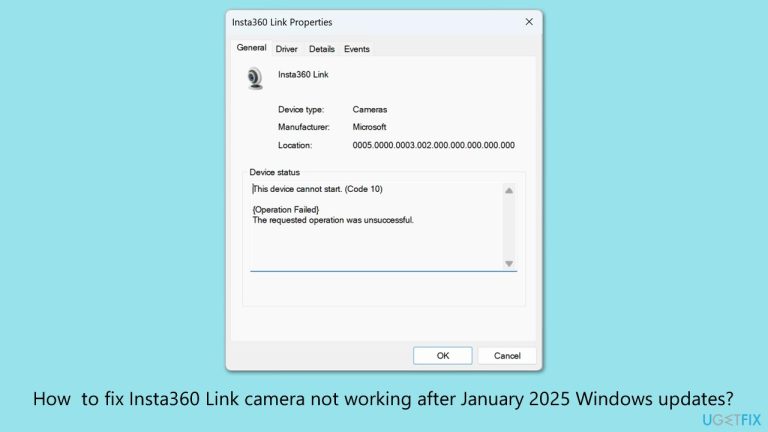
What causes How to fix Insta360 Link camera not working after January 2025 Windows updates?
- Compatibility conflicts between updates and existing camera drivers
- System-level changes disrupting device functionality
- Altered USB configurations during the update process
- Changed privacy settings affecting camera operation
Repairs Windows system files, removes malware, and restores a clean OS state — without reinstalling.
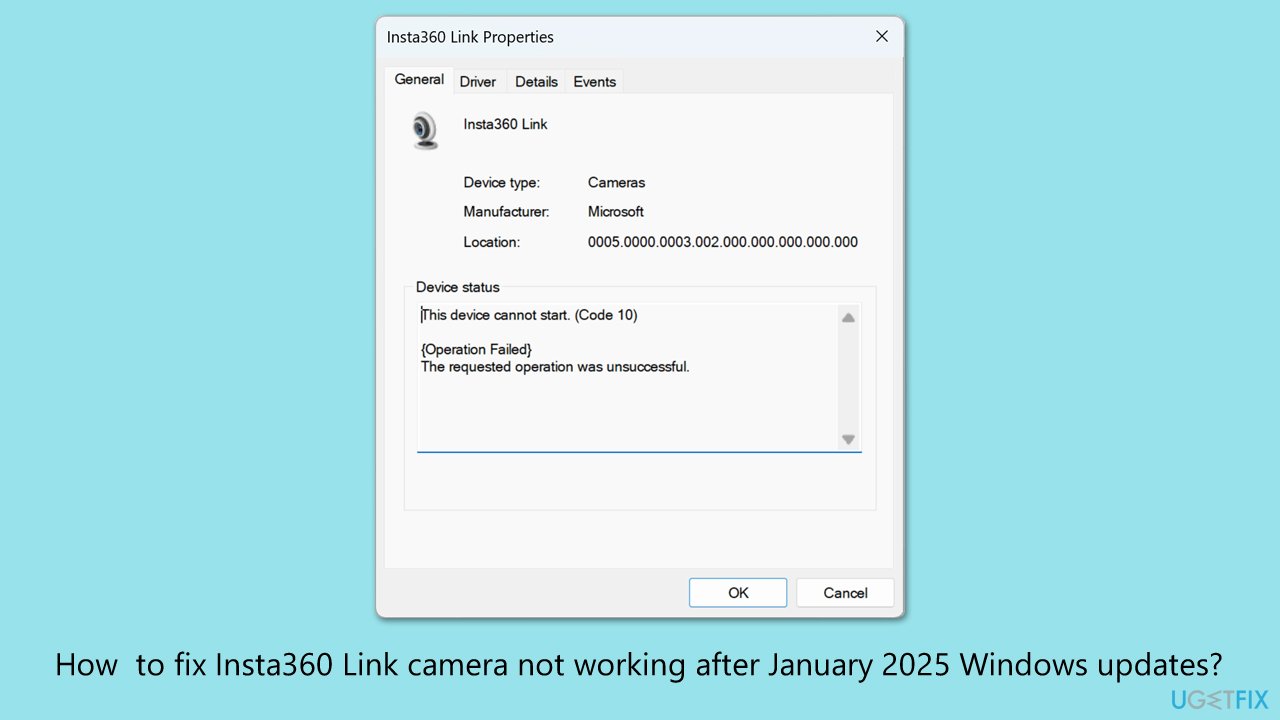
After installing the latest January Windows updates, I can no longer use my Insta360 Link camera - it simply does not work anymore. When I check the Device Manager, it says "This device cannot start. (Code 10). {Operation Failed} The requested operation was unsuccessful." Can you help me?
Insta360 Link and other cameras failing after January 2025 updates
Many users have complained that their Insta360 Link cameras stopped working after the latest Windows updates, which were released on January 14, 2025. It seems updates KB5050009, KB5049624, and KB5050021 have caused some incompatibility issues that have cameras failing to work. When this happens, users can observe an error message "This device cannot start. (Code 10)" displayed in the Device Manager next to the camera.
Although the Insta360 Link is the most commonly reported affected device, other models, such as ProXtend webcams and ZECHIN C93 cameras, have also been impacted. Users have noted similar functionality problems across multiple brands, suggesting that the issue lies in the Windows updates rather than specific hardware.
Possible causes of the issue
This problem likely stems from compatibility conflicts between the updates and existing camera drivers or firmware. Updates like KB5050009, KB5049624, and KB5050021 often include system-level changes, which sometimes disrupt device functionality. Additionally, certain USB configurations or privacy settings may have been altered during the update process, contributing to the camera’s failure to work.
Addressing the problem
If, after all these updates, your camera isn't working, there are a few things you can do to get it working again. A simple roll back of updates should temporarily resolve the problem until a patch is issued.
Another important fix is to check for updated firmware or camera drivers provided by the manufacturer, which can resolve compatibility problems introduced by the updates. For those looking for a quick remedy, resetting the camera hardware may also help restore its functionality.
The January 2025 Windows updates have caused huge inconvenience to Insta360 Link and other camera users by rendering these devices unusable. Possible solutions to this are rolling back the updates, updating drivers or firmware, and resetting the camera. If manual troubleshooting proves too complex, the [d1] repair app can help diagnose and resolve the problem automatically.
Fix 1. Roll back the affected update
The compatibility issue affecting your Insta360 Link or other cameras stems from the Windows updates released in January 2025. Rolling it back can help restore your camera’s functionality until a permanent fix is provided. Pausing future updates ensures the same update won’t reinstall automatically.
- Type Control Panel in Windows search and press Enter.
- Select Programs > Uninstall a program.
- Click on View installed updates on the left side of the window.
- Sort all the updates by date.
- Right-click on KB5050009, KB5049624, or KB5050021 update and select Uninstall.
- Proceed with on-screen instructions.
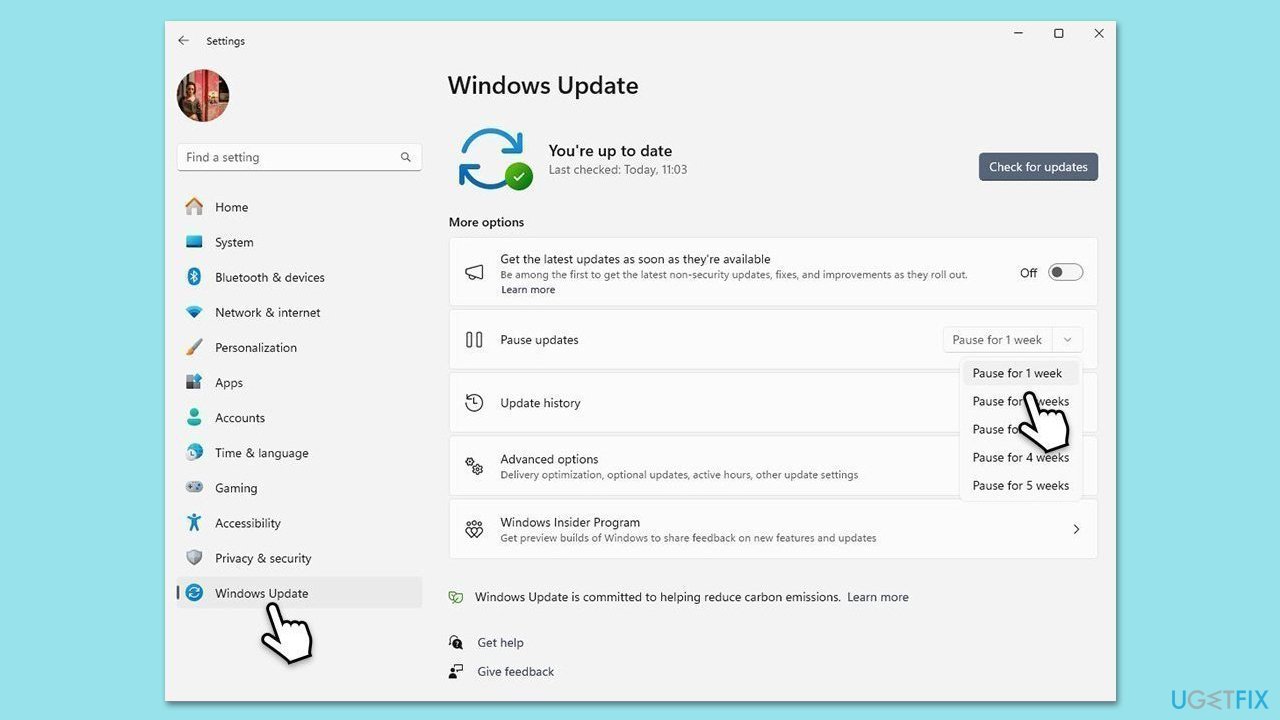
- Then, type Updates in Windows search and press Enter.
- Click Pause the updates for 7 days (in Windows 11, you can pick a different time period).
Note: If you do not wish to uninstall the updates (two of these are security updates), you should instead proceed with other solutions provided below.
Fix 2. Update camera firmware
Updating the firmware on your Insta360 Link can help resolve compatibility issues caused by recent Windows updates. Follow these steps to update your camera:
- Use the Type-C USB cable included with your Insta360 Link to connect the camera to your computer.
- Tap the Touch Key three times, then press and hold it for 5 seconds. The indicator light will flash white and turn blue briefly, signifying that the camera has entered update mode. A device named "INSTA360" should appear in your File Explorer.
- Download the latest firmware file from Insta360’s official website. Copy the downloaded file to the "INSTA360" drive.
- Tap the Touch Key three times again, then press and hold it for 5 seconds to start the update. The blue light will flash slowly, indicating that the firmware is being updated.
- Once the process completes, the blue light will remain steady, signaling that the camera has returned to standard mode.
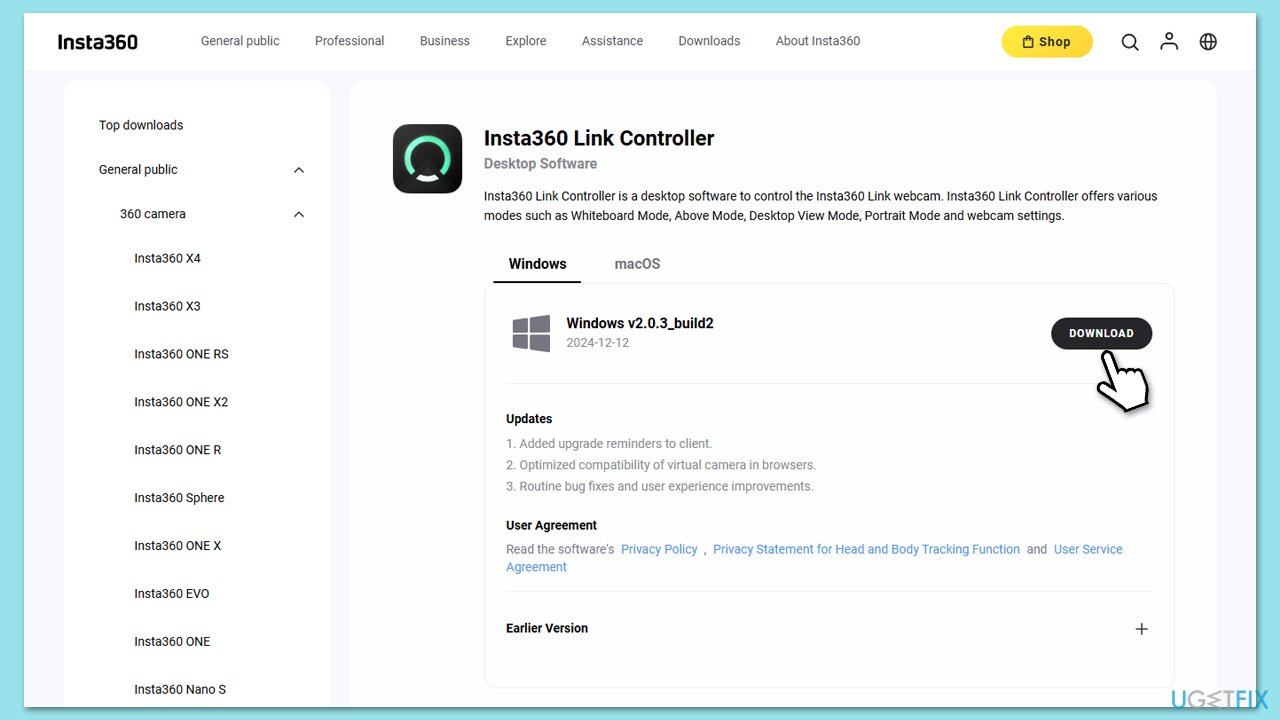
Note: if you are using a different camera, please visit the official website of its maker and download appropriate firmware from there.
Fix 3. Update camera drivers
Drivers act as a bridge between your device and Windows, so ensuring they are up to date can resolve compatibility issues introduced by recent updates.
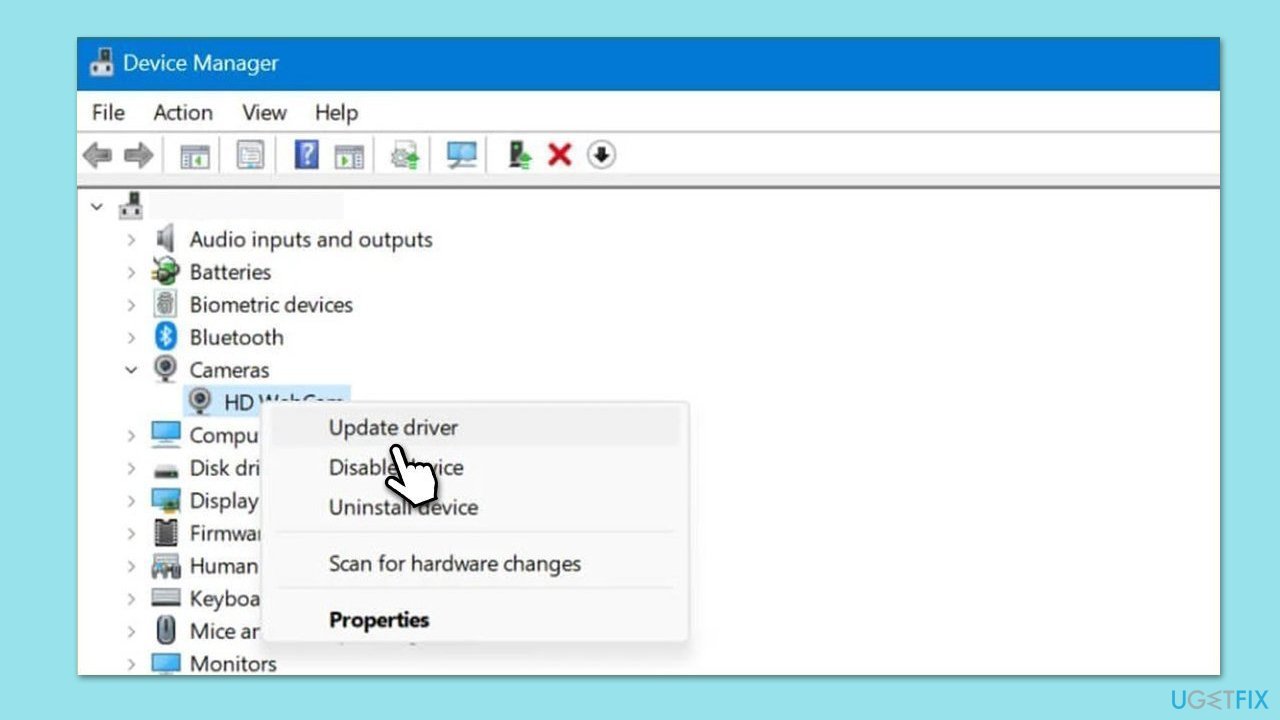
- Right-click on Start and pick Device Manager.
- Locate your camera: expand Imaging devices, Cameras, or Camera, Sound, video and game controllers section (the location depends on your Windows version).
- Right-click on your camera and select Update driver.
- Then, pick Search automatically for drivers.
- Once done, reboot your system.
- As an alternative, you can always rely on automatic driver update software, such as [rev id="DriverFix"].
Fix 4. Reset your camera
Resetting your Insta360 Link camera can help resolve temporary glitches or conflicts caused by the Windows update. This process reinitializes the camera to its default state.
- Double tap the Touch Key on the Insta360 Link to reset it to its initial state, as it would be when first switched on.
- Unplug the camera from the USB power source to ensure it shuts down completely.
- Reconnect the camera to the USB port to restart it.
Bottom line
To address the issue with the Insta360 Link camera, users can roll back the January 2025 Windows updates, check for updated firmware or camera drivers, and reset the camera hardware. If these solutions do not resolve the problem, further assistance may be needed.
Frequently asked questions
First, check for any available driver updates for the Insta360 Link camera through Device Manager in Windows 10 or Windows 11. If that doesn't resolve the issue, try uninstalling and reinstalling the camera driver.
Visit the official Insta360 website for any compatibility notices or updates related to the camera for Windows 10 and Windows 11. Additionally, ensure that you have the latest firmware installed on your camera.
Try connecting the camera to a different USB port, and ensure that the camera is not disabled in Device Manager. You can also run the Windows Troubleshooter for hardware and devices to identify any underlying issues.




Report an issue
What's wrong with this guide? We review every report and update or remove content.
Report received — thank you. We'll review and fix it.
You need a free account to submit a report.
Be the first to comment