How to fix
KB5017305 fails to install
on Windows
Resolve KB5017305 installation issues on Windows 10 effortlessly. Our expert-tested guide ensures quick fixes with zero traces left behind.


What causes How to fix KB5017305 fails to install in Windows 10?
- Windows file system issues
- Registry issues
- Internet access problems
- Low space on the System Reserved partition
- File corruption
- Malware
Repairs Windows system files, removes malware, and restores a clean OS state — without reinstalling.
Hello. I need help because my computer is not running properly. KB5017305 fails to install on my Windows 10 computer for me. I also get errors with the issue too and after the restart, the computer states that installing the update failed. I cannot find more information, and I need help.
KB5017305 failure to install in Windows 10 is the issue that can sometimes cause the particular error code to appear for users. The problem is related to the September 2022 release of the update and mainly triggers the Error 0x800F0922 for users.[ref en-1] This update should help to address security issues for the Windows OS and log requests.
This patch should be downloaded automatically on the machine, but as with the previous August KB5017308 upgrade, it fails to install automatically. The failure can be caused by the Windows file system, registry issues, and internet access or update service problems. The particular error can be caused by the low space on the System Reserved partition or connectivity issues.
It is common that file corruption, misconfiguration, or even malware[ref en-2] leads to issues like KB5017305 failing to install in Windows 10. Those problems can stem from a lack of free space on the machine that upgrades need to find while installing. Not all updates can be successfully installed when it is intended, unfortunately.
It might be possible to free up some space and try to install the upgrade again. Those issues with the buggy updates[ref en-3] can trigger additional problems with the machine too. Generally, solving issues with system files and corrupted pieces on the machine with applications like [d1] can help improve performance.
These processes can also help to fix KB5017305 fails to install in Windows 10 by solving the root cause for the issues with damage repair and cleaning the system from junk files, improving performance, privacy, and security state. Other solutions might involve users more and require attention to details while performing fixes and alterations to system settings.

Method 1. Troubleshoot
- Go to Settings.
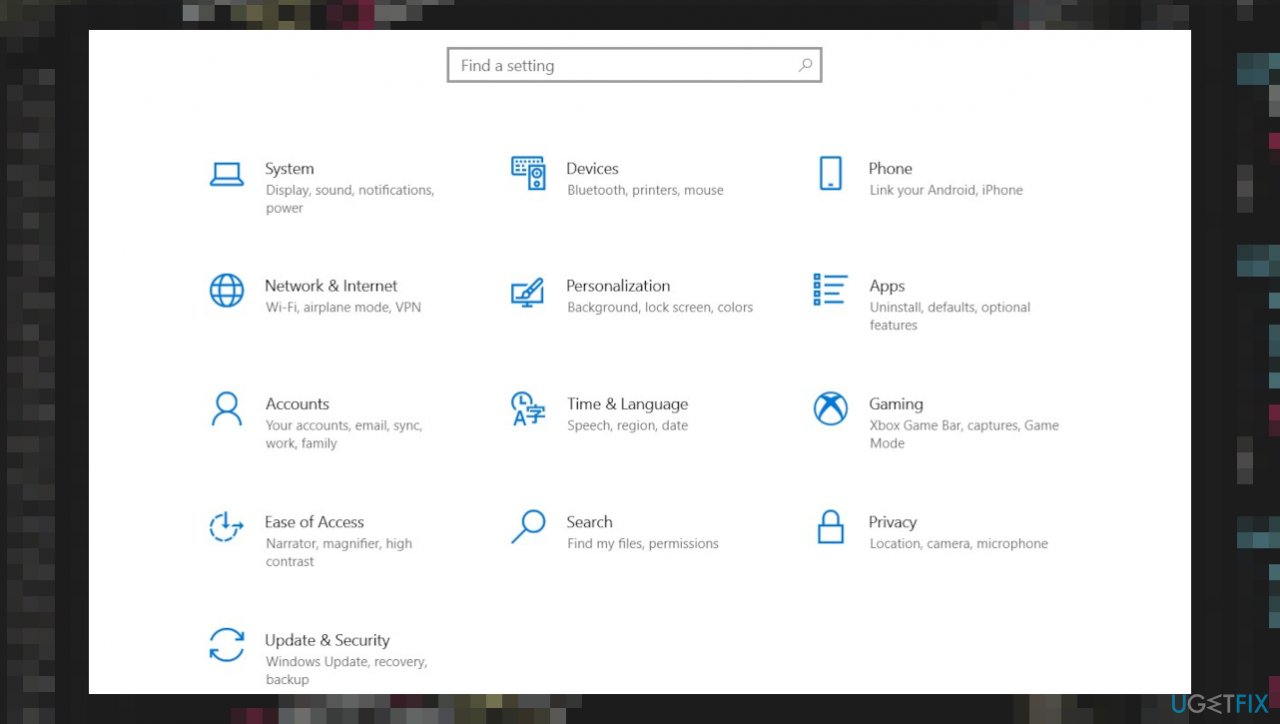
Kb5017305 fails to install in windows 10 settings - Choose Update & Security.
- Choose Troubleshoot.
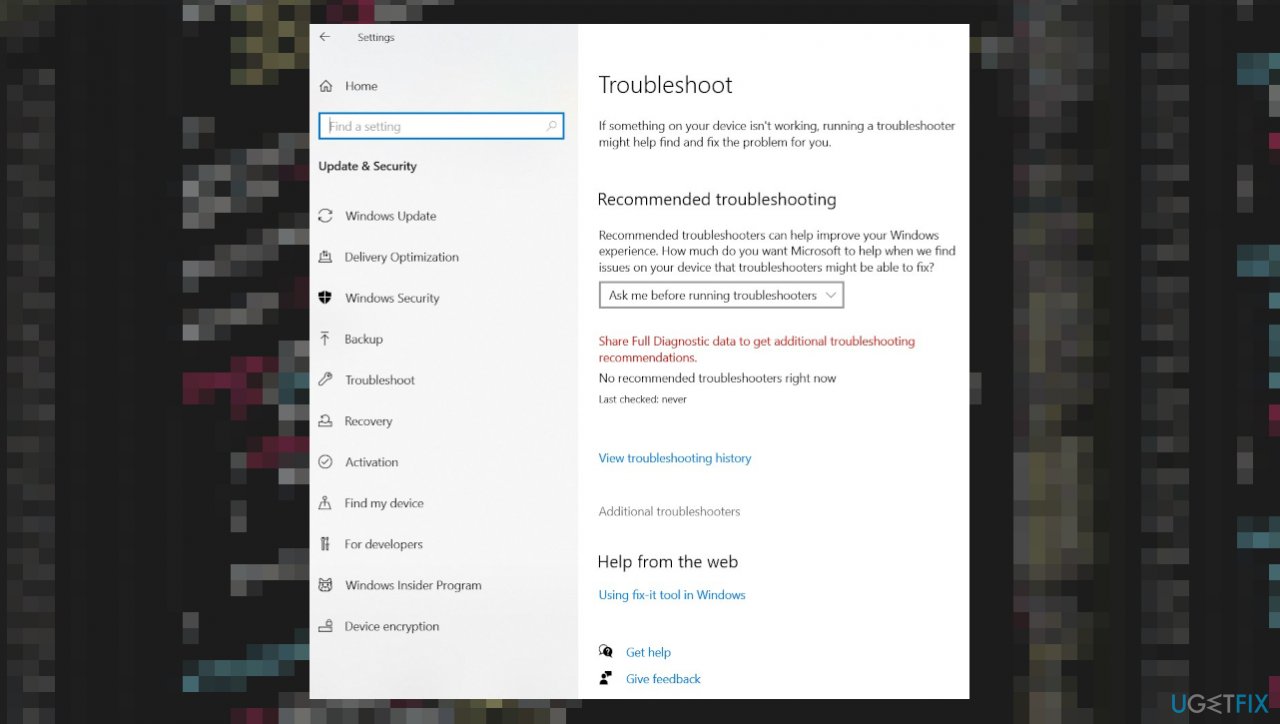
Kb5017305 fails to install in windows 10 troubleshooting - Select Additional troubleshooters.
- Find Windows Update from the list.
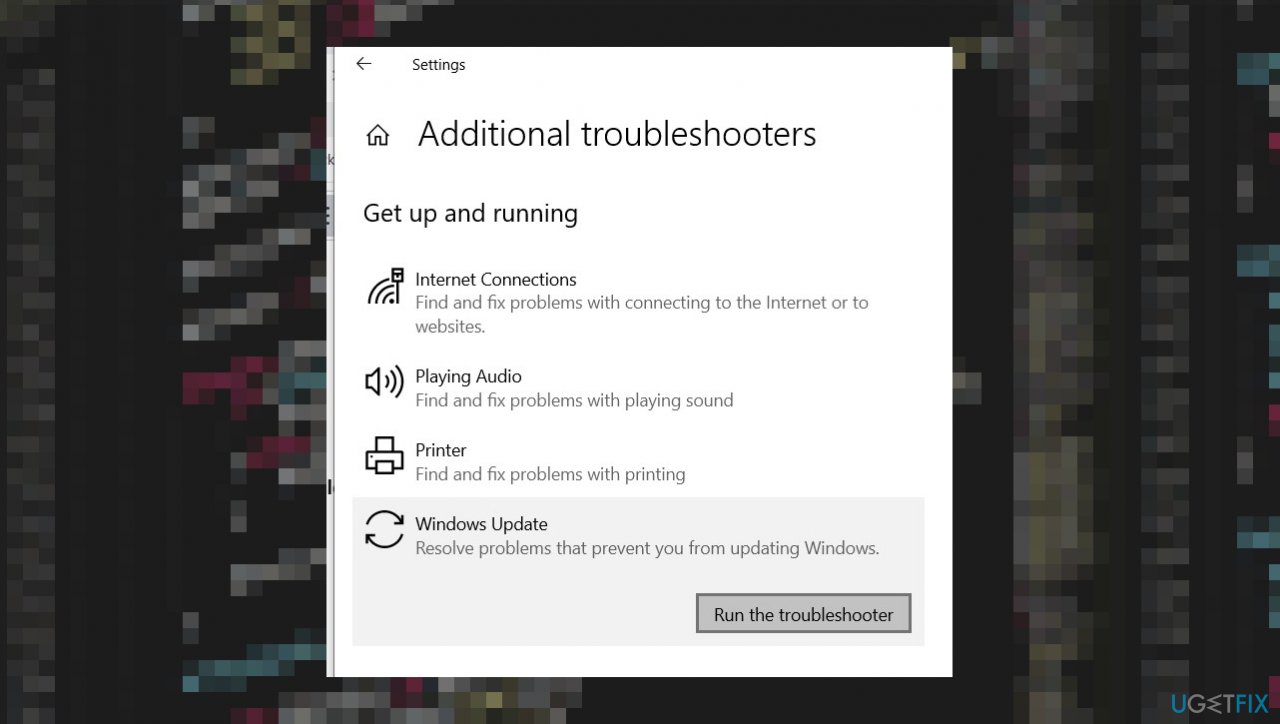
Kb5017305 fails to install in windows 10 additional troubleshooters - Click it and select Run the troubleshooter button.
- Apply the suggested fixes.
Method 2. Turn off firewall
- Search for windows firewall and select Windows Defender Firewall from the results.
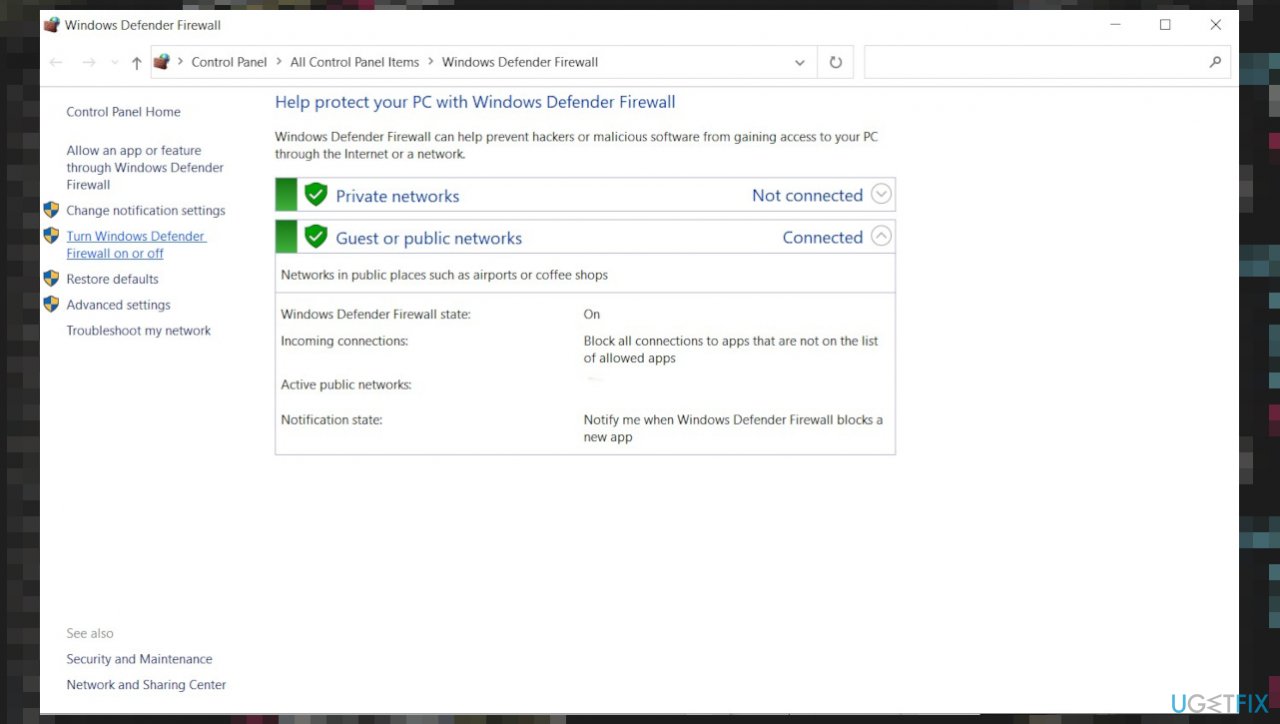
Kb5017305 fails to install in windows 10 firewall - Open Turn Windows Firewall on or off.
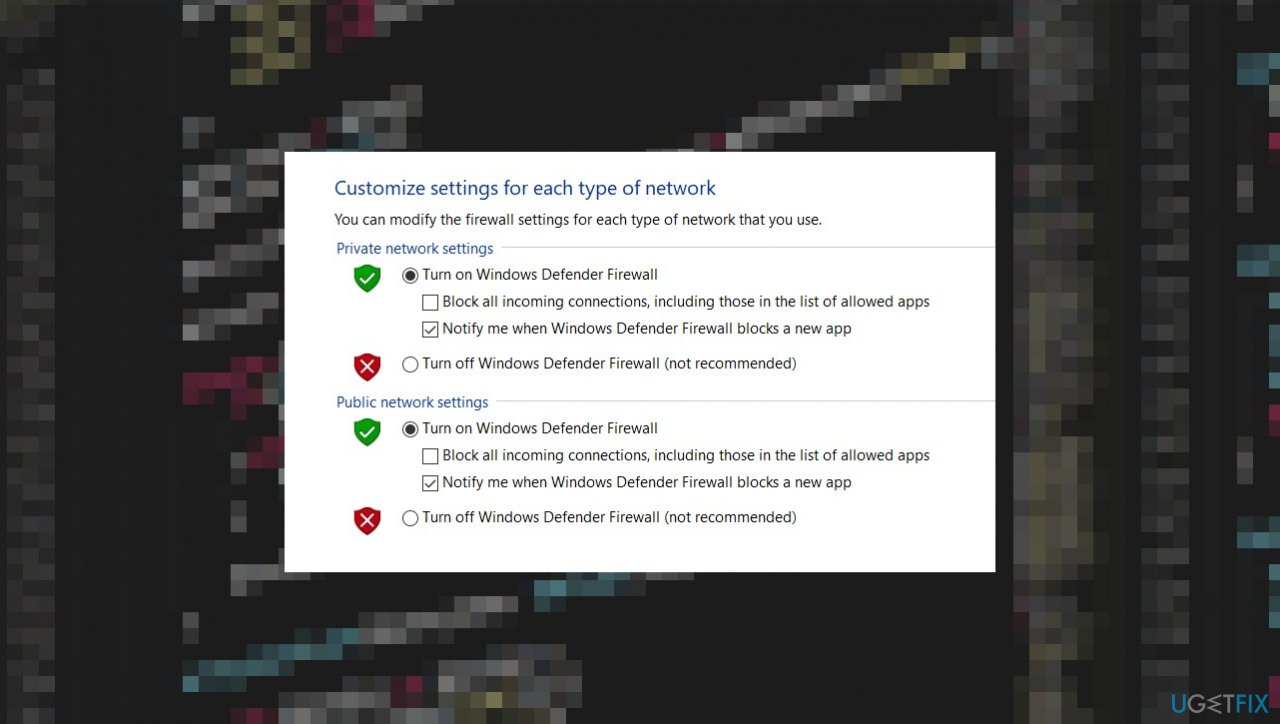
Kb5017305 fails to install in windows 10 customize - Turn off the firewall for both private and public networks.
- Save your selection.
- Try updating now.
Method 3. Remove DataStore files
- Click Start and start typing services.msc.
- In your search results services.msc should show up. Open it.
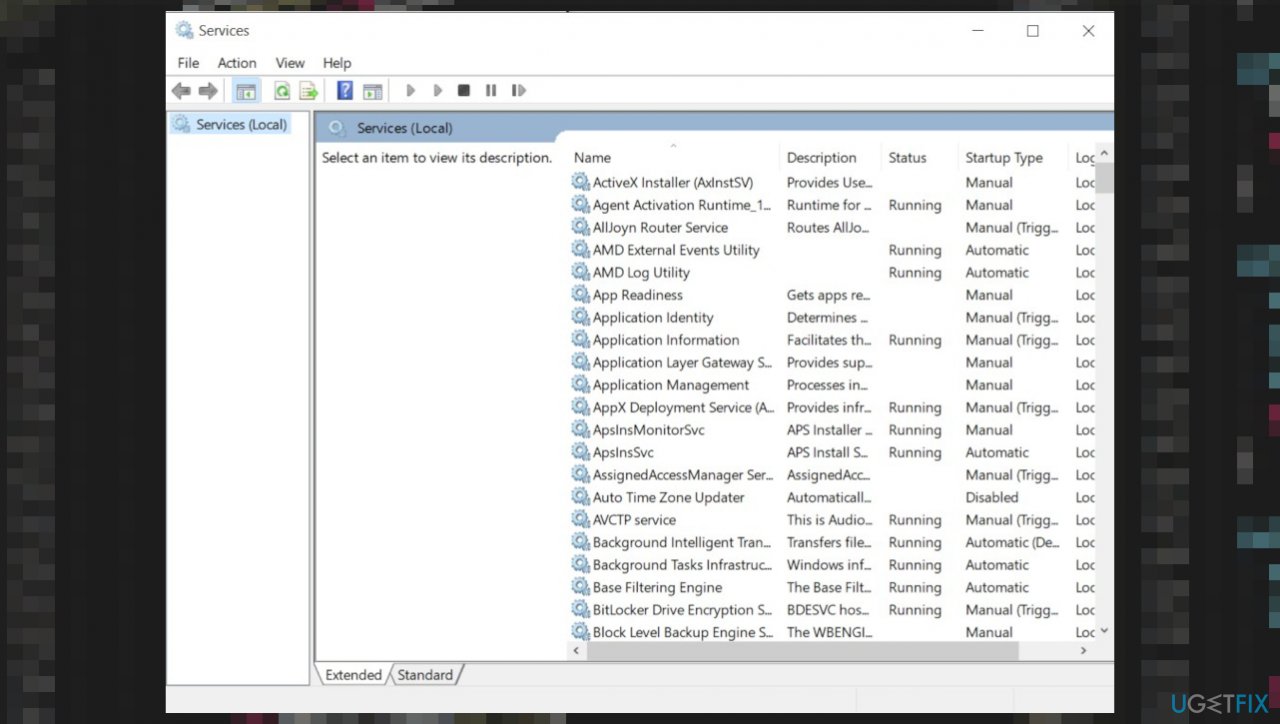
Kb5017305 fails to install in windows 10 services - A new window will open containing all Windows services.
- Right-click the Windows Update and then click Stop.
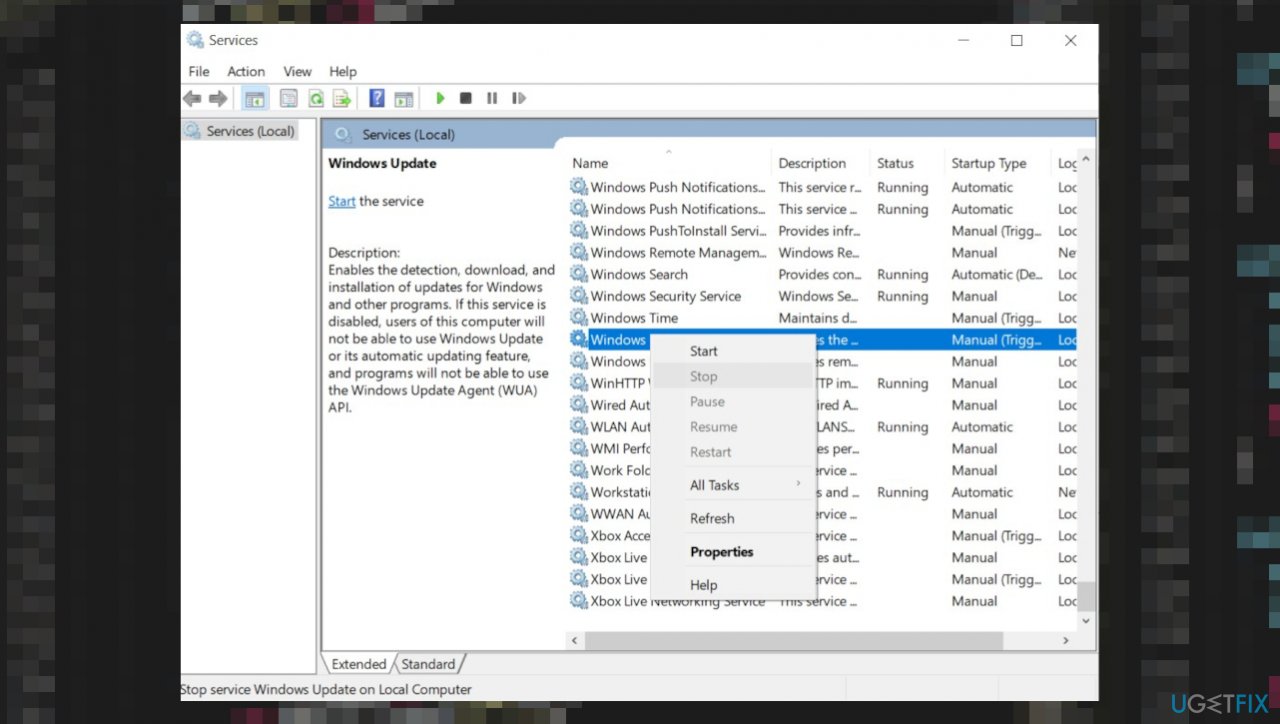
Kb5017305 fails to install in windows 10 update service - Hold your windows key pressed and hit the R key simultaneously.
- Type %windir%\SoftwareDistribution\DataStore in this new window and click OK.
- This will open Windows Explorer in the correct location.
- Delete all contents of this folder.
- Open the Windows Services again.
- Locate Windows Update Service.
- Right-click on Windows Update Service and choose Start and check the Windows Updates
Method 4. Run a System File Checker
- Click Start and start typing on your keyboard for CMD.
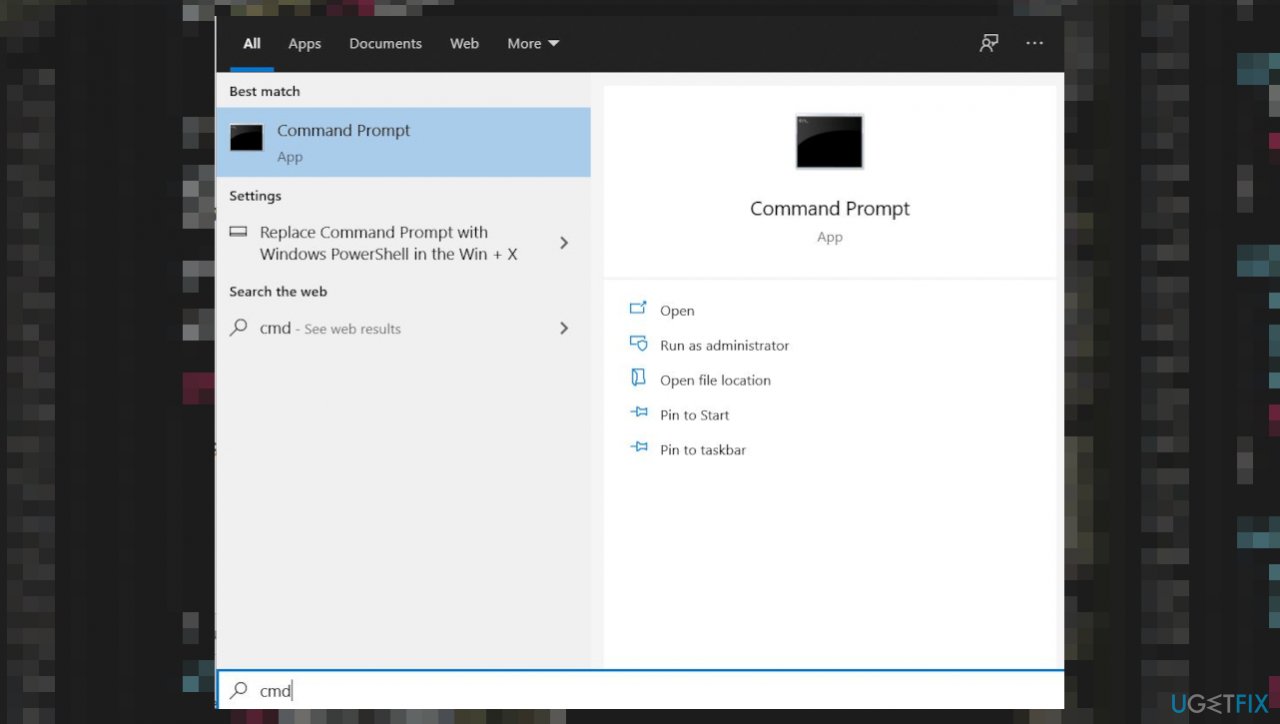
Kb5017305 fails to install in windows 10 cmd - Right-click it and select Run as administrator.
- If you are prompted for the admin password, enter the password and click OK.
- Type sfc /scannow and press Enter.
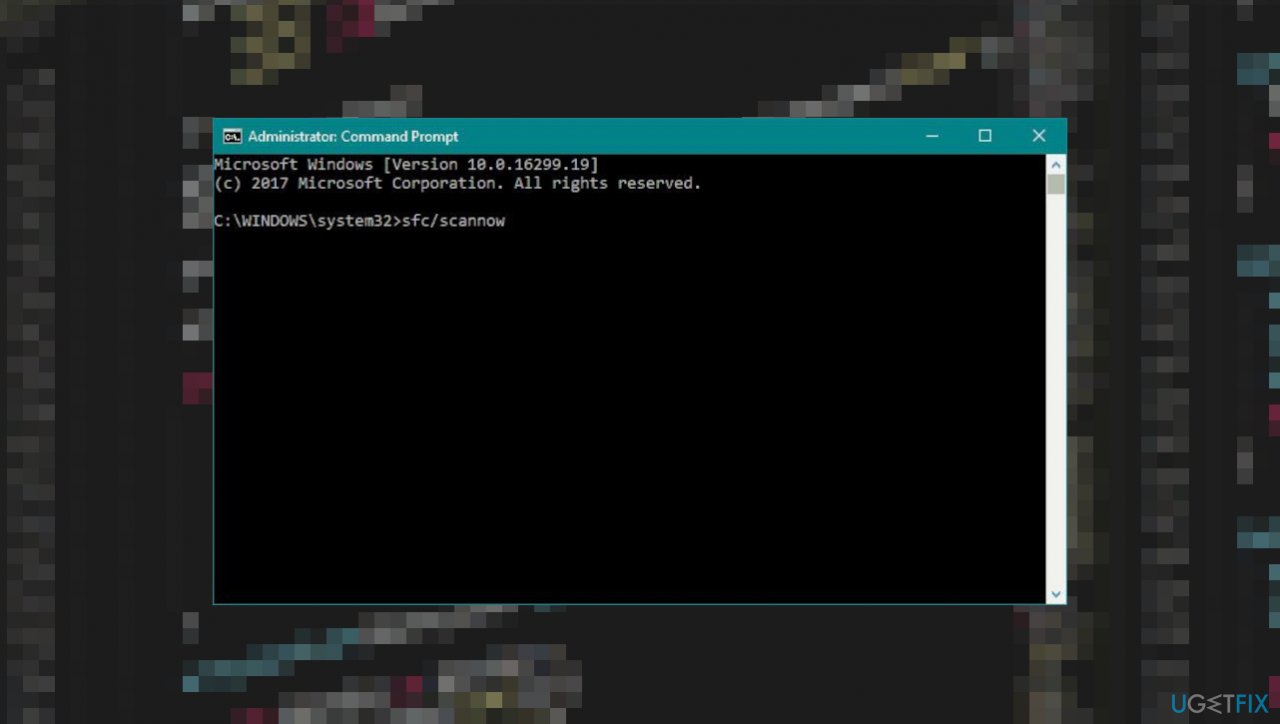
Kb5017305 fails to install in windows 10 sfc - Restart the PC.
Method 5. Use the Media Creation Tool
- Got to official Microsoft site to download Windows 10 installation media.
- Double-click the installer and select Yes on UAC shows up.
- Agree to the terms and click Next.
- Select Upgrade this PC now and click Next.
- Wait till Windows downloads all the necessary files.
- Restart your PC.
Bottom line
To fix the KB5017305 installation failure, users can troubleshoot by checking system settings, freeing up space, and using applications to repair system files. If these methods do not resolve the issue, further attention to system settings and configurations may be necessary.
Frequently asked questions
First, try running the Windows Update Troubleshooter by going to Settings > Update & Security > Troubleshoot. If that doesn't work, consider manually downloading the update from the Microsoft Update Catalog.
You can check the Windows Update history in Settings > Update & Security > Windows Update to see if any previous updates failed. Additionally, disabling third-party antivirus software temporarily may help resolve installation issues.
Yes, you can reset Windows Update components by running Command Prompt as an administrator and executing specific commands to stop services, rename folders, and restart services. This can help clear any corruption affecting the update process.




Report an issue
What's wrong with this guide? We review every report and update or remove content.
Report received — thank you. We'll review and fix it.
You need a free account to submit a report.
Be the first to comment