How to fix
KB5017321 fails to install
on Windows
Resolve the KB5017321 installation error on Windows 11 effortlessly. Get expert-tested solutions for seamless updates, fixed in minutes!

What causes How to fix KB5017321 fails to install in Windows 11?
- Insufficient free space on the machine
- Corrupted system files
- Disabled Windows Update services
- Issues with file corruption
- Cyber infections or malware remnants
Repairs Windows system files, removes malware, and restores a clean OS state — without reinstalling.
Hey. I experience issues after the update, and I want to install the KB5017321 update, but that fails. There is the error 0x800f0806 when I go to update history. No other details I can find. Can you offer me some solutions for the failed installation?
KB5017321 fails to install in Windows 11 is the issue related to the update released in September. this is the 22H2 update for Windows 11 that includes various fixes for issues, as upgrades for the operating system do. The update requires some free space, so when there are 450 MB on the machine, the upgrade can be smooth.
Also, when the system doesn't have this much free space, users[ref en-1] experience issues and failure of the upgrade or other system processes. The download and installation of these updates can trigger errors like 0x800f0806 on the machine. The issue can occur when some system files are corrupted.
These are the common reasons for update issues. Disabled services of the Windows Update also can trigger updates like KB5017321 and other upgrades that fail to install in Windows 11. These issues can be pretty common, especially for the newest Windows 11 releases.[ref en-2]
However, these problems related to installation processes on the machine can lead to BSOD errors[ref en-3] and other major or critical problems, so people panic when the KB5017321 update fails to install. It is possible to fix some of the issues with file corruption and damaged data on the machine.
Running an application like [d1] can be the solution for issues triggering the system issue. These particular problems come from damaged or corrupted files on the machine, but data like this can trigger various other errors and more major failures on the machine.
Try to run the proper system check with a program like this, so the system can be repaired, and all the corrupted files get restored. This is the way to deal with cyber infections and leftovers of malware too. This might not be the way to directly fix KB5017321 fails to install in Windows 11, but it helps to deal with many contributing factors on the computer.
Fix 1. Repair system files
- Click Start Menu and type Command Prompt.
- Right-click the terminal and click Run As Administrator.
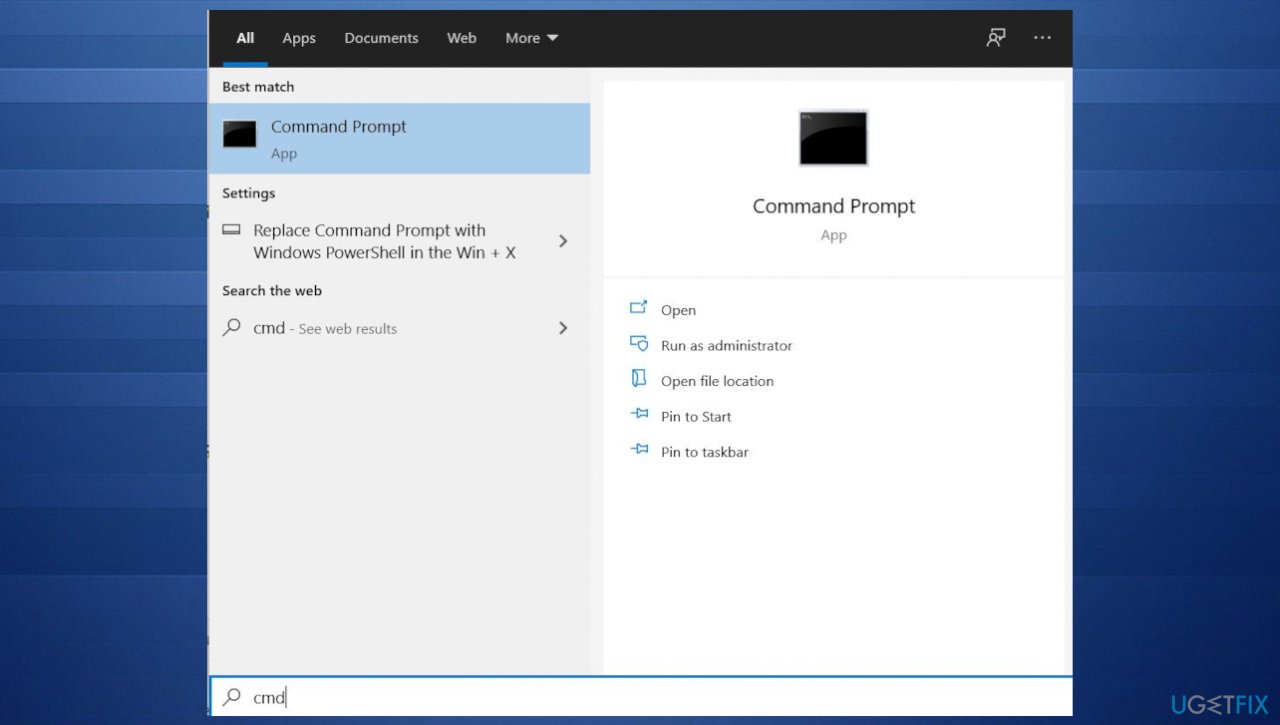
Kb5017321 update fails error command prompt - Copy and paste the following commands and wait for the verification to be finished:
DISM /Online /Cleanup-Image /RestoreHealth
Dism /Online /Cleanup-Image /StartComponentCleanup
sfc / scannow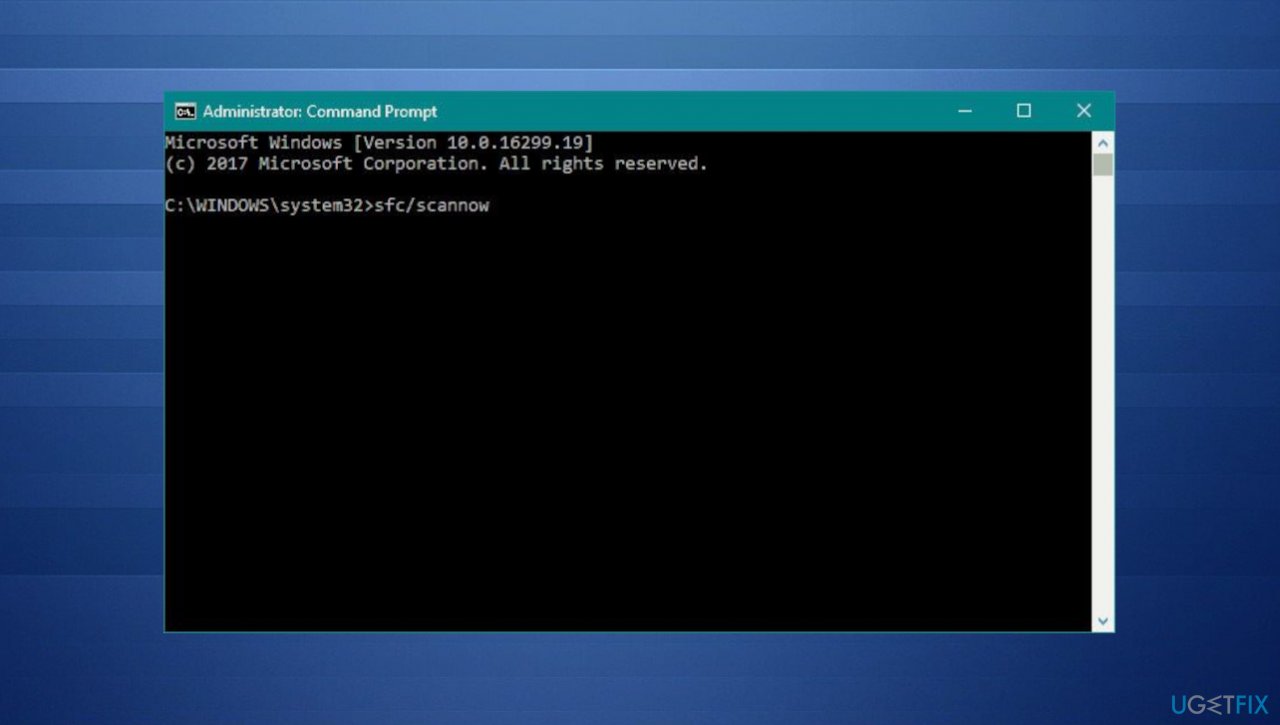
Kb5017321 update fails error sfc - Restart the PC.
Fix 2. Restart Windows Update Service
- Use the Windows search to find Services.
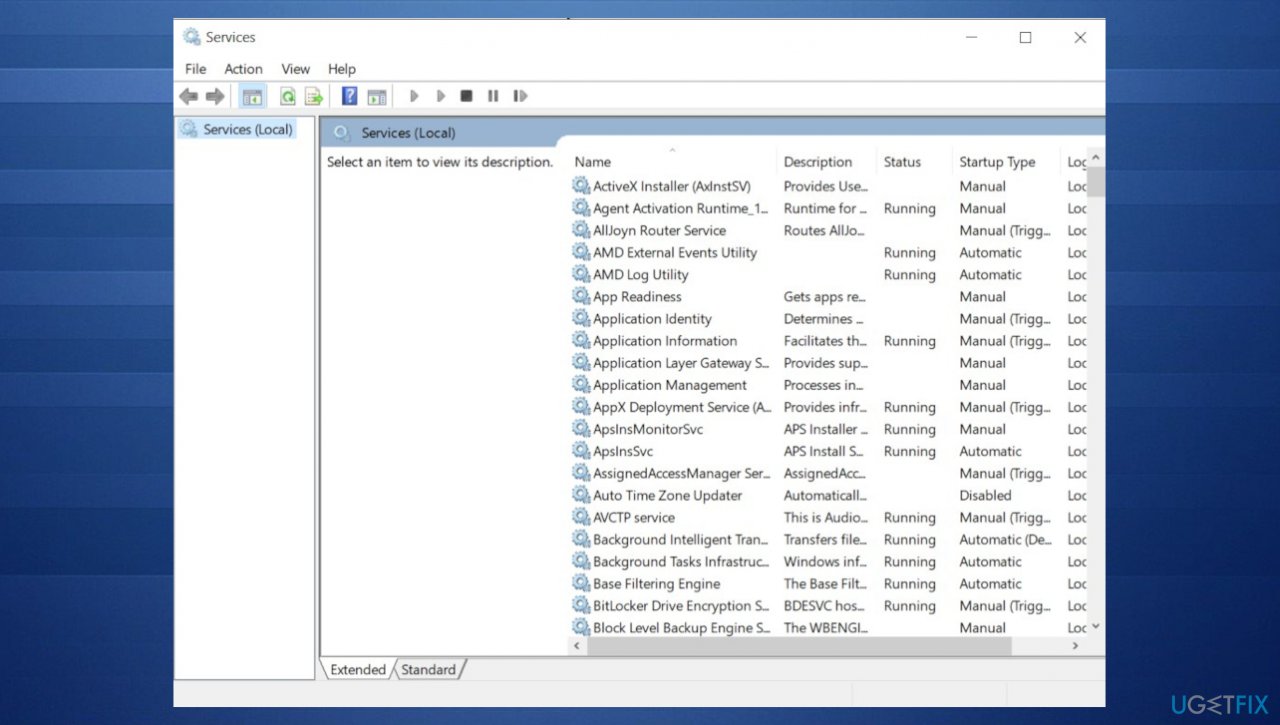
Kb5017321 update fails error services - Find Windows update and right-click to go to Properties.
- Choose the Startup type to Automatic.
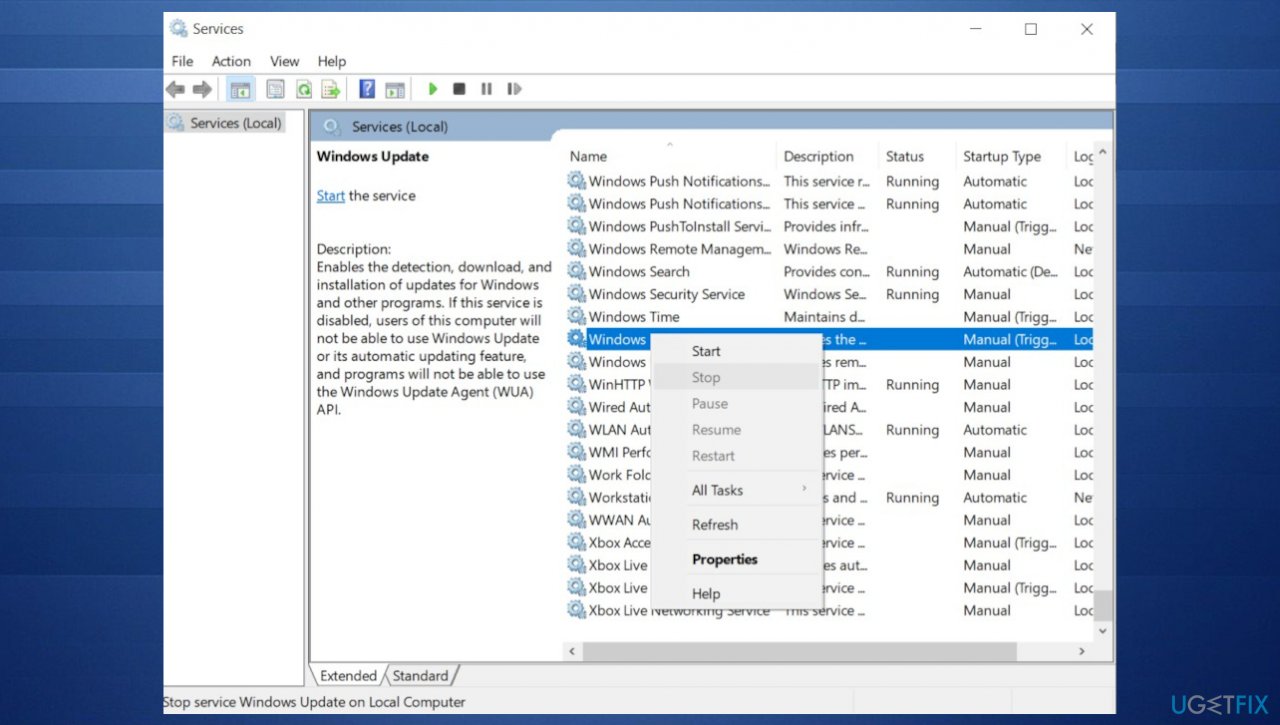
Kb5017321 update fails error update services - Hit Apply and OK.
- Select Restart the service for Windows Update.
- Do the same with Background intelligent transfer service.
- Restart your PC.
Fix 3. Install manually with the installation assistant
- Go to official Windows page.
- Find the Download the Windows 11 Installation Assistant section.
- Run the tool as administrator by right-clicking the Windows Installation Assistant file.
- Allow the application to run and wait for the result.
Fix 4. Troubleshoot
- Click the Windows button and select gear to open Settings.
- Select System from the left pane, then scroll down on the right pane.
- Click on Troubleshoot.
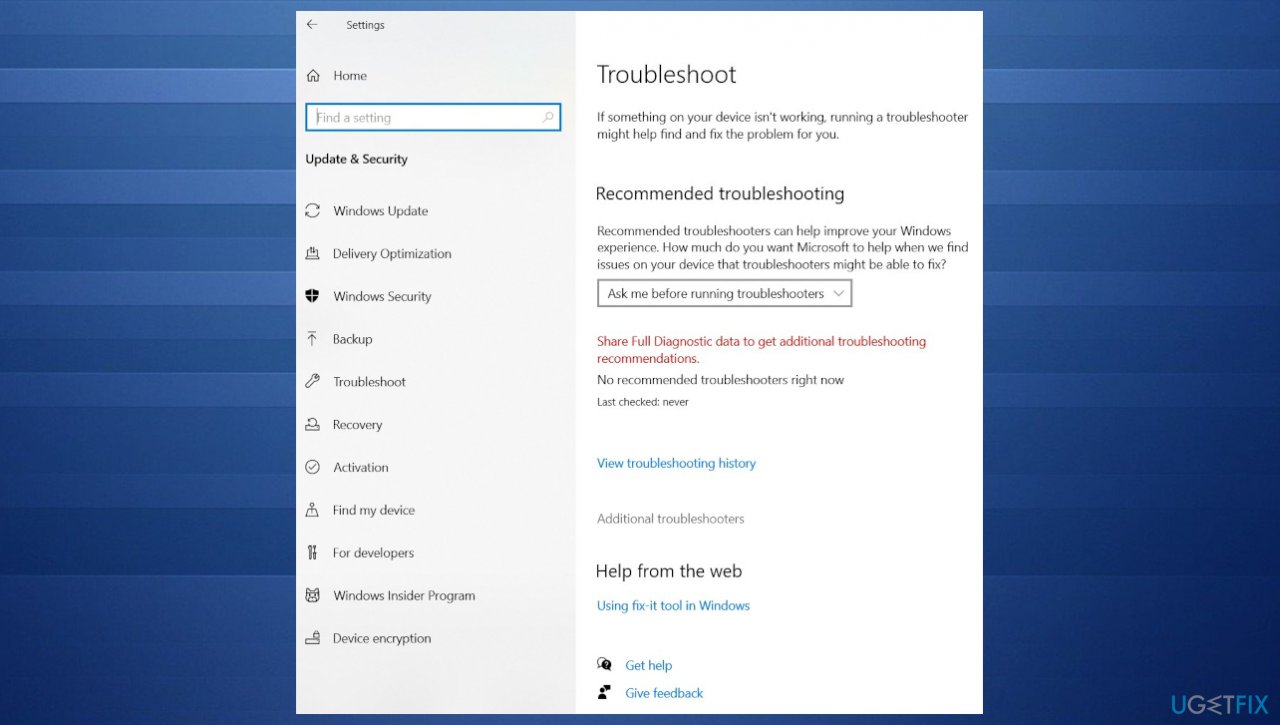
Kb5017321 update fails error troubleshoot - Click on Other troubleshooters.
- Locate the Windows Update troubleshooter and hit the Run button.
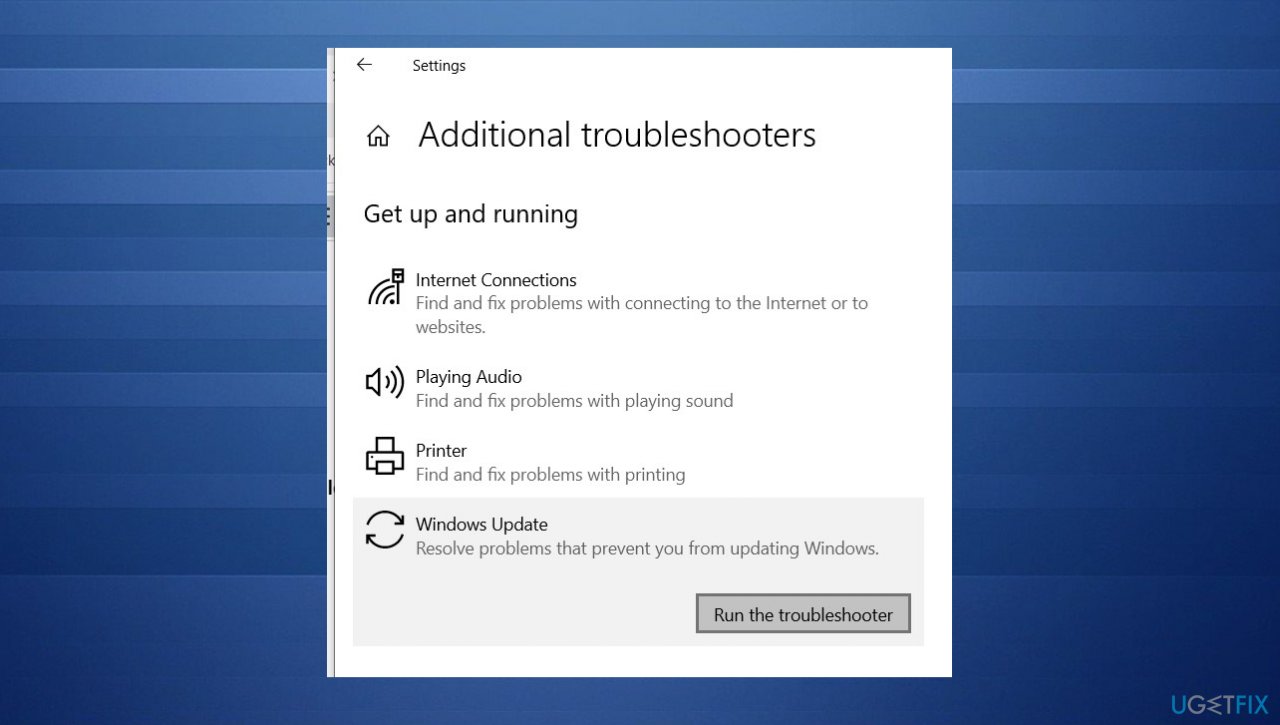
Kb5017321 update fails error troubleshooting windows
Fix 5. Clear Software Distribution Folder
- Press the Windows key and type Command Prompt.
- Right-click the Command Prompt and click Run As Administrator.
- You can stop the Windows Update service to clear the software distribution folder by running the following:
net stop wuauserv
net stop bits - Open the Run box with Windows and R keys.
- Enter C:\Windows\SoftwareDistribution there and hit OK.
- Select all the files and press the Delete button to clear the software distribution folder.
- Go to Command Prompt again and execute:
net start wuauserv
net start bits - Check if the error is resolved.
Bottom line
To address the KB5017321 installation failure, ensure there is at least 450 MB of free space, check for corrupted system files, and verify that Windows Update services are enabled. Running a system check application may also help repair damaged data. If these solutions do not resolve the issue, further troubleshooting may be necessary.
Frequently asked questions
First, note the error code displayed and check Microsoft's support page for specific troubleshooting steps related to that code. You can also try running the Windows Update Troubleshooter to resolve common installation issues.
Yes, third-party antivirus software can sometimes block updates from installing. Temporarily disabling your antivirus during the installation process may help resolve the issue.
You can manually download the update from the Microsoft Update Catalog by searching for KB5017321 and selecting the appropriate version for your system. After downloading, run the installer to manually apply the update.




Report an issue
What's wrong with this guide? We review every report and update or remove content.
Report received — thank you. We'll review and fix it.
You need a free account to submit a report.
Be the first to comment