How to fix
KB5018410 fails to install
on Windows
Resolve the KB5018410 installation error on Windows 10 quickly and effectively. Enjoy a seamless update experience with expert-tested solutions!


What causes How to fix KB5018410 fails to install on Windows 10?
- Corrupted system files
- Malware damage
- Incorrect date and time settings
- Insufficient free space
- Interference from VPNs or third-party antivirus tools
Repairs Windows system files, removes malware, and restores a clean OS state — without reinstalling.
Hello. The cumulative KB5018410 update fails to install on my Windows 10 computer. I have tried this a few times and even troubleshooter updates on the PC, but nothing works for me. HELP!
KB5018410 fails to install on Windows 10 is the issue that bothers people constantly. The problem with Windows updates helping to improve the overall performance but failing to install or creating additional issues with the machine is repeating all the time. The recent cumulative update for Windows 10 should fix bugs, and help with security and reliability improvements.
However, people report[ref en-1] issues with the upgrade and related errors that get displayed when this Windows operating system update - KB5018410 fails to install on Windows 10. A particular error code like 0x800f0845 could indicate the issue with the problem of this installation, but there are general issues leading to these fails too.
Windows Updates can fail when the particular settings are not current on the machine. Those include date and time settings, for example. Also, there are issues with free space or installed programs like VPNs and third-party antivirus tools that can interfere with these procedures.
You need to make sure that you have enough space and a stable internet connection before downloading ad installing the update. Windows updates often have bugs in general,[ref en-2] because it is normal that pieces are not perfect with each first release. KB5018410 fails to install on Windows 10 can be a problem that occurs due to the corrupted system files or even malware[ref en-3] damage that is left after the cyber infection.
Fixing these issues related to affected system data can be difficult because those files are not on the desktop, and repairing includes the check on the machine. You can run an application like [d1] and see what issues get indicated for you. This way, you can clear virus leftovers and recover system files that need replacement or repair, and you can this way fix KB5018410 fails to install on Windows 10 issue on the machine.

1. Troubleshoot Windows update
- Press Windows + I keys to open the settings app.
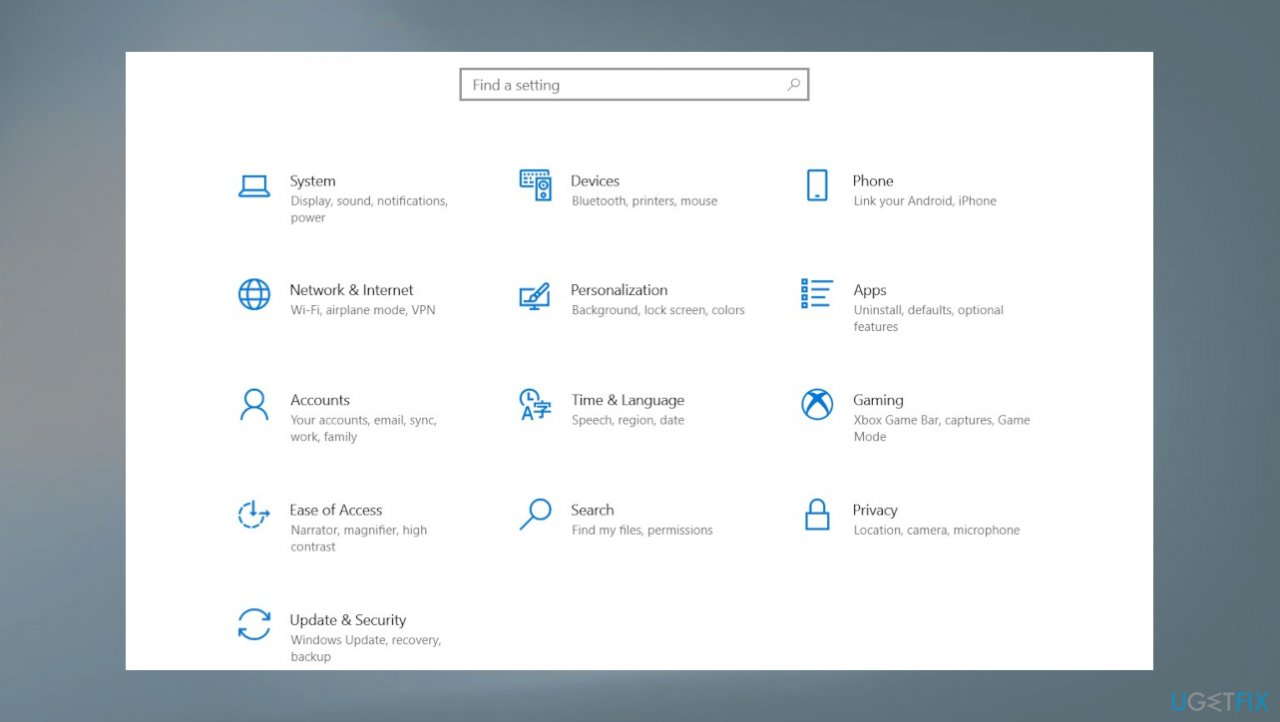
Kb5018410 fails to install on windows settings - Then click on Update & security and then choose Troubleshoot.
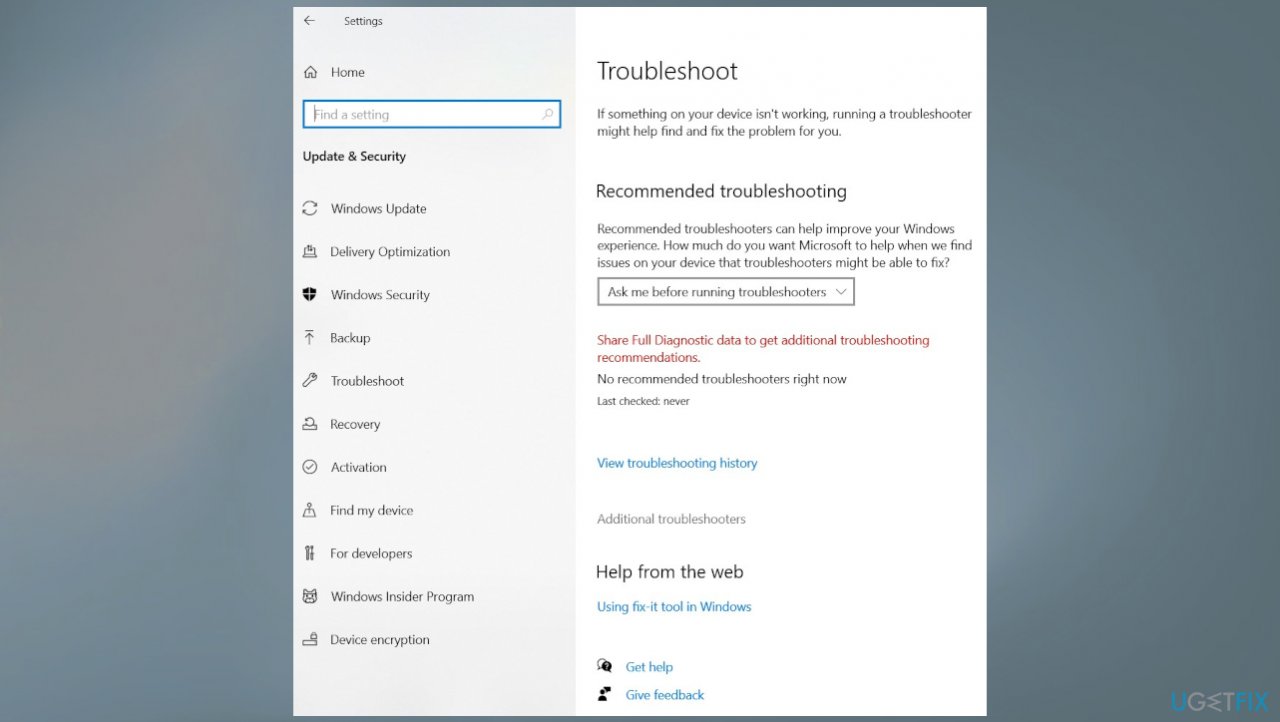
Kb5018410 fails to install on windows troubleshooting - Click the additional troubleshooters.
- Scroll down and locate the Windows update, and click on it.
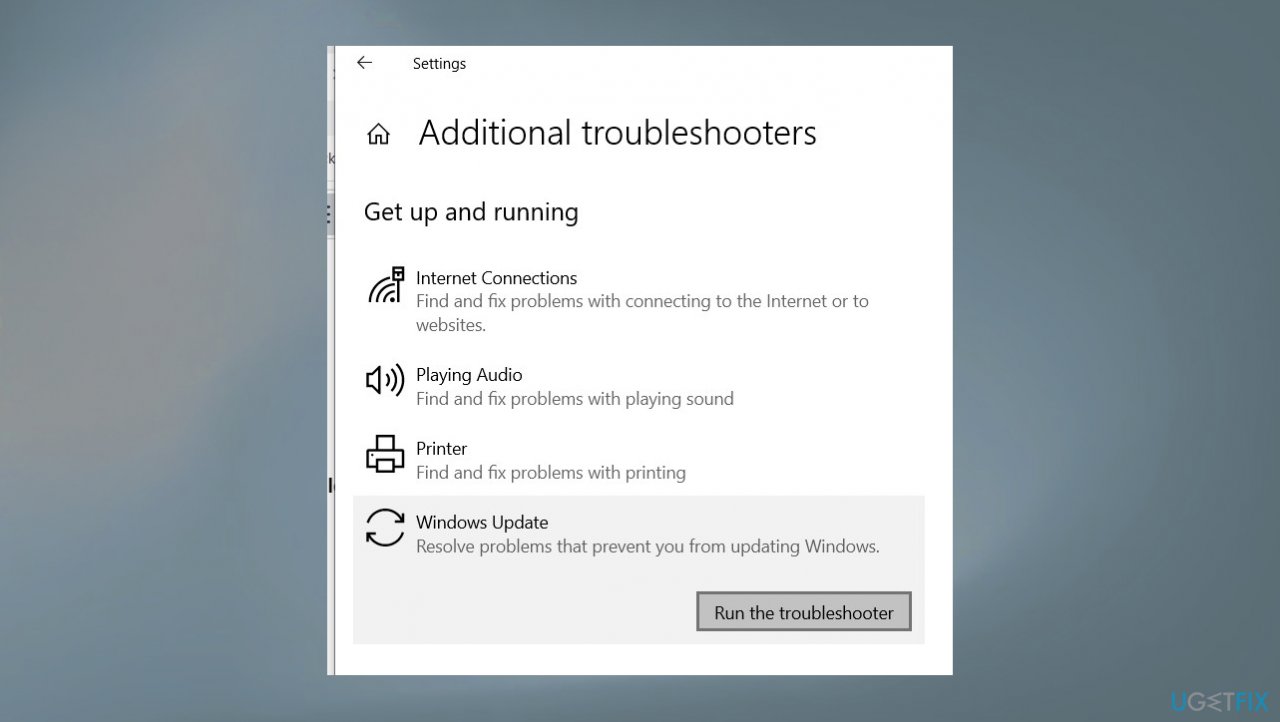
Kb5018410 fails to install on windows additional torubleshooters - Run the troubleshooter by clicking on the Run the troubleshooter.
- Click on the Next and allow it to automatically detect issues and fix them.
- Restart Windows and check updates.
2. Reset Windows update components
- Press Windows + R, type services.msc and click ok to open services.
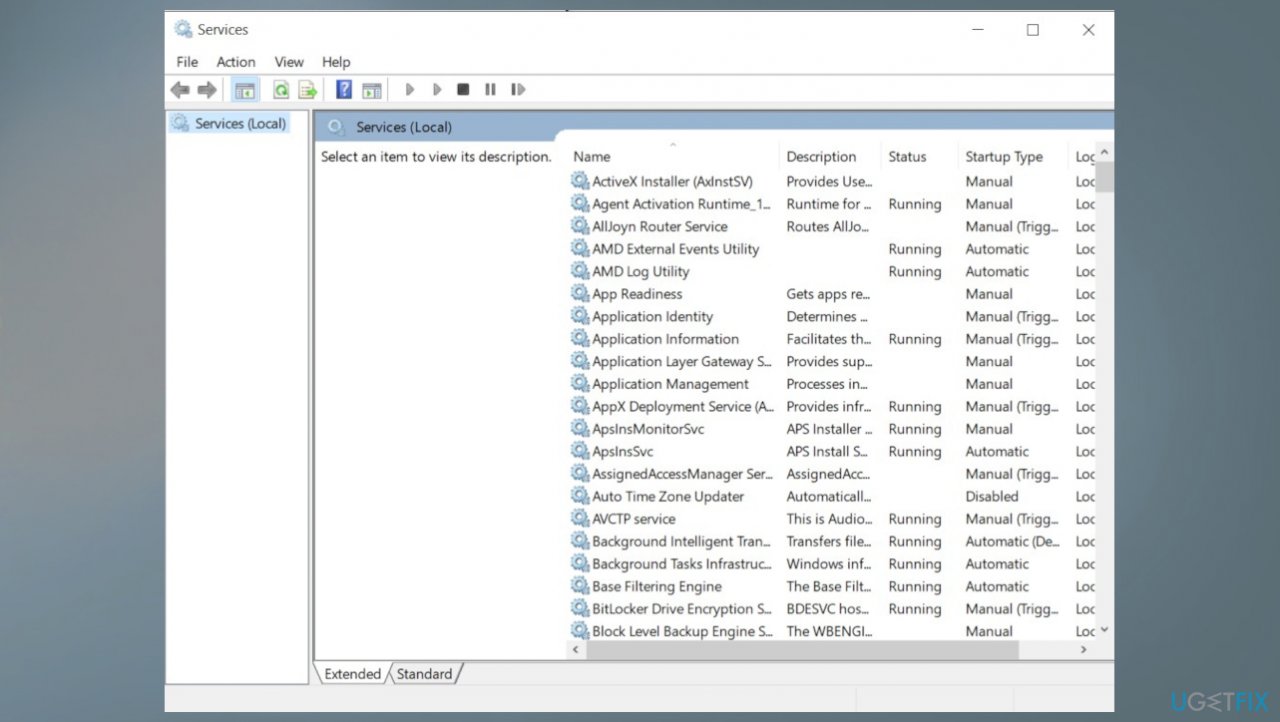
Kb5018410 fails to install on windows services - Scroll down and look for a service named Windows update.
- Right-click on it and select Stop.
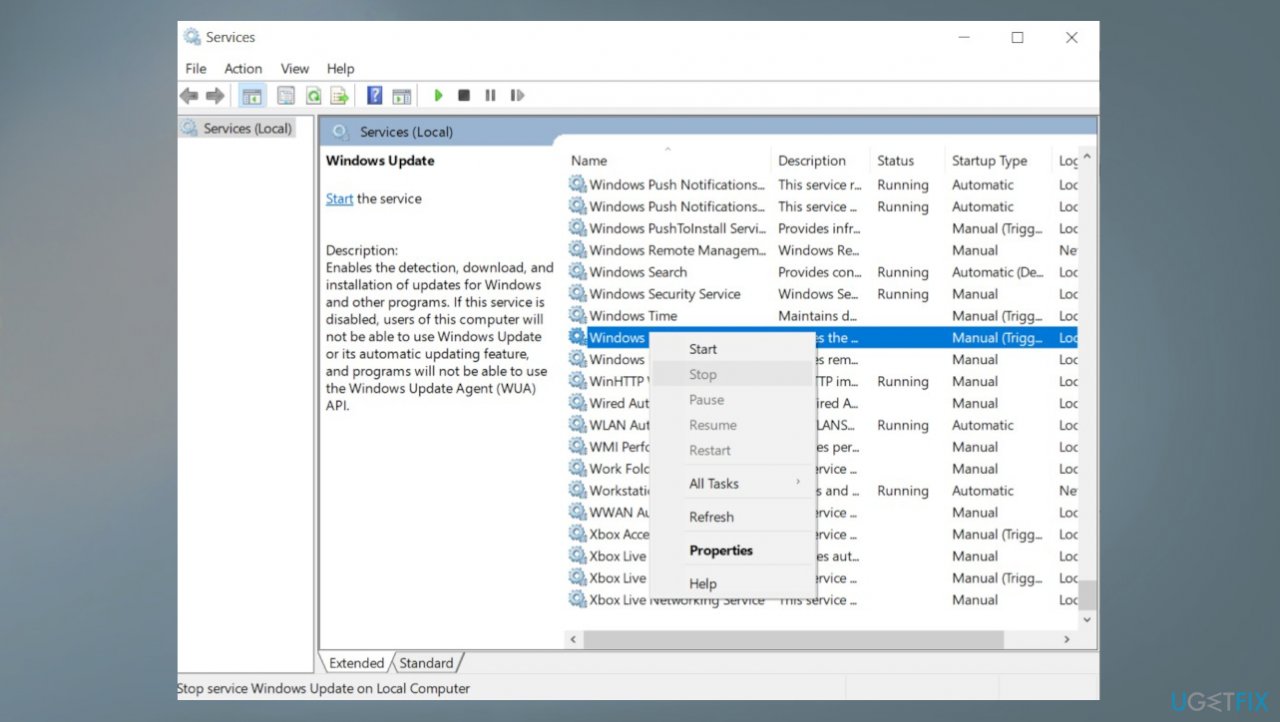
Kb5018410 fails to install on windows update service - Do the same with Other services, BITS and Superfetch.
- Now navigate to C:\Windows\SoftwareDistribution\download.
- Here delete everything inside the folder.
- Restart the services which you disabled before.
- Right-click on the service name, and select start.
3. Run SFC and DISM scans
- Open Command Prompt as administrator by searching for CMD and choosing the right option.
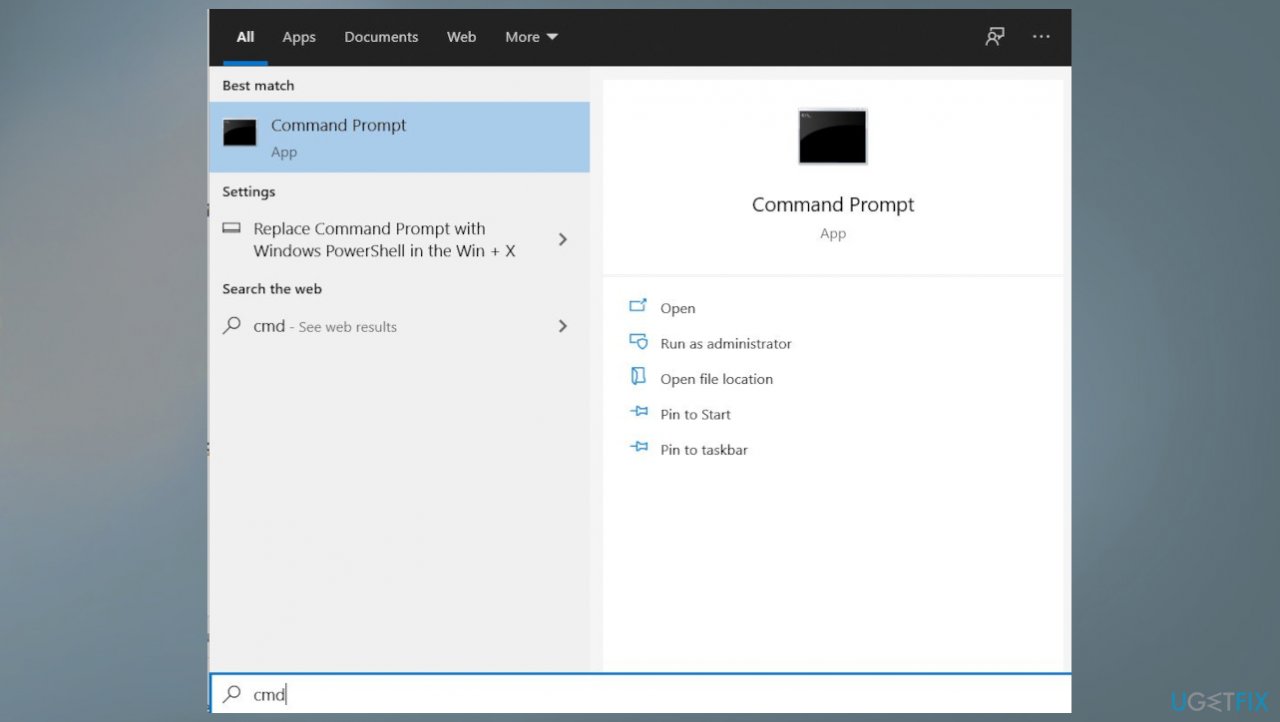
Kb5018410 fails to install on windows command prompts - Use the following command and press Enter:
sfc /scannow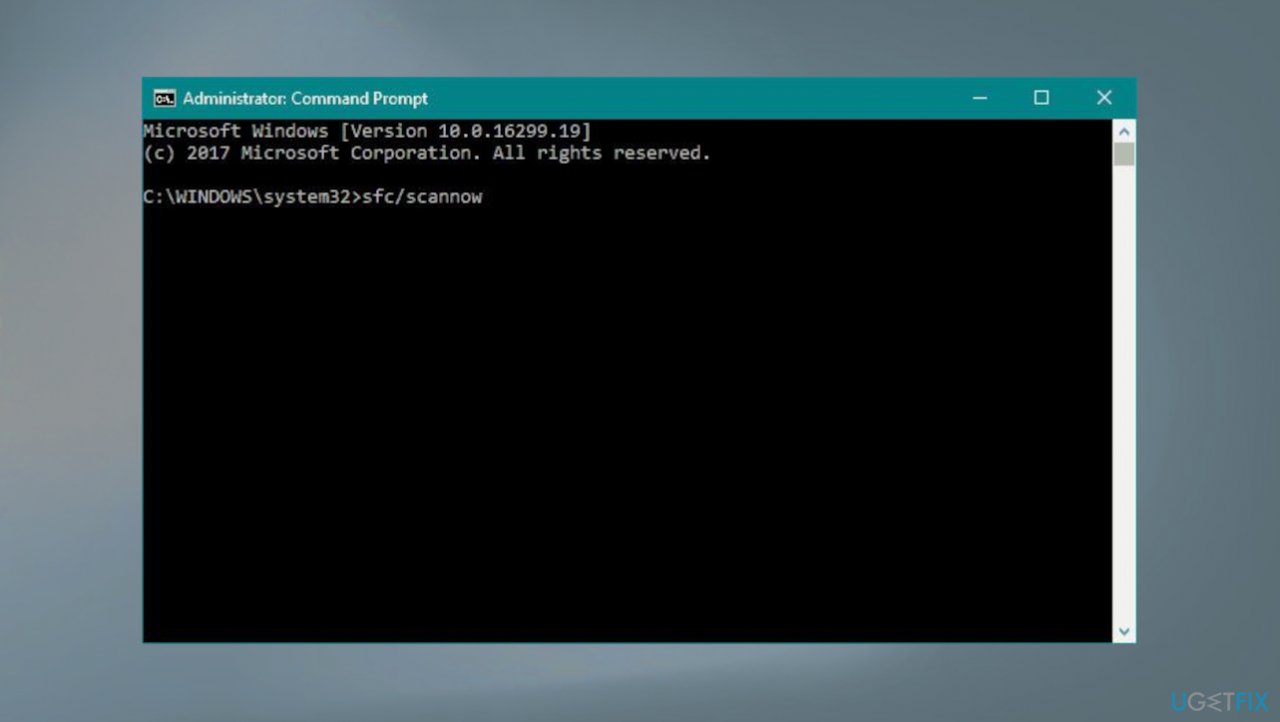
Kb5018410 fails to install on windows sfc - Reboot your system
- If SFC returned an error, then use the following command lines, pressing Enter after each:
DISM /Online /Cleanup-Image /CheckHealth
DISM /Online /Cleanup-Image /ScanHealth
DISM /Online /Cleanup-Image /RestoreHealth
4. Install the update manually
- Go to the Microsoft Update Catalog website.
- Type the KB number into the search bar, and press Enter.
- You will find many different versions on the update – you need to find the one that matches your PC specs and Windows version.
- Click the Download button and proceed with the on-screen instructions.
- Restart your PC.
5. Switch the DNS settings
- Press Windows key + R to open Run box.
- Type ncpa.cpl and click OK.
- Right-click on the active network adapter (Ethernet or WiFi).
- Then select Properties.
- Select Internet Protocol version 4 (TCP/IPV4).
- Then click Properties.
- Now select the radio button and enter the following DNS server address.
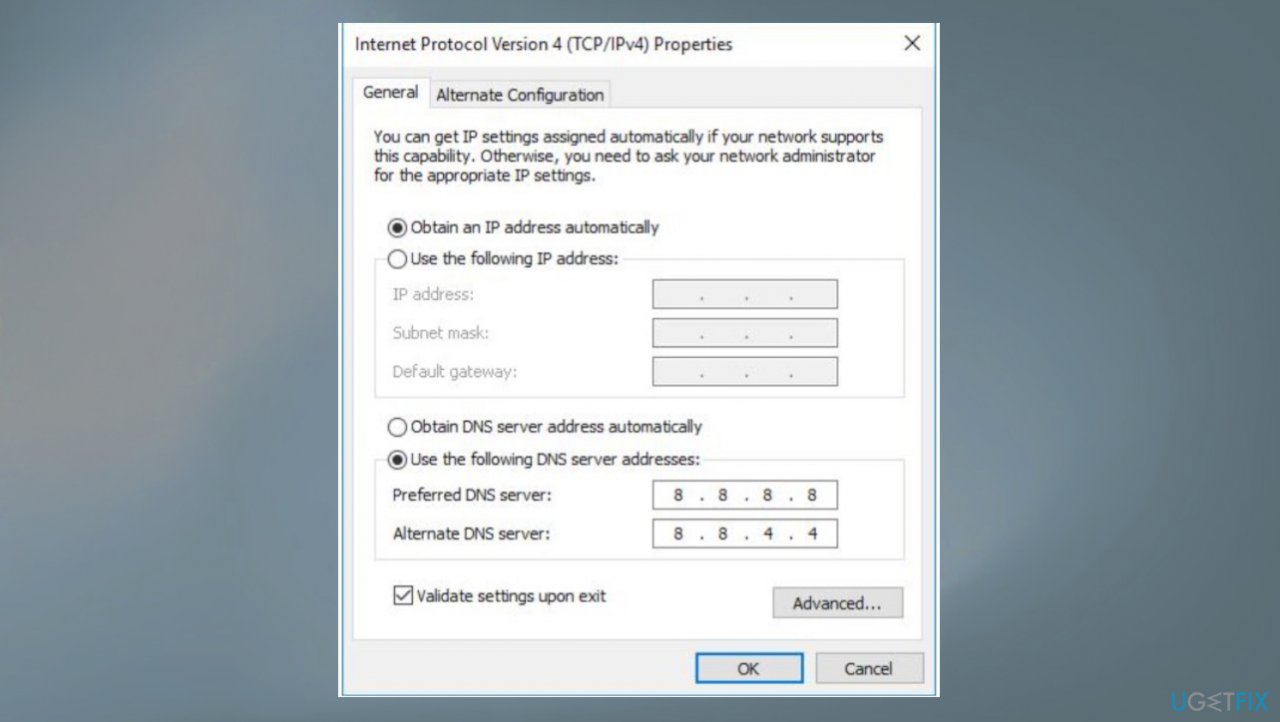
Kb5018410 fails to install on windows dns - Set preferred DNS server 8.8.8.8 and alternate DNS server 8.8.4.4
Bottom line
To fix the KB5018410 installation issue, you can troubleshoot Windows Update, ensure your date and time settings are correct, check for sufficient free space, and run an application to detect system issues. If these fixes do not resolve the problem, consider seeking further assistance or exploring additional troubleshooting methods.
Frequently asked questions
Try running the Windows Update Troubleshooter to identify and fix any issues that may be preventing the installation of KB5018410.
Yes, corrupted system files can interfere with updates; running the System File Checker (SFC) can help repair these files.
You can manually download the KB5018410 update from the Microsoft Update Catalog and install it directly on your Windows 10 system.




Report an issue
What's wrong with this guide? We review every report and update or remove content.
Report received — thank you. We'll review and fix it.
You need a free account to submit a report.
Be the first to comment