How to fix
KB5019274 fails to install
on Windows
Resolve KB5019274 installation issues on Windows 10 and 11 effortlessly with our expert-tested solutions. Fix it in minutes and get back on track!


What causes How to fix KB5019274 fails to install in Windows?
- Network disruptions
- Power cuts
- Improperly set-up services
- Corrupted system files
- Update errors
Repairs Windows system files, removes malware, and restores a clean OS state — without reinstalling.
KB5019274 fails to install for me. This is the first time I have experienced update failure, so I am not sure what to do next. It's been almost a week already, and it still doesn't install. I'm running Windows 11 22H2 version, by the way.
Maintaining Windows updates is crucial for securing and stabilizing your operating system. These updates address security weaknesses, enhance performance, resolve bugs, and offer various other benefits to users. Typically, updates are released on the second (or sometimes third) Tuesday of each month, which is commonly referred to as Patch Tuesday.
KB5019274 is a Preview build 22000.1516 for Windows 11, which includes plenty of new features and tons of improvements to the existing ones. It also addresses a few bugs, such as where the touch keyboard wasn't opening or file search based on file content failed to work.
Not all the users were able to implement these fixes and improvements, as KB5019274 failed to install. In some cases, users might get an error code along with the failure (such as 0x800703f1, although it may vary), while others receive a simple failure without any hints or error codes, which makes it more difficult to troubleshoot.
Update failures can result from various causes, including network disruptions, power cuts, improperly set-up services, corrupted system files, and others. When a Windows update fails, you may encounter errors or face problems with your system, such as crashes or slow performance. Promptly addressing update failures is crucial in avoiding additional computer issues.
If KB5019274 fails to install for you repeatedly, there are plenty of things you can try to resolve it - we provide detailed instructions below. Before proceeding, you should attempt to fix your system with [d1] maintenance and repair utility, which can resolve most common Windows issues automatically for you.
Solution 1. Run the troubleshooter
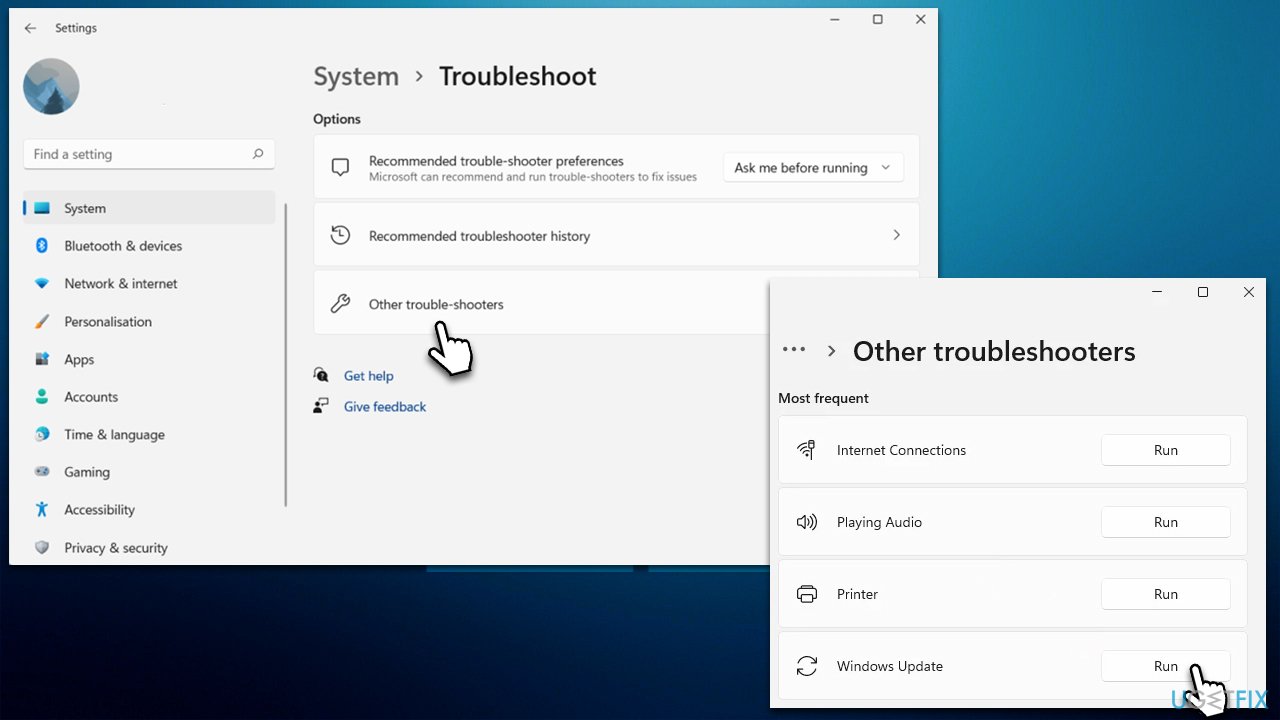
Windows troubleshooters are great tools that can help users to resolve various issues automatically, so we recommend running Windows update troubleshooter.
- In Windows search, type in troubleshoot and press Enter (or go to Start > Settings > System > Troubleshoot).
- Pick Other trouble-shooters (in Windows 10, pick Additional troubleshooters).
- Scroll down to locate the Windows Update option and click Run.
- The scan will start running - wait till it's finished and apply the offered fixes.
Solution 2. Scan for corrupted system files
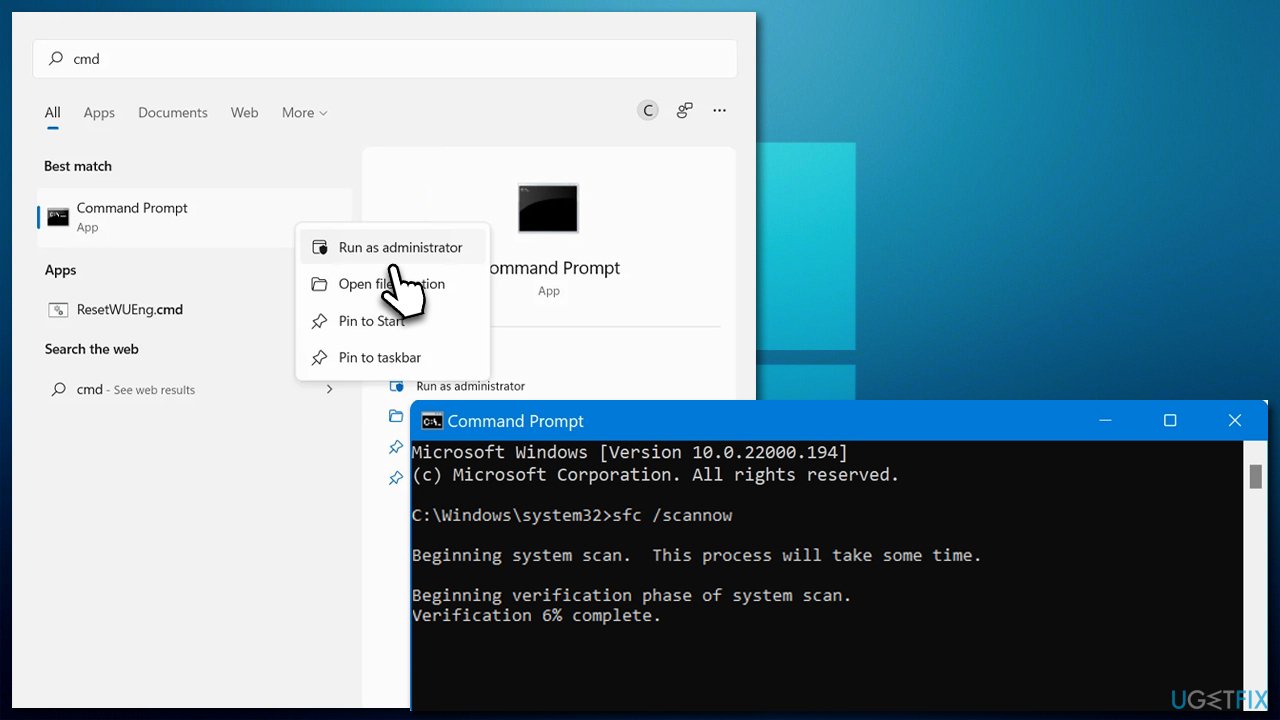
- Type cmd in Windows search.
- Right-click on Command Prompt and pick Run as administrator.
- When User Account Control asks you whether you want this program to allow make changes to this PC, click Yes.
- Use the following commands, pressing Enter after each:
sfc /scannow
DISM /Online /Cleanup-Image /CheckHealth
DISM /Online /Cleanup-Image /ScanHealth
DISM /Online /Cleanup-Image /RestoreHealth - Restart your PC.
Solution 3. Disable or uninstall third-party security software
Using strong security software on your system at all times is not only suggested but required for those who want to protect their system from harmful malware like ransomware. There are many options available for security apps, and while some people are satisfied with Microsoft Defender, others choose more extensive protection using third-party tools.
Sadly, some security apps can cause problems as they work at the kernel level and have the maximum permissions available. This can lead to conflicts with Windows components and even block Windows updates. These issues are usually fixed by the software provider with a patch, but it may take some time. So, it is recommended to temporarily turn off or uninstall the security tool and try updating Windows again.
Solution 4. Install the update manually
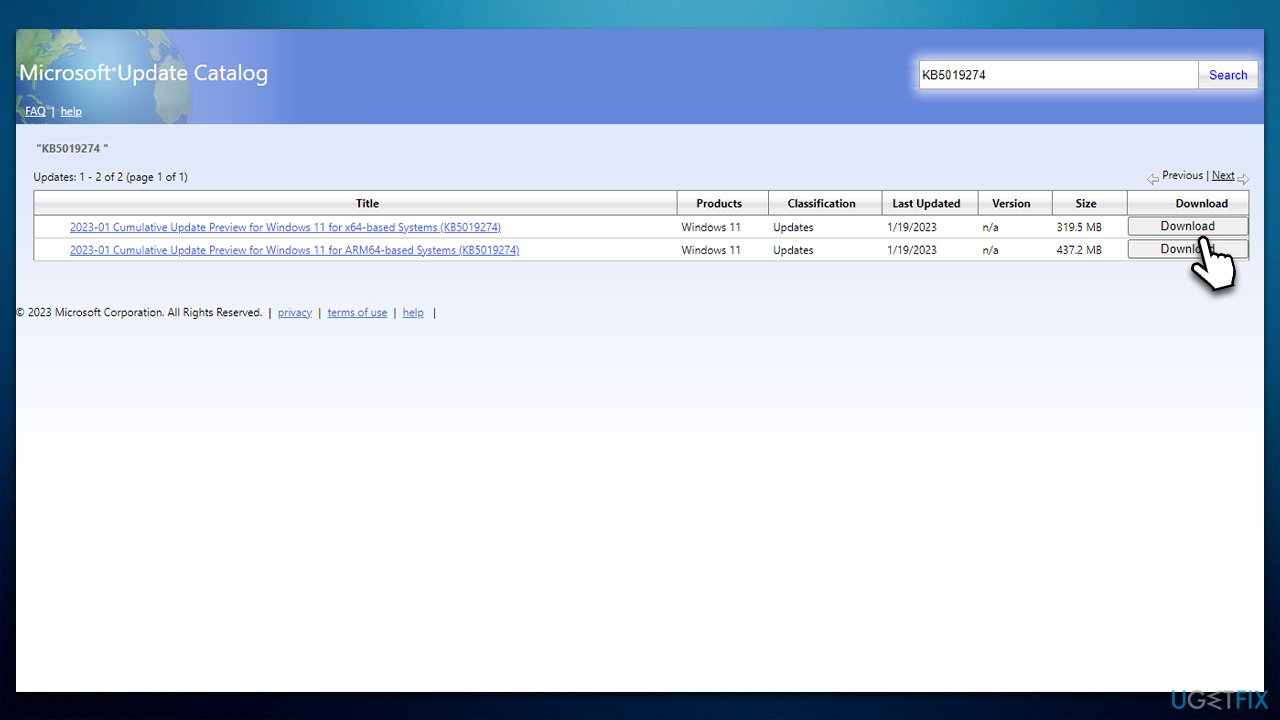
You can always try downloading the update yourself and installing it manually.
- Go to Microsoft Update Catalog.
- Here, type in KB5019274 and click Search or press Enter.
- Pick the version that is compatible with your operating system (ignore updates for the server) and click Download.
- Follow the on-screen instructions and restart your system.
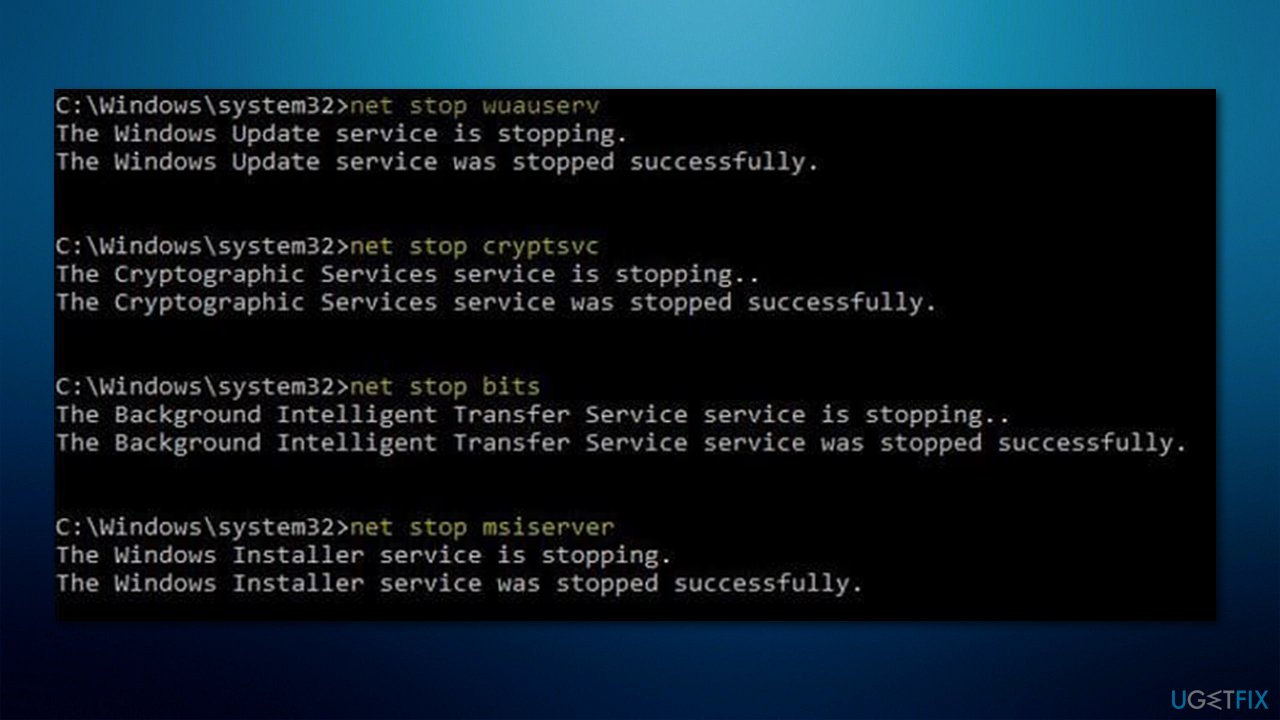
Solution 5. Reset Windows Update components
- Open Command Prompt as administrator, as we previously explained.
- In the new Command Prompt window, copy and paste each of these commands, pressing Enter every time:
net stop bits
net stop wuauserv
net stop appidsvc
net stop cryptsvc
Del "%ALLUSERSPROFILE%\Application Data\Microsoft\Network\Downloader\*.*"
rmdir %systemroot%\SoftwareDistribution /S /Q
rmdir %systemroot%\system32\catroot2 /S /Q
regsvr32.exe /s atl.dll
regsvr32.exe /s urlmon.dll
regsvr32.exe /s mshtml.dll
netsh winsock reset
netsh winsock reset proxy
net start bits
net start wuauserv
net start appidsvc
net start cryptsvc - Reboot your computer.
Solution 6. Check disk
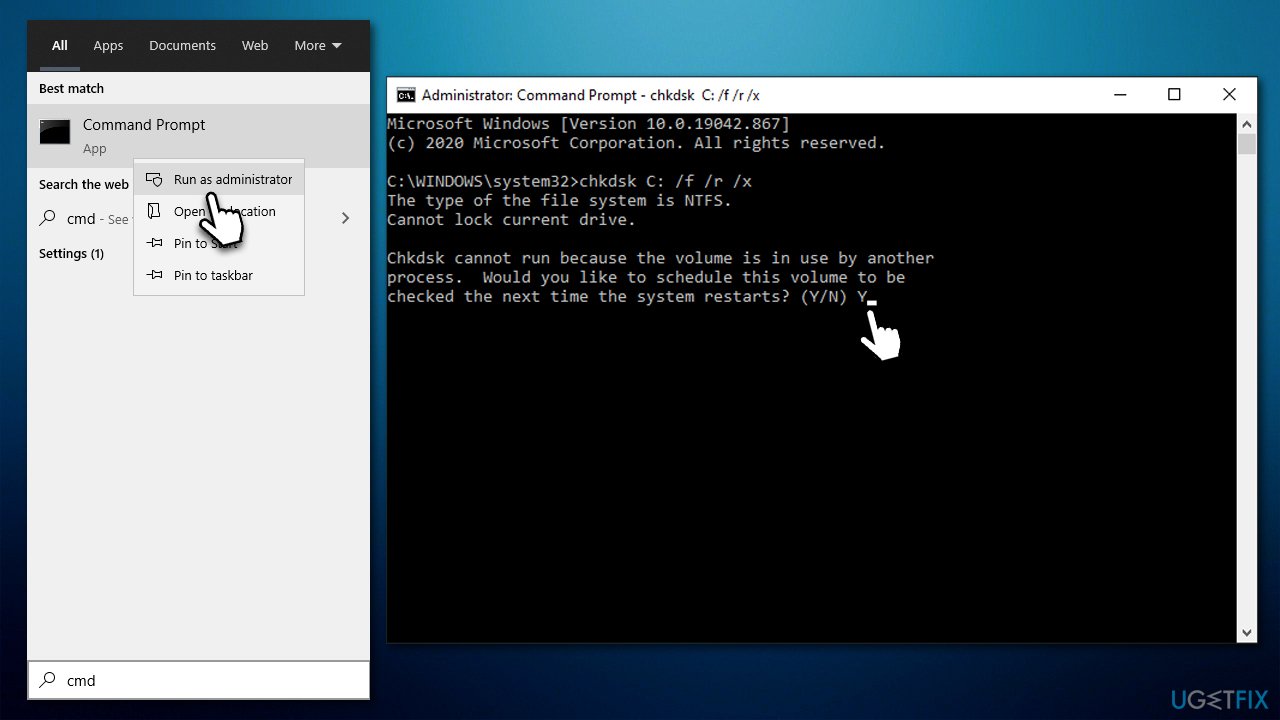
- Open Command Prompt as administrator.
- If you are using a hard drive (HDD) for storing your operating system files on, use the following command and press Enter:
chkdsk c: /f - If you are using a Sold State Driver (SSD) for Windows, use the following command instead:
chkdsk c: /f /r /x - If you are asked whether you want to proceed with the check after a reboot, type in Y and press Enter.
- Restart your PC to begin the check.
Solution 7. Try using Media Creation Tool
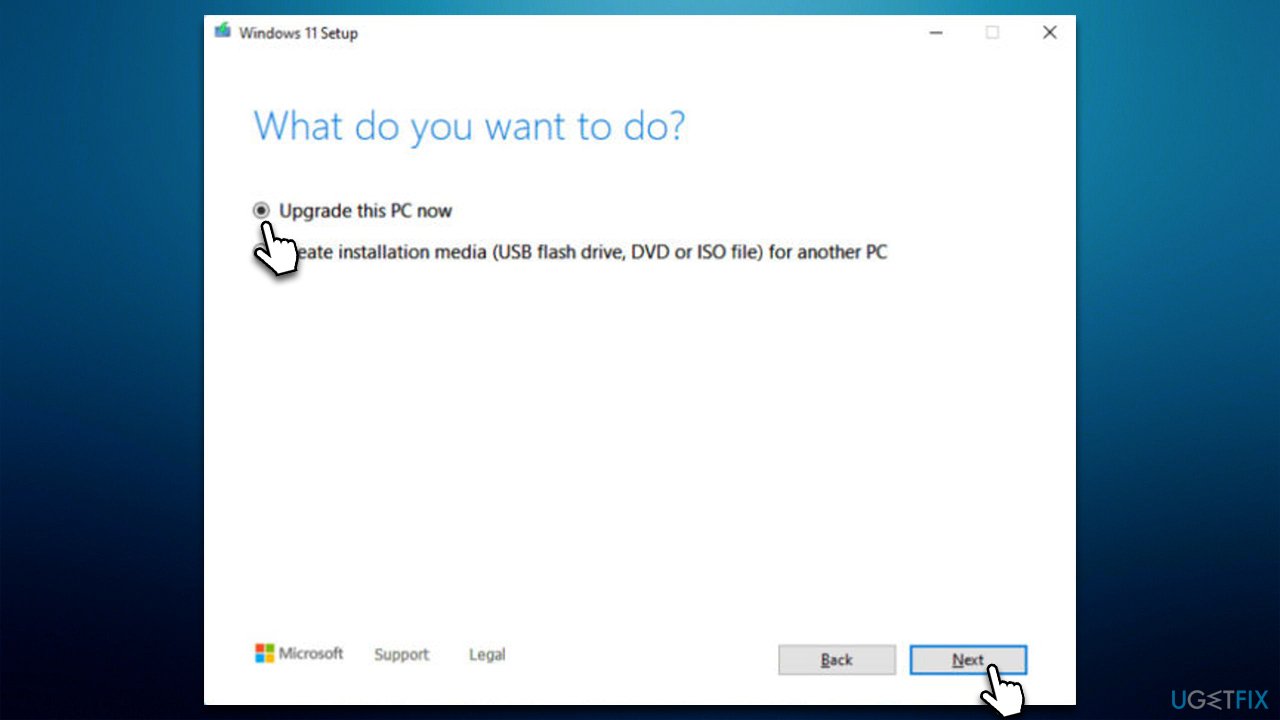
You can always try using Media Creation Tool:
- Visit the official Microsoft website and download the Windows installation media.
- Double-click the installer and click Yes when prompted.
- Agree to the terms and click Next.
- Select Upgrade this PC now > Next.
- Wait for Windows to download files.
- Agree to the terms once again and click Next.
- Before installing, make sure that you are happy with your choices (otherwise, you can click the Change what to keep option).
- Click Install to begin the upgrade process.
Bottom line
To resolve the KB5019274 installation failure, you can run the Windows update troubleshooter, attempt system maintenance and repair utilities, and check for any network or power issues. If these solutions do not work, consider further troubleshooting or seeking professional assistance.
Frequently asked questions
You can try running the Windows Update Troubleshooter to fix any underlying issues preventing the installation of KB5019274. Additionally, ensure that your system is up to date with all previous updates before attempting to install this particular update.
Yes, you can manually download the KB5019274 update from the Microsoft Update Catalog and install it directly on Windows 11. Make sure to choose the correct version that matches your system architecture.
Common reasons for the failure include corrupted system files, insufficient disk space, or conflicts with antivirus software. Running the System File Checker tool and ensuring enough storage can often resolve these issues.




Report an issue
What's wrong with this guide? We review every report and update or remove content.
Report received — thank you. We'll review and fix it.
You need a free account to submit a report.
Be the first to comment