How to fix
KB5020030 fails to install
on Windows
Fix the KB5020030 installation error on Windows 10 or 11 effortlessly with our proven methods. Get expert-tested solutions today!

What causes How to fix KB5020030 fails to install in Windows?
- Services related to the update process might not be configured correctly
- Windows update caches might be corrupted
- Installation failures may come with error codes like 0x800704bd or 0x8024A004
- Some users may not receive an error code, just a message to retry
- The update may be optional and not all users are entitled to it
Repairs Windows system files, removes malware, and restores a clean OS state — without reinstalling.
I am trying to install the newest KB5020030 update on my Windows 10 machine, but it keeps failing, telling me to try again later. I did, but nothing came out of it. Some help would be appreciated here.
Regardless of which Windows version you use, you should be entitled to regular system updates. Microsoft usually delivers the newest updates every second Tuesday of every month, a process more widely known as Patch Tuesday.[ref en-2] During this time, people can expect feature, cumulative, security, quality, and other updates at this time.
KB5020030 is an optional update that was released on November 15, 2022, for Windows 10 versions 22H2, 21H2, and 21H1 builds 9042.2311, 19043.2311, 19044.2311, and 19045.2311.[ref en-1]
This preview build included some minor feature improvements to the Windows search function and Cortana's pre-pin removal from the taskbar by default. Also, users can expect some bug fixes, including Microsoft Store update failures for some users, printer issues, as well as time zone issues in the Republic of Fiji for this year. It as well includes quality improvements for Windows 10 servicing stack to ensure updating process goes smoothly.
Regardless of which feature or improvement one finds the most useful, KB5020030 failed to install for some users. Windows update installation failures are not uncommon and often come around with an error code, for example, 0x800704bd or 0x8024A004. Nonetheless, some users may not receive a code, with Windows simply saying that the process failed and needs to be retried again.
Unfortunately, most users do not succeed when they listen to this advice, and KB5020030 doesn't install. Luckily, there are several troubleshooting steps that can be undertaken in order to fix the issue. For example, it could be that services related to the update process might not be configured correctly, or Windows update caches might be corrupted, preventing the installation of the new update files.
Below we address these are several other instances and show ways how to fix the KB5020030 failing to install issue. [d1] could also be useful in resolving the issue automatically, so if you are not particularly IT-savvy or would like a quicker solution, we definitely recommend trying this software.
Fix 1. Run the troubleshooter
If you haven't done so yet, we highly advise running the troubleshooter first.
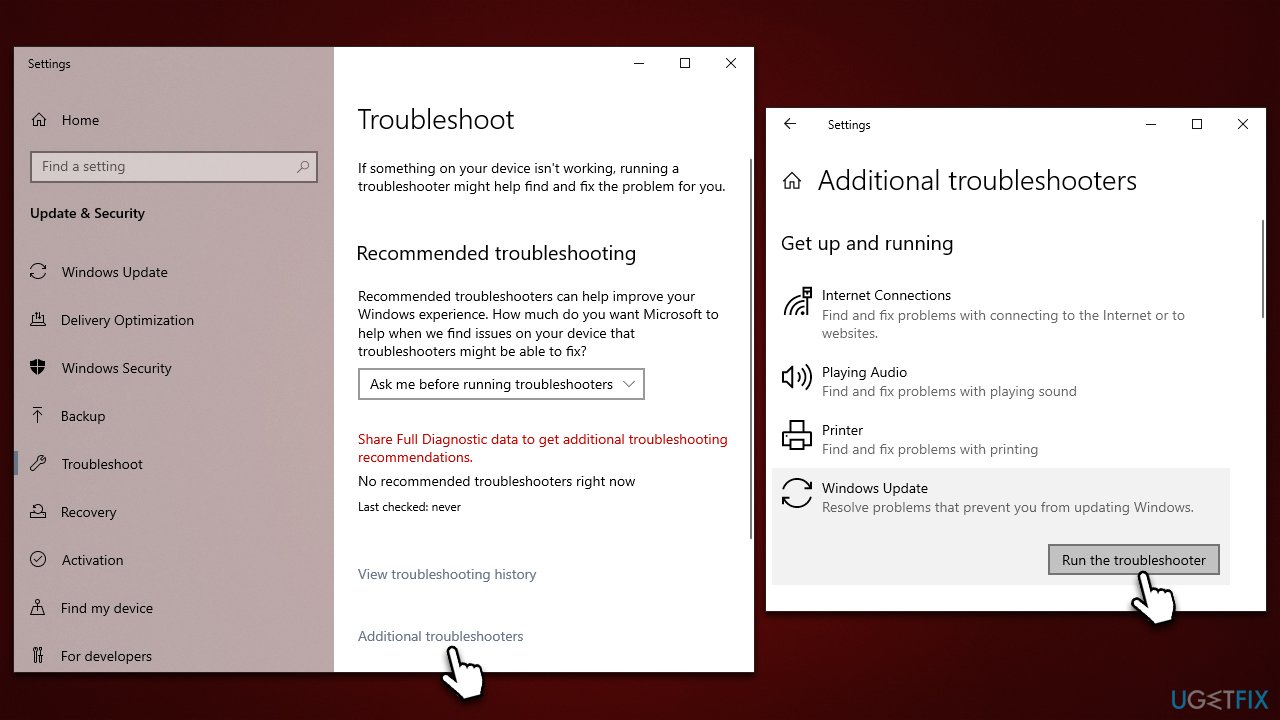
- Type Troubleshoot in Windows search and press Enter
- Pick Additional troubleshooters
- Find Windows Update from the list
- Select it and pick Run the troubleshooter
- Apply the suggested fixes and restart your computer.
Fix 2. Check BITS and Windows update services
For the update process to succeed, several Windows services[ref en-3] need to be running. If they are already running, restart them as follows:
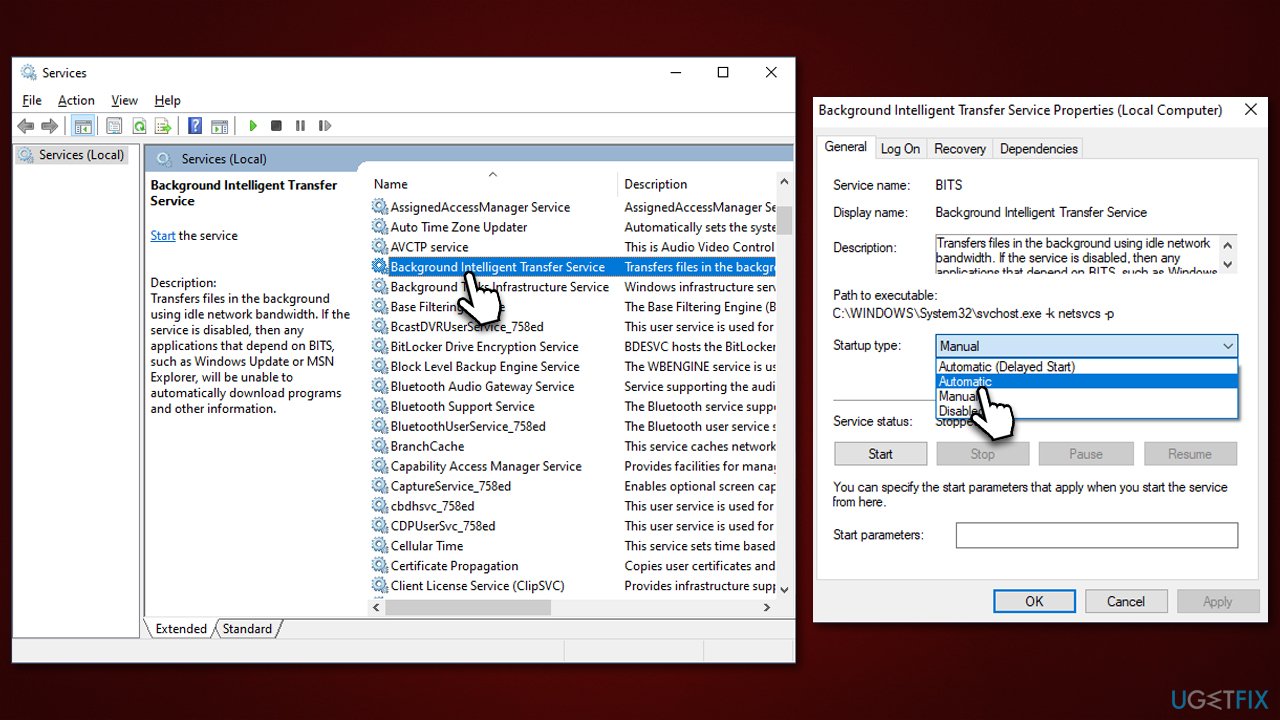
- Type in Services in Windows search and press Enter
- Locate Background Intelligent Transfer Service (BITS)
- If it is already running, right-click and select Restart
- if the service is not running, double-click it, select Automatic under the Startup type from the drop-down menu
- Click Start, Apply, and OK
- Now find the Windows Update service and perform the same steps as with BITS.
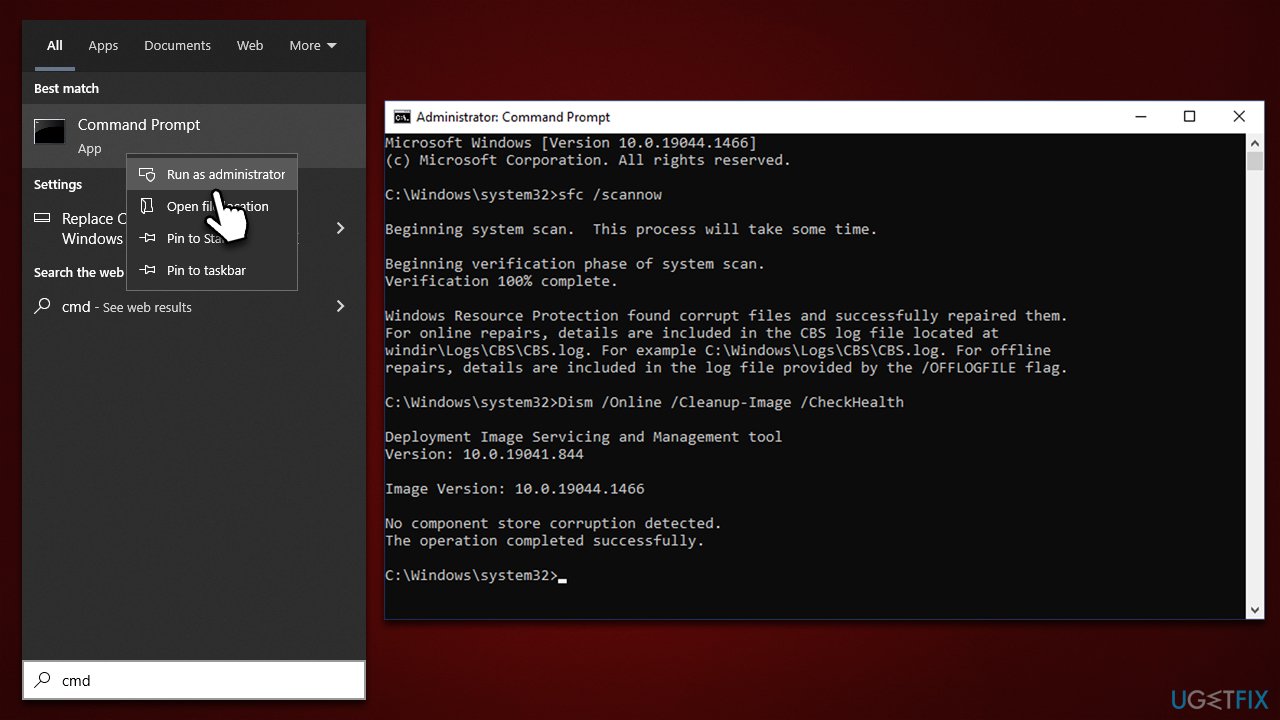
Fix 3. Repair system corruption
Command Prompt is a powerful tool that can be used to perform a variety of commands that wouldn't otherwise be possible. With SFC and DISM, you can check and fix corrupted system files.
- Type cmd in Windows search, right-click on Command Prompt and select Run as administrator
- When User Account Control shows up, click Yes
- Use the following command and press Enter:
sfc /scannow - Once the scan is complete, you should also run the following commands to repair Windows image files (don't forget to press Enter after each):
DISM /Online /Cleanup-Image /CheckHealth
DISM /Online /Cleanup-Image /ScanHealth
DISM /Online /Cleanup-Image /RestoreHealth - Restart your system.
Fix 4. Install the update manually
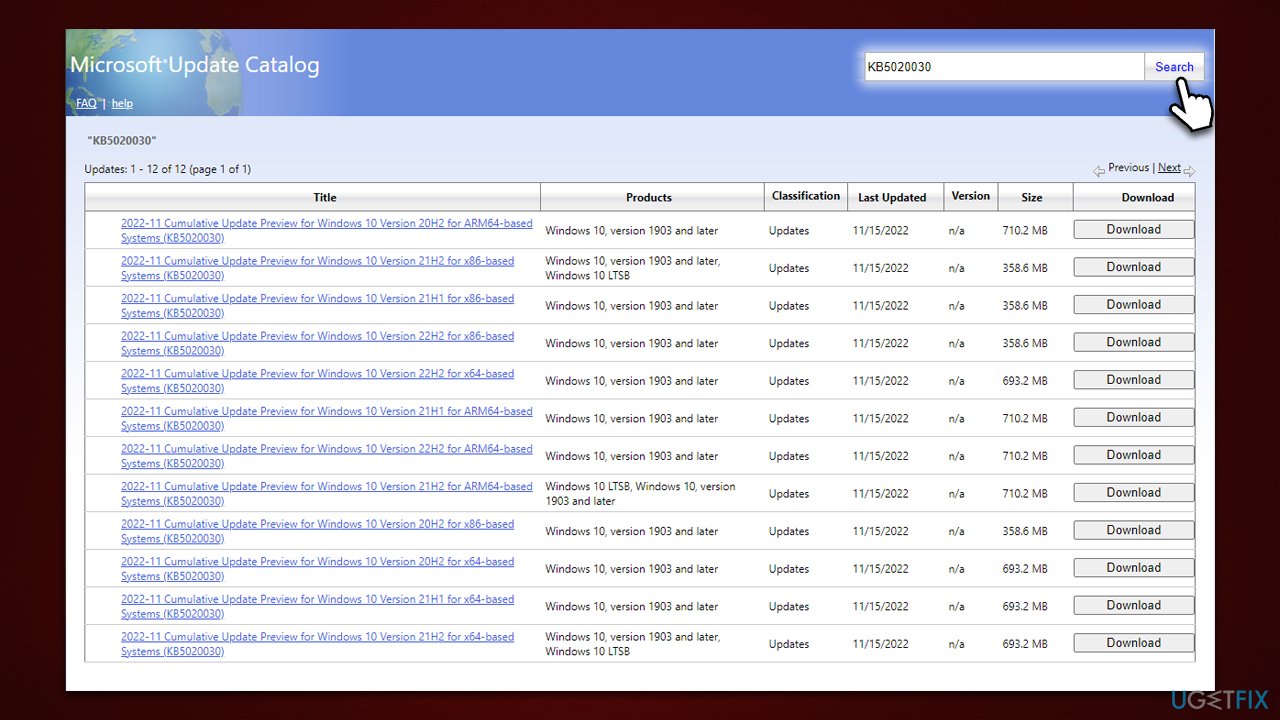
- Go to the official Microsoft Update Catalog website - a database of all available updates for Windows
- In the search box, type in KB5020030 and hit Enter or click Search
- You will see the list of all the KB5020030 versions - make sure you select the correct OS version and system architecture of your hardware
- Hit Download
- Proceed with the on-screen instructions
- Once installed, make sure you restart your device.
Fix 5. Reset Windows Update Components
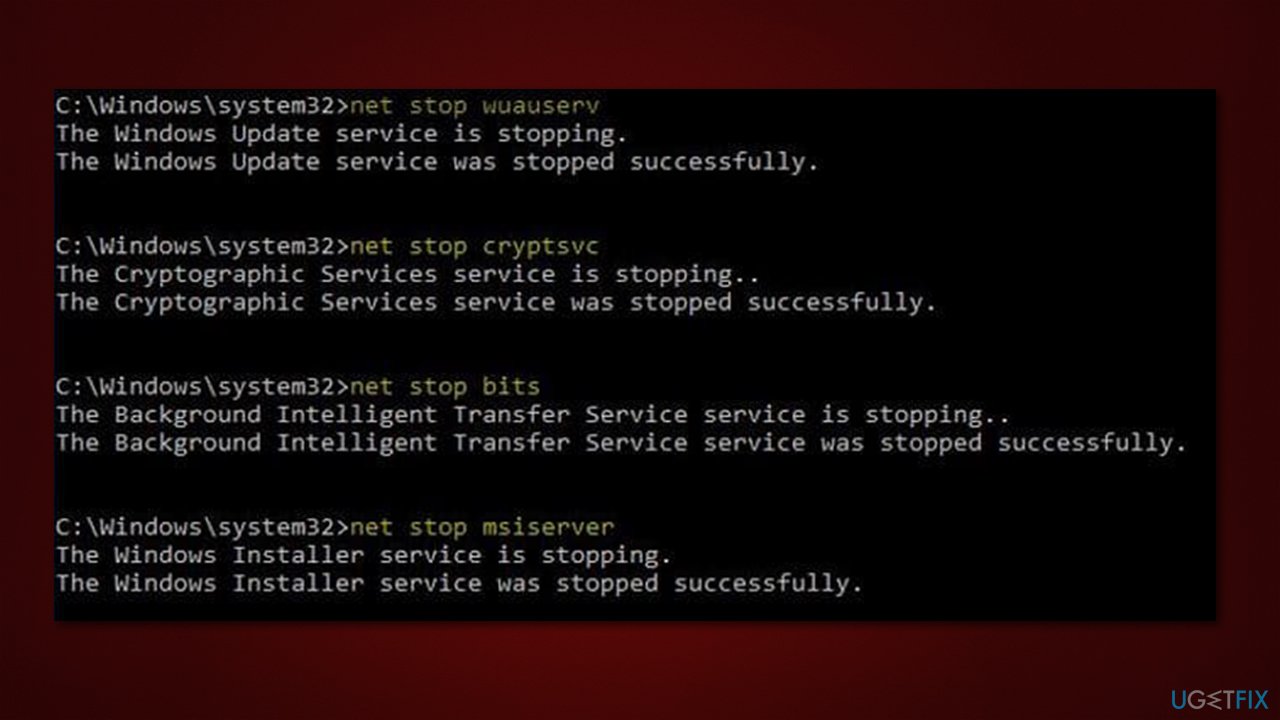
- Open Command Prompt as administrator, as previously explained
- Copy and paste each of these commands, pressing Enter each time:
net stop bits
net stop wuauserv
net stop appidsvc
net stop cryptsvc
Del “%ALLUSERSPROFILE%\Application Data\Microsoft\Network\Downloader\*.*”
rmdir %systemroot%\SoftwareDistribution /S /Q
rmdir %systemroot%\system32\catroot2 /S /Q
regsvr32.exe /s atl.dll
regsvr32.exe /s urlmon.dll
regsvr32.exe /s mshtml.dll
netsh winsock reset
netsh winsock reset proxy
net start bits
net start wuauserv
net start appidsvc
net start cryptsvc - Reboot your system.
Fix 6. Use Media Creation Tool
Make sure you disconnect all unnecessary devices, such as printers, before proceeding. Also, uninstall third-party security software and make backups of your personal files, just in case.
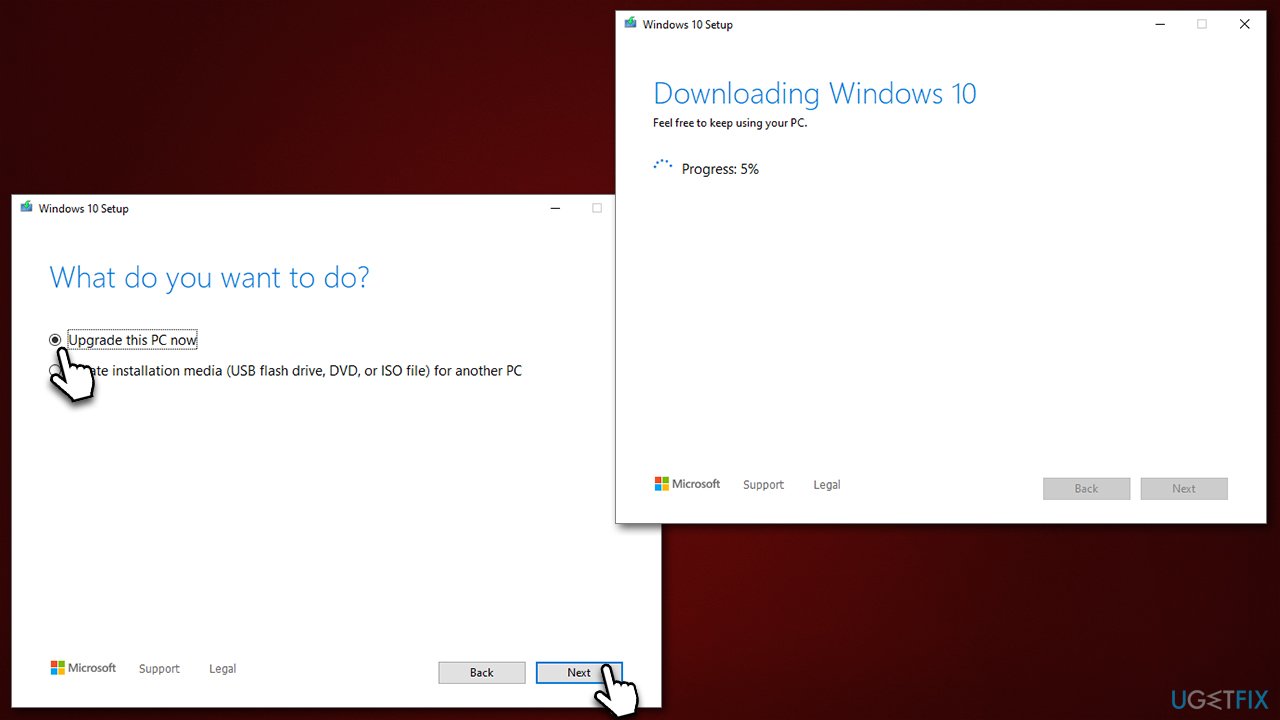
- Visit the official Microsoft website and download Windows 10 installation media
- Double-click the installer and select Yes when UAC shows up
- Agree to the terms and click Next
- Select Upgrade this PC now and click Next
- Wait till Windows downloads all the necessary files
- Restart your computer once finished.
Bottom line
To fix the KB5020030 installation failure, users can check the configuration of update-related services and clear the Windows update cache. If these steps do not resolve the issue, users may need to explore additional troubleshooting methods or seek further assistance.
Frequently asked questions
You can try running the Windows Update Troubleshooter, which can help identify and fix issues with the update process. If that doesn't work, consider manually downloading the update from the Microsoft Update Catalog.
Common reasons include insufficient disk space, corrupted system files, or conflicts with third-party software. Ensure you have enough disk space and run a system file check using the 'sfc /scannow' command in Command Prompt.
Check for specific error codes in the Windows Update settings, then search for those codes on the Microsoft support site for tailored solutions. Additionally, resetting Windows Update components can often resolve these issues.




Report an issue
What's wrong with this guide? We review every report and update or remove content.
Report received — thank you. We'll review and fix it.
You need a free account to submit a report.
Be the first to comment