How to fix
KB5021089 fails to install
on Windows
Resolve KB5021089 installation issues on Windows 10 effortlessly. Follow our expert-tested guide for quick and effective solutions. Fixed in minutes!

What causes How to fix KB5021089 fails to install in Windows 10?
- Corrupted system files
- Bugged Windows update caches
- Certain services not running
- Anti-malware software interference
Repairs Windows system files, removes malware, and restores a clean OS state — without reinstalling.
Hey, I can't install the KB5021089 update in Windows. I'd appreciate it if you could provide any tips on how to resolve this. Thanks in advance.
Windows updates are important because they often include critical security patches and bug fixes that help protect your computer from hacking and malware attacks, as well as ensure that your computer's operating system and software are running efficiently. They may also include new features and improvements to enhance the performance and user experience of your computer. It is important to regularly install updates to keep your computer secure and running smoothly.
Usually, Microsoft delivers updates on the second or third Tuesday of every month, and they can include feature, cumulative, security, and other types of updates. They are usually marked with a KB number, which is done for identification purposes.
KB5021089 was an update released on December 13, 2022, and consisted of NET Framework 3.5, 4.8, and 4.8.1 security patch for Windows 10 version 22H2. The update was meant to address the CVE-2022-41089 security vulnerability, where restricted mode was triggered for parsing XPS files, allowing remote code execution by the attackers.
Some people could not install this security improvement, however, because KB5021089 failed to install. While some people reported getting an error code 0x80073712, while others received just a generic message that said updates simply failed and that the process would be retried later.
Unfortunately, waiting or rebooting did not help users, and KB5021089 was not installing even after a while. If updates are stuck like that, it is likely that there is an issue with one's device - corrupted system files, bugged Windows update caches, certain services not running, and similar issues could be responsible.
Before proceeding to the below manual solutions, we recommend trying to remediate the system with [d1] PC repair tool, which can find corrupted system files and fix them automatically for you. It can also help you deal with other common Windows problems, including BSODs, random crashes, DLL errors, registry corruption, and more.
Method 1. Disable or uninstall anti-malware software
If you are using third-party security software, it might be why KB5021089 is failing to install. If you have an overly stringent anti-malware program, it may occasionally interfere with connections to Microsoft's servers and prevent the update from being successfully installed.
To minimize any issues, we advise you to temporarily uninstall or disable your anti-malware software before downloading the update. This way, you can avoid potential problems that could be caused by all of the changes made to your system.
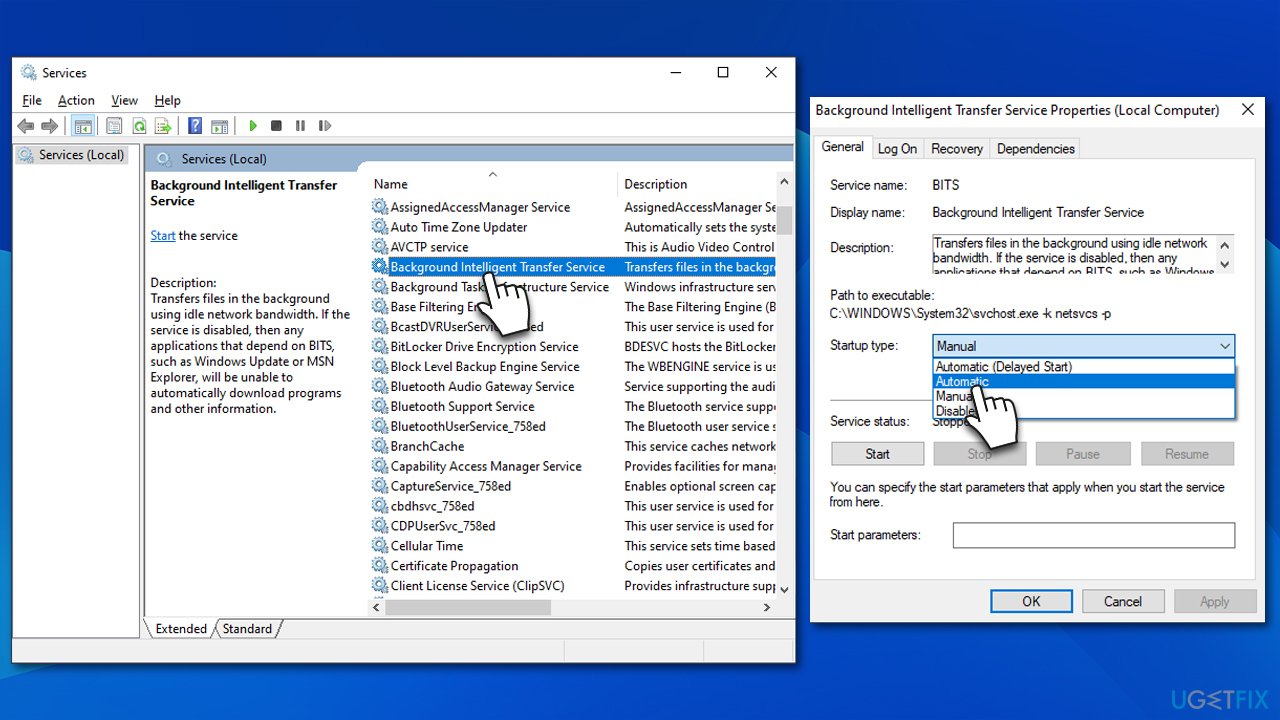
Method 2. Check BITS and Windows Update service
In order for the Windows update process to go smoothly, BITS and Windows Update services should be running. If they are already running, restart them instead:
- Type in Services in Windows search and press Enter.
- Locate Background Intelligent Transfer Service (BITS).
- If it is already running, right-click and select Restart.
- if the service is not running, double-click it, select Automatic under the Startup type from the drop-down menu.
- Click Start, Apply, and OK.
- Locate Windows Update Service and repeat the process above.
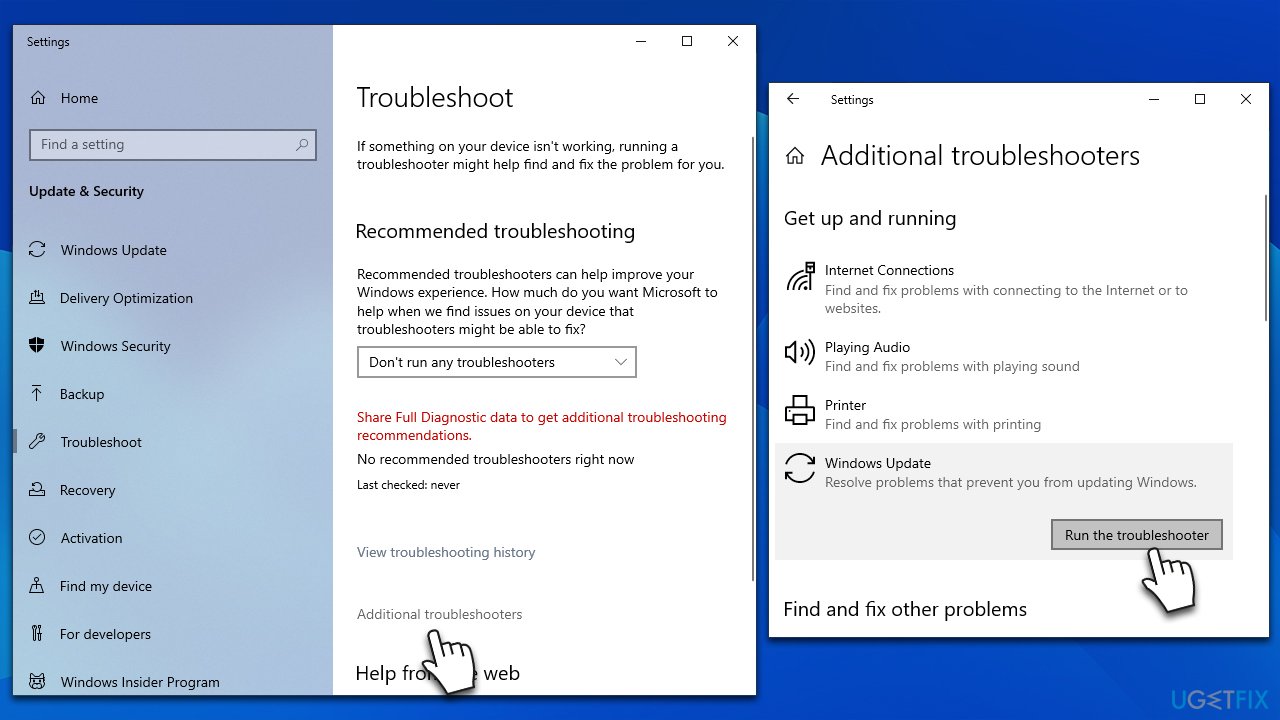
Method 3. Run the troubleshooter
- To troubleshoot Windows updates, begin by typing Troubleshoot into the Windows search bar and pressing Enter.
- Next, on the right side of the window, select Additional troubleshooters.
- Scroll down to locate the Windows update option and click on it.
- Click on Run the troubleshooter and allow the process to complete.
- Once it is finished, implement any recommended fixes and restart your device.
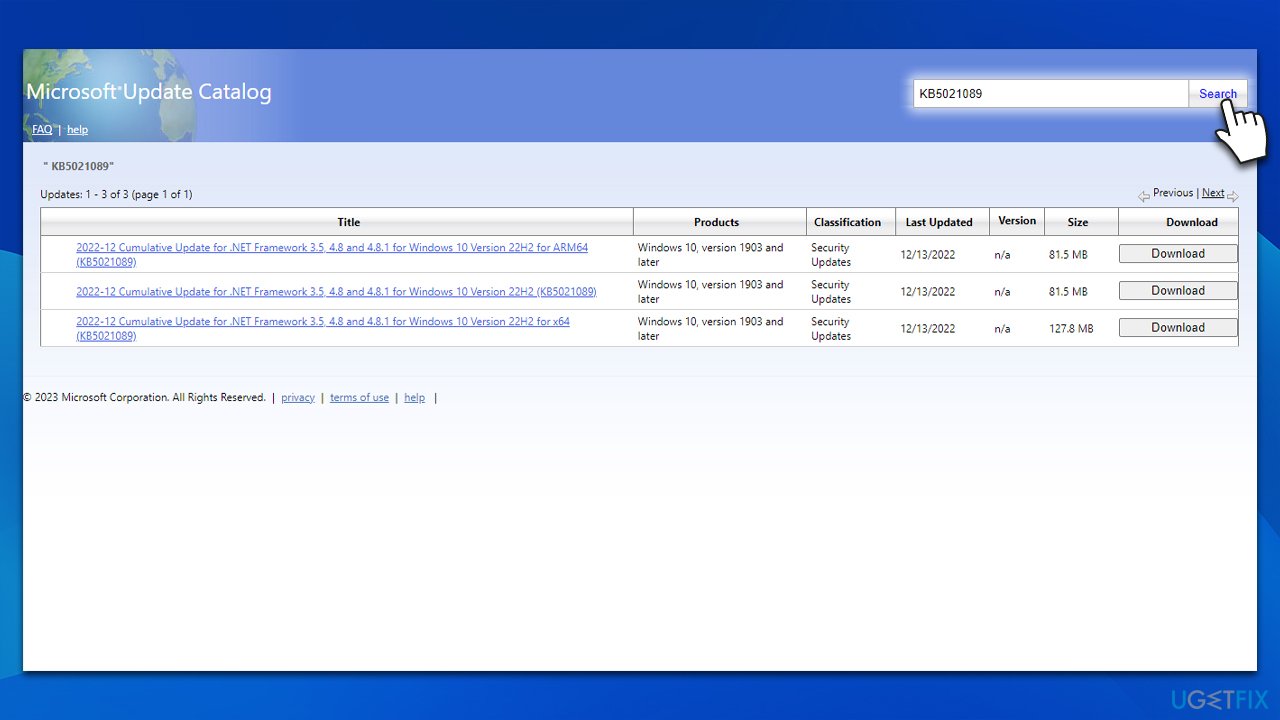
Method 4. Attempt to install KB5021089 manually
If the automatic installation is not successful, you can attempt installing it from Windows Update Catalog online.
- Open your web browser and navigate to the Microsoft Update Catalog.
- In the search box, enter the KB number of the update that failed to install.
- Locate the correct version of the update for your operating system by checking your System type (Right-click on Start and select System. Under Device specifications, check the System type).
- Click on Download and follow the prompts to complete the process.
- Once the update is installed, reboot your system.
Method 5. Run SFC and DISM
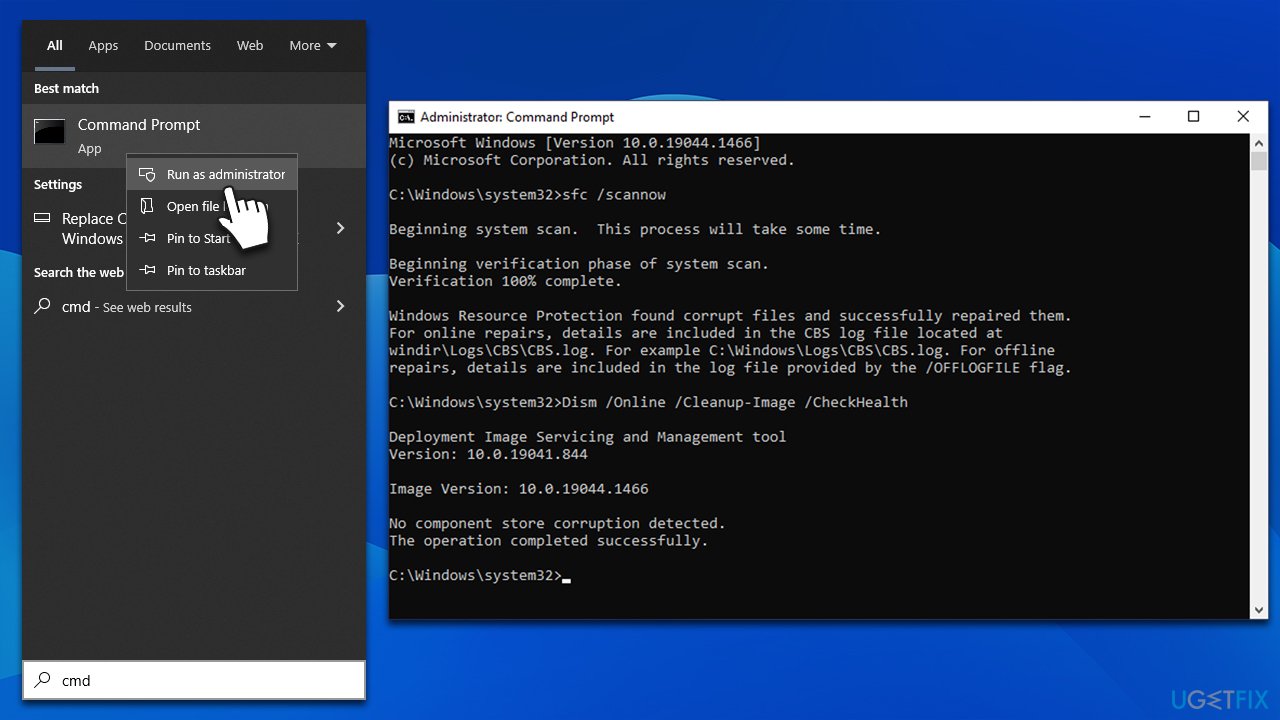
System file corruption is a frequent cause of Windows update installation failures. Therefore, it is recommended to check for and repair any system file issues before attempting to install updates. To check for system file integrity on your PC, you can use the elevated Command Prompt and run some commands:
- Type cmd in Windows search.
- Right-click on Command Prompt and pick Run as administrator.
- When User Account Control shows up, click Yes.
- In the Command Prompt, enter the following command lines one at a time, pressing Enter after each:
sfc /scannow
DISM /Online /Cleanup-Image /CheckHealth
DISM /Online /Cleanup-Image /ScanHealth
DISM /Online /Cleanup-Image /RestoreHealth - Restart your device.
Method 6. Clean the Component Store
- Run Command Prompt as administrator, as previously explained.
- In the new window, type in the following command:
Dism.exe /online /Cleanup-Image /StartComponentCleanup - Press Enter.
- Wait till the operation is complete.
Method 7. Perform in-place upgrade
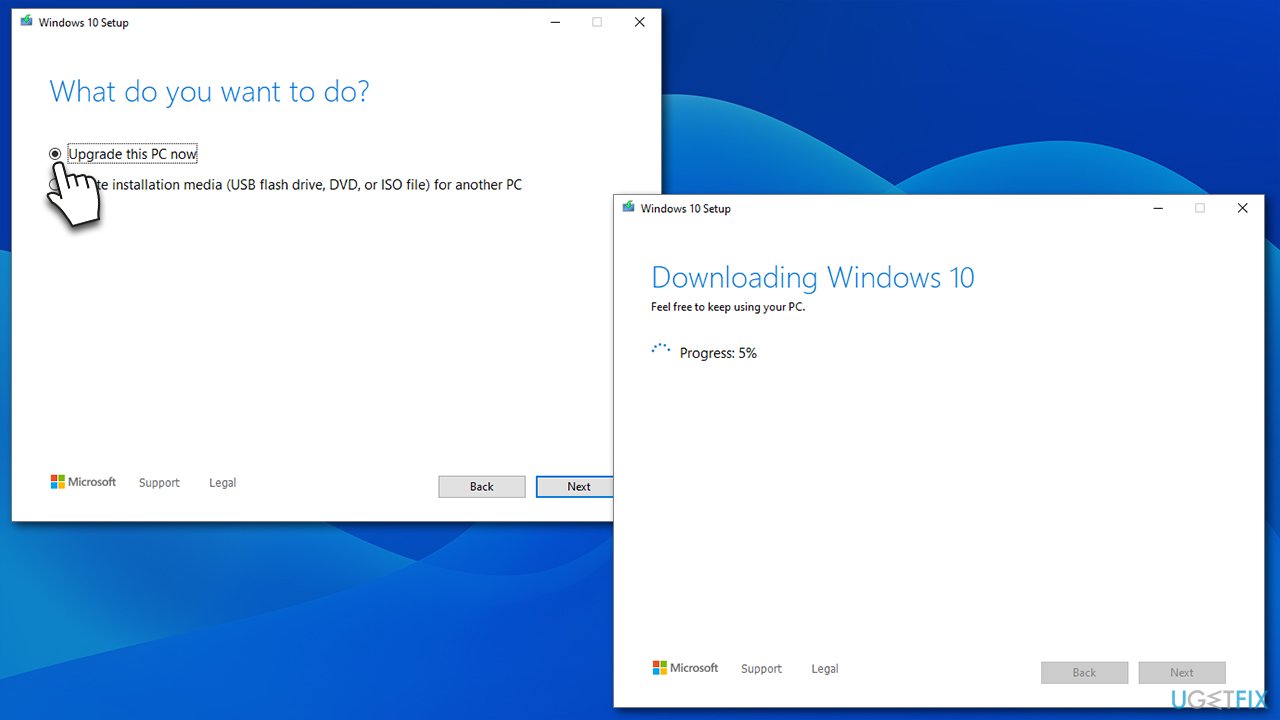
- Visit the official Microsoft website and download Windows 10 installation media.
- Double-click the installer and select Yes when UAC shows up.
- Agree to the terms and click Next.
- Select Upgrade this PC now and click Next.
- Wait till Windows downloads all the necessary files.
- Restart your PC once finished.
Bottom line
To fix the KB5021089 installation failure, you can try disabling or uninstalling any anti-malware software, and consider using a PC repair tool to automatically find and fix corrupted system files. If these solutions do not resolve the issue, further investigation into system settings and configurations may be necessary.
Frequently asked questions
First, try running the Windows Update Troubleshooter to identify and fix any issues. If that doesn't work, consider manually downloading the update from the Microsoft Update Catalog.
Yes, some users have reported compatibility issues with specific software or drivers after the installation of KB5021089. Ensure all your drivers are updated to mitigate these problems.
You can check the installation status by going to Settings > Update & Security > Windows Update, and then clicking on 'View update history' to see if KB5021089 is listed as installed.




Report an issue
What's wrong with this guide? We review every report and update or remove content.
Report received — thank you. We'll review and fix it.
You need a free account to submit a report.
Be the first to comment