How to fix
KB5022286 fails to install
on Windows
Resolve the KB5022286 installation error on Windows 10 quickly and effectively with our expert-tested solutions. Get back to smooth updates in minutes!

What causes How to fix KB5022286 fails to install in Windows 10?
- Corrupted system files
- Insufficient disk space
- Conflicting software or drivers
- Incomplete previous updates
- Network issues during update
Repairs Windows system files, removes malware, and restores a clean OS state — without reinstalling.
KB5022286 is not installing on my Windows 22H2, no matter how many times I try. It does not provide any specific error code either and just says that updates failed. I would appreciate any tips regarding this matter.
Windows is a popular operating system developed by Microsoft. It is designed for use on personal computers, including home and business desktops, laptops, tablets, and mobile devices. Windows is the most widely used operating system in the world and is known for its graphical user interface, as well as its compatibility with a wide range of software and hardware.
While the latest version of the OS is Windows 11, many users still resort to using Windows 10 due to one reason or another. Microsoft provides constant updates for the operating systems that are still supported. From early January 2023, Windows 8.1 is no longer supported, which leaves only Windows 10 & 11.
KB5022286 (build 17763.3887) is one of the routine security updates that came along with KB5022282 on January 10, 2023, and was meant to reach millions of its users. Unfortunately, some users reported that they were unable to install the update successfully and either received an error or a general notification about the installation failure.
Windows updates usually come with their own set of errors and installation failures, which many users are used to dealing with. On the other hand, some never experience any update issues at all. We have discussed past installations that failed for KB5021234, KB5012643, and, even more recently, KB5019509 - these may vary in type but generally fail under similar conditions or could be specific to certain types of updates.
Below you will find ways to fix KB5022286 install failure issues as we provide detailed instructions for each of the troubleshooting steps. We always recommend to users running a scan with a powerful PC repair tool as a first solution to most Windows problems - this can save a tremendous amount of time when dealing with errors, crashes, BSODs, etc.
1. Fix corrupted system files
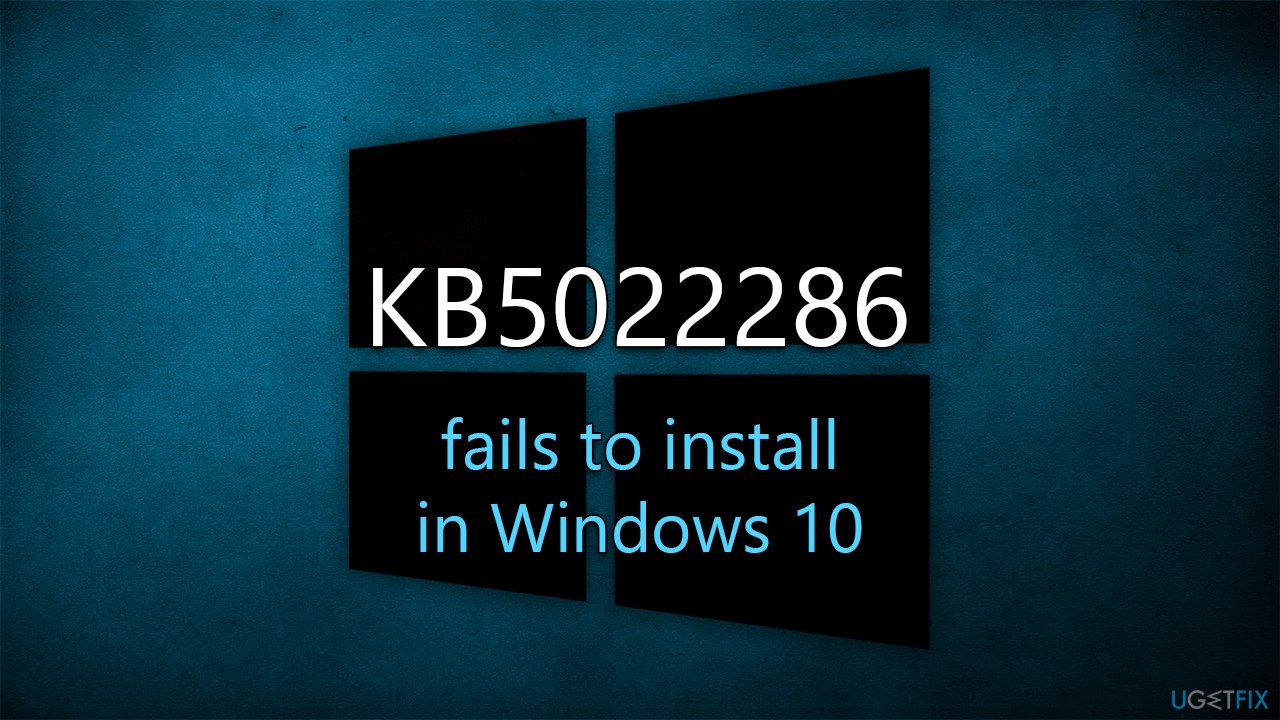
You can also try performing a System File Checker scan on your computer to detect any corrupted files that may be causing Windows update KB5022286 to fail.
- Type cmd in Windows search
- Right-click on Command Prompt result and select Run as administrator
- When User Account Control shows up, click Yes
- Paste the following command into the new window:
sfc /scannow - Press Enter and wait till the scan is finished
- Once done, run this set of commands, pressing Enter after each:
DISM /Online /Cleanup-Image /CheckHealth
DISM /Online /Cleanup-Image /ScanHealth
DISM /Online /Cleanup-Image /RestoreHealth - Restart your device.
2. Reset Windows Update Components
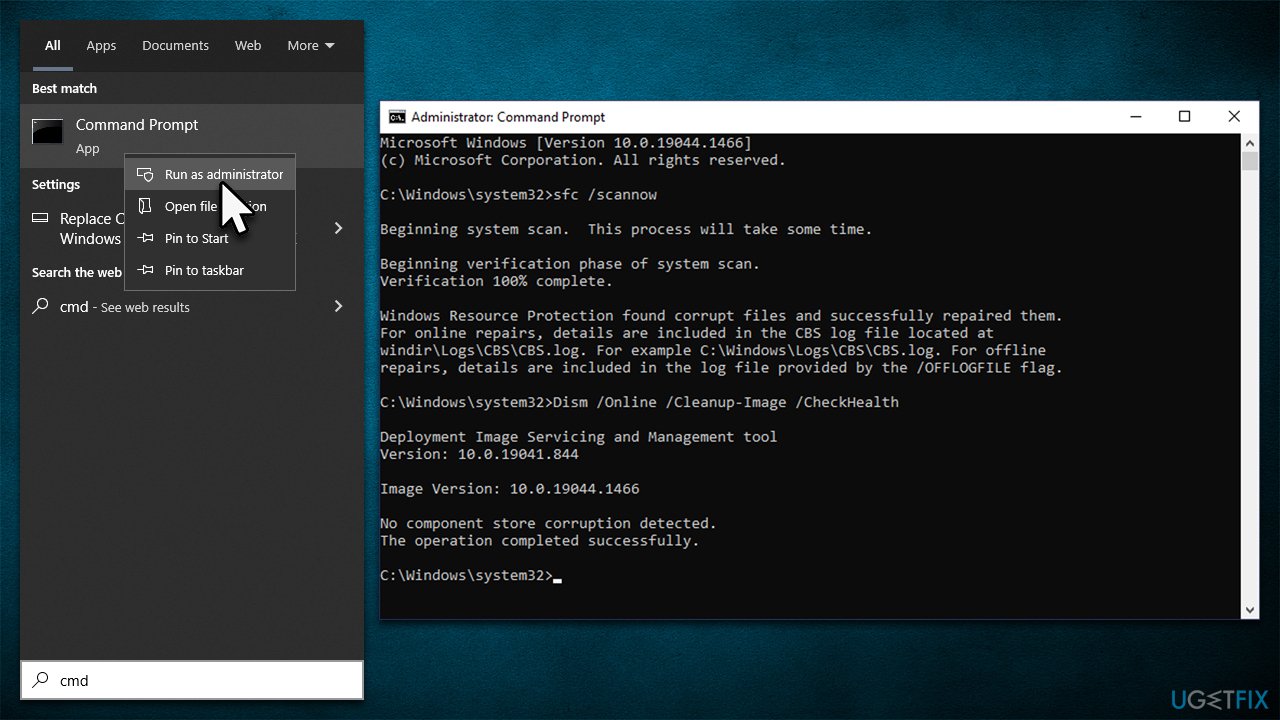
You can try resetting Windows Update components - this will delete all cached data and settings related to Windows Update, which may help fix any corrupted files or settings causing update issues.
- Open Command Prompt as administrator, as we explained previously
- Run the following commands, pressing Enter every time:
net stop bits
net stop wuauserv
net stop appidsvc
net stop cryptsvc
Del "%ALLUSERSPROFILE%\Application Data\Microsoft\Network\Downloader\*.*"
rmdir %systemroot%\SoftwareDistribution /S /Q
rmdir %systemroot%\system32\catroot2 /S /Q
regsvr32.exe /s atl.dll
regsvr32.exe /s urlmon.dll
regsvr32.exe /s mshtml.dll
netsh winsock reset
netsh winsock reset proxy
net start bits
net start wuauserv
net start appidsvc
net start cryptsvc - Close down Command Prompt and restart your system.
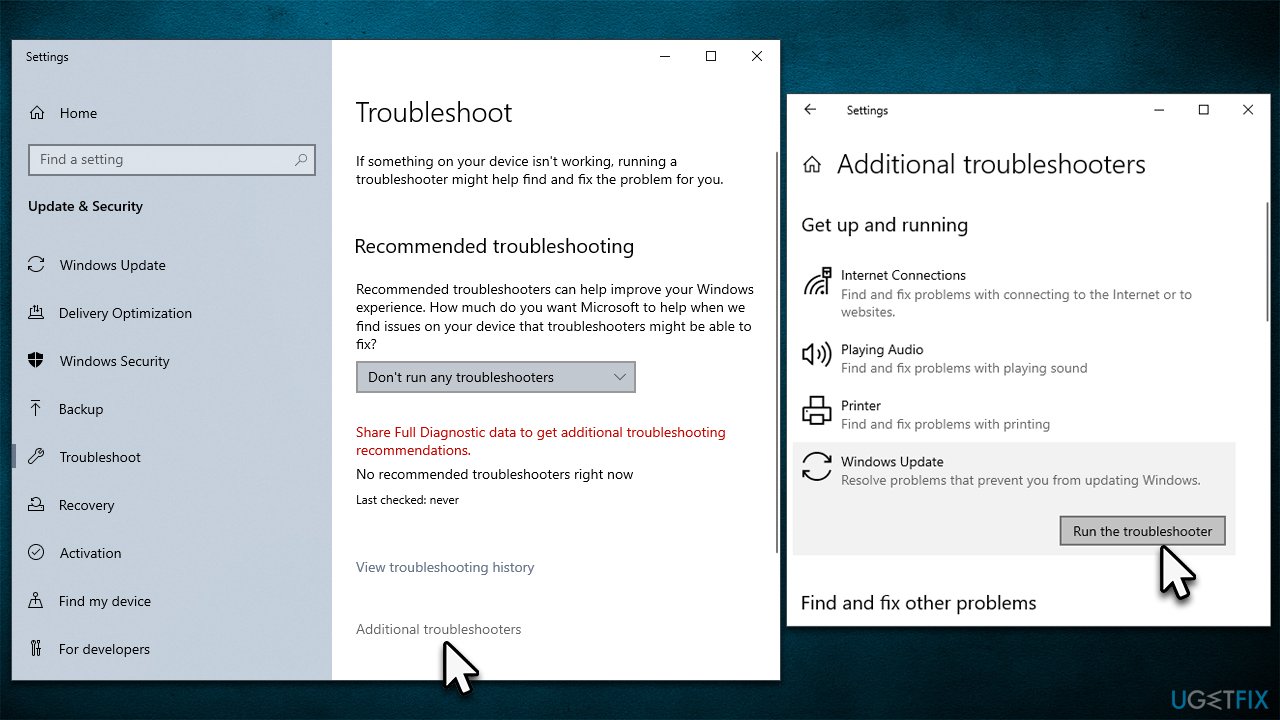
3. Try the troubleshooter
- Type Troubleshoot in Windows search and hit Enter
- Click Additional troubleshooters on the right
- Scroll down to find Windows update and click it
- Click Run the troubleshooter
- Apply the offered suggestions and restart your computer.
4. Disable or uninstall third-party anti-malware
It's not always easy to determine the source of Windows update installation failures, however, there are numerous approaches that can be taken in most cases. We strongly suggest disabling a third-party security tool if it is running on your device. Because these applications modify elements at an operating system kernel level, they change how Windows interprets certain actions, with software/update installations being one of them.
If you are experiencing difficulties with the KB5022286 update, deactivating real-time protection from your anti-malware or temporarily uninstalling it can both be viable solutions. Choose whichever option suits your preference best, and then initiate the download for this essential update.
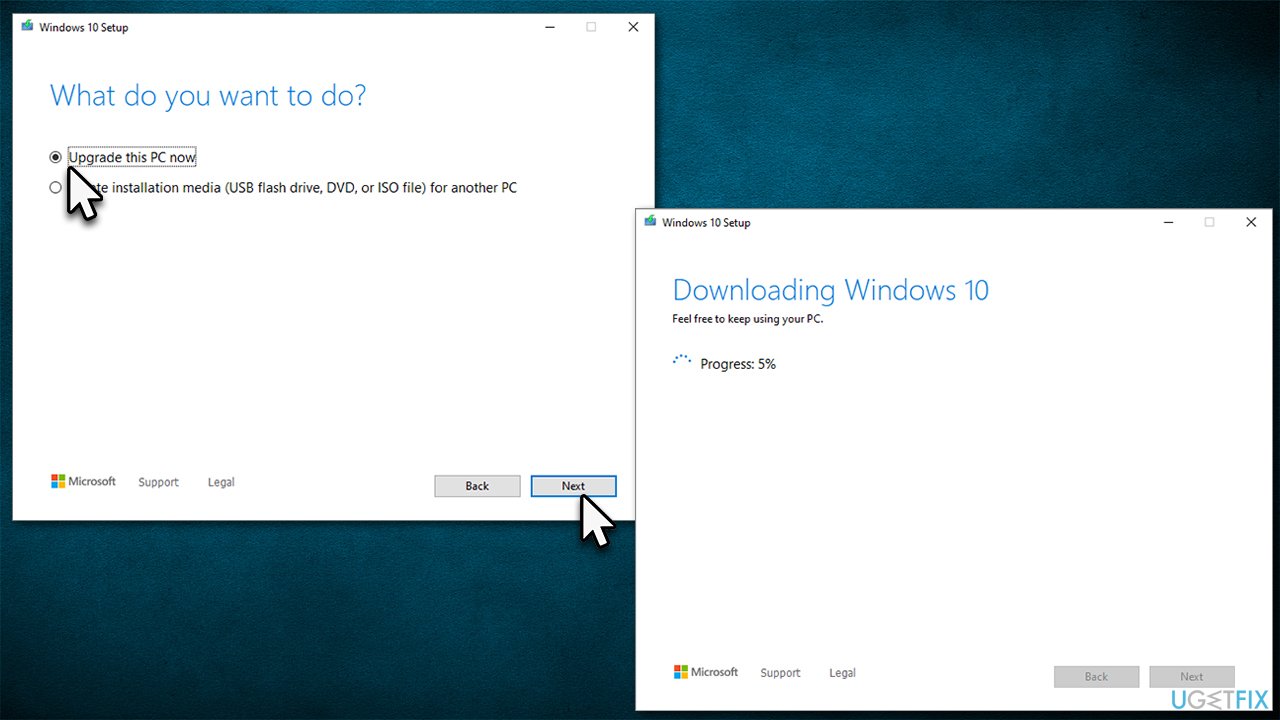
5. Use Media Creation Tool
To ensure a successful installation, it is important to remove any third-party antivirus software that may be running on your device and unplug all unnecessary devices, such as scanners, cameras, printers, etc. Consider backing up your private files, just in case.
- Visit the official Microsoft website and download Windows 10 files
- Double-click the installer and select Yes when UAC shows up
- Agree to terms and click Next
- Select Upgrade this PC now and select Next
- Proceed with on-screen instructions
- The process might take a while to complete, so be patient.
6. Try installing manually
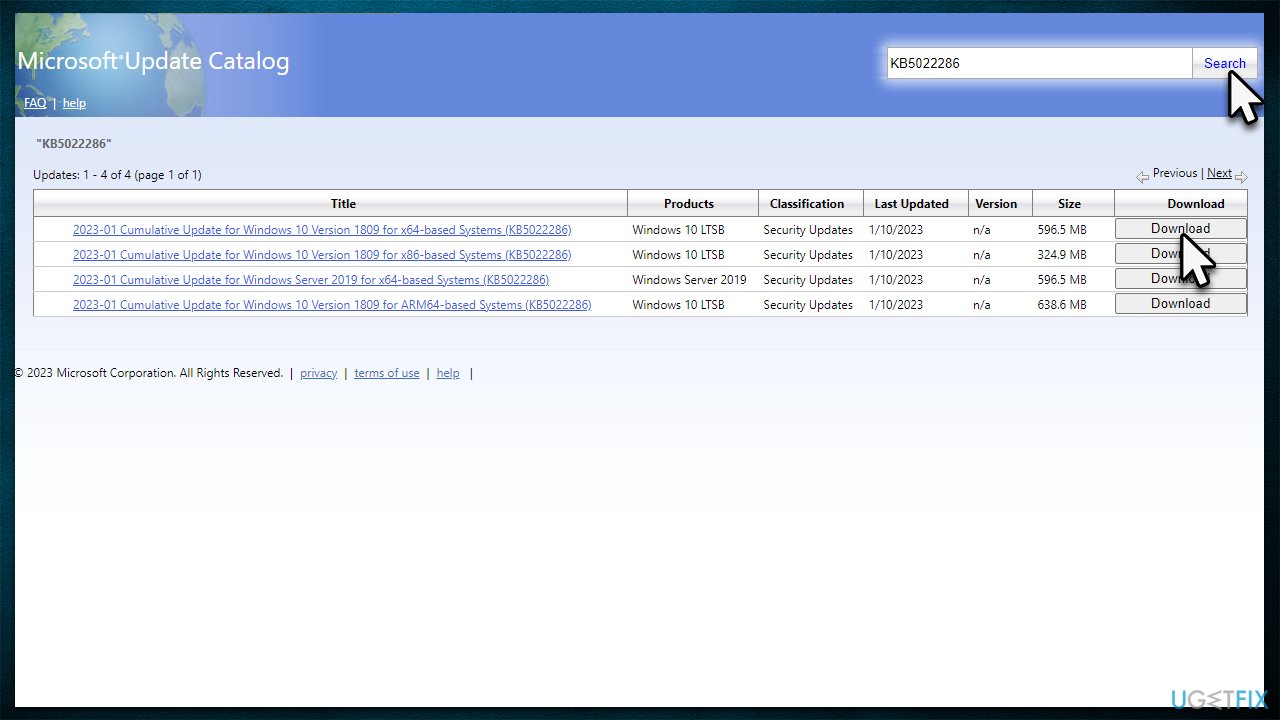
- Launch your browser and navigate to Microsoft Update Catalog
- Type KB5022286 into the search bar and press Enter or click Search
- Locate the correct version of the update for your Windows version (to check this, right-click on Start and pick System. Under Device specifications and check the System type) and click Download
- Open the installer and proceed with on-screen instructions
- Restart as necessary.
Bottom line
To fix the KB5022286 installation failure, users can start by running a scan for corrupted system files and ensuring there is enough disk space. If issues persist, checking for conflicting software or drivers and ensuring a stable network connection may help. If none of these solutions work, consider using a powerful PC repair tool or seeking further assistance.
Frequently asked questions
First, try restarting your computer and then attempt the installation again. If it still fails, consider running the Windows Update Troubleshooter from the Settings menu.
Yes, you can manually download the update from the Microsoft Update Catalog website and install it directly on your Windows 10 system.
You can view the Windows Update logs or check the Update History in Settings to find specific error codes that can help diagnose the installation issue.




Report an issue
What's wrong with this guide? We review every report and update or remove content.
Report received — thank you. We'll review and fix it.
You need a free account to submit a report.
Be the first to comment