How to fix
KB5022729 fails to install
on Windows
Resolve the KB5022729 installation error in Windows 10 effortlessly with expert-tested solutions. Get your updates fixed in minutes!

What causes How to fix KB5022729 fails to install in Windows 10?
- Outdated drivers
- Services not running
- System file corruption
- Changes made to the registry
- Insufficient disk space
Repairs Windows system files, removes malware, and restores a clean OS state — without reinstalling.
Hello, I need help with installing the latest Windows update, KB50227290 - it is simply not installing for me. It starts installing, but after some percentage, it just fails every time. Any advice on this would be appreciated.
Windows update process is something that users are accustomed to, as they are always shipped at least once a month in a process known as Patch Tuesday, which allows users to keep their systems up-to-date with the latest security patches and bug fixes. The process is fairly simple - either Windows installs the newest updates automatically, or users can do it manually by pressing the "Check for updates" button in the settings menu.
Each of the updates is usually marked by a certain KB number for reference. KB5022729 is one of the updates that came around in February's Patch Tuesday cycle. It includes an update for .NET Framework 3.5, 4.8, and 4.8.1 - it contains several security improvements and patches for CVE-2023-21808 and CVE-2023-21722 security vulnerabilities. It's designed for all Windows 10 versions 20H2, 21H2, and 22H2.
However, due to the complexity of many machines, some users may experience issues while trying to update their systems, and this happened to the KB5022729 update as well. Users reported that they would try to install the update several times, but it would fail with errors such as 0x80092004, although this is not always the case, and no error codes were provided.
This can be caused by a number of factors, such as outdated drivers, services not running, system file corruption, changes that have been made to the registry, and more. Fortunately, there are ways to troubleshoot and fix common Windows update problems.
Below you will find several fixes for the KB5022729 failure to install in Windows 10. If you would rather find a quicker solution, we recommend [d1] - a computer repair software that is designed to detect and fix various issues on Windows-based computers, such as system crashes, DLL errors, and other common problems. It uses a comprehensive database of system files to replace any damaged or missing files, restoring your computer's stability and performance.
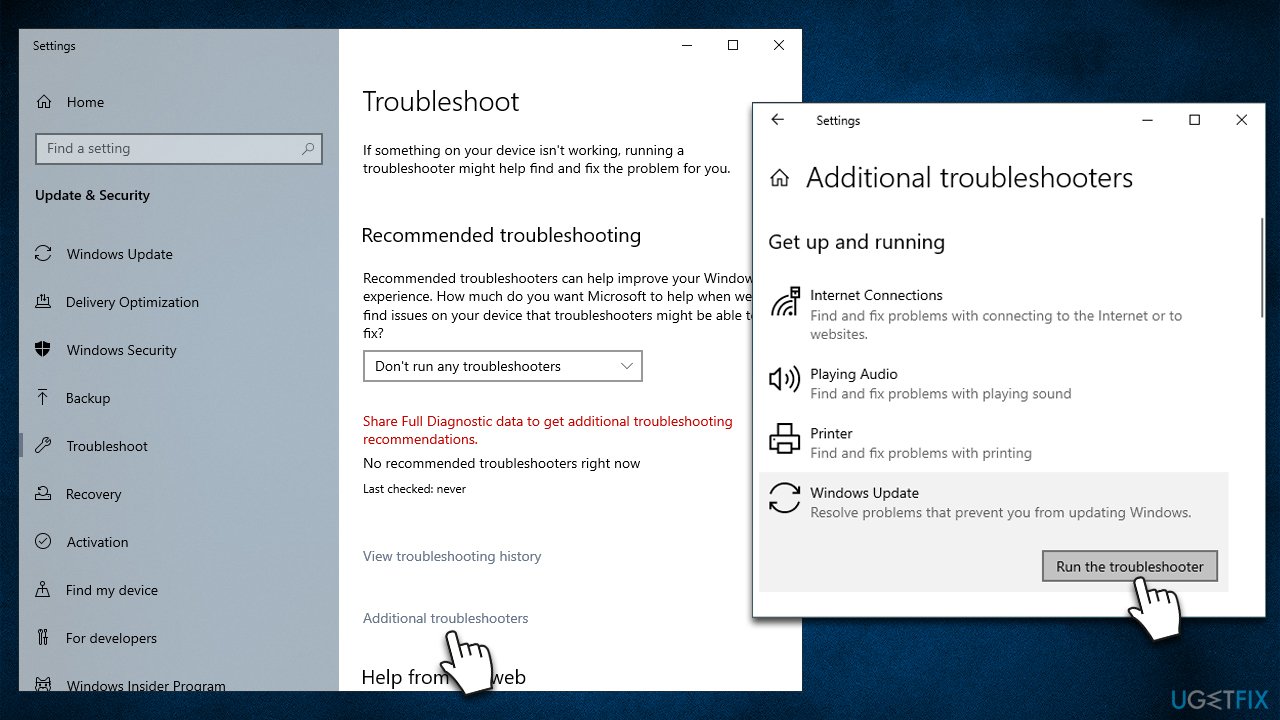
Fix 1. Give the troubleshooter a try
Troubleshooters are great tools that can assist you with many issues on Windows, including failing updates.
- Type Troubleshoot in Windows search and hit Enter.
- Click Additional troubleshooters on the right.
- Scroll down to find Windows update and select it.
- Click Run the troubleshooter.
- Wait till the process is finished and apply the fixes, then try updating again.
Fix 2. Check services
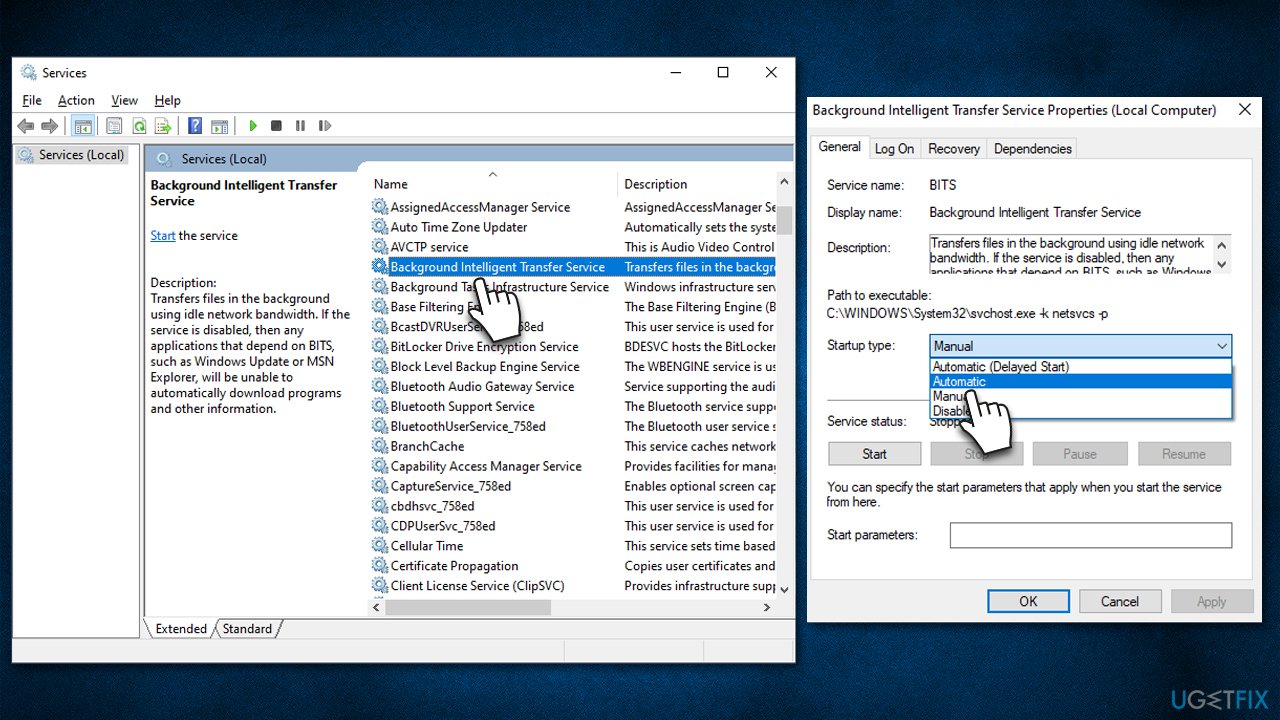
- Type in Services in Windows search and press Enter.
- Find Background Intelligent Transfer Service (BITS).
- If it is already running, right-click and pick Restart.
- if the service is not running, double-click it, select Automatic under the Startup type from the drop-down menu.
- Click Start, Apply, and OK
- Do the same with the Windows Update service.
Fix 3. Reset Windows Update components
Bugged caches for Windows updates could cause KB5022729 to fail to install. You can clear them as follows
- Type cmd in the Windows search box.
- Right-click on Command Prompt and select Run as administrator.
- User Account Control (UAC) window will ask whether you want to make changes - click Yes.
- In the Command Prompt window, copy and paste the following commands, pressing Enter after each:
net stop wuauserv
net stop cryptSvc
net stop bits
net stop msiserver - Press Win + E to open File Explorer.
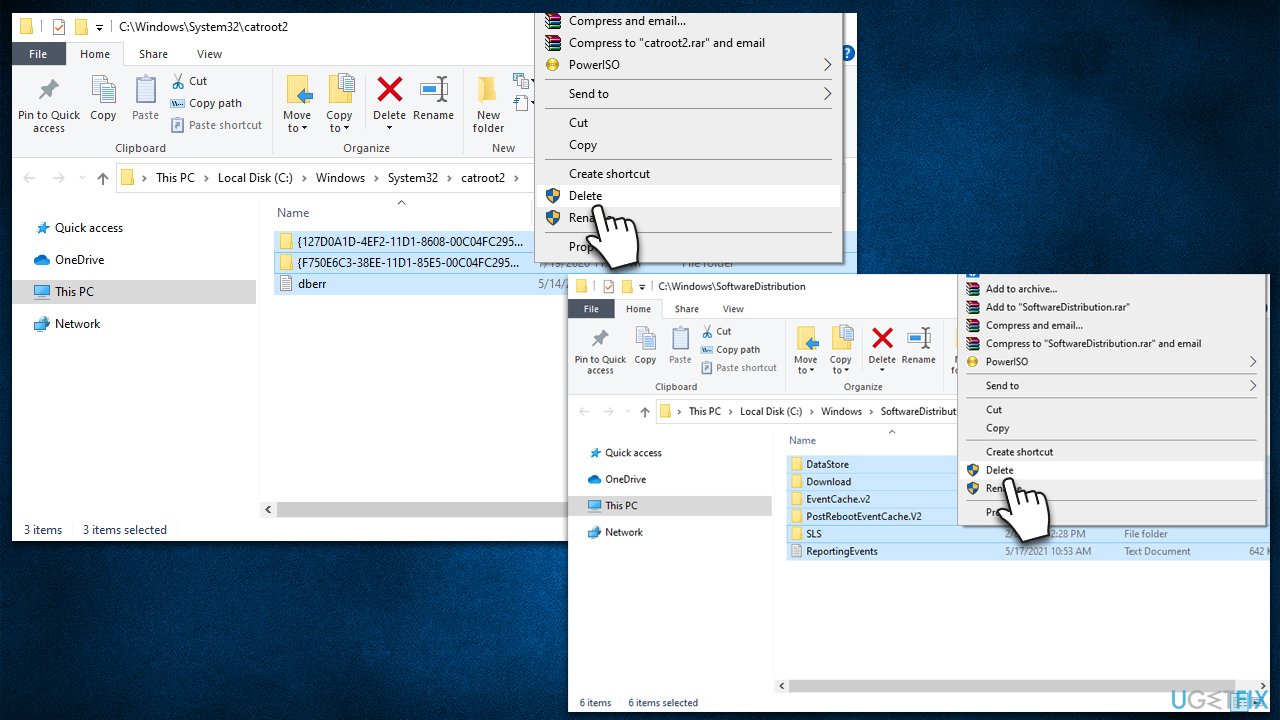
- Go to the following locations and delete the contents of these folders (make sure Hidden items are visible):
C:\Windows\System32\catroot2
C:\Windows\SoftwareDistribution - Open the Command Prompt window again and paste the following, pressing Enter every time:
net start wuauserv
net start cryptSvc
net start bits
net start msiserver - Restart your device.
Fix 4. Install the update manually
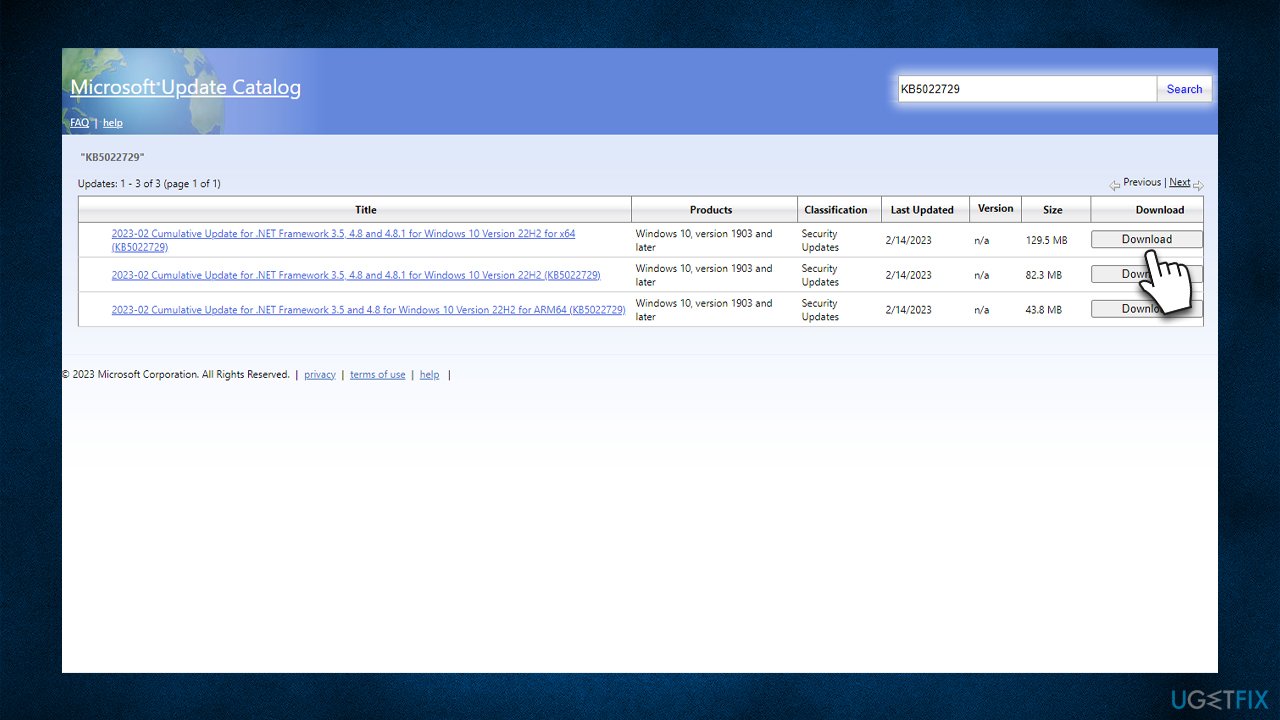
- Launch your browser and navigate to Microsoft Update Catalog
- Type KB5022729 into the search bar and press Enter or click Search
- Locate the correct version of the update for your Windows version (to check this, right-click on Start and pick System. Under Device specifications and check the System type) and click Download.
- Open the installer and proceed with on-screen instructions.
- Restart as necessary.
Fix 5. Run SFC and DISM scans
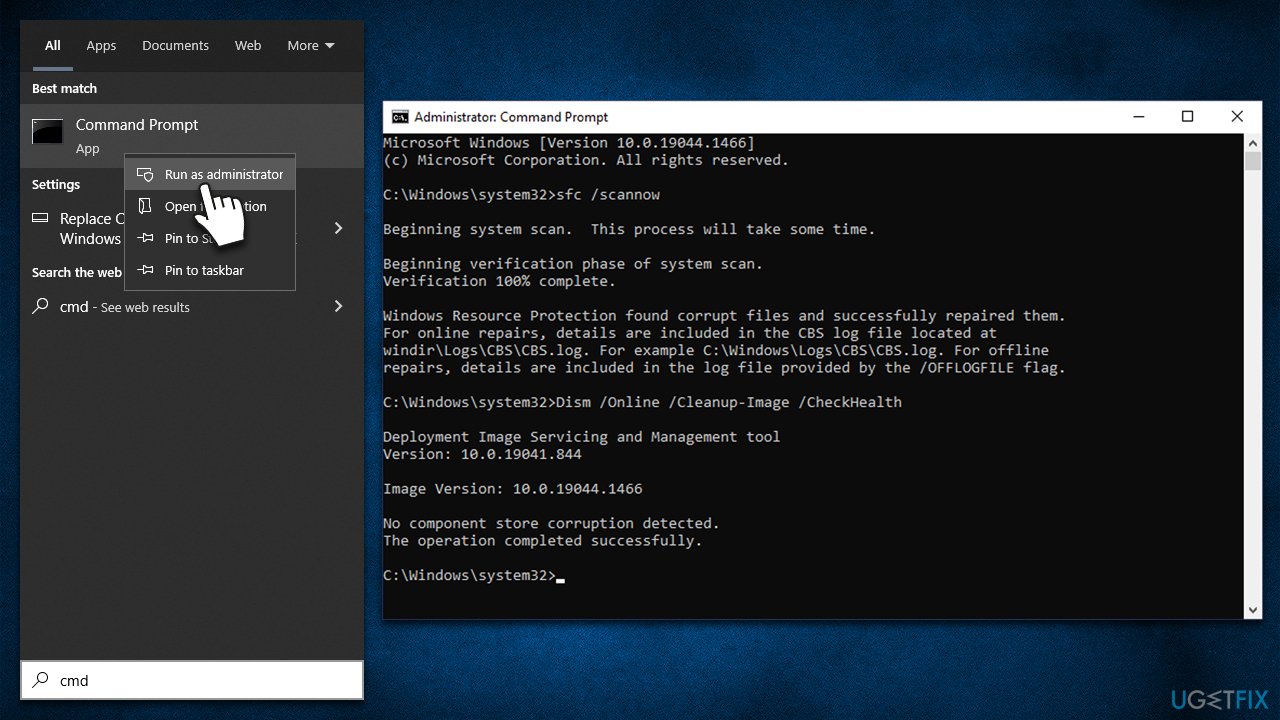
- Open Command Prompt as administrator as explained in the previous methods.
- In the Command Prompt window, paste the following command and press Enter:
sfc /scannow - Once the scan is complete, use the following commands and press Enter after each:
Dism /Online /Cleanup-Image /CheckHealth
Dism /Online /Cleanup-Image /ScanHealth
Dism /Online /Cleanup-Image /RestoreHealth - Restart your PC.
Fix 6. Use Media Creation Tool
Uninstall third-party security software and disconnect all unnecessary devices (leave keyboard and mouse only) before proceeding with this step.
- Visit the official Microsoft website and download Windows 10 installation media.
- Double-click the installer, select Yes when UAC shows up, and agree to terms.
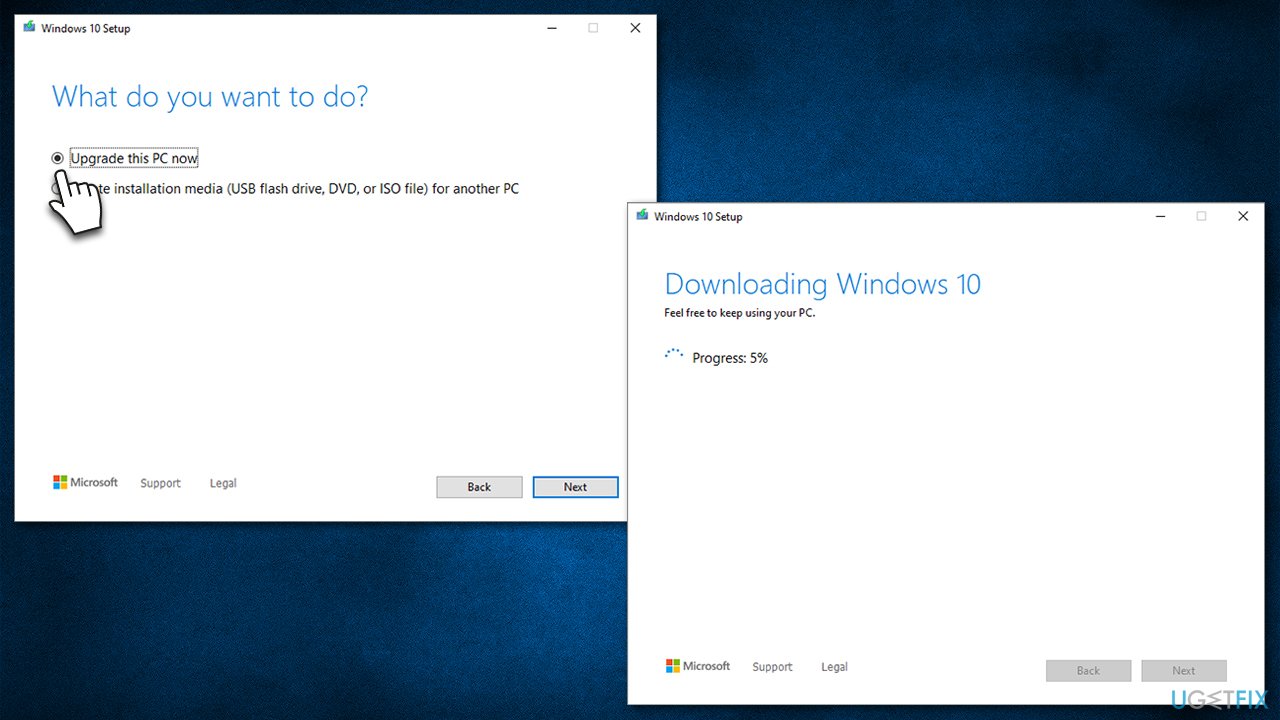
- Select Upgrade this PC now and click Next.
- Windows will start downloading the needed files
- Agree to terms once again and click Next
- Before installing, make sure that you are happy with your choices (otherwise, you can click Change what to keep option)
- Finally, click Install to begin the upgrade process.
Bottom line
To fix the KB5022729 installation failure, you can try updating your drivers, ensuring necessary services are running, and checking for system file corruption. If these steps do not resolve the issue, consider using computer repair software designed to detect and fix various Windows problems.
Frequently asked questions
First, try running the Windows Update Troubleshooter to automatically detect and fix issues. If that doesn't work, consider manually downloading the update from the Microsoft Update Catalog.
Yes, antivirus software can sometimes block updates; temporarily disabling it may help the installation process. Just remember to re-enable it afterward for your protection.
You can check the installation status by going to Settings > Update & Security > Windows Update, then clicking on 'View update history.' This will list all installed updates.




Report an issue
What's wrong with this guide? We review every report and update or remove content.
Report received — thank you. We'll review and fix it.
You need a free account to submit a report.
Be the first to comment