How to fix
KB5022836 fails to install
on Windows
Struggling with KB5022836 installation errors in Windows 11? Discover effective solutions to fix the issue quickly, with expert-tested tips.

What causes How to fix KB5022836 fails to install in Windows 11?
- Corrupted update files
- System incompatibility
- Insufficient storage space
- Conflicts with other software
- Issues related to Realtek Semiconductor
Repairs Windows system files, removes malware, and restores a clean OS state — without reinstalling.
Hello, I have a problem with Windows update KB5022836, which fails to install. I have been trying for several days now but to no avail. Any ideas on what to do to resolve this?
Windows updates are a critical aspect of maintaining a healthy and secure operating system. Microsoft releases these updates regularly to address security vulnerabilities, improve performance, and introduce new features. Windows updates work by downloading the latest software patches, bug fixes, and updates from Microsoft servers and installing them on your computer.
Windows updates are needed because they address known security issues and vulnerabilities, which can potentially put your computer and data at risk. These updates provide protection against various threats, such as malware, viruses, and cyberattacks, by patching security holes and strengthening your system's defenses. Windows updates also help to optimize system performance and address software bugs, which can improve the stability and speed of your computer.
Unfortunately, Windows updates can sometimes fail to install, leading to frustration and potential security risks. On February 14, 2023, Microsoft released a critical update, KB5022836, to address multiple security issues, including vulnerabilities that could allow attackers to execute code remotely on your computer. However, many users have reported issues with installing this update.
Many people noticed that they are getting an installation error 0x80070103 (although this can vary), and it is related to Realtek Semiconductor and a few other extensions.
The failure to install KB5022836 may be caused by various issues, such as corrupted update files, system incompatibility, insufficient storage space, or conflicts with other software. To address this issue, users can try various troubleshooting steps, including running the Windows update troubleshooter, checking for system compatibility, freeing up storage space, and temporarily disabling security software.
Below we provide manual ways to resolve an issue where KB5022836 fails to install in Windows 11. If you would rather let a sophisticated repair and maintenance tool take care of the problem, we recommend using [d1], which could address certain issues related to Windows update failures.
Fix 1. Employ a troubleshooter
Troubleshooters can be useful when dealing with basic Windows issues, although they might not always fix the issue at hand.
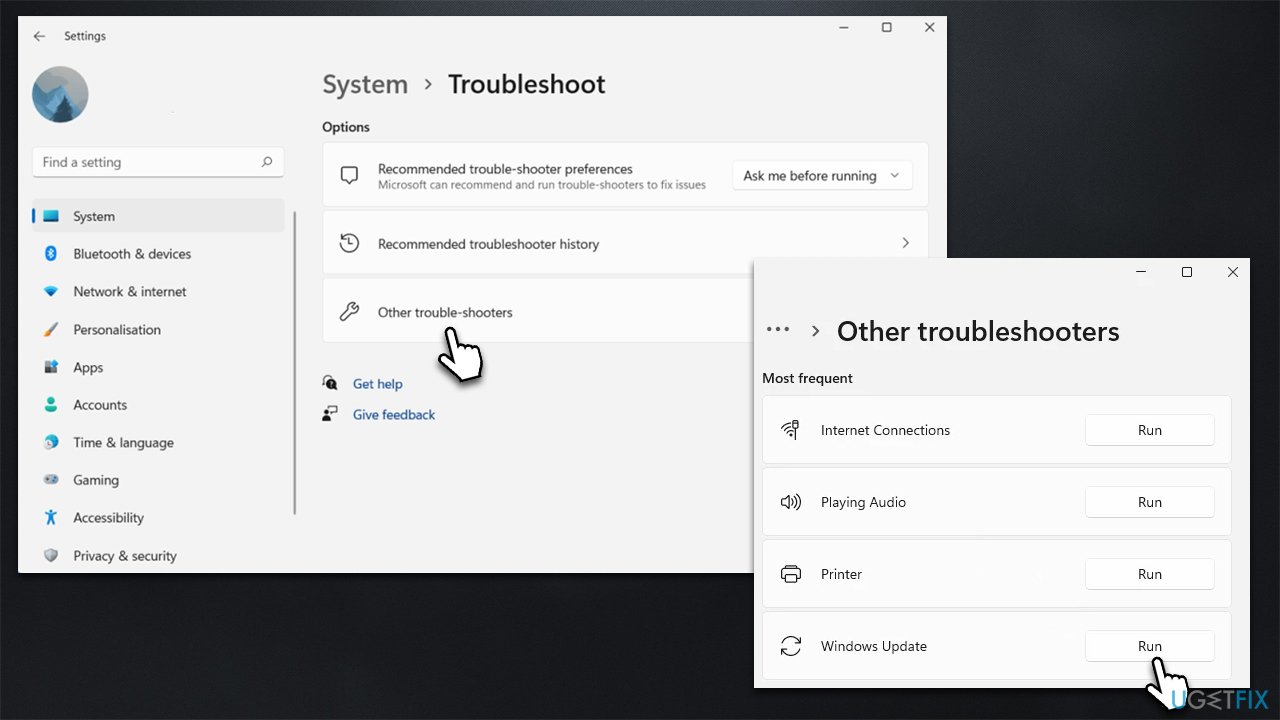
- Type troubleshoot in Windows search and press Enter or go to Start > Settings > System > Troubleshoot.
- From the list of Options, pick Other trouble-shooters.
- Scroll down to locate the Windows Update and click Run.
- Wait for it to finish, then apply changes and reboot the computer.
Fix 2. Hide the update
If your update is failing with the Extension notices, it is a known bug, and you shouldn't worry about it too much. You can hide the update using a special tool from Microsoft.
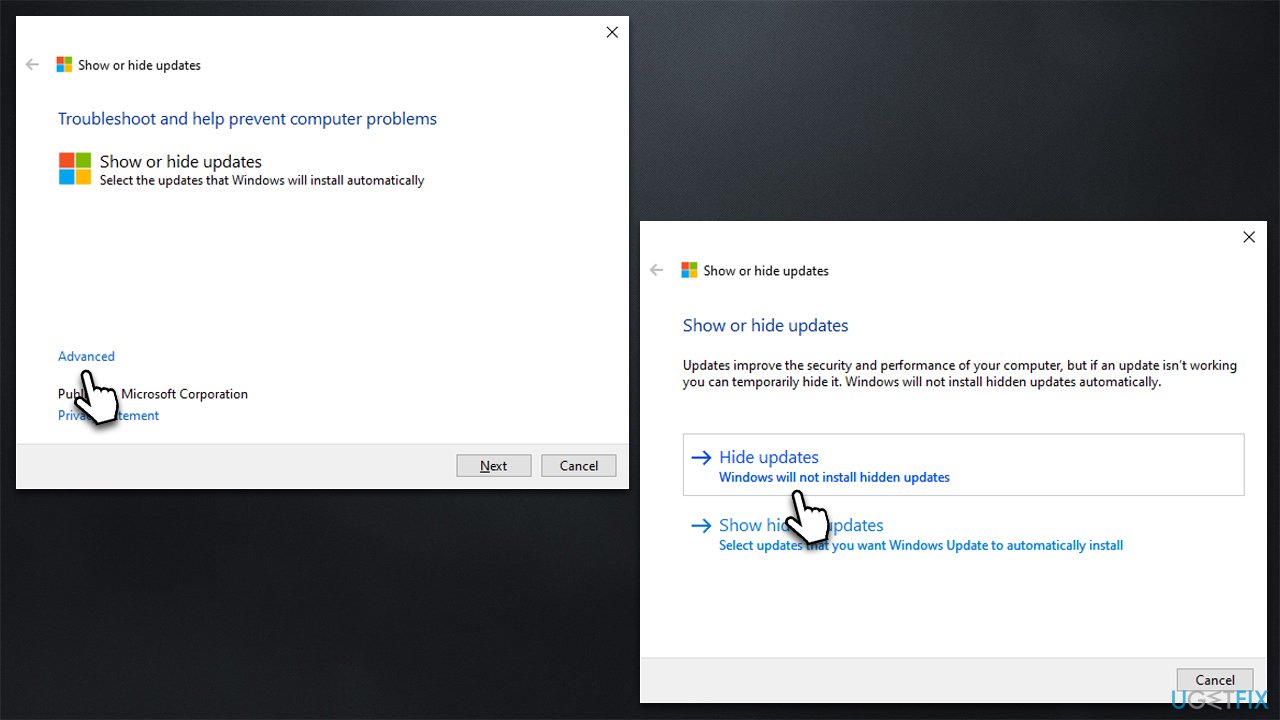
- Download the Show or Hide Updates Troubleshooter from the Microsoft website [direct download link].
- Launch the wushowhide.diagcab file.
- Select Advanced and then Apply updates automatically, clicking Next.
- Pick Hide updates, select the update which continues to fail, then click Next.
- Apply changes and hit Close.
Fix 3. Check services
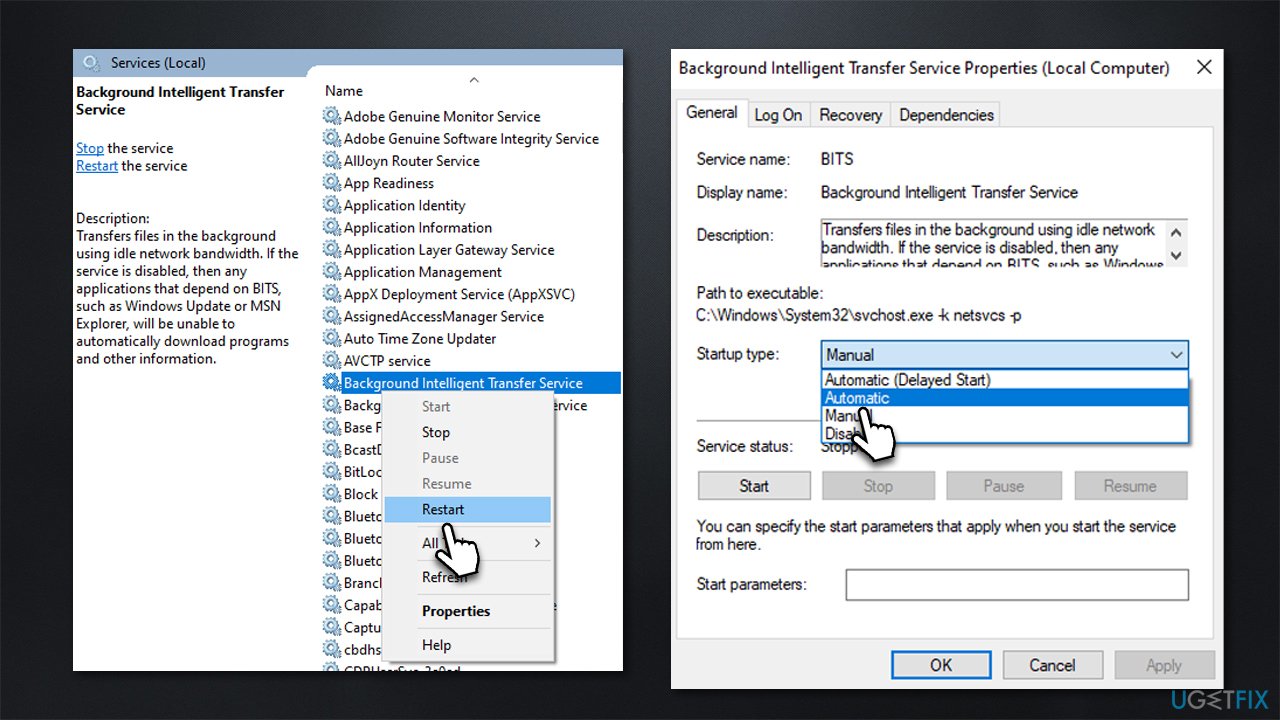
If Windows Update and BITS services are not running, KB5022836 and other updates might fail. If they are already running, you can restart them instead.
- Type in Services in Windows search and press Enter.
- Scroll down to locate Background Intelligent Transfer Service (BITS).
- If it is already running, right-click and select Restart.
- if the service is not running, double-click it, pick Automatic under the Startup type from the drop-down menu.
- Click Start, Apply, and OK.
Fix 4. Pause the update and then unpause it
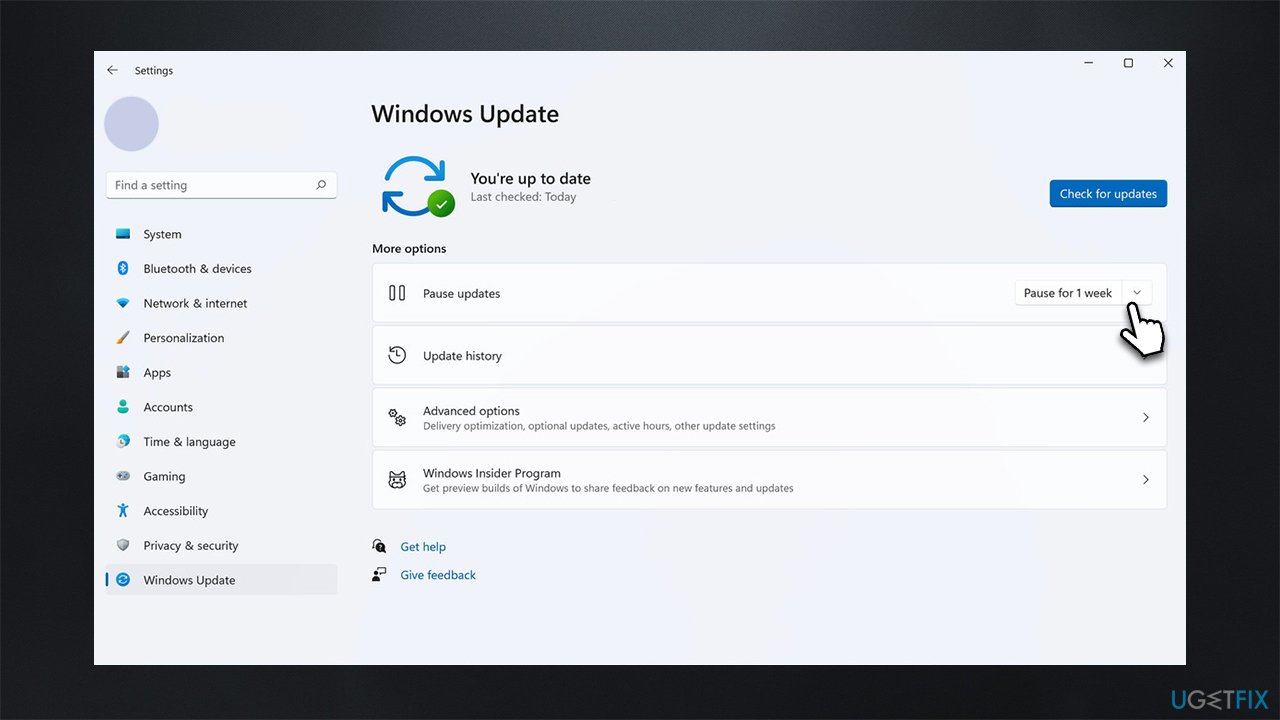
In some cases, the updates might fail due to a simple bug. Pausing the update and unpausing it helped people to resolve installation failures.
- Type Updates in Windows search and press Enter.
- In the Settings window, you should see the Pause updates option.
- Click on the drop-down menu and select Pause for 1 week.
- Restart your computer.
- Open the Updates section again, hit Unpause, then try downloading the update again.
Fix 5. Reset Windows Update components
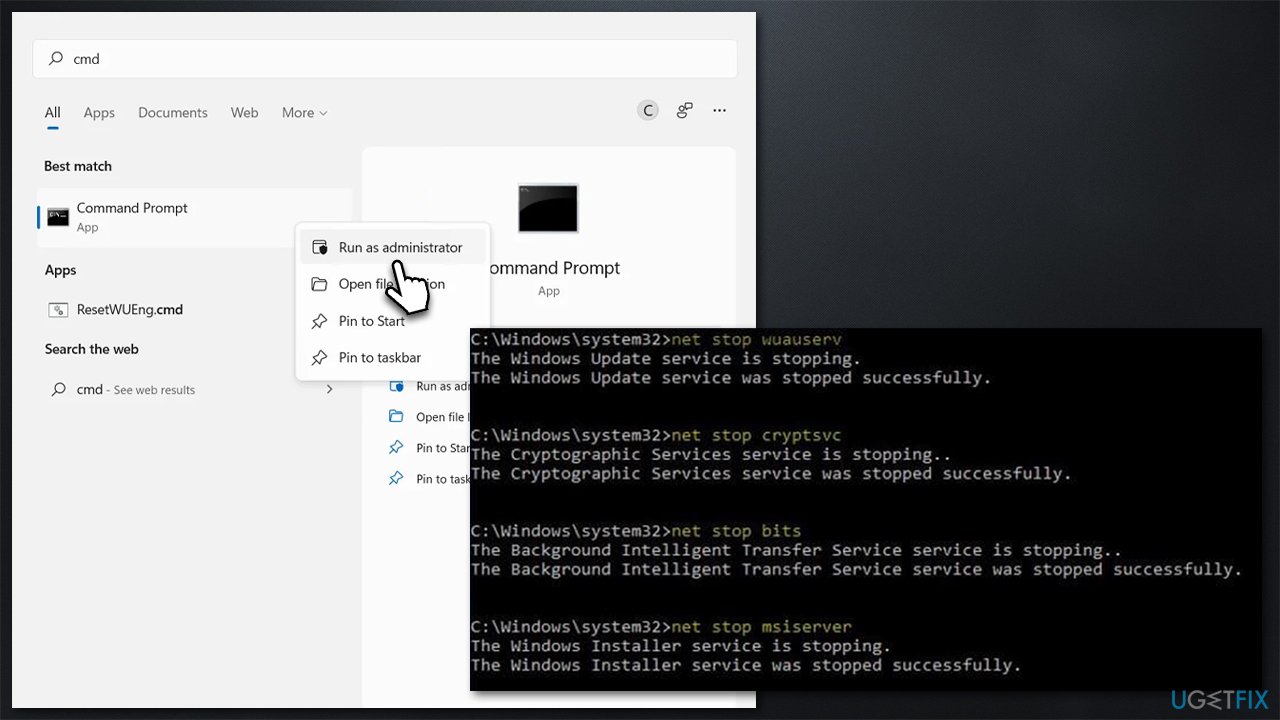
- Type cmd in Windows search.
- Right-click on Command Prompt and select Run as administrator.
- When User Account Control asks you whether you want to make changes, click Yes.
- Run the following commands, pressing Enter after each:
net stop bits
net stop wuauserv
net stop appidsvc
net stop cryptsvc
Del "%ALLUSERSPROFILE%\Application Data\Microsoft\Network\Downloader\*.*"
rmdir %systemroot%\SoftwareDistribution /S /Q
rmdir %systemroot%\system32\catroot2 /S /Q
regsvr32.exe /s atl.dll
regsvr32.exe /s urlmon.dll
regsvr32.exe /s mshtml.dll
netsh winsock reset
netsh winsock reset proxy
net start bits
net start wuauserv
net start appidsvc
net start cryptsvc - Restart your PC.
Bottom line
To resolve the installation failure of KB5022836, users can try running the Windows update troubleshooter, checking for system compatibility, freeing up storage space, and temporarily disabling security software. If these steps do not work, consider using a sophisticated repair and maintenance tool.
Frequently asked questions
First, try running the Windows Update Troubleshooter to identify and fix common update issues. If that doesn't work, consider manually downloading the update from the Microsoft Update Catalog.
Yes, users may encounter error codes such as 0x800f0922 or 0x8007000d, indicating various issues with the update process. Researching these codes can provide more targeted solutions.
Make sure your system has enough disk space and that all previous updates are installed successfully. Also, check that your device is connected to a stable internet connection during the update process.




Report an issue
What's wrong with this guide? We review every report and update or remove content.
Report received — thank you. We'll review and fix it.
You need a free account to submit a report.
Be the first to comment