How to fix
KB5022840 fails to install
on Windows
Resolve KB5022840 installation issues on Windows 10 quickly with our expert-tested solutions and clear instructions for seamless updates. Fixed in minutes!

What causes How to fix KB5022840 fails to install in Windows 10?
- Incorrectly configured services
- Bugged update file caches
- Limited storage space
- System file corruption
- Unstable internet connections
Repairs Windows system files, removes malware, and restores a clean OS state — without reinstalling.
Hello, I have problems with installing the KB5022840 update on Windows 10. Every time I try to launch the update process, it stops at around 80% and fails. Any idea how to deal with this? Help is appreciated.
Regularly, new features, security updates, and bug fixes are released for the Windows operating system in the form of Windows updates. Keeping your computer secure and running smoothly requires these updates, so it's important to ensure that your system is up to date. Depending on your settings, Windows updates can either be installed automatically or manually.
Regardless of the setting, KB5022840 fails to install for some people. This was a routine Windows 10 update released along with KB5022834 in February's Patch Tuesday. It incorporates multiple security improvements, vulnerability patches, as well as some bug fixes, for example, where searchindexer.exe would stop people from signing in or out.
It's not uncommon for users of the Windows operating system to experience issues with Windows updates. These issues can arise for various reasons, ranging from unstable internet connections to problems with Microsoft's servers. In most cases, these errors are temporary and resolved on their own. However, there are instances where the issue persists, and users cannot install updates, leading to significant problems.
If you are facing issues installing the KB5022840 update, there are several solutions that you can try. Some of the common issues include incorrectly configured services, bugged update file caches, limited storage space, system file corruption, and more.
To fix these problems, you can follow troubleshooting steps that are readily available. These steps can be carried out manually (you can check the step-by-step guide below) or with the help of automatic PC repair tools such as [d1], which are highly recommended for their convenience and effectiveness.
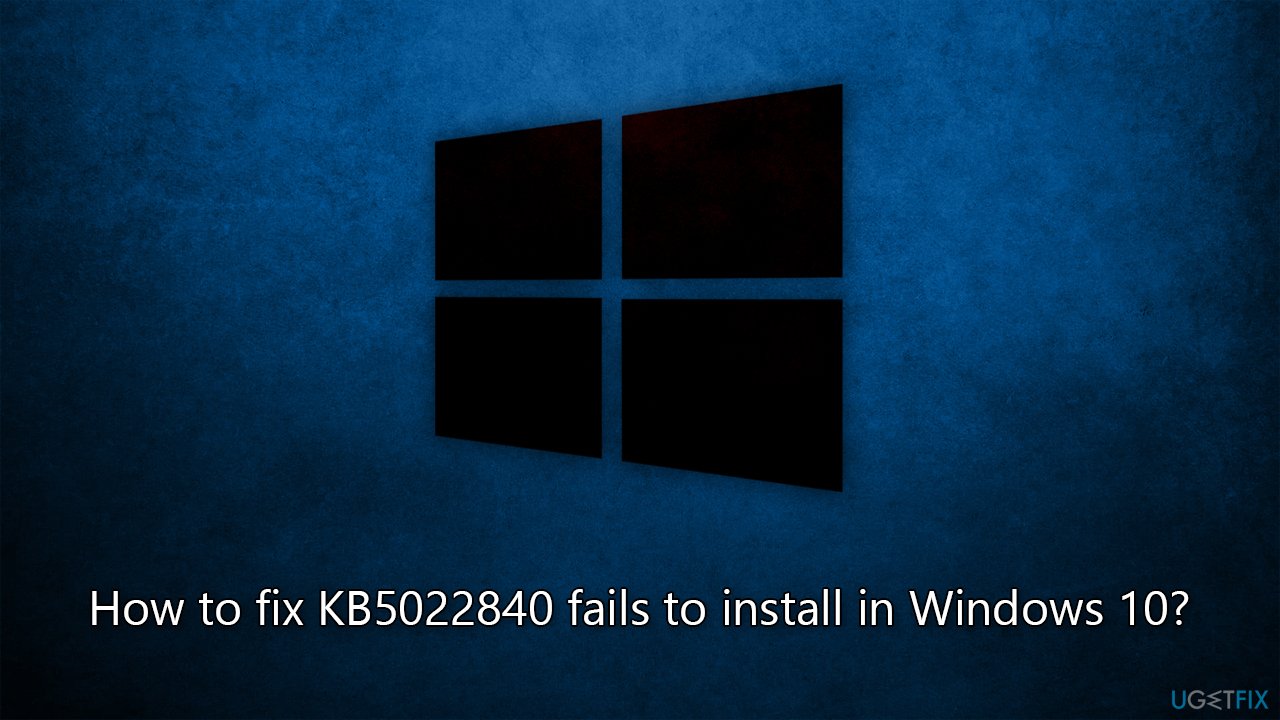
Solution 1. Run the troubleshooter
We recommend starting with a troubleshooter - a built-in Windows tool that can sometimes resolve most basic Windows issues.
- Type in Troubleshoot in Windows search and hit Enter.
- Go to Additional Troubleshooters.
- Select Windows update and click Run the troubleshooter.
- Wait till the scan is finished, and then apply the suggested fixes.
- Restart your machine.
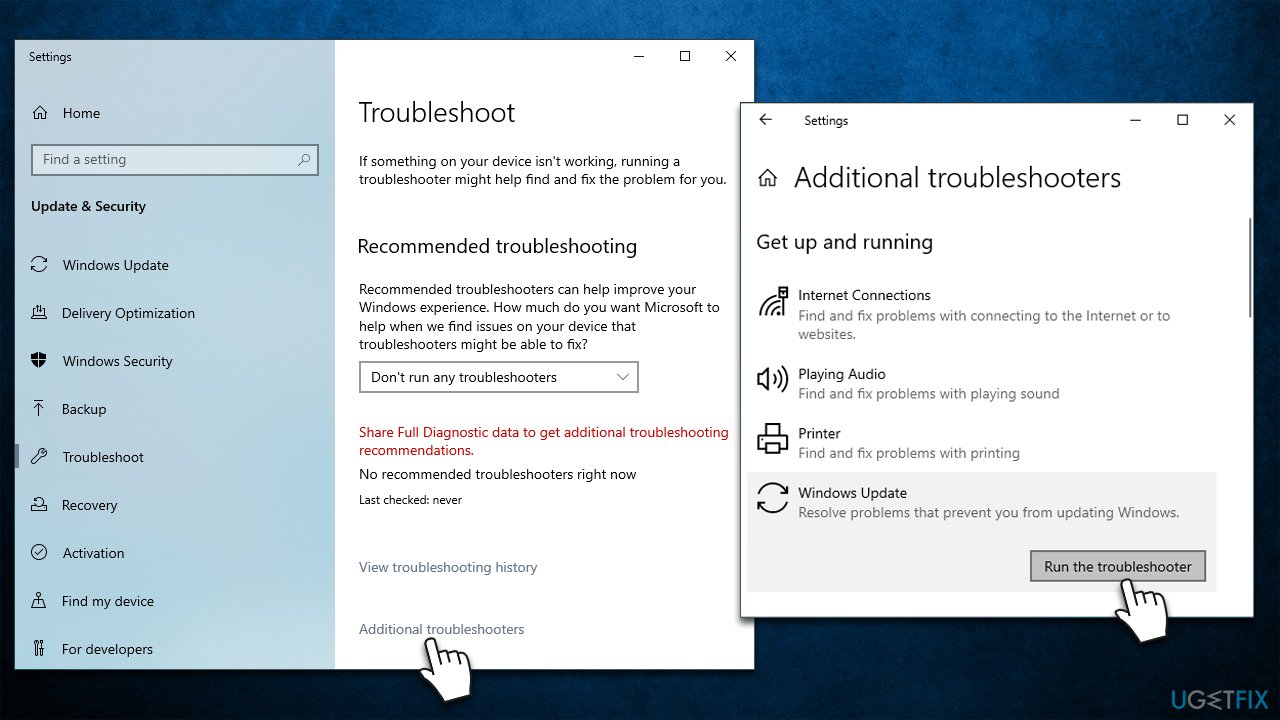
Solution 2. Clean storage to get more space
In some cases, KB5022840 fails to install due to a lack of space. If that's the case, you can use the following instructions to resolve this issue:
- Type Disk Cleanup in Windows search and press Enter.
- Select your main drive (C: by default).
- Click Clean up system files and select your main drive again.
- Select the largest sections you'd like to remove, for example, Temporary Internet Files, Windows Update Cleanup, Delivery, and Optimization Files
- Click OK, and Windows will begin the disk cleanup process.
Solution 3. Disable or uninstall security software
Security software, such as antivirus and firewall applications, are designed to protect your computer from various threats, including malware, viruses, and cyberattacks. However, these software programs can sometimes interfere with the installation of Windows updates, leading to update failures.
One of the reasons security software can cause Windows update failures is by blocking certain update files or processes that it deems suspicious or potentially harmful. Security software can sometimes conflict with the Windows update process, leading to errors and failures.
In such cases, temporarily disabling or uninstalling the security software can help resolve Windows update failures. By doing so, you can eliminate any conflicts or blocking actions hindering the update process.
Solution 4. Check for file corruption
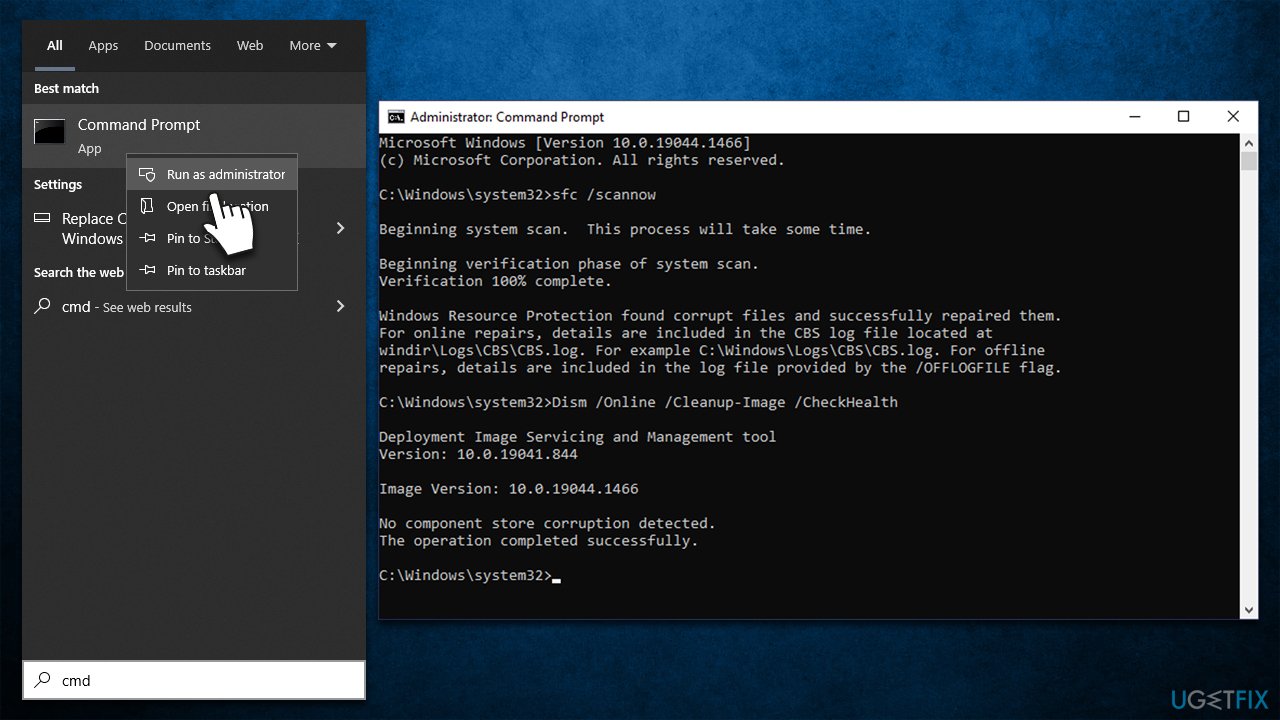
- Type cmd in Windows search.
- Right-click on the Command Prompt result and pick Run as administrator.
- User Account Control will ask whether it can make changes, click Yes.
- Next, copy and paste the following command and hit Enter:
sfc /scannow - Once done, run the these commands as well:
dism /online /cleanup-image /scanhealth
dism /online /cleanup-image /checkhealth
dism /online /cleanup-image /restorehealth - Restart your PC.
Solution 5. Check services
In order for updates to succeed, certain Windows services need to be running. If they aren't, you can enable them. In another case, you can restart them and see if that helps.
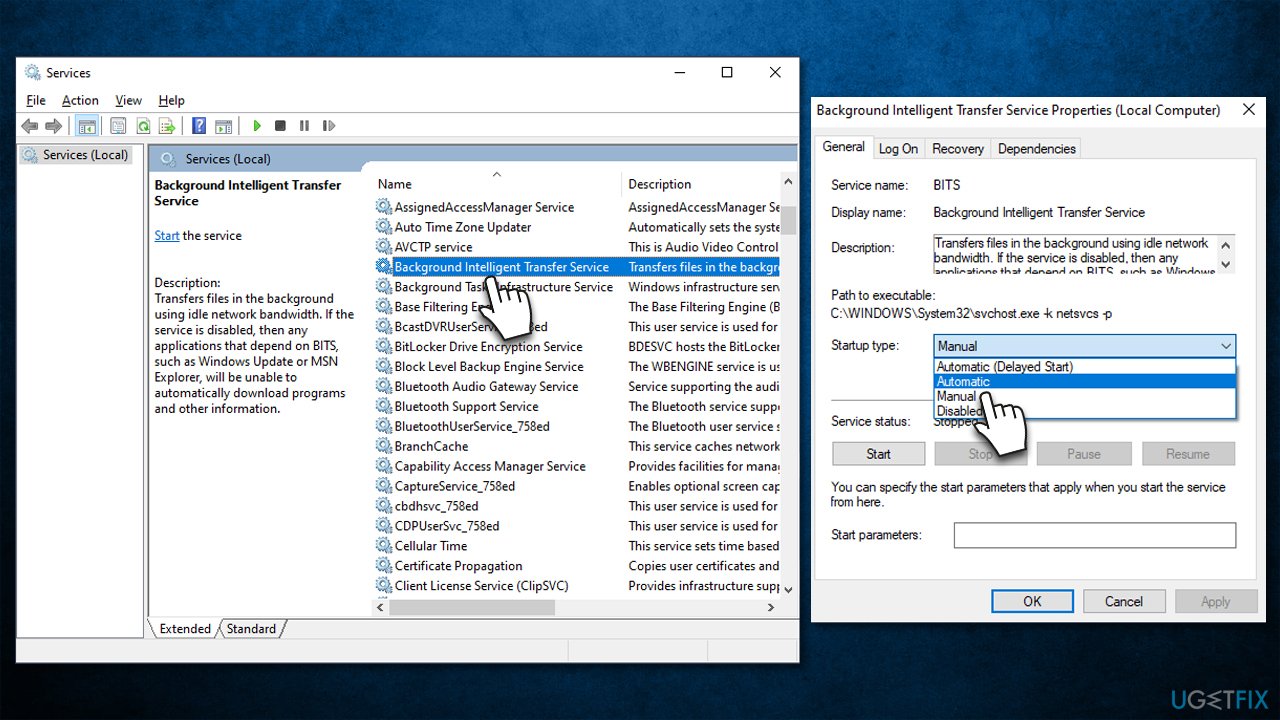
- TypeServices in Windows search and hit Enter.
- Scroll down to locate Background Intelligent Transfer Service (BITS).
- If it is already running, right-click and pick Restart.
- if the service is not running, double-click it, and select Automatic under the Startup type from the drop-down menu.
- Click Start, Apply, and OK.
Solution 6. Install the update manually
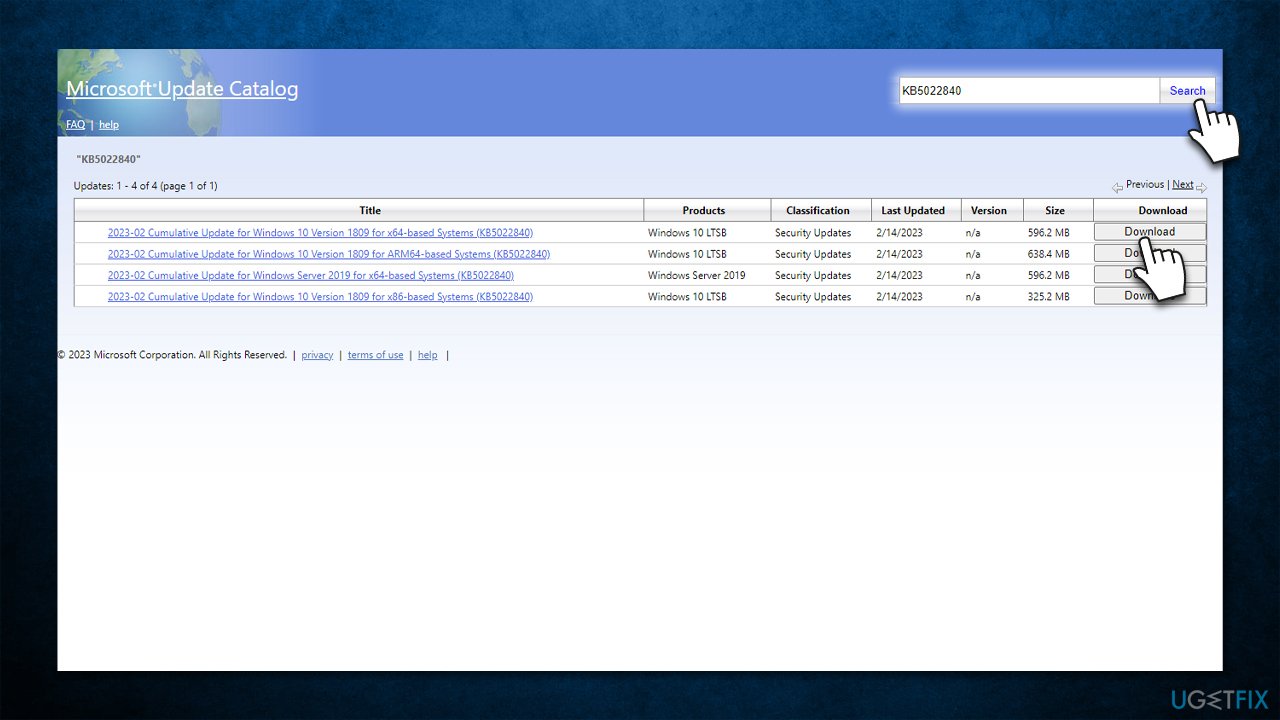
- Open your browser and go to Microsoft Update Catalog.
- Enter the KB5022840 number into the search box and click Search.
- Here, find the correct version of the update for your operating system (to check this, right-click on Start and pick System. Under Device specifications and check the System type).
- Click Download and proceed with the on-screen instructions.
- Reboot the device once done.
Solution 7. Use Media Creation Tool
If none of the solutions worked, you can always rely on Windows Media Creation Tool.
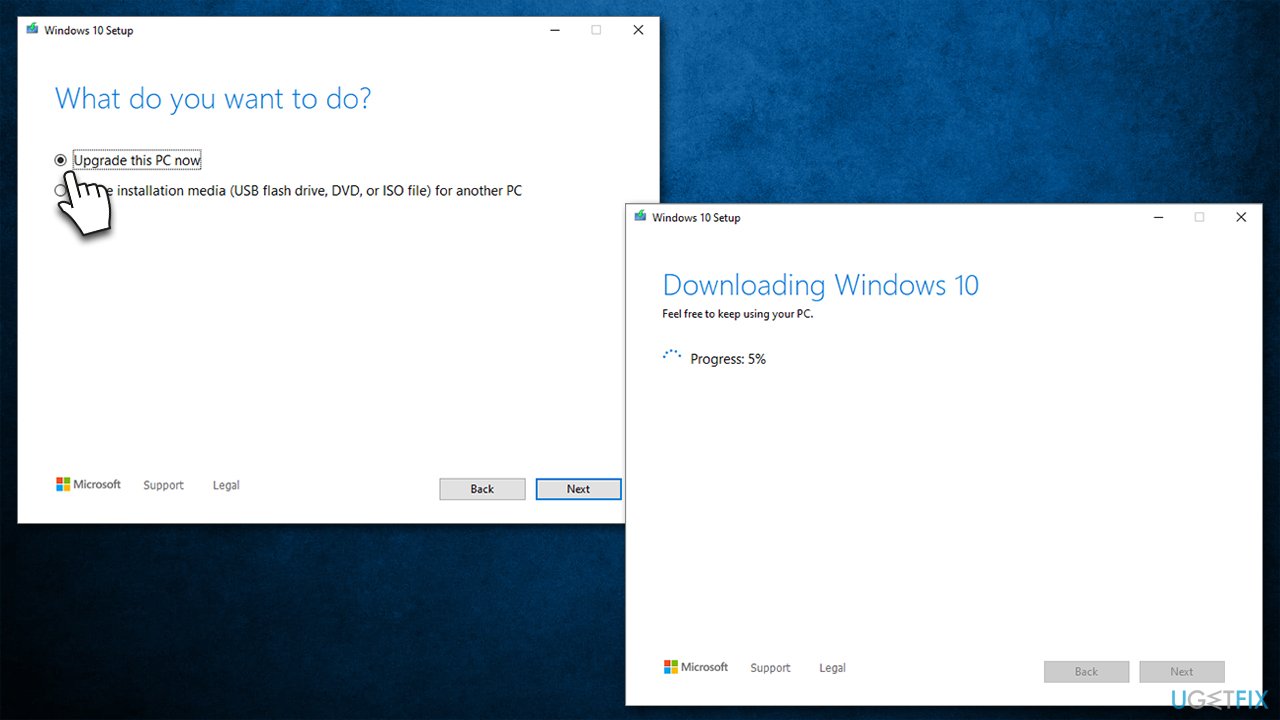
- Visit the official Microsoft website and download Windows 10 installation media.
- Launch the installer.
- Agree to the terms and click Next.
- Select Upgrade this PC now and click Next.
- Wait till Windows downloads all the necessary files.
- Agree to terms once again and click Next.
- Before installing, make sure that you are happy with your choices (otherwise, you can click Change what to keep option).
- Finally, click Install to begin the upgrade process.
Bottom line
To fix the KB5022840 installation issue, you can run the Windows Update troubleshooter, check your storage space, and ensure system files are not corrupted. If these steps do not resolve the problem, consider using automatic PC repair tools or seeking further assistance.
Frequently asked questions
Try running the Windows Update Troubleshooter, which can help identify and fix issues preventing the installation of updates like KB5022840.
Yes, common error codes include 0x800f081f and 0x8007000d, which indicate problems with missing files or corrupted system components.
Yes, you can manually download the KB5022840 update from the Microsoft Update Catalog website and install it to bypass the Windows Update issues.




Report an issue
What's wrong with this guide? We review every report and update or remove content.
Report received — thank you. We'll review and fix it.
You need a free account to submit a report.
Be the first to comment