How to fix
KB5023697 fails to install
on Windows
Resolve the KB5023697 installation error in Windows 10 effortlessly. Follow our expert-tested solutions for a quick and hassle-free fix!

What causes How to fix KB5023697 fails to install in Windows 10?
- Incorrectly configured services
- Corrupted system files
- General software bugs
- Issues with device drivers
Repairs Windows system files, removes malware, and restores a clean OS state — without reinstalling.
Hello, I have problems with installing the KB5023697 update. I have all the previously updates installed (and had no problems with them), but this time, it simply doesn't work. It always says that the update failed to install. Any tips on this?
Keeping your Windows operating system up-to-date is crucial for ensuring its security and performance. Windows updates include important security patches, bug fixes, and feature enhancements that can improve your system's stability and protect it from various cyber threats. However, sometimes the Windows update process can encounter issues, resulting in failed updates.
One such update causing problems for some users is KB5023697, which was released along with KB5023696 as part of the March 2023 Patch Tuesday. This update is specifically intended for Windows 10 version 1607 and addresses various security vulnerabilities and fixes issues such as broken hyperlinks in Microsoft Excel. Despite its benefits, KB5023697 may fail to install for a variety of reasons.
Some of the most common reasons why KB5023697 may fail to install include incorrectly configured services, corrupted system files, general software bugs, and issues with device drivers.
To troubleshoot the issue, users can try various methods such as running the Windows Update Troubleshooter, resetting the Windows Update components, checking for corrupted system files, and ensuring that the necessary system services are running properly. If all else fails, users can try manually downloading and installing the update from the Microsoft Update Catalog.
While Windows updates are important for maintaining the security and functionality of your system, sometimes they may not be implemented as per usual. If you can't install KB5023697 or any other Windows update, there are several solutions you can try to resolve the problem and ensure that your system stays up-to-date and secure.
We would also advise running a powerful PC repair tool [d1], which can quickly and easily find corrupted system files and replace them with working ones. The app is also great for dealing with other common Windows issues and can clean the system of junk and other useless files.
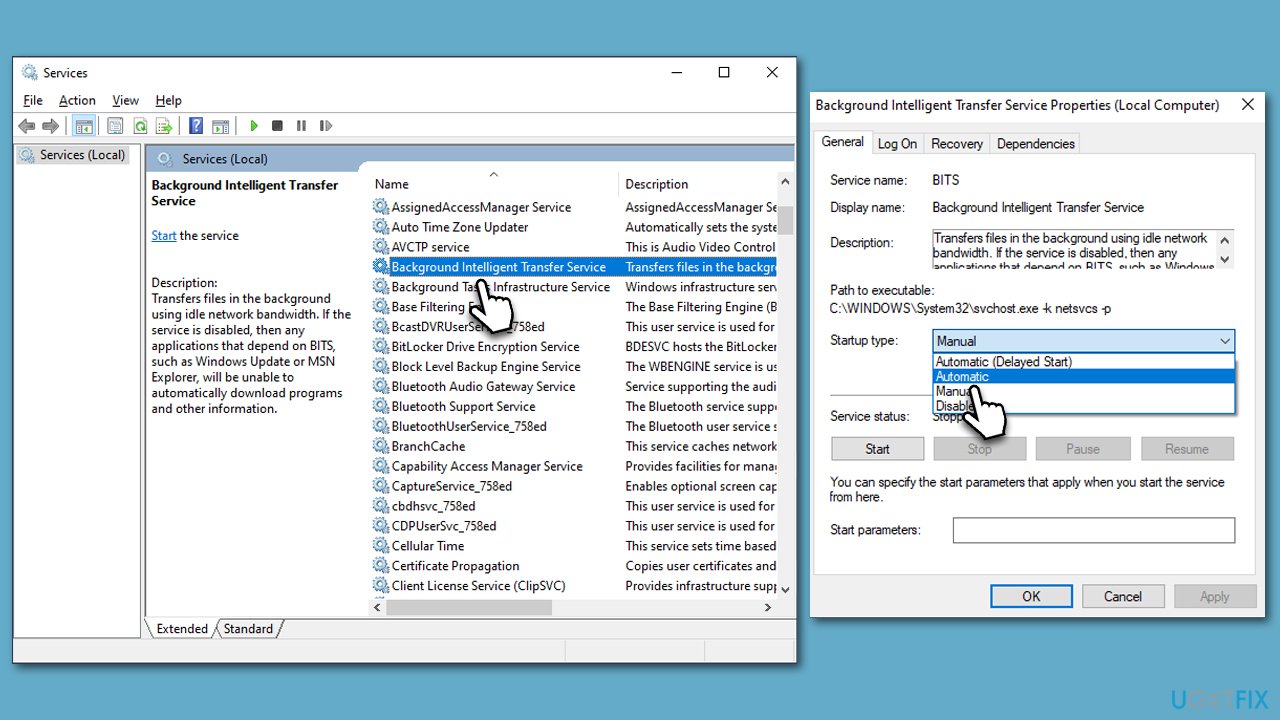
Method 1. Check Services
If Windows update and BITS services are not running, it may cause Windows updates to fail. Thus, make sure they are running; otherwise, restart them:
- Type in Services in Windows search and press Enter.
- Locate Background Intelligent Transfer Service (BITS).
- If it is already running, right-click and select Restart.
- If the service is not running, double-click it, and pick Automatic under the Startup type from the drop-down menu.
- Click Start, Apply, and OK.
- Find the Windows Update service and perform the same steps.
Method 2. Fix corrupted files
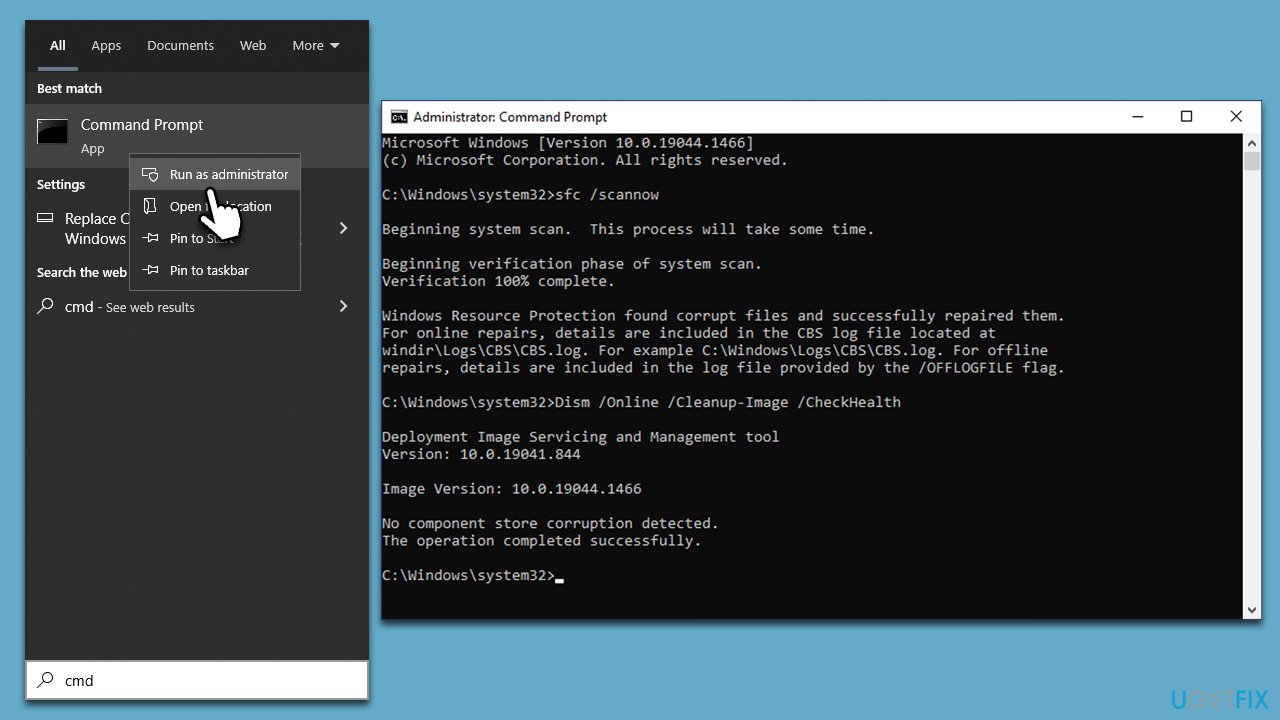
- Type cmd in Windows search.
- Right-click on Command Prompt and pick Run as administrator.
- User Account Control will ask you whether you want to allow changes – click Yes.
- Copy and paste this command and hit Enter:
sfc /scannow - Wait for the scan to finish.
- As soon as it finishes, Windows will report whether integrity violations were found and if they could be fixed. Regardless of the outcome, use these commands next, pressing Enter after each:
Dism /Online /Cleanup-Image /CheckHealth
Dism /Online /Cleanup-Image /ScanHealth
Dism /Online /Cleanup-Image /RestoreHealth - Close down the Command Prompt and restart your PC.
Method 3. Run the troubleshooter
Troubleshooters are excellent tools that can address various Windows issues, including those users have with Windows updates:
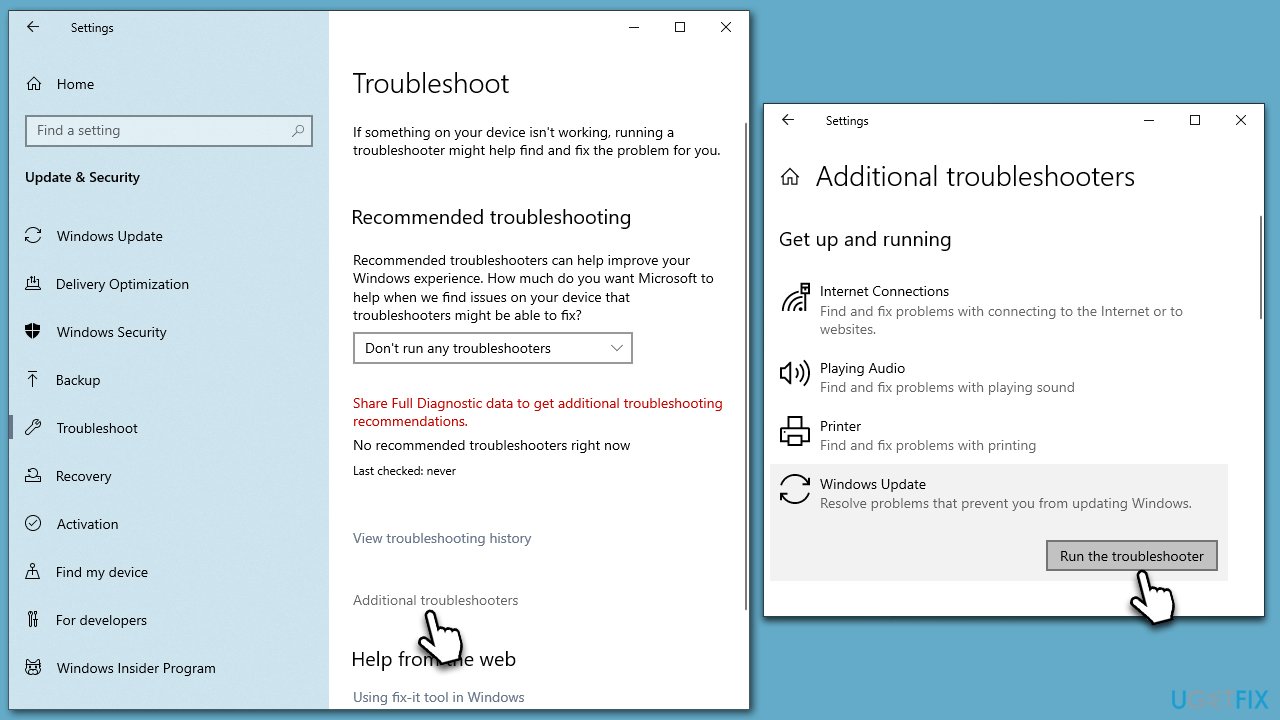
- Type Troubleshoot in Windows search and press Enter.
- Click Additional troubleshooters if you can't see them listed.
- Scroll down to find Windows update.
- Click and select Run the troubleshooter.
- Wait for the scan to finish, apply the suggested fixes, and restart your device.
Method 4. Reset Windows update components
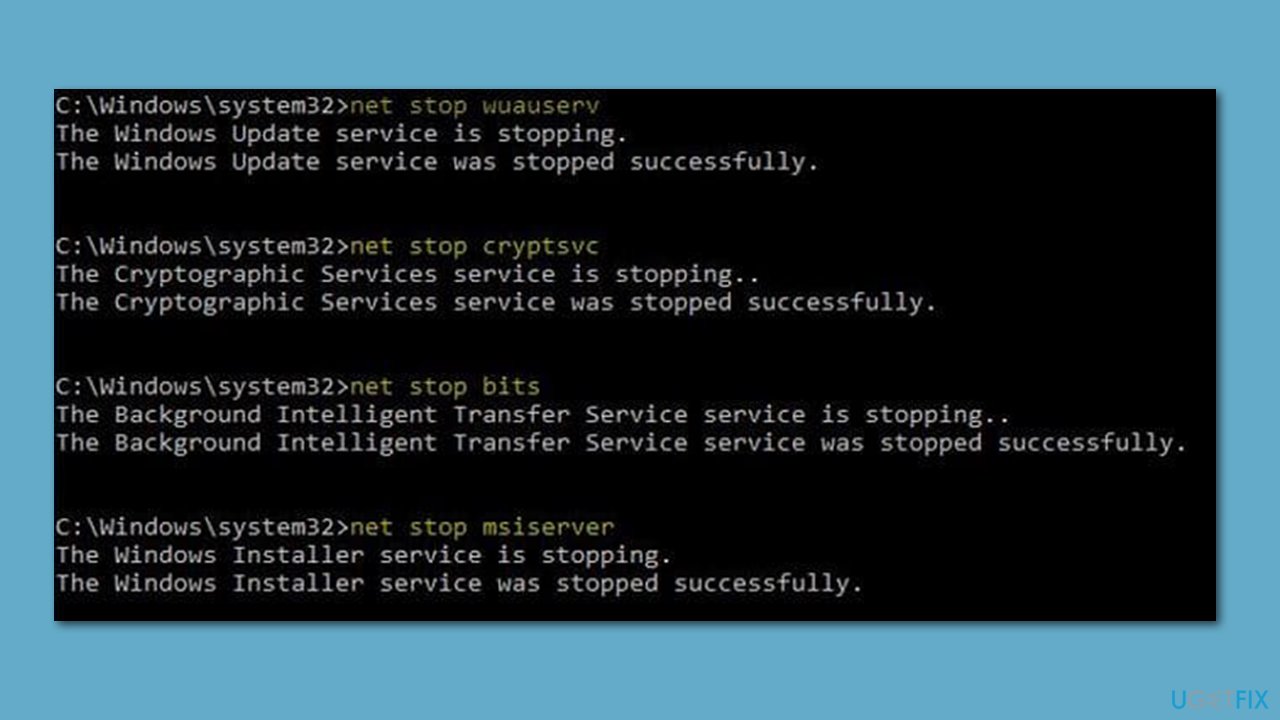
- Open Command Prompt as administrator
- Copy and paste each of the command lines, pressing Enter each time and waiting till each of the commands is executed:
net stop bits
net stop wuauserv
net stop appidsvc
net stop cryptsvc
Del “%ALLUSERSPROFILE%\Application Data\Microsoft\Network\Downloader\*.*”
rmdir %systemroot%\SoftwareDistribution /S /Q
rmdir %systemroot%\system32\catroot2 /S /Q
regsvr32.exe /s atl.dll
regsvr32.exe /s urlmon.dll
regsvr32.exe /s mshtml.dll
netsh winsock reset
netsh winsock reset proxy
net start bits
net start wuauserv
net start appidsvc
net start cryptsvc - Restart your computer.
Method 5. Install manually
You can always try to install the update manually if the automatic method fails.
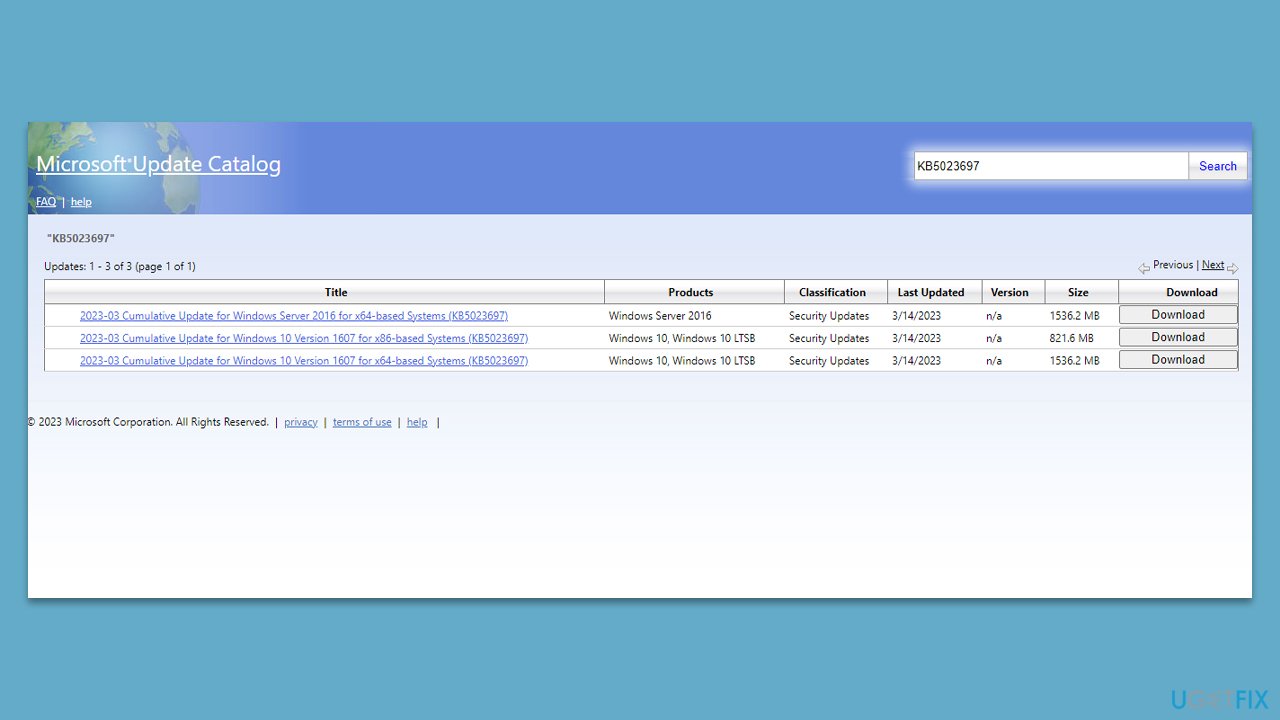
- Go to the official Microsoft Update Catalog website.
- Type the KB5023697 into the search bar, and press Enter or click Search.
- You will find many different versions on the update – you need to find the one that matches your PC specs and Windows version (as a home user, ignore Windows server versions).
- Right-click on Start and pick System.
- Under Device specifications, check the System type section: it should either be 64-bit or 32-bit.
- Scroll down to Windows specifications and check the Version section.
- Return to the Microsoft Update catalog, download the correct version and install it.
- Restart your PC.
Method 6. Try Media Creation Tool
To overcome potential update or upgrade issues, some users find that Media Creation Tool can be useful. However, before using it, it's important to disable or uninstall third-party security software and disconnect all non-essential devices, leaving only the keyboard and mouse connected.
- Visit the official Microsoft website and download Windows 10 installation media.
- Double-click the installer, select Yes when UAC shows up, and agree to the terms.
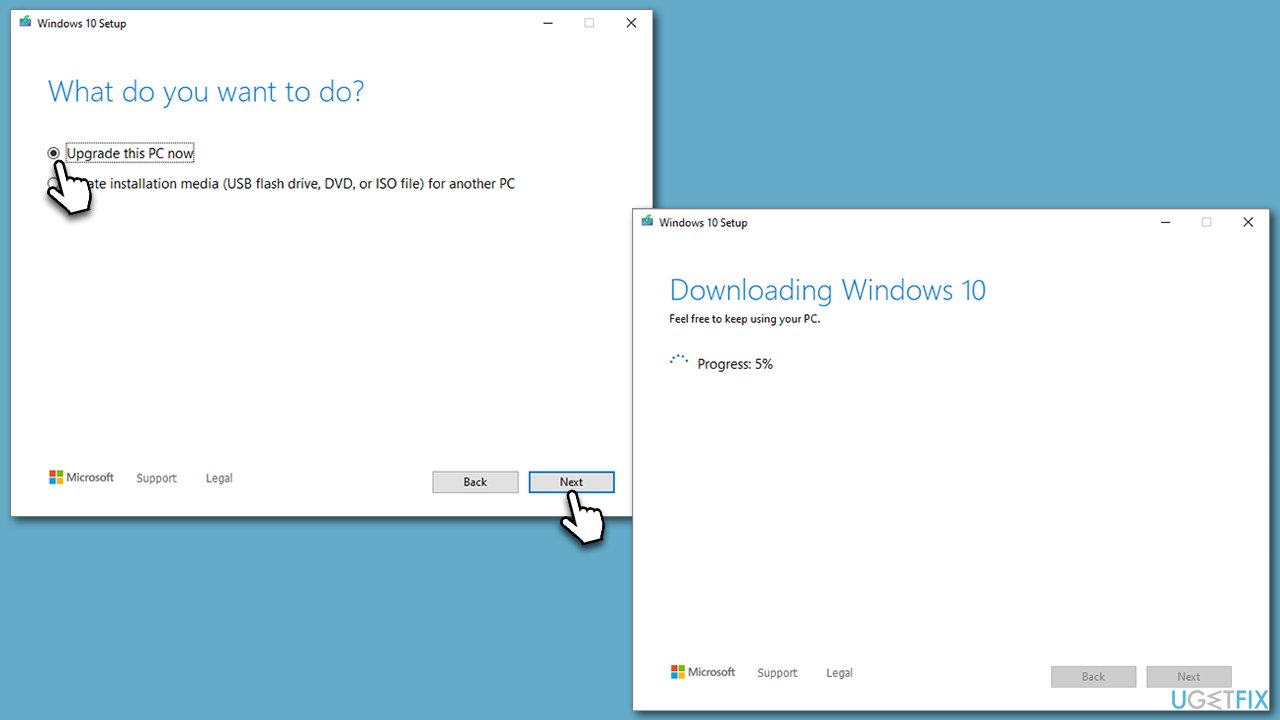
- Select Upgrade this PC now and click Next.
- Wait until all the necessary files are downloaded.
- Agree to the terms again and click Next.
- Before installing, ensure you are happy with your choices (you can click Change what to keep option if not).
- Click Install to begin the update process.
Bottom line
To fix the KB5023697 installation failure, users can try running the Windows Update Troubleshooter, resetting the Windows Update components, checking for corrupted system files, and ensuring necessary system services are running properly. If these methods do not resolve the issue, users can manually download and install the update from the Microsoft Update Catalog.
Frequently asked questions
You can try running the Windows Update Troubleshooter to fix any issues related to updates, or manually download the KB5023697 update from the Microsoft Update Catalog.
Make sure you have enough free space on your system drive by deleting unnecessary files or using the Disk Cleanup tool, then attempt to install the update again.
Yes, you can safely restart your PC, but make sure to check for updates again afterward to attempt the installation of KB5023697.




Report an issue
What's wrong with this guide? We review every report and update or remove content.
Report received — thank you. We'll review and fix it.
You need a free account to submit a report.
Be the first to comment