How to fix
KB5023775 fails to install
on Windows
Resolve the KB5023775 installation issue in Windows 11 effortlessly with expert-tested solutions and clear screenshots for a hassle-free fix.

What causes How to fix KB5023775 fails to install in Windows 11?
- Corrupted system files
- Insufficient disk space
- Problems with the Windows update service
- Incompatible or outdated drivers
- Conflicting software
- Malware
Repairs Windows system files, removes malware, and restores a clean OS state — without reinstalling.
Hi, I tried to install the latest Windows 11 update, KB5023775, but it keeps failing. Any idea how to fix this issue? I would appreciate any tips. All the previous updates are installed on my system.
Windows updates are shipped regularly to users and applied automatically, usually without user intervention. However, sometimes an update might fail to install, which can cause frustration and inconvenience for users. One such update that has been causing installation issues is the Windows 11 update KB5023775.
KB5023775 is an update for Windows 11 Insider Preview, which was released on March 16, 2023. Windows Insider program is a program that allows users to test out new features and updates before they are released to the general public. It is meant for people who are interested in testing out new features and providing feedback to Microsoft. The program is free to join and open to anyone who meets the eligibility criteria.
The KB5023775 update was meant to introduce several new features to Windows 11 Insider Preview, including live captions in more languages, updated touch keyboard settings, and improvements to the Windows Management Instrumentation (WMI) group policy service.
Despite its promised benefits, some users have been experiencing issues installing the update. There are several reasons why KB5023775 might fail to install, including corrupted system files, insufficient disk space, or problems with the Windows update service. Other possible causes include incompatible or outdated drivers, conflicting software, or malware.
While Windows updates are usually seamless and trouble-free, an update might occasionally fail to install, as is the case with the KB5023775 update for Windows 11 Insider Preview. If you are experiencing issues with installing this update, there are several potential causes, but fortunately, solutions are available.
Check out our list of solutions to common Windows update problems to learn how to fix these and other update-related issues. Before proceeding, we recommend trying an automatic solution by scanning the system with [d1], which can easily replace damaged or corrupted Windows files, clear the system of junk, and repair malware-caused damage.
Fix 1. Run Windows Update Troubleshooter
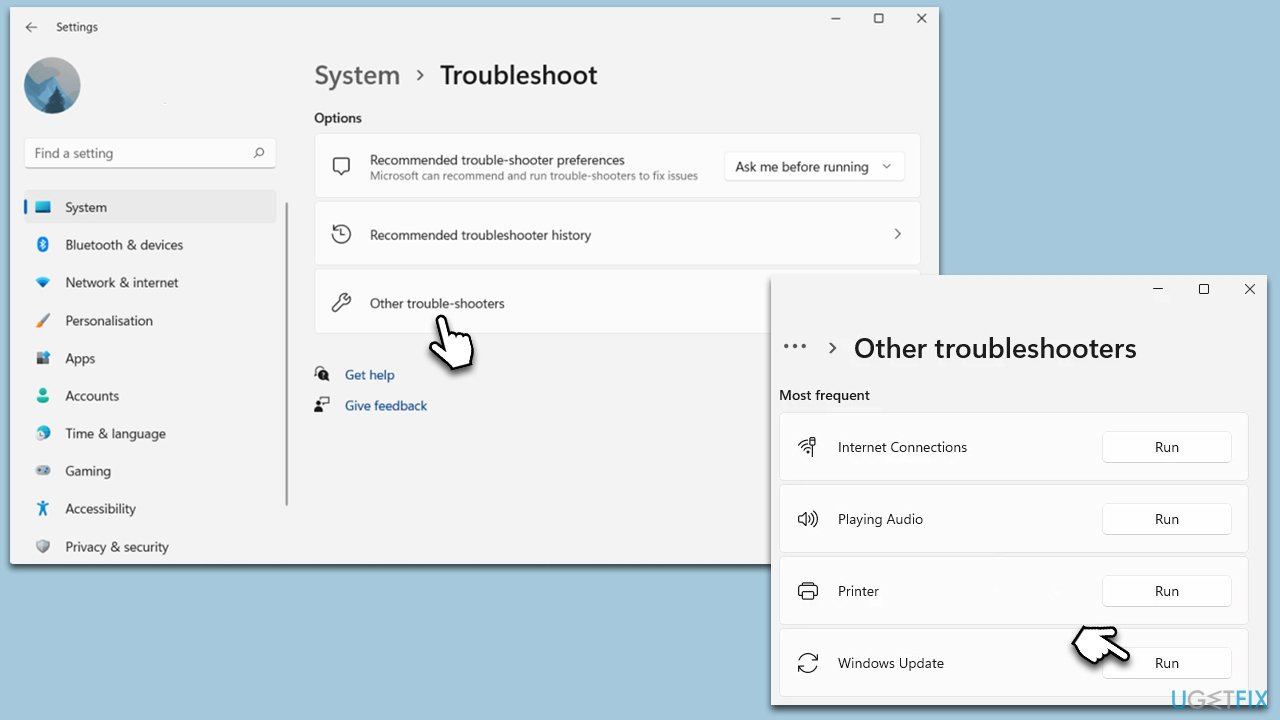
If you have trouble with Windows updates, you should always start with the troubleshooter. Here's how:
- Open Settings and go to the System section.
- On the right side of the window, click Troubleshoot.
- Select Other troubleshooters.
- Here, pick Windows update and click Run.
- Continue using on-screen instructions and, once done, restart the PC.
Fix 2. Repair corrupted files
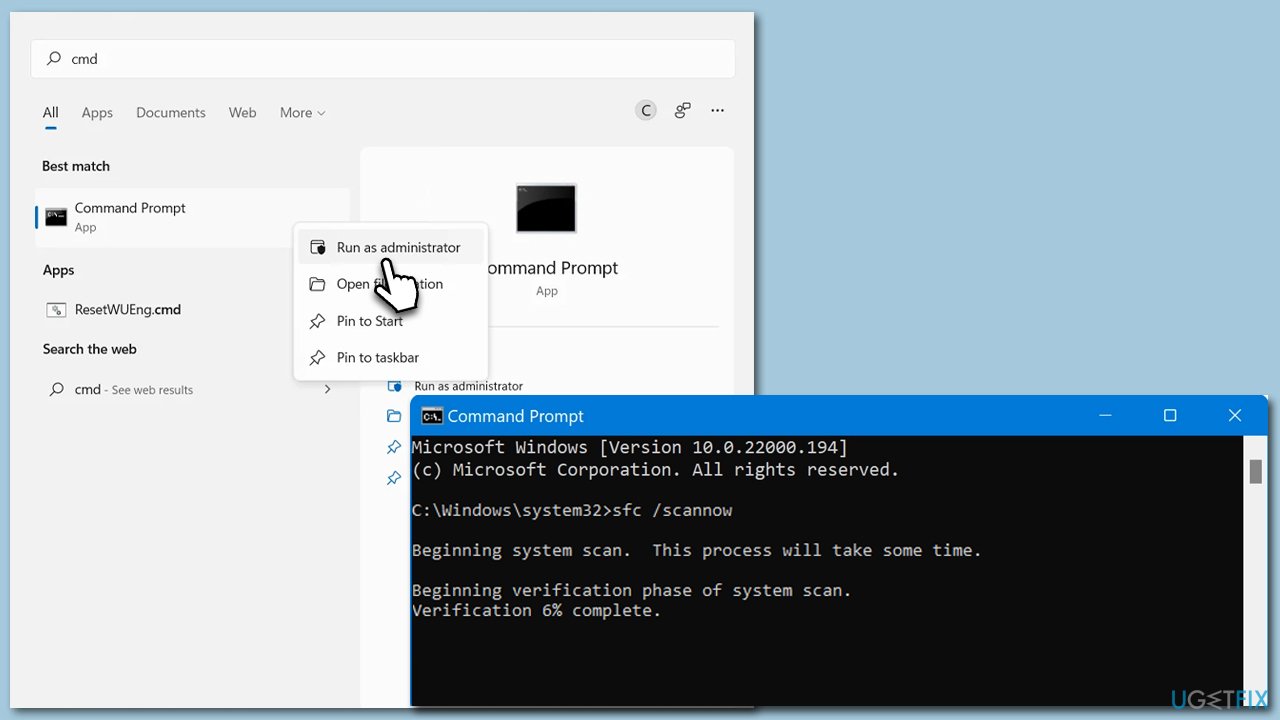
- Click on the Start button, type cmd in Windows search.
- Right-click on Command Prompt and pick Run as administrator.
- When User Account Control shows up, click Yes.
- Use the following command lines, pressing Enter after each:
sfc /scannow
DISM /Online /Cleanup-Image /CheckHealth
DISM /Online /Cleanup-Image /ScanHealth
DISM /Online /Cleanup-Image /RestoreHealth - Restart your device.
Fix 3. Reset Windows Update Components
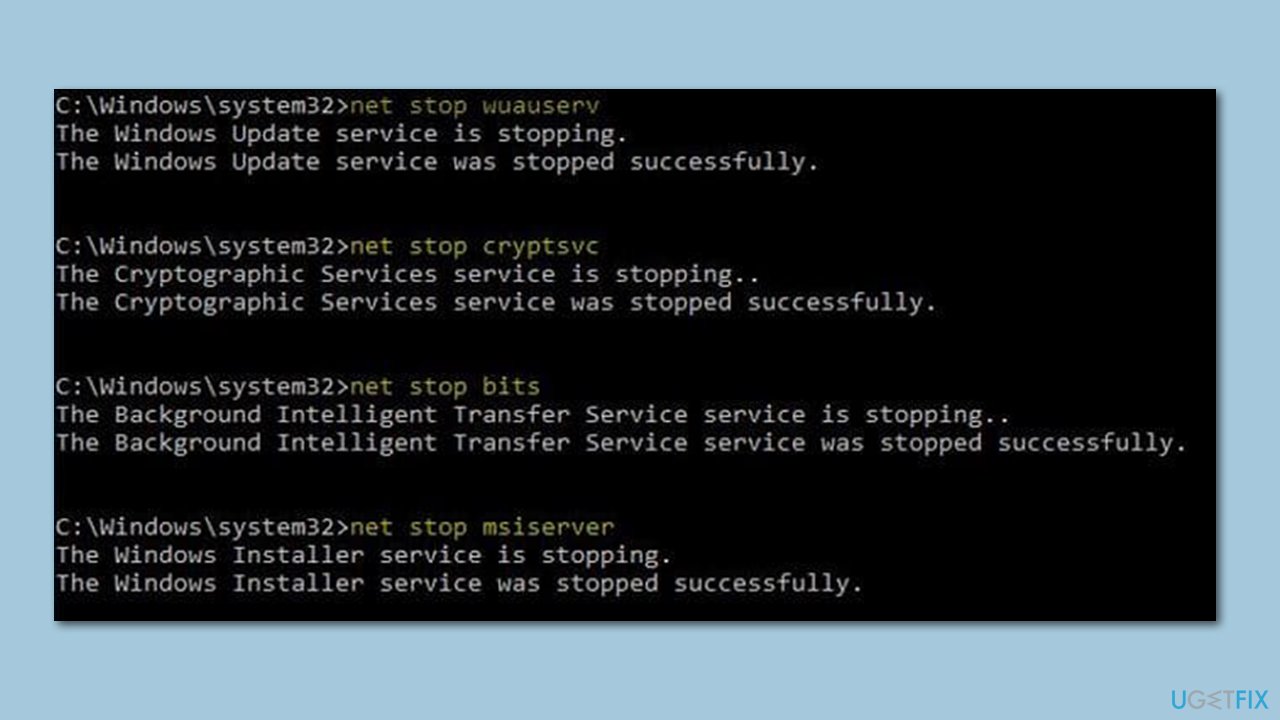
- Open Command Prompt as administrator, as explained before.
- In the new window, copy and paste the following commands, pressing Enter after each to execute them:
net stop bits
net stop wuauserv
net stop appidsvc
net stop cryptsvc
Del “%ALLUSERSPROFILE%\Application Data\Microsoft\Network\Downloader\*.*”
rmdir %systemroot%\SoftwareDistribution /S /Q
rmdir %systemroot%\system32\catroot2 /S /Q
regsvr32.exe /s atl.dll
regsvr32.exe /s urlmon.dll
regsvr32.exe /s mshtml.dll
netsh winsock reset
netsh winsock reset proxy
net start bits
net start wuauserv
net start appidsvc
net start cryptsvc - Restart your computer.
Fix 4. Disable or uninstall third-party security software
If you are experiencing unexpected malfunctions on your system, it is important to check for malware, as it may be the cause. However, it should be noted that third-party security software can also cause issues for Windows users, and update failures are among the most common problems encountered.
When you install third-party security software, it alters the way your operating system functions. Certain processes are routed through the application first to ensure their safety. We have observed numerous cases where users cannot update their systems due to the presence of anti-malware programs on their devices. As a result, users may need to uninstall the application or temporarily disable it to attempt the update once again.
Fix 5. Check your disk for errors
Sometimes the update might not go through because of disk errors. You can check it using the following method:
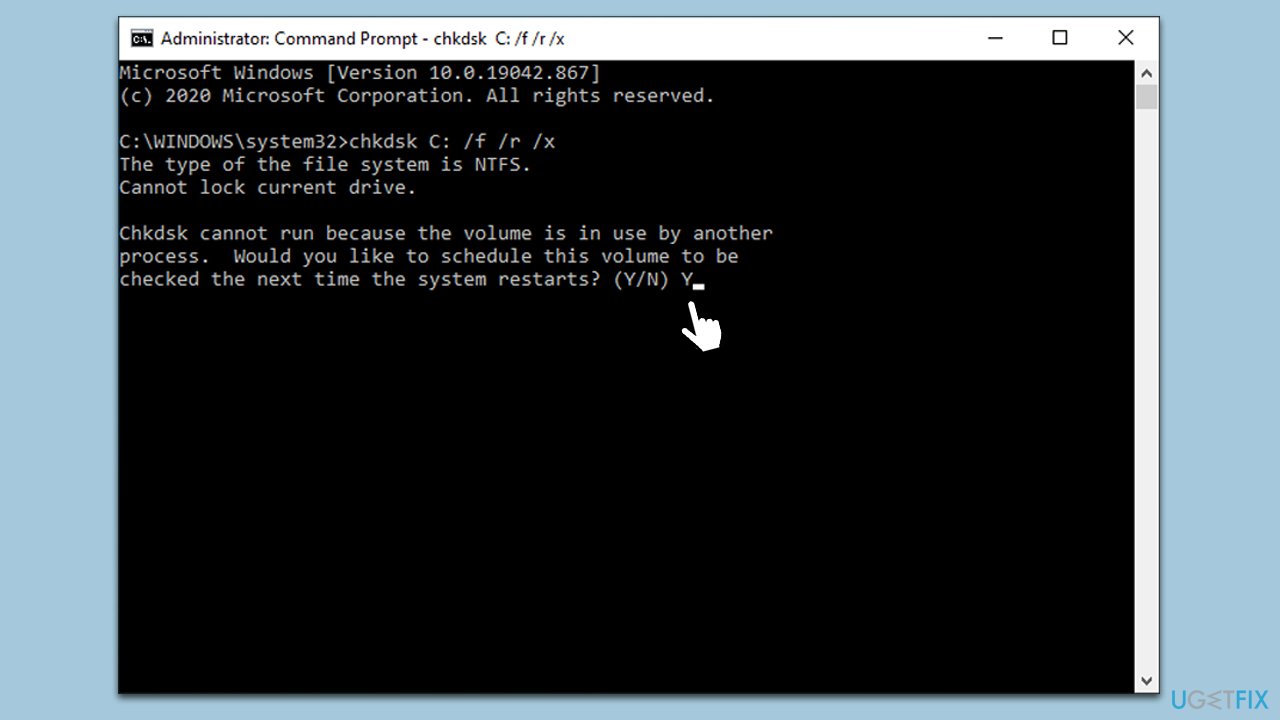
- Open Command Prompt as administrator once again and run the following command:
chkdsk c: /f - Note: if you are using an SSD, use the following command instead:
chkdsk c: /f /r /x - Reboot your system.
Fix 6. Perform in-place upgrade
Make sure you disconnect all the unnecessary peripherals, leaving just the mouse and keyboard, before proceeding.
- Visit the official Microsoft website and download the Windows installation media.
- Double-click the installer and select Yes when UAC shows up.
- Agree to the terms and click Next.
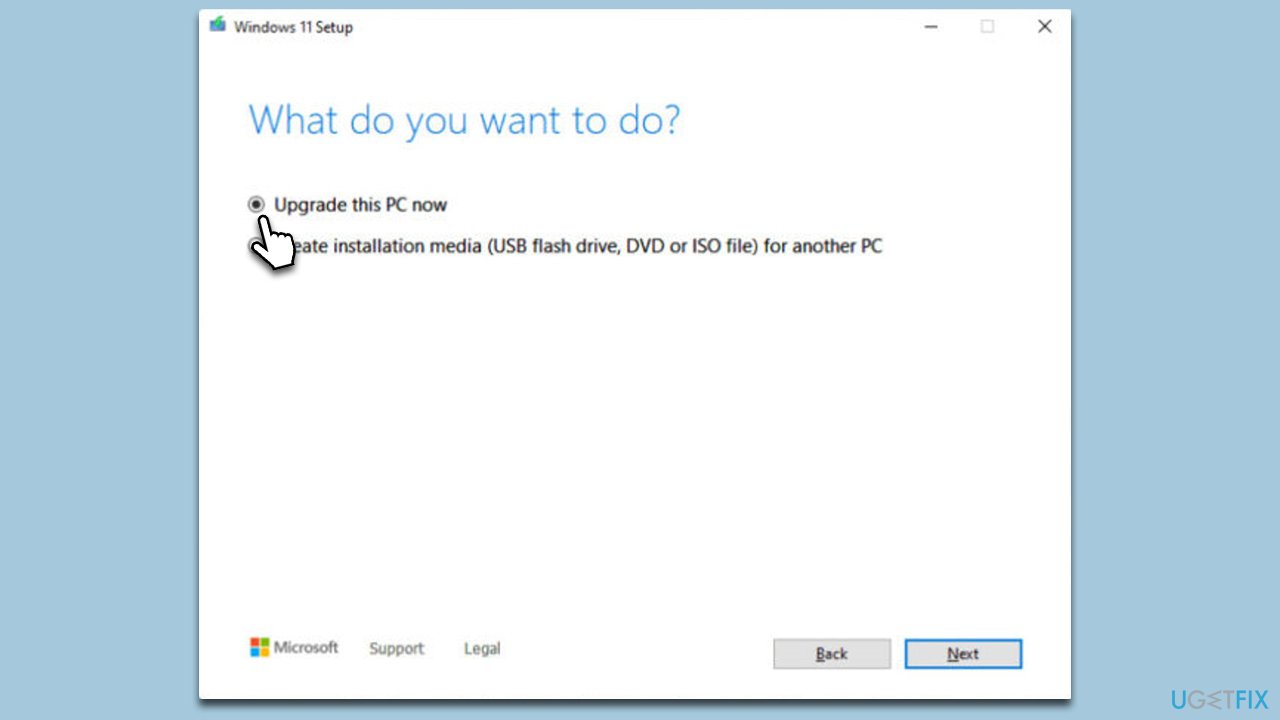
- Select Upgrade this PC now and select Next.
- Windows will now download all the necessary files – it might take some time.
- Agree to the terms once again and click Next.
- Before installing, ensure you are happy with your choices (otherwise, you can click the Change what to keep option).
- Click Install to begin the upgrade process.
Bottom line
To resolve the installation issues with KB5023775, you can try scanning your system for corrupted files, ensuring you have enough disk space, and checking for driver updates. If these solutions do not work, consider looking into potential software conflicts or malware on your system.
Frequently asked questions
First, try running the Windows Update Troubleshooter to identify and fix issues related to the update. If that doesn't work, consider manually downloading the update from the Microsoft Update Catalog.
You can check the Windows Update history in Settings under Update & Security > Windows Update, where you'll find any error codes associated with the failed installation. Use these codes to search for specific solutions online.
Yes, you can uninstall KB5023775 by going to Settings > Update & Security > Windows Update > View update history > Uninstall updates, especially if it's causing significant issues.




Report an issue
What's wrong with this guide? We review every report and update or remove content.
Report received — thank you. We'll review and fix it.
You need a free account to submit a report.
Be the first to comment