How to fix
KB5025224 fails to install
on Windows
Resolve the KB5025224 installation error in Windows 11 with effective troubleshooting tips. Get your system updated effortlessly. Expert-tested solutions!

What causes How to fix KB5025224 fails to install in Windows 11?
- Incompatible third-party software or drivers
- Corrupted system files or settings
- Issues with Windows Update components or services
- Potential bugs or errors in the update package
Repairs Windows system files, removes malware, and restores a clean OS state — without reinstalling.
I am trying to install KB5025224 on my Windows 11, but it keeps failing. I have never had problems with installing Windows updates before, so I'm not quite sure what to do. Any advice?
Windows 11, Microsoft's newest operating system, released in October 2021, has been receiving regular updates to ensure the security, stability, and performance of the system. These updates are crucial to keep the operating system running smoothly and protected against potential security threats. However, some users have reported issues with installing KB5025224, a regular update released on April 11, 2023, as part of Microsoft's monthly Patch Tuesday.
KB5025224 is a security update that aims to address multiple vulnerabilities and implement improvements and bug fixes in Windows 11. Microsoft assigns KB numbers to its updates as a way to identify and track them. These updates are typically released on a monthly basis and are crucial for maintaining the overall health and security of the operating system.
Despite its significance, some users have encountered difficulties installing KB5025224. While some users receive an error code, others might simply get a generic notification that the update failed, which would repeat in the subsequent tries to install the update.
There are several potential reasons for the KB5025224 failing to install in Windows 11. One common factor could be if incompatible third-party software or drivers are installed on the system, it could also disrupt the update installation process.
Another possible reason for the failure to install KB5025224 could be corrupted system files or settings. If certain system files or settings are corrupted, it may prevent the update from being installed correctly. Issues with Windows Update components or services could also cause the installation to fail.
In some cases, the update failure may be due to issues on Microsoft's end. It's possible that there could be a bug or an error in the update package itself, which may prevent it from being installed on certain systems. Microsoft is usually quick to address such issues and release fixes, but sometimes, it may take time for a resolution to be available.
Nonetheless, if you would like to address the issue where KB5025224 fails to install, you should follow the steps below. Before proceeding, you could run a quick scan with [d1] - an automatic PC repair tool capable of finding underlying Windows issues and fixing them automatically for you.
Method 1. Run the troubleshooter
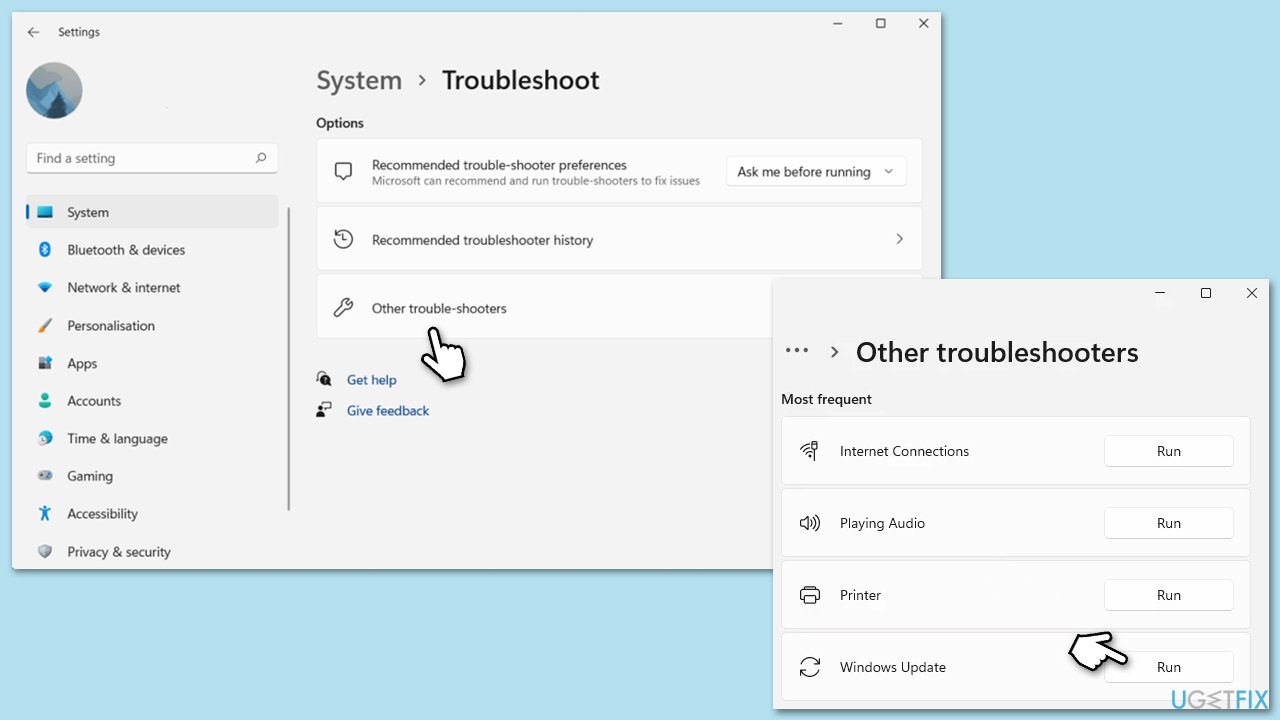
Windows Update Troubleshooter is a built-in tool in Windows operating systems that helps users diagnose and resolve issues related to Windows updates. It can automatically detect and fix common problems that may be preventing updates from installing or configuring correctly. To run it, proceed with the following:
- Type troubleshoot in Windows search and press Enter or go to Start > Settings > System > Troubleshoot.
- From the list of Options, pick Other trouble-shooters.
- Scroll down to locate the Windows Update and click Run.
- Wait for it to finish, then apply changes and reboot the system.
Method 2. Run SFC and DISM
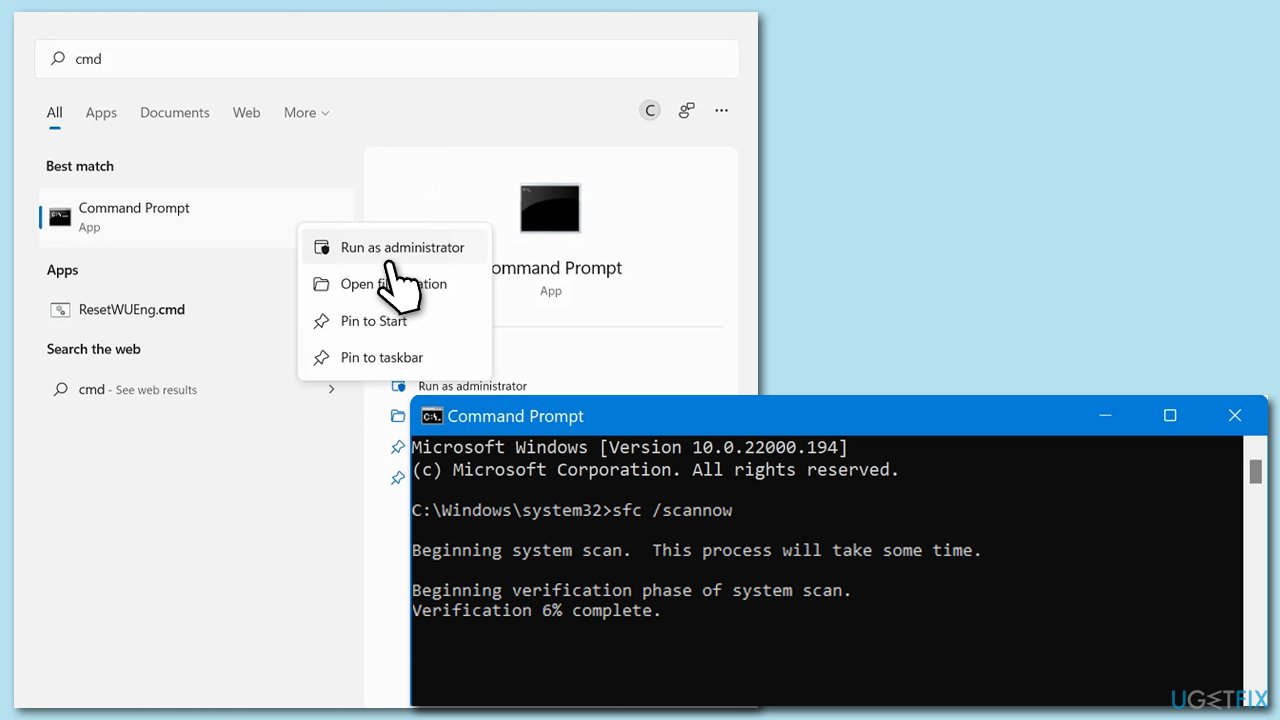
Running SFC and DISM tools can help resolve Windows update errors by scanning and repairing corrupt or missing system files and components. SFC replaces corrupted files with cached copies from the Component Store, while DISM repairs the Component Store and replaces files from a known good source.
- Type cmd in Windows search, right-click on Command Prompt, and select Run as administrator.
- When User Account Control shows up, click Yes.
- Use the following command and press Enter:
sfc /scannow - Once the scan is complete, you should also run the following commands to repair Windows image files (don't forget to press Enter after each):
DISM /Online /Cleanup-Image /CheckHealth
DISM /Online /Cleanup-Image /ScanHealth
DISM /Online /Cleanup-Image /RestoreHealth - Restart your device.
Method 3. Temporarily pause the update
Pausing an update temporarily halts the installation process, allowing any ongoing tasks or processes related to the update to be completed or terminated. Unpausing the update restarts the installation process, initiating a fresh attempt to install the update with a clean slate.
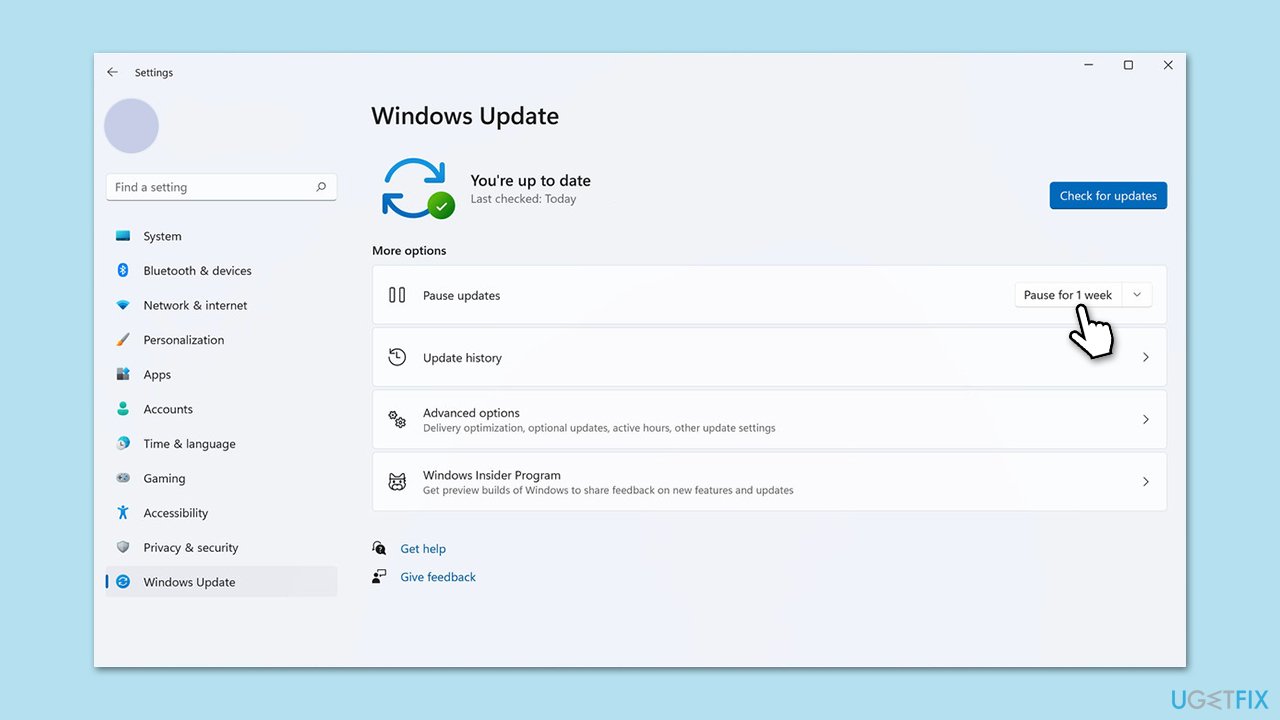
- Type Updates in Windows search and press Enter.
- In the Settings window, you should see the Pause updates option.
- Click on the drop-down menu and select Pause for 1 week.
- Restart your computer.
- Open the Updates section again, hit Unpause, then try downloading the update again.
Method 4. Restart or enable relevant services
Some services are required to be running in order to successfully update Windows, as they are responsible for facilitating the installation and configuration of updates, ensuring that they are applied correctly and without errors.
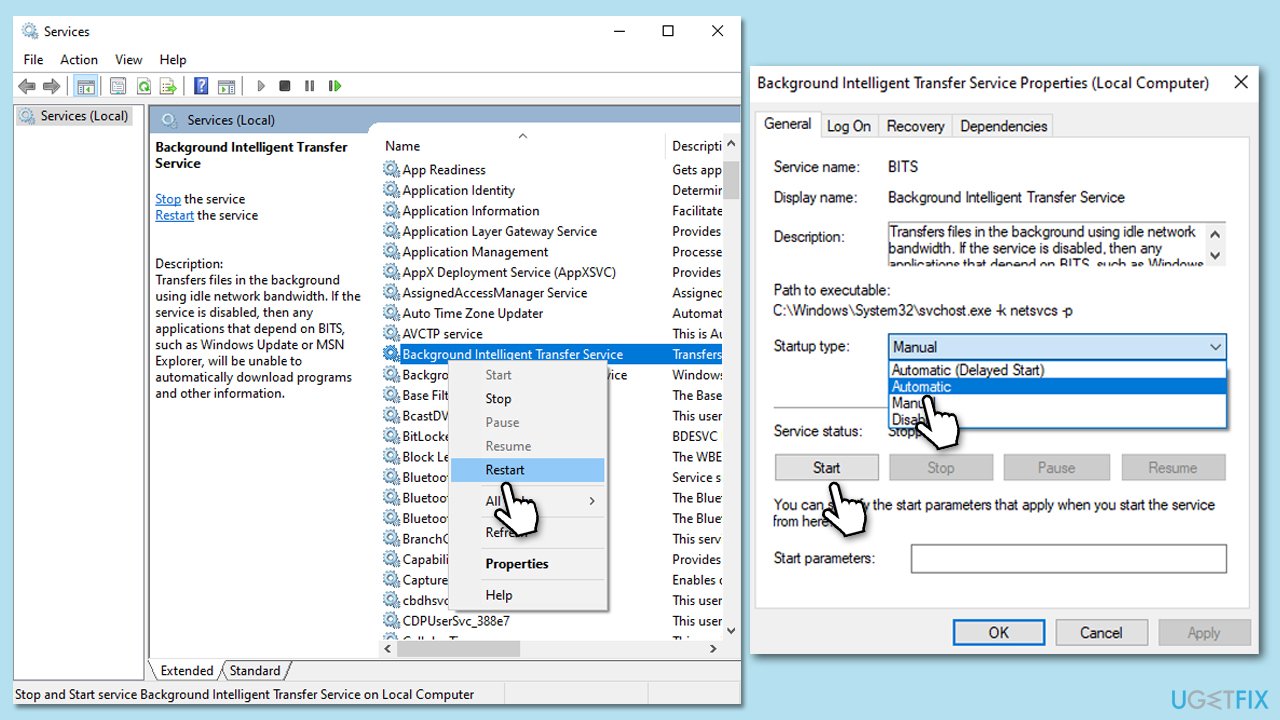
- Access the Services window by opening the Start menu and typing Services into the search bar, then pressing Enter.
- Next, locate the Background Intelligent Transfer Service, Cryptographic Service, and Windows Update Service by scrolling through the list of services.
- Right-click on each service, and from the context menu, select Restart.
- In case a service is not running, double-click on it and select Automatic under the Startup type. Afterward, click on Start and then click OK.
Method 5. Disable security software
Third-party security software, such as antivirus programs or firewalls, may interfere with the installation of Windows updates as they can conflict with the update process, block critical system files, or disrupt the update installation routine. Disabling or uninstalling third-party security software temporarily can often resolve failures to update Windows by eliminating potential conflicts and allowing the updates to be installed without hindrance.
Method 6. Reset update components
Resetting the Windows Update components involves stopping relevant services, clearing temporary files, and resetting the update-related folders to their default settings.
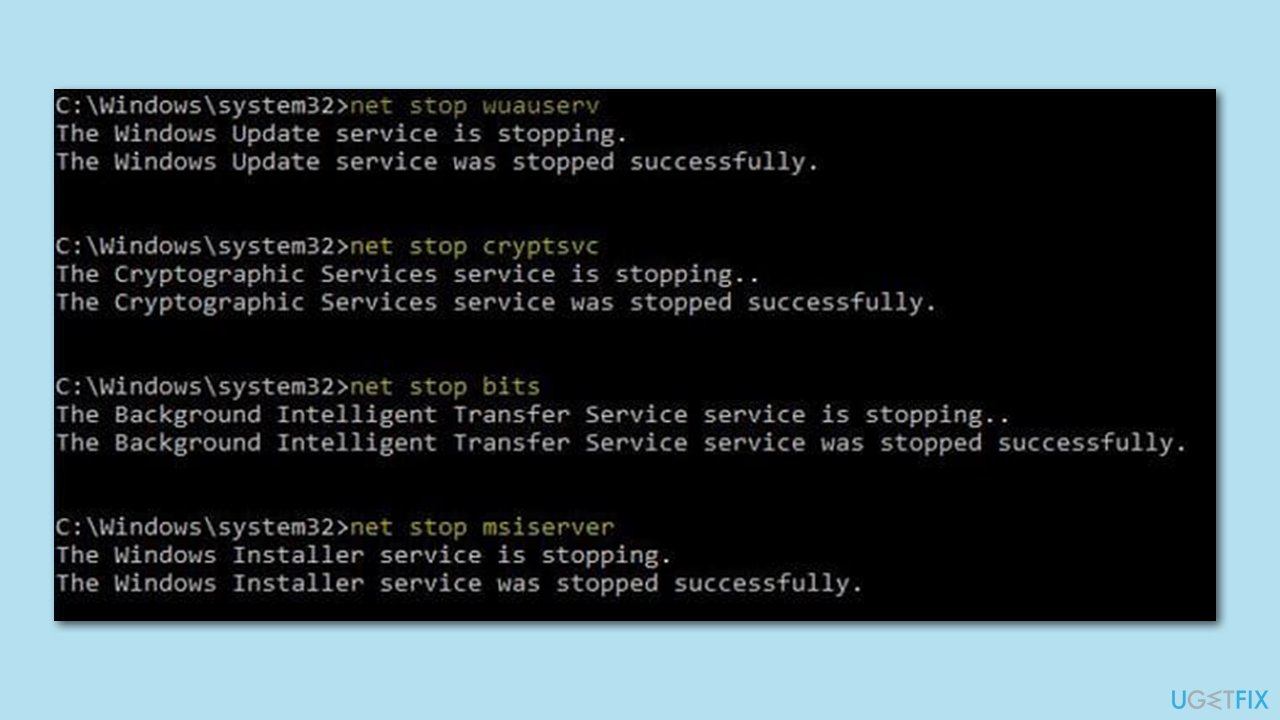
- Open Command Prompt as administrator.
- Type the following commands one by one and press Enter after each command:
net stop wuauserv
net stop cryptSvc
net stop bits
net stop msiserver
Del /s /q /f %windir%\SoftwareDistribution\*
net stop cryptSvc
md %systemroot%\system32\catroot2.old
xcopy %systemroot%\system32\catroot2 %systemroot%\system32\catroot2.old /s
net start wuauserv
net start cryptSvc
net start bits
net start msiserver - Close Command Prompt and restart your computer.
Method 7. Use Windows installation media
You can rely on a special Windows tool from Microsoft that would allow you to upgrade your operating system to the latest version.
- Visit the official Microsoft website and download Windows installation media.
- Double-click the installer and select Yes when UAC shows up.
- Agree to the terms and click Next.
- Select Upgrade this PC now and pick Next.
- Windows will now download all the necessary files – wait till it's complete.
- Agree to the terms once more and click Next.
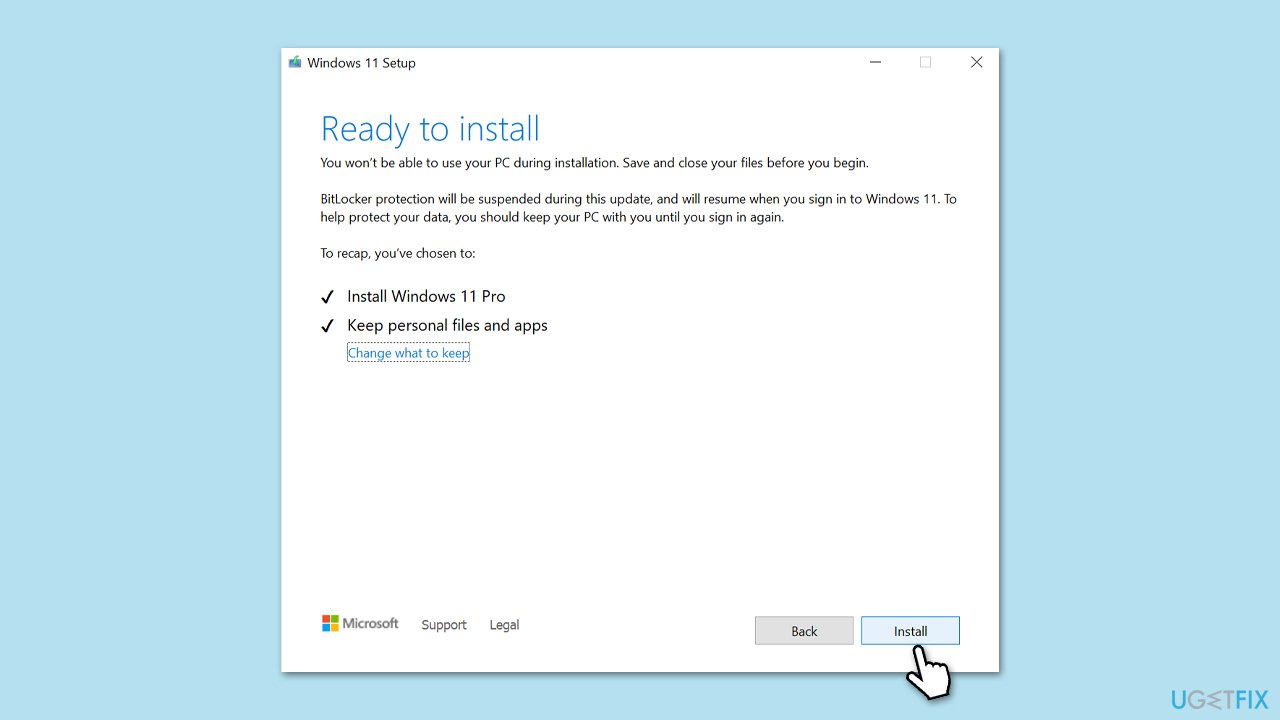
- Before installing, make sure that you are happy with your choices (although you can click Change what to keep option).
- Click Install to begin the upgrade process.
Related:
Bottom line
To resolve the installation failure of KB5025224, you can try uninstalling incompatible software, repairing corrupted system files, or resetting Windows Update components. If these solutions do not work, consider checking for updates from Microsoft or seeking further assistance.
Frequently asked questions
Try running the Windows Update Troubleshooter by going to Settings > Update & Security > Troubleshoot > Additional troubleshooters, and select Windows Update.
Yes, corrupted system files can prevent updates from installing properly; you can run the System File Checker tool by executing 'sfc /scannow' in the Command Prompt.
Yes, restarting your PC is often necessary to apply any changes made during troubleshooting and to attempt the update installation again.




Report an issue
What's wrong with this guide? We review every report and update or remove content.
Report received — thank you. We'll review and fix it.
You need a free account to submit a report.
Be the first to comment