How to fix
KB5032874 fails to install
on Windows
Fix the KB5032874 installation error in Windows 10 or 11 quickly and easily. Get expert-tested solutions to resolve updates with zero traces left.

What causes How to fix KB5032874 fails to install in Windows?
- Update stalls during download or installation
- Error code 0x8007000D appears
- Corrupted system files impede the update
- Disruption in the update process due to misconfigured components
- Issues with the integrated update troubleshooter
Repairs Windows system files, removes malware, and restores a clean OS state — without reinstalling.
Hi, I am unable to install KB5032874 as of this morning, and it is getting frustrating. Any tips on how to bypass this? I tried restarting and running the troubleshooter - it didn't help one bit.
Microsoft Windows periodically releases updates to its operating system to address both security and functionality concerns. Typically, these updates are scheduled for the second Tuesday of every month. However, there are instances when additional updates are dispatched outside this regular schedule to cater to specific needs or issues.
KB5032874 is one such additional update, released on October 24, 2023, targeting .NET 6.0. This was an addendum to KB5031900, which was distributed earlier on October 10. Both updates were designed to provide a combination of security and non-security fixes, ensuring the stability and security of the system.
However, it seems like for some users, KB5032874 fails to install - be it on Windows 10 or 11. When this happens, the update simply stalls at a certain percentage during download or installation, and then people are usually shown an error code, such as 0x8007000D. In other cases, no such codes could be present, and users might be told to try again later.
For those encountering issues with the update, there are several recommended troubleshooting steps. One initial approach is to use automatic repair tools, like the [d1] PC repair tool, which aims to diagnose and address common issues. If this doesn't resolve the problem, there are other measures to consider.
Resetting the Windows update components is one such method. This process ensures that any elements potentially causing disruption in the update process are returned to their default configurations. Another approach involves repairing any corrupted system files that might be impeding the update - SFC and DISM can be run in elevated Command Prompt for that. Moreover, Windows also has an integrated update troubleshooter, which when activated, attempts to identify and rectify problems related to updating installations autonomously.

KB5032874 update aimed at enhancing .NET 6.0 has faced some installation challenges among users. However, several troubleshooting methods are available to help users navigate and potentially resolve these issues.
Fix 1. Check relevant services
Windows is a complex operating system, and issues can arise from various corners. Recognizing this, Microsoft has integrated troubleshooting tools designed to automatically detect and resolve common problems. The Windows Update troubleshooter is a specialized tool in this collection. When run, it scans the system for known update-related issues and either automatically rectifies them or provides guidance on potential solutions.
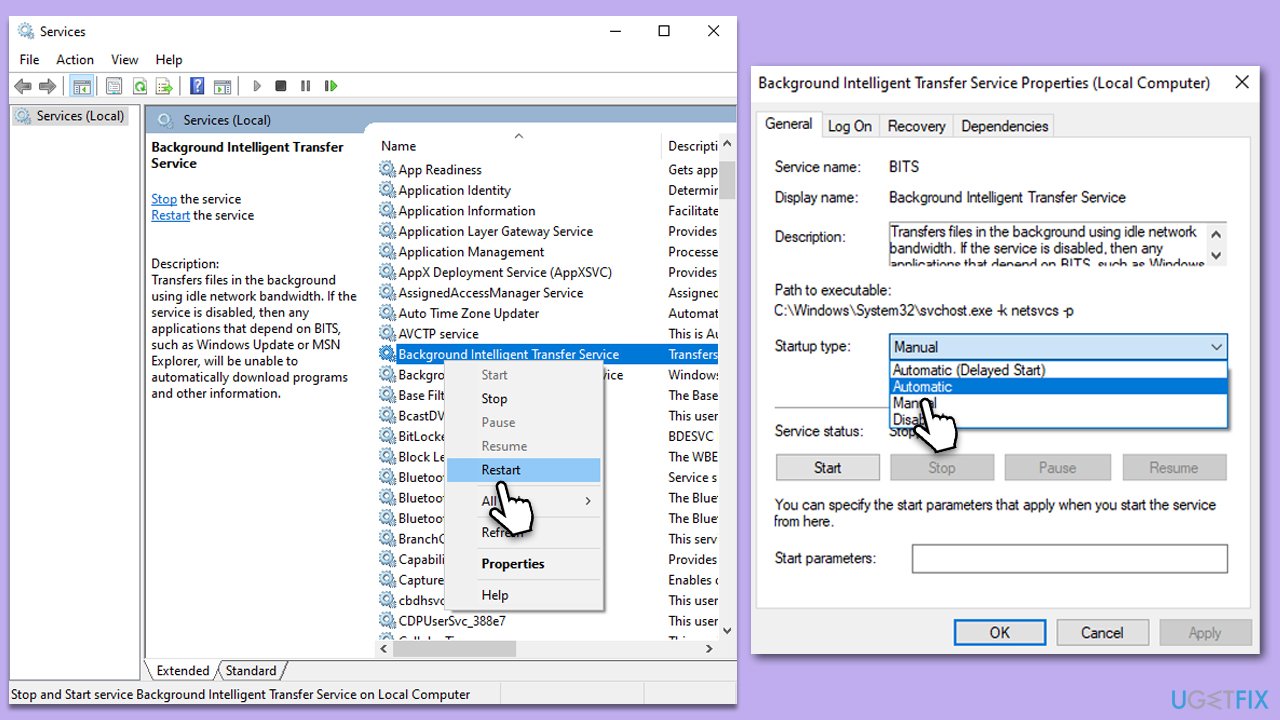
- Access the Services window by opening the Start menu and typing Services into the search bar, then pressing Enter.
- Next, locate the Background Intelligent Transfer Service and Windows Update Service by scrolling through the list of services.
- Right-click on each service, and from the context menu, select Restart.
- In case a service is not running, double-click on it and select Automatic under the Startup type. Afterward, click on Start and then click OK.
Fix 2. Run Windows Update troubleshooter
Windows has built-in troubleshooters that can identify and automatically resolve common problems. For update issues:
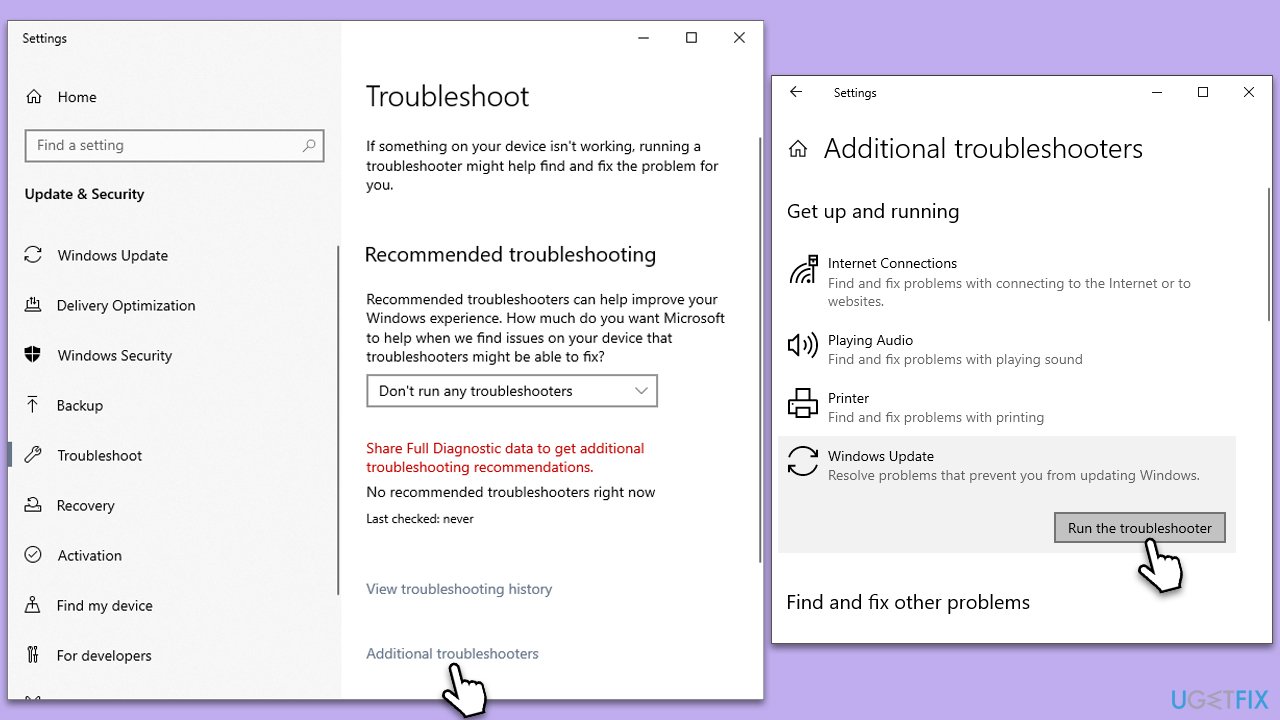
- Type Troubleshoot in Windows search and hit Enter.
- Select Additional troubleshooters/Other troubleshooters.
- Find Windows update from the list and select Run the troubleshooter/Run.
- Wait till the scan is finished - you will be provided with potential causes so you can proceed with fixes.
- If no suggestions were given, proceed with the solutions below.
Fix 3. Install the update manually
While the automatic update process is convenient, it's also a complex procedure that involves multiple stages and services. Occasionally, a hiccup in any of these stages can halt an update. A manual installation sidesteps this entire mechanism. Instead of waiting for Windows to identify, download, and install an update, you're doing so directly by fetching the update package and initiating the installation yourself, thereby bypassing potential pitfalls in the automatic process.
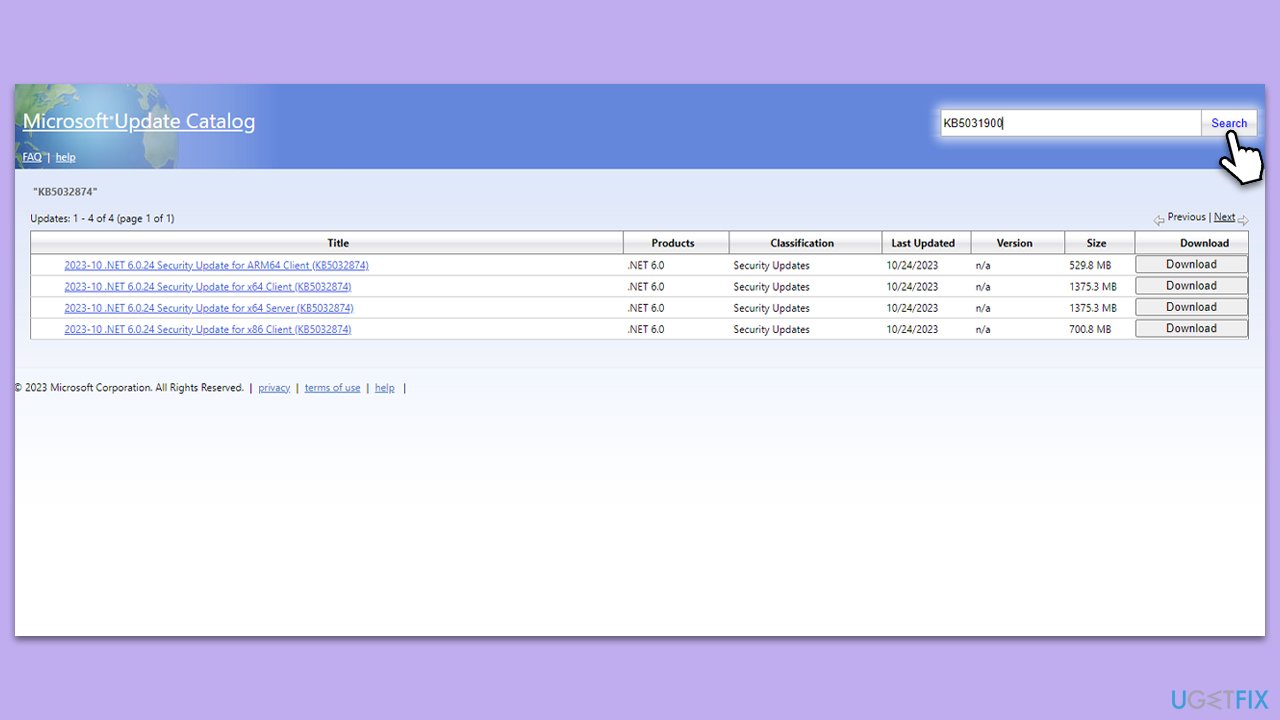
- Go to the official Microsoft Update Catalog website.
- Type KB5032874 into the search bar and press Enter or click Search.
- Find the correct version of the update for your device (as a home user, ignore all Windows server versions) and click Download.
- Follow the on-screen instructions to install the update and then restart your system.
Fix 4. Run SFC and DISM scans
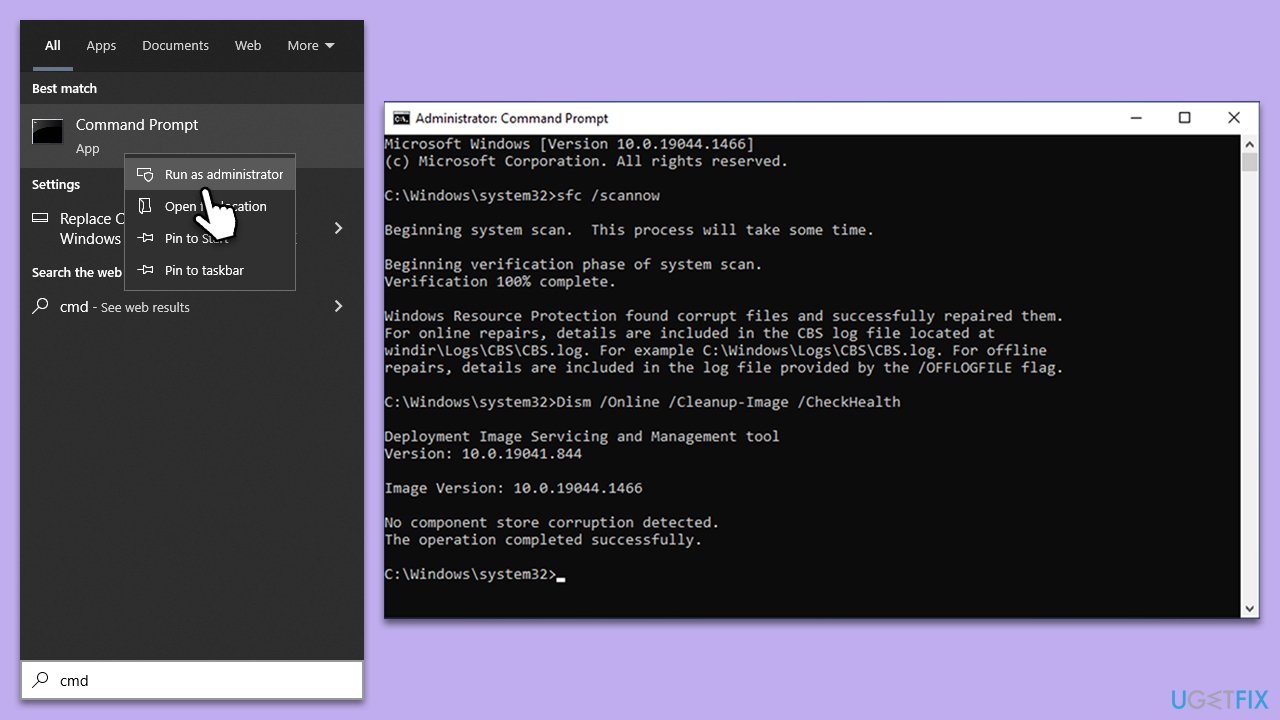
Corrupted system files can hinder the update process. System File Checker (SFC) and Deployment Image Servicing and Management (DISM) are tools to address this:
- Type in cmd in Windows search.
- Right-click on Command Prompt and select Run as administrator.
- In the User Account Control window, click Yes.
- In the Command Prompt window, paste the following command and hit Enter:
sfc /scannow - Next, use the following commands, pressing Enter each time:
Dism /Online /Cleanup-Image /CheckHealth
Dism /Online /Cleanup-Image /ScanHealth
Dism /Online /Cleanup-Image /RestoreHealth
(Note: if you get an error executing this last command, add /Source:C:\RepairSource\Windows /LimitAccess to it and try again). - Reboot your computer.
Fix 5. Reset Windows Update components
Think of the update process as a machine with multiple moving parts. Over time, some of these parts can get stuck or misaligned, preventing the machine from working as intended. In the context of Windows, these "parts" are update components. By resetting them, you're essentially giving the update machine a fresh start, allowing it to operate without the burden of past glitches or misconfigurations.
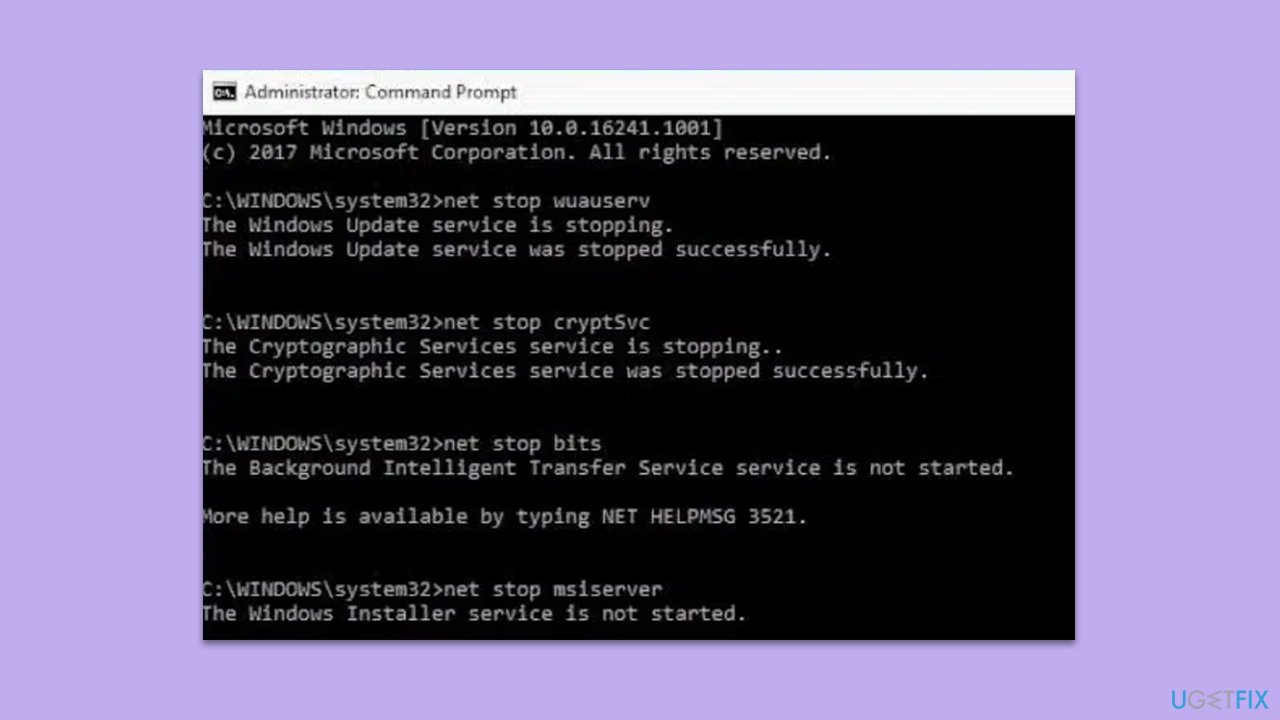
- Open Command Prompt as administrator.
- Stop the Windows Update Services by entering the following commands, one at a time, and pressing Enter after each:
net stop wuauserv
net stop cryptSvc
net stop msiserver
net stop bits - Rename the SoftwareDistribution and Catroot2 folders with the following commands:
ren C:\Windows\SoftwareDistribution SoftwareDistribution.old
ren C:\Windows\System32\catroot2 catroot2.old - Restart the services you stopped earlier with these commands:
net start wuauserv
net start cryptSvc
net start msiserver
net start bits - Close the Command Prompt window and try running the Windows Update again.
Fix 6. Perform Disk Cleanup
Over time, temporary files can accumulate on every system that's actively used. While many of these files are harmless, some can interfere with system operations, including updates. Disk Cleaup sifts through the data, identifies the expendable pieces, and clears them out, ensuring the system has a cleaner and potentially more efficient environment to operate in.
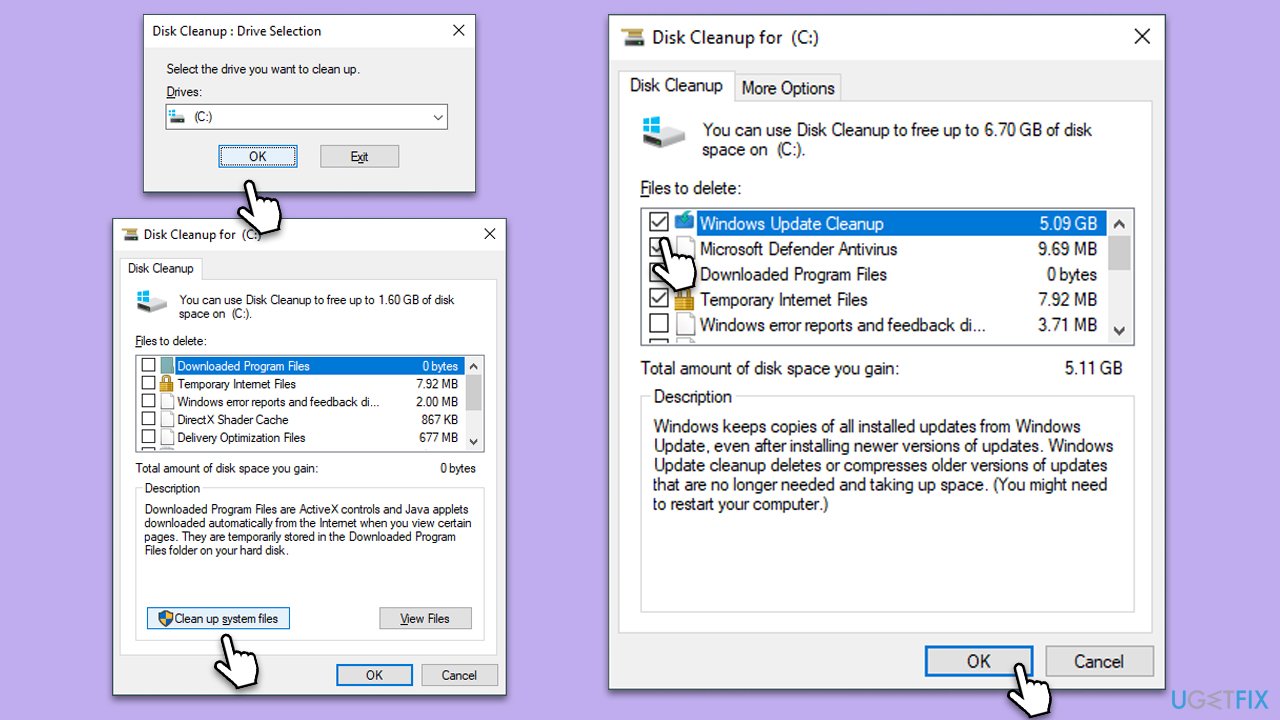
- Type Disk Cleanup in Windows search and press Enter.
- If your Windows is installed on drive C, pick it from the list (it should be by default) and press OK.
- Click Clean up System Files.
- Here, mark the areas you want to be deleted, such as Windows update files, Setup log files, Recycle bin, Temporary files, etc.
- Click OK - the removal process of various leftover files will begin.
Bottom line
To resolve the installation failure of KB5032874, users can try using automatic repair tools, resetting Windows update components, and repairing corrupted system files with SFC and DISM. If these methods do not work, it is recommended to seek further assistance or consult Microsoft's support resources.
Frequently asked questions
First, try running the Windows Update Troubleshooter from Settings > Update & Security > Troubleshoot. If the issue persists, consider manually downloading and installing the update from the Microsoft Update Catalog.
Yes, third-party antivirus software can sometimes block updates like KB5032874; temporarily disabling it may help. Remember to re-enable your antivirus once the update is installed.
You can check the installation history by going to Settings > Update & Security > Windows Update > View update history. This will show whether KB5032874 was installed successfully or failed.




Report an issue
What's wrong with this guide? We review every report and update or remove content.
Report received — thank you. We'll review and fix it.
You need a free account to submit a report.
Be the first to comment