How to fix
KB5034763 fails to install
on Windows
Resolve the KB5034763 installation error in Windows 10 effortlessly. Get expert-tested solutions and tips for a smooth update experience. Fixed in minutes!

What causes How to fix KB5034763 fails to install in Windows 10?
- Badly configured services
- Buggy caches
- Corrupted system files
- Insufficient disk space
- Conflicting software
Repairs Windows system files, removes malware, and restores a clean OS state — without reinstalling.
Hello. The recent Windows 10 update KB5034763 is not installing for me. Any tips on how to resolve this, please?
The Windows operating system receives regular updates that include security patches, bug fixes, and new features. These updates are required for your computer to work smoothly and securely, so keep it up to date. Windows updates can be installed automatically or manually, depending on your preferences.
KB5034763 is a security update released by Microsoft on February 13, 2024, for all Windows 10 versions 22H2. It addresses numerous security issues and has a set of improvements to the previous update KB5015684.
Unfortunately, for some users, KB5034763 fails to install on Windows - it may or may not show an error code during this time. Typically, the update starts the download or even proceeds to the installation stage, at which point the process is interrupted and the message "Updates failed" is shown.
Windows update errors are not something uncommon, and people have struggled with this issue for a very long time. Indeed, having the latest security patches is one of the most vital aspects, along with the improvements and new features that users wish to experience themselves.
KB5034763 failing to install could be connected to numerous issues, some of which may stem from badly configured services, buggy caches, corrupted system files, and more. Below you will find several solutions that should help you resolve this problem, although you might have to try several solutions before one works for you. There is never a universal solution for everyone.
If you would like to avoid this guessing game and save time, we highly advise you to try a powerful PC repair application [d1], which can perform numerous troubleshooting steps mentioned below and apply them automatically for you.
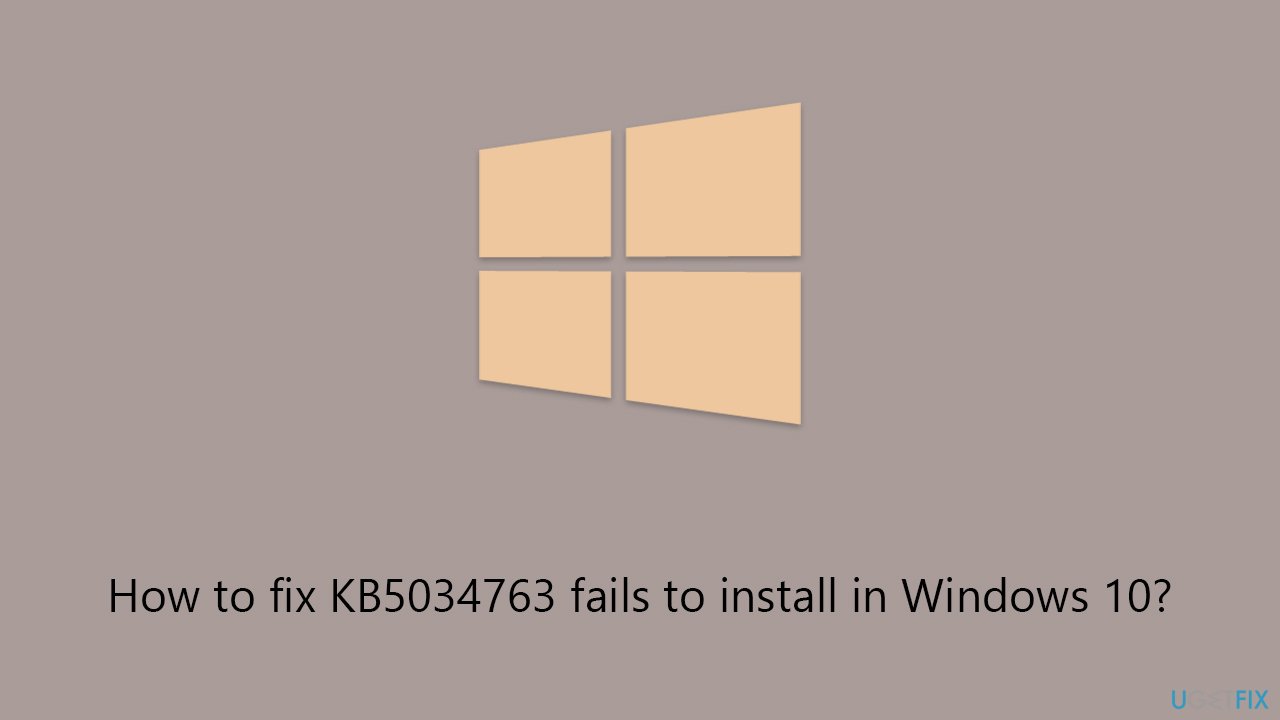
Fix 1. Run Windows Update troubleshooter
This solution is particularly useful for those who are experiencing errors or issues when trying to download or install updates. It is a straightforward process that requires minimal technical knowledge.
- Type Troubleshoot in Windows search.
- Select Additional troubleshooters.
- Find Windows Update from the list.
- Click it and select Run the troubleshooter.
- Apply the suggested fixes and restart your computer.
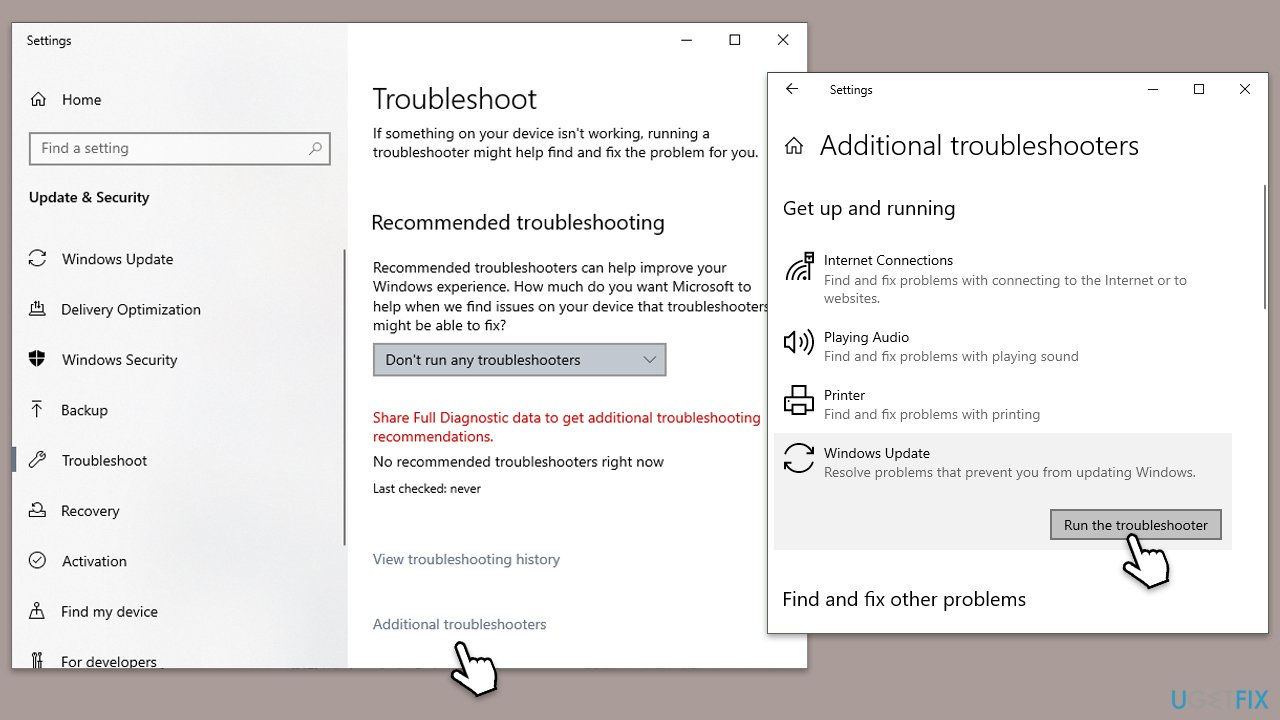
Fix 2. (Re)start relevant services
Windows Update relies on several services to run correctly, including the Windows Update service itself, Background Intelligent Transfer Service (BITS), and Cryptographic Services. Restarting these services can resolve issues where updates are not being downloaded or installed properly.
- Type in Services in Windows search and press Enter.
- Locate Background Intelligent Transfer Service (BITS).
- If it is already running, right-click and select Restart.
- If the service is not running, double-click it, and pick Automatic under the Startup type from the drop-down menu.
- Click Start, Apply, and OK.
- Repeat this process with Windows Update and Cryptographic services.
Fix 3. Perform Disk Cleanup
Disk Cleanup is a utility that removes unnecessary files from your hard drive, which can free up space and potentially fix issues preventing updates from being installed.
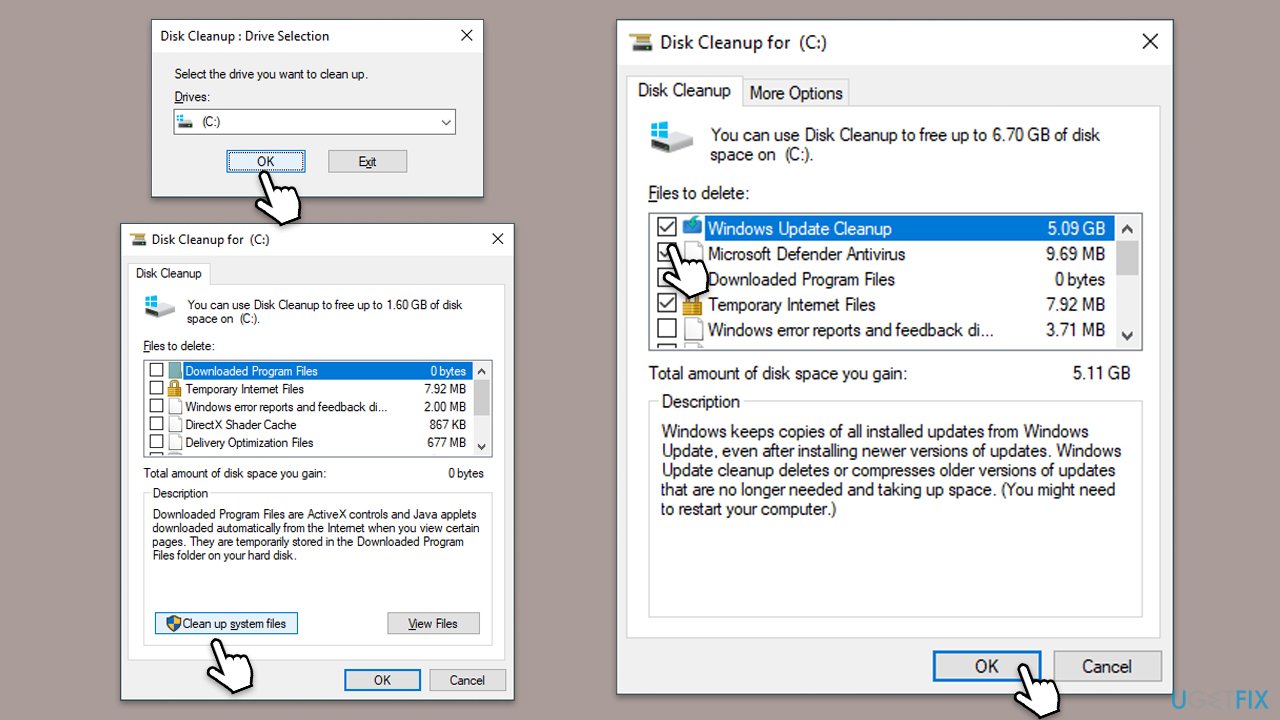
- Type Disk Cleanup in Windows search and hit Enter.
- If your Windows is installed on drive C, pick it from the list (should be by default) and press OK.
- Click Clean up system files.
- Select your main disk again and click OK.
- Here, select the largest portions of the data used - these typically include Temporary Internet Files, Windows Update, Temporary Files, Recycle Bin, Delivery Optimization Files, and others.
- Click OK - the process should be finished shortly.
Fix 4. Reset Windows Update Components
Resetting Windows Update components can help resolve issues by essentially refreshing the update process, and clearing out any corrupted update files or configurations that could be causing problems.
- Type in cmd in Windows search.
- Right-click on Command Prompt and select Run as administrator.
- User Account Control will ask you whether you want to allow to make changes to the system - click Yes.
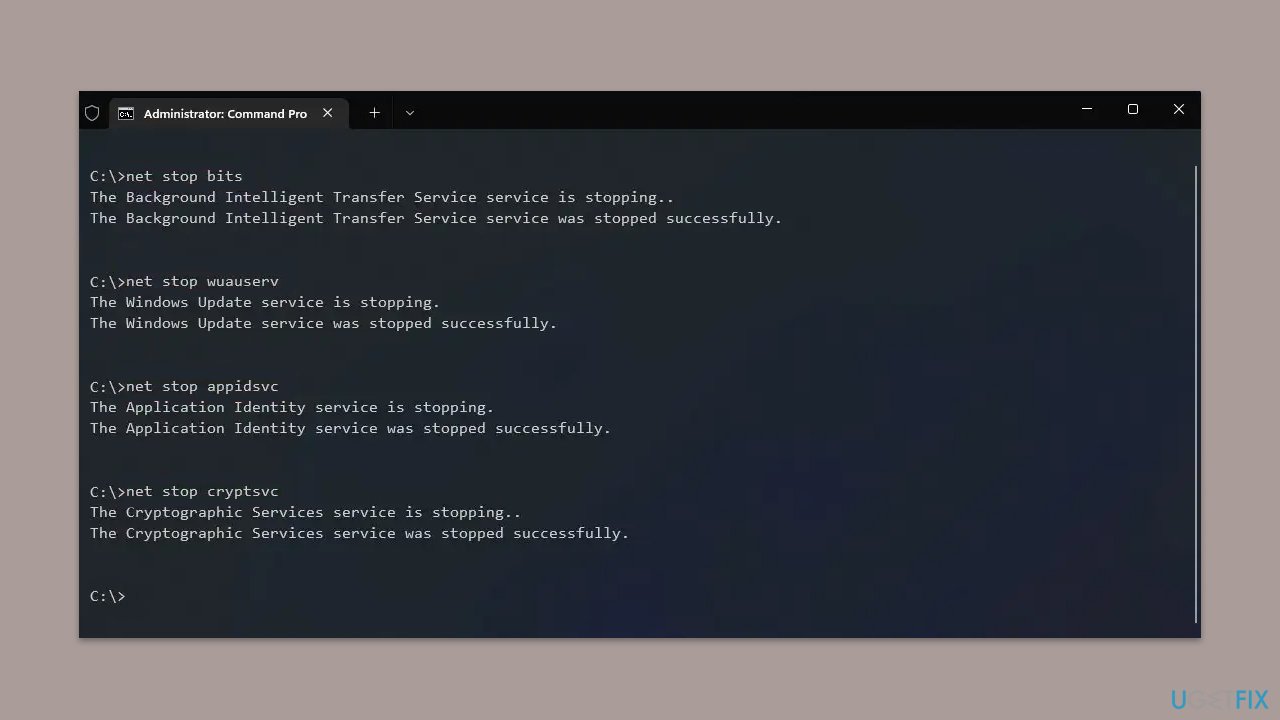
- Copy and paste each of these commands, pressing Enter each time:
net stop bits
net stop wuauserv
net stop appidsvc
net stop cryptsvc
Del “%ALLUSERSPROFILE%\Application Data\Microsoft\Network\Downloader\*.*”
rmdir %systemroot%\SoftwareDistribution /S /Q
rmdir %systemroot%\system32\catroot2 /S /Q
regsvr32.exe /s atl.dll
regsvr32.exe /s urlmon.dll
regsvr32.exe /s mshtml.dll
netsh winsock reset
netsh winsock reset proxy
net start bits
net start wuauserv
net start appidsvc
net start cryptsvc - Restart your device.
Fix 5. Repair corrupted files
Running SFC and DISM scans can restore the integrity of system files and facilitate a smooth update process.
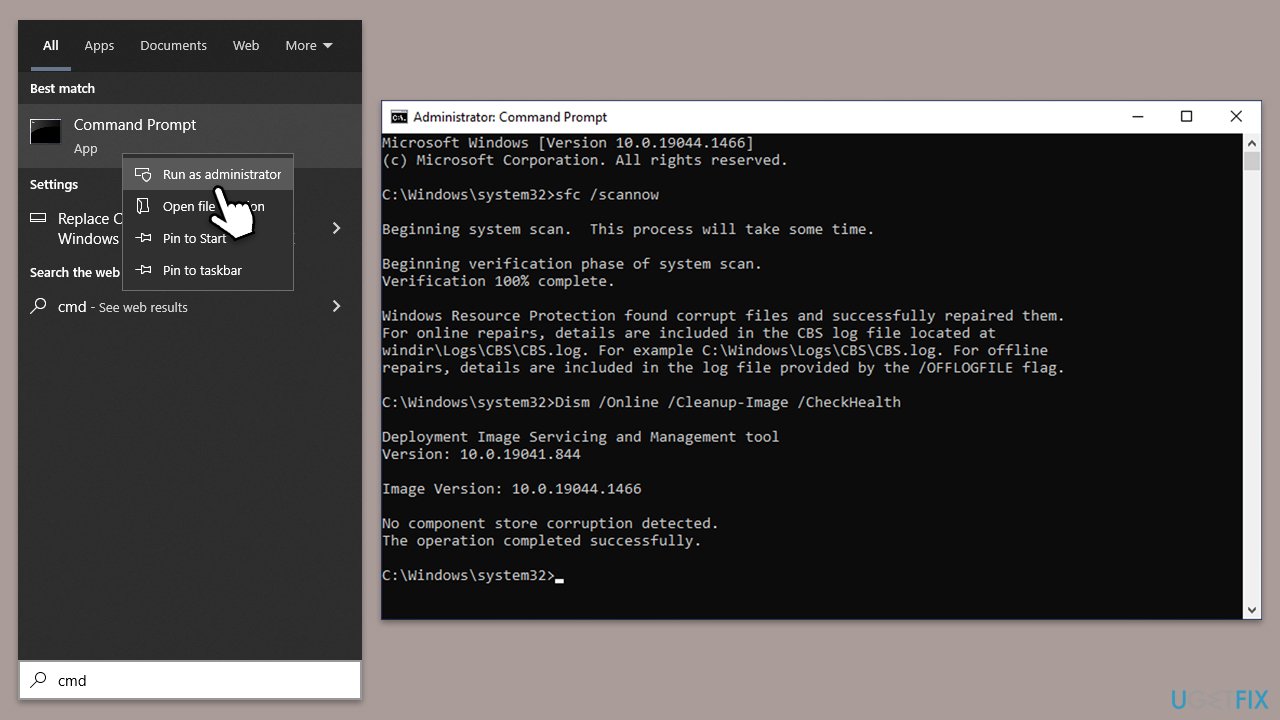
- Open Command Prompt as administrator.
- In the Command Prompt window, paste the following command and hit Enter:
sfc /scannow - Next, use these commands (don't forget to press Enter every time):
Dism /Online /Cleanup-Image /CheckHealth
Dism /Online /Cleanup-Image /ScanHealth
Dism /Online /Cleanup-Image /RestoreHealth - Restart your device.
Fix 6. Install the update manually
If automatic updates are not working, you can manually download and install the update from the Microsoft Update Catalog. This method involves searching for the specific update that is causing issues and installing it directly.
- Go to the official Microsoft Update Catalog website.
- Type the KB5034763 into the search bar, and click Search.
- You will find many different versions on the update – you need to find the one that matches your PC specs and Windows version (as a home user, ignore Windows server versions).
- After picking the correct version, click the Download button and proceed with the on-screen instructions.
- Restart your computer to implement the new updates.
Fix 7. Use the Media Creation tool
The Media Creation Tool can be used to upgrade your system to the latest version of Windows. This tool is particularly useful when you are unable to update Windows through the usual update process.
- Visit the official Microsoft website and download Windows 10 installation media.
- Double-click the installer and click Yes when the User Account Control window shows up.
- Agree to the terms and click Next.
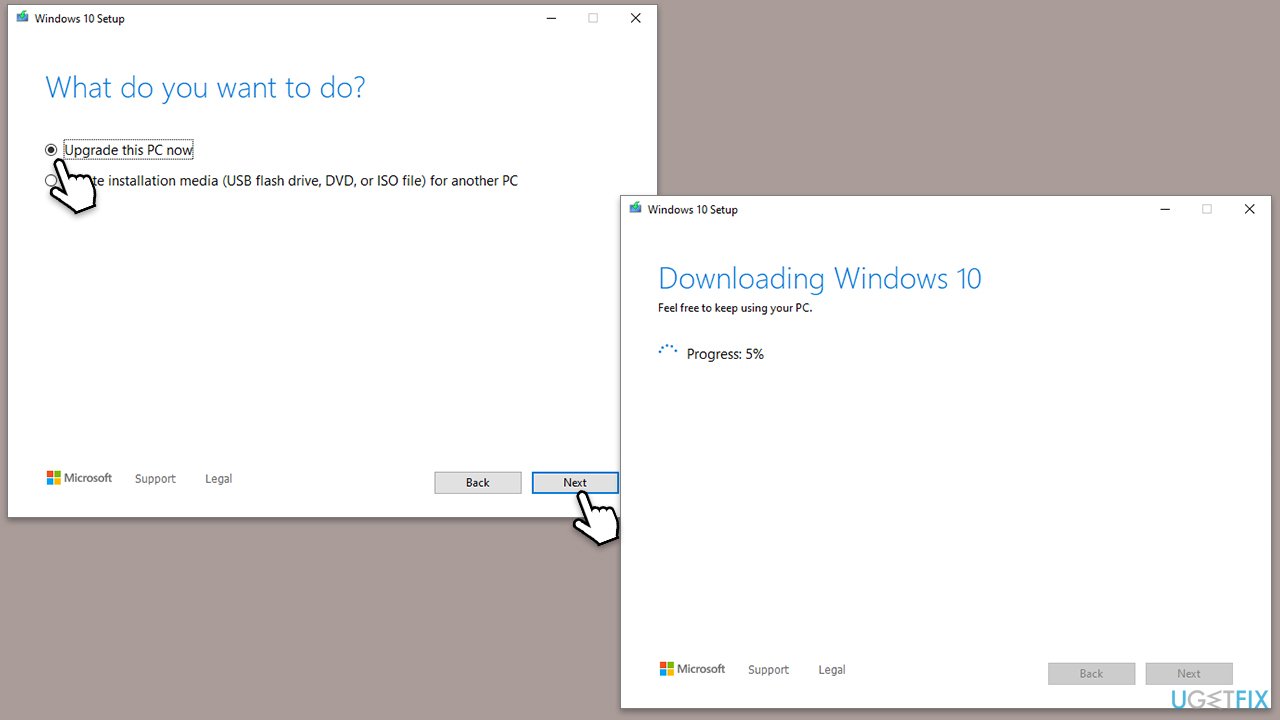
- Select Upgrade this PC now and click Next.
- Wait for Windows to download files.
- Agree to the terms once again and click Next.
- Before installing, ensure you are happy with your choices (otherwise, you can click the Change what to keep option).
- Click Install to begin the upgrade process.
Bottom line
To resolve the KB5034763 installation failure, you can try running the Windows Update troubleshooter, clearing the update cache, or checking for corrupted system files. If these solutions do not work, consider using a powerful PC repair application to automate the troubleshooting process.
Frequently asked questions
First, try running the Windows Update Troubleshooter, which can help identify and fix issues related to updates. If that doesn't work, consider manually downloading the update from the Microsoft Update Catalog.
Yes, using the Deployment Imaging Service and Management Tool (DISM) can help repair the Windows image, which may resolve the installation failure. Run the command 'DISM /Online /Cleanup-Image /RestoreHealth' in an elevated Command Prompt.
Make sure your system is up to date by installing all previous updates, and check that you have enough disk space available for the update. Additionally, ensure that your device drivers are updated to avoid conflicts during the installation.




Report an issue
What's wrong with this guide? We review every report and update or remove content.
Report received — thank you. We'll review and fix it.
You need a free account to submit a report.
Be the first to comment