How to fix
KB5034765 fails to install
on Windows
Resolve KB5034765 installation issues in Windows 11 effortlessly. Follow our expert-tested guide for quick fixes and smooth updates. Fixed in minutes!

What causes How to fix KB5034765 fails to install in Windows 11?
- Corrupted system files
- Insufficient disk space
- Interference from third-party software
- Problems with Windows Update components
- Error code 0x800f0922
Repairs Windows system files, removes malware, and restores a clean OS state — without reinstalling.
I was wondering if KB5034765 is failing to install for everyone. This is the first time I encountered something like this, so I wonder if there's any way to fix it. Or should I just wait?
When it comes to updating Windows 11, encountering issues can be quite frustrating for users. One such example is when KB5034765 fails to install. an update designed to improve the functionality of Copilot (the newest AI component on the system) and address numerous security issues on Windows 11 versions 22H2 and 23H2.
Failure to install KB5034765 compromises the system's ability to improve performance and exposes it to security vulnerabilities that the update was supposed to address. It is essential to know the reasons behind update failures and how to resolve them in order to keep your computer system safe and functional.
- Corrupted system files. System file corruption may be one of the main causes of the failure. These are essential to Windows Update functioning, and any corruption may prevent updates from installing properly.
- Insufficient disk space. For Windows updates to download and install properly, a certain amount of free space is required. An inadequate amount of space in your system may result in installation issues.
- Interference from third-party software. Antivirus or security software may occasionally falsely flag certain elements of an update as malicious, preventing the installation of the update.
- Problems with Windows Update components. Failures can occur when the components that Windows Update uses to download and install updates get corrupted over time.
Some users might also be presented with an error code, such as 0x800f0922, in which case the solutions might be more specific. If KB5034765 fails to install for you, you can follow the instructions below to address the issue. Alternatively, employing a robust repair app [d1] could serve you as an automatic alternative.
Fix 1. Run SFC and DISM scans
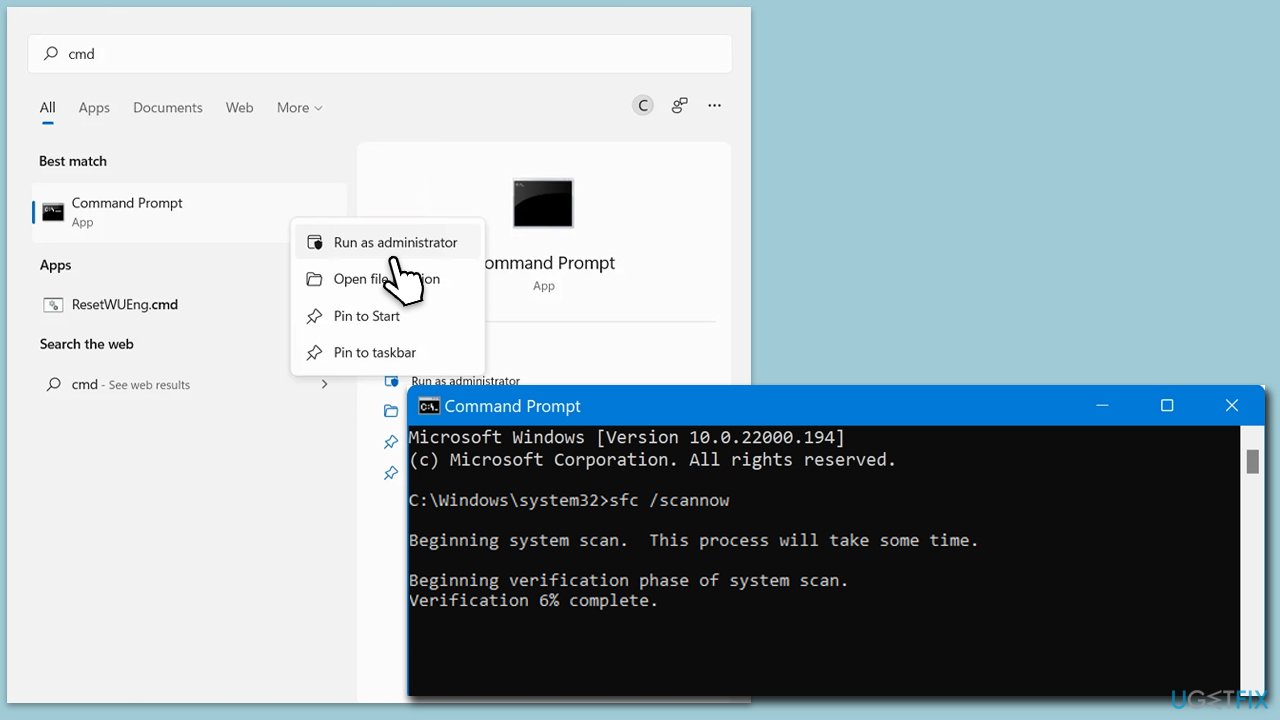
Corrupted system files can cause various problems, including issues with Windows Update. You can repair the system using SFC and DISM tools via elevated Command Prompt.
- Type cmd in Windows search.
- Right-click on Command Prompt and pick Run as administrator.
- User Account Control will ask you whether you want to allow changes – click Yes.
- Copy and paste this command and hit Enter:
sfc /scannow - Wait for the scan to finish.
- As soon as it finishes, Windows will report whether integrity violations were found and if they could be fixed. Regardless of the outcome, use these commands next, pressing Enter after each:
Dism /Online /Cleanup-Image /CheckHealth
Dism /Online /Cleanup-Image /ScanHealth
Dism /Online /Cleanup-Image /RestoreHealth - Close down the Command Prompt and restart your PC.
Fix 2. Perform Disk Cleanup
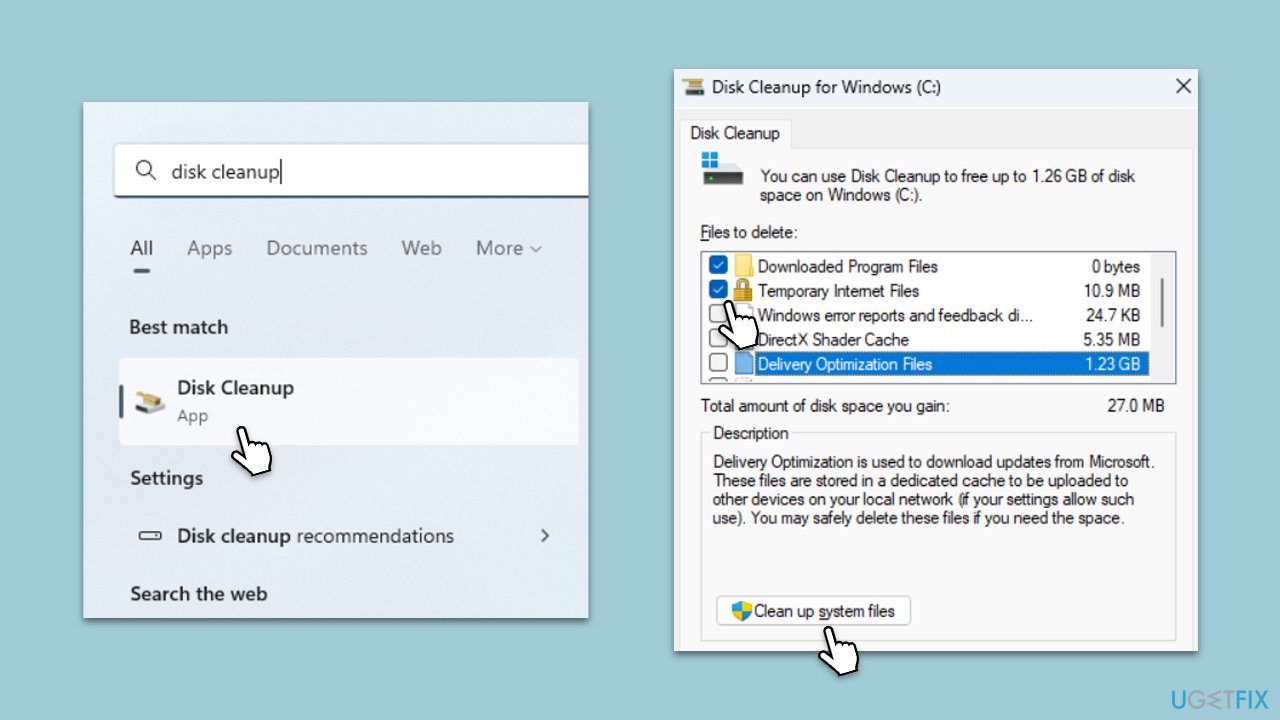
Disk Cleanup removes system files, temporary files, and other unnecessary files to help you clear up space on your hard disk. The correct installation of Windows updates may be hampered by insufficient disk space. You may make sure there's enough room for the update to download and install by deleting these files.
- Open the Windows search bar and type Disk Cleanup. Press Enter to open the Disk Cleanup utility.
- In the Disk Cleanup window, click Clean up system files.
- Select the drive again and click OK.
- In the list of files that can be cleaned up, select the largest portions of data, such as Windows Update, Temporary Internet Files, Temporary Files, and others.
- Click OK to begin the cleanup process.
Fix 3. Disable third-party security software or try Clean Boot
Third-party security software can sometimes interfere with Windows Update by blocking downloads or installations. Temporarily disabling this software can help determine if it's the cause of the update issue. A Clean Boot starts Windows with a minimal set of drivers and startup programs, which can help eliminate software conflicts.
- Press Win + R, type msconfig, and hit Enter.
- Go to the Services tab and tick the Hide all Microsoft services checkbox.
- Select Disable all.
- Go to the Startup tab and click Open Task Manager.
- Here, right-click on each of the non-Windows entries and select Disable.
- Close down the Task Manager.
- Go to the Boot tab and tick the Safe boot option.
- Click OK.
- Restart your computer to initiate the Clean Boot.

Fix 4. Run Windows Update troubleshooter
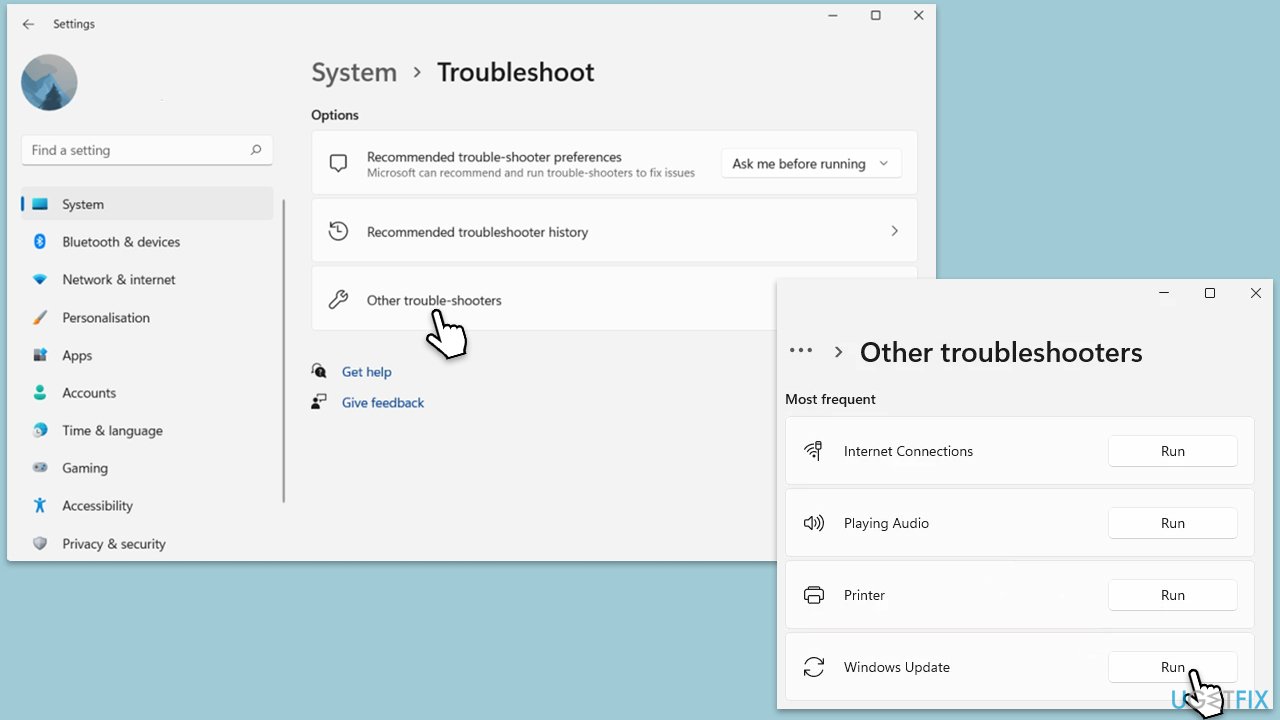
The Windows Update troubleshooter is a built-in tool that automatically detects and fixes common problems with the Windows Update process. Running this troubleshooter can resolve issues preventing updates from being installed.
- Type Troubleshoot in Windows search and press Enter.
- Go to Other troubleshooters.
- Find Windows Update from the list and click Run.
- The troubleshooter will automatically scan your system for potential problems and display any issues it finds.
- If the troubleshooter finds any issues, it will provide recommended solutions.
Fix 5. Reset Windows Update components
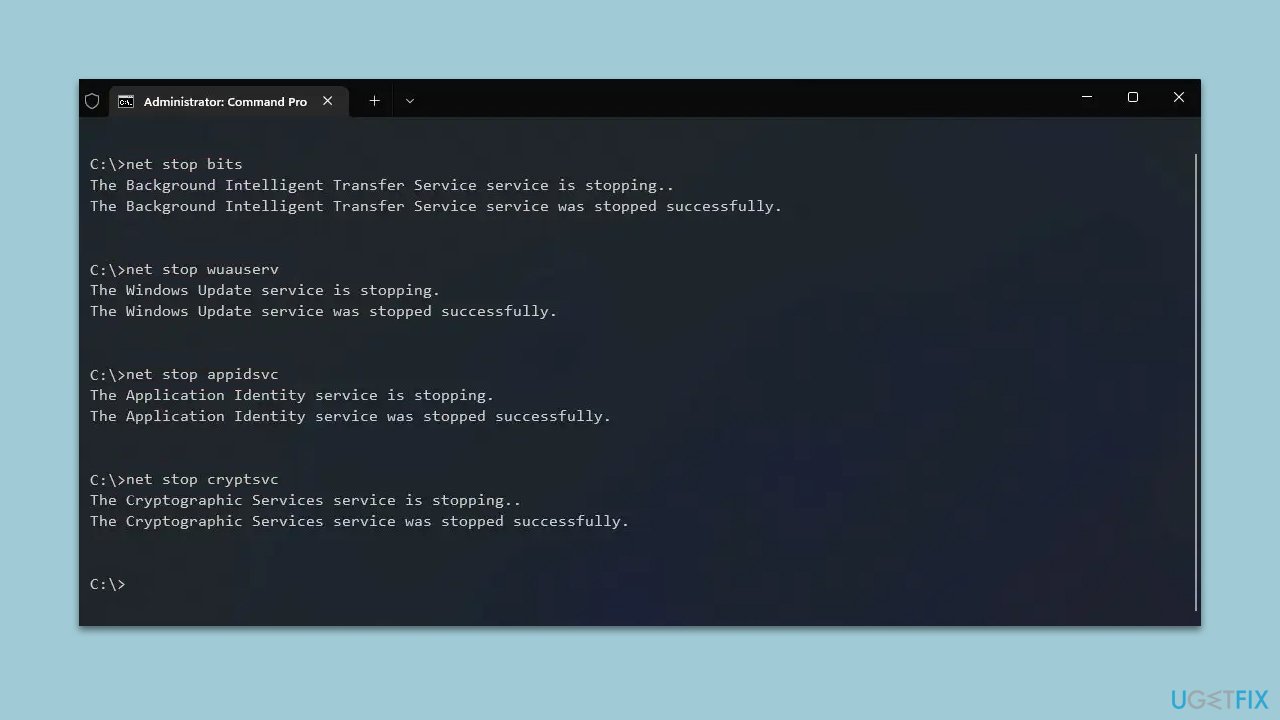
Resetting Windows Update components involves stopping the Windows Update service, clearing the update cache, and then restarting the service. This process can resolve issues by removing any corrupt files in the update cache.
- Open Command Prompt as administrator.
- Stop the Windows Update Services by entering the following commands, one at a time, and pressing Enter after each:
net stop wuauserv
net stop cryptSvc
net stop msiserver
net stop bits - Rename the SoftwareDistribution and Catroot2 folders with the following commands:
ren C:\Windows\SoftwareDistribution SoftwareDistribution.old
ren C:\Windows\System32\catroot2 catroot2.old - Restart the services you stopped earlier with these commands:
net start wuauserv
net start cryptSvc
net start msiserver
net start bits - Close the Command Prompt window and try running the Windows Update again.
Fix 6. Perform in-place upgrade
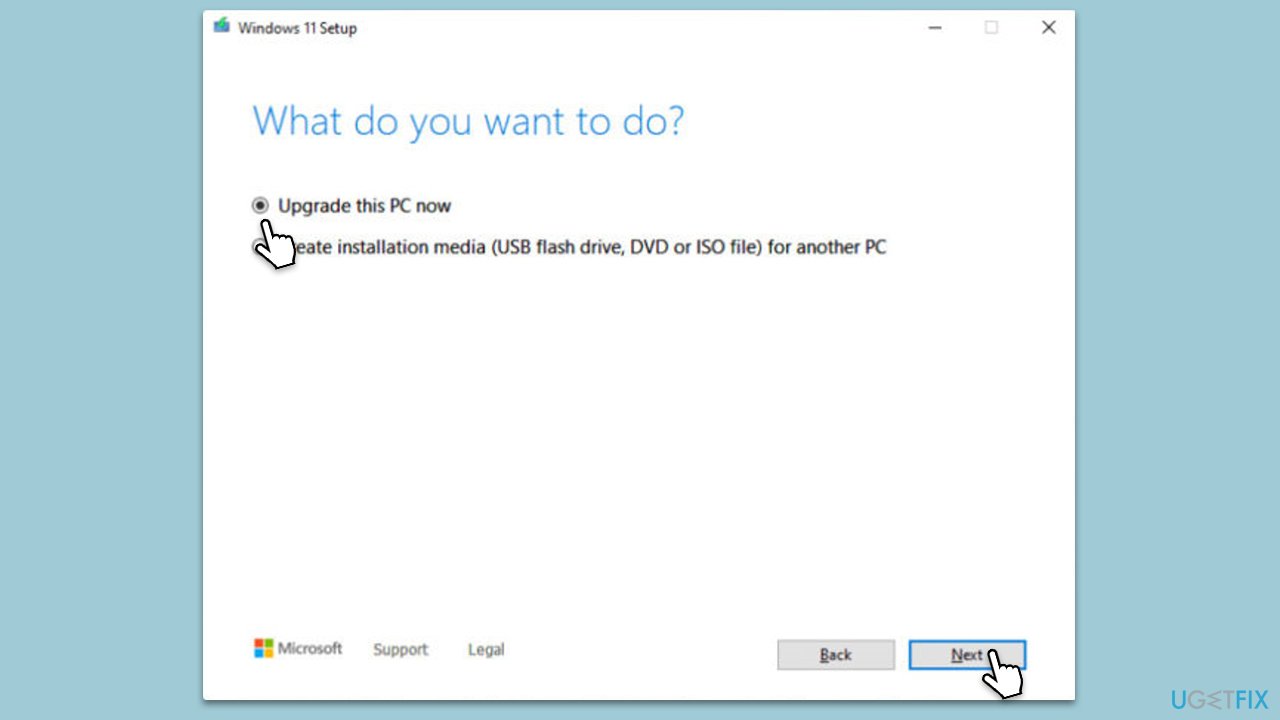
The Media Creation Tool can be used to update your system to the latest version of Windows 11, bypassing the normal update process. This can be especially useful if specific updates fail to install through Windows Update.
- Visit the official Microsoft website and download the Windows installation media.
- Double-click the installer and select Yes when UAC shows up.
- Agree to the terms and click Next.
- Select Upgrade this PC now and select Next
- Windows will now download all the necessary files, which might take some time.
- Agree to the terms once again and click Next.
- Before installing, ensure you are happy with your choices (otherwise, you can click Change what to keep option).
- Click Install to begin the upgrade process.
- Your computer will restart as required.
Bottom line
To fix the installation failure of KB5034765, you can run SFC and DISM scans to repair corrupted system files. If issues persist, consider checking your disk space and disabling any interfering antivirus software. If none of these solutions work, employing a robust repair app could be a viable alternative.
Frequently asked questions
First, ensure your Windows 11 is up to date by checking for other pending updates. If the issue persists, try running the Windows Update Troubleshooter from Settings to identify and fix any problems.
Yes, you can manually download the KB5034765 update from the Microsoft Update Catalog website and install it on your Windows 11 system.
Common reasons include insufficient disk space, corrupted system files, or conflicts with third-party software, which can prevent the update from installing properly.




Report an issue
What's wrong with this guide? We review every report and update or remove content.
Report received — thank you. We'll review and fix it.
You need a free account to submit a report.
Be the first to comment