How to fix
KB5034857 fails to install
on Windows
Resolve KB5034857 installation issues in Windows 11 effortlessly. Get expert-tested solutions to fix errors and restore functionality quickly.

What causes How to fix KB5034857 fails to install in Windows 11?
- Insufficient storage space
- Corrupted system files
- Conflicting third-party software
- Outdated drivers or firmware
Repairs Windows system files, removes malware, and restores a clean OS state — without reinstalling.
Hi, I was trying to install the latest Preview update KB5034857 but it just gets stuck midway, and nothing else happens. I then have to reboot my PC. How do I install it when KB5034857 keeps failing?
Microsoft's latest operating system, Windows 11, has a number of enhanced performance improvements and productivity capabilities. However, users may encounter issues, like as KB5034857 failing to install. This article investigates why certain users may experience installation issues with KB5034857 and offers possible solutions.
KB, short for Knowledge Base, is an identifier followed by a sequence of numbers. Microsoft uses this format to document details about updates, including new features, fixes, or known issues. These articles are essential for users to understand the impact of each update on their system.
The Windows Insider Program includes preview builds such as KB5034857, which allow users to test new features and submit feedback before they are widely released. These builds are useful for discovering issues early on, but they may be more prone to faults because they are not finished versions of the software.
There could be several reasons why KB5034857 fails to install for some, including:
- Insufficient storage space can prevent updates from downloading and installing properly.
- Corrupted system files, potentially caused by malware, disk errors, or incomplete updates,
- Conflicting third-party software, especially security software, and outdated drivers or firmware can lead to compatibility issues with new updates.
When KB5034857 fails to install, users should make sure they have enough disk space and try running the Windows Update Troubleshooter, which can automatically address Windows Update issues. It is also recommended that you perform a clean boot to reduce software conflicts and update drivers and firmware to avoid compatibility difficulties.
If these preliminary solutions do not resolve the installation issues, employing a professional PC repair tool [d1] may be another solution that may find underlying Windows issues that contribute to update installation failures.
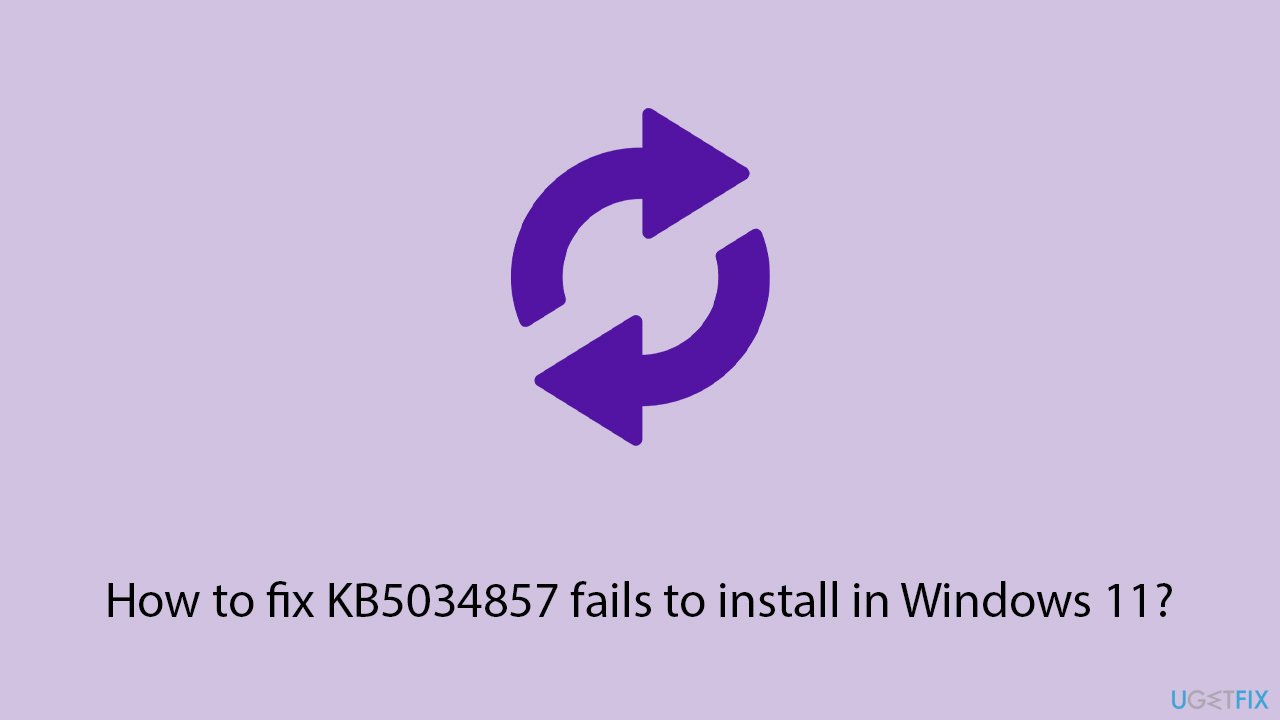
Fix 1. Run Windows update troubleshooter
Windows Update Troubleshooter automatically detects and fixes problems preventing updates from installing. It's a built-in tool that can reset the Windows Update components and clear the update cache, often resolving common update issues.
- Type Troubleshoot in Windows search and press Enter.
- Select Other troubleshooters.
- Find Windows Update from the list.
- Click it and select Run.
- Restart your computer when the update process finishes.
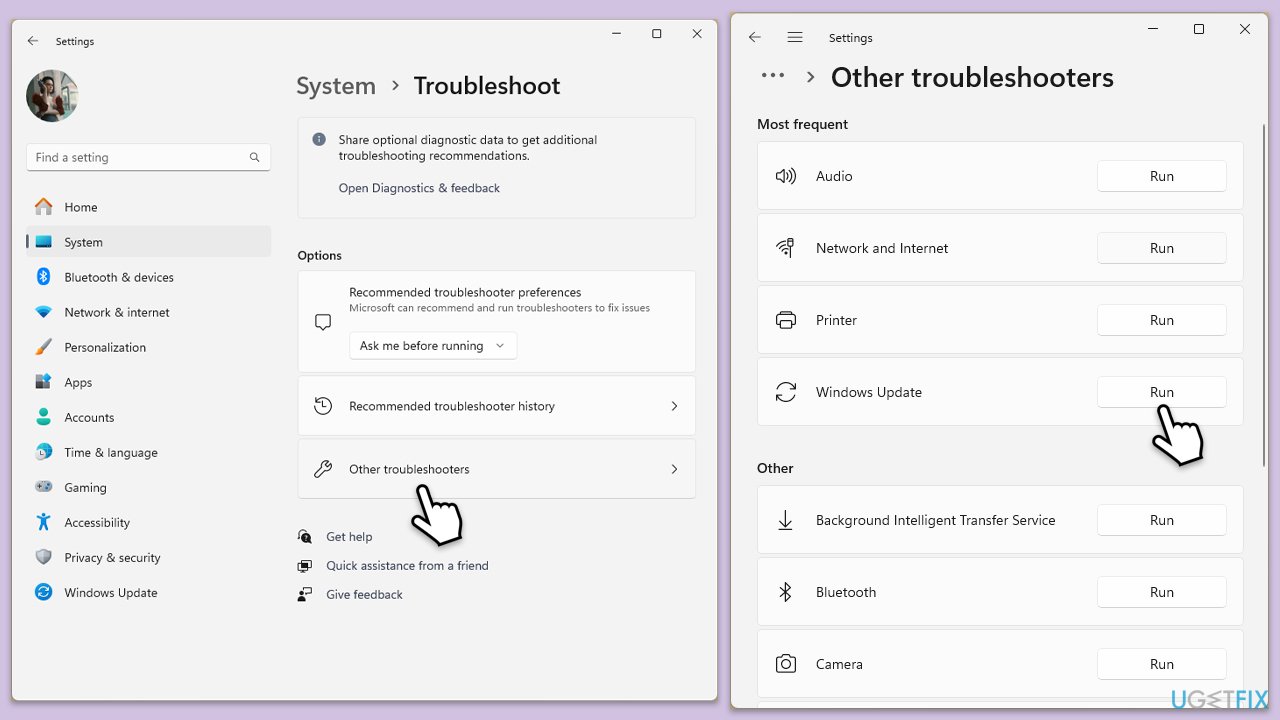
Fix 2. Repair corrupted files
Corrupted system files can prevent updates from installing correctly, so make sure you repair them as follows:
- Type cmd in Windows search.
- Right-click on Command Prompt and pick Run as administrator.
- The User Account Control window will ask whether you want to allow changes - click Yes.
- In the Command Prompt window, paste the following command and hit Enter:
sfc /scannow - Once the scan is complete, use the following commands and press Enter after each:
Dism /Online /Cleanup-Image /CheckHealth
Dism /Online /Cleanup-Image /ScanHealth
Dism /Online /Cleanup-Image /RestoreHealth - (Note: if you get an error executing this last command, add /Source:C:\RepairSource\Windows /LimitAccess to it and try again).
- Restart your system.
Fix 3. Disable security software or run Clean Boot
Sometimes, third-party security software can interfere with the update process. Temporarily disabling this software or performing a clean boot (which starts Windows with a minimal set of drivers and startup programs) can help identify and resolve the issue.
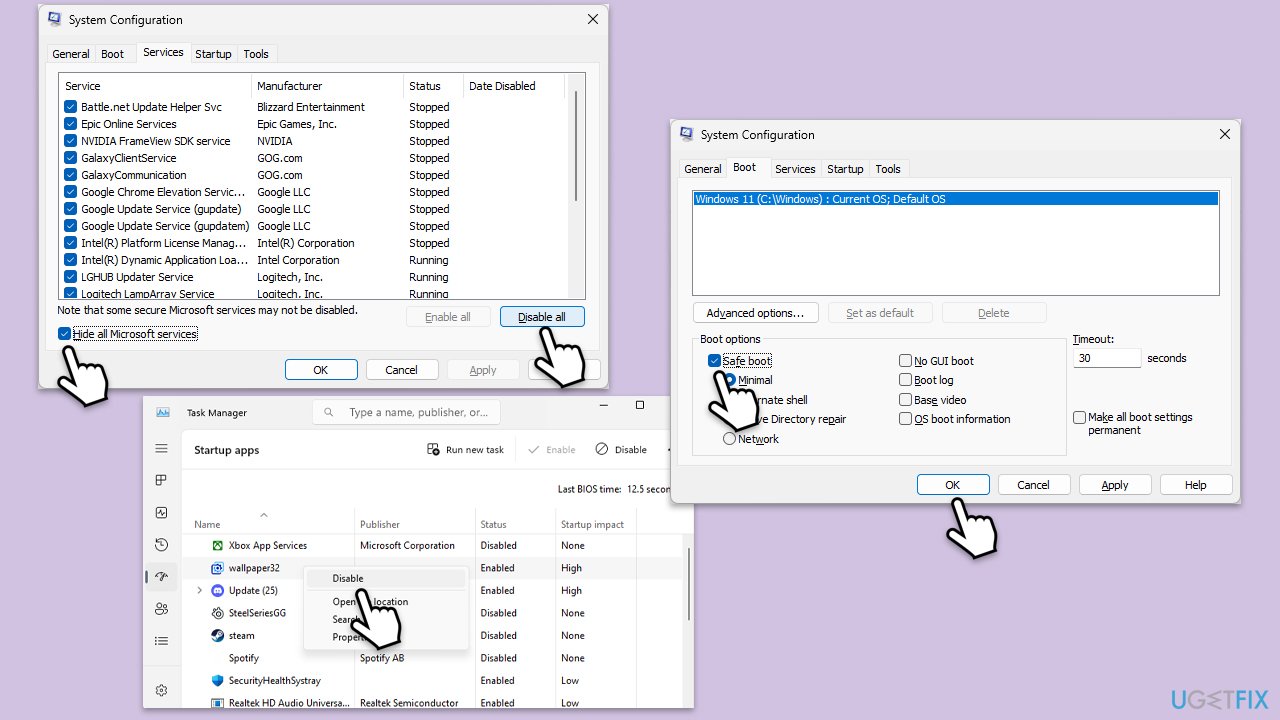
- Press Win + R, type msconfig, and hit Enter.
- Go to the Services tab and tick the Hide all Microsoft services checkbox.
- Select Disable all.
- Go to the Startup tab and click Open Task Manager.
- Here, right-click on each of the non-Windows entries and select Disable.
- Close down the Task Manager.
- Go to the Boot tab and tick the Safe boot option.
- Click OK.
- Restart your computer and try updating Windows again.
Fix 4. (Re)start relevant services
Windows Update relies on several services to run correctly. Restarting these services can resolve update issues.
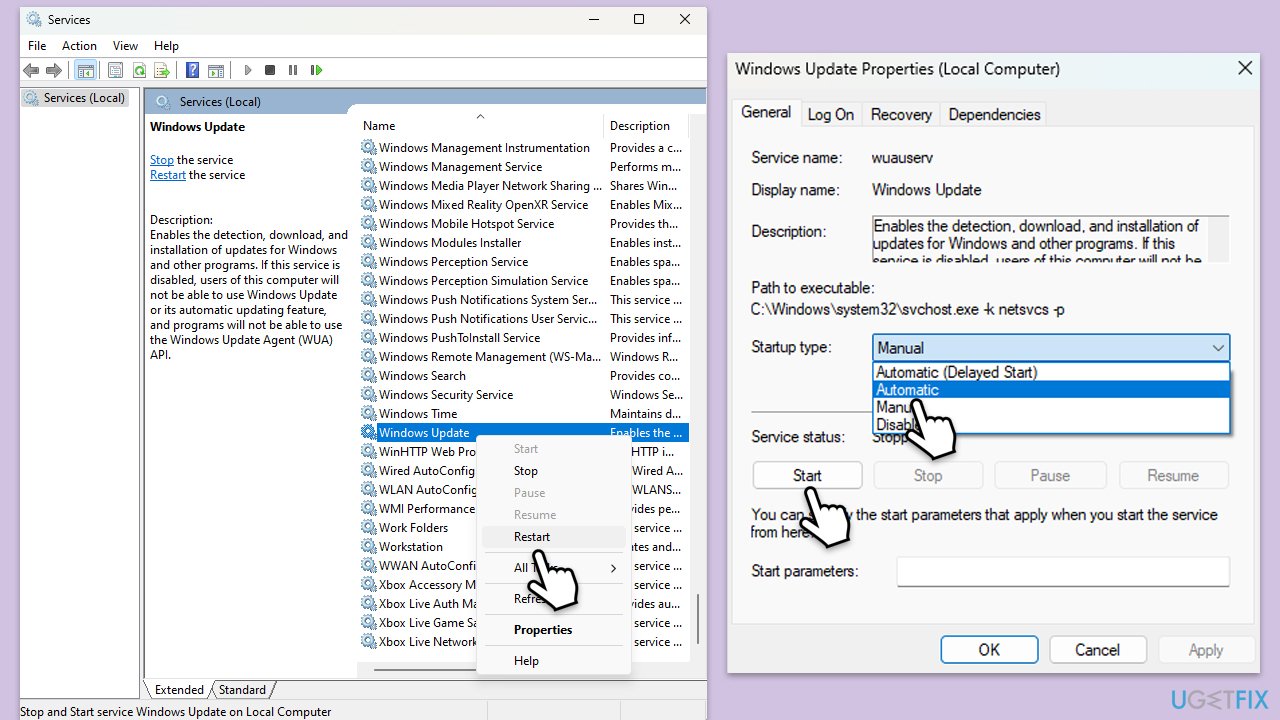
- Type in Services in Windows search and press Enter.
- Find Background Intelligent Transfer Service (BITS).
- If it is already running, right-click and pick Restart.
- If the service is not running, double-click it, and select Automatic under the Startup type from the drop-down menu.
- Click Start, Apply, and OK.
- Repeat this process for Windows Update and Cryptographic services.
Fix 5. Reset Windows update components
Resetting the Windows Update components manually can resolve many update installation issues by clearing the update cache and restarting the update services from scratch.
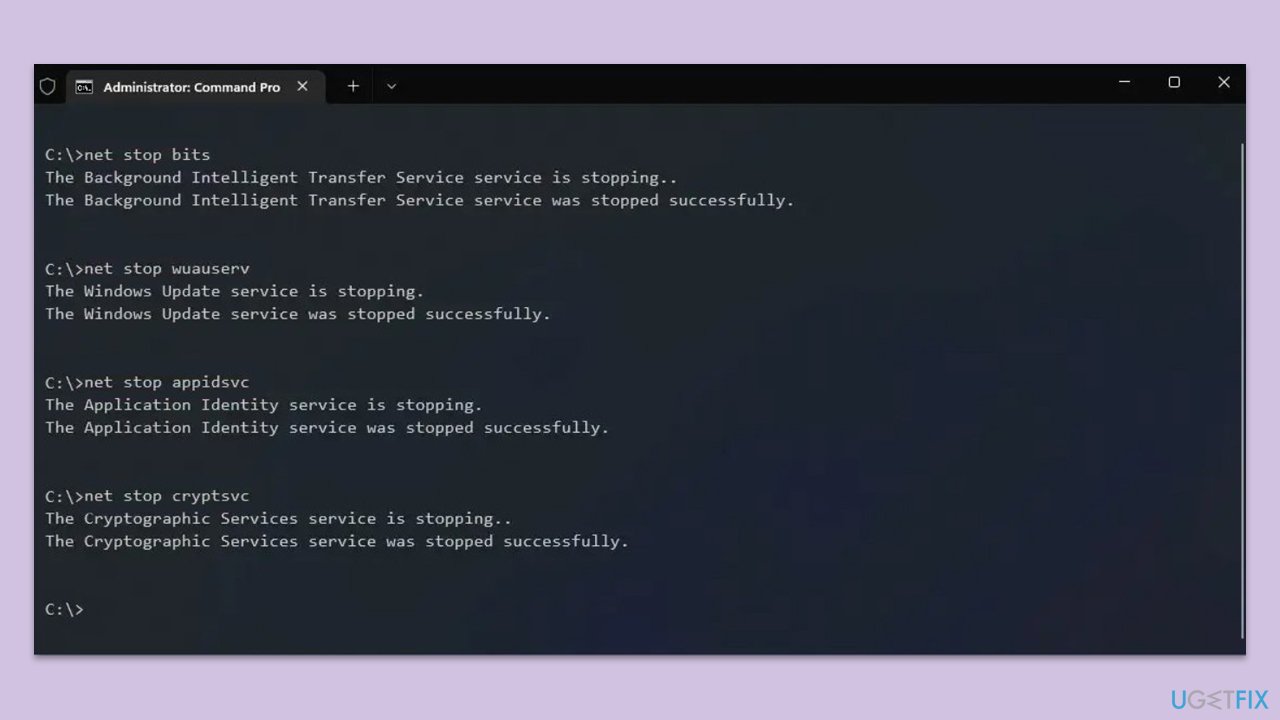
- Open Command Prompt as administrator.
- Stop the Windows Update Services by entering the following commands, one at a time, and pressing Enter after each:
net stop wuauserv
net stop cryptSvc
net stop msiserver
net stop bits - Rename the SoftwareDistribution and Catroot2 folders with the following commands:
ren C:\Windows\SoftwareDistribution SoftwareDistribution.old
ren C:\Windows\System32\catroot2 catroot2.old - Restart the services you stopped earlier with these commands:
net start wuauserv
net start cryptSvc
net start msiserver
net start bits - Close the Command Prompt window and try running the Windows Update again.
Fix 6. Use Media Creation Tool
The Media Creation Tool can be used to upgrade Windows 11 manually, bypassing the typical update process. This is particularly useful when traditional update methods fail.
- Visit the official Microsoft website and download the Windows installation media.
- Double-click the installer and select Yes when UAC shows up.
- Agree to the terms and click Next.
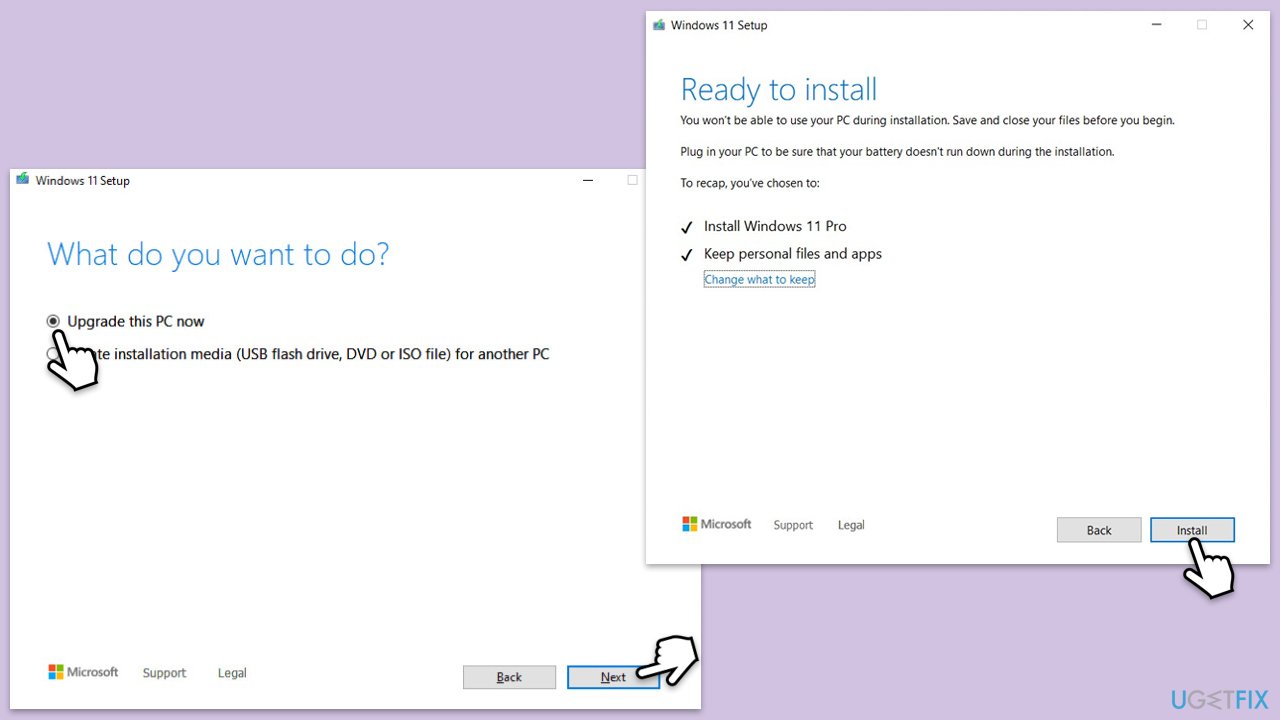
- Select Upgrade this PC now and select Next
- Windows will now download all the necessary files, which might take some time.
- Agree to the terms once again and click Next.
- Before installing, ensure you are happy with your choices (otherwise, you can click Change what to keep option).
- Click Install to begin the upgrade process.
- Your computer will restart as required.
Bottom line
To fix the installation failure of KB5034857, users should ensure they have enough disk space, run the Windows Update Troubleshooter, perform a clean boot, and update their drivers and firmware. If these solutions do not resolve the issue, consider using a professional PC repair tool to identify underlying problems.
Frequently asked questions
First, try running the Windows Update Troubleshooter to identify and fix any issues with the update process. If that doesn't work, consider clearing the SoftwareDistribution folder and then attempt to install the update again.
Yes, you can manually download the KB5034857 update from the Microsoft Update Catalog website and install it if the automatic update fails.
Yes, common error codes include 0x8007000e and 0x800f0922, which indicate issues such as insufficient storage or problems with the update components.




Report an issue
What's wrong with this guide? We review every report and update or remove content.
Report received — thank you. We'll review and fix it.
You need a free account to submit a report.
Be the first to comment