How to fix
KB5035853 fails to install
on Windows
Resolve the KB5035853 installation issue in Windows 11 effortlessly. Get expert-tested solutions to fix errors and restore functionality in minutes.

What causes How to fix KB5035853 fails to install in Windows 11?
- Corrupted system files
- Security software interference
- Conflict with other applications
- Damaged update components
- Issues with services
- Bugged SoftwareDistribution files
Repairs Windows system files, removes malware, and restores a clean OS state — without reinstalling.
KB5035853 is not installing on my Windows 11. I upgraded to the latest Windows version relatively recently and had no problems with it. However, this latest update failing to install is not ideal, and I'd like to deal with it ASAP.
On March 12, 2024, Microsoft rolled out an update KB5035853 for Windows 11 versions 23H2 and 22H2 as a part of its monthly Patch Tuesday routine. Just like every month, people were eager to install the latest versions for their operating systems - and this is a good enthusiasm to have, as having the latest patches installed is extremely important, especially when it comes to devices' security.
This update addresses various security issues and also fixes the problem where users of 22H2 versions were unable to install KB5034765 due to the 0x800F0922 "Something did not go as planned. No need to worry – undoing changes. Please keep your computer on" error. If you have encountered this issue before, you should try to install this release first.
Except that, for some users, KB5035853 might fail to install as well, leaving them in a tough situation. Just like any other update, this one not installing is not something unusual, and there's almost always a solution available.
Many reasons could be behind why this is happening, including corrupted system files, security software or conflict with other apps, damaged update components, issues with services, bugged SoftwareDistributution files, and more.
If you want to fix KB5035853 failing to install on Windows 11, please follow the detailed guide below. Note that you may have to try several solutions before one works for you; you can also employ a powerful PC repair solution [d1], which can perform many of the manual steps automatically for you.
Fix 1. Run Windows update troubleshooter
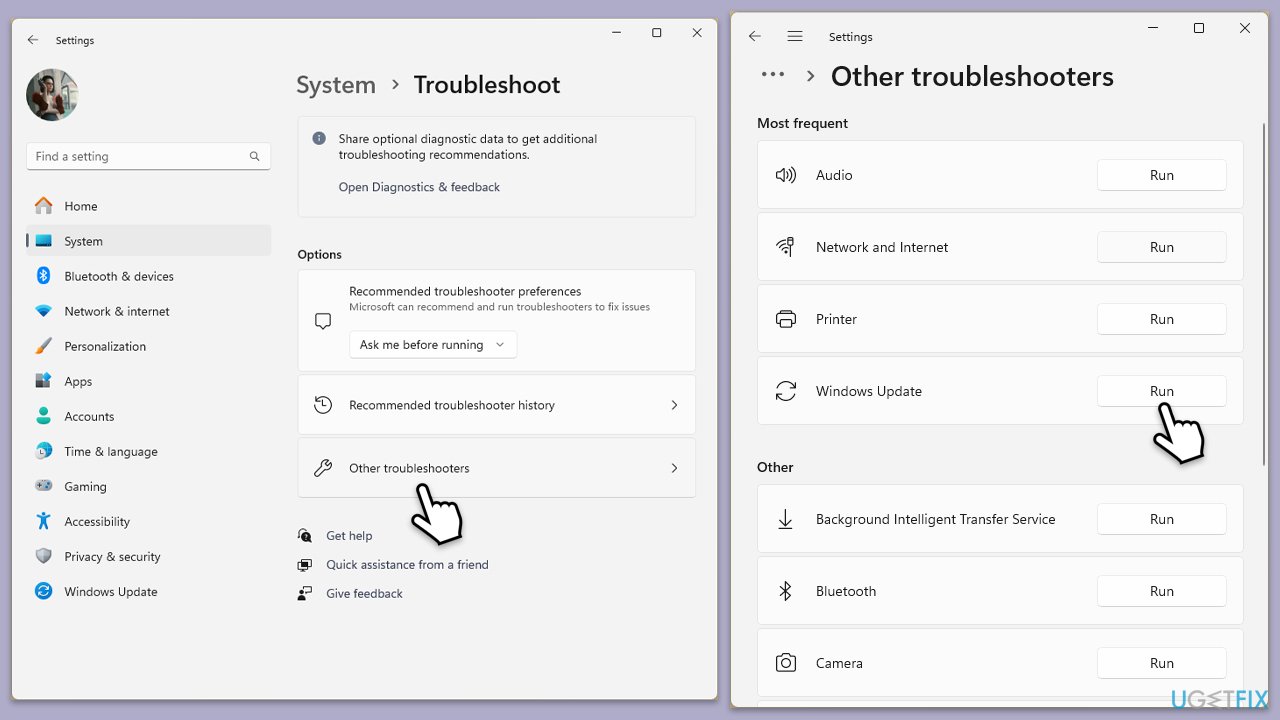
We recommend starting with the most simple solution - the troubleshooter. It can often find the simplest reasons why the update is not installing and also sometimes find and apply the solutions automatically.
- Type Troubleshoot in Windows search and press Enter.
- Go to Other troubleshooters.
- Find Windows Update from the list and click Run.
- The troubleshooter will automatically scan your system for potential problems and display any issues it finds.
- If the troubleshooter finds any issues, it will provide recommended solutions.
Fix 2. Check relevant services
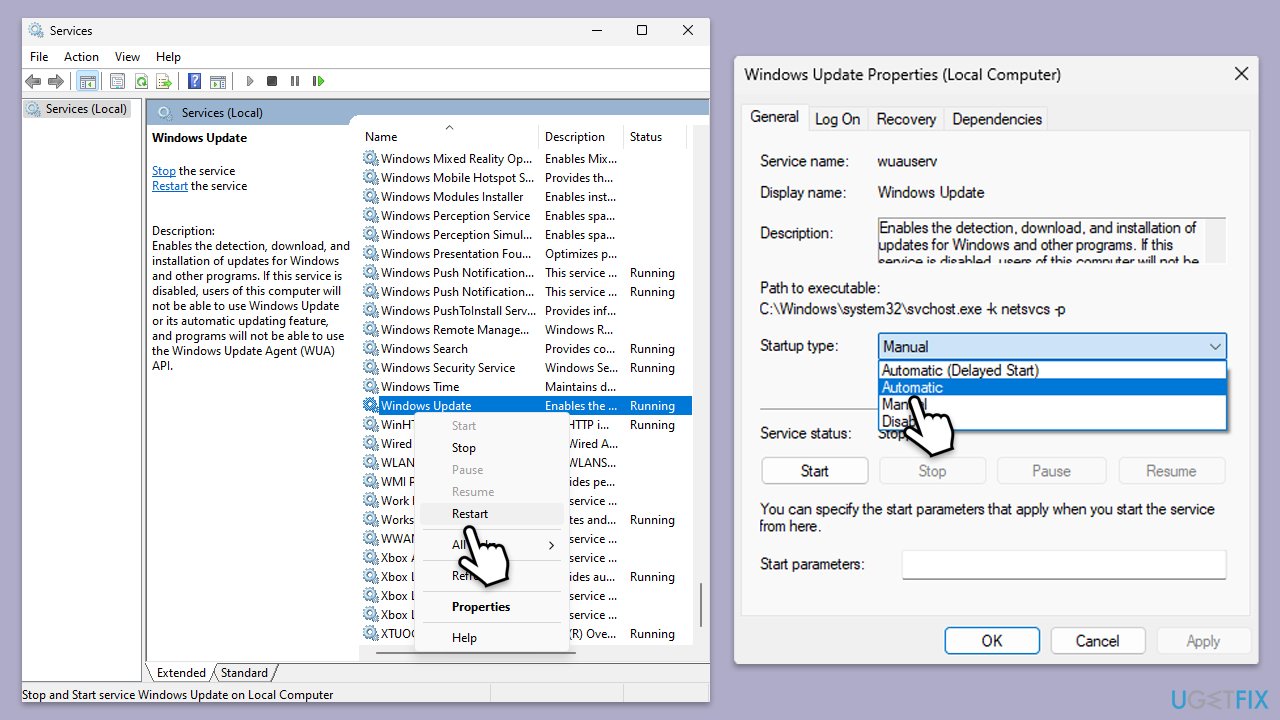
For Windows to be able to install the latest update, certain services must be operational. Thus, either restart them or set them to automatic startup type.
- Type Services in the Windows search bar and press Enter.
- Next, locate the Background Intelligent Transfer Service, Cryptographic Service, and Windows Update Service by scrolling through the list of services.
- Right-click on each service, and from the context menu, select Restart.
- In case a service is not running, double-click on it and select Automatic under the Startup type. Afterward, click on Start and then click OK.
Fix 3. Disable security software
Software from third parties, like antivirus applications or firewalls, might hinder the installation of Windows updates. This occurs because they can clash with the update procedure, restrict access to essential system files, or interrupt the routine for installing updates.
Temporarily turning off or removing such security software can frequently fix issues with updating Windows. By doing so, it removes any possible conflicts and permits the updates to proceed smoothly.
Fix 4. Check for corrupted files
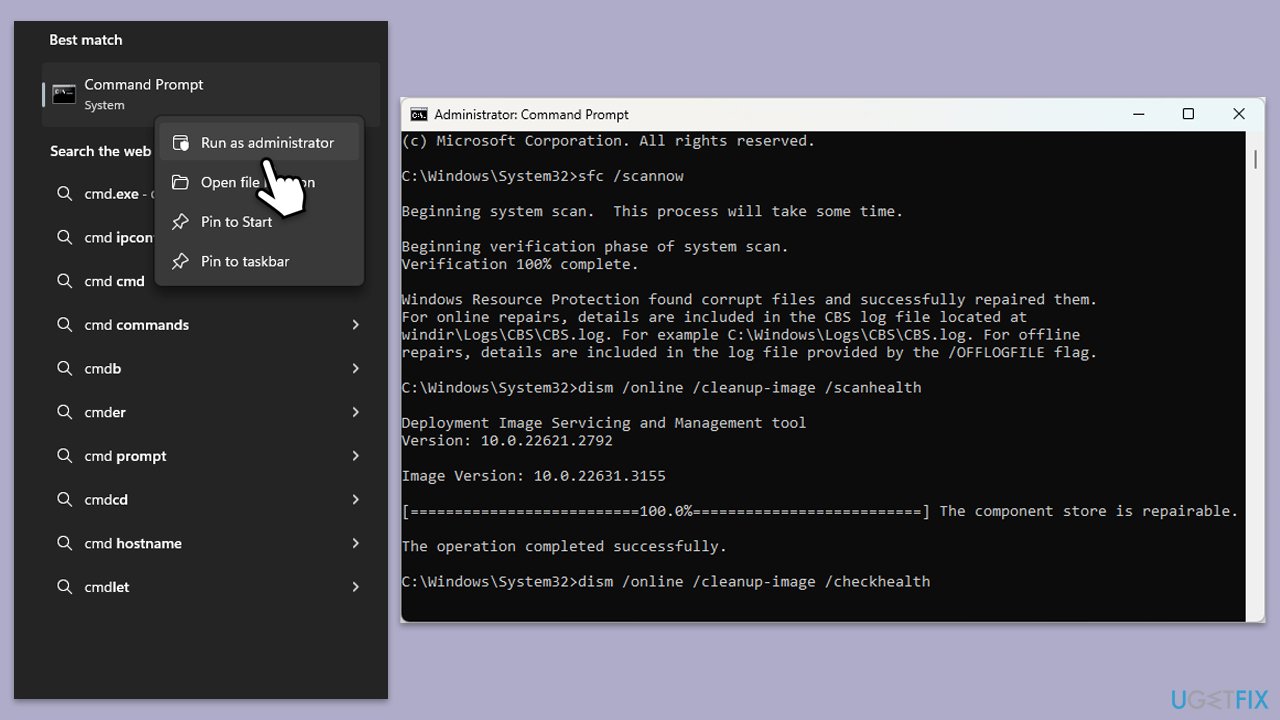
- Type cmd in Windows search.
- Right-click on Command Prompt and pick Run as administrator.
- User Account Control will ask whether you want to allow changes – click Yes.
- Copy and paste this command and hit Enter:
sfc /scannow - Wait for the scan to finish.
- As soon as it finishes, Windows will report whether integrity violations were found and if they could be fixed. Regardless of the outcome, use these commands next, pressing Enter after each:
Dism /Online /Cleanup-Image /CheckHealth
Dism /Online /Cleanup-Image /ScanHealth
Dism /Online /Cleanup-Image /RestoreHealth - Close down the Command Prompt and restart your device.
Fix 5. Reset Windows update components
This process deletes Software distribution and Catroot folders while having the services disabled.
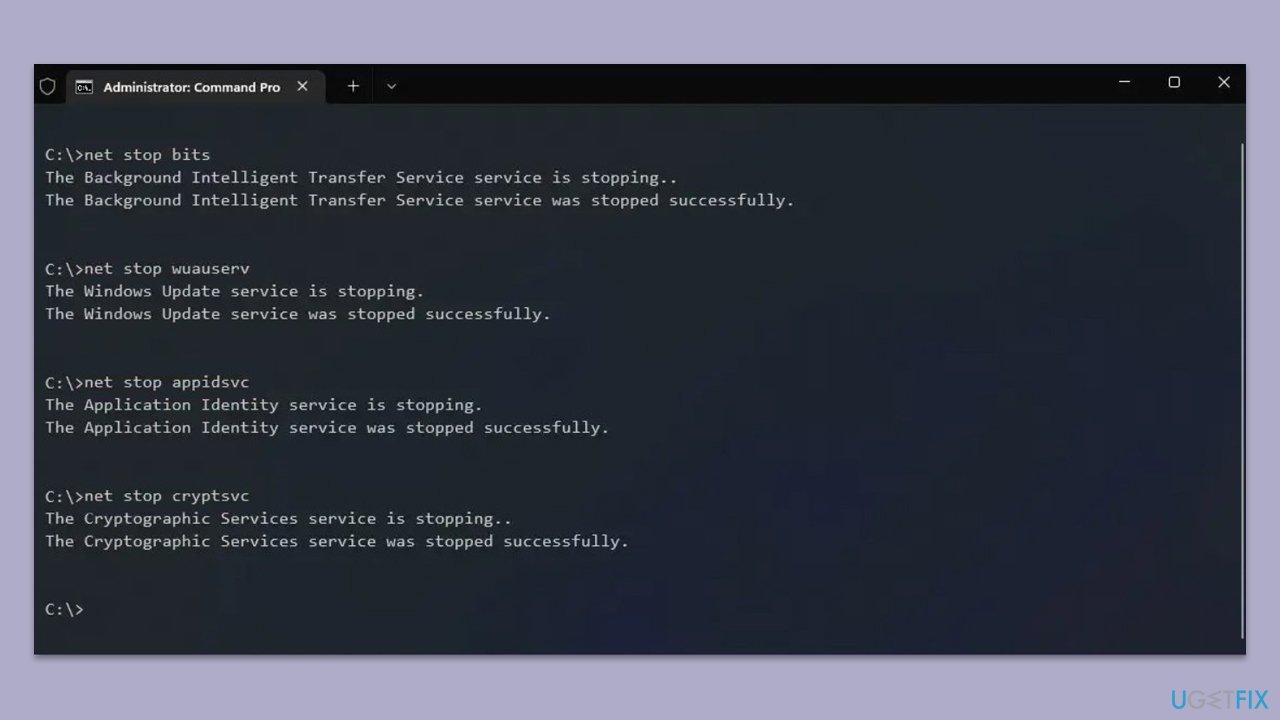
- Open Command Prompt as an administrator.
- Stop the BITS, Cryptographic, MSI Installer, and Windows Update Services by typing the following commands and pressing Enter after each:
- net stop wuauserv
- net stop cryptSvc
- net stop bits
- net stop msiserver
- Rename the SoftwareDistribution and Catroot2 folders by typing the following commands and pressing Enter after each:
- ren C:\Windows\SoftwareDistribution SoftwareDistribution.old
- ren C:\Windows\System32\catroot2 Catroot2.old
- Restart the BITS, Cryptographic, MSI Installer, and Windows Update Services by typing the following commands and pressing Enter after each:
- net start wuauserv
- net start cryptSvc
- net start bits
- net start msiserver
- Close the Command Prompt and restart your computer.
Fix 6. Use Media Creation Tool
You can always employ the official tool from Microsoft to install the latest version of Windows while fixing issues with the update. This will allow you to keep your personal files intact.
- Visit the official Microsoft website and download Windows 11 installation media.
- Double-click the installer, select Yes when UAC shows up, and agree to the terms.
- Select the ISO file and click Next, then follow the instructions to finish the process.
- Right-click on ISO and click Mount.
- Open the location of the ISO, right-click on it, and select Mount.
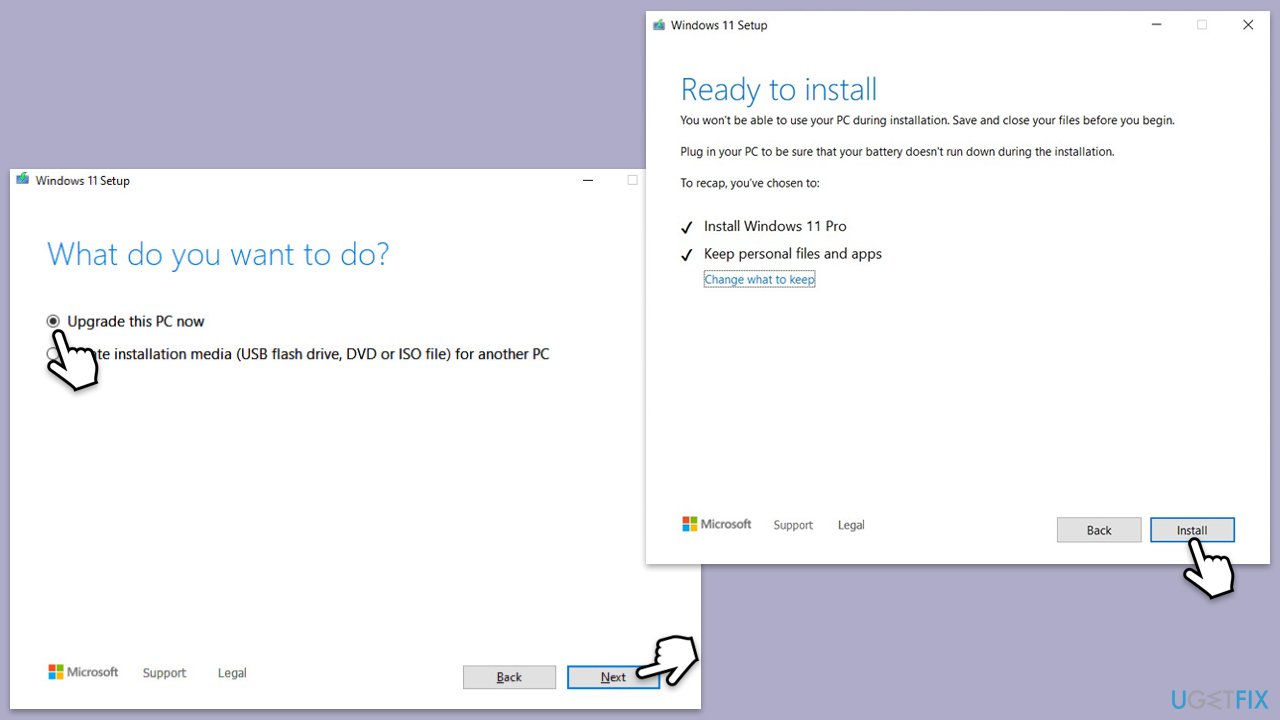
- Launch the installer.
- Select Upgrade this PC now and click Next.
- Windows will start downloading the needed files.
- Agree to the terms once again and click Next.
- Before installing, ensure you are happy with your choices (otherwise, you can click the Change what to keep option).
- Finally, click Install to begin the upgrade process.
Bottom line
To fix the KB5035853 installation failure, you can start by running the Windows update troubleshooter, which may automatically identify and resolve the issue. If that does not work, consider checking for corrupted system files or conflicts with security software. If none of these solutions work, you may need to try a powerful PC repair solution.
Frequently asked questions
You should first note the specific error code and then run the Windows Update Troubleshooter, which can help identify and fix common issues related to updates.
Yes, you can manually download the KB5035853 update from the Microsoft Update Catalog and install it directly on your system if the automatic update fails.
Before attempting to install KB5035853, ensure that your Windows 11 is fully updated, and check for sufficient disk space and compatible hardware.




Report an issue
What's wrong with this guide? We review every report and update or remove content.
Report received — thank you. We'll review and fix it.
You need a free account to submit a report.
Be the first to comment