How to fix
KB5037591 fails to install
on Windows
Resolve KB5037591 installation errors in Windows 11 quickly and effectively. Get expert-tested solutions to fix this issue for smooth updates.

What causes How to fix KB5037591 fails to install in Windows 11?
- System compatibility issues
- Corrupted system files
- Software conflicts
- Insufficient disk space
- Interrupted internet connections
Repairs Windows system files, removes malware, and restores a clean OS state — without reinstalling.
How can I make this month's NET Framework update KB5037591 install? It just keeps failing, and I've been trying for hours. Please advise.
Windows updates are critical for maintaining the security and functionality of your operating system since they contain bug fixes, security patches, and performance-enhancing features. The Knowledge Base (KB) number assigned to each update makes it easy for users and support teams to locate and refer to particular changes.
Some people have reported that they can't install KB5037591 update on Windows 11. This particular update is a cumulative update for the .NET Framework 3.5 and 4.8.1, aimed at Windows 11 versions 22H2 and 23H2.
Released alongside the KB5037771 update as part of the regular Patch Tuesday cycle, KB5037591 includes various quality and reliability improvements for the .NET Framework component, as well as critical security enhancements.
Why does KB5037591 fails to install?
There are several reasons why the KB5037591 update may fail to install. One common cause is system compatibility issues, which can occur if your device does not meet the necessary requirements for the update. Corrupted system files or software conflicts may also interfere with the installation process.
Additionally, insufficient disk space or interrupted internet connections during the download can lead to installation failures. Occasionally, background processes and third-party antivirus software can block updates from being installed correctly.
Possible solutions for KB5037591 installation issues
To address the installation issues with KB5037591, you can perform several troubleshooting steps. Checking for system compatibility and ensuring your device meets the update requirements is a good starting point. Running system file checks to repair any corrupted files and disabling or temporarily uninstalling conflicting software might also help.
Freeing up disk space and ensuring a stable internet connection can prevent interruptions during the update process. Additionally, you might consider pausing or disabling antivirus software during the update installation to avoid potential conflicts. For automated assistance, using the [d1] PC repair tool can resolve underlying Windows issues and ensure smooth installation of updates.
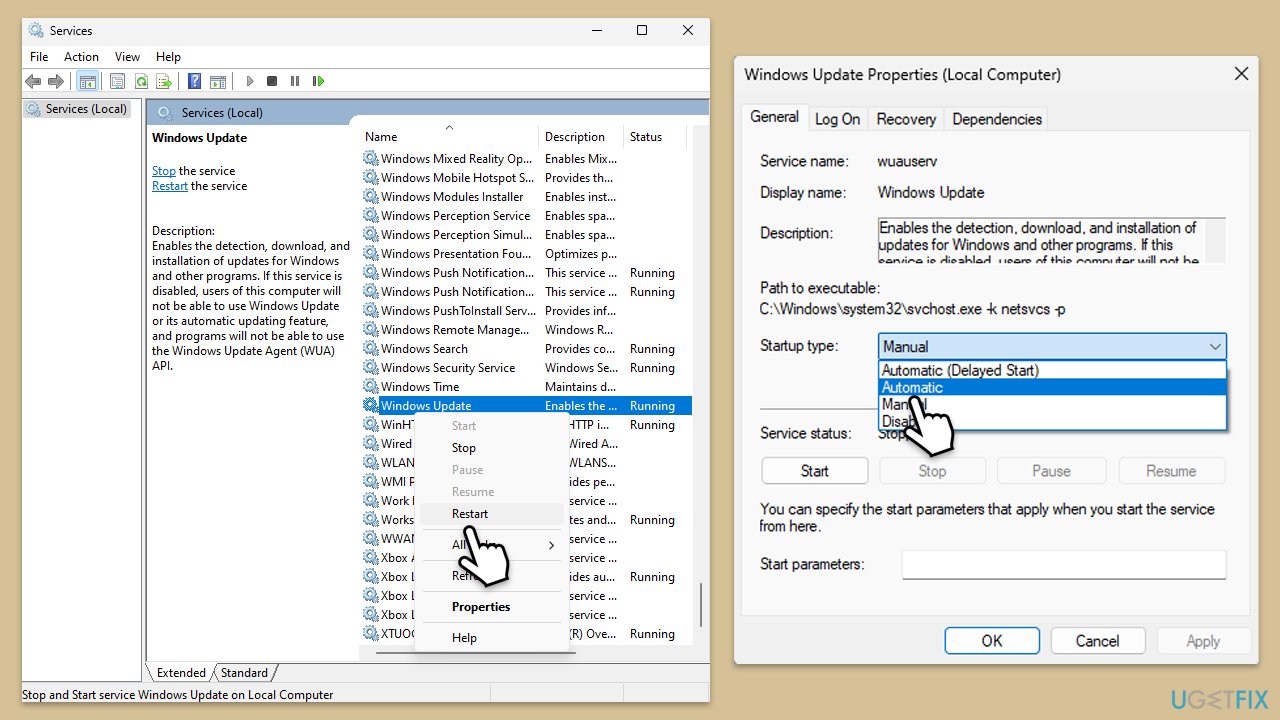
Fix 1. Check relevant services
For updates to be installed successfully, certain Windows services need to be running. If they are already running, you can restart them instead.
- Type in Services in Windows search and hit Enter.
- Scroll down a bit to find Background Intelligent Transfer Service (BITS).
- If it is already running, right-click and select Restart.
- If the service is not running, double-click it, pick Automatic under the Startup type drop-down menu.
- Click Start, Apply, and OK.
- Repeat this process for Windows Update and Cryptographic services.
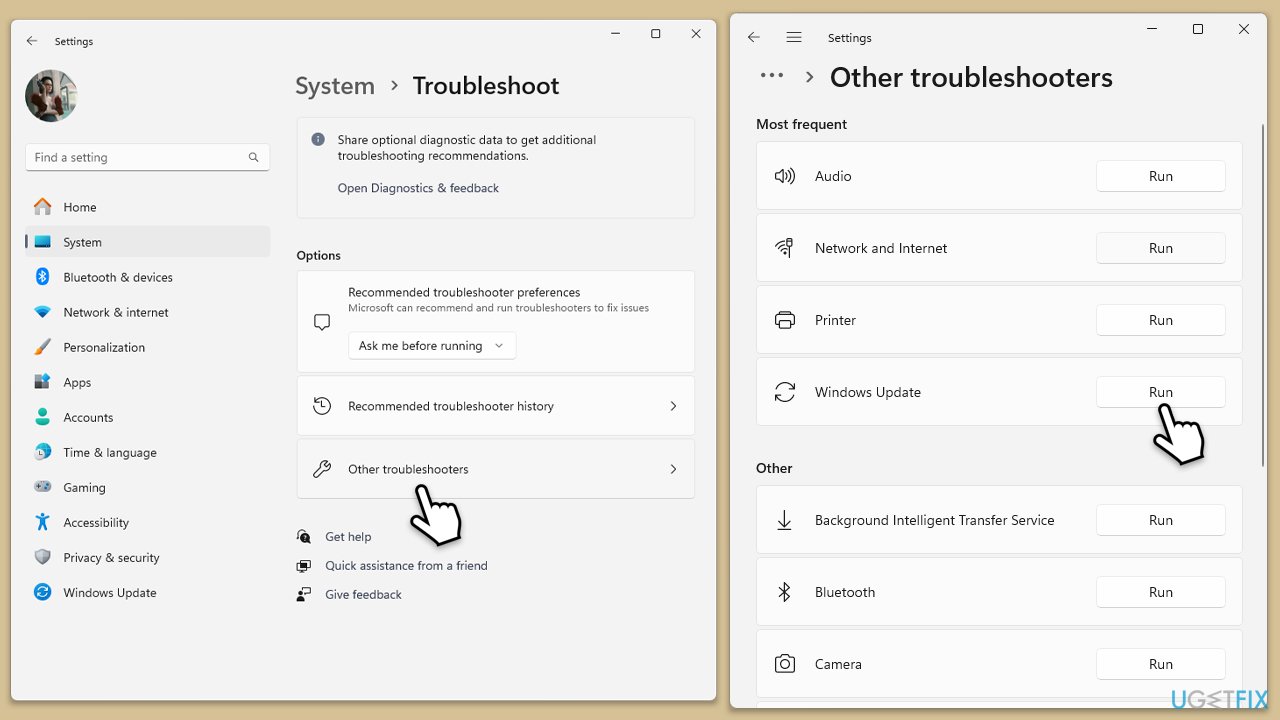
Fix 2. Run Windows Update Troubleshooter
Windows Update Troubleshooter can automatically detect and fix problems with Windows Update, addressing common issues that prevent updates from installing.
- Type Troubleshoot in Windows search and press Enter.
- Go to Other troubleshooters.
- Find Windows Update from the list and click Run.
- The troubleshooter will automatically scan your system for potential problems and display any issues it finds.
- If the troubleshooter finds any issues, it will provide recommended solutions.
Fix 3. Free up disk space
Insufficient disk space can prevent updates from installing. Freeing up space ensures there is enough room for the update files.
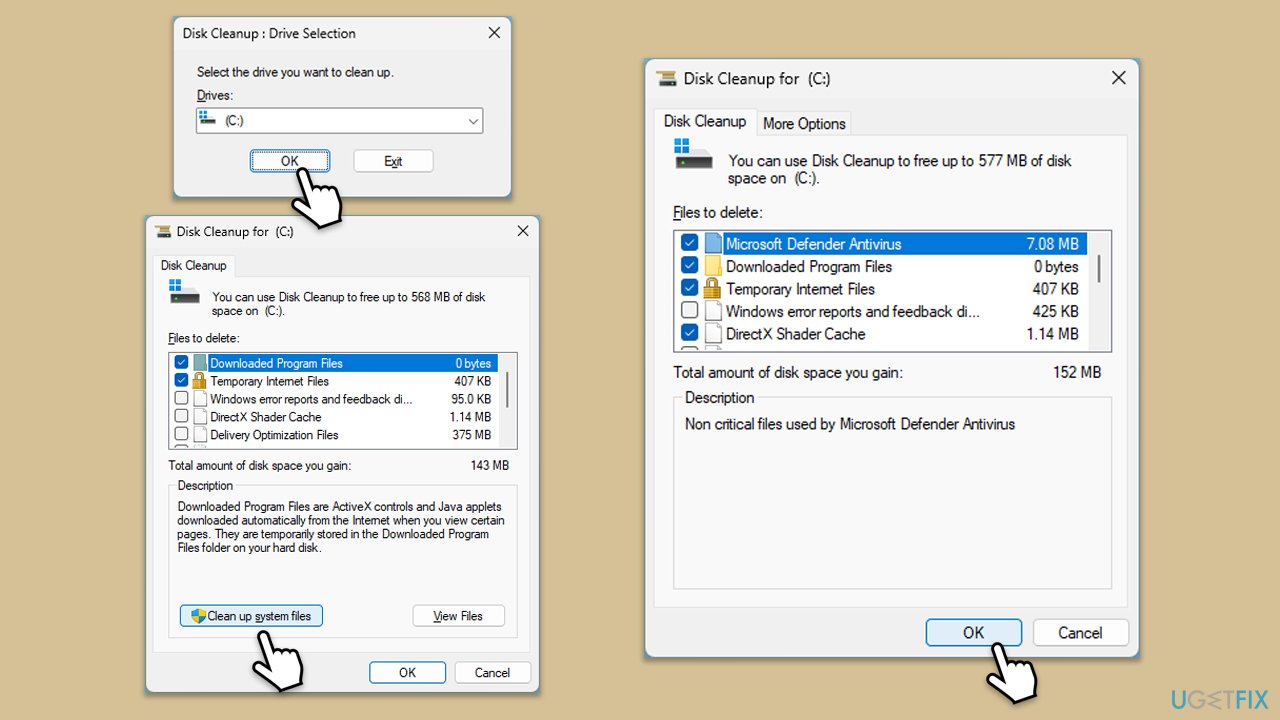
- Type Disk Cleanup in Windows search and hit Enter.
- If your Windows is installed on drive C, pick it from the list (it should be by default) and press OK.
- Click Clean up system files.
- Select your main disk again and click OK.
- Here, select the largest portions of the data used - these typically include Temporary Internet Files, Windows Update, Temporary Files, Recycle Bin, Delivery Optimization Files, and others.
- Click OK - the process should be finished shortly.
Fix 4. Disable antivirus software temporarily
Antivirus software can sometimes block updates from installing. Disabling it temporarily can help the update process.
- Open your antivirus software.
- Find the settings menu.
- Select the option to disable the protection.
- Try installing the update.
Fix 5. Reset Windows Update components
Resetting Windows Update components can fix corrupted update files or settings that prevent updates from installing.
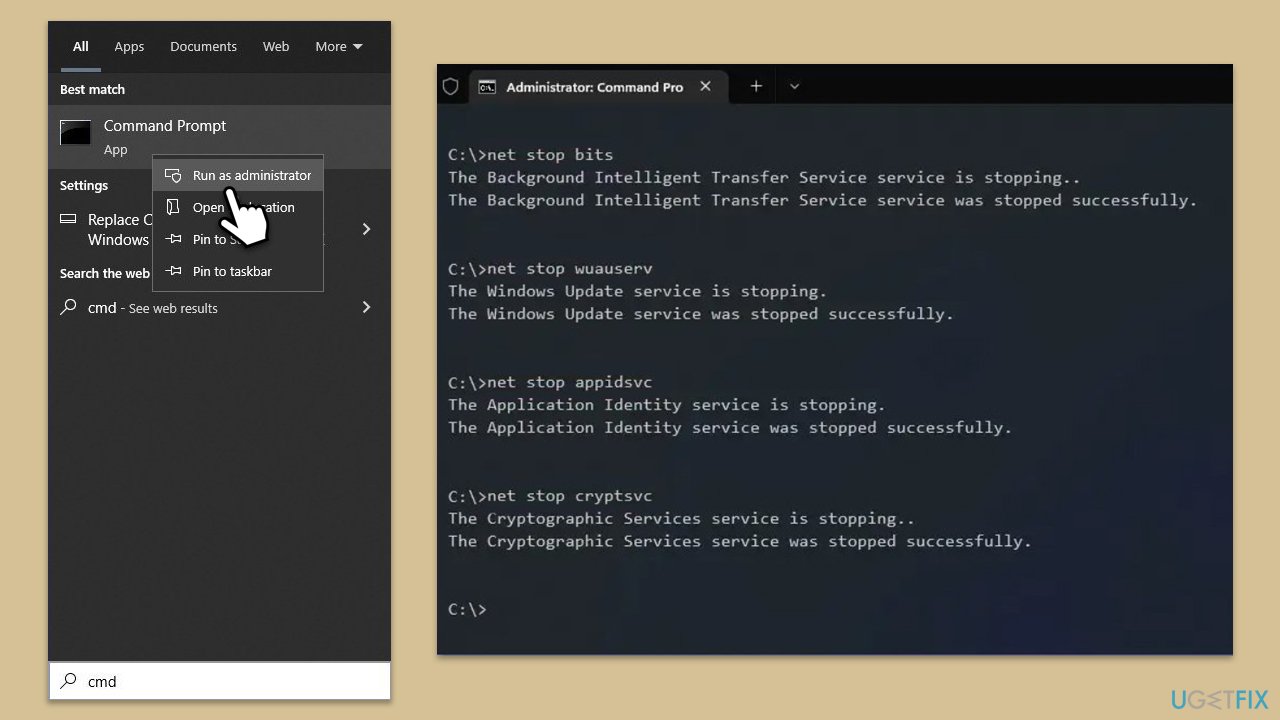
- Type cmd in Windows search.
- Right-click on Command Prompt and select Run as administrator.
- User Account Control will ask whether you want to make changes - click Yes.
- In the new window, copy and paste the following commands, pressing Enter after each to execute them:
net stop bits
net stop wuauserv
net stop appidsvc
net stop cryptsvc
Del “%ALLUSERSPROFILE%\Application Data\Microsoft\Network\Downloader\*.*”
rmdir %systemroot%\SoftwareDistribution /S /Q
rmdir %systemroot%\system32\catroot2 /S /Q
regsvr32.exe /s atl.dll
regsvr32.exe /s urlmon.dll
regsvr32.exe /s mshtml.dll
netsh winsock reset
netsh winsock reset proxy
net start bits
net start wuauserv
net start appidsvc
net start cryptsvc - Restart your computer.
Fix 6. Run the System File Checker and DISM
System File Checker can repair corrupted system files that might be causing the update to fail. DISM can repair Windows image files.
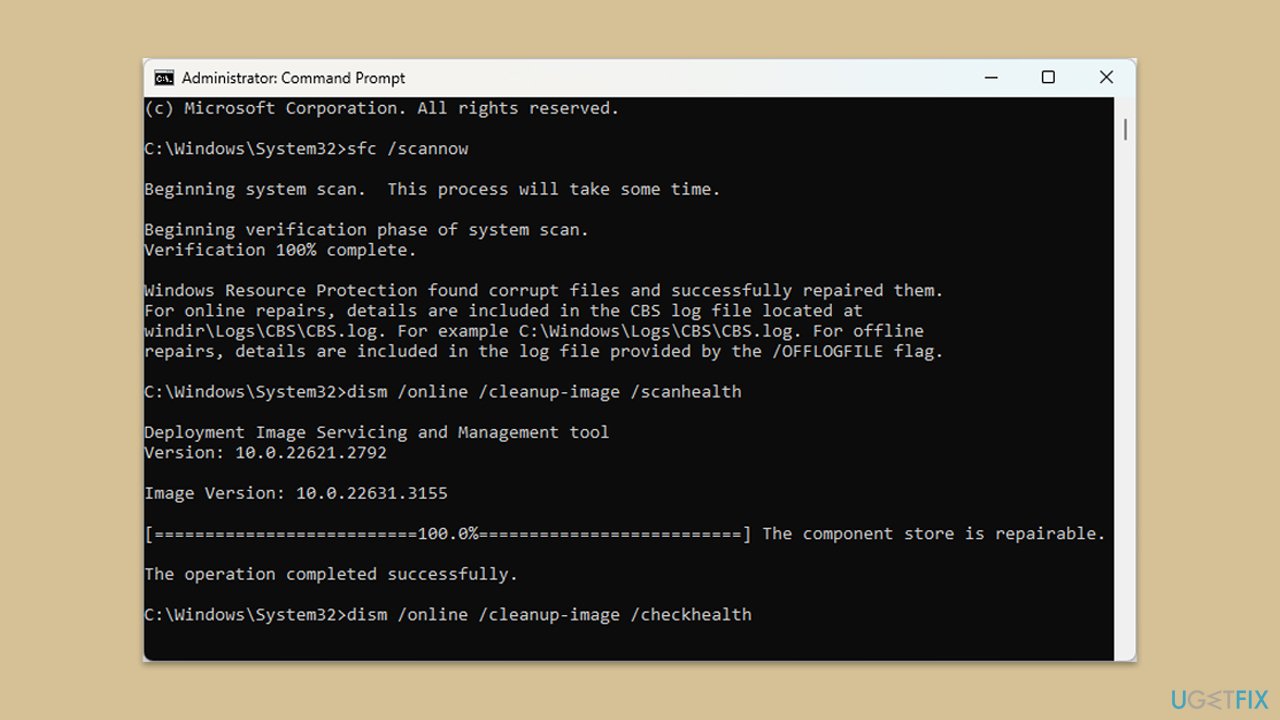
- Open Command Prompt as administrator.
- Use the following command lines, pressing Enter each time:
sfc /scannow - After the scan is done, copy the following commands and press Enter:
DISM /Online /Cleanup-Image /CheckHealth
DISM /Online /Cleanup-Image /ScanHealth
DISM /Online /Cleanup-Image /RestoreHealth
(Note: if you get an error executing this last command, add /Source:C:\RepairSource\Windows /LimitAccess to it and try again). - Restart your computer.
Fix 7. Repair the .NET Framework installation
Issues with the .NET Framework itself can prevent the KB5037591 update from installing. Repairing the .NET Framework installation can resolve these issues.
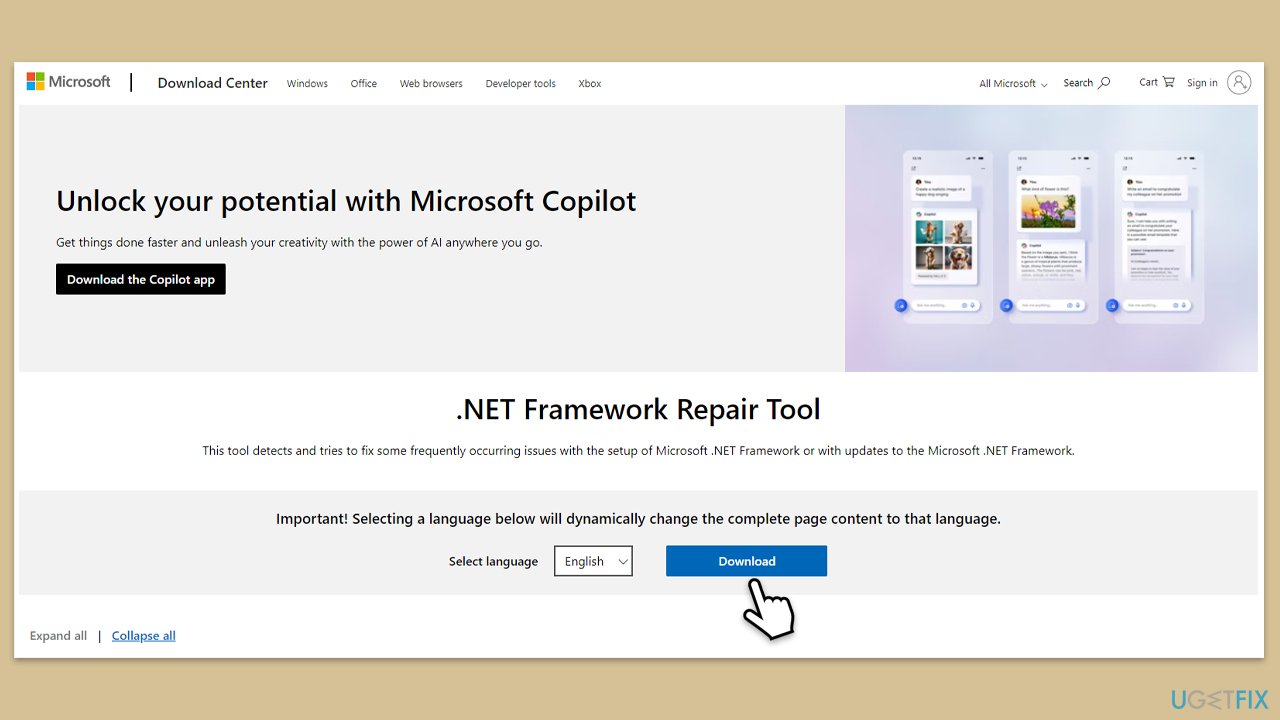
- Download Microsoft .NET Framework Repair Tool from the official Microsoft website.
- Start the launcher and select NetFxRepairTool.exe, pressing Next after.
- Double-click the file to begin the repair process.
- When prompted, mark the I have read and accept the license terms and click Next
- Windows will diagnose all the issues and repair them automatically for you
- Restart your computer if it doesn't happen automatically.
Fix 8. Ensure a stable internet connection
A stable internet connection is crucial for downloading and installing updates. Unstable connections can interrupt the update process.
- Ensure you are connected to a stable Wi-Fi network.
- Move closer to your router if you are on Wi-Fi.
- Consider using an Ethernet cable for a direct connection.
- Restart your router or modem.
Bottom line
To fix the installation issues with KB5037591, check for system compatibility, run system file checks, and disable any conflicting software. Additionally, ensure you have enough disk space and a stable internet connection. If these solutions do not work, consider using a PC repair tool for automated assistance.
Frequently asked questions
First, try running the Windows Update Troubleshooter, which can help identify and fix issues related to updates. If that doesn't work, consider manually downloading the update from the Microsoft Update Catalog.
Yes, third-party antivirus programs can sometimes block updates; temporarily disabling them may allow the installation to proceed. Be sure to re-enable your antivirus once the update is complete.
You can check the update status by going to Settings > Windows Update > Update history to see if KB5037591 appears as installed. If it's not listed, the installation likely failed.




Report an issue
What's wrong with this guide? We review every report and update or remove content.
Report received — thank you. We'll review and fix it.
You need a free account to submit a report.
Be the first to comment