How to fix
KB5040557 fails to install
on Windows
Resolve KB5040557 installation issues in Windows 11 effortlessly with our expert-tested solutions. Get your system running smoothly in minutes!

What causes How to fix KB5040557 fails to install in Windows 11?
- Corrupted system files
- Insufficient disk space
- Software conflicts
- Interrupted restart process
- Problems with optional features or language packs
Repairs Windows system files, removes malware, and restores a clean OS state — without reinstalling.
Hi. I am in Insider program for Windows 11 and today I could not install the latest update KB5040557. What's up with that? I restarted my PC several times and waited a few hours but to no avail, it keeps failing.
The Windows Insider Program lets users try out new Windows features before they are officially released. Recently, on August 5, 2024, Microsoft rolled out Windows 11 Insider Preview Build 26120.1340 (KB5040557) to the Dev Channel. This update includes improvements in various areas like settings, input options, and energy-saving features for Windows 11, version 24H2.
However, some people have been having trouble installing the KB5040557 update. One common issue is that the update fails to install, often showing error codes like 0x800f081f. This error usually means that there are problems with adding optional features or language packs during the update process. The update might also fail if your system needs to restart multiple times, but the process gets interrupted or isn’t completed properly.
There are several reasons why the update might not install. Corrupted system files can interfere with the installation, or there might not be enough disk space available. Additionally, software conflicts, such as those caused by security software or other programs running in the background, can prevent the update from being applied correctly.
To deal with these problems, it can help to free up disk space and check for corrupted files. You might also try temporarily disabling any security software and performing a clean boot to reduce software conflicts, increasing the chances of a successful installation.
For deeper Windows issues that could be affecting the update process, using a PC repair tool like [d1] can automatically fix these problems, making it easier to install updates smoothly.
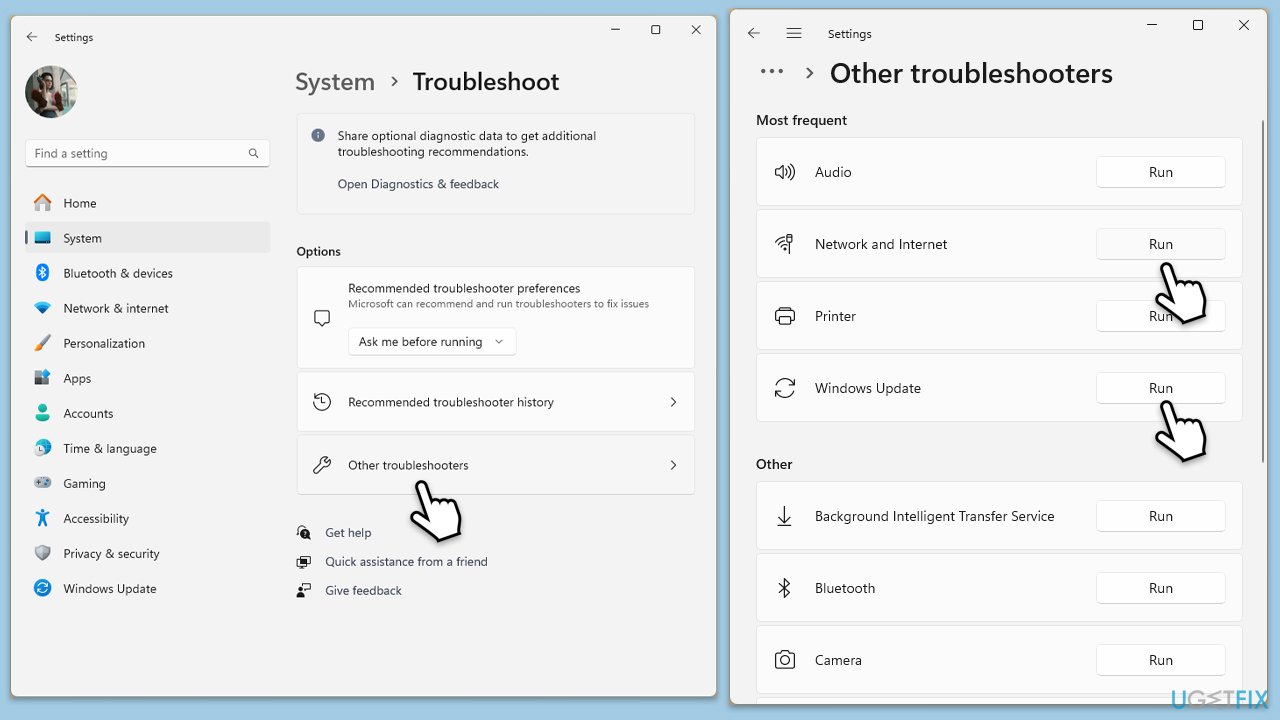
Fix 1. Run the troubleshooters
- Type Troubleshoot in Windows search and hit Enter.
- Select Other troubleshooters.
- Find Windows Update from the list and click Run.
- The troubleshooter will automatically scan your system for potential problems and display any issues it finds.
- Repeat the process with Network & Internet troubleshooter.
- If the troubleshooter finds any issues, it will provide recommended solutions.
- Follow the on-screen instructions and restart your computer.
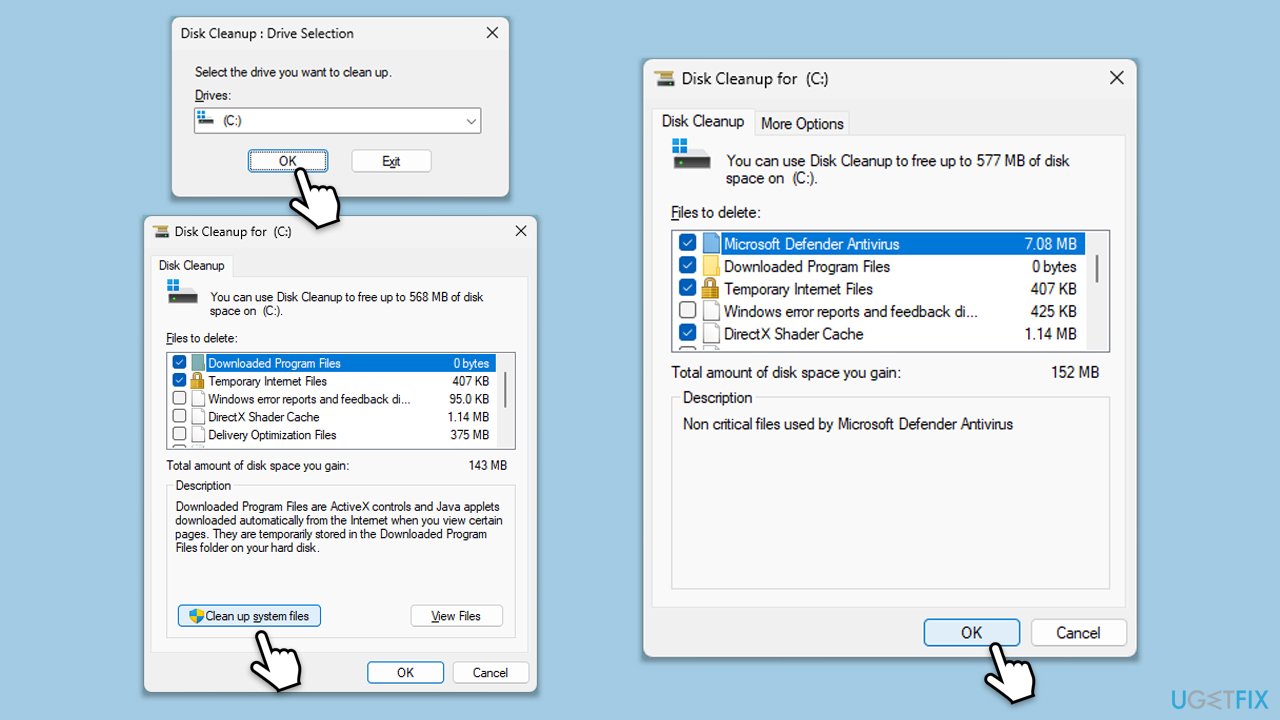
Fix 2. Perform Disk Cleanup
- Type Disk Cleanup in Windows search and press Enter.
- If your Windows is installed on drive C, pick it from the list (it should be by default) and press OK.
- Click Clean up system files.
- Select your main disk again and click OK.
- Here, select the largest portions of the data used - these typically include Temporary Internet Files, Windows Update, Temporary Files, Recycle Bin, Delivery Optimization Files, and others.
- Click OK - the process should be finished shortly.
Fix 3. Perform Clean Boot
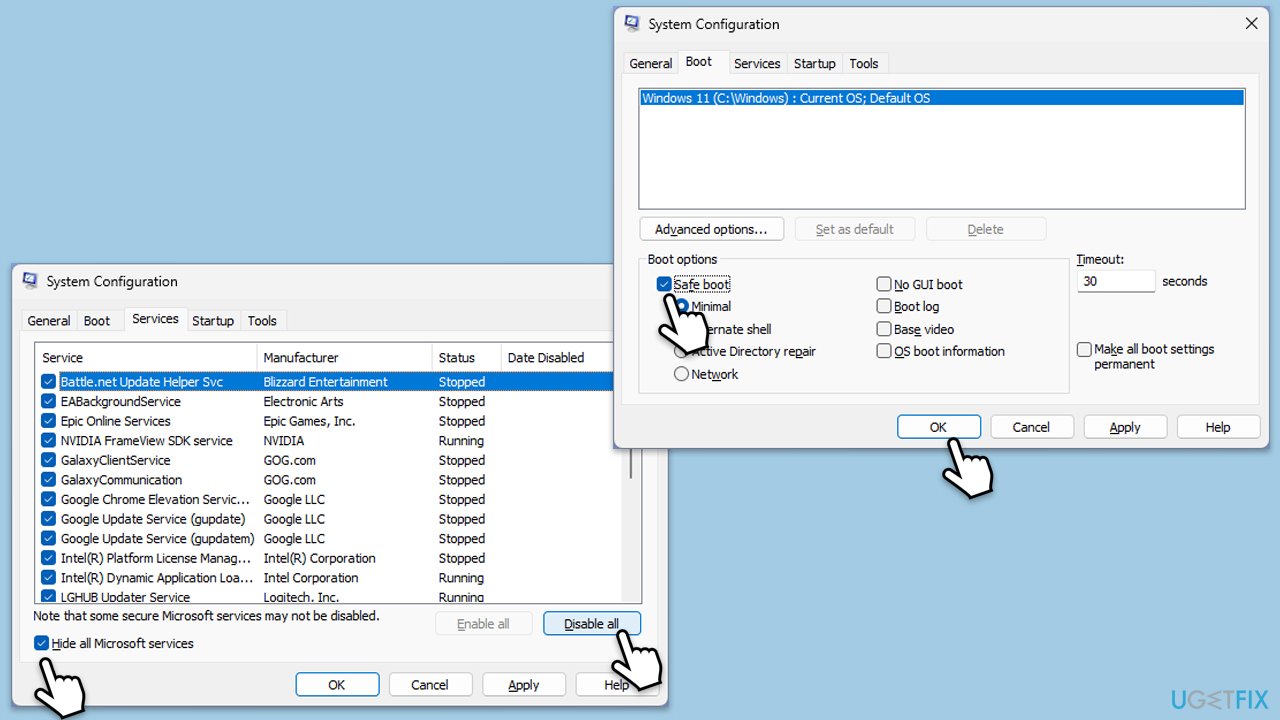
- Type msconfig in the Windows search box and press Enter.
- Pick the Services tab.
- Mark Hide all Microsoft services and select Disable all.
- Select the Startup tab and click Open Task Manager.
- In the Task Manager, right-click on each of the items and select Disable, then close the Task Manager.
- Go to the Boot tab, mark the Safe Boot option, then click Apply and OK.
- On the System Configuration window, click OK.
- Restart your computer and attempt the update.
Fix 4. Check services
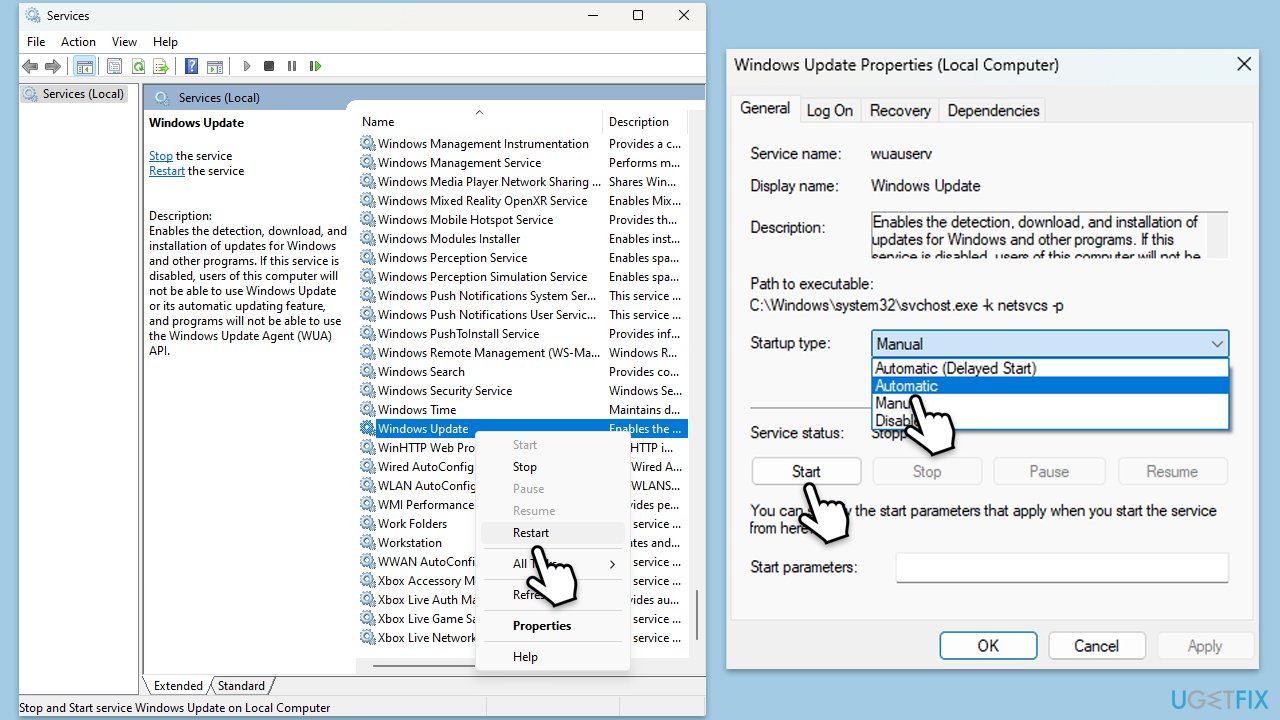
- Type in Services in Windows search and hit Enter.
- Scroll down a bit to find Windows Update.
- If it is already running, right-click and select Restart.
- If the service is not running, double-click it, and pick Automatic under the Startup type drop-down menu.
- Click Start, Apply, and OK.
- Repeat the process with the Background Intelligent Transfer Service (BITS), Cryptographic, and Windows Installer services.
Fix 5. Reset Windows Update components
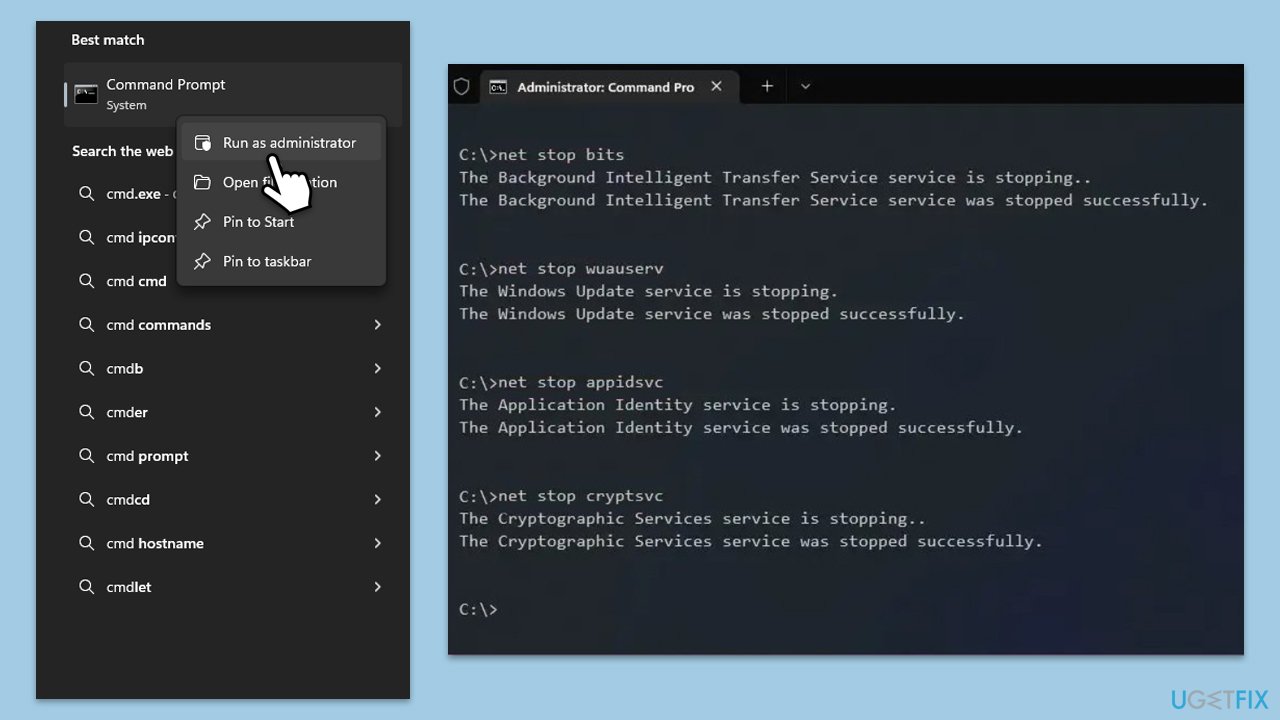
- Type in cmd in Windows search.
- Right-click on Command Prompt and select Run as administrator.
- In the User Account Control window, click Yes.
- Stop the Windows Update and related services by running these commands one by one:
- net stop wuauserv
- net stop cryptSvc
- net stop bits
- net stop msiserver
- Rename the SoftwareDistribution and Catroot2 folders with these commands:
- ren C:\Windows\SoftwareDistribution SoftwareDistribution.old
- ren C:\Windows\System32\catroot2 Catroot2.old
- Restart the stopped services:
- net start wuauserv
- net start cryptSvc
- net start bits
- net start msiserver
- Try running Windows Update again.
Fix 6. Install the update manually
- Open your browser and go to Microsoft Update Catalog.
- In the search box, type in KB5039302 and press Search.
- Find the correct version of the update for your operating system (to check this, right-click on Start and pick System. Under Windows specifications, check the Version) and click Download.
- Follow on-screen guidelines to finish the installation process and restart your computer.
Fix 7. Repair corrupted files
- Open Command Prompt as administrator.
- Paste the following command and press Enter:
sfc /scannow - Wait till the scan is finished
- Once that is done, use the following commands, pressing Enter each time:
dism /online /cleanup-image /scanhealth
dism /online /cleanup-image /checkhealth
dism /online /cleanup-image /restorehealth - Reboot your system.

Bottom line
To fix the KB5040557 installation failure, you can run the Windows Update troubleshooter and the Network & Internet troubleshooter. Additionally, consider freeing up disk space, checking for corrupted files, temporarily disabling security software, and performing a clean boot. If these solutions do not work, using a PC repair tool may help resolve deeper issues.
Frequently asked questions
First, try running the Windows Update Troubleshooter by going to Settings > Update & Security > Troubleshoot. If that doesn't work, consider manually downloading and installing the update from the Microsoft Update Catalog.
Yes, third-party antivirus programs can interfere with Windows Updates, including KB5040557. Temporarily disabling your antivirus software may help resolve the installation issue.
Check for updates by navigating to Settings > Windows Update and clicking on 'Check for updates' to make sure your system is up to date before trying to install KB5040557.




Report an issue
What's wrong with this guide? We review every report and update or remove content.
Report received — thank you. We'll review and fix it.
You need a free account to submit a report.
Be the first to comment