How to fix
KB5046542 fails to install
on Windows
Resolve the KB5046542 installation error in Windows 10 quickly and easily. Follow our expert-tested tips for a seamless update experience. Fixed in minu…

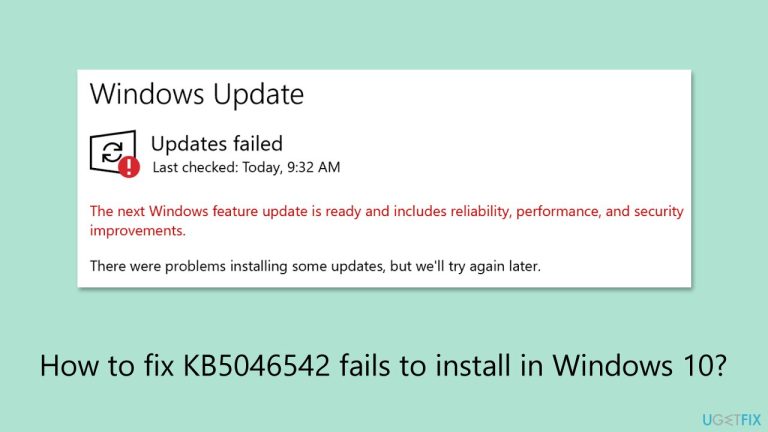
What causes How to fix KB5046542 fails to install in Windows 10?
- Insufficient disk space on the system drive
- Corrupted system files or Windows Update components
- Background applications or third-party programs conflict
- Services that failed to start or are bugged
Repairs Windows system files, removes malware, and restores a clean OS state — without reinstalling.
I'm trying to install one of the newest Windows 10 updates KB5046542 and just can't seem to get it to go through. I always do my updates manually through the Settings interface, so this is my first problem I've encountered when trying to do so. All I ever receive is a message saying Updates failed and I need to try again later.
KB5046542 fails to install in Windows 10
While many users don't realize that, Windows update are crucial for a healthy Windows environment. Without them, users might experience unexpected cyber attacks, encounter bugs, and lack many of quality of life improvements, as well as miss out on new features. But sometimes, updates like KB5046542 for Windows 10 fail to install.
What does KB5046542 include?
Released on November 12, 2024, KB5046542 is a cumulative update for .NET Framework 3.5, 4.8, and 4.8.1 for Windows 10 version 22H2. It addresses several issues related to these .NET Framework versions and provides fixes to improve system stability. It aims to fix issues with certain services and applications using .NET components, potentially improving their overall reliability.
Despite the benefits, many users have reported that KB5046542 fails to install on their devices. Most people get an error code, for example, 0x80070643, although some might not ever receive that and instead met with a generic "Updates failed" message, which does not prove many insights in what caused the issue or how to address it.
Possible causes of KB5046542 installation failures
There are a few common reasons why KB5046542 might fail to install:
- Insufficient disk space on the system drive where the update is trying to install.
- Installation can be blocked by corrupted system files or Windows Update components.
- Background applications or other third-party programs may conflict with the execution of updates.
- Services that failed to start or are bugged.
Solutions to fix KB5046542 installation issues
If KB5046542 does not install, there are several steps you can take to resolve the issue. Starting with simple solutions like checking disk space or running a system file checker can often fix minor problems, while more advanced fixes like repairing Windows components or resetting Windows Update components can address more complex issues.
For an automated solution, repair [d1] can help in the diagnosis and resolution of any installation issues, hence having your system updated and at the same time running without extensive manual troubleshooting.
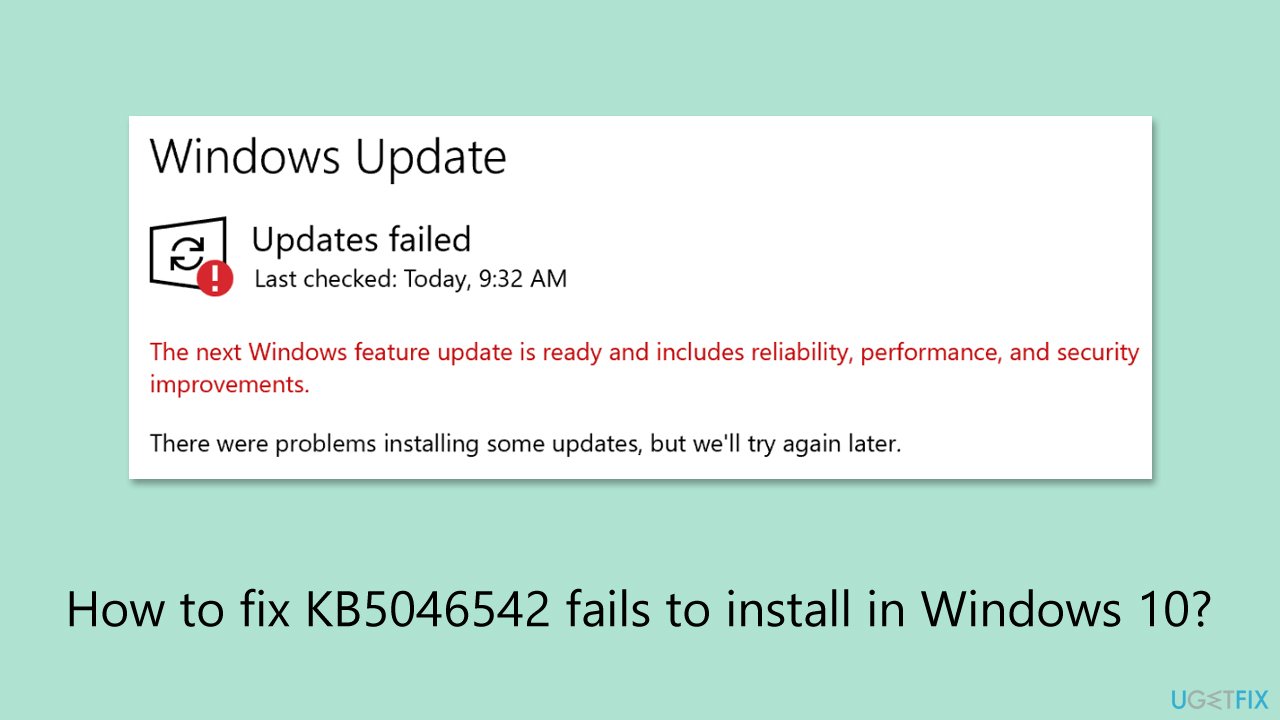
Fix 1. Check if you have enough space on the drive
Disk Cleanup can help you to clear cache files from your device, removing potentially bugged caches and freeing disk space.
- Type Disk Cleanup in Windows search and press Enter.
- If your Windows is installed on drive C, pick it from the list (it should be by default) and press OK. If you only use one drive, this step will be skipped.
- At the bottom of the window, click on Clean up system files.
- Select the main drive again if required and wait.
- While marking sections like Windows Update Cleanup and Windows upgrade log files is mandatory, you can also pick other sections if you think they aren't useful to you, such as Temporary Internet Files or Delivery Optimization Files, and others.
- Click OK - the process should be finished shortly.
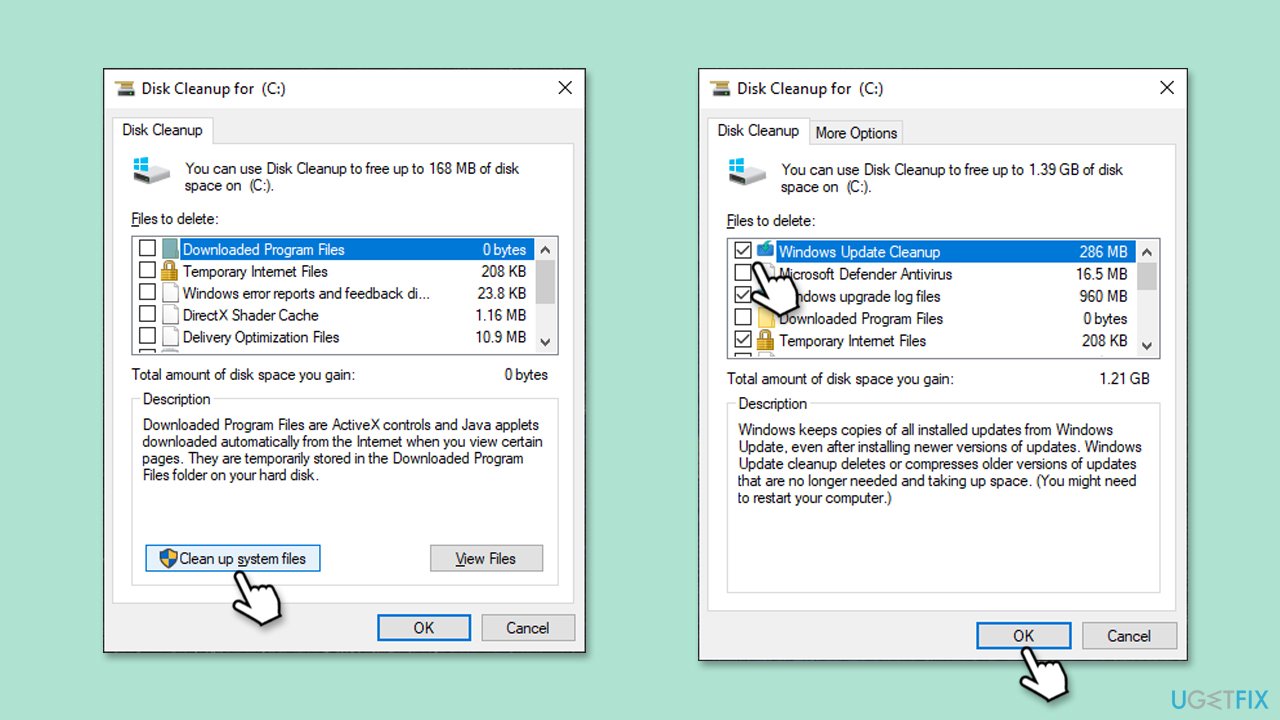
Fix 2. Run Windows update troubleshooter
If you haven't done so, you should run Windows update troubleshooter.
- Type Troubleshoot in Windows search and press Enter.
- Click Additional troubleshooters if you can't see them listed.
- Scroll down to find the Windows Update option.
- Click and select Run the troubleshooter.
- Apply the offered changes and close down the troubleshooter - see if that helps solve your problem.
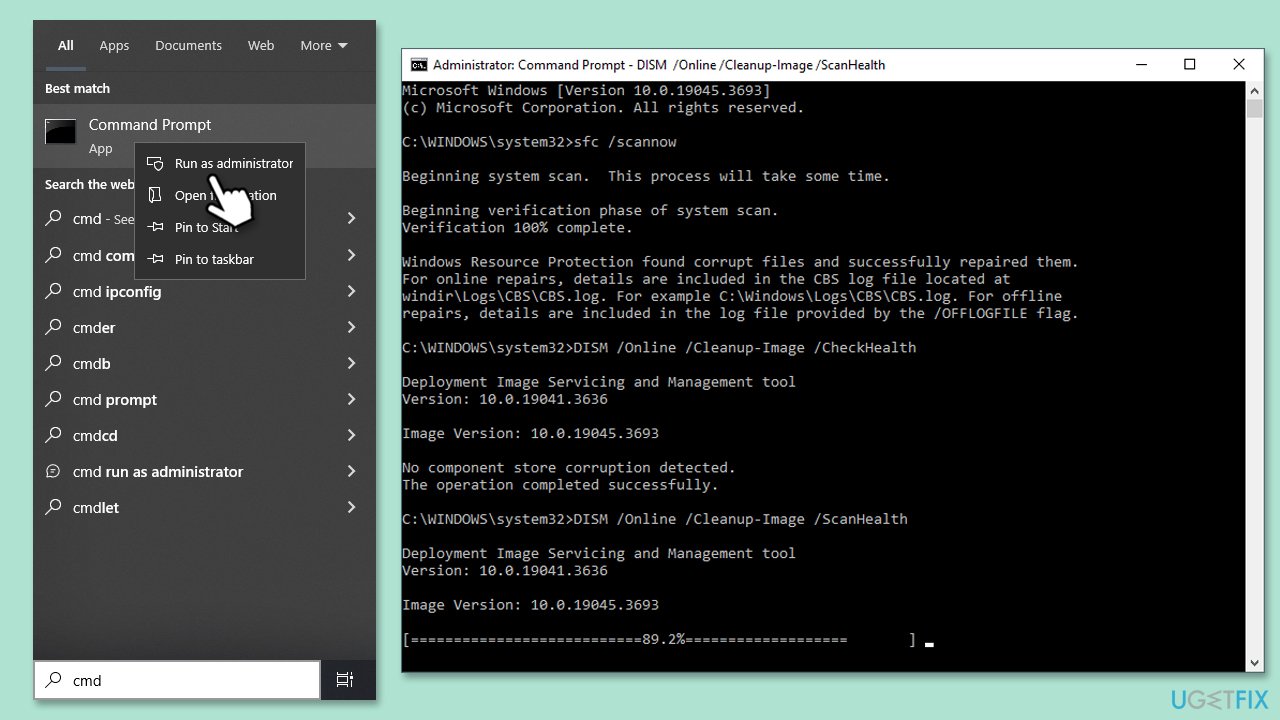
Fix 3. Repair system file corruption with SFC and DISM
- Type cmd in Windows search.
- Right-click on Command Prompt and pick Run as administrator.
- User Account Control window will show up - click Yes when prompted.
- Copy and paste this command and hit Enter:
sfc /scannow - Wait for the scan to finish.
- As soon as it finishes, Windows will report whether integrity violations were found and if they could be fixed. Regardless of the outcome, use these commands next, pressing Enter after each:
Dism /Online /Cleanup-Image /CheckHealth
Dism /Online /Cleanup-Image /ScanHealth
Dism /Online /Cleanup-Image /RestoreHealth - Close down the Command Prompt and restart your system.
Fix 4. Check relevant services
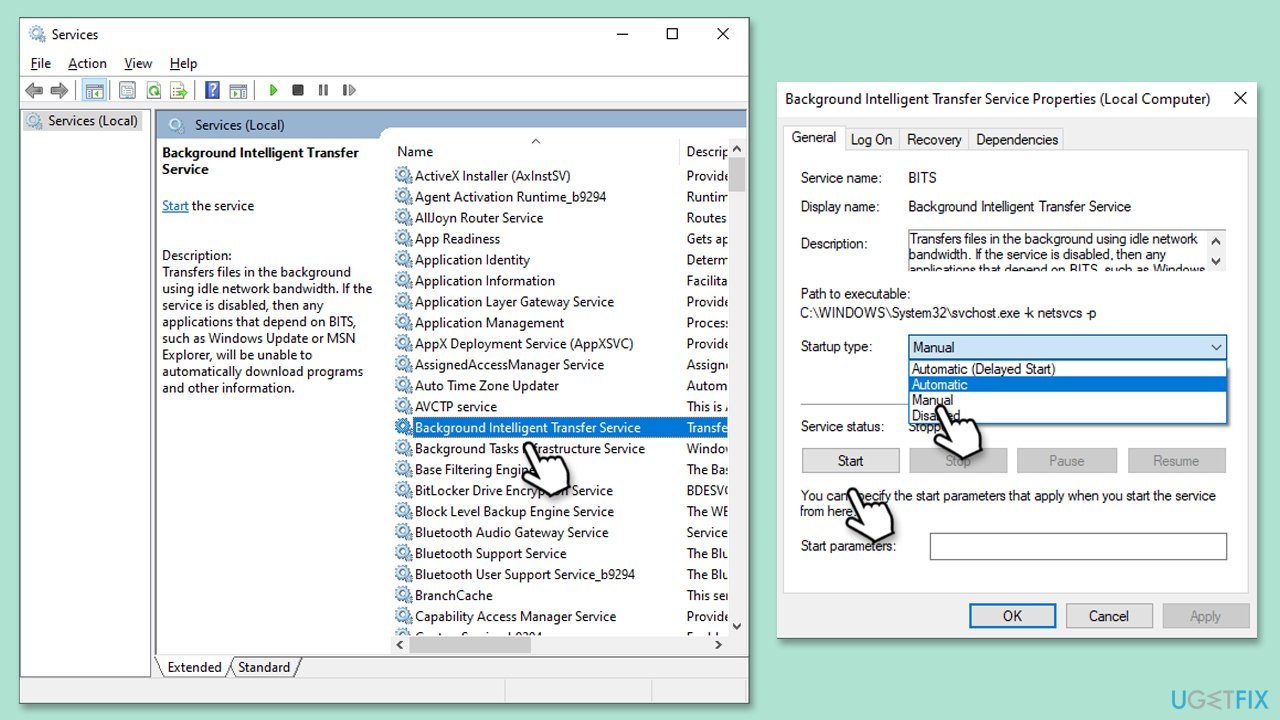
Certain Windows services have to be running for Windows updates to succeed. You can either restart these services if running or set them to automatic startup type.
- Type in Services in Windows search and hit Enter.
- Locate Background Intelligent Transfer Service (BITS).
- If it is already running, right-click and pick Restart.
- If the service is not running, double-click it, and select Automatic under the Startup type from the drop-down menu.
- Click Start, Apply, and OK.
- Repeat this process for Windows Update and Cryptographic services.
Fix 5. Install the update manually
Installing the updates manually is also always an option - here's what you need to do:
- Go to the official Microsoft Update Catalog website.
- Type the KB5046542 into the search bar, and press Enter or click Search.
- You will find many different versions on the update – you need to find the one that matches your PC specs and Windows version (as a home user, ignore Windows server versions).
- Right-click on Start and pick System.
- Under Device specifications, check the System type section: it should either be 64-bit or 32-bit.
- Scroll down to Windows specifications and check the Version section.
- Return to the Microsoft Update catalog, download the correct version and install it.
- Restart your system.
Fix 6. Reset Windows update components
- Open Command Prompt as administrator.
- Stop the BITS, Windows Update, and Cryptographic services by typing the following commands, and pressing Enter after each:
- net stop bits
- net stop wuauserv
- net stop appidsvc
- net stop cryptsvc
- To rename the SoftwareDistribution and Catroot2 folders (where Windows stores update files), type the following commands:
- ren %systemroot%\SoftwareDistribution SoftwareDistribution.old
- ren %systemroot%\system32\catroot2 catroot2.old
- Restart the services stopped earlier by typing the following commands:
- net start bits
- net start wuauserv
- net start appidsvc
- net start cryptsvc
- Close the Command Prompt and restart your computer, then try updating Windows again.

Bottom line
To resolve the installation issues with KB5046542, start by checking your disk space and running a system file checker. If these simple solutions do not work, consider more advanced fixes like repairing Windows Update components. If none of these steps resolve the issue, further troubleshooting may be necessary.
Frequently asked questions
Try running the Windows Update Troubleshooter by going to Settings > Update & Security > Troubleshoot, then select 'Additional troubleshooters' and run it for Windows Update.
You can manually download KB5046542 from the Microsoft Update Catalog website, then run the downloaded file to install it on your Windows 10 system.
Consider performing a system file check by opening Command Prompt as an administrator and running 'sfc /scannow' to repair any corrupted files that might be causing the issue.




Report an issue
What's wrong with this guide? We review every report and update or remove content.
Report received — thank you. We'll review and fix it.
You need a free account to submit a report.
Be the first to comment