How to fix
KB5052077 fails to install
on Windows
Resolve the KB5052077 installation error on Windows 10 with our expert-tested fixes. Get your system running smoothly again—issues resolved in minutes!

What causes How to fix KB5052077 fails to install in Windows 10?
- Insufficient disk space
- Corrupted system files
- Conflicting software
- Network issues
- Corrupted update components
Repairs Windows system files, removes malware, and restores a clean OS state — without reinstalling.
KB5052077 is failing to install for me on Windows 10. Do you know how to fix it? The message doesn't show much, just that updates couldn't be installed and that I should try later.
Microsoft released the KB5052077 update on February 25, 2025, as a preview build for Windows 10, OS Build 19045.5555. The optional, non-security update allows users and administrators to try out future fixes and improvements before their release in the March 2025 Patch Tuesday update. Some of the significant changes in KB5052077 include fixing an issue where the OpenSSH service will not start and resolving dwm.exe crashes, the Desktop Window Manager. Other changes focus on stability and performance for certain Windows elements.
While it has its benefits, KB5052077 is not installing for some users. This is normal for Windows updates, and even other updates such as KB5033375, KB5034204, and KB5034765 have also experienced issues with failed installation. Users are reporting problems ranging from not downloading the update at all to repeated error messages that halt the installation process, hence failing to install the update.
Several factors can contribute to these installation problems, including:
- Insufficient disk space. A lack of adequate storage can prevent updates from installing properly.
- Corrupted system files. Damaged or missing system files may interfere with the update process.
- Conflicting software. Third-party applications, including antivirus programs, can sometimes block updates.
- Network issues. Unstable or slow internet connections can disrupt the download or installation of updates.
- Corrupted update components. Software Distribution folder may be holding bugged caches, preventing the newest update to install correctly.
Based on these reasons, there are several solutions that should be tried when KB5052077 fails to install. For example, for those with issues related to corrupted system files, an SFC/DISM scan would be an appropriate solution. For others, where conflicting software is present, disabling security or similar apps might help.
If KB5052077 is still not installing after troubleshooting, using a powerful PC repair application [d1] can be a practical solution. Such software is designed to detect and fix Windows malfunctions automatically, making it especially useful when the root cause of installation failures is unclear.
Fix 1. Disable third-party antivirus software
Security programs might interrupt Windows update processes by preventing changes to the system. Running a test by temporarily turning off antivirus software will reveal if it triggers the problem.
- Open the antivirus application from the system tray or start menu.
- Locate the real-time protection or shield settings.
- Temporarily turn off the protection.
- Attempt to install the update again.
Fix 2. Run Windows update troubleshooter
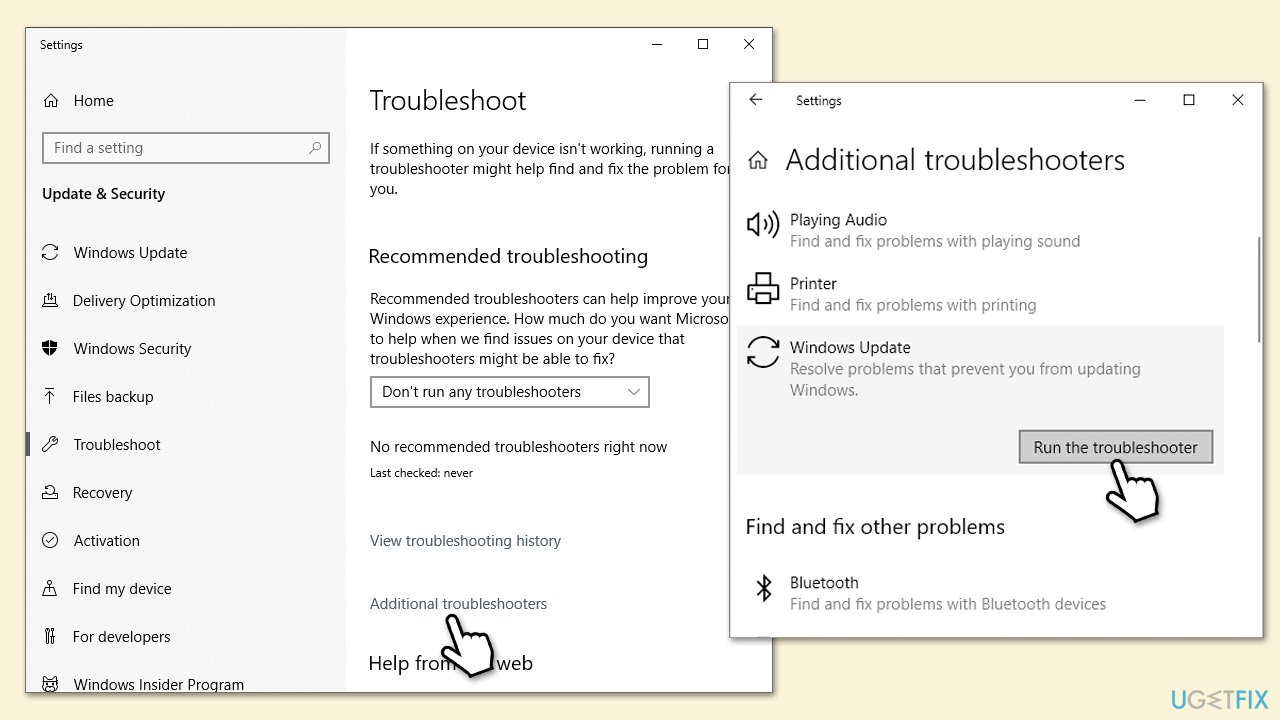
Windows update troubleshooter could sometimes help you iron out issues related to Windows updates.
- Type Troubleshoot in Windows search and press Enter.
- Click Additional troubleshooters if you can't see them listed.
- Scroll down to find the Windows Update option.
- Click and select Run the troubleshooter.
- Apply the offered changes and close down the troubleshooter - see if that helps solve your problem.
Fix 3. Free up disk space
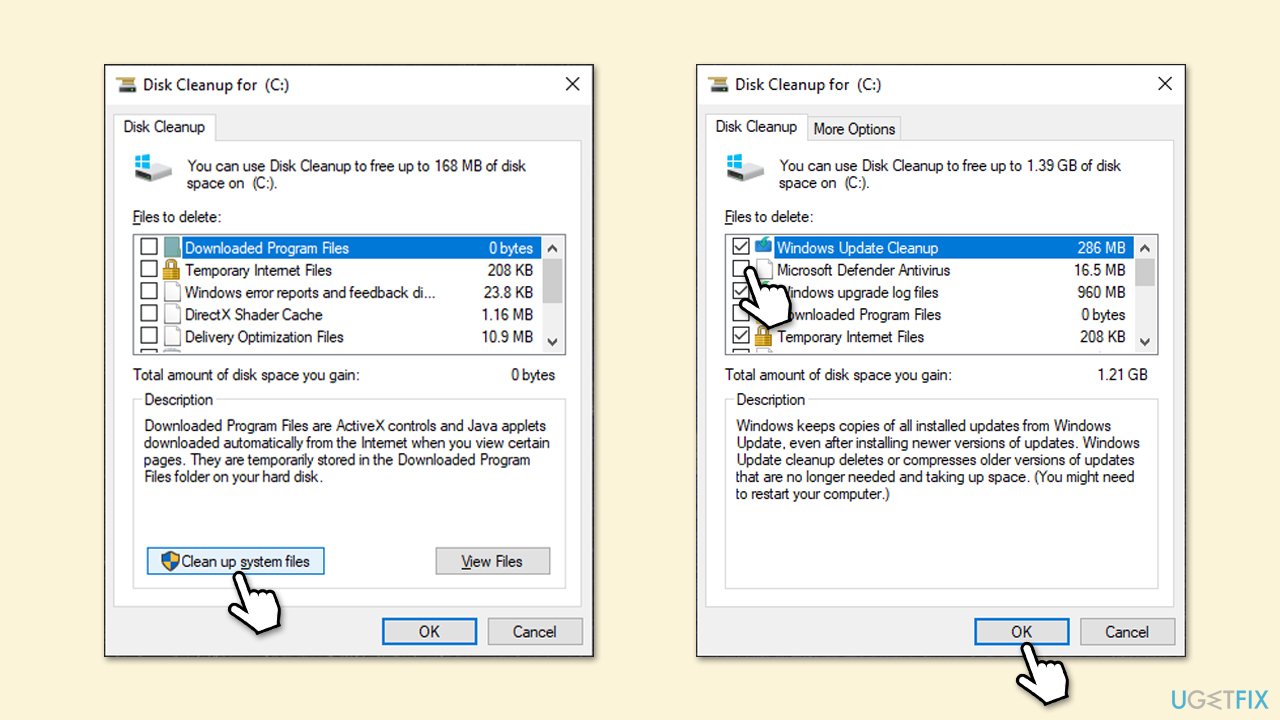
Lack of storage space can make Windows unable to install updates. Updates require temporary space to unpack and install changes, and without it, the update may fail. Deleting unwanted files and clearing space on the system drive can resolve this issue.
- Type Disk Cleanup in Windows search and press Enter.
- Pick the main drive (C: by default) and select the option Clean up system files.
- Choose the drive once more and press OK.
- From the array of files that can be cleaned, choose those taking up the most space, including Temporary Internet Files, Windows Update, and Temporary Files, among others.
- Click OK to begin the cleanup process.
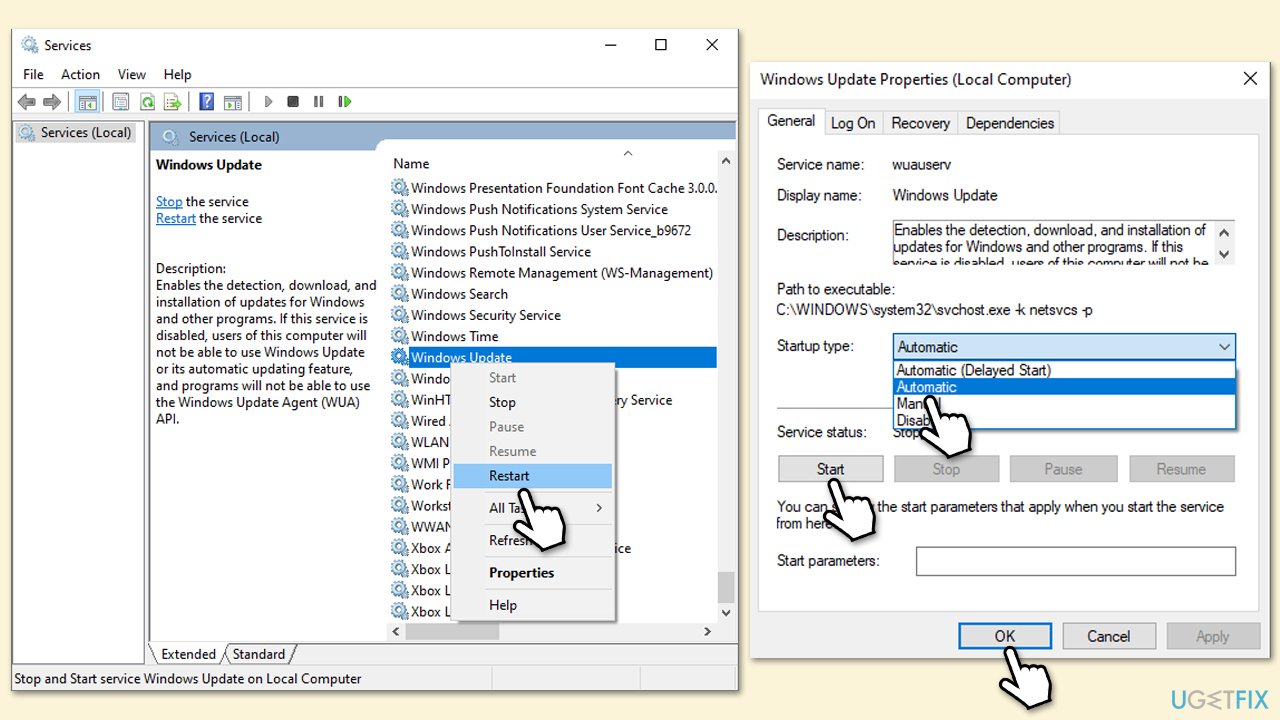
Fix 4. (Re)start relevant services
If some of the services are not running, the updates might not go through, so you should either restart them or set them to run automatically.
- Type in Services in Windows search and press Enter.
- Find Windows Update.
- If it is already running, right-click and pick Restart.
- If the service is not running, double-click it, and select Automatic under the Startup type from the drop-down menu.
- Click Start, Apply, and OK.
- Repeat this process for Background Intelligent Transfer Service (BITS) and Cryptographic services.
Fix 5. Install the update manually
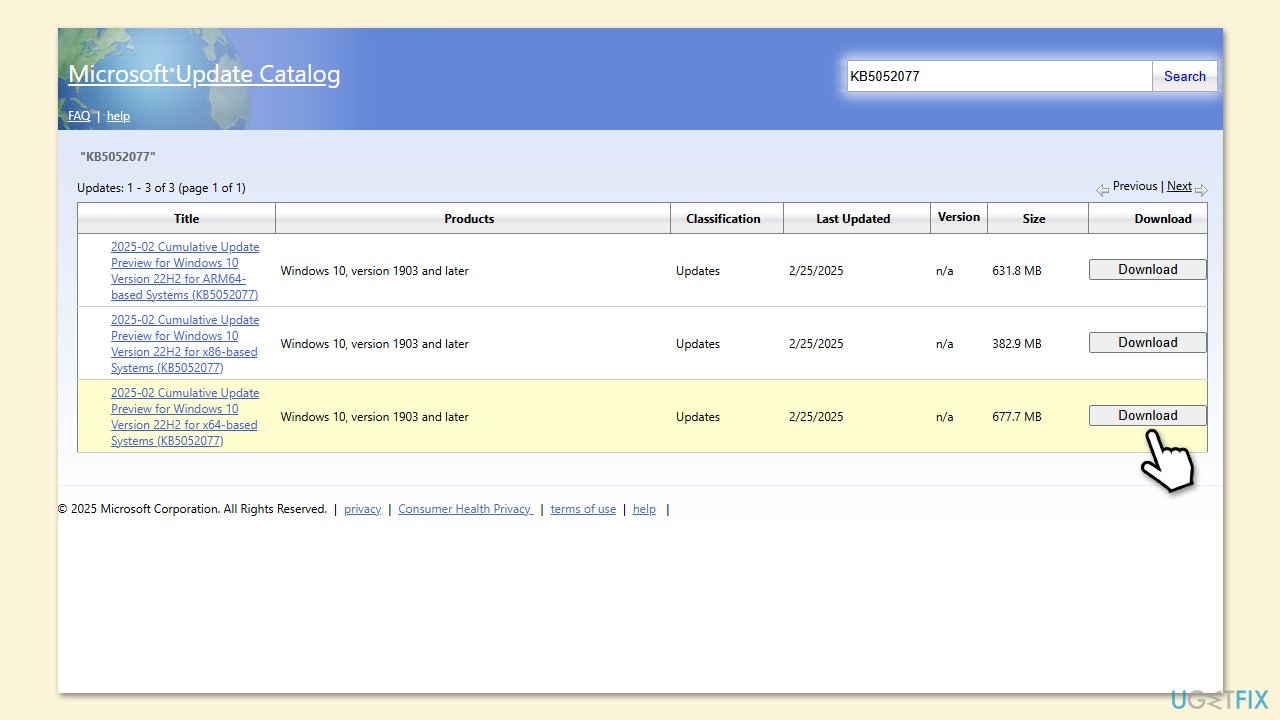
If the automatic update process fails, downloading and installing the update manually from the Microsoft Update Catalog can bypass potential issues with Windows Update.
- Open your web browser and navigate to the Microsoft Update Catalog.
- In the search box, enter KB5052077 and click Search.
- Locate the correct version of the update for your operating system by checking your System type (Right-click on Start and select System. Under Windows specifications, check the Version).
- Click on Download and follow the prompts to complete the process.
- Once the update is installed, reboot your system.
Fix 6. Reset Windows update components
Another reason for failed update - corrupted files in software distribution folder. You can do this by resetting Windows update components:
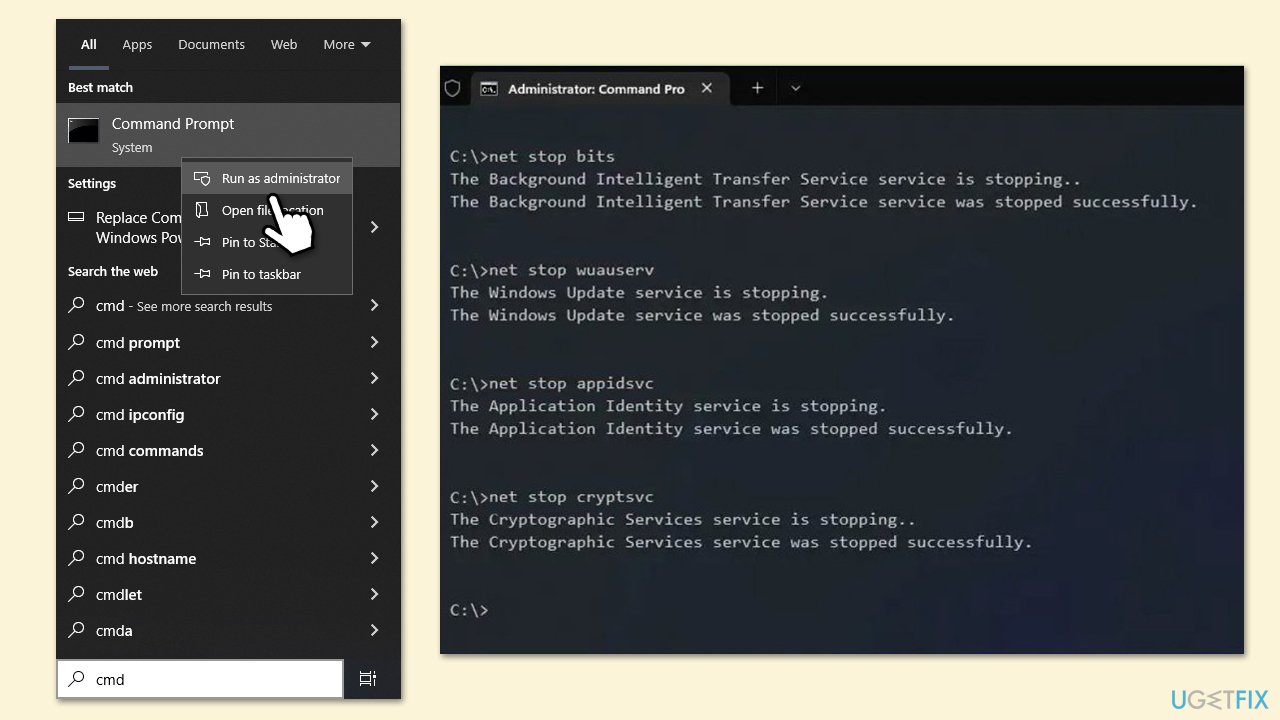
- Type cmd in Windows search.
- Right-click on Command Prompt and select Run as administrator.
- In the User Account Control window, click Yes.
- Stop the Windows Update Services by entering the following commands, one at a time, and pressing Enter after each:
net stop wuauserv
net stop cryptSvc
net stop msiserver
net stop bits - Rename the SoftwareDistribution and Catroot2 folders with the following commands:
ren C:\Windows\SoftwareDistribution SoftwareDistribution.old
ren C:\Windows\System32\catroot2 catroot2.old - Restart the services you stopped earlier with these commands:
net start wuauserv
net start cryptSvc
net start msiserver
net start bits - Close the Command Prompt window and try running the Windows Update again.
Related:
Bottom line
To fix the installation failure of KB5052077, users can perform an SFC/DISM scan for corrupted system files, disable conflicting software, or use a powerful PC repair application to detect and fix issues automatically. If these solutions do not resolve the problem, further troubleshooting may be necessary.
Frequently asked questions
First, try running the Windows Update Troubleshooter from the Settings app, which can identify and fix common issues related to updates.
Yes, you can manually download the update from the Microsoft Update Catalog website and install it directly on your Windows 10 system.
You can check by going to Settings > Update & Security > Windows Update, then selecting 'View update history' to see if KB5052077 is listed.




Report an issue
What's wrong with this guide? We review every report and update or remove content.
Report received — thank you. We'll review and fix it.
You need a free account to submit a report.
Be the first to comment