How to fix
KB5053606 fails to install
on Windows
Resolve KB5053606 installation failures on Windows 10 easily with expert-tested solutions. Get back to smooth updates today – fixed in minutes!

What causes How to fix KB5053606 fails to install in Windows 10?
- Corrupted system files
- Insufficient disk space
- Incompatible third-party software
- Windows Update component malfunctions
- Corruption of update caches
- Network communication faults
Repairs Windows system files, removes malware, and restores a clean OS state — without reinstalling.
For some reason, KB5053606 keeps failing for me. I never had to deal with this before, so I am not sure what to do. The update gets stuck at around 90% and then says that it failed. Trying again only repeats this process.
KB5053606 is a cumulative update for Windows 10 PCs running versions 22H2 and 21H2. It will be released by Microsoft on March 11, 2025, as part of the regular Patch Tuesday release, and will aim to consolidate a mix of security updates, non-security fixes, and reliability enhancements.
It updates the operating system to Build 19045.5608, which fixes various problems and vulnerabilities for better system performance and overall security. Despite the fact that KB5053606 is a mandatory update, some users have reported severe issues with it not installing, causing them and the system to be vulnerable to exploitation.
Other individuals have found KB5053606 failing to install, occasionally getting stuck in download or installation phase or showing error codes such as 0x800f0922, 0x80070437, and 0x80072efe. The issue comes in a few flavors: the update can appear to be downloading but get stuck at a certain percentage point (such as 0% or 99%), or it can attempt to install and crash, rolling back changes, and even initiate numerous restart cycles that last hours.
The cause of KB5053606 installation failures is varied and encompasses corrupted system files, insufficient disk space, incompatible third-party software (such as antiviruses), or Windows Update component malfunctions, for example, corruption of update caches or network communication faults.
Fortunately, there are several potential workarounds for the issue with KB5053606 not being installed, ranging from using in-built diagnostics programs to manually refreshing update components or downloading the update file itself directly from Microsoft Update Catalog. Step-by-step instructions will be provided below so that users may follow along to resolve the problem and get the update installed.
For those looking for something more hands-off, we recommend using [d1] PC repair software that can fix system file corruption, DLL issues, and other system issues in Windows automatically, which might solve update failure reasons in the background with little effort.
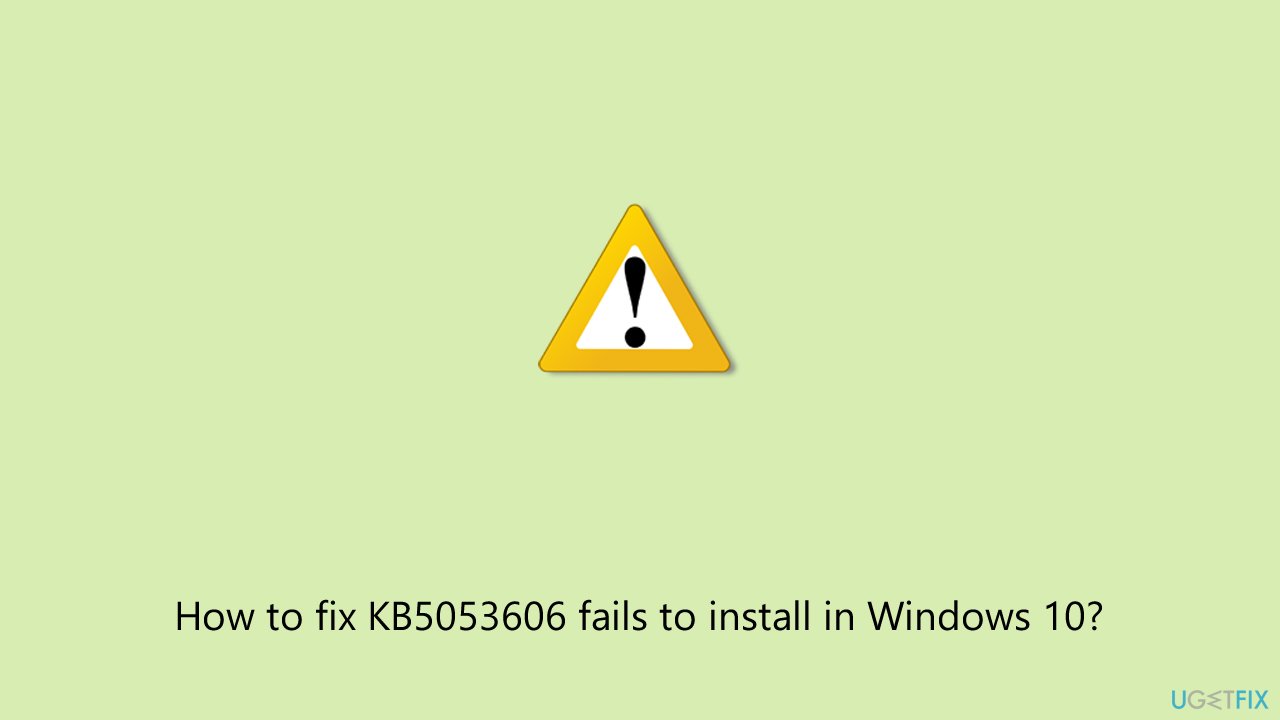
Fix 1. Run the Windows Update troubleshooter
There are diagnostic tools built into the system that can identify and repair common problems which prevent updates from being installed, such as issues with the update service or cached data. Executing this tool allows the system to automatically diagnose and repair problems, thereby acting as an effective first step to resolving installation failures.
- Type Troubleshoot in Windows search and press Enter.
- Click Additional troubleshooters if you can't see them listed.
- Scroll down to find the Windows Update option.
- Click and select Run the troubleshooter.
- Apply the offered changes and close down the troubleshooter - see if that helps to solve your problem.
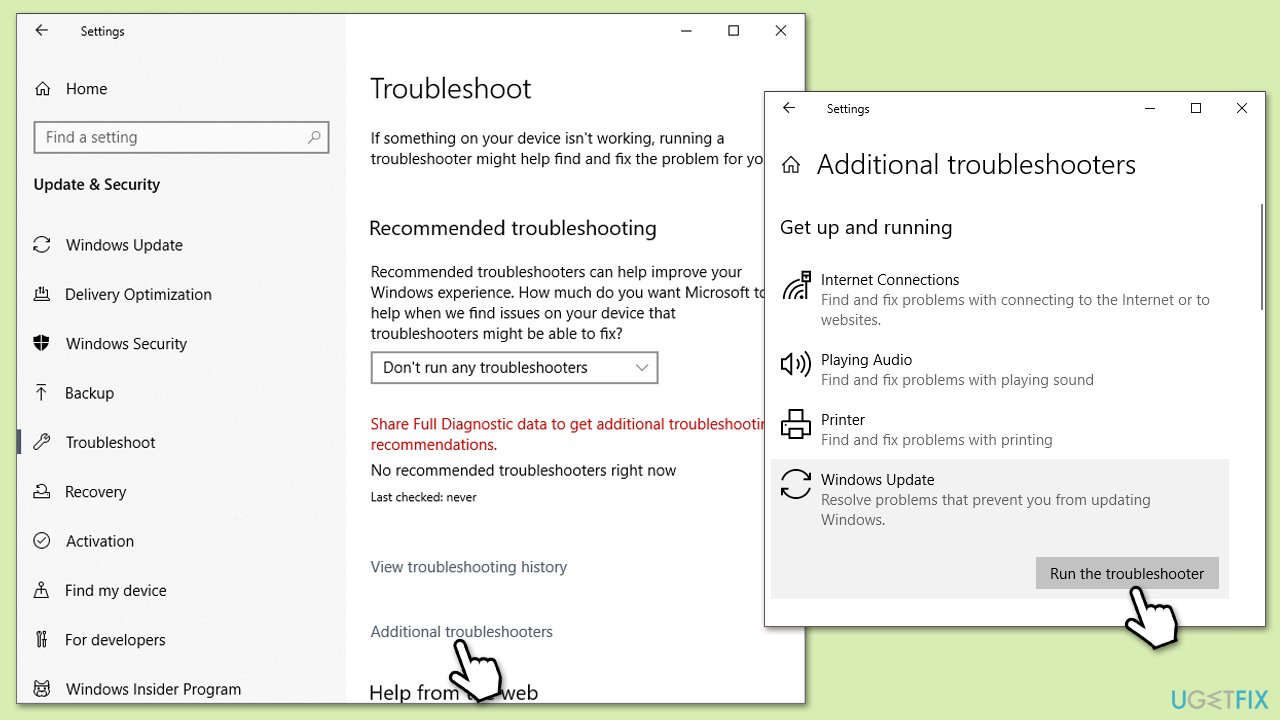
Fix 2. Free up disk space
Insufficient space on the system drive can cause update processes to hang, as Windows requires some space available to download, extract, and install update files. A sufficient amount of space available on the drive can prevent stalls and installation failures.
- Type Disk Cleanup in Windows search and press Enter.
- Select your main drive (C: by default).
- Select appropriate fields (Temporary files, Recycle Bin, etc.) and click OK.
- If you want a more thorough cleanup and require even more space, select Clean system files in the Disk Cleanup window.
- Select your main drive again - Windows will compute how much space can be retrieved.
- The largest data dumps are usually accumulated in Windows Update and Delivery Optimization sections, although Temp files can also take a lot if it hasn't been cleaned.
- Select appropriate fields and click OK - Windows will remove all these files from your device and free up space.
Fix 3. Reset Windows Update components
Misconfigured or corrupt update components, such as the update cache or services, may lead to repeated installation failure. Manually resetting these components deletes corrupt files and resets essential services, typically fixing problems that make updates fail.
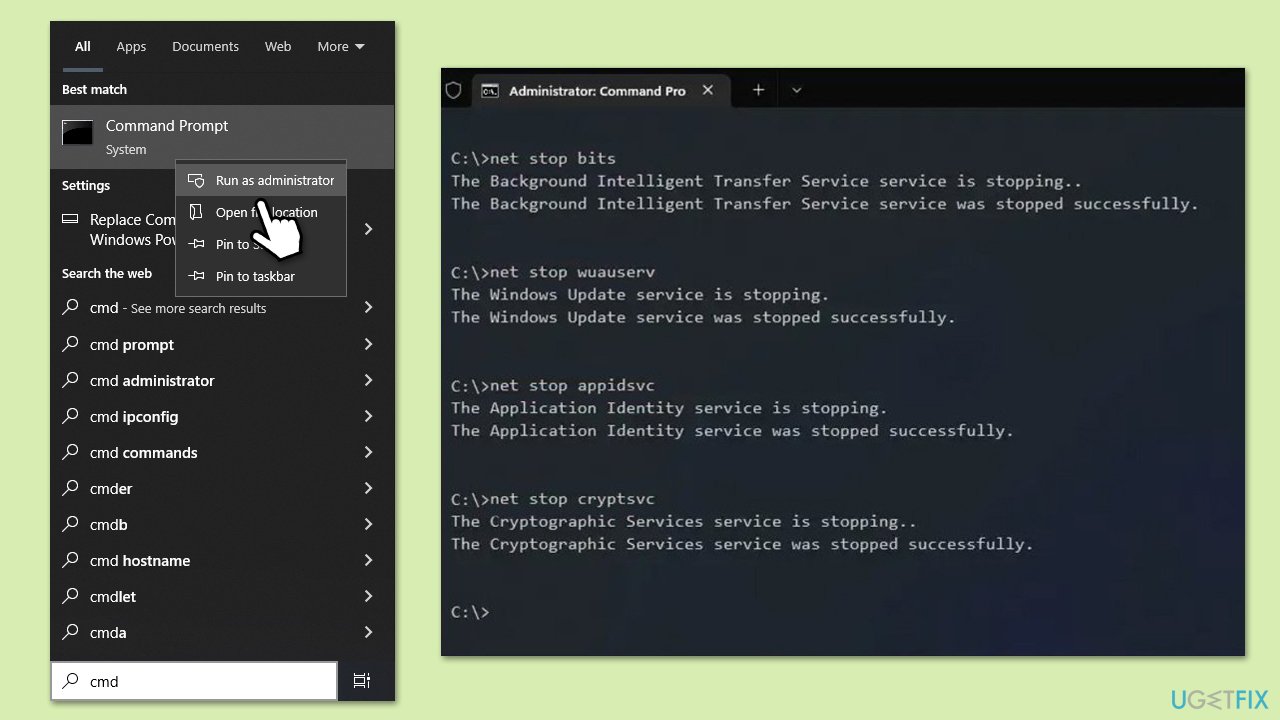
- Type cmd in Windows search.
- Right-click on Command Prompt and pick Run as administrator.
- User Account Control window will show up - click Yes when prompted.
- Stop the BITS, Windows Update, and Cryptographic services by typing the following commands, and pressing Enter after each:
- net stop bits
- net stop wuauserv
- net stop appidsvc
- net stop cryptsvc
- To rename the SoftwareDistribution and Catroot2 folders (where Windows stores update files) and reset your connection components, type the following commands:
- ren %systemroot%\SoftwareDistribution SoftwareDistribution.old
- ren %systemroot%\system32\catroot2 catroot2.old
- regsvr32.exe /s atl.dll
- regsvr32.exe /s urlmon.dll
- regsvr32.exe /s mshtml.dll
- netsh winsock reset
- netsh winsock reset proxy
- Restart the services stopped earlier by typing the following commands:
- net start bits
- net start wuauserv
- net start appidsvc
- net start cryptsvc
- Close the Command Prompt and restart your computer, then try updating Windows again.
Fix 4. Install the update manually
Sometimes, the automatic update process does not work due to problems with networking or damaged download files, which can be prevented by manually downloading and installing the package update. In this manner, an authentic copy of the update is installed into the system.
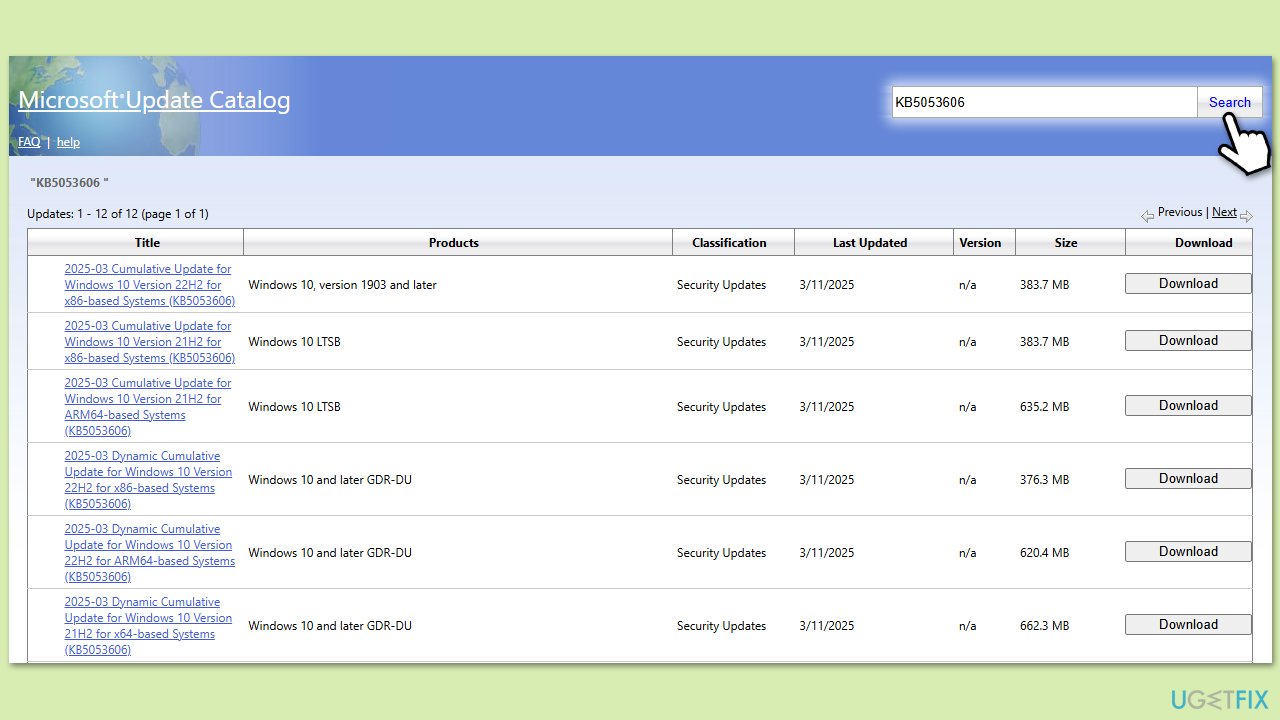
- Open your browser and go to Microsoft Update Catalog.
- In the search bar, type in KB5053606 and click Search.
- Find the correct version of the update for your operating system (to check this, right-click on Start and pick System. Under Device specifications and check the System type) and click Download.
- Use on-screen guidelines to finish the installation process and restart your system.
Fix 5. Disable security software
Third-party security software can interfere with update processes by blocking system changes or flagging update files as suspicious, leading to installation failures. Temporarily disabling such software can help determine if it is the source of the problem and allow the update to proceed.
Fix 6. Perform SFC and DISM scans
Corrupted system files or damaged Windows components can disrupt the update process, causing installations to fail. The SFC tool repairs missing or corrupted system files, while the DISM tool restores the health of the Windows system image, addressing deeper issues that might prevent updates from installing successfully.
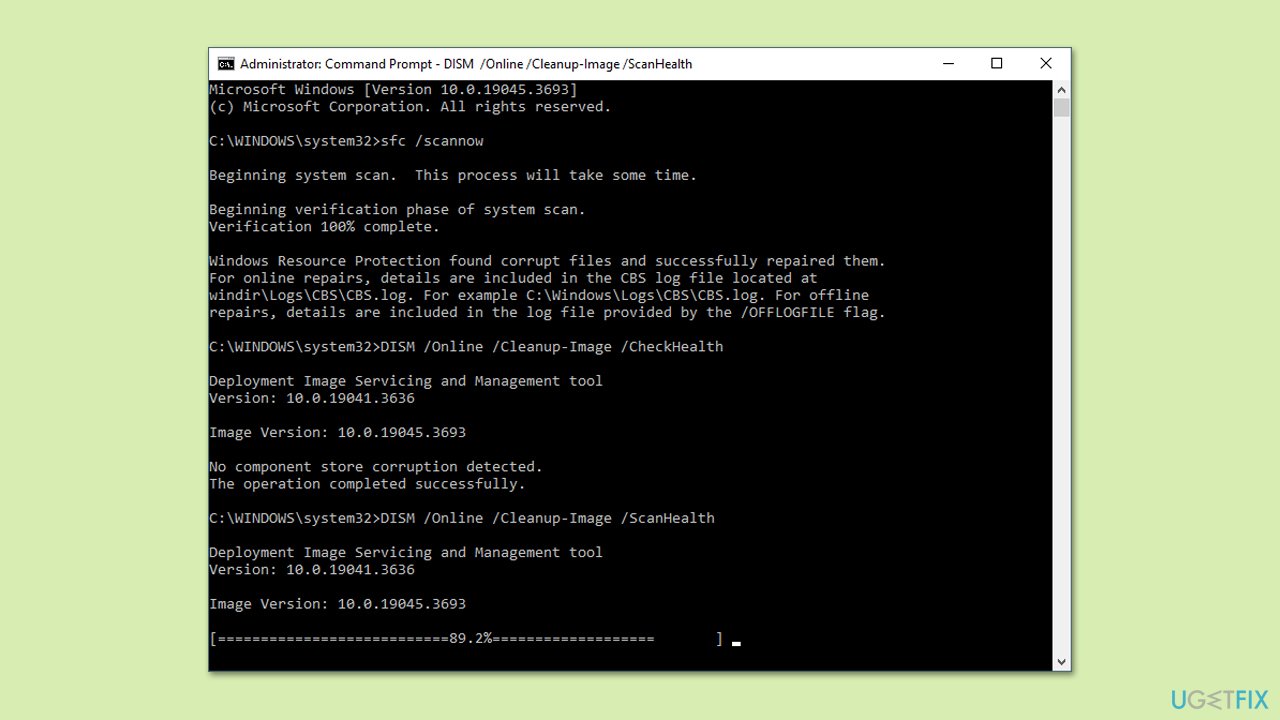
- Open Command Prompt as administrator.
- In the Command Prompt window, paste the following command and hit Enter:
sfc /scannow - Next, use the following commands, pressing Enter each time:
Dism /Online /Cleanup-Image /CheckHealth
Dism /Online /Cleanup-Image /ScanHealth
Dism /Online /Cleanup-Image /RestoreHealth
(Note: if you get an error executing this last command, add /Source:C:\RepairSource\Windows /LimitAccess to it and try again). - Wait for the DISM scan to complete (this may take up to 20 minutes or more) and review the results.
- Restart your computer and attempt to install the update again.
Fix 7. Use Media Creation Tool
If regular update processes still fail, there may be an inherent issue with the updating process or system configuration that will not be resolvable through standard troubleshooting.
The Media Creation Tool provides the option to perform an in-place upgrade, which re-installs Windows 10 but retains files, programs, and most configuration settings, thereby repairing the system and installing all updates, including the problematic one.
- Visit the official Microsoft website and download Windows 10 installation media.
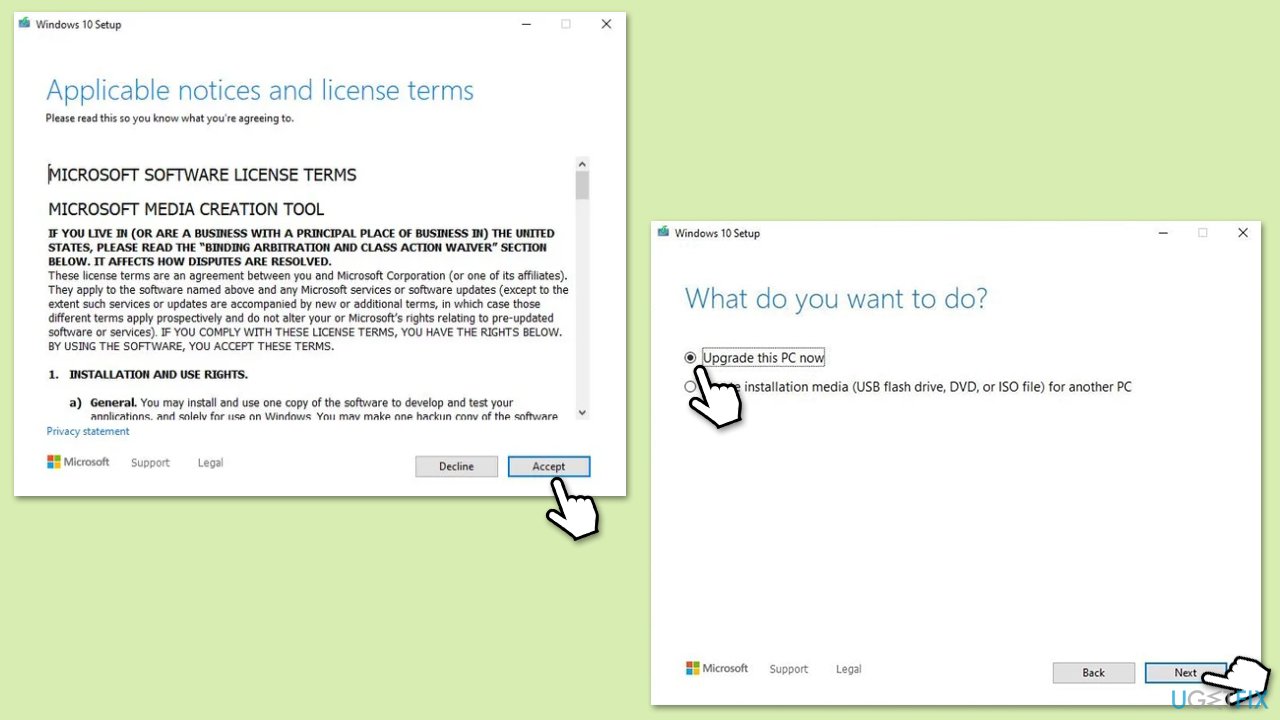
- Double-click the installer, select Yes when UAC shows up, and agree to the terms.
- Select Upgrade this PC now and click Next.
- Windows will start downloading the needed files.
- Agree to the terms once again and click Next.
- Before installing, ensure you are happy with your choices (otherwise, you can click the Change what to keep option).
- Finally, click Install to begin the upgrade process.
Bottom line
To resolve the installation failure of KB5053606, users can try using in-built diagnostics programs, manually refreshing update components, or downloading the update file directly from the Microsoft Update Catalog. If these solutions do not work, consider using PC repair software to automatically fix system issues.
Frequently asked questions
First, try running the Windows Update Troubleshooter to resolve any underlying issues. If that doesn't work, consider resetting the Windows Update components manually.
Yes, you can download the standalone update package from the Microsoft Update Catalog and install it manually if Windows Update fails.
You can check the installed updates by going to Settings > Update & Security > Windows Update > View update history, where you will find a list of installed updates.




Report an issue
What's wrong with this guide? We review every report and update or remove content.
Report received — thank you. We'll review and fix it.
You need a free account to submit a report.
Be the first to comment