How to fix
KB5055523 fails to install
on Windows
Resolve the KB5055523 installation error on Windows 11 easily. Get expert solutions and tips for a smooth update process. Expert-tested for reliability.

What causes How to fix KB5055523 fails to install in Windows 11?
- Corrupted system files
- Low disk space
- Broken or stuck Windows Update components
- Interference from third-party software like antivirus programs
Repairs Windows system files, removes malware, and restores a clean OS state — without reinstalling.
Hey there - I was wondering if you could help me here. I have Windows updates set to automatic, so I usually don't even pay attention to them, and just restart the PC when needed. Today, however, I noticed a pop-up saying "Updates failed." I checked and the update was KB5055523.
KB5055523 update is a cumulative update for Windows 11 version 24H2, released by Microsoft on April 8, 2025, as part of the monthly Patch Tuesday cycle, to offer critical security patches and system improvements.
This release addresses several issues, with such improvements as faster File Explorer to handle large media libraries, a new feature in the taskbar enabling one-click share from jump lists, and an improvement that prevents Task Manager from mistakenly identifying HDDs as SSDs. It has also got some security patches which protect your system from vulnerabilities so your system becomes safe and trustworthy.
Currently, KB5055523 will not install for many users, which is something they will likely not want to have to endure because it can prevent them from receiving important security fixes and new features. KB5055523 will fail to install for some users, often stalling at 38% or 96% before returning errors like "Couldn't install updates," or failing with error codes 0x800f0993 or 0x80070003.
On forums, frustrations have been expressed over the inability of the update to complete sometimes, and afterward, leading to constant installation efforts to disrupt work flow. All the same, we are here to help casualties of this episode with viable fixes.
Several factors can cause KB5055523 to fail to install, for example:
- Corrupted system files might be silently preventing the update from completing successfully.
- Low disk space is another potential reason, especially if temporary files take up more space than usual.
- In some cases, Windows Update components themselves become broken or stuck in a bad state, making future updates fail to apply.
- Third-party software like antivirus programs can sometimes interfere with system-level changes, blocking updates without warning.
Whatever the reason, these issues can be addressed with a series of common troubleshooting methods. In the next section, we’ll go through the most effective fixes that can help you get past the KB5055523 installation failure. But before diving into those steps, we recommend trying a reliable PC repair tool like [d1], which can automatically detect and resolve many underlying Windows issues that might be responsible for failed updates.
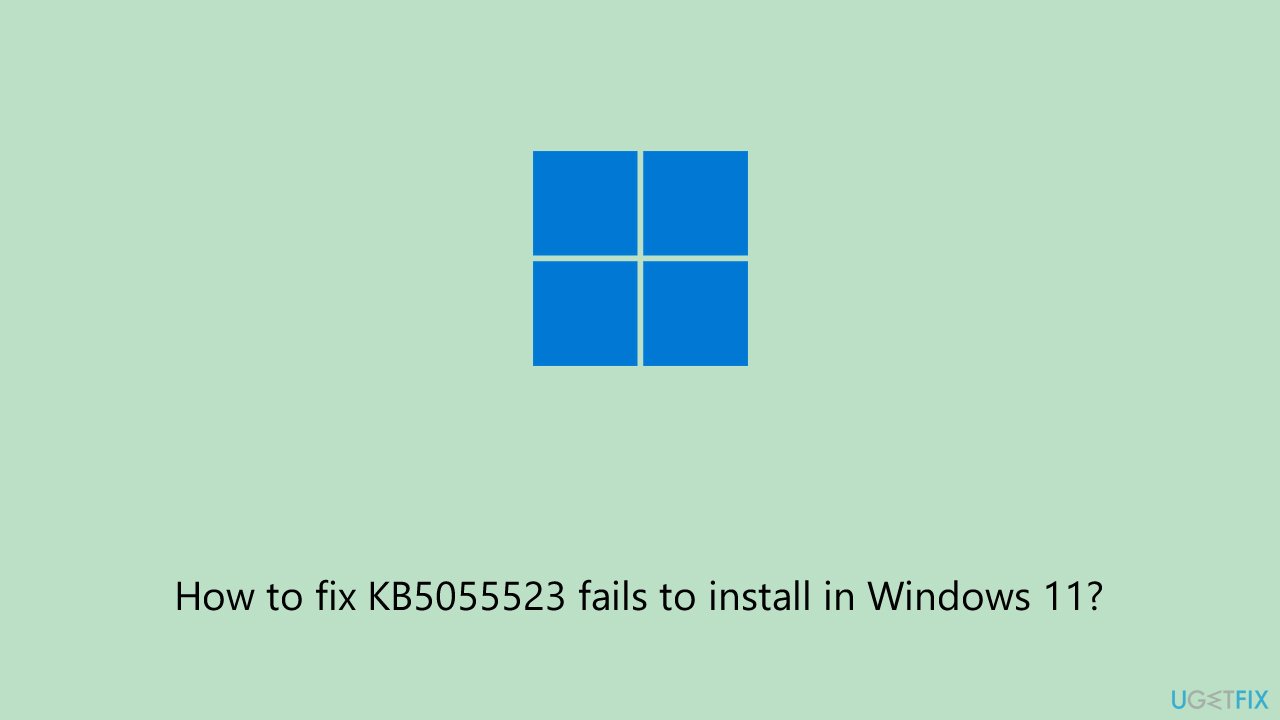
Fix 1. Run the Windows Update troubleshooter
The built-in troubleshooter can detect and fix common update issues, such as service errors or corrupted caches.
- Type troubleshoot in Windows search and press Enter or go to Start > Settings > System > Troubleshoot.
- From the list of Options, pick Other troubleshooters.
- Scroll down to locate the Windows Update and click Run.
- Wait for it to finish, then apply changes and reboot the system.
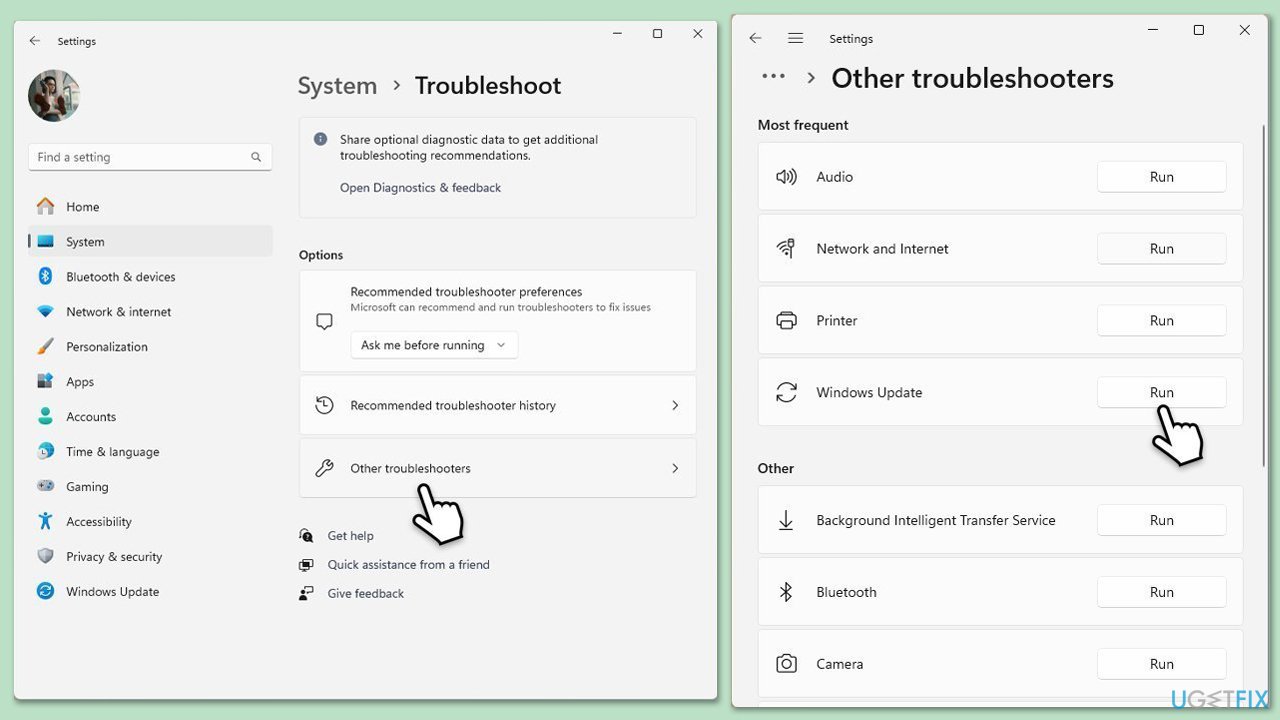
Fix 2. Check relevant services
Windows updates depend on various background services for their proper operation. If any of these services are halted or incorrectly configured, the updates may fail to install as intended.
- Type in Services in Windows search and hit Enter.
- Locate Windows update service.
- If this service is already running, right-click and select Restart.
- If it is not running, double-click it, select Automatic under the Startup type from the drop-down menu.
- Click Start, Apply, and OK.
- Locate Background Intelligent Transfer Service (BITS), Cryptographic service, and Windows Installer service, and repeat the process.
Fix 3. Perform Disk Cleanup
Insufficient disk space can cause KB5055523 to fail, as updates require space to unpack and install. Ensuring enough free space can resolve this.
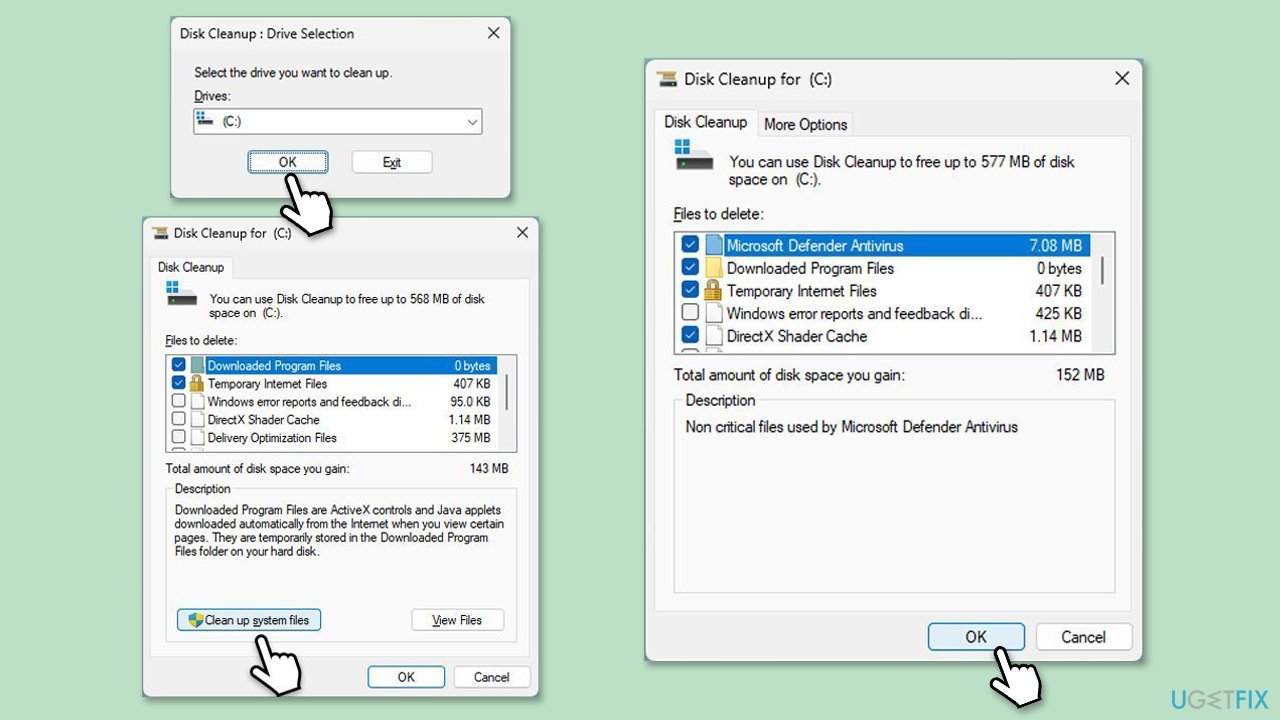
- Type Disk Cleanup in Windows search and hit Enter.
- If your Windows is installed on drive C, pick it from the list (it should be by default) and press OK.
- Click Clean up system files.
- Select your main disk again and click OK.
- Here, select the largest portions of the data used - these typically include Temporary Internet Files, Windows Update, Temporary Files, Recycle Bin, Delivery Optimization Files, and others.
- Click OK - the process should be finished shortly.
Fix 4. Disable third-party antivirus temporarily
Antivirus software can block system changes during the update, causing the update to fail. Temporarily disabling it can help.
- Open your antivirus software.
- Find the settings menu.
- Select the option to disable the protection.
- Try installing the update.
Fix 5. Reset Windows Update components
Resetting corrupted update files in the SoftwareDistribution folder can clear the cache and restart services.
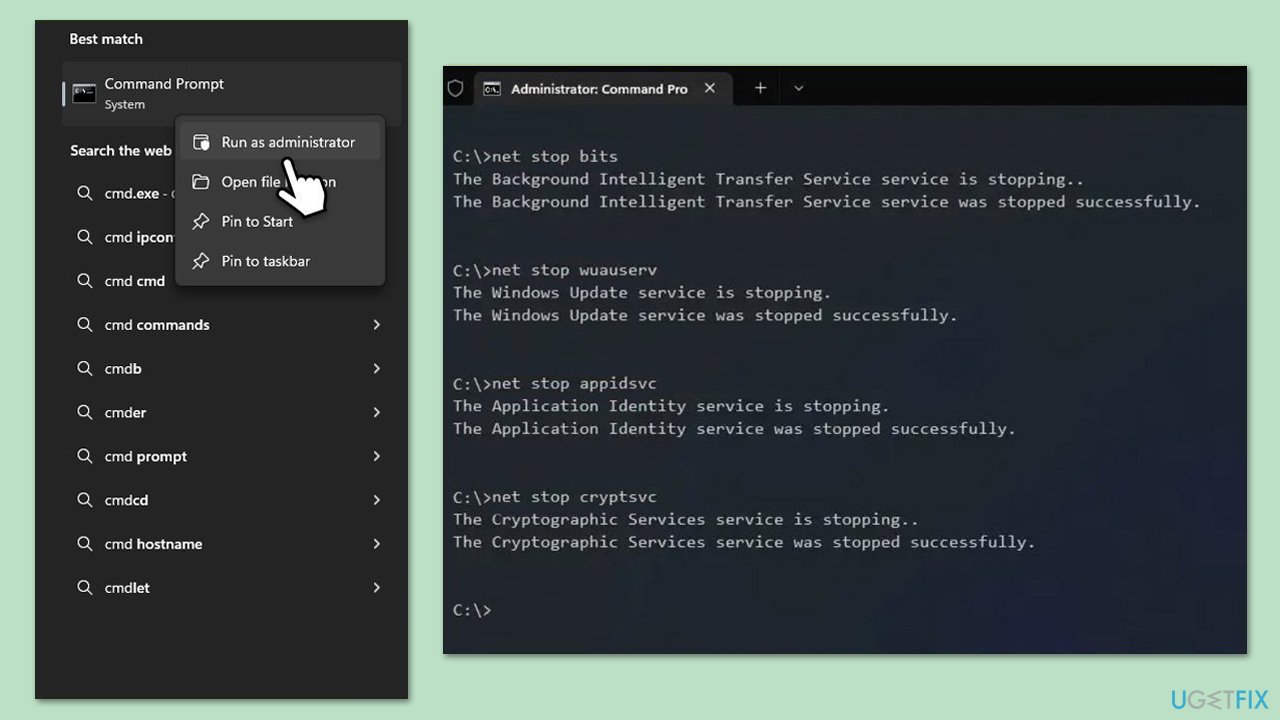
- Type cmd in Windows search.
- Right-click on Command Prompt and select Run as administrator.
- The User Account Control (UAC) window will ask whether you want to allow changes to your computer - click Yes.
- Copy and paste the following commands, pressing Enter each time:
net stop bits
net stop wuauserv
net stop appidsvc
net stop cryptsvc
Del “%ALLUSERSPROFILE%\Application Data\Microsoft\Network\Downloader\*.*”
rmdir %systemroot%\SoftwareDistribution /S /Q
rmdir %systemroot%\system32\catroot2 /S /Q
regsvr32.exe /s atl.dll
regsvr32.exe /s urlmon.dll
regsvr32.exe /s mshtml.dll
netsh winsock reset
netsh winsock reset proxy
net start bits
net start wuauserv
net start appidsvc
net start cryptsvc - Reboot your system.
Fix 6. Manually install the update
If automatic installation fails, downloading the update from the Microsoft Update Catalog and installing it manually can bypass the issue.
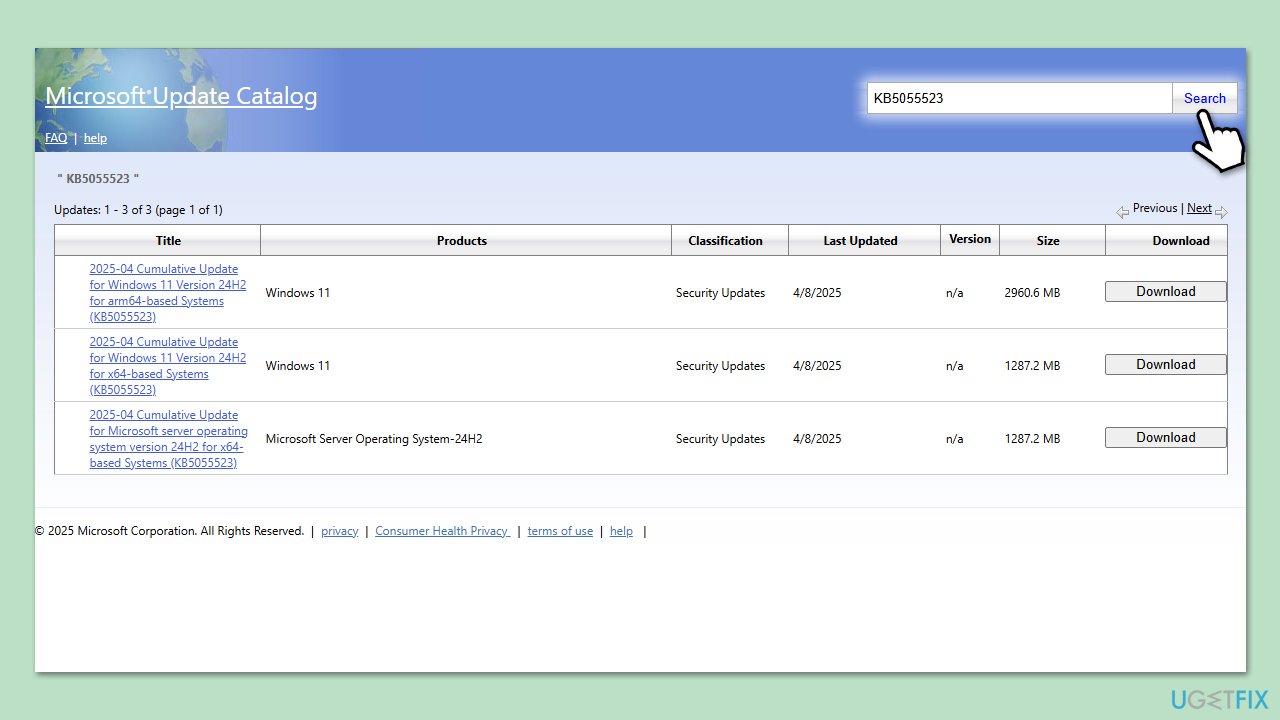
- Visit the Microsoft Update Catalog website.
- Search for KB5055523 and download the appropriate .msu file for Windows 11 24H2.
- Double-click the downloaded file to install the update.
- Follow the prompts and restart your computer after installation.
Fix 7. Disconnect external devices
External devices like USB drives or docks can interfere with the update process, causing installation failures. Disconnecting them can help.
- Unplug all external devices except your keyboard, mouse, and monitor.
- Restart your computer to ensure no connections remain.
- Run the Windows update process again.
- Reconnect devices when done.
Fix 8. Use Media Creation Tool for a clean update
If KB5055523 continues to fail, deeper system issues might be at play. Using the Media Creation Tool for an in-place upgrade can reinstall Windows while keeping your files.
- Visit the official Microsoft website and download the Windows installation media.
- Double-click the installer and select Yes when UAC shows up.
- Agree to the terms and click Next.
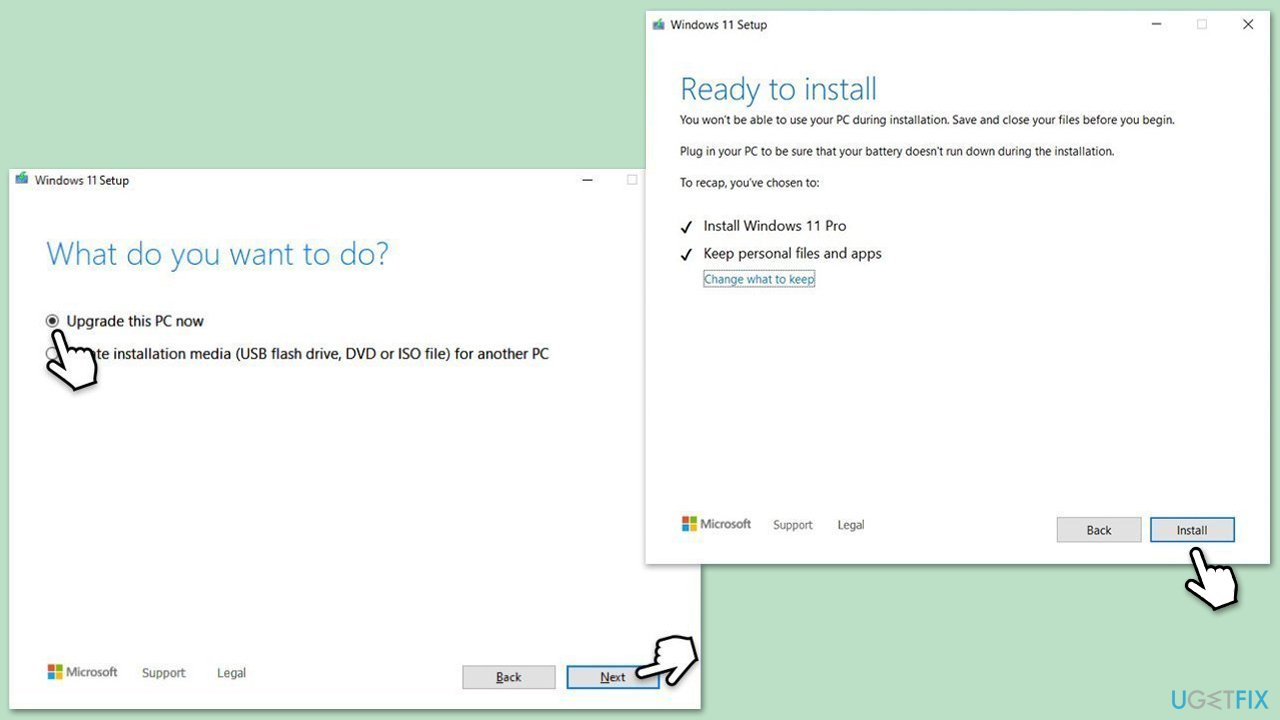
- Select Upgrade this PC now and select Next
- Windows will now download all the necessary files, which might take some time.
- Agree to the terms once again and click Next.
- Before installing, ensure you are happy with your choices (otherwise, you can click Change what to keep option).
- Click Install to begin the upgrade process.
- Your computer will restart as required.
Bottom line
To fix the installation failure of KB5055523, you can try troubleshooting methods such as checking for corrupted system files, freeing up disk space, resetting Windows Update components, and temporarily disabling antivirus software. If none of these solutions work, consider seeking further assistance from Microsoft support.
Frequently asked questions
Try running the Windows Update Troubleshooter to identify and fix issues that may prevent the installation of KB5055523.
Yes, you can manually download the update from the Microsoft Update Catalog and install it if the automatic update fails.
Common reasons include corrupted system files, insufficient disk space, or conflicts with third-party software.




Report an issue
What's wrong with this guide? We review every report and update or remove content.
Report received — thank you. We'll review and fix it.
You need a free account to submit a report.
Be the first to comment