How to fix
KB5058499 fails to install
on Windows
Resolve the KB5058499 installation issue on Windows 11 quickly and easily. Get expert-tested solutions to fix it in minutes!

What causes How to fix KB5058499 fails to install in Windows 11?
- Insufficient space available on the EFI partition
- Intrusive network or antivirus software interaction
- Corrupted or misconfigured system files
- Buggy update cache
- Low disk space
Repairs Windows system files, removes malware, and restores a clean OS state — without reinstalling.
I’ve been trying to install the KB5058499 update on my Windows 11 PC, but it keeps failing with an error message at different stages. Any idea what I can do to make it install?
KB5058499, not installing issue is becoming the bane of Windows 11 users eagerly awaiting to install this optional preview update, which was distributed on May 28, 2025, for version 24H2 (OS Build 26100.4202). This update introduces features like Cross Device Resume, enhanced taskbar policies through Microsoft Intune, and solutions to unresponsive games and slow initial boot screens, along with Input Service memory leak fixes, as indicated in the recent updates.
A KB number, for example, KB5058499, is Microsoft's nomenclature for update packages where "KB" means Knowledge Base and is linked with support articles, and their update cycle comprises mandatory Patch Tuesday releases every other second Tuesday of the month and optional previews like this one later on in the cycle to test new features.
When KB5058499 fails to install, users don't notice these improvements, which might leave systems with ongoing performance issues like crashes of games or memory leaks, possibly affecting productivity and gaming sessions. Failed installs can also lead to update loops or system corruption states, making future updates hard and possibly jeopardizing data integrity if not addressed promptly. Errors like 0x800f0922 or 0x80070306 have been reported by some users, generally linked to insufficient space available on the EFI partition or service disruptions.
KB5058499 won't install error can be caused by numerous reasons, typically due to preview mode. A buggy update cache can lead to the process being hung, and cache clearing allows for a fresh attempt to install. Low disk space, especially on the EFI partition, can block the update, and the need for space shifting or resizing is required.
Intrusive network or antivirus software interaction can disrupt downloads, and having a stable connection or disabling security software temporarily might help. System files that are corrupted or misconfigured can also be the cause, and they need to be repaired or reset to compatibility.
The following steps present numerous solutions to resolve KB5058499 not installing, so users can install this update without a hitch. If you want a faster solution, we recommend using [d1], PC repair software that can automatically correct cache errors, file corruption, and connectivity problems.
Fix 1. Check the EFI partition space
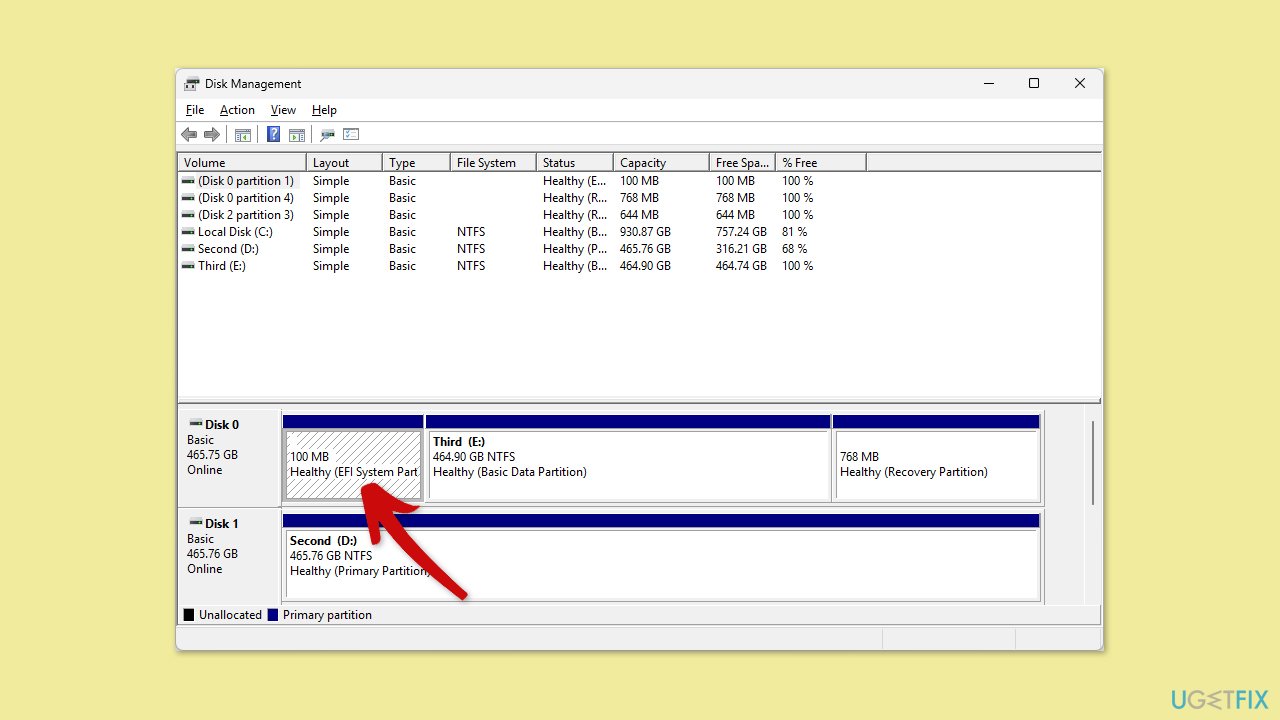
A cramped EFI partition can prevent file copying, and resizing it ensures enough room for the update to complete.
- Right-click on Start and select Disk Management.
- Locate the EFI System Partition (usually 100-300MB) and note its free space.
- Use a partition tool to extend it to at least 300MB if space is low.
- Restart your computer and retry the update.
- Try installing the update again.
Fix 2. Run the troubleshooters
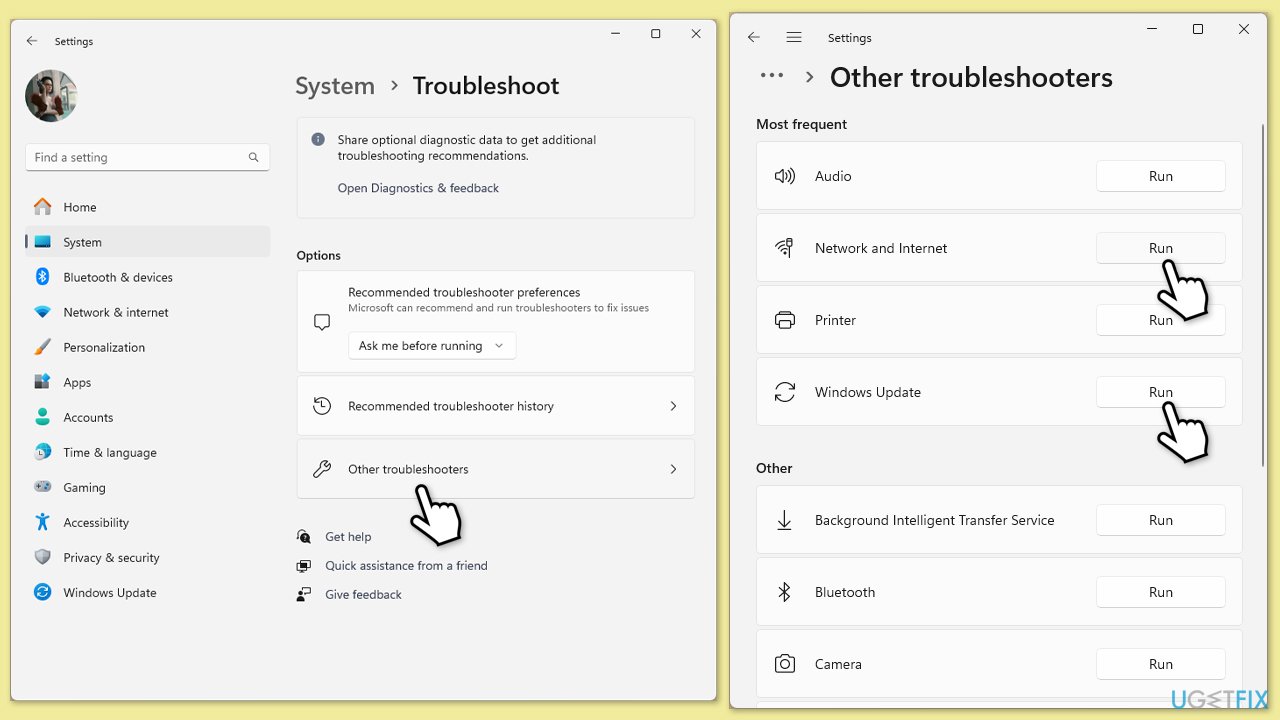
Sometimes, running simple troubleshooter can resolve update problems.
- Type Troubleshoot into the Windows search bar and press Enter.
- Next, on the right side of the window, select Other troubleshooters.
- Scroll down to locate the Windows update section.
- Click on Run and allow the process to complete.
- Repeat this process with the Network & Internet troubleshooter.
- Once it is finished, implement any recommended fixes and restart Windows.
Fix 3. Reset Windows update components
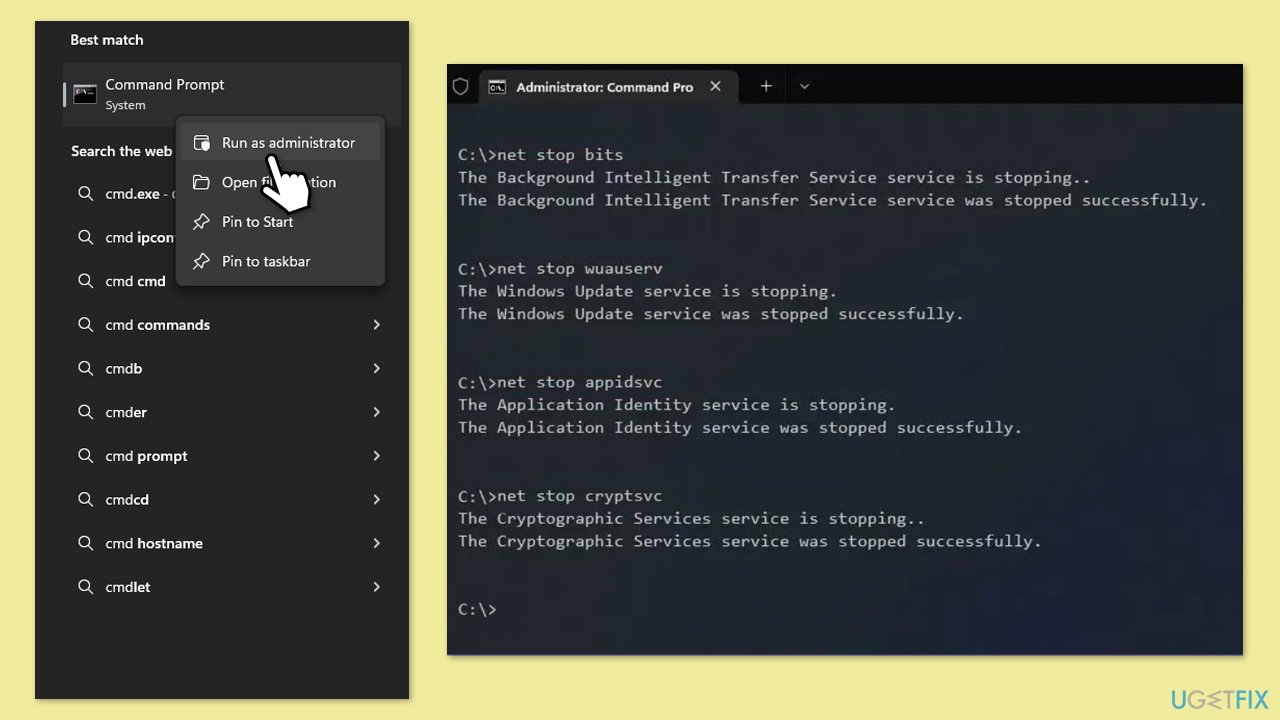
- Type cmd in Windows search.
- Right-click on Command Prompt and select Run as administrator.
- When User Account Control shows up, click Yes.
- Stop the Windows Update and related services by running these commands one by one:
- net stop wuauserv
- net stop cryptSvc
- net stop bits
- net stop msiserver
- Rename the SoftwareDistribution and Catroot2 folders with these commands:
- ren C:\Windows\SoftwareDistribution SoftwareDistribution.old
- ren C:\Windows\System32\catroot2 Catroot2.old
- Restart the stopped services:
- net start wuauserv
- net start cryptSvc
- net start bits
- net start msiserver
- Try installing the update again.
Fix 4. Try Clean Boot
Clean Boot can get rid of all the third-party software interference, allowing Windows update to proceed successfully.
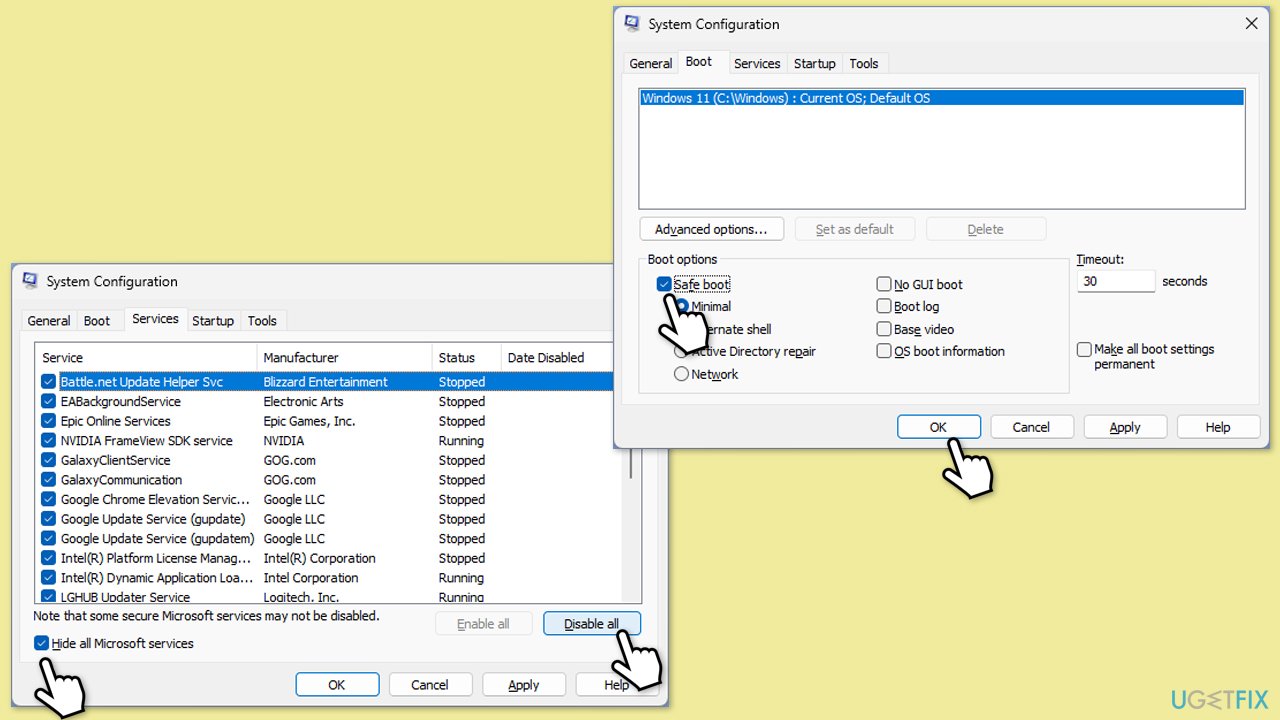
- Type msconfig in the Windows search box and press Enter.
- Pick the Services tab.
- Mark Hide all Microsoft services and select Disable all.
- Select the Startup tab and click Open Task Manager.
- In the Task Manager, right-click on each of the items and select Disable, then close the Task Manager.
- Go to the Boot tab, mark the Safe Boot option, then click Apply and OK.
- On the System Configuration window, click OK.
- Restart your computer and attempt to install the update.
Fix 5. Install it manually
It is also possible to install updates manually - here's how to do that:
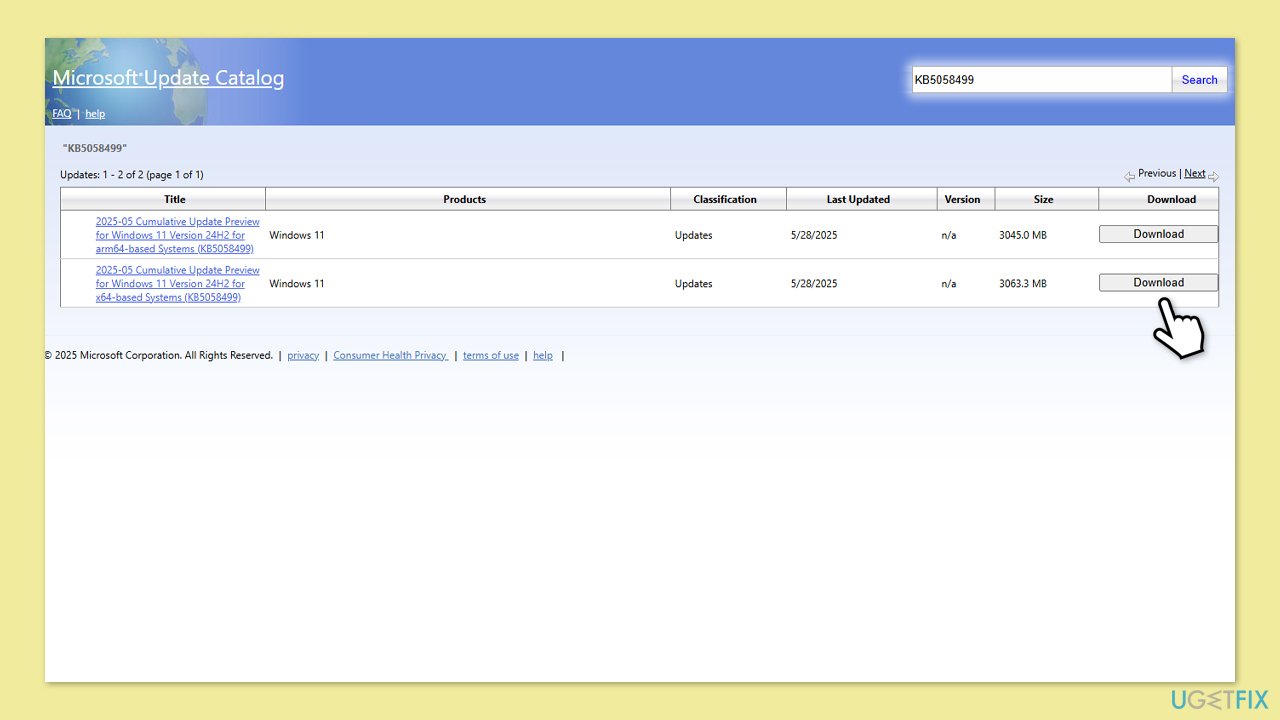
- Open your web browser and navigate to the Microsoft Update Catalog where you can find the KB5058499 update.
- Locate the correct version of the update for your operating system by checking your System type (Right-click on Start and select System. Under Windows specifications, check the Version).
- Click on Download and follow the prompts to complete the process.
- Once the update is installed, reboot your computer.
Fix 6. Re-register DLL files
- Open Command Prompt as administrator.
- Type the following commands, pressing Enter after each:
regsvr32 wuapi.dll
regsvr32 wuaueng.dll
regsvr32 wups.dll
regsvr32 wups2.dll
regsvr32 wuwebv.dll
regsvr32 wucltux.dll - Once done, restart your computer.
Fix 7. Repair file corruption
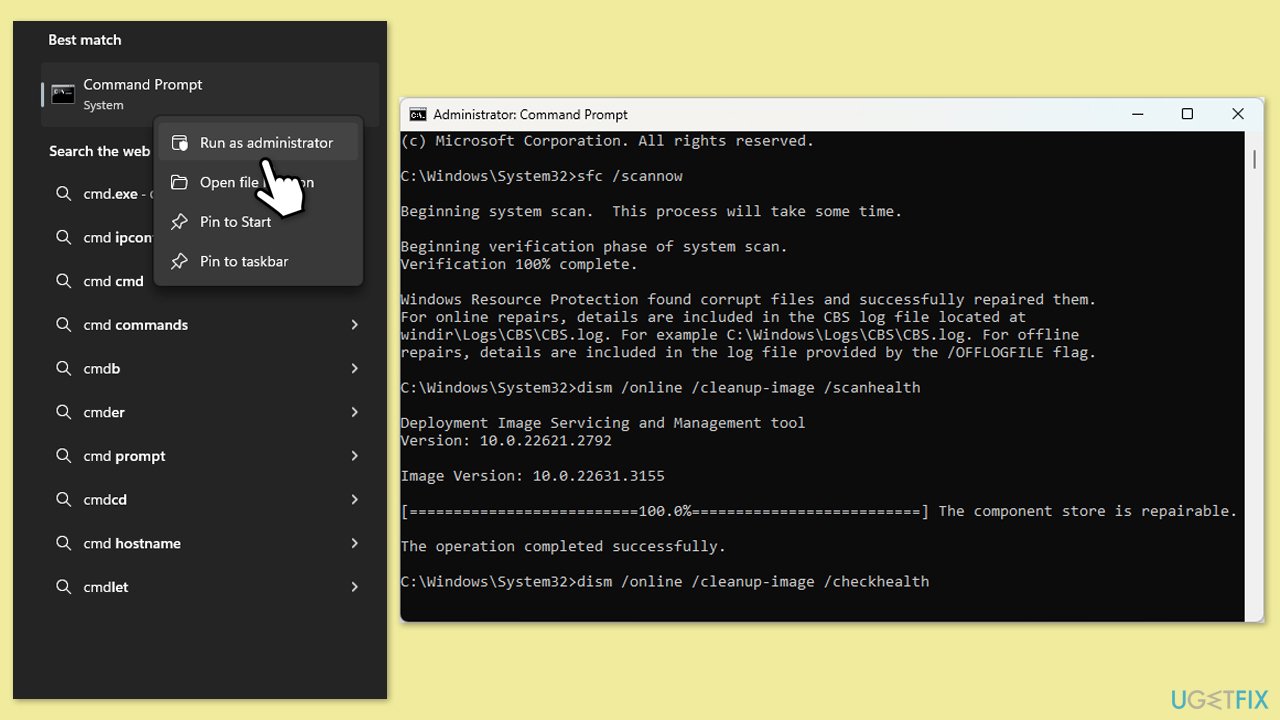
- Open Command Prompt as administrator.
- In the Command Prompt window, paste the following command and hit Enter:
sfc /scannow - Next, use these commands (don't forget to press Enter every time):
Dism /Online /Cleanup-Image /CheckHealth
Dism /Online /Cleanup-Image /ScanHealth
Dism /Online /Cleanup-Image /RestoreHealth
(Note: if you get an error executing this last command, add /Source:C:\RepairSource\Windows /LimitAccess to it and try again). - Restart your computer.
Bottom line
To resolve the KB5058499 installation issue, users can clear the update cache, ensure sufficient disk space, and temporarily disable antivirus software. If these steps do not work, consider repairing or resetting system files to restore compatibility.
Frequently asked questions
First, try running the Windows Update Troubleshooter to identify and fix any issues. If that doesn't work, consider manually downloading the update from the Microsoft Update Catalog.
Yes, common error codes include 0x800f081f or 0x8007000d, which indicate problems with the update files. You can search for these codes for more tailored solutions.
Make sure your system has enough disk space and that all previous updates are installed correctly. Additionally, ensure that your Windows 11 is up to date by checking for updates in the Settings menu.
2 comments

Thank you for sharing this information about the KB5058499 update issues. I am not very good with these things, but it seems clear that checking the EFI partition space is an important step. I will definitely look into that before trying the update again. It was working perfectly fine yesterday, and I would like to sort this out. Thank you so much for your patience as I navigate these challenges!
Leave a reply




Ah, this is a bit of a head-scratcher! I’ve had issues with updates like this before. Checking the EFI partition space sounds smart, but sorry if this is a stupid question — how do I actually find it? Do I need any special software, or can I do it through Windows? Cheers for any tips!