How to fix
Kernel security check failure in Photoshop
on Windows
Resolve the Kernel security check failure in Photoshop on Windows 10 with expert-tested solutions that get you back to creating in minutes.

What causes How to fix Kernel security check failure in Photoshop on Windows 10?
- Corrupt graphics drivers
- Damaged graphics drivers
- Compatibility issues with Photoshop
- Outdated system files
- Malware or virus interference
Repairs Windows system files, removes malware, and restores a clean OS state — without reinstalling.
Hi, I occasionally use Photoshop when I need to make a few photo modifications for my job. As I do this at home, and I recently encountered several problems with Photoshop, as it started to crash and freeze. In some cases, I end up losing all my progress on the picture I'm working on, which causes me to lose precious time and I have to start all over again. I also get an error pointing at Kernel having security check problems. Is there a way to fix these issues as it is very irritating to keep losing all your work progress! Many thanks in advance.
There is no doubt that Adobe Photoshop is one of the leading graphics editing software in the world. It was first developed in 1987 and since then gained immense popularity, spawning a new set of words like "photoshopping," "to Photoshop the image," and similar. The application supports the various functionality of graphical image manipulation, including layers, masks, and several color models.
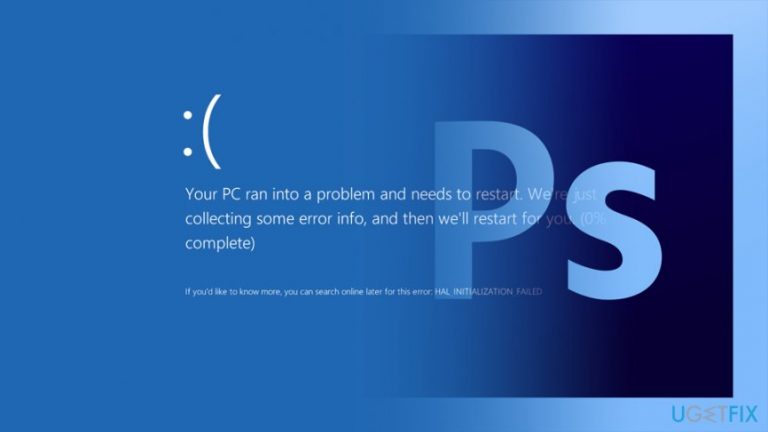
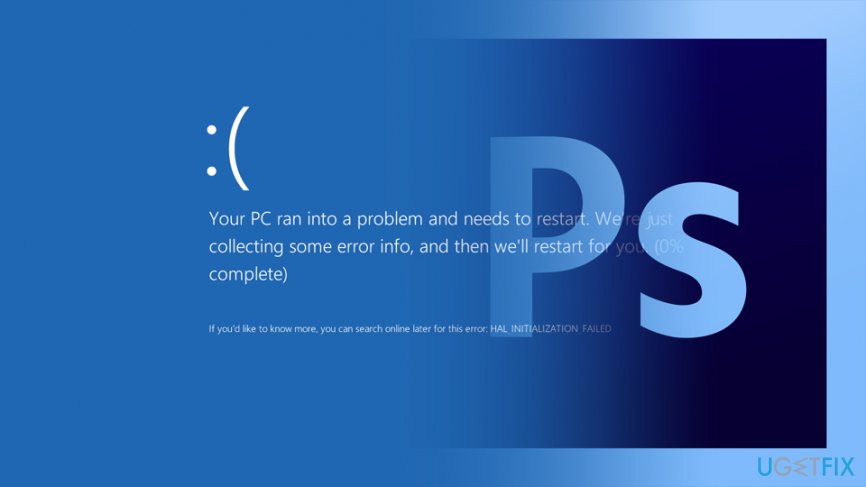
However, just like any other application, it can encounter several issues that can relate to compatibility, stability, and similar. One of such errors is Kernel security check failure in Photoshop, which usually occurs during the operation of the program and follows up with a Blue Screen of Death[ref en-1] which shows the KERNEL_SECURITY_CHECK_ERROR.
The BSoD is a stop error which ensures that the computer stops its activity before any severe damage can be caused. Typically, to recover from such an error, all users have to do is restart the PC. Unfortunately, it does not fix Kernel security check failure in Photoshop and keeps occurring as soon as the program is started again.
The kernel[ref en-2] is a vital part of a Windows operating system, and it is the first program to be loaded before everything else is. It controls several critical functions, such as software inputs/outputs requests that communicate with CPU.[ref en-3] It also handles the function of external computer parts, such as keyboards, printers, monitors, etc.
In most cases, Kernel security check failure in Photoshop occurs due to corrupt or damaged graphics drivers, although many users also reported that moving sniffer.exe (one of the files used by Photoshop) to desktop fixed Kernel security check failure in Photoshop for them. Additionally, there are several other solutions that users can try. Please check the instructions below.
Protip: if you are not that computer-savvy individual, we suggest you download and install [d1]. This software is capable of fixing broken registries[ref en-4] and also most of critical Windows errors automatically. The scan for issues is free; however, if you want to fix problems automatically, you will have to purchase the licensed version of the application.
Solution 1. Move sniffer.exe to Desktop
Sniffer.exe is a tiny application within Photoshop that allows it to use your graphics card. Many users reported that deleting it or moving to desktop helped to fix Kernel security check failure in Photoshop problem (there is no need to worry about the functionality of this application, as Photoshop will automatically re-create it after it is deleted):
- Go to the Photoshop installation directory (by default it is located in C:\\Program Files\\Adobe\\Adobe Photoshop)
- Locate sniffer.exe or sniffer_gpu.exe and merely move it to Desktop
Solution 2. Roll-back Nvidia drivers
Drivers are essential for software and hardware to operate correctly. In case drivers get corrupt or incorrectly installed, it can result in Kernel security check failure in Photoshop. Thus, if you have the most recent version of drivers installed, you should roll them back the following way:
- Right-click on the Start button and select Device Manager
- Expand Display adapters category and pick your graphics card
- Rick-click on it and pick Properties
- Go to Driver tab
- Choose Roll back driver, select from the reason options provided and click Yes

Kernel security check failure in photoshop roll back graphics drivers
Solution 3. Pick dedicated graphics card to be used with Photoshop
In case your computer has several graphics cards (users typically run integrated and dedicated GPUs), you need to make sure that Photoshop is using the dedicated one. Follow these steps:
- Open Nvidia Control Panel and select Manage 3D settings
- In the right pane, pick Program Settings
- Choose Adobe Photoshop and set High-performance Nvidia processor as preferred graphics for the program
- Click Apply
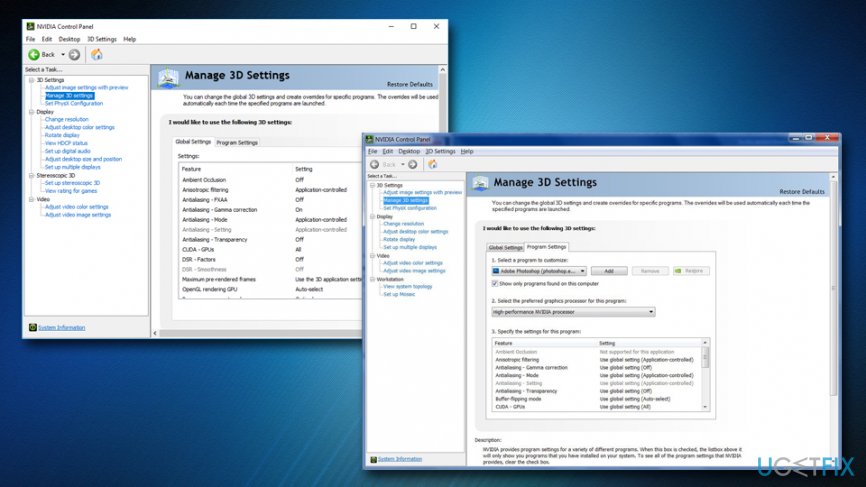
Kernel security check failure in photoshop use dedicated graphics card
Solution 4. Update your graphics card driver
In some cases, users fail to install the latest drivers, and it can start causing problems and result in various crashes, including Kernel security check failure in Photoshop. To update your graphics driver, follow these steps:
- Right-click on the Start button and select Device Manager
- Expand Display adapters category and pick your graphics card
- Right-click on it and pick Update Driver
- Select Search automatically for updated driver software and let Windows install the newest driver version
- Reboot your computer
Solution 5. Disable your graphics card
This solution is viable, although Photoshop might not be able to function to its full capabilities, because intense graphics manipulations require the use of the GPU. Nevertheless, if none of the solutions above helped or your graphics card is outdated, you can disable it by following these steps:
- Right-click on the Start button and select Device Manager
- Expand Display adapters category and pick your graphics card
- Right-click on it and select Disable
- When warning message appears, click Yes
- Restart your device
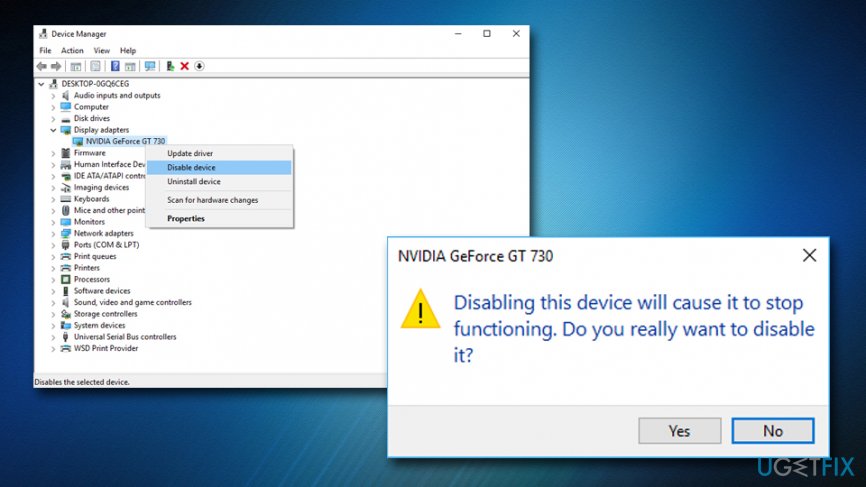
Kernel security check failure in photoshop disable gpu
Bottom line
To fix the Kernel security check failure in Photoshop, users can try updating their graphics drivers, checking for system file integrity, and ensuring their system is free from malware. If these solutions do not resolve the issue, consider reinstalling Photoshop or seeking further technical support.
Frequently asked questions
This error typically occurs due to corrupted system files, incompatible drivers, or issues with the Photoshop installation. Ensuring your Windows 10 is up to date and drivers are compatible can help resolve this issue.
You can start by running the Windows Memory Diagnostic tool to check for memory issues and performing a system file check using the 'sfc /scannow' command in Command Prompt. Additionally, updating or reinstalling Photoshop may also fix the problem.
To prevent this error, regularly update your Windows 10 system and drivers, and ensure that your hardware meets the requirements for the latest version of Photoshop. Keeping your software and operating system optimized helps in minimizing such issues.




Report an issue
What's wrong with this guide? We review every report and update or remove content.
Report received — thank you. We'll review and fix it.
You need a free account to submit a report.
Be the first to comment