How to fix
Keyboard skipping or missing characters while typing
on Windows
Resolve keyboard skipping or missing characters in Windows 10 or 11 effortlessly. Expert-tested solutions for a smooth typing experience. Fixed in minutes!

What causes How to fix keyboard skipping or missing characters while typing in Windows?
- Physical issue with the keyboard
- Non-functioning or broken keys
- Keyboard registration errors from mismatched applications
- Corrupted system files
- Outdated keyboard drivers
Repairs Windows system files, removes malware, and restores a clean OS state — without reinstalling.
Whenever I type on my keyboard, some of the characters are missing, and I need to press the button again for it to work. If is not the issue with one key - it happens with random keys. Also, it does not matter which apps I'm using - Office, browser, etc., the issue remains the same. How can I fix this?
Typing on a Windows computer and having the keyboard occasionally skip characters is a common and frustrating problem. This issue can appear at any time and affect characters that appear random or specific, which seriously impairs accuracy and typing experience. In addition to impeding productivity, the problem makes routine tasks like writing emails and creating documents more difficult.
There are a variety of reasons why characters don't appear when typing. A physical issue with the keyboard itself could be one of the causes; non-functioning or broken keys might not record every keystroke. On the software front, keyboard registration errors may arise from mismatched applications or corrupted system files.
Outdated keyboard drivers may potentially be a factor in this issue since they might not be entirely compatible with the particular hardware or the current operating system version.
In order to fix keyboard skipping or missing characters when typing, you might need to examine your keyboard for physical flaws or make sure the drivers are up to date by downloading and installing updates. Checking for conflicts or corrupted system files that might be influencing the keyboard's functionality could also be helpful.
For a comprehensive solution that requires minimal technical knowledge, consider using a PC repair app [d1]. Such an application can automatically detect and fix corrupted files, resolve Blue Screen of Death (BSOD) errors, and rectify DLL issues, which could restore the functionality of your keyboard and enhance the overall stability of your Windows PC.
Fix 1. Use another keyboard
Using a different keyboard can help determine if the issue is hardware-related. If the new keyboard functions correctly, the original keyboard may be faulty.
- Disconnect the current keyboard from your PC.
- Connect a different keyboard.
- Try typing to see if the new keyboard skips any characters.
Fix 2. Run keyboard troubleshooter
The built-in Windows troubleshooter can identify and fix issues with the keyboard automatically.
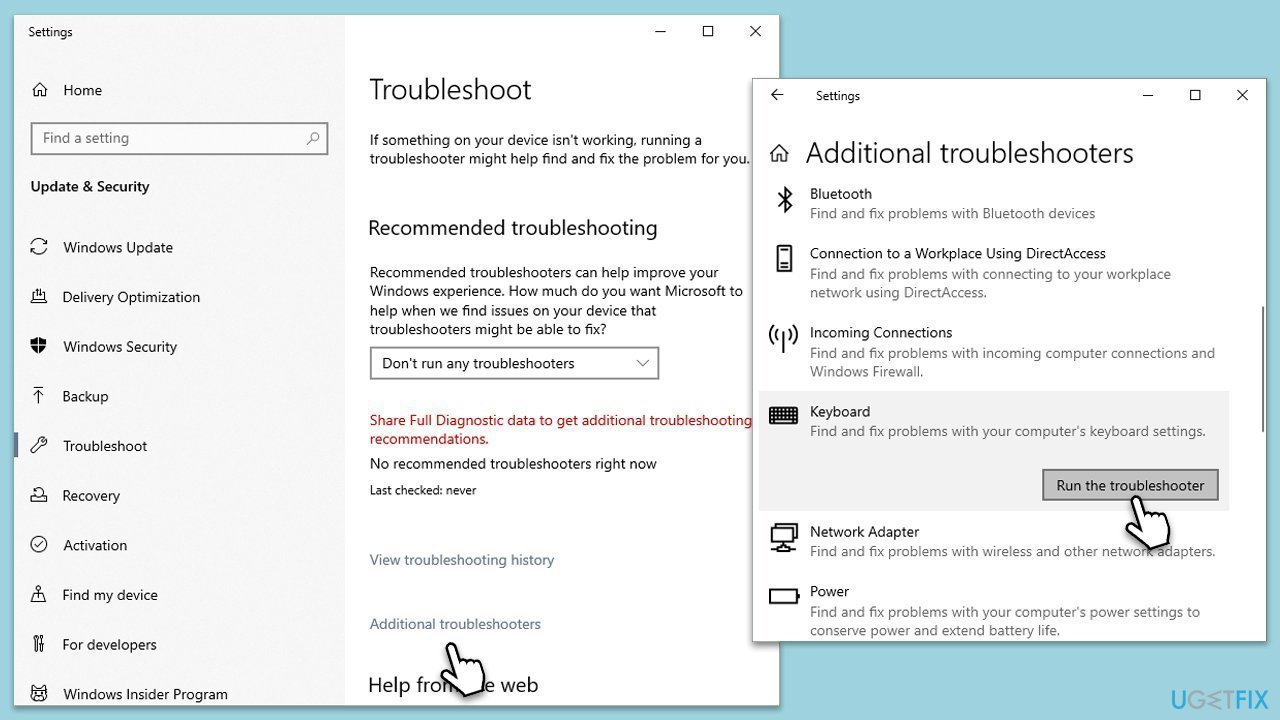
- Type Troubleshoot in Windows search and press Enter.
- On the right side of the window, click Additional troubleshooters/Other troubleshooters.
- Scroll down and select Keyboard.
- Click Run the troubleshooter/Run.
- Wait for the troubleshooter to finish.
- Restart your system once done.
If you can't find it, you can run Hardware and devices troubleshooter instead:
- Type cmd in Windows search.
- Right-click on the Command Prompt result and pick Run as administrator.
- Copy and paste the following command, pressing Enter after:
msdt.exe -id DeviceDiagnostic - Follow on-screen instructions to run the troubleshooter and apply the suggested fixes.
- Restart your computer.
Fix 3. Install all Windows updates
Keeping Windows updated ensures that you have the latest drivers and system improvements that might fix keyboard issues.
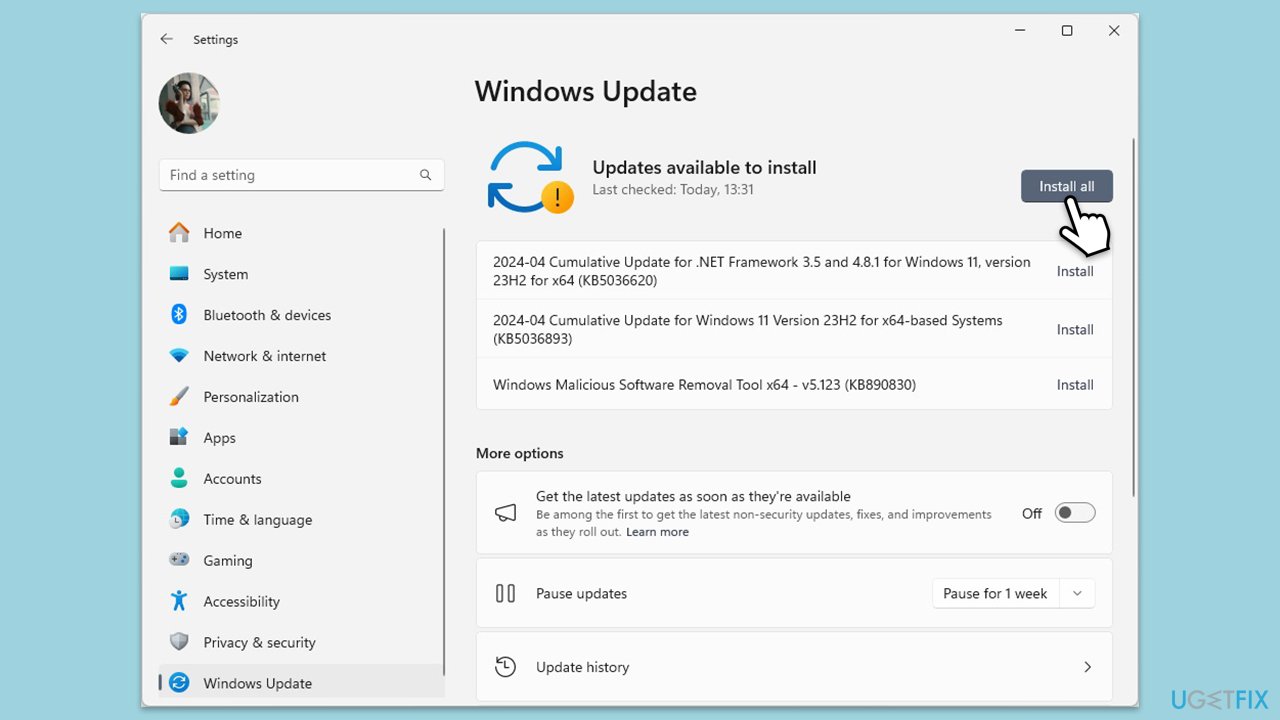
- In Windows search, type Updates and hit Enter.
- In the new window, click Check for updates and wait till everything is installed.
- Make sure you also install any available optional updates.
- When done, restart your system to implement the changes.
Fix 4. Check for software conflicts
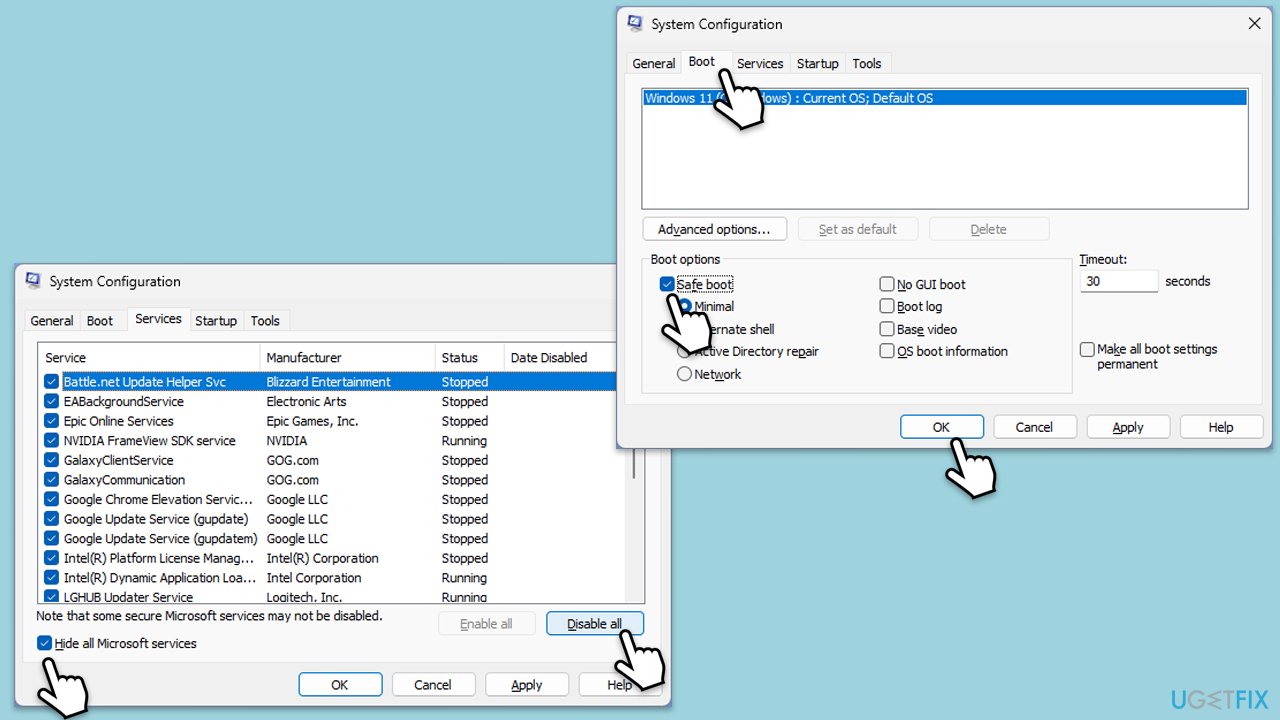
Performing a Clean Boot starts Windows with a minimal set of drivers and startup programs, which can help identify conflicts.
- Type msconfig inWindows Search and press Enter to open the System Configuration window.
- Click on the Services tab and check the Hide all Microsoft Services box.
- Click Disable all to disable non-Microsoft services, then click the Startup tab.
- Open the Task Manager, disable all startup items, and close the Task Manager.
- Go to the Boot tab and mark the Safe boot option.
- Click OK on the System Configuration window and restart your computer.
- Identify the problematic software by re-enabling services and startup items one by one (or in groups) and restarting your computer each time until the problem reoccurs.
- Once identified, you can disable, update, or uninstall the problematic software.
Fix 5. Update keyboard driver
Outdated or corrupt drivers can cause keyboards to malfunction. You can download the latest driver from your keyboard manufacturer's website or software, employ automatic tools like [rev id="DriverFix"] that will deal with all your drivers at once, or do this process manually as follows:
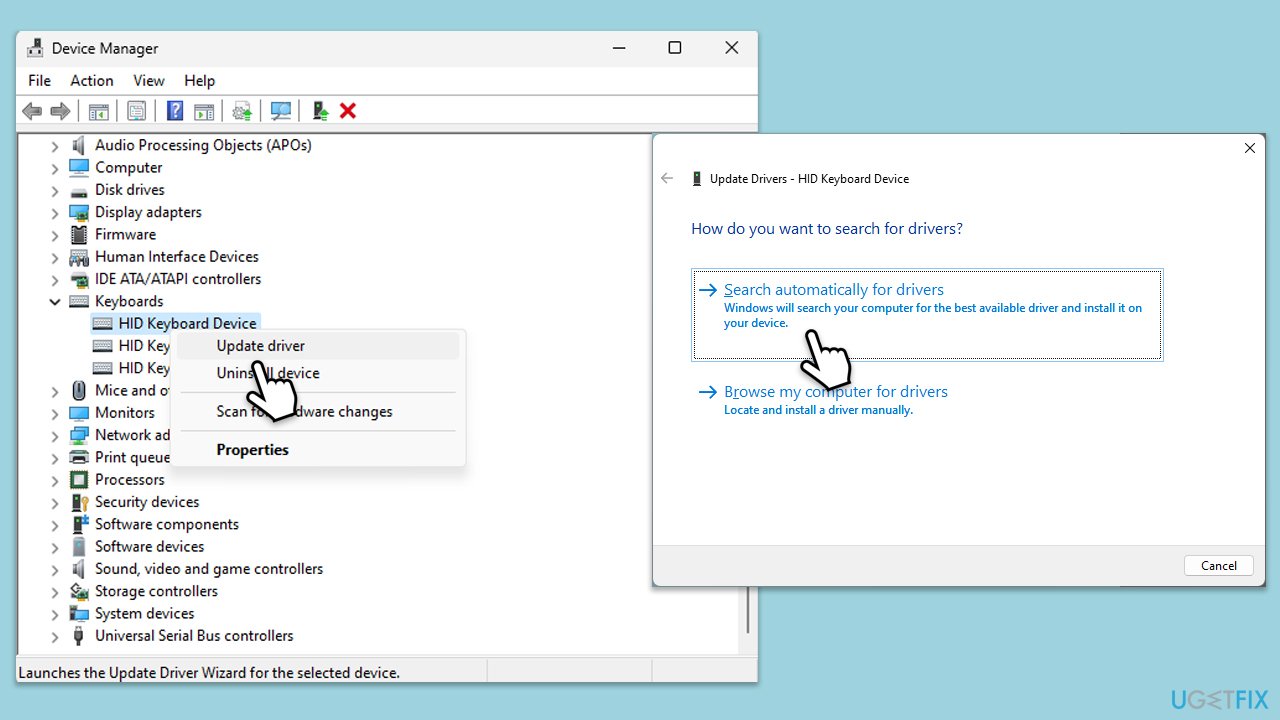
- Right-click on Start and choose Device Manager.
- Expand the Keyboards section.
- Right-click on your keyboard, then select Update driver.
- Choose Search automatically for drivers.
- Wait for Windows to install drivers for your device, and then reboot your system.
Fix 6. Reinstall keyboard driver
Reinstalling the keyboard driver can resolve issues caused by corrupt or improperly configured drivers.
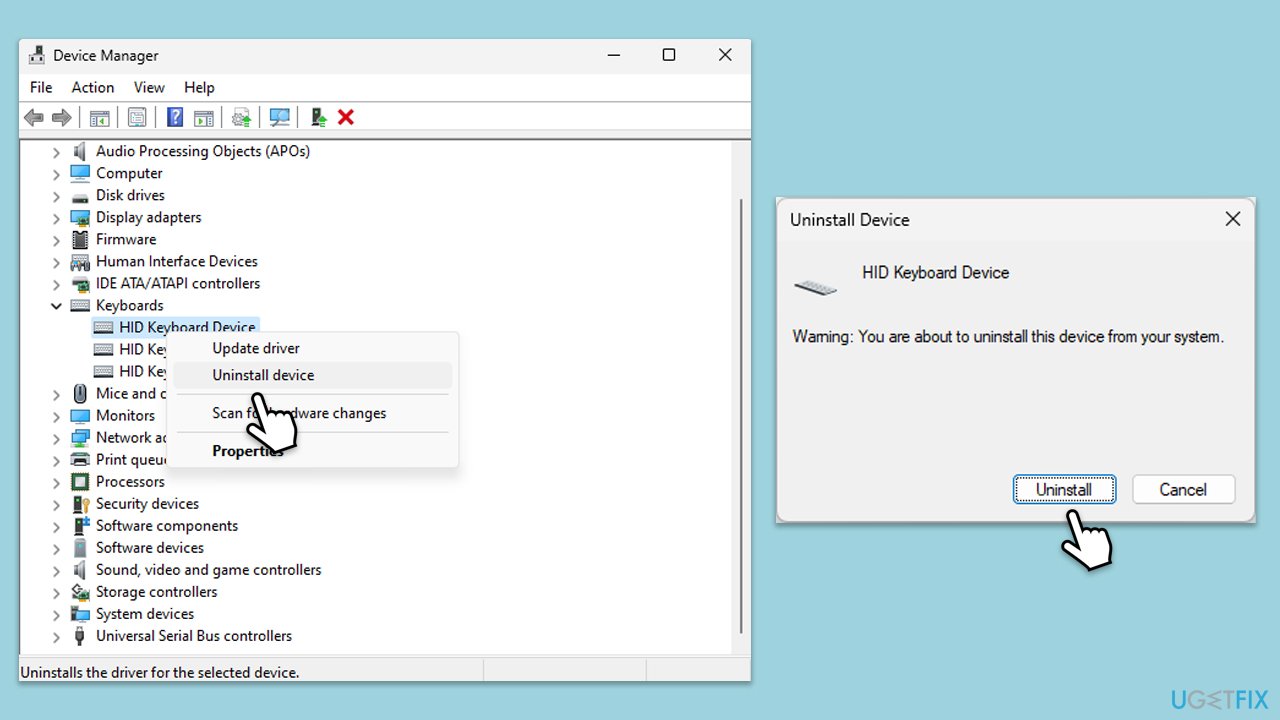
- Right-click on Start and pick Device Manager.
- Expand the Keyboards section.
- Right-click on your keyboard and select Uninstall device.
- When the warning comes up, click Uninstall.
- Reboot your system.
- Windows should install the default driver automatically.
Fix 7. Repair corrupted Windows files
System File Checker and Deployment Image Servicing and Management tools can fix corrupted system files that may affect keyboard functionality.
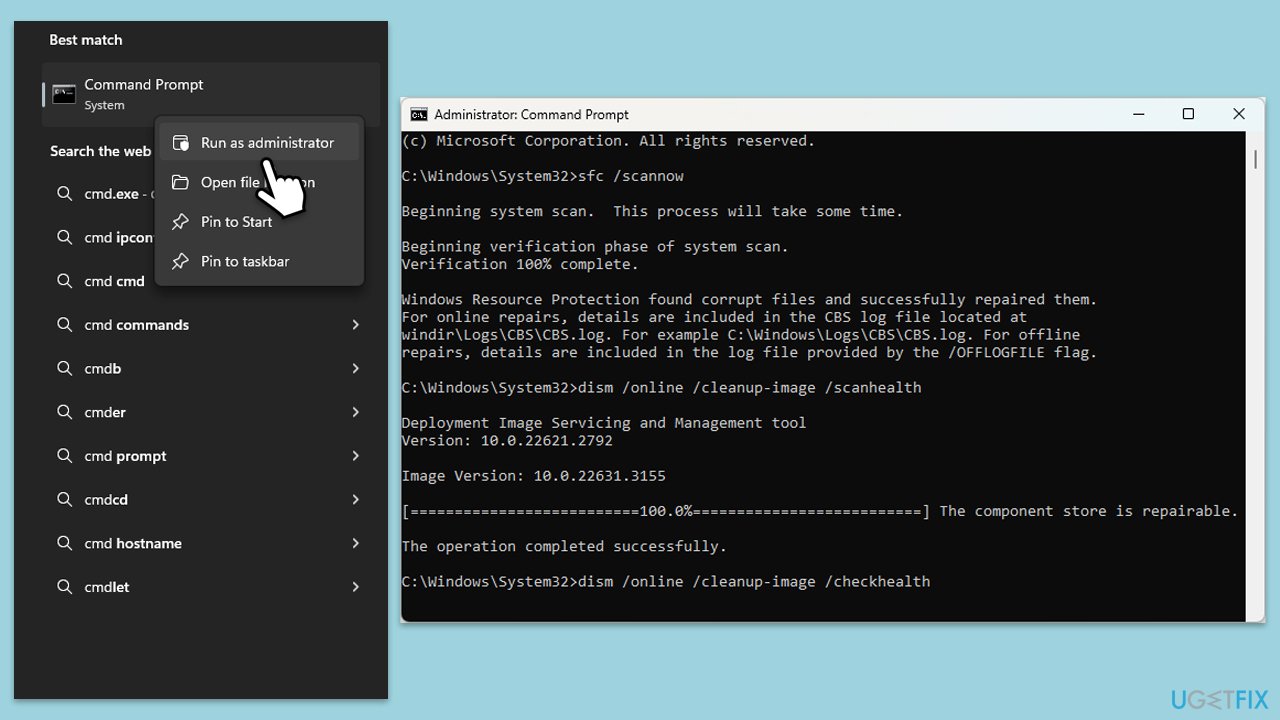
- Open Command Prompt as administrator.
- In the Command Prompt window, paste the following command and press Enter:
sfc /scannow - Wait for the scan to complete.
- Once the SFC scan is finished, run the following set of DISM commands, pressing Enter after each one:
DISM /Online /Cleanup-Image /CheckHealth
DISM /Online /Cleanup-Image /ScanHealth
DISM /Online /Cleanup-Image /RestoreHealth - After completing the DISM commands, restart your computer.
Fix 8. Adjust keyboard settings
Incorrect or overly sensitive keyboard settings can sometimes cause issues with character input.
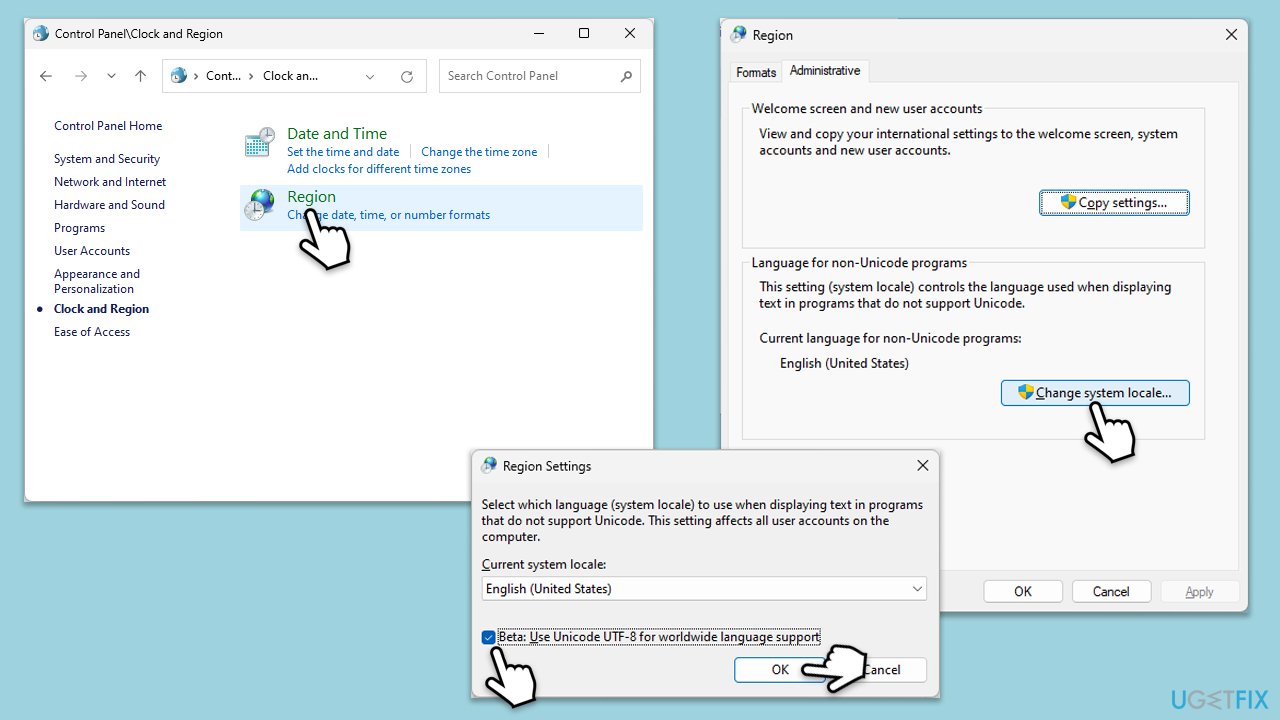
- In Windows search, type Control Panel, then press Enter.
- Go to Clock and Region and click on Region.
- Under the Administrative tab, click on Change system locale.
- Ensure the correct language is selected, and consider toggling the Beta: Use Unicode UTF-8 for worldwide language support on or off.
- Click OK and restart your computer.
Bottom line
To fix keyboard skipping or missing characters, examine your keyboard for physical flaws, ensure drivers are up to date, and check for conflicts or corrupted system files. If these solutions do not resolve the issue, consider using a PC repair app or trying a different keyboard to determine if the problem is hardware-related.
Frequently asked questions
Common causes include outdated keyboard drivers, software conflicts, or hardware issues with the keyboard itself.
You can update your keyboard drivers by going to Device Manager, locating 'Keyboards', right-clicking on your keyboard, and selecting 'Update driver'.
Yes, adjusting the keyboard repeat delay settings can help by allowing more time between repeated keystrokes, which may prevent missed characters.




Report an issue
What's wrong with this guide? We review every report and update or remove content.
Report received — thank you. We'll review and fix it.
You need a free account to submit a report.
Be the first to comment