How to fix
LiveKernelEvent Code 1b8
on Windows
Resolve LiveKernelEvent Code 1b8 in Windows 10 or 11 quickly with expert-tested solutions. Fix the issue efficiently with zero traces left.

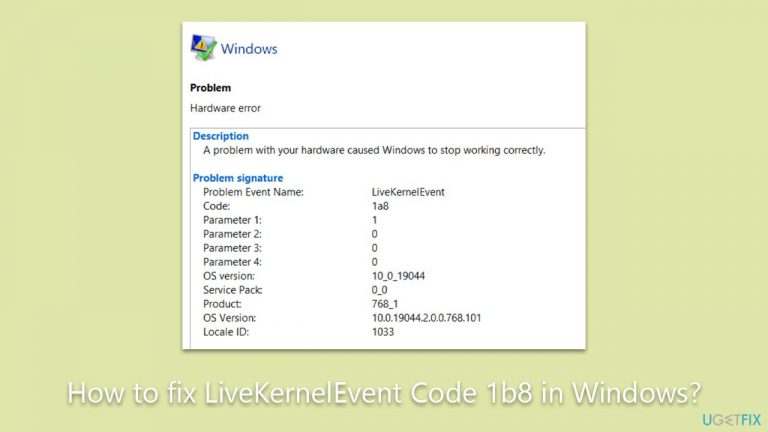
What causes How to fix LiveKernelEvent Code 1b8 in Windows?
- Overclocking
- Incorrect BIOS settings
- Outdated GPU drivers
- Corrupted GPU drivers
Repairs Windows system files, removes malware, and restores a clean OS state — without reinstalling.
Hi. I had a system crashing on me (no blue screen or anything - my PC simply rebooted), so I checked the Event log and noticed LiveKernelEvent 1b8 at the time of the crash. I didn't worry too much, but then it happened again. Any advice on what is happening and how do I fix this?
Windows is one of the best-known operating systems out there, with the latest version being Windows 11. Despite the improvements with each update, users still can't avoid errors or other issues. One such error that users might encounter, especially after a system crash, is the LiveKernelEvent Code 1b8. If you've come across this error and are unsure of its implications, this expository guide is meant for you.
For starters, many users discover the LiveKernelEvent Code 1b8 through the Windows Event Log. The Event Log is a built-in feature of the Windows operating system designed to record significant incidents. These incidents, whether they are informational, warning-based, or error-based, are chronicled in the Event Log, providing IT professionals and savvy users with a roadmap to diagnose potential issues.
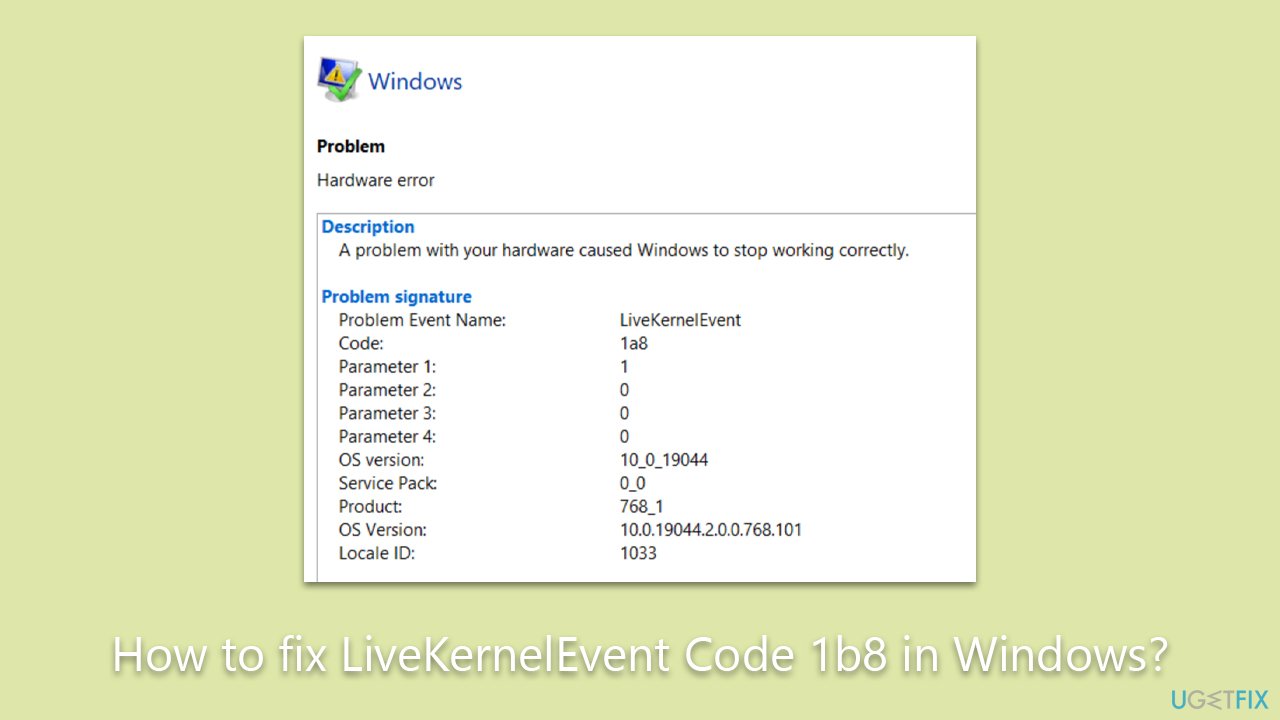
LiveKernelEvent Code 1b8 error code is an indication that the system ran into a problem that it couldn’t recover from on its own. The primary culprits for this error are typically related to overclocking, BIOS settings, or GPU driver issues.
Overclocking, the act of pushing a computer's components to run at speeds above their rated specifications, can sometimes cause system instability. Likewise, incorrect BIOS settings can lead to similar incompatibilities, given that the BIOS is responsible for booting up your computer and ensuring all hardware components communicate effectively.
Lastly, outdated or corrupted GPU drivers can also trigger this error, given that the graphics processing unit (GPU) plays a critical role in rendering visuals for the user.
While this article offers a concise overview, further instructions on addressing the LiveKernelEvent Code 1b8 will be detailed below. However, for those who are looking for a quick and efficient solution, consider using the [d1] PC repair tool. This utility is designed to tackle and fix a range of underlying Windows issues automatically, potentially saving you time and hassle.
Fix 1. Update GPU drivers
Up-to-date GPU drivers ensure that your graphics card communicates effectively with your operating system. Often, older drivers can be incompatible with the latest OS updates or software, leading to errors like LiveKernelEvent Code 1b8.
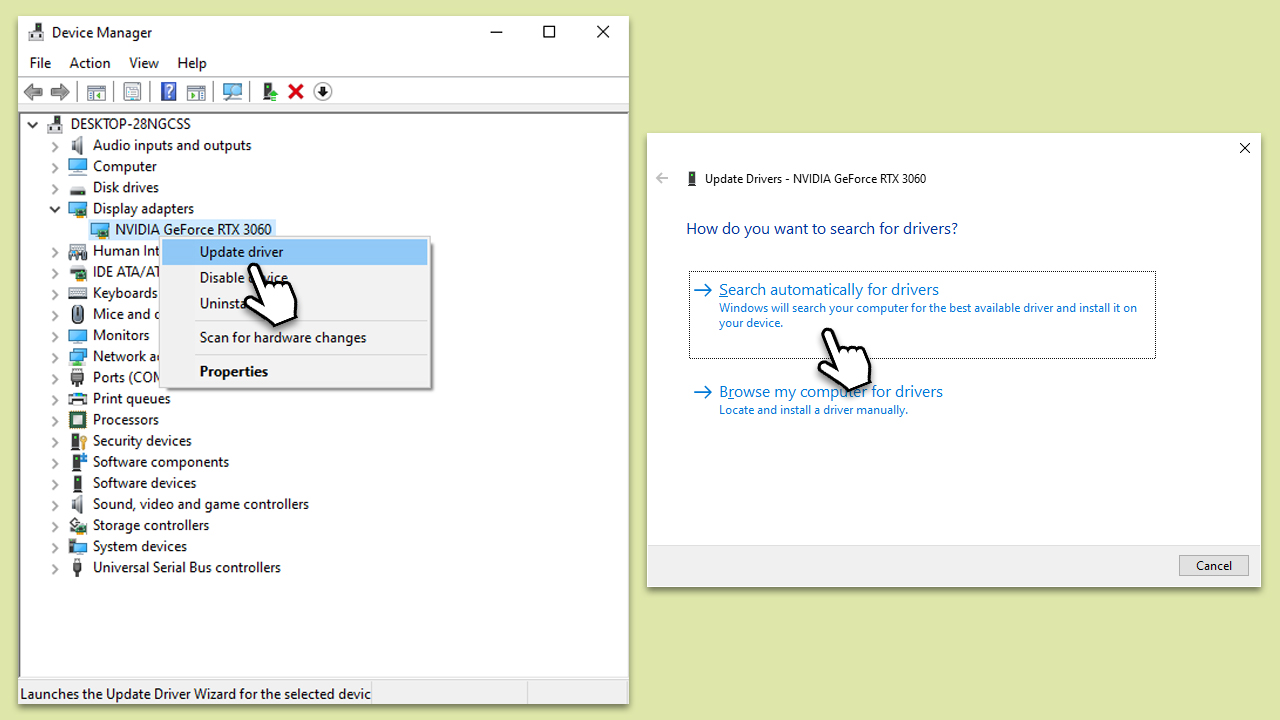
- Right-click on the Windows Start button and select Device Manager.
- Expand the Display adapters section.
- Right-click on your graphics card and select Update driver.
- Choose Search automatically for drivers.
- If a newer driver is found, Windows will download and install it. Once complete, restart your computer.
Keep in mind that this is not the most reliable method, as Windows can often fail to find the latest drivers. Thus, you can instead download and install drivers manually from the official website of your GPU vendor or use an automatic driver updater such as [rev id="DriverFix"] for a quicker option.
Fix 2. Roll back GPU drivers
Sometimes, the latest driver may have issues or incompatibilities. If your drivers are already the latest version, rolling back to a previous, stable version might resolve the problem.
- Right-click on the Windows Start button and select Device Manager.
- Expand the Display adapters section.
- Right-click on your graphics card and select Properties.
- Go to the Driver tab and click on Roll Back Driver (if available).
- Follow the on-screen prompts, then restart your computer.
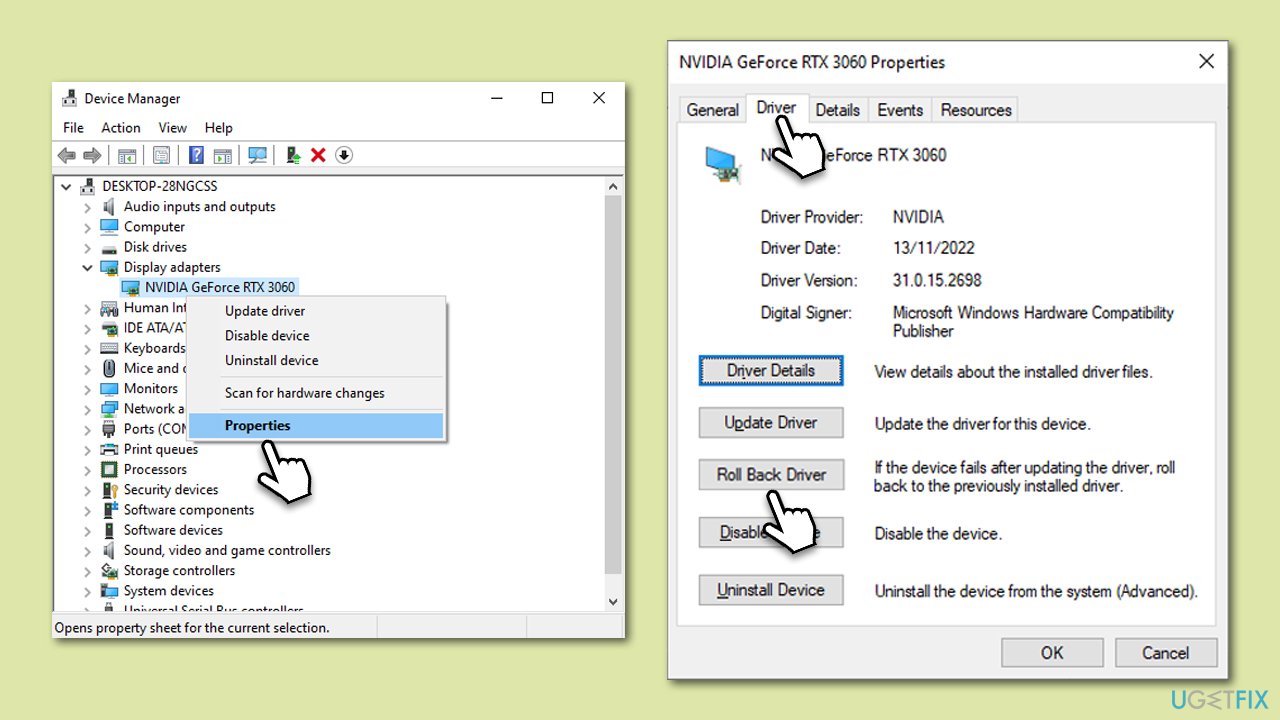
If the Roll Back Driver option is not available, please follow our guide on how to roll back drivers.
Fix 3. Disable overclocking
Overclocking pushes your computer components to operate beyond their default specifications, which can sometimes cause instability.
- Restart your computer and enter the BIOS setup (the key to access BIOS varies - often, it's F2, F10, DEL, or ESC).
- Navigate to the Advanced or Overclocking section.
- Disable any overclocking settings you see.
- Save changes and restart your computer.

Fix 4. Disable FreeSync [AMD cards only]
FreeSync is a technology that eliminates screen tearing in games and applications, but it can sometimes cause issues with certain setups.
- Right-click on your desktop and select AMD Radeon Settings or AMD Radeon Software.
- Navigate to the Display tab.
- Toggle the FreeSync switch to Off.
- Apply changes and restart your computer.
Bottom line
To fix the LiveKernelEvent Code 1b8, consider checking your overclocking settings, reviewing BIOS configurations, and updating or reinstalling your GPU drivers. If these solutions do not resolve the issue, using a dedicated PC repair tool may help address the problem.
Frequently asked questions
LiveKernelEvent Code 1b8 usually signifies a hardware-related issue, often linked to the graphics card or system memory. It may also indicate a problem with drivers or overheating components.
To troubleshoot, start by updating your graphics drivers and running a memory diagnostic tool. If the issue persists, consider checking for overheating or hardware failures.
Yes, adjusting your power settings to 'High Performance' and ensuring that your system is free of dust can help mitigate the issue. Additionally, disabling overclocking features may also provide stability.




Report an issue
What's wrong with this guide? We review every report and update or remove content.
Report received — thank you. We'll review and fix it.
You need a free account to submit a report.
Be the first to comment