
How to fix "Looks like you already own this" error when buying currency in Roblox?

Prefer to fix it yourself? The manual steps follow.
- 7methods
- 2 to 20 minutes
- Beginner
Applies to The Roblox app from Microsoft Store (the older "Roblox" app and the newer "Roblox - Windows" app) on Windows 11 and Windows 10, with Robux bought through a Microsoft account
7 methods in this guide
I purchased Robux in the Roblox app, and I couldn't see them anywhere. I thought the transaction had failed and tried to buy again, but I got the error "Looks like you already own this". Any idea what is going on and how do I fix this?
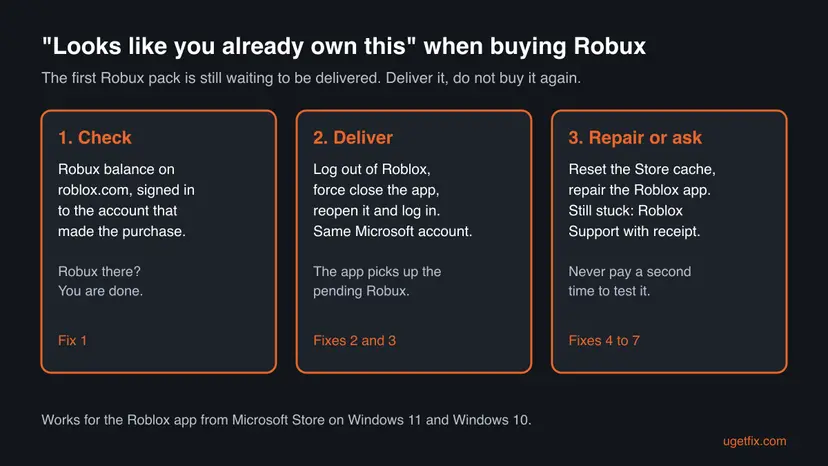
"Looks like you already own this" is a Microsoft Store message, not a Roblox one. It appears when you try to buy a Robux pack while an earlier pack of the same size is still waiting to reach your Roblox account. Do not pay again: log out of Roblox, close it, reopen it and log in so the waiting Robux can arrive.
The Store will not sell you the same Robux pack again because it still counts the first one as yours and not yet delivered. First check your Robux balance on roblox.com (Fix 1). If the Robux are missing, log out of Roblox, force close the app, reopen it and log in again (Fix 2). Do not buy a second time to test it.
| Error | Looks like you already own this in a Microsoft Store window when you buy Robux in the Roblox app on Windows. |
|---|---|
| Where it appears | In the Microsoft Store purchase window that opens over Roblox, right after you pick a Robux pack, usually after an earlier purchase that did not show up. |
| Main cause | The earlier Robux pack is paid for but not yet delivered to your Roblox account, so the Store blocks a second copy of the same pack. |
| Fastest fix | Check the balance on roblox.com (Fix 1), then log out of Roblox, force close it, reopen and log in (Fix 2). |
| Also written as | "You already own this item", "Looks like you already own this. Go to My games and apps, or My library on your home device, to download it." Users also report the code PUR-UserAlreadyOwnsContent with it. |
| Affects | Robux bought through Microsoft Store in the Roblox app on Windows 11 and Windows 10, and on Xbox. Not purchases made on roblox.com with a card or PayPal. |
| Vendor status | Roblox Support gives log out, force close, reopen and log in as the Windows app fix for purchases that did not arrive. Roblox now ships a new Microsoft Store app named "Roblox - Windows". |
| Time to fix | 2 to 5 minutes for Fixes 1 and 2. A support ticket with Roblox takes longer. |
Facts checked on 16 October 2026. Steps written for Windows 11 (25H2 and 26H2) and Windows 10 22H2.
What "Looks like you already own this" means when you buy Robux
Robux bought in the Windows or Xbox version of Roblox are sold by Microsoft Store and paid with your Microsoft account. The Store then hands the Robux to the Roblox app, and the app adds them to your Roblox account. If that hand-over does not finish, the pack stays in a waiting state on your Microsoft account.
While a pack is waiting, the Store treats it as something you already own. When you try to buy the same pack again, it refuses with Looks like you already own this. The full text tells you to go to My games and apps or My library, which is written for games and makes no sense for Robux. That is why the message confuses so many players.
- Message
- Looks like you already own this
- Shown by
- Microsoft Store, inside the Roblox app on Windows or Xbox
- When
- When buying a Robux pack, usually the same pack as a purchase that did not arrive
- What it is not
- A ban, a Roblox account limit or a sign that you were charged twice
The message stops a second payment. Your first payment is the one to recover. Check your balance before you try anything else, and keep the receipt e-mail from Microsoft.
Why Roblox and Microsoft Store say you already own this: the causes, ranked
Neither Roblox nor Microsoft publishes numbers for this message. The order below is our reading of the reports on Microsoft Q&A and of Roblox Support's own troubleshooting order.
| Cause | How often | How to tell | Fix |
|---|---|---|---|
| The Robux arrived but you look at the wrong account or an old balance. | Often | The balance on roblox.com is higher than you thought. | Fix 1 |
| The first pack is paid but not yet handed to Roblox. | Most often | Payment taken, Robux missing, same pack refused. | Fix 2 |
| The Store, Xbox profile and Roblox app use different accounts, or the old Roblox app is still in use. | Sometimes | You have both Roblox apps, or another Microsoft account in the Store. | Fix 3 |
| The Microsoft Store cache or app is damaged. | Sometimes | Other Store purchases or downloads also fail. | Fix 4 |
| The Roblox app itself is damaged. | Less often | Roblox crashes or will not finish loading the shop. | Fix 5, Fix 6 |
| The purchase is stuck on the Microsoft account side. | Rarely | Another Microsoft account on the same PC can buy Robux. | Fix 7 |
How to fix "Looks like you already own this" when buying Robux on Windows 11 and Windows 10
Fixes 1 and 2 take five minutes and solve most cases, because they deliver the Robux you already paid for. Fix 3 fixes account and app mix-ups. Fixes 4 to 6 repair the Store and Roblox. Fix 7 is the support route with your receipt.
| What you see or have | Start with |
|---|---|
| You paid, the Robux are not in the app, and the same pack is now refused. | Fix 1, then Fix 2 |
| You have two Roblox apps, a grey icon and a blue one. | Fix 3 |
| Microsoft Store shows a different account than your Xbox profile. | Fix 3 |
| Other Store purchases or downloads fail too. | Fix 4 |
| Roblox crashes, or the Robux page will not load. | Fix 5 |
| Nothing worked and the payment is on your bank statement. | Fix 7 |
Fix 1. Check your Robux balance on the right Roblox account
1 minuteLow riskEveryone, before anything else. It takes one minute.
Roblox Support's first advice for missing purchases is to make sure you are logged into the account where the purchase was made. The Robux may already be there, and the error only means you tried to buy the same pack again.
- Open a browser, go to
roblox.comand log in with the same Roblox username you used in the app. - Look at the Robux count at the top right of the page.
- If you have more than one Roblox account, log in to each one and check.
- Open your Microsoft account order history and note the date and the pack you paid for.
- Compare: if the balance went up by that pack, the purchase worked.
It worked if: The Robux show on the account. You do not need to do anything else.
If not: If the Robux are missing on every account, go to Fix 2.
Fix 2. Log out of Roblox, force close the app, reopen it and log in
3 minutesLow riskYou paid, the Robux did not arrive, and the same pack now says you already own it.
This is the exact Windows app fix Roblox Support gives for purchases that did not arrive. A fresh log-in makes the app check the Store for paid packs that were never delivered and add them to your account.
- In the Roblox app, open Settings and select Log Out.
- Close the app, then press Ctrl + Shift + Esc to open Task Manager.
- Find Roblox in the list, select it and select End task.
- Open Roblox again from the Start menu.
- Log in with the same Roblox account and wait a minute on the home screen.
- Check the Robux count before you buy anything.
If the app freezes and Task Manager will not close it, see Close a frozen app (Task Manager, Force Quit). Restart the PC with Start > Power > Restart if the Robux still do not show, then repeat the steps once.
Do not buy a different pack size to get around the message. Each new pack is a new charge, and it does not fix the missing one. Users on Microsoft Q&A who bought many times in a row also report "the purchase could not be verified" refusals.
It worked if: The Robux balance goes up by the pack you paid for, and buying the same pack works again.
If not: If the Robux do not arrive, check the account and app setup in Fix 3.
Fix 3. Use one Microsoft account and the new "Roblox - Windows" app
10 minutesLow riskYou have both Roblox apps, or Microsoft Store, the Xbox profile and Roblox use different accounts.
The Store delivers the pack to the Microsoft account that paid. Roblox now asks you to link that Microsoft account's Xbox profile to your Roblox account in its new Store app. If the accounts do not match, the pack waits for an account that never collects it.
- Open Microsoft Store, select your profile picture and note the account. It must be the one that was charged.
- Search the Store for Roblox. Roblox says the new app is named Roblox - Windows and the old one is just Roblox.
- Install Roblox - Windows if you do not have it. On your PC the new app has a blue icon and the old one a light grey icon.
- Open the new app, log in with your Roblox username and password, and link your Xbox account when asked.
- Check your Robux balance. Roblox says Robux and items move with your Roblox account.
- When the new app works, uninstall the old grey Roblox app, as Roblox advises.
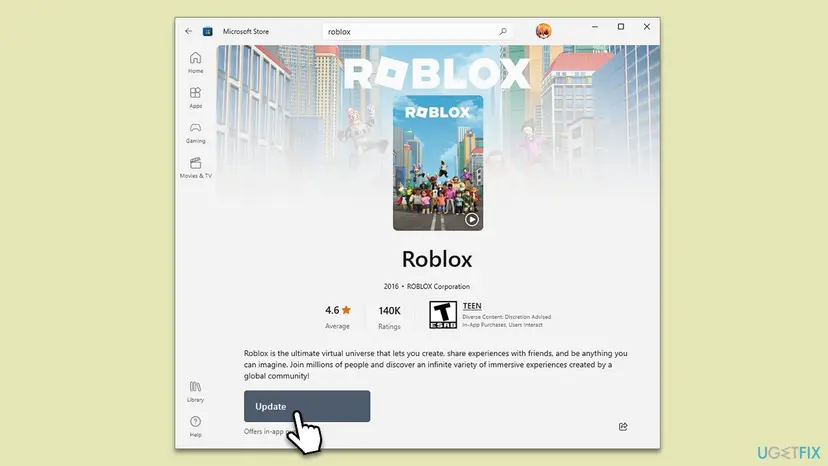
To remove the old app: Uninstall a program or app in Windows
It worked if: The new app opens, your account is linked to the Xbox profile of the paying Microsoft account, and the Robux appear.
If not: If the Store itself misbehaves, go to Fix 4.
Fix 4. Clear the Microsoft Store cache, then repair the Store
5 minutesLow riskThe Store shows errors elsewhere, or Fixes 2 and 3 did not deliver the Robux.
The purchase window and the hand-over to Roblox both run through Microsoft Store. A damaged Store cache can keep reporting an old state of your purchases. Clearing it does not delete any purchase.
- Close Roblox and Microsoft Store.
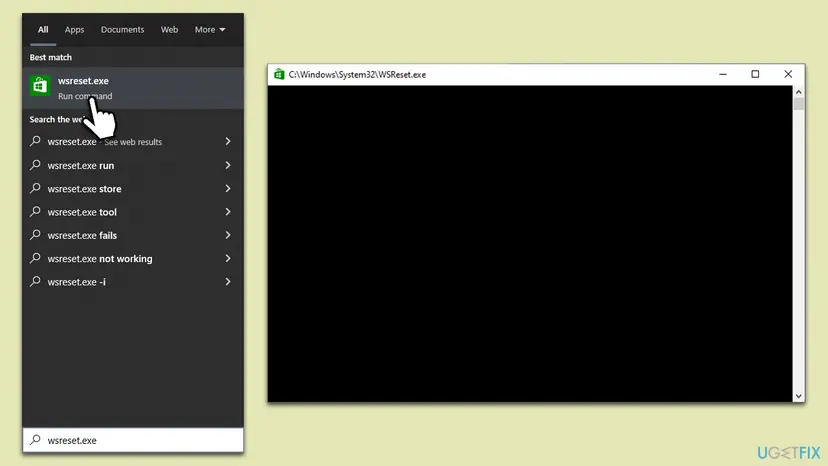
- Press Win + R, type
wsreset.exeand select OK. - Wait until the blank window closes and Microsoft Store opens by itself.
- If Roblox still cannot collect the Robux, open the Store's Advanced options and select Terminate, then Repair.
- Use Reset only if Repair did not help, then sign in to the Store again.
Every screen on Windows 11 and Windows 10: Reset the Microsoft Store
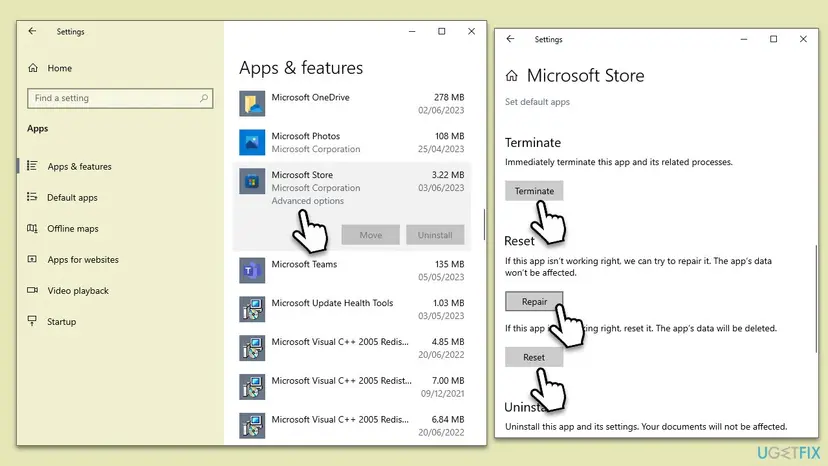
On recent Windows 11 builds, Microsoft Store is under Settings > System > System components rather than Installed apps.
It worked if: The Store opens normally. Open Roblox, log in and check the Robux balance.
If not: If the Store is fine but Roblox misbehaves, go to Fix 5.
Fix 5. Repair or reset the Roblox app
5 minutesLow riskRoblox crashes, the Robux page will not load, or the purchase window closes at once.
A damaged Roblox app may never finish the step that collects a paid pack. Repair keeps the app's data; Reset clears its local data and logs you out. Your Robux and items are stored on your Roblox account, not in the app.
- Press Win + I and open Apps > Installed apps. On Windows 10 open Apps > Apps & features.
- Find Roblox, select the three dots and Advanced options.
- Select Terminate, then Repair. Open Roblox, log in and check the balance.
- If nothing changes, come back and select Reset, then log in again.
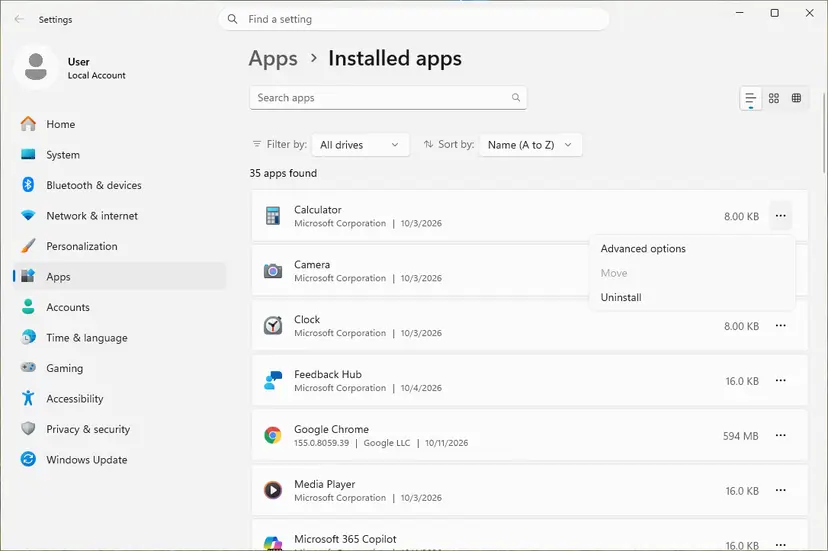
Every screen for any app: How to repair or reset an app in Windows
It worked if: Roblox starts clean, you log in, and the waiting Robux are added.
If not: If the app is still broken, reinstall it with Fix 6.
Fix 6. Clear the Roblox folder and reinstall Roblox
10 to 15 minutesLow riskRepair and Reset did not help, or the Roblox app does not open at all.
A Microsoft Q&A advisor suggested clearing the Roblox cache folder and then reinstalling from Microsoft Store for this message. A clean install removes local files the app may be stuck on. Purchases and Robux stay on your accounts.
- Close Roblox. Uninstall it from Settings > Apps > Installed apps.
- Press Win + R, type
%localappdata%and press Enter. - Open the Roblox folder if there is one, select all with Ctrl + A and delete.
- Restart the PC.
- Install Roblox - Windows from Microsoft Store with the account that paid.
- Log in, link your Xbox account if asked, and check the Robux balance.
The older version of this page told readers to delete only the %localappdata%\Roblox\logs folder. Logs do not hold purchases, so that step alone does not help here.
It worked if: A fresh Roblox app logs in and shows the Robux you paid for.
If not: Go to Fix 7 and contact support with your receipt.
Fix 7. Contact Roblox Support with your Microsoft receipt
10 minutes to send, then the reply timeLow riskThe payment is on your bank or Microsoft account and the Robux are still missing after Fixes 1 to 6.
Roblox Support can check the purchase and add the missing Robux by hand. If another Microsoft account on the same PC can buy Robux and yours cannot, the block sits on the Microsoft account, and Microsoft Support is the right place.
- Open
roblox.com/supportand choose the billing or payments topic. - Give your Roblox username, the device (Windows PC or Xbox), the date of purchase and the product (the Robux pack).
- On Xbox, add your Xbox Gamertag, written exactly, as it is case sensitive.
- When Roblox confirms your message by e-mail, reply with a screenshot of the Microsoft receipt in .jpg or .png format.
- If another Microsoft account can buy Robux and yours cannot, also contact Microsoft Support from
support.microsoft.com/contactus.
Roblox's refund page lists Microsoft Store (Windows App or Xbox) purchases separately from roblox.com payments. A charge made by Microsoft is refunded by Microsoft, not by Roblox.
It worked if: Roblox adds the missing Robux, or Microsoft clears the stuck purchase so the pack can be bought again.
If not: Read "If you still see Looks like you already own this" below.
If you still see "Looks like you already own this"
There is no Windows log that explains a stuck Robux pack. The facts that count are on your accounts. Collect them before you write to support, so one message is enough.
- What to collect: the receipt e-mail from Microsoft, the order in your Microsoft account order history, your Roblox username, the pack size and the date.
- What to try once more: a purchase of a different pack, only if you really want more Robux. If a different pack works and the first one is still missing, tell support that too.
- When it is the Microsoft account: another Microsoft account on the same PC can buy Robux. One Microsoft Q&A user found exactly that, and the Store and Roblox reinstalls had not helped.
- When it is not the PC at all: a purchase on roblox.com with a card or PayPal never shows this message, because Microsoft Store is not involved.
How to keep "Looks like you already own this" from coming back
- Wait for the Robux to appear before you buy again. If they do not show in a few minutes, log out and back in first.
- Use the same Microsoft account in Microsoft Store and in the Xbox profile linked to Roblox.
- Use the new Roblox - Windows app and remove the old one, as Roblox advises.
- Do not buy several packs in quick succession.
- Keep Roblox and Microsoft Store updated through Microsoft Store > Library.
Windows 10 left support on 14 October 2025. The Roblox app and Microsoft Store still run on Windows 10 22H2, but a PC that gets no updates can fall behind what the Store expects.
Frequently asked questions
Why does Roblox say "You already own this item" when I buy Robux?
Because Microsoft Store thinks the same Robux pack is still yours and not yet used. The message comes from the Store, not from Roblox. It appears when an earlier pack was paid for but never reached your Roblox account. The Store blocks a second copy of the same pack until the first one is delivered. Log out of Roblox, force close it, reopen it and log in, then check your balance.
Was I charged twice?
Most likely not. The message stops the second purchase, so only the first one went through. Check your Microsoft account order history and your bank statement to be sure. If you see two charges for the same pack, both should be listed in the order history, and you can send both receipts to Roblox Support. If you bought a different pack size to get around the message, that was a separate, real purchase.
How long does it take for Robux bought in Microsoft Store to arrive?
Usually within a few minutes. Neither Roblox nor Microsoft gives a fixed time. If the Robux are not there after a few minutes, do not wait for days: log out of Roblox, force close the app, reopen it and log in, which is the step Roblox Support gives for the Windows app. If that does not help, restart the PC and repeat it once, then go through the other fixes on this page.
Why is Roblox saying I don't own an item I bought?
That is the opposite problem: you paid, but Roblox does not show the item or Robux. It usually means the purchase is still waiting on the Store side, or you are logged into a different Roblox account. Roblox Support asks you first to check that you are logged into the account where the purchase was made, then to log out and back in. If the item is still missing, contact Roblox Support with the receipt.
What does "Do you own this game or app" mean in Roblox?
We found no official page that explains this question, but it reads as a Microsoft Store licence check: the Store asks whether the Microsoft account signed in on the PC is the one that owns Roblox. A mismatch between the Store account and the account that got Roblox is the likely cause. Open Microsoft Store, select your profile picture and check the account. Sign in with the right one, then open Roblox again. Fix 3 on this page covers the account and app setup.
Will reinstalling Roblox delete my Robux?
No. Roblox says your progress, friends, Robux and inventory items are tied to your Roblox account, not to the app on your PC. A reinstall or an app Reset only removes local files and logs you out. You log in again with your username and password. A pack that is still waiting in Microsoft Store is also kept, because it sits on your Microsoft account.
Does this happen on Xbox too?
Yes, Robux on Xbox are also bought through Microsoft Store, so the same block can appear. On Xbox, Roblox Support gives a different first step: do not log out of your account, just close the Roblox app and open it again. When you contact Roblox Support about an Xbox purchase, include your Xbox Gamertag exactly as written, because it is case sensitive.
Is "PUR-UserAlreadyOwnsContent" the same error?
Users report that code next to the same "Looks like you already own this" message, also with other games that sell in-app currency. We could not find an official Microsoft page that defines it. The name says the same thing as the message: the Store thinks your account already holds this purchase. The fixes on this page apply, starting with Fix 1 and Fix 2.
I searched in another language. Is this page for me?
This page is in English and covers one problem: the Microsoft Store message "Looks like you already own this" when you buy Robux in Roblox on Windows or Xbox. Searches such as "nao foi", "por que", "wat moet ik doen", "как исправить", "что делать в этой ситуации", "사진 보내줘" and "اريد حل هذا" led some readers here. If your problem is the same message, the short answer is: do not pay again, log out of Roblox, reopen it and log in. A general "buy fix error" or a search for "robux" alone may need another page.
Sources
- Roblox Support: Where is the item I just bought with money? (en.help.roblox.com)
- Roblox Support: Get the New and Improved Roblox App in the Microsoft Store! (en.help.roblox.com)
- Microsoft Q&A: How do I fix "looks like you already own this" error message (user question with advisor answer, 2025) (learn.microsoft.com)
Did this fix work?
One click, no account. It tells the next reader which guides are worth their time.
Questions and experiences: fix "Looks like you already own this" error when buying currency in Roblox
Still broken, or found a fix we did not cover? Ask here: members and our editors answer. Reading is open; writing needs a free account.
…