How to fix
McAfee Scanner Service high CPU usage
on Windows
Resolve high CPU usage from McAfee Scanner Service on Windows 10 & 11 with expert-tested solutions for quick and effective fixes. Fixed in minutes!

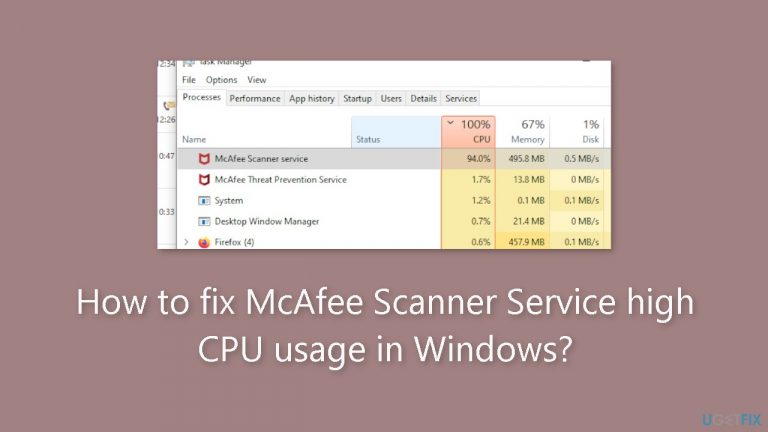
What causes How to fix McAfee Scanner Service high CPU usage in Windows?
- High CPU usage by mcshield.exe process
- Resource bottleneck caused by mcshield.exe
- Inadequate hardware specifications for McAfee
- Outdated antivirus software
- Presence of malware on the system
Repairs Windows system files, removes malware, and restores a clean OS state — without reinstalling.
Hello. I noticed that McAfee Scanner Service causes my PC to lag and stutter because it uses high amounts of CPU. Is there a way to fix this?
Users of the McAfee antivirus program on Windows PCs may experience issues with excessive CPU[ref en-1] usage due to the McAfee Scanner Service, notably the mcshield.exe process. An essential part of McAfee, Mcshield.exe is in charge of protecting the computer from malware and removing any viruses that are already there. Depending on the situation, this procedure may also be referred to as McAfee Scanner Service, McAfee On-Access Scanner Service, On-Access Scanner Service, or NT On-Access Scanner Service.
Users encounter difficulty when they see the Windows Task Manager show that the mcshield.exe process is using an excessive amount of CPU resources. This CPU usage can surge to 100% in some circumstances, which has a significant negative impact on the system's overall performance. Due to the resource bottleneck caused by mcshield.exe, this might result in an unpleasant and essentially unusable computing experience where other crucial programs and apps are unable to operate correctly.
Windows systems running Vista and later are advised to have a minimum of a 1GHz CPU and 2GB of RAM in order to use McAfee efficiently. But even if their computers fulfill these hardware specifications, some users can still have problems with high CPU consumption. This can be especially annoying because it negatively affects user experience, causing system slowdowns, unresponsiveness, and possibly lost productivity.
McAfee settings can be changed, antivirus software can be updated to the most recent version, malware can be checked for, and in severe circumstances, McAfee can be uninstalled and reinstalled. Users must be aware of these potential fixes since resolving the issue of high CPU utilization can greatly enhance system performance and user happiness when using McAfee on Windows computers.
In this guide, you will find 4 steps that should help you fix McAfee Scanner Service high CPU usage in Windows. You can also run a maintenance tool like [d1] that can fix most system errors, BSODs,[ref en-2] corrupted files, and registry[ref en-3] issues. Otherwise, follow the step-by-step instructions below.
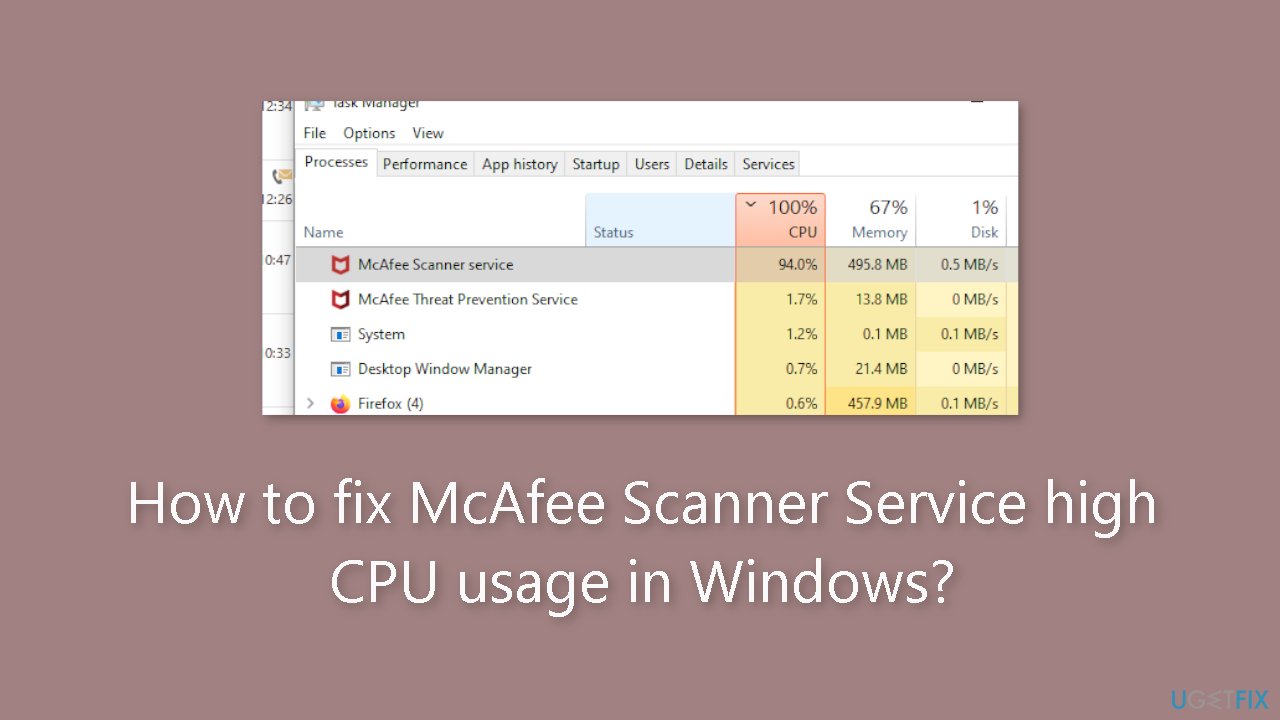
Solution 1. Install Windows Updates
- Click Start and select Settings.
- Go to the Windows Update section.
- Click Check for updates and wait.
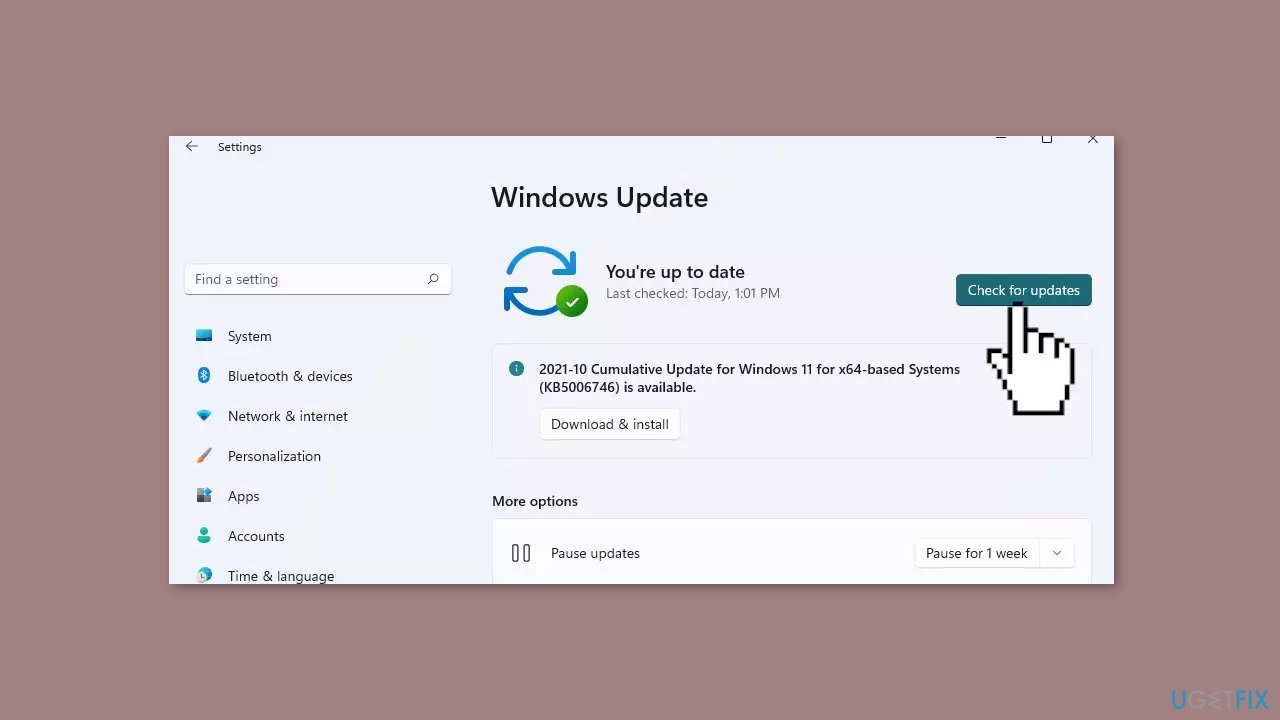
- Go to the Advanced options and install optional updates.
- Reboot your system.
Solution 2. Disable Antispam
- Open McAfee and access the Settings menu.
- Navigate to the Antispam option and select the Turn Off function.
Solution 3. Update NVIDIA Display Adapter Driver
- Open a web browser and visit the official Nvidia website.
- On the webpage, select options for Product Type, Product Series, Product, Operating System, Download Type, and Language. Click the Search button to locate the driver, and then click the Download button to obtain the installer.
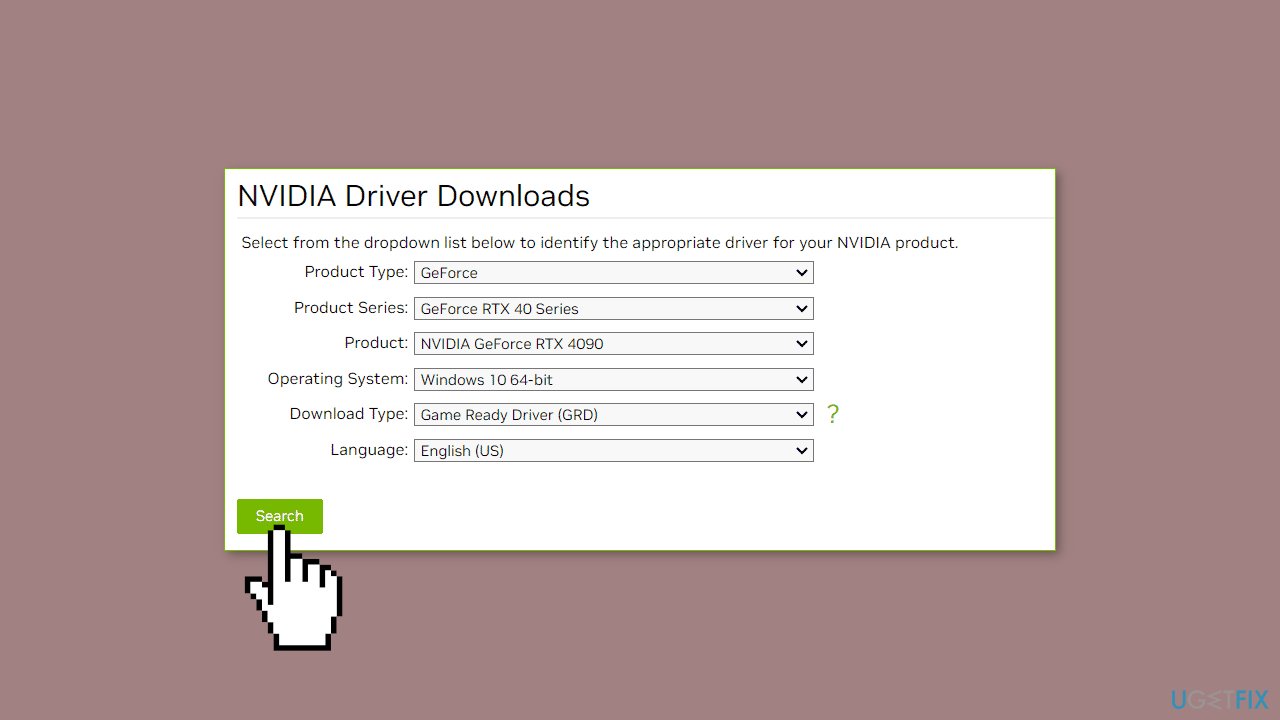
- After the download is complete, double-click on the .exe file to complete the installation and follow the on-screen instructions.
You can also use a dedicated utility like [rev id="DriverFix"] that can find the best drivers for your machine and install them automatically.
Solution 4. Uninstall McAfee
If none of the previous steps fixed the issue, it is probably best to just uninstall McAfee and use Windows Defender or find another security solution that does not cause problems like this.
- To begin, press the Windows key + R to open the Run dialog box.
- Type appwiz.cpl into the Run dialog and press OK. This action will open the Programs and Features window.
- In the Programs and Features window, find McAfee and proceed to uninstall it.
Bottom line
To fix high CPU usage by McAfee Scanner Service, users can change McAfee settings, update the antivirus software, check for malware, or uninstall and reinstall McAfee. If these steps do not resolve the issue, consider running a maintenance tool to address system errors.
Frequently asked questions
Common causes include outdated McAfee software, conflicts with other security programs, or corrupted installation files. Ensuring that your McAfee is up-to-date can often resolve these issues.
You can reduce CPU usage by adjusting the scheduled scan settings or temporarily disabling the service to see if it alleviates the issue. Additionally, consider reinstalling McAfee to fix any potential corruption.
While disabling the McAfee Scanner Service may reduce CPU usage, it is not recommended as it leaves your system vulnerable. Instead, try optimizing the settings or updating the software.




Report an issue
What's wrong with this guide? We review every report and update or remove content.
Report received — thank you. We'll review and fix it.
You need a free account to submit a report.
Be the first to comment