How to fix
Media Creation Tool Error 0x80042405-0xa001a
on Windows
Resolve Media Creation Tool Error 0x80042405-0xa001a easily on Windows 10 and 11. Get expert-tested solutions for a smooth installation experience!

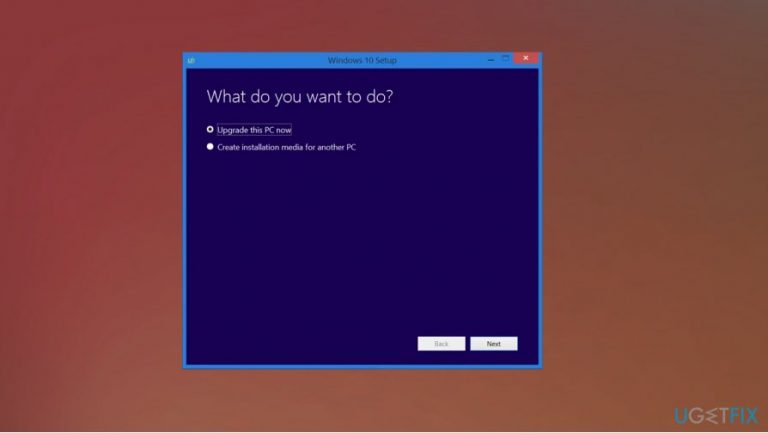
What causes How to fix Media Creation Tool Error 0x80042405-0xa001a?
- Incorrect disk settings
- USB drive not suitable for Windows-only environment
- Insufficient space on USB drive
- Corrupted or affected files
- Formatting issues
Repairs Windows system files, removes malware, and restores a clean OS state — without reinstalling.
Hello. I try to create an installable media with Media Creation Tool, but I cannot achieve what I want, and I get Error 0x80042405-0xa001. I tried some fixes from online forums, but reformatting and deleting files haven't helped me. Can you offer something that could help me fix Media Creation Tool Error 0x80042405-0xa001?
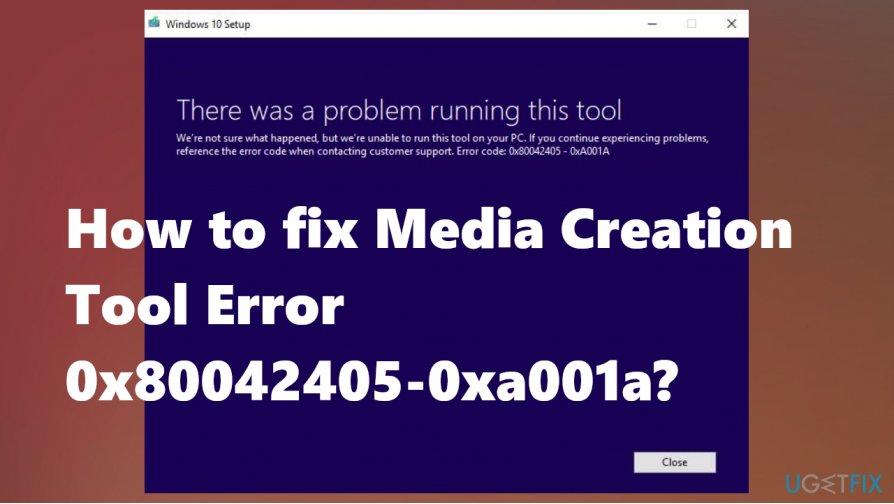
Media Creation Tool Error 0x80042405-0xa001 is one of the errors related to Media Creation Tool issues that users[ref en-1] constantly report online. There are frustrations and annoyance when you experience such an error, and contacting customer support is not helping, in most cases.
Different from other errors, this particular Media Creation Tool Error with code 0x80042405-0xa001a is not related to the failure of the application. The process is not triggering additional issues, but the message appears when the user tries to make a bootable media.[ref en-2]
Error 0x80042405-0xa001a is mainly related to disk settings, and if those are not correct, Media Creation Tool is acting out, and you need a workaround or a solution that involves alterations. There are many reasons why the error occurs, so solutions also differ depending on the cause.
Media Creation Tool Error 0x80042405-0xa001a can occur when the USB drive is not the correct type and not designed for a Windows-only environment, so the tool cannot work flawlessly. Not enough space also can affect the performance and trigger the appearance of the error.
So the methods that can help to fix Media Creation Tool Error 0x80042405-0xa001a without later resurfacing. To actually fix the issues and avoid further problems.
How to fix Media Creation Tool Error 0x80042405-0xa001a
If the Media Creation Tool Error 0x80042405-0xa001 is triggered by the lack of space on the USB, you might need to choose a different device. The solution for the bug that is caused by corrupted or affected files might get fixed using [d1] or a similar tool designed for system improvement. If you do not feel educated enough in this field, we would recommend getting help because formatting devices and changing particular settings is not easy. We can make you calm and ensure that malware[ref en-3] has nothing to do with this issue, so AV tools or virus removal is not required.
Download the tool directly to USB Drive
You can workaround this Media Creation Tool 0x80042405-0xa001 Error by downloading the Media Creation Tool to the external drive that you want to make into a bootable device. Run the exe file and then proceed with the creation of a bootable device. Make sure to run mdiaCreationTool.exe as admin.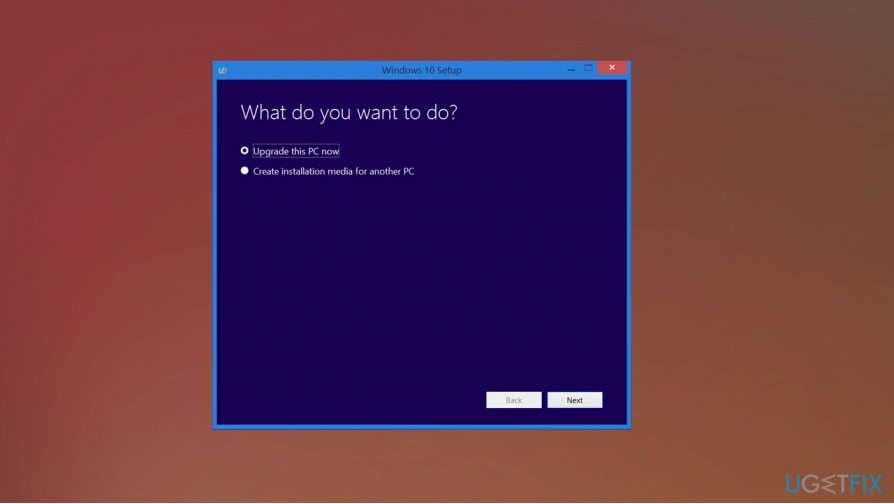
Run CHKDSK to fix Media Creation Tool Error 0x80042405-0xa001a
- Click Win and S to open the search.
- Type command prompt and open the command line with administrator rights.
- Copy and paste the following command—hit Enter.
CHKDSK [volume [[path] filename]] [/F] [/V] [/R] [/X] [/C] [: size]] - When prompted to run CHKDSK, choose Y and run the check.
- Do not get scared of the reboot.
Download the tool in the Hard Drive to fix Error 0x80042405-0xa001a
- Download the tool to Local Drive C.
- Launch the application and copy all the files in the Virtual DVD to the USB drive that you have chosen as a bootable device.
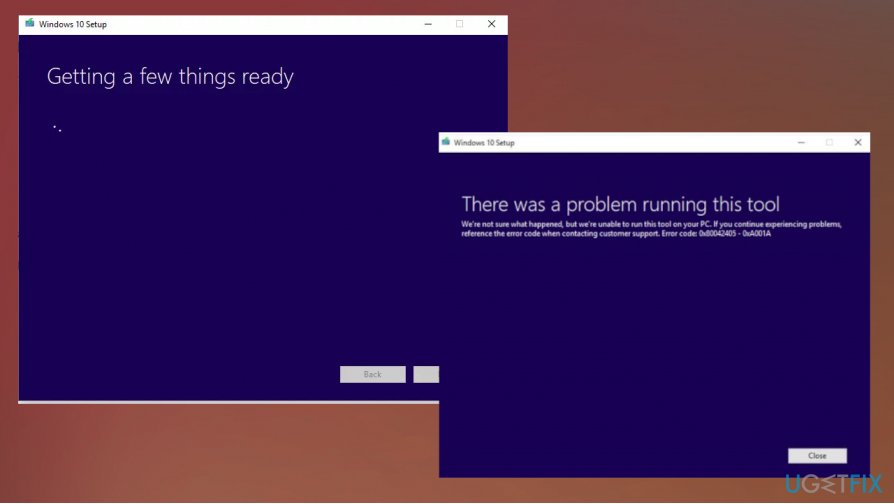
Media creation tool error setup - Exclude Autorun.inf.
- Right-click Autorun.inf and select Rename.
- Change the name to Autorun.txt and press Enter.
- Copy the file to the USB drive and rename it back.
- Check for the issue.
Format the USB drive
- Press Windows and E on the keyboard. Click on This PC on the left side.
- Right-click and select Format on the menu.
- Enter additional details, and make sure to set the format as NTFS and continue.
- Run Media Creation Tool and see if the issue repeats.
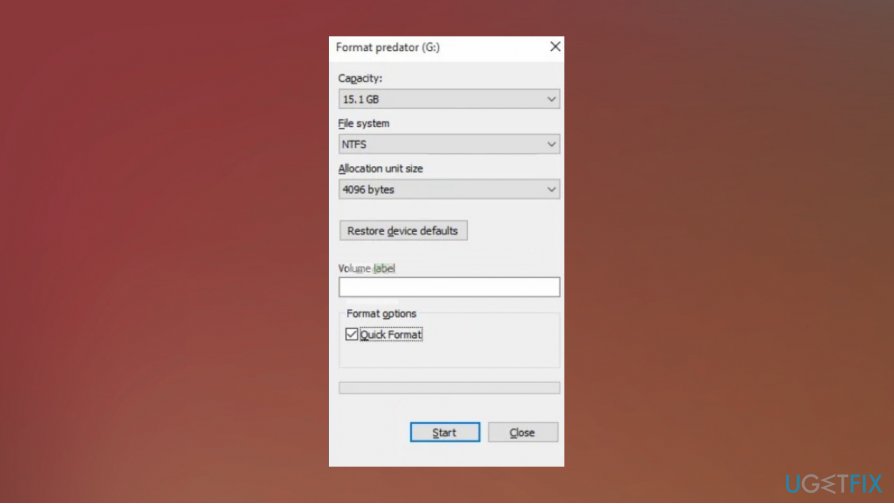
Media creation tool error rename
Bottom line
To fix Media Creation Tool Error 0x80042405-0xa001a, consider using a different USB drive, ensuring it has enough space, and utilizing system improvement tools for corrupted files. If you are not comfortable making these changes, seek professional assistance. If none of these solutions work, further troubleshooting may be necessary.
Frequently asked questions
This error typically occurs due to corrupted system files, insufficient disk space, or issues with the USB drive being used for the installation. Ensuring all components are functioning correctly can help resolve the issue.
Try running the Media Creation Tool as an administrator, and ensure that your Windows 10 system is fully updated. Additionally, check your internet connection and try using a different USB drive.
Yes, you can resolve this error by performing a clean boot to eliminate software conflicts or by using the DISM and SFC tools to repair corrupted system files. Make sure to follow the steps carefully for best results.




Report an issue
What's wrong with this guide? We review every report and update or remove content.
Report received — thank you. We'll review and fix it.
You need a free account to submit a report.
Be the first to comment