How to fix
Microsoft Compatibility Telemetry high CPU usage
on Windows
Resolve high CPU usage caused by Microsoft Compatibility Telemetry in Windows 10 or 11 with our expert-tested solutions that fix issues in minutes.

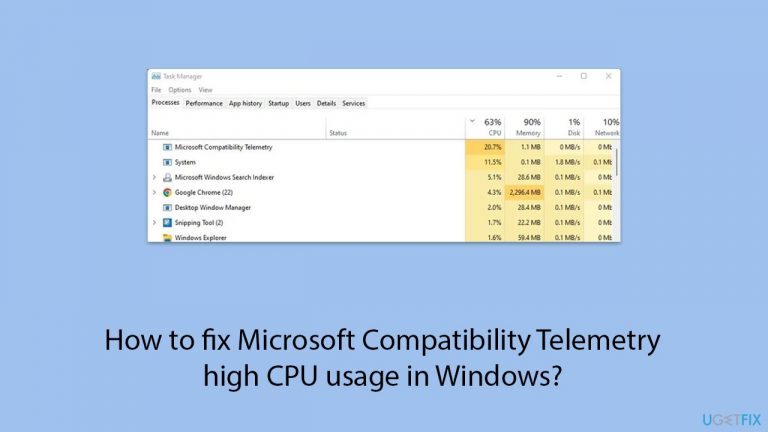
What causes How to fix Microsoft Compatibility Telemetry high CPU usage in Windows?
- High CPU usage by Microsoft Compatibility Telemetry service
- Telemetry data collection process
- Software bugs affecting performance
- Compatibility issues with installed software
Repairs Windows system files, removes malware, and restores a clean OS state — without reinstalling.
I've noticed that my resource usage in Windows spikes right up as soon as I boot it. Checking the Task Manager, I've noticed that Microsoft Compatibility Telemetry usually sits at around 50-70% CPU, which I don't think is normal. Can you help me?
Resource usage in computing refers to how much of your system's capabilities, such as CPU (central processing unit), memory, and disk space, are being utilized by various programs and processes.
High resource usage can slow down your computer, making it less responsive and affecting its overall performance. One common issue some users face in Windows is high CPU usage caused by Microsoft Compatibility Telemetry.
Microsoft Compatibility Telemetry is a service in Windows that collects and sends data to Microsoft about how your device and its software are functioning. This data helps Microsoft improve the Windows operating system by identifying compatibility issues, software bugs, and other potential problems.
While this service is useful for maintaining and enhancing system performance and security, it can sometimes lead to high CPU usage, which can significantly impact your computer's speed and responsiveness.
To address Microsoft Compatibility Telemetry high CPU usage, you can disable the service. Disabling it prevents the telemetry data from being collected and sent to Microsoft, thus reducing CPU usage.
However, some users might prefer not to disable the service entirely, opting instead for other solutions to mitigate the high resource usage. These solutions can include updating your system, optimizing your computer’s performance, or adjusting certain settings to reduce the telemetry service's impact.
For those who seek a more automated approach, using the [d1] repair tool could be a great choice. This tool can automatically diagnose and fix underlying Windows issues, including those related to high CPU usage caused by services like Microsoft Compatibility Telemetry.

Fix 1. Disable Microsoft Compatibility Telemetry
Disabling the service stops it from collecting and sending data, thereby reducing CPU usage.
- Type Group Policy in Windows search and hit Enter.
- Navigate to Computer Configuration > Administrative Templates > Windows Components > Data Collection and Preview Builds.
- Double-click Allow Telemetry.
- Select Disabled and click Apply, then OK.
Fix 2. Use Task Scheduler to disable Telemetry tasks
Disabling the telemetry tasks in the Task Scheduler prevents them from running and consuming CPU resources.
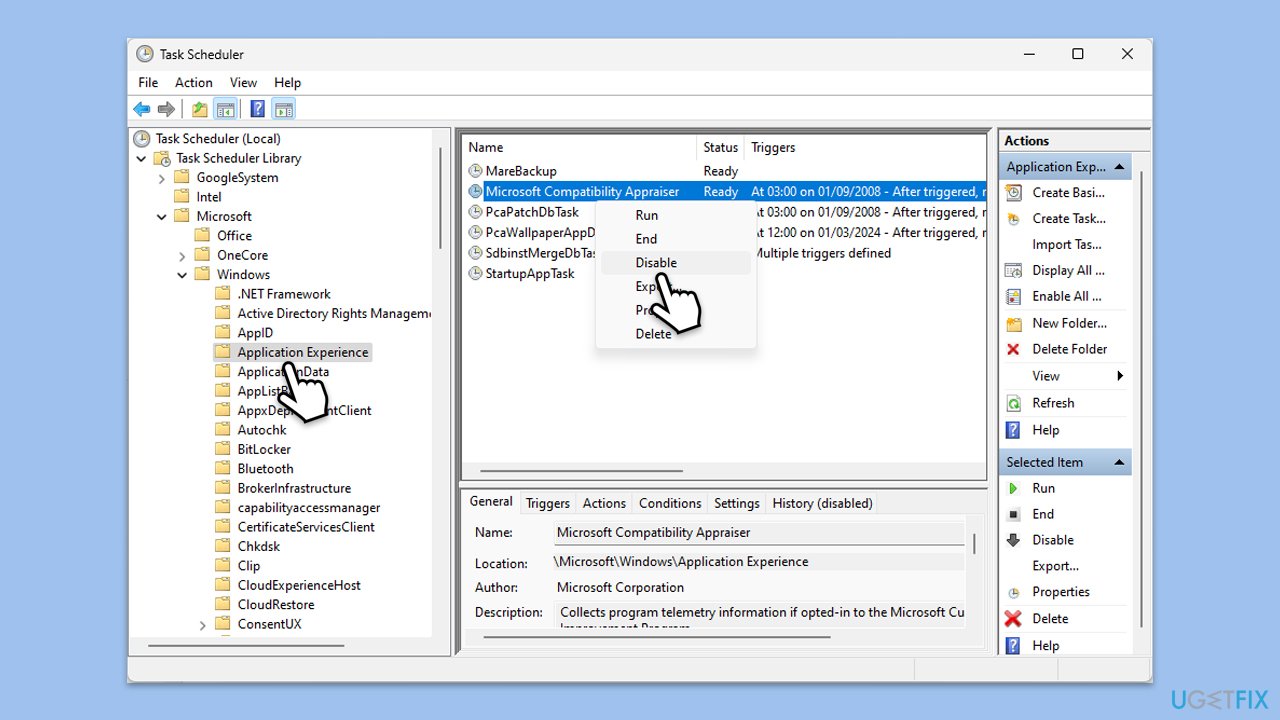
- Type Task Scheduler in Windows search and press Enter.
- Navigate to Task Scheduler Library > Microsoft > Windows > Application Experience.
- Right-click on Microsoft Compatibility Appraiser and select Disable.
Fix 3. Update Windows
Updating Windows can resolve bugs and improve system performance, which may reduce high CPU usage.
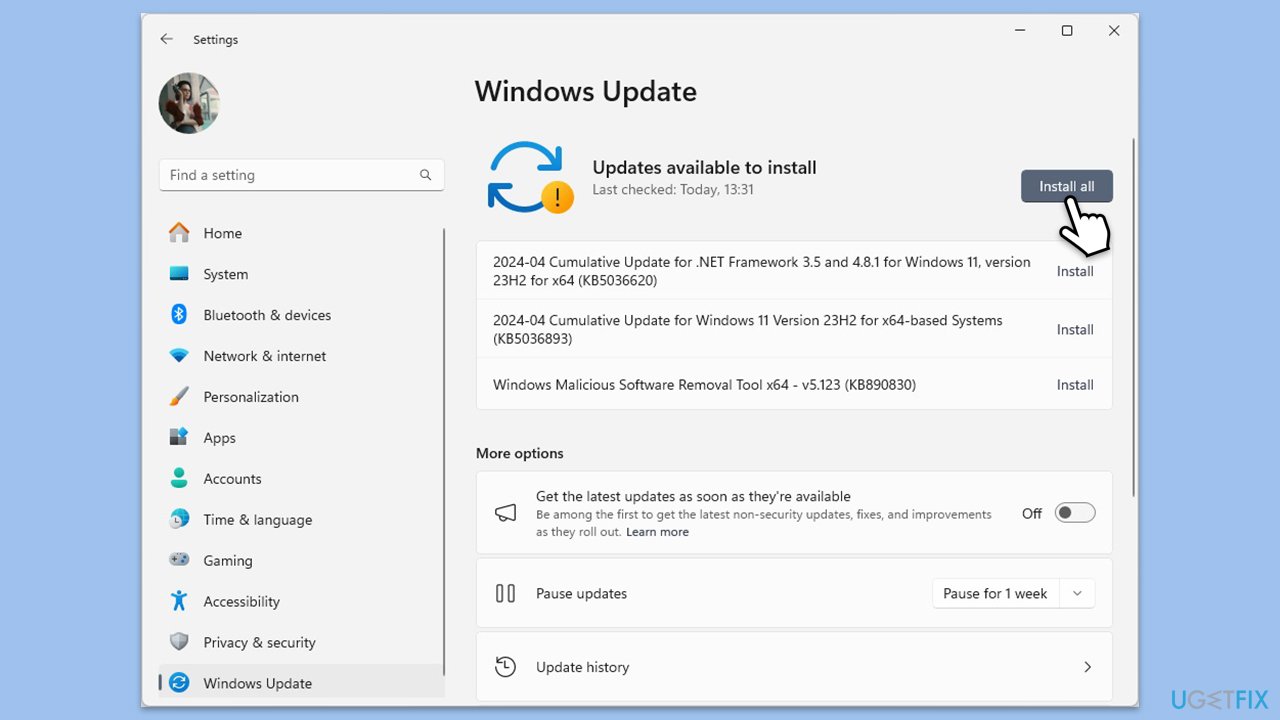
- Type Updates in Windows search and press Enter.
- When the new window opens, click Check for updates (or Install all if pending) and wait.
- If there are optional updates available, install them as well.
- After updating, restart your computer.
Fix 4. Perform a clean boot
A clean boot starts Windows with a minimal set of drivers and startup programs, which can help identify if background services are causing high CPU usage.
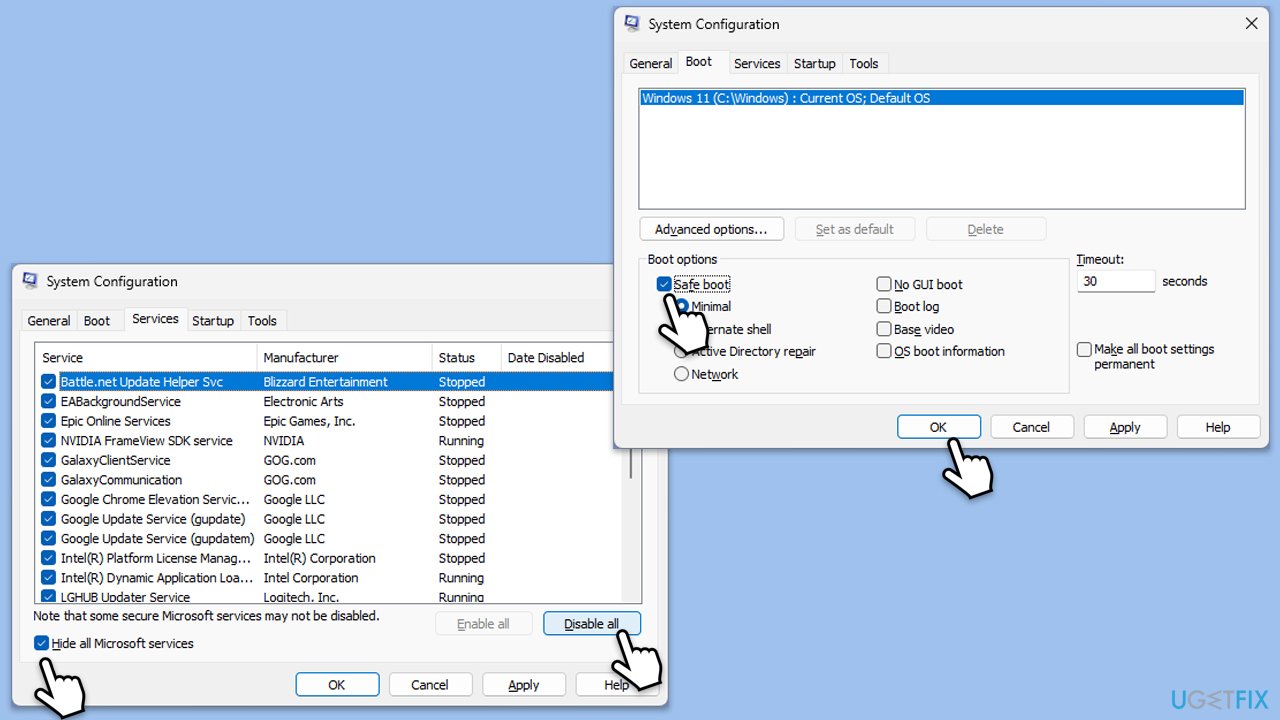
- In Windows search, type msconfig then press Enter.
- Select the Services tab and tick the Hide all Microsoft services checkbox.
- Pick Disable all.
- Go to the Startup tab and click Open Task Manager.
- Here, right-click on each of the non-Windows entries and select Disable.
- Close down the Task Manager.
- Go to the Boot tab and tick the Safe boot option.
- Once the computer is restarted, check your CPU usage.
- If resolved, you can start enabling services and startup items one by one (or in groups) to identify the offending program.
Fix 5. Adjust registry settings
Modifying certain registry settings can reduce the CPU usage of telemetry services.
- Type regedit in Windows search and press Enter.
- Navigate to HKEY_LOCAL_MACHINE\SOFTWARE\Policies\Microsoft\Windows\DataCollection.
- Right-click on the right pane, select New > DWORD (32-bit) Value.
- Name it AllowTelemetry and set its value to 0.
- Restart your computer.
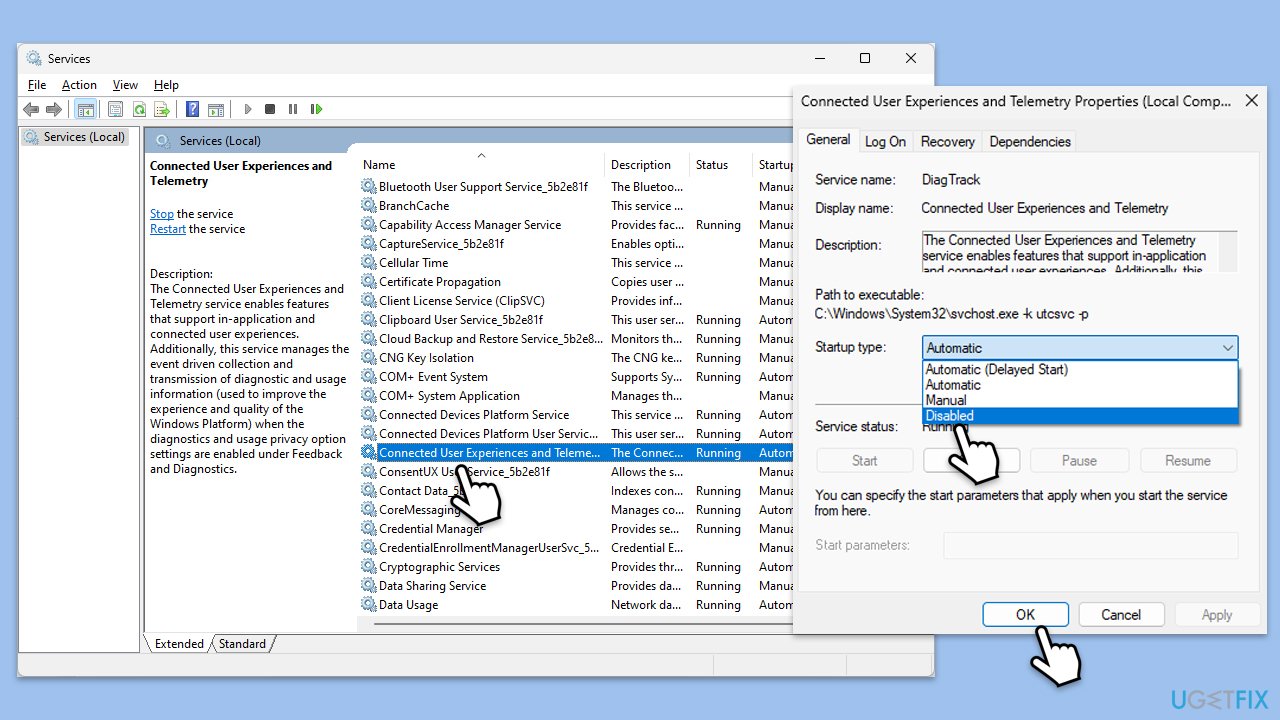
Fix 6. Disable Connected User Experiences and Telemetry service
Disabling this service stops telemetry data collection, which can reduce CPU usage.
- Type Services in Windows search and press Enter.
- Scroll down and locate Connected User Experiences and Telemetry.
- Right-click on it and select Properties.
- Set the Startup type to Disabled and click Stop.
- Click Apply and OK.
Fix 7. Optimize system performance
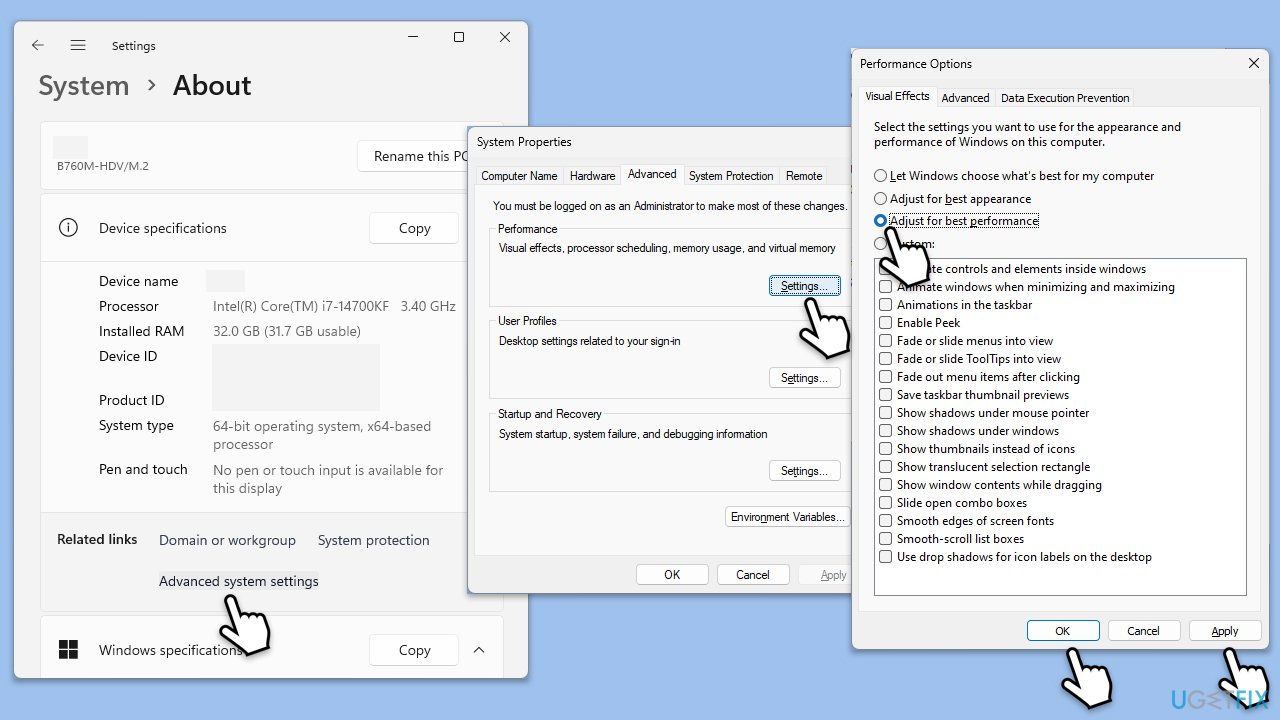
Optimizing overall system performance can help reduce high CPU usage from various services.
- Right-click on Start and select System.
- Select About from the left pane (or right pane, depending on your OS version).
- Click on Advanced system settings.
- Under Performance, click Settings.
- Select Adjust for best performance and click Apply, then OK.
Fix 8. Use Group Policy Editor to limit telemetry data
Limiting the level of telemetry data collected can reduce its impact on CPU usage.
- Open Group Policy.
- Navigate to Computer Configuration > Administrative Templates > Windows Components > Data Collection and Preview Builds.
- Double-click Configure Telemetry and set it to Enabled.
- Select Basic or Security and click Apply, then OK.
Bottom line
To fix high CPU usage caused by Microsoft Compatibility Telemetry, you can disable the service, update your system, optimize your computer’s performance, or adjust certain settings. For a more automated approach, consider using a repair tool to diagnose and fix underlying Windows issues. If none of these solutions work, further investigation into system performance may be necessary.
Frequently asked questions
High CPU usage by Microsoft Compatibility Telemetry can be caused by system updates, background processes, or corrupted files that lead to excessive data collection.
You can reduce CPU usage by disabling the telemetry service through the Task Scheduler, adjusting privacy settings, or using the Group Policy Editor to limit data collection.
Yes, disabling Microsoft Compatibility Telemetry is generally safe, but it may limit your ability to receive system performance improvements and updates from Microsoft.




Report an issue
What's wrong with this guide? We review every report and update or remove content.
Report received — thank you. We'll review and fix it.
You need a free account to submit a report.
Be the first to comment