How to fix
Microsoft Store error 0x00000005
on Windows
Resolve Microsoft Store error 0x00000005 on Windows 10 or Windows 11 with our expert-tested fixes. Get back to downloading in minutes!

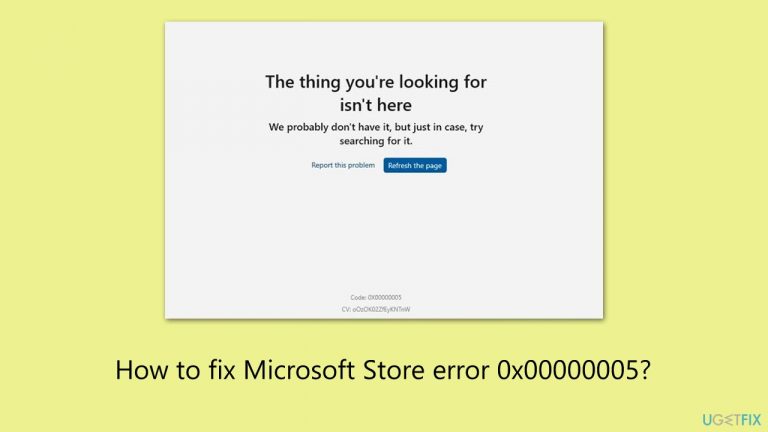
What causes How to fix Microsoft Store error 0x00000005?
- Windows Update issues
- Corrupted store cache
- Software conflicts
- Incorrect permissions
Repairs Windows system files, removes malware, and restores a clean OS state — without reinstalling.
I can no longer download and install new apps from the Microsoft Store because of the error code 0x00000005. Any tips would be appreciated.
Microsoft Store, a central hub integrated into the Windows operating system, offers users the convenience of accessing a vast array of applications, ranging from essential productivity tools to entertaining games. This platform is designed to provide a safe, secure, and straightforward way to download and install apps, ensuring that Windows users have everything they need at their fingertips. With its user-friendly interface and a comprehensive collection of apps, the Microsoft Store has become an indispensable part of the Windows experience for many.
Despite its many advantages, some users encounter issues while using the Microsoft Store. A common problem is the error code 0x00000005, which can occur during the download or installation of already installed or new apps. This error can be frustrating as it prevents users from accessing new software and updates. Understanding the root causes of this issue is crucial in resolving it effectively.
The error code 0x00000005 typically indicates a problem with permissions or a conflict within the system that blocks the installation process. Several factors can contribute to this issue:
- Windows Update issues. If your Windows operating system is not up to date, it might lead to compatibility issues with the Microsoft Store, resulting in this error.
- Corrupted store cache. Sometimes, the cache that the Store uses to speed up the browsing experience can become corrupted, causing errors.
- Software conflicts. Third-party applications, especially those that modify system settings or manage security, can interfere with the functioning of the Microsoft Store.
- Incorrect permissions. If the Microsoft Store doesn't have the necessary permissions to operate correctly, it may display this error.
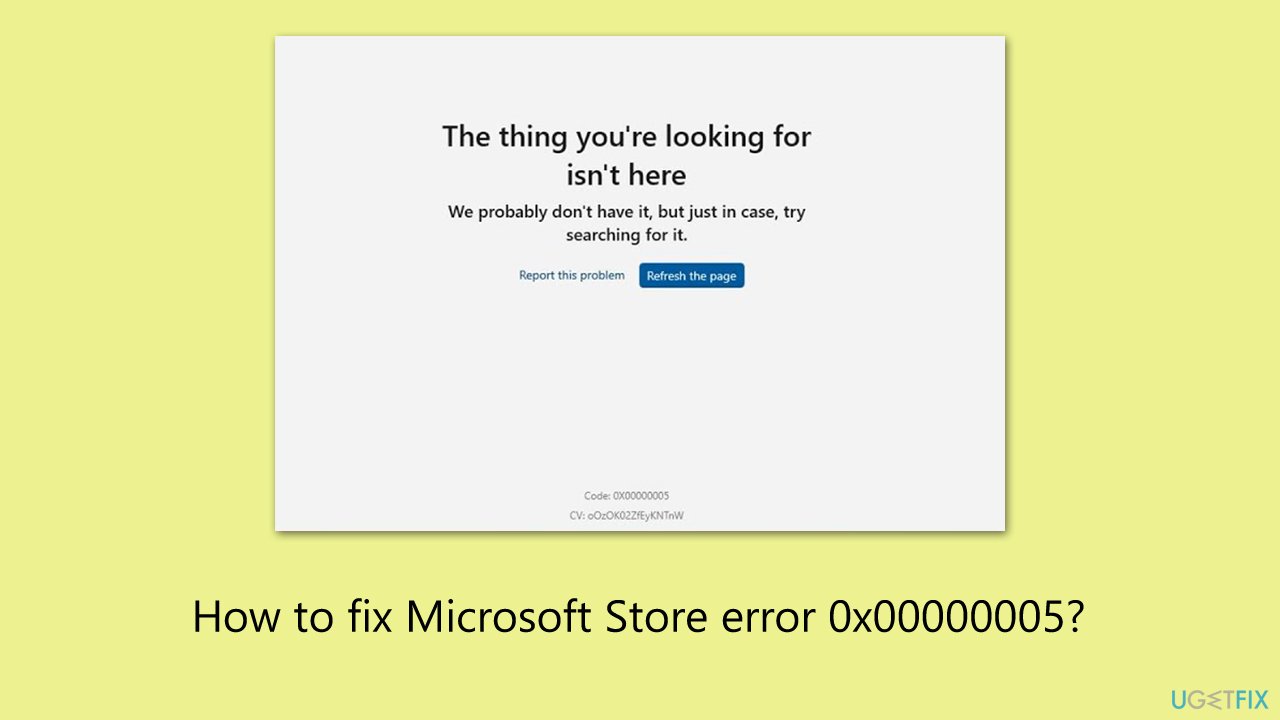
To fix the 0x00000005 error in the Microsoft Store, users can try a few solutions. These include running the Windows Store Apps troubleshooter, clearing the Store cache, checking for Windows updates, and ensuring that the Store has the required permissions. In some cases, disabling conflicting software temporarily can also help.
In more persistent cases, using a potent Windows repair software [d1] can provide a more comprehensive solution by addressing underlying system issues that might be causing the error. This approach often resolves not only the immediate problem but also improves the overall stability and performance of the system.
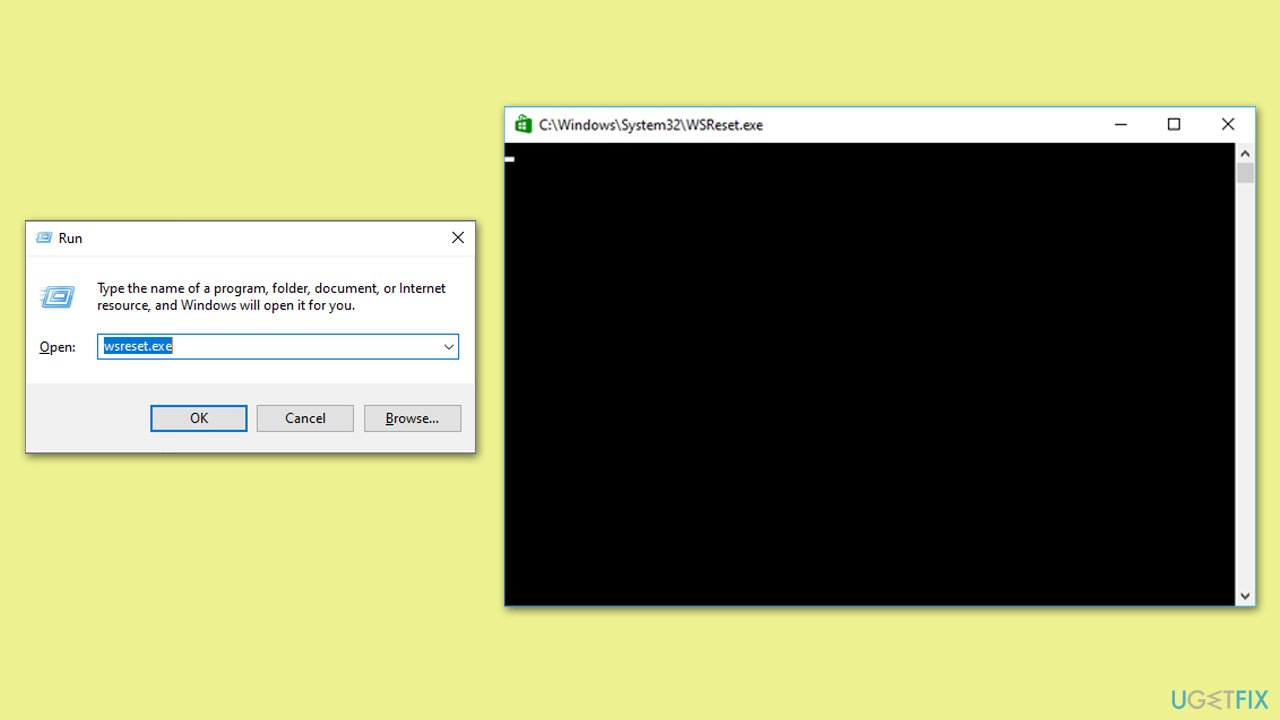
Fix 1. Clear Microsoft Store cache
Clearing the Microsoft Store cache can resolve issues caused by corrupted cache files. This process refreshes the Store without affecting your installed applications or settings.
- Press the Win + R on your keyboard to open the Run dialog box.
- Type wsreset.exe and press Enter.
- A blank Command Prompt window will open. After about ten seconds, the window will close, and the Microsoft Store will open automatically.
- You can try using the Store as usual.
Fix 2. Run Windows Store Apps troubleshooter
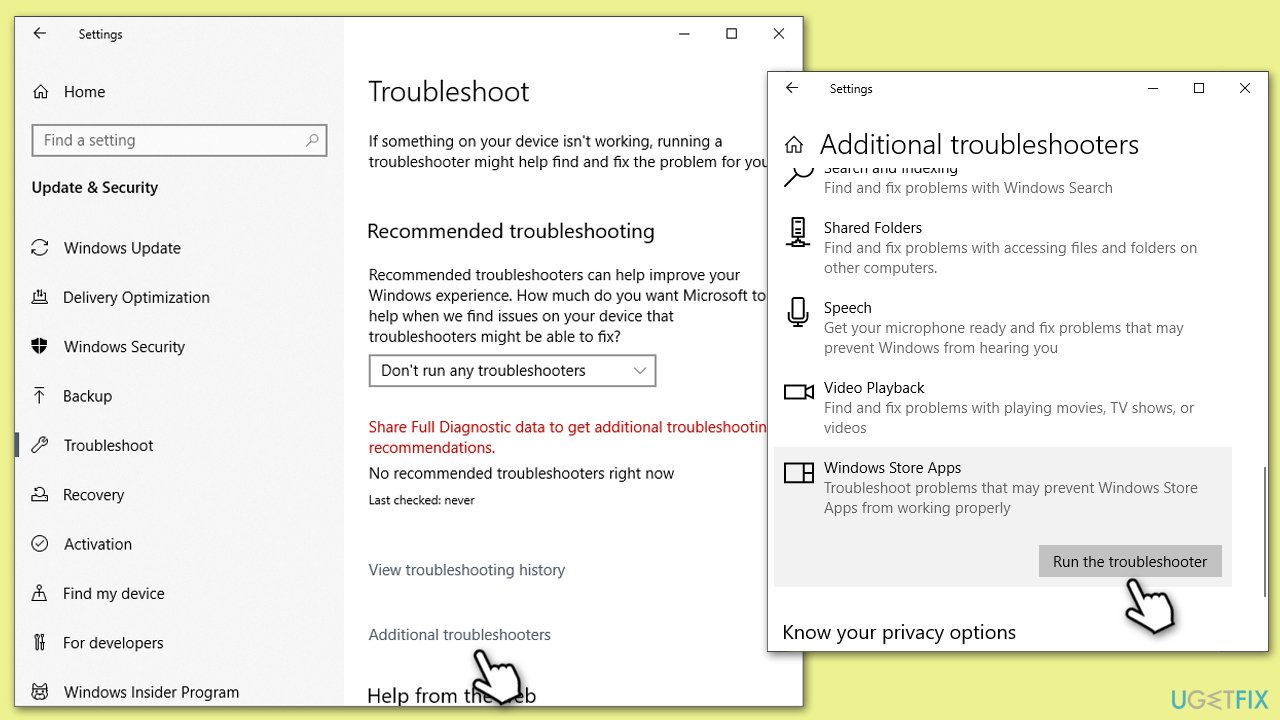
The Windows Store Apps troubleshooter is a built-in tool that automatically detects and fixes common problems with the Microsoft Store and its apps.
- Type troubleshoot in Windows search and press Enter.
- Click Additional troubleshooters/Other troubleshooters.
- Find Windows Store Apps.
- Click on it, and select Run the troubleshooter/Run.
- Wait for the scan to be completed and apply the suggested fixes.
Fix 3. Perform SFC and DISM scans
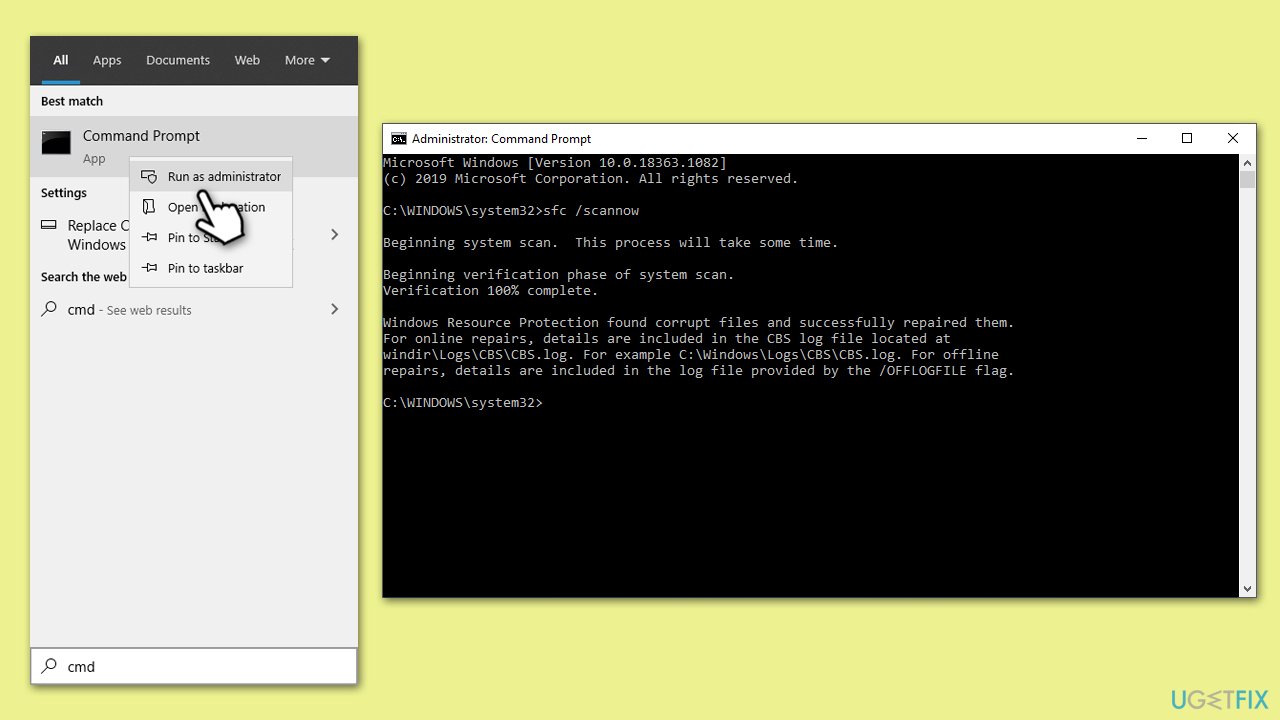
System File Checker (SFC) and Deployment Image Servicing and Management (DISM) scans can fix corrupted system files that might be causing the error.
- Type cmd in Windows search.
- Right-click on Command Prompt and pick Run as administrator.
- When UAC asks you whether you want to make changes, agree by pressing Yes.
- Next, copy and paste the following commands, pressing Enter each time:
sfc /scannow
DISM /Online /Cleanup-Image /CheckHealth
DISM /Online /Cleanup-Image /ScanHealth
DISM /Online /Cleanup-Image /RestoreHealth
(Note: if you get an error executing the last command, add /Source:C:\RepairSource\Windows /LimitAccess to it and try again.) - Restart your system.
Fix 4. Reset Windows Update Components
Resetting Windows Update components can resolve issues related to Windows updates, which might indirectly affect the Microsoft Store.
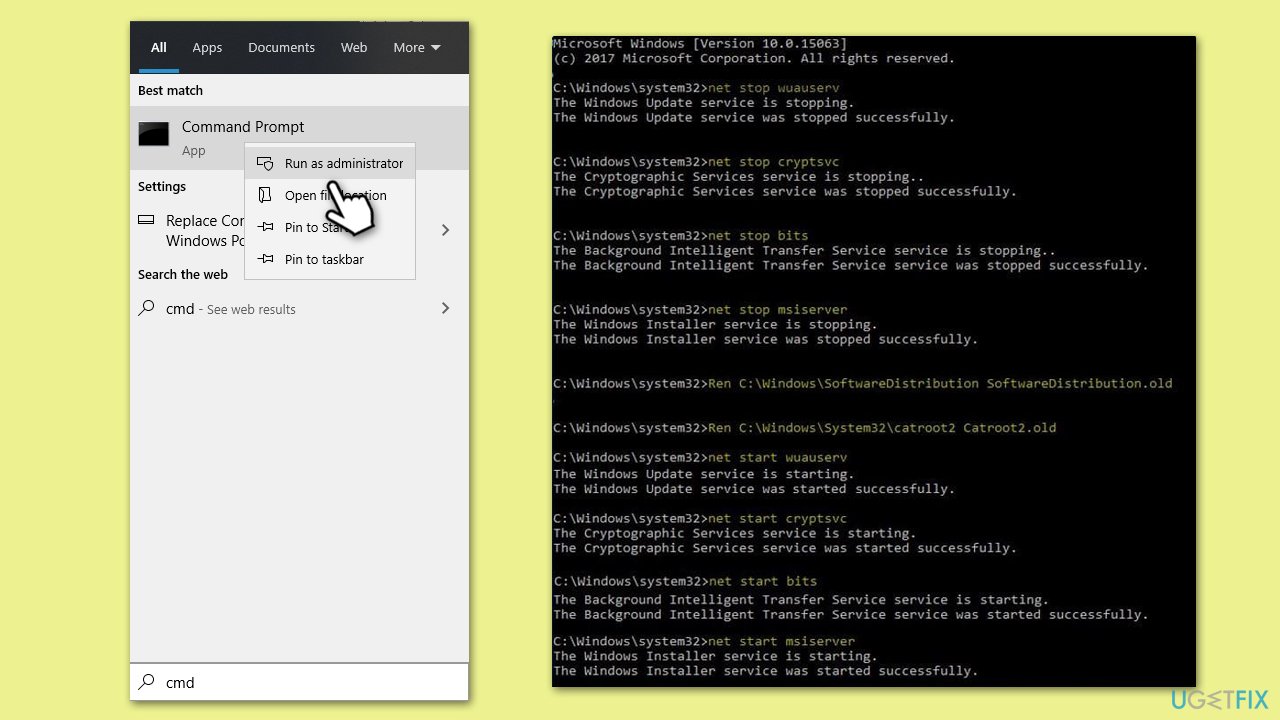
- Open Command Prompt as administrator again.
- Stop the Windows Update-related services by running the following commands one at a time, pressing Enter after each one:
net stop wuauserv
net stop cryptSvc
net stop bits
net stop msiserver - Rename the SoftwareDistribution and Catroot2 folders by running the following commands:
ren C:\Windows\SoftwareDistribution SoftwareDistribution.old
ren C:\Windows\System32\catroot2 Catroot2.old
Note: If your Windows installation is not on the C drive, replace "C" with the appropriate drive letter. - Restart the Windows Update-related services by running the following commands:
net start wuauserv
net start cryptSvc
net start bits
net start msiserver - Reboot your PC.
Fix 5. Perform Disk Cleanup to clear various temp files
Disk Cleanup helps in clearing temporary files and other system files that might be causing conflicts with the Microsoft Store.
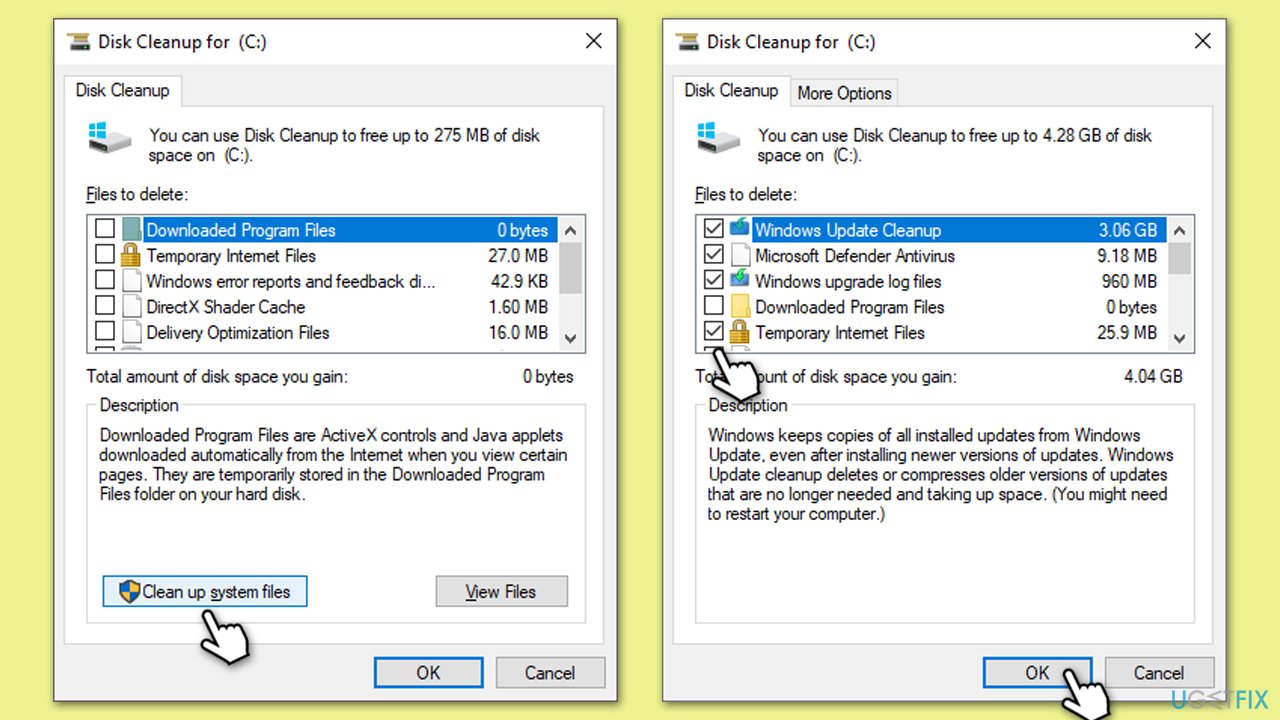
- Open the Windows search bar and type Disk Cleanup. Press Enter to open the Disk Cleanup utility.
- In the Disk Cleanup window, click Clean up system files.
- Select the drive again and click OK.
- In the list of files that can be cleaned up, select the largest portions of data, such as Temporary Internet Files, Windows Update, Temporary Files, and others.
- Click OK to begin the cleanup process.
Fix 6. Repair or reset the Microsoft Store
Repairing or resetting the Microsoft Store can fix issues by restoring the Store to its default settings.
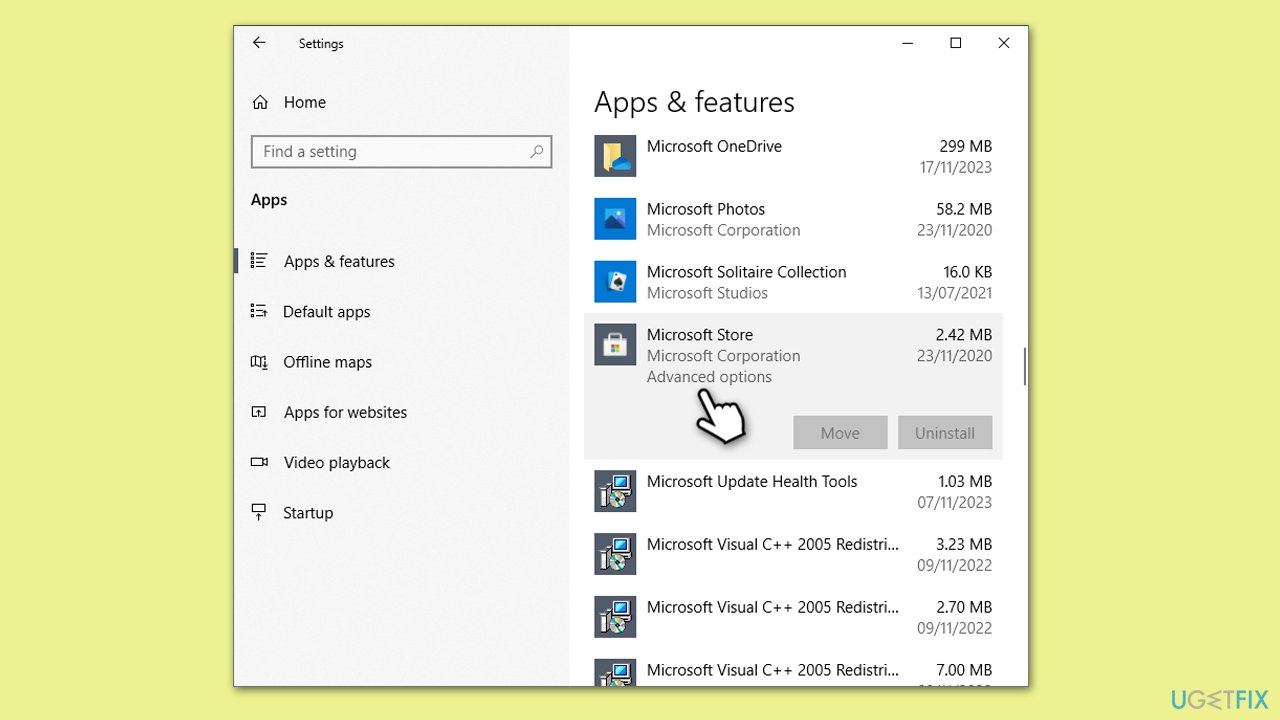
- Right-click on Start and select Apps & Features.
- Scroll down to find Microsoft Store and click Advanced options.
- Scroll down again and click Terminate and Repair.
- If that does not work, try using Reset.
Fix 7. Reinstall Microsoft Store via PowerShell
Reinstalling the Microsoft Store through PowerShell can resolve deeper issues by completely reinstalling the app.
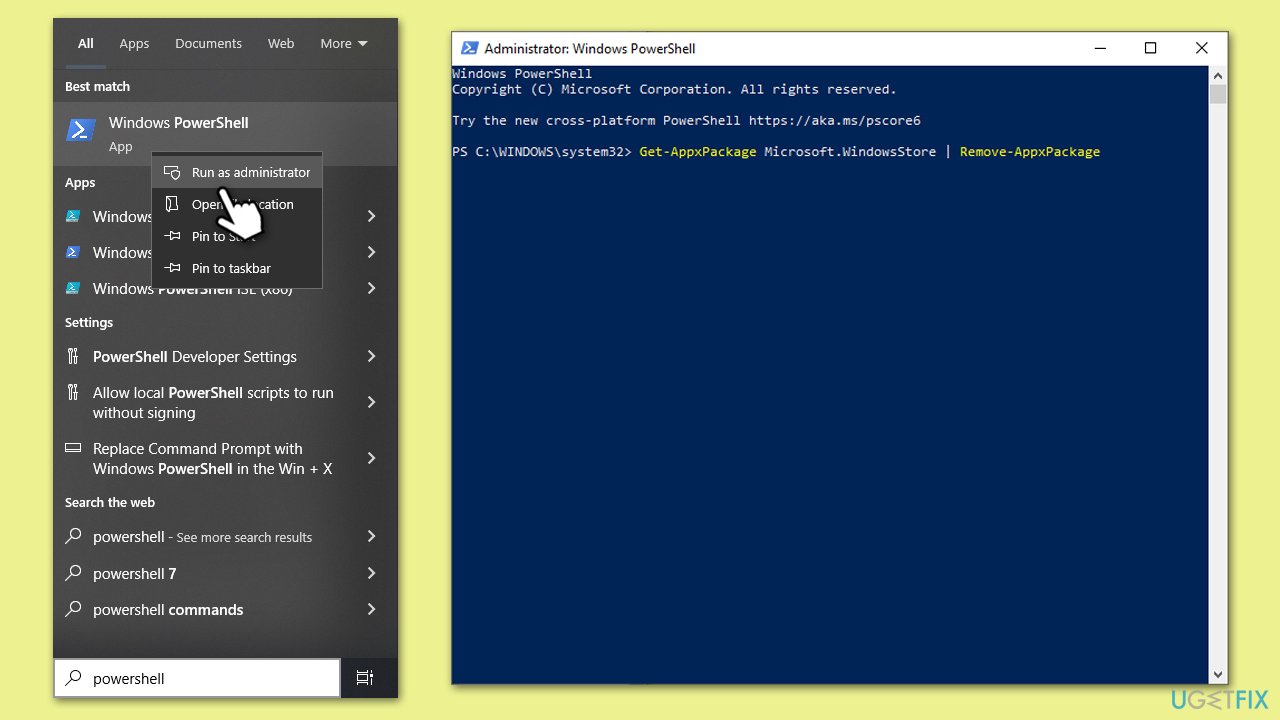
- Open PowerShell as administrator.
- In the new window, copy and paste the following command, pressing Enter after:
Get-AppxPackage Microsoft.WindowsStore | Remove-AppxPackage - With the next command, you can install the Store:
Add-AppxPackage -register "C:\Program Files\WindowsApps\Microsoft.WindowsStore*\AppxManifest.xml" -DisableDevelopmentMode - Press Enter and close down PowerShell.
Bottom line
To fix the 0x00000005 error in the Microsoft Store, users can try running the Windows Store Apps troubleshooter, clearing the Store cache, checking for Windows updates, and ensuring that the Store has the required permissions. Disabling conflicting software temporarily may also help. If these solutions do not work, consider using a potent Windows repair software.
Frequently asked questions
The error 0x00000005 typically indicates a permissions issue that prevents the Microsoft Store from functioning properly on Windows 10. It can occur due to corrupted system files or incorrect user account settings.
To fix this error on Windows 11, you can try resetting the Microsoft Store cache by running the 'wsreset' command in the Run dialog. Additionally, ensure that your Windows is updated and check your account permissions.
Yes, check your account settings to ensure you're logged in with an administrator account, and verify that your system's date and time settings are correct, as these can affect the Microsoft Store's functionality.




Report an issue
What's wrong with this guide? We review every report and update or remove content.
Report received — thank you. We'll review and fix it.
You need a free account to submit a report.
Be the first to comment