How to fix
Microsoft Store error 0x80045c3c
on Windows
Resolve Microsoft Store error 0x80045c3c on Windows 10 and 11 effortlessly. Get expert-tested solutions and start downloading apps in minutes!

What causes How to fix Microsoft Store error 0x80045c3c in Windows?
- Corrupted Store cache files
- Connection issues
- Corrupted system files
- Issues with Microsoft Store installation
- Problems with app registration
Repairs Windows system files, removes malware, and restores a clean OS state — without reinstalling.
I tried installing an app from Microsoft Store but it didn't work and instead, I got a 0x80045c3c error. Is there an easy way to fix this or do I need to contact Microsoft?
Microsoft Store is a widely used, built-in platform that allows users to buy, download, and update apps that are checked for security, making them more reliable than those from third parties. However, the usage of the app is not always smooth, and errors like 0x80045c3c are not uncommon.
While we already talked about this particular error affecting Xbox Live (recently rebranded to Xbox Game Pass Core), this time we will be focusing on those who experience the 0x80045c3c error when trying to employ Microsoft Store.
The 0x80045c3c error can affect a particular app, a few of them, or all of them. Meaning that some or all of them might fail to install or be updated. As such, you may risk your computer being exposed to potential security vulnerabilities and miss out on the newest features and bug fixes from the app developers.
If you are facing the 0x80045c3c error when using the Microsoft Store to download or update apps, you can try several things to fix it. For example, clearing Store cache files, running the Store apps troubleshooter, or checking for connection issues is a good place to start.
If the mentioned methods don't help, you can always try more complex ones, such as repairing corrupted system files, repairing or resetting Microsoft Store, re-registering apps, reinstalling the app, or using Media Creation Tool to fix the 0x80045c3c error for good.
For a more autonomous approach, we recommend you employ a potent repair application [d1], which is extremely effective in instances where you need to clean various caches, address registry issues, repair corrupted system files, and more.
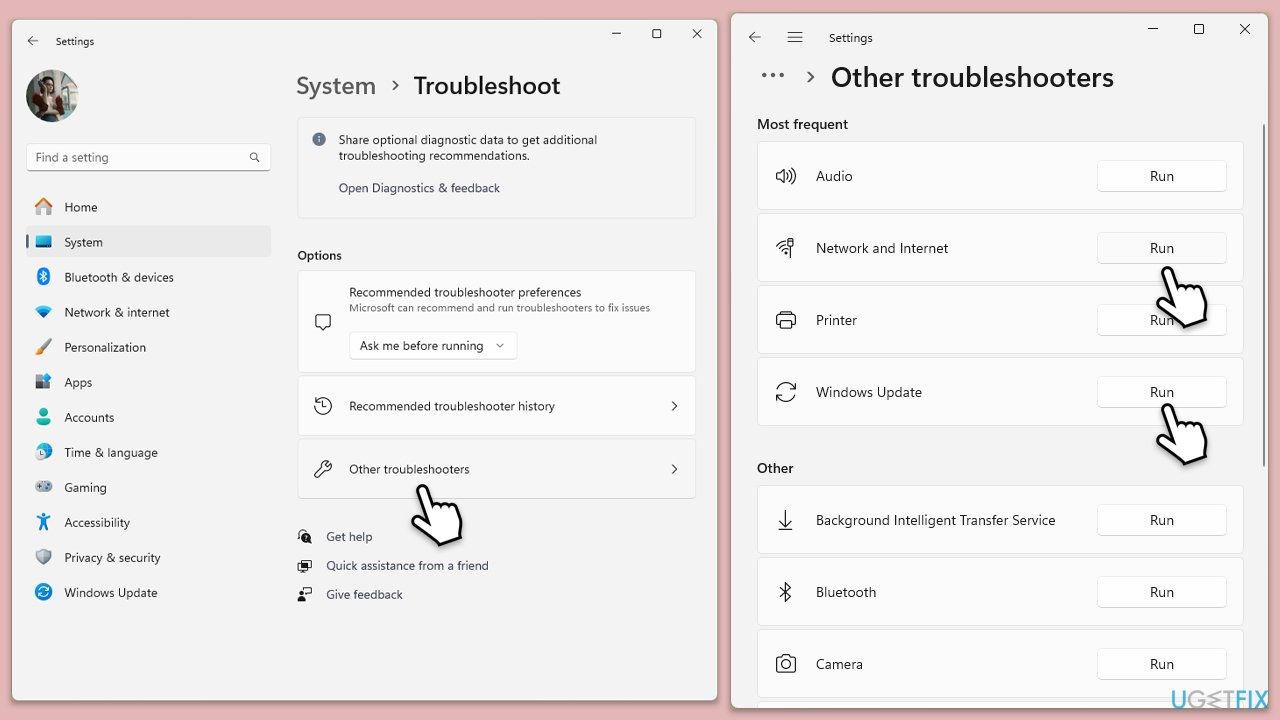
Fix 1. Run troubleshooters
Let's start with easier solutions - see if troubleshooters will help you.
- In Windows search, type in troubleshoot and press Enter (you can also go to Start > Settings > System > Troubleshoot).
- Pick Other troubleshooters (in Windows 10, pick Additional troubleshooters).
- Scroll down to locate the Windows Store Apps and click Run.
- Wait until the scan is finished, and apply the changes.
- Repeat this process with Network & Internet connections and Windows update troubleshooters.
To run Network troubleshooter in Windows 10, follow these steps:
- Right-click on Start and pick Settings.
- Go to the Network & Internet section.
- On the right side, find the Advanced network settings section.
- Click Network troubleshooter and wait.
- The fixes will be automatically applied.
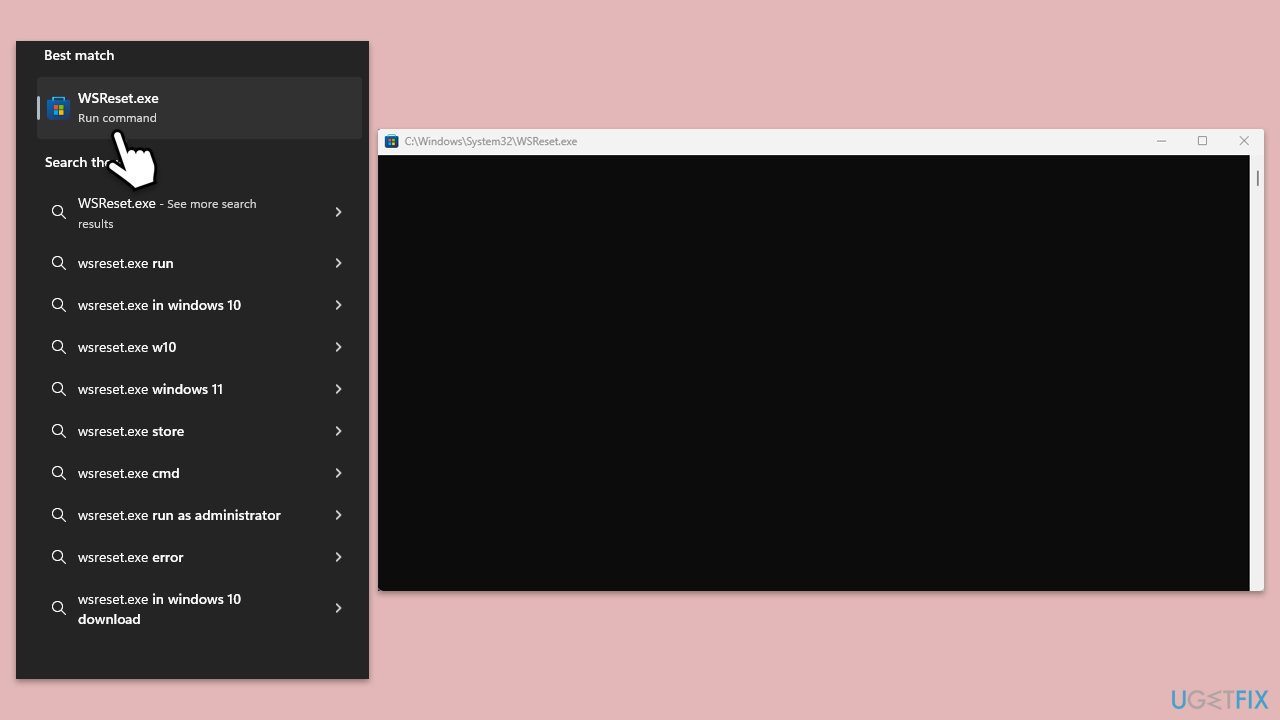
Fix 2. Clear Microsoft Store cache
Bugged cache files can be a reason for many Microsoft Store errors. You can reset it as follows:
- Type WSReset.exe in the Windows search bar and press Enter.
- Wait till a black pop-up window shows up – do not close it.
- The pop-up window will close soon, and the Windows Store should reopen.
- Check if the error is gone.
Fix 3. Check relevant services
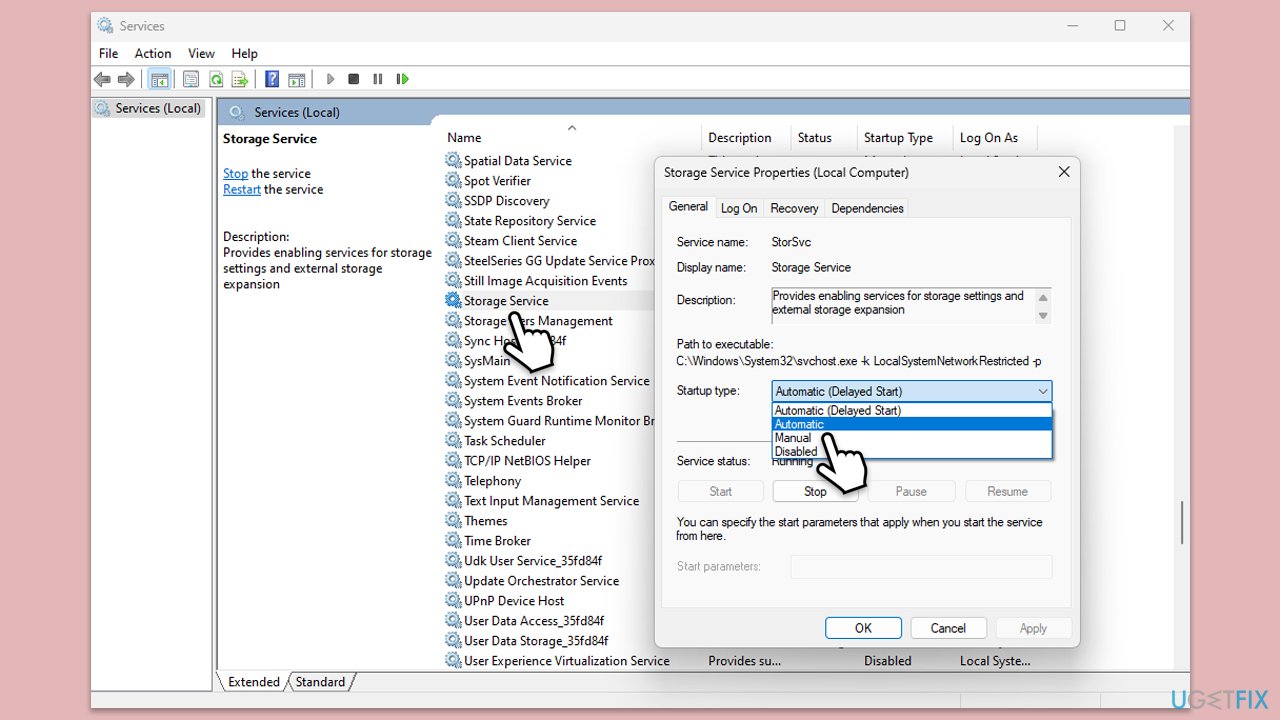
- Type Services in Windows search and hit Enter.
- Locate Windows Update, Windows Installer, Storage Service, and Windows Firewall in the list.
- Right-click on each and select Properties.
- Set the Startup type to Automatic - select it from the drop-down menu.
- Click Start if the service is not running.
- Click Apply and OK.
Fix 4. Repair corrupted system files
As mentioned before, you should ensure you fix system file corruption.
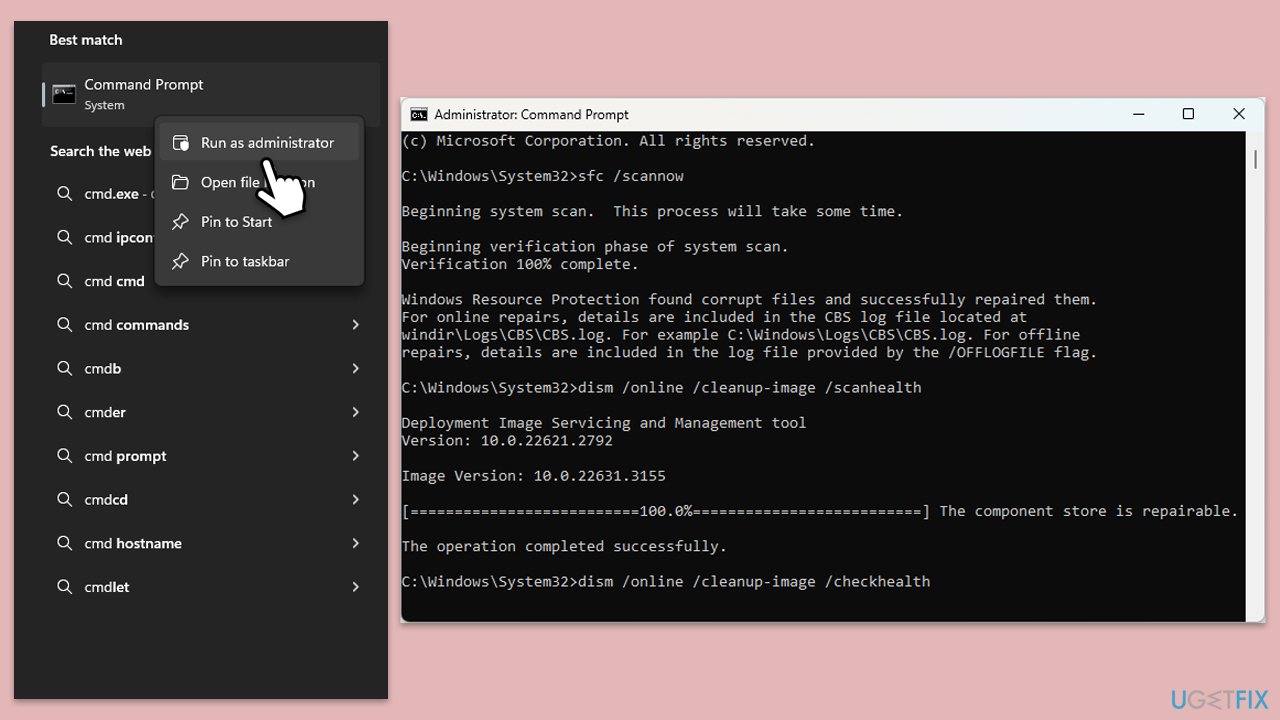
- Type cmd in Windows search.
- Right-click on the Command Prompt result and select Run as administrator.
- When User Account Control shows up, click Yes.
- Paste the following command into the new window:
sfc /scannow - Press Enter and wait till the scan is finished
- Once done, run this set of commands, pressing Enter each time:
DISM /Online /Cleanup-Image /CheckHealth
DISM /Online /Cleanup-Image /ScanHealth
DISM Online /Cleanup-Image /RestoreHealth /Source:C:\RepairSource\Windows /LimitAccess - Restart your computer.
Fix 5. Reinstall Microsoft Store
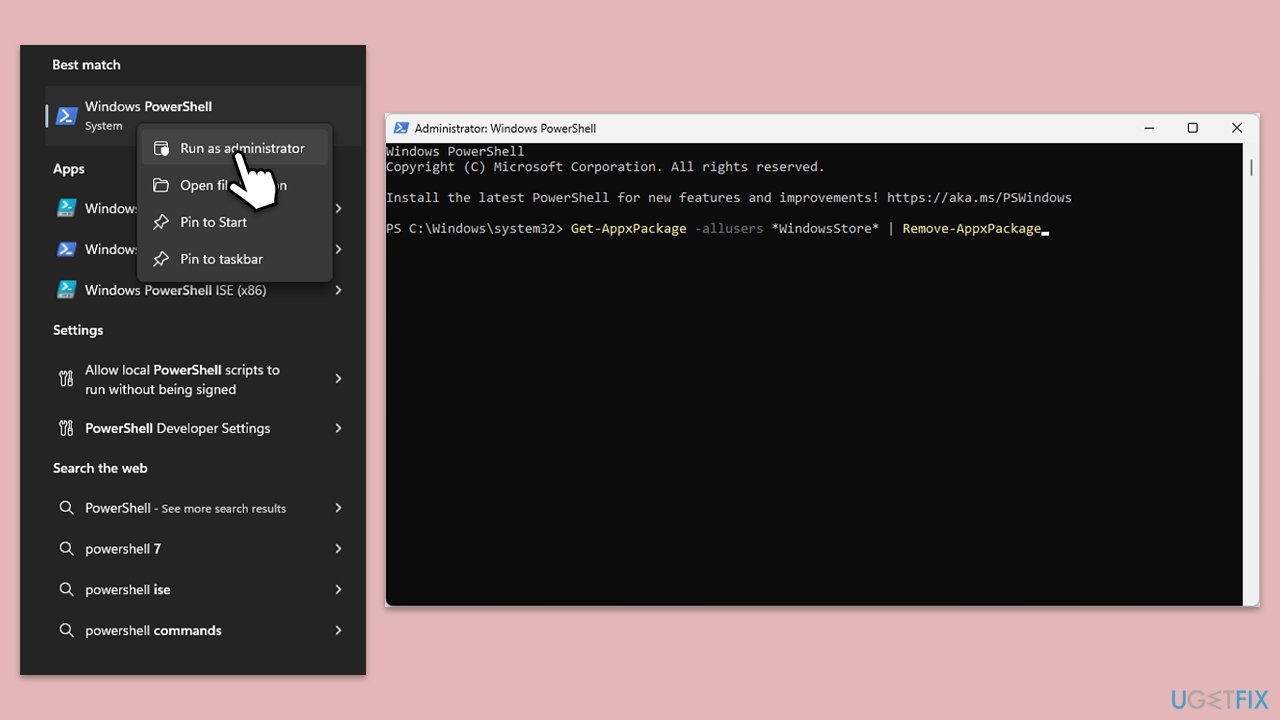
- Type PowerShell in Windows search.
- Right-click on PowerShell and select Run as administrator.
- When UAC shows up, click Yes.
- Type the following command and press Enter:
Get-AppxPackage WindowsStore | Remove-AppxPackage - Then use the following command to reinstall the Store:
Get-AppxPackage -allusers WindowsStore | Foreach {Add-AppxPackage -DisableDevelopmentMode -Register "$($_.InstallLocation)\AppXManifest.xml"} - Restart your PC.
Fix 6. Reregister all apps
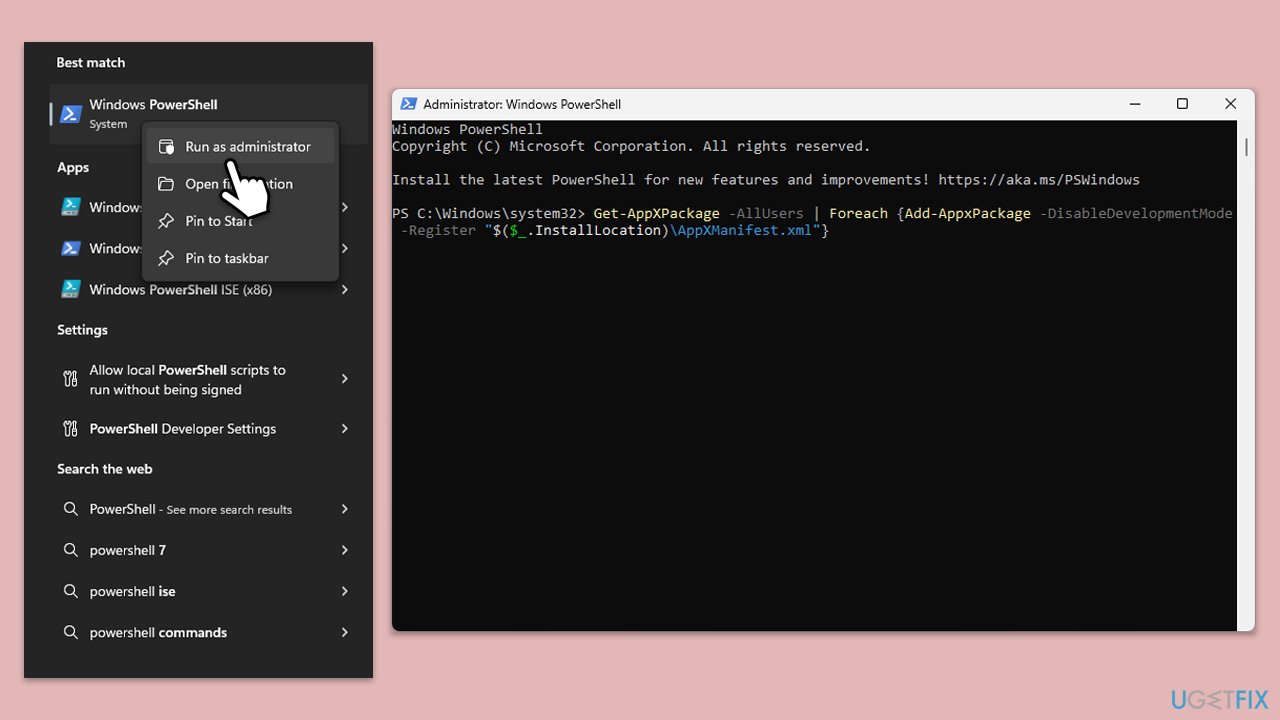
- Open PowerShell as administrator.
- Type in the following and press Enter:
ren %localappdata%\Packages\Microsoft.WindowsStore_8wekyb3d8bbwe\LocalState cache.old - Then type the following and press Enter:
powershell -ExecutionPolicy Unrestricted
Get-AppXPackage -AllUsers | Foreach {Add-AppxPackage -DisableDevelopmentMode -Register "$($_.InstallLocation)\AppXManifest.xml"} - Restart your device.
Fix 7. Use the Media Creation tool to repair Windows installation
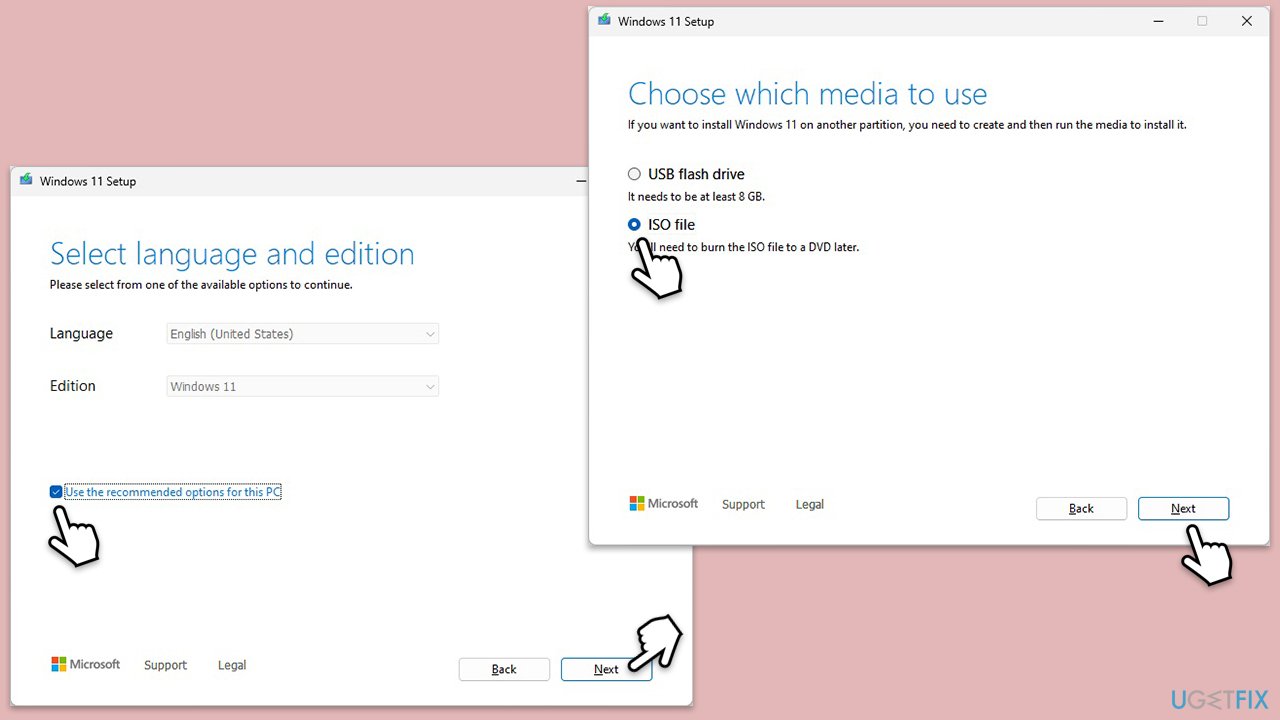
- Visit the official Microsoft website and download Windows 10 installation media (Windows 11 version).
- Double-click the installer, select Yes when UAC shows up, and agree to the terms.
- Select the ISO file and click Next, then follow the instructions to finish the process.
- Right-click on ISO and click Mount.
- Open the location of the ISO, right-click on it, and select Mount.
- Launch the installer.
- Select Upgrade this PC now and click Next.
- Windows will start downloading the needed files.
- Agree to the terms once again and click Next.
- Before installing, ensure you are happy with your choices (otherwise, you can click the Change what to keep option).
- Finally, click Install to begin the upgrade process.
Bottom line
To fix the 0x80045c3c error, you can try clearing the Store cache, running the Store apps troubleshooter, or checking your internet connection. If these methods do not resolve the issue, consider repairing or resetting Microsoft Store, re-registering apps, or using the Media Creation Tool.
Frequently asked questions
The error 0x80045c3c typically indicates a problem with the Microsoft Store app or its connection to the internet, preventing users from downloading or updating applications.
To reset the Microsoft Store, open the Run dialog by pressing Win + R, type 'wsreset.exe', and hit Enter; this will clear the cache and may resolve the error.
Yes, you can repair the Microsoft Store by going to Settings > Apps > Apps & features, locating Microsoft Store, clicking on Advanced options, and selecting the Repair option.




Report an issue
What's wrong with this guide? We review every report and update or remove content.
Report received — thank you. We'll review and fix it.
You need a free account to submit a report.
Be the first to comment