How to fix
Microsoft Store error 0x80073d0a
on Windows
Resolve Microsoft Store error 0x80073d0a quickly on Windows 10 and 11 with our expert-tested solutions and tips. Fixed in minutes!

What causes How to fix Microsoft Store error 0x80073d0a?
- Corrupted system files
- Issues with Microsoft account
- Temporary glitches in the Microsoft Store
- Outdated Windows version
- Conflicting software or settings
Repairs Windows system files, removes malware, and restores a clean OS state — without reinstalling.
Hello. Every time I try to install any app from the Microsoft Store I receive the 0x80073d0a error. Is there anything I can do to get rid of it?
The Microsoft Store is an online marketplace that offers a wide variety of digital products, including apps, games, movies, and TV shows. The Store is available on Windows PCs, Xbox consoles, and Windows phones. The Microsoft Store is valuable because it has a user-friendly interface that makes it easy for users to find and download the products they want. The Store also regularly updates with new products, so users can keep exploring.
The Microsoft Store was first released in October 2012, as part of the Windows 8 operating system. The appearance of the built-in store in Windows diminished the need to download applications from third-party websites that can be unsafe and infect users with PUPs (potentially unwanted programs)[ref en-1] or malware.
However, users quite frequently encounter problems when trying to install apps from the Microsoft Store. We previously wrote about errors, like 0x80D03805, 0x80240066, 0x8A150006, etc. Users keep reporting another error code when they try to install any app from the store - 0x80073d0a.
It is unknown what exactly could cause this error to appear. In this guide, you will find 7 possible solutions. In case you want to avoid a lengthy troubleshooting process, you can use a repair tool like [d1] that can fix most system errors, BSODs,[ref en-2] corrupted files, and registry[ref en-3] issues automatically. Otherwise, follow the step-by-step instructions below.
Solution 1. Sign out and Sign in to your Microsoft Account
- Type Store in Windows search and hit Enter
- Click on your user account profile picture and then select the user account and pick Sign out
- You can log back in now – click the user profile icon and select Sign in
- Pick Use a different account > Microsoft account > Continue
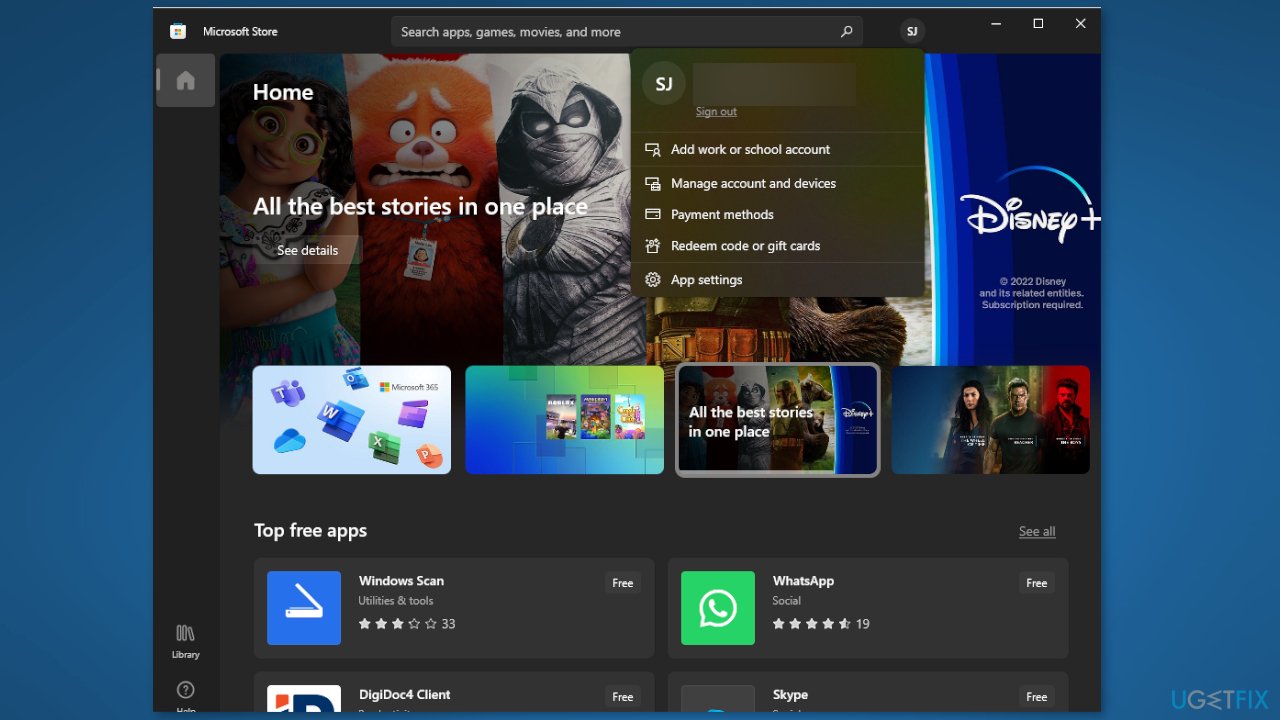
- Enter your credentials to log in
Solution 2. Fix Corrupted System Files
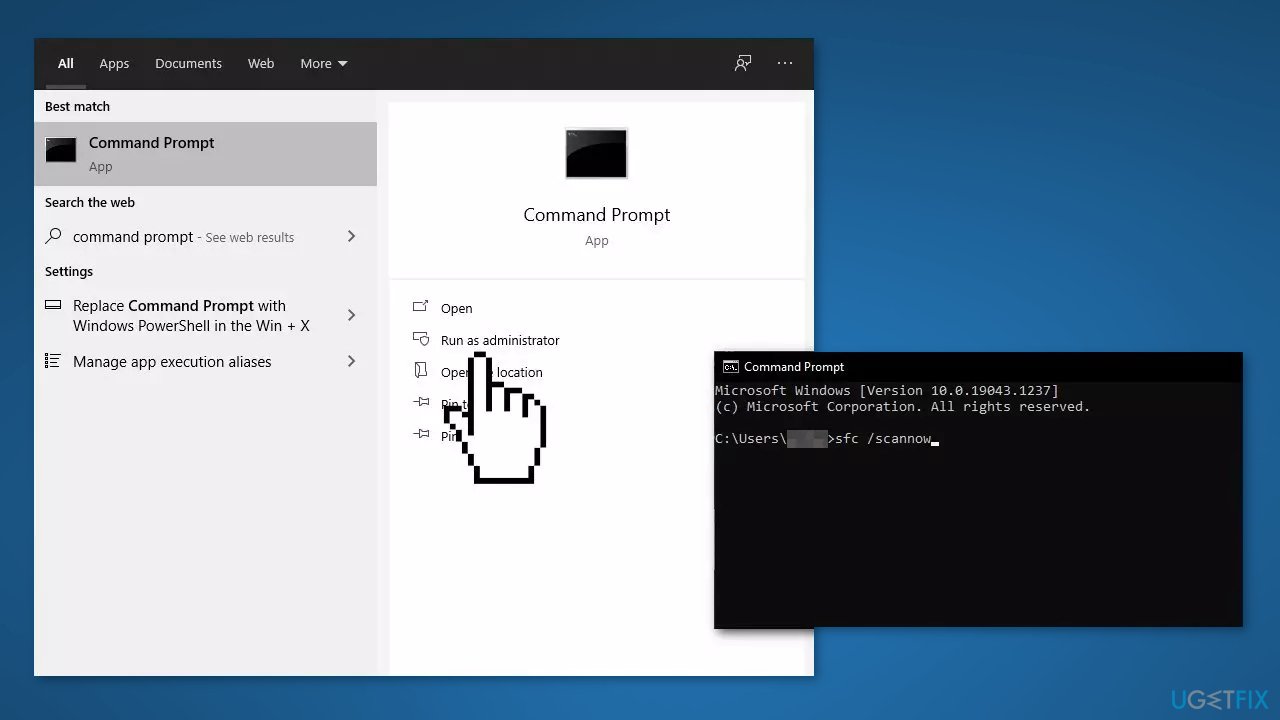
Use Command Prompt commands to repair system file corruption:
- Open Command Prompt as administrator
- Use the following command and press Enter:
sfc /scannow
- Reboot your system
- If SFC returned an error, then use the following command lines, pressing Enter after each:
DISM /Online /Cleanup-Image /CheckHealth
DISM /Online /Cleanup-Image /ScanHealth
DISM /Online /Cleanup-Image /RestoreHealth
Solution 3. Run the Store Apps Troubleshooter
- Type Troubleshoot in Windows search and press Enter
- Click Additional troubleshooters if you can't see them listed
- Scroll down to find Windows Store Apps
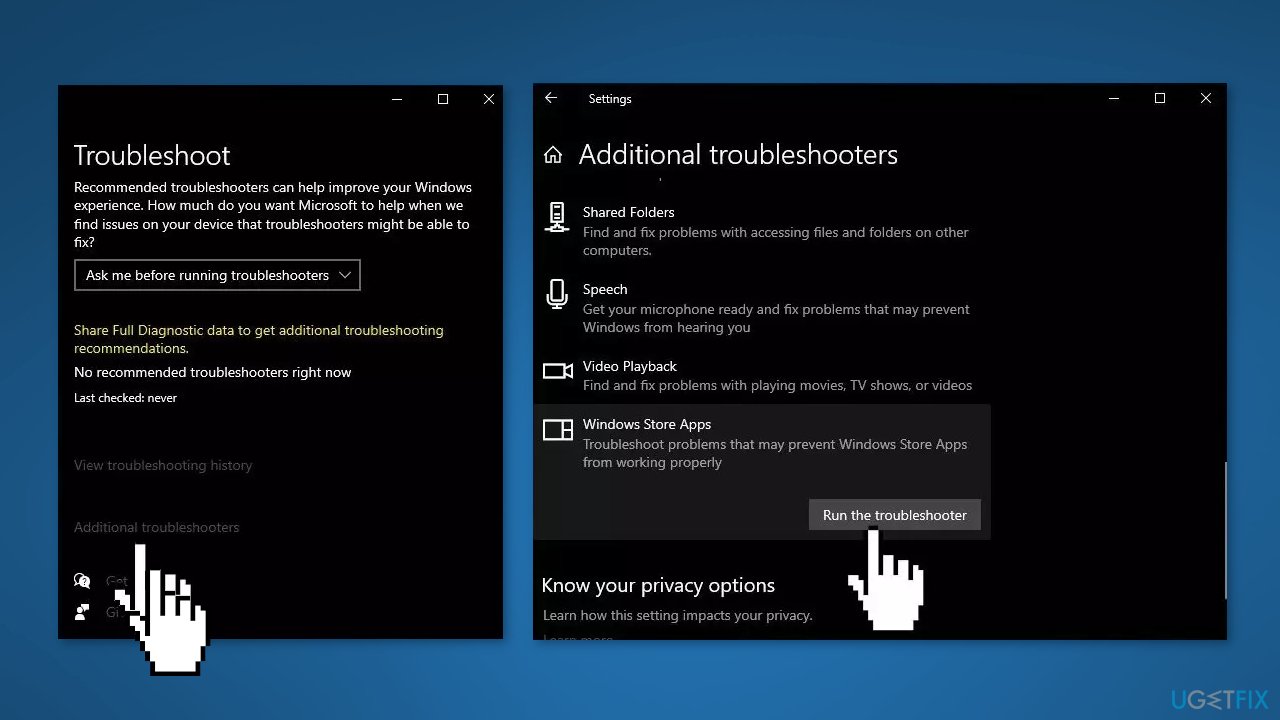
- Click and select Run the troubleshooter
Solution 4. Install Windows Updates
- Press the Windows key to open the Start menu
- Type Check For Updates
- Click on Check for Updates
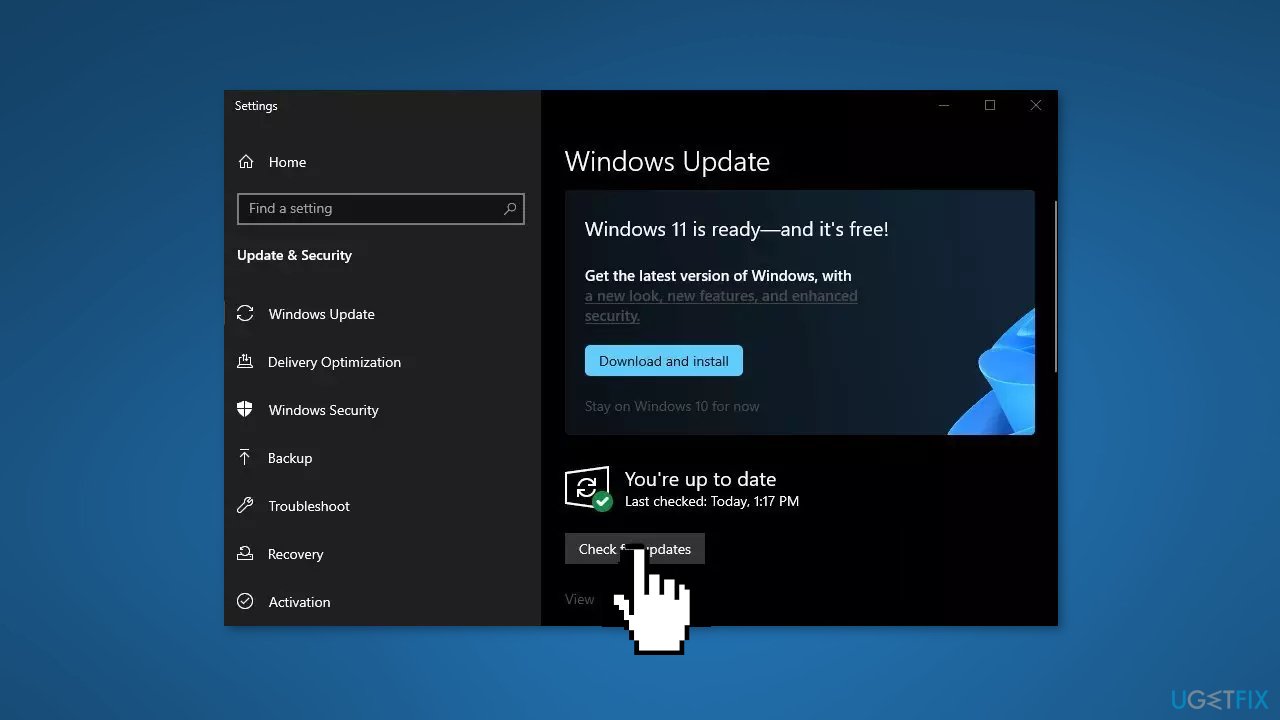
- Install any available recommended updates
Solution 5. Clear Microsoft Store Cache
- Open the Windows Powershell from the search bar by typing powershell
- Right-click on the search result and select Run as Administrator
- If a UAC opens, hit Yes to provide your consent
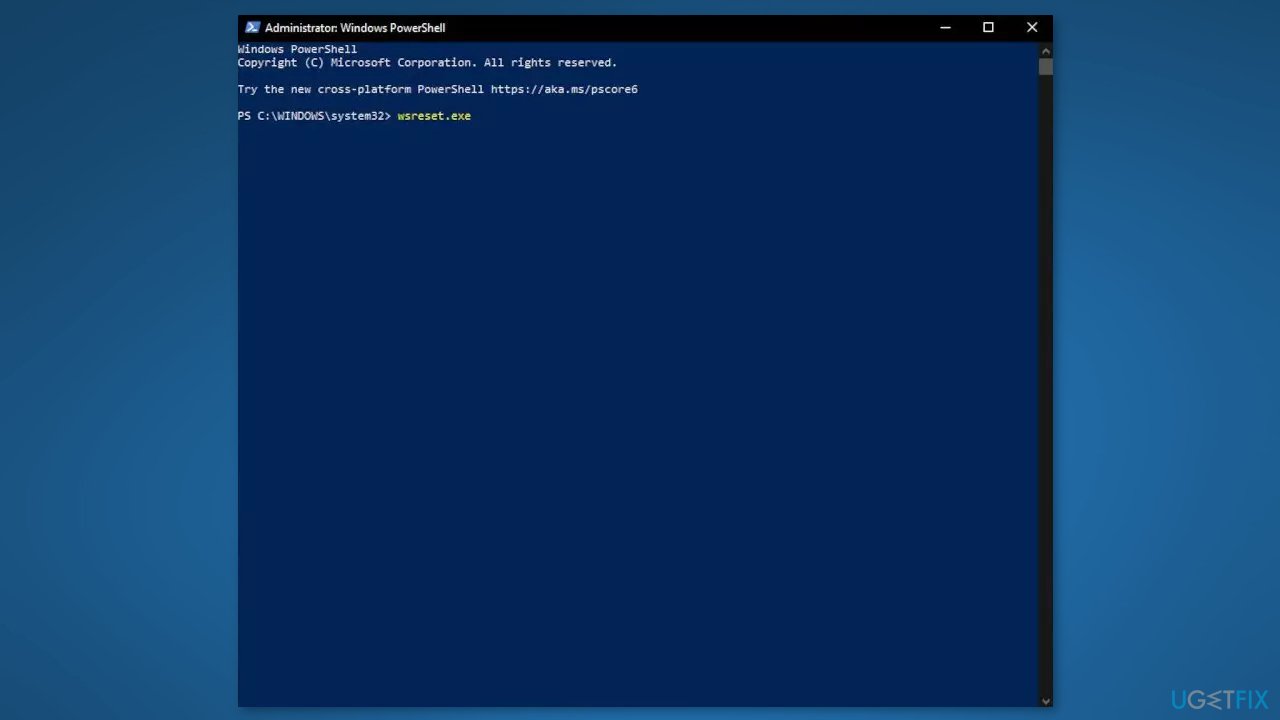
- Type WSReset.exe and hit Enter
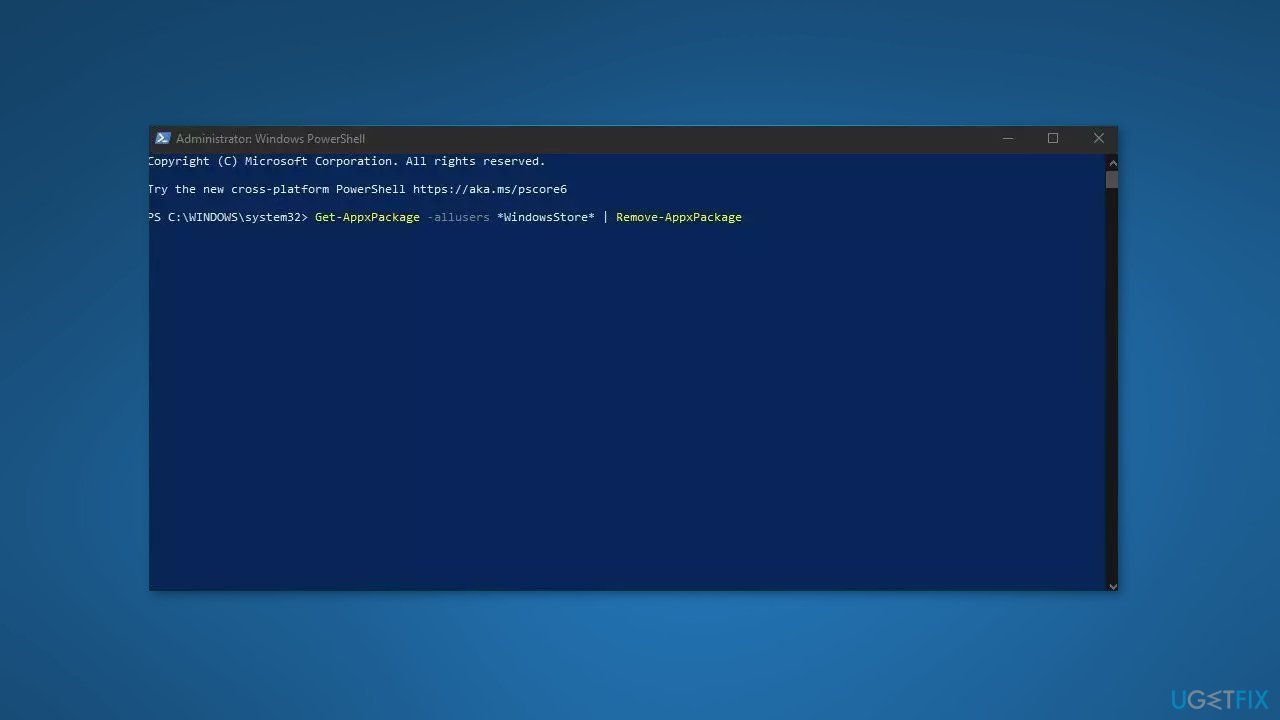
Solution 6. Reinstall the Microsoft Store
- Press Windows + X keys
- Click Windows PowerShell (Admin)
- At the prompt, type the following commands and hit Enter:
Get-AppxPackage -allusers *WindowsStore* | Remove-AppxPackage
Get-AppxPackage -allusers *WindowsStore* | Foreach {Add-AppxPackage -DisableDevelopmentMode -Register “$($_.InstallLocation)\AppXManifest.xml”}
Solution 7. Repair Install Windows
- Download the Windows 10 ISO file or Windows 11 ISO file
- Now mount the ISO file
- Double-click on the file setup.exe to start the repair, install from the mounted drive
- When the installation provides the License Terms, read them and click Accept
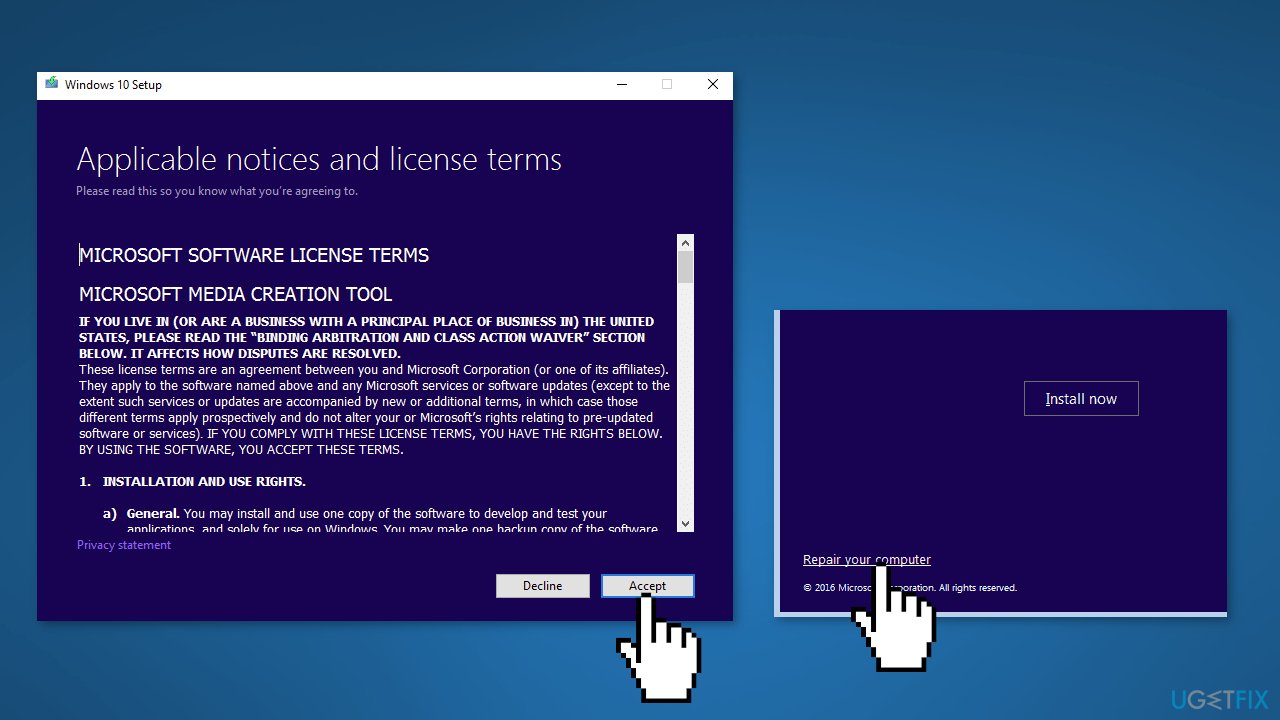
- Windows will now check for updates and will install the ones available
- When all is set, click Install
- When the installation is complete, follow the on-screen instructions
Bottom line
To fix the Microsoft Store error 0x80073d0a, you can sign out and sign back into your Microsoft account or repair corrupted system files using Command Prompt. If these solutions do not resolve the issue, consider using a repair tool or further troubleshooting steps.
Frequently asked questions
Try resetting the Microsoft Store by going to Settings > Apps > Apps & features, selecting Microsoft Store, and clicking on 'Advanced options' to reset it. Additionally, ensure that your Windows 10 is up to date by checking for updates in Settings.
Yes, you can fix error 0x80073d0a on Windows 11 by running the Windows Store Apps troubleshooter from Settings > System > Troubleshoot > Other troubleshooters. This tool can help identify and fix issues related to the Microsoft Store.
Yes, clearing the Microsoft Store cache can help resolve error 0x80073d0a; you can do this by pressing Win + R, typing 'wsreset.exe', and hitting Enter. This will reset the cache and may fix the issue.




Report an issue
What's wrong with this guide? We review every report and update or remove content.
Report received — thank you. We'll review and fix it.
You need a free account to submit a report.
Be the first to comment