How to fix
Microsoft Store error 0x80246016
on Windows
Resolve Microsoft Store error 0x80246016 on Windows 10 and 11 effortlessly with our expert-tested solutions. Get back to downloading apps in minutes!

What causes How to fix Microsoft Store error 0x80246016?
- Poor Internet connection
- Lack of permissions to perform downloads
- Corrupted files of system update components
- Conflicting firewall or antivirus settings
Repairs Windows system files, removes malware, and restores a clean OS state — without reinstalling.
I have noticed there were some updates pending on some of my apps in the Microsoft Store. However, when I tried to install these updates, I received a 0x80246016 error code. It doesn't seem like it continues not to function properly. I'd be grateful if you could provide some solutions for this. My system is Windows 10.
Microsoft Store is an integral part of Windows, serving as a unified marketplace for downloading and updating apps-from system utilities to third-party software. It is engineered to handle the entire experience of application discovery and management with finesse. At the same time, though, everything that can go wrong with any other digital service sometimes does with the Microsoft Store, which prevents users from downloading or updating applications.
A less common but persistent problem that users happen to face is Microsoft Store error code 0x80246016, which mainly occurs when they try to update any application using the Store. This bug is annoying because it disrupts application functionality and makes new features or security updates inaccessible. Other codes may also appear, besides this one; for example, 0x80072EFD, 0x803F7000, and 0x80073D0A, showing a wide range of issues from network connectivity problems to licensing conflicts to corrupted system files.
Specifically, error code 0x80246016 is related to downloading and installing app updates. Possible causes for this problem include poor conditions with the Internet connection, a lack of permissions to perform such a download, corrupted files of system update components, etc. Sometimes, the settings for firewalls or antivirus systems may conflict with Store's functionality and block needed communication with Microsoft servers, preventing it from downloading the updates.
Therefore, to fix the 0x80246016 error, users might want to check their internet connection, review the settings of firewalls and security, or reset Microsoft Store cache, depending on the nature of this error. Sometimes the use of ensuring the correct functionality of Windows Update components works or troubleshooting through system tools.
If you need help with these steps, we provide a detailed guide for you below. Before proceeding, you could try using an automatic option instead - [d1] is a perfect tool for those who want to save time when troubleshooting Windows issues.
Fix 1. Reset Microsoft Store cache
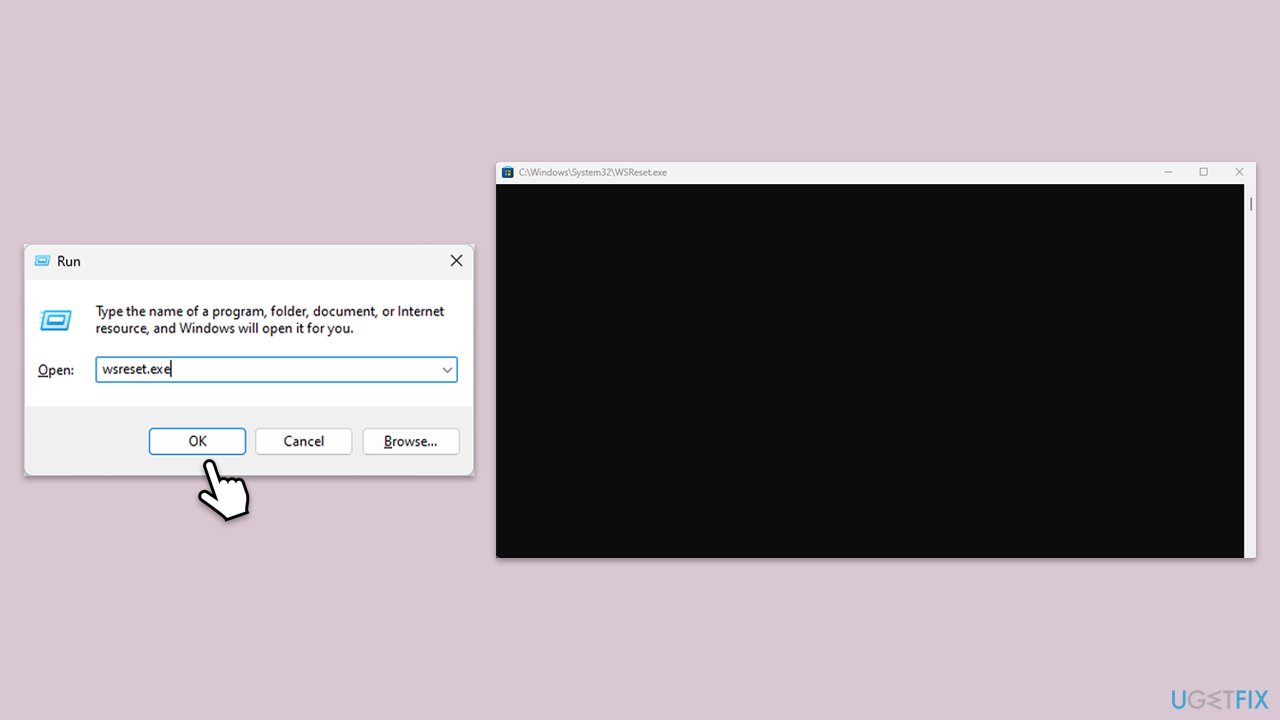
- Press the Win + R on your keyboard to open the Run dialog box.
- In the dialog box, type wsreset.exe and then hit Enter or click OK.
- A blank Command Prompt window will open (do not close it), and after about ten seconds, the window will close, and the Microsoft Store will open automatically.
Fix 2. Run relevant troubleshooters
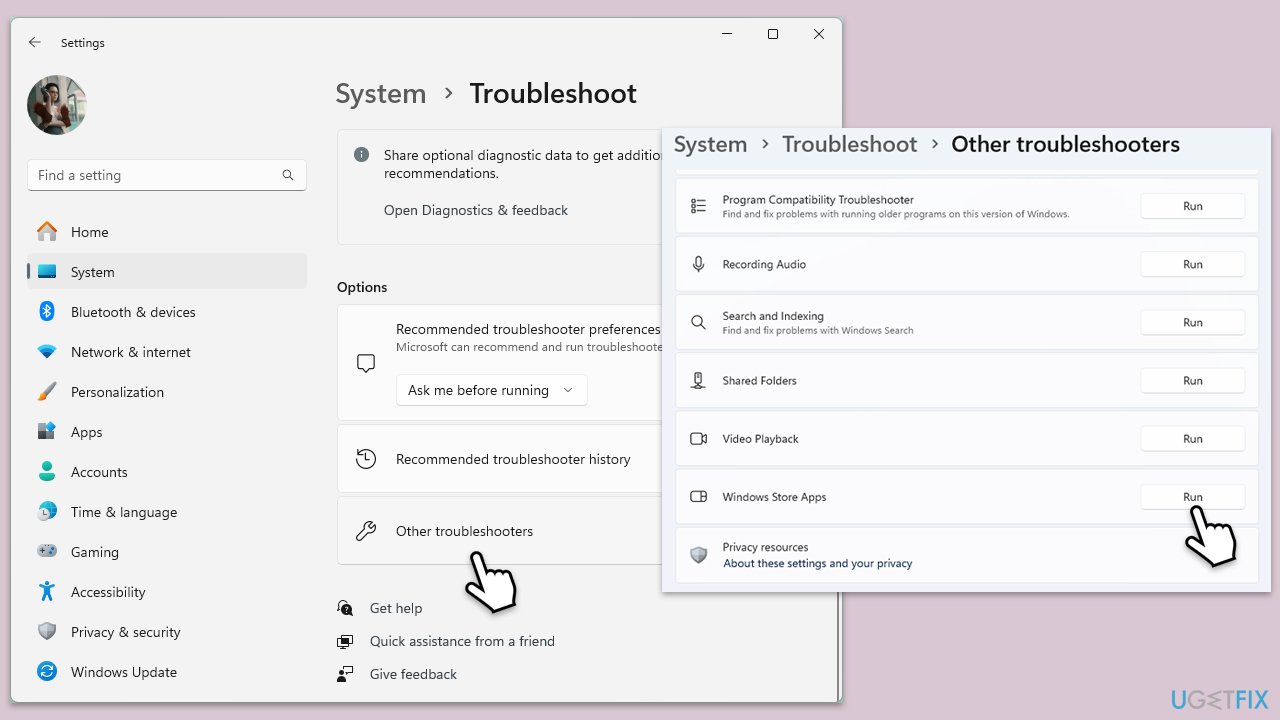
- In Windows search, type in troubleshoot and press Enter (you can also go to Start > Settings > System > Troubleshoot).
- Pick Other troubleshooters (in Windows 10, pick Additional troubleshooters).
- Scroll down to locate the Windows Store Apps and click Run.
- Wait until the scan is finished, and apply the changes.
- Repeat this process with Network & Internet connections and Windows update troubleshooters.
To run Network troubleshooter in Windows 10, follow these steps:
- Right-click on Start and pick Settings.
- Go to the Network & Internet section.
- On the right side, find the Advanced network settings section.
- Click Network troubleshooter and wait.
- The fixes will be automatically applied.
Fix 3. Update Windows
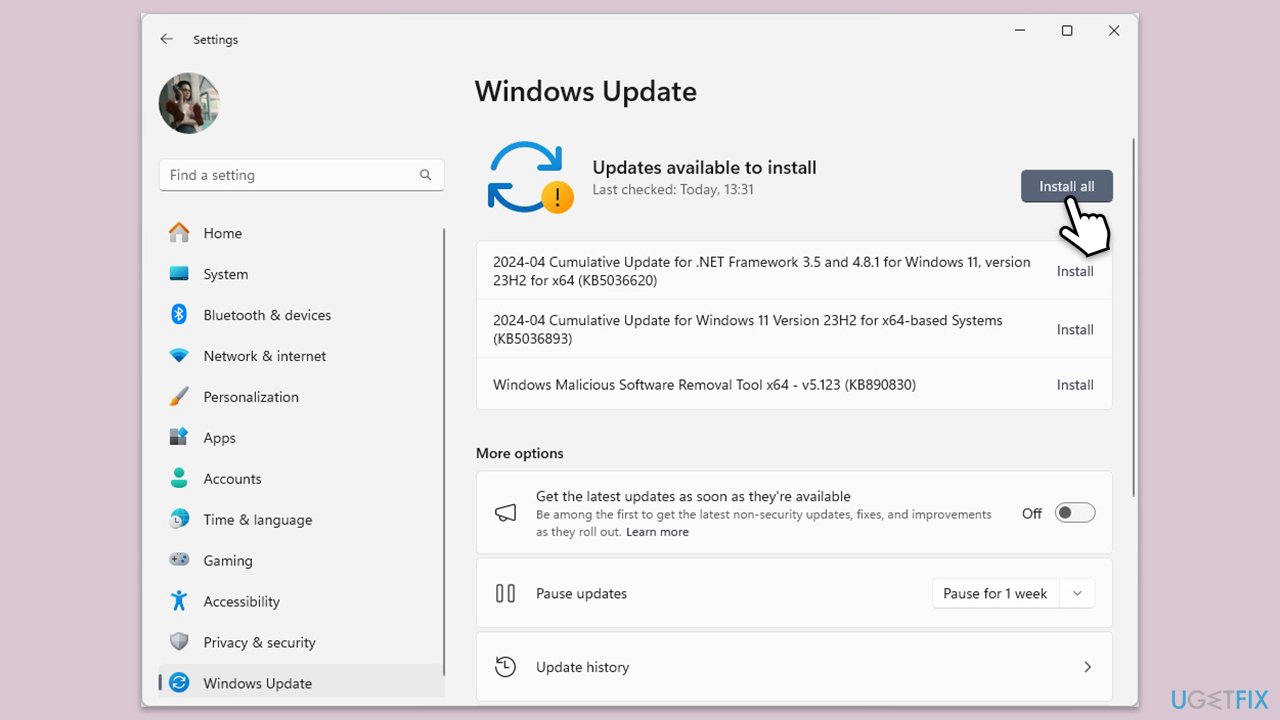
- Type Updates and press Enter.
- In the new window, click Install all (if pending) or Check for updates.
- Wait till all the files are downloaded and installed.
- If optional updates are available, install them as well.
- Restart your device when done.
Fix 4. Repair corrupted files
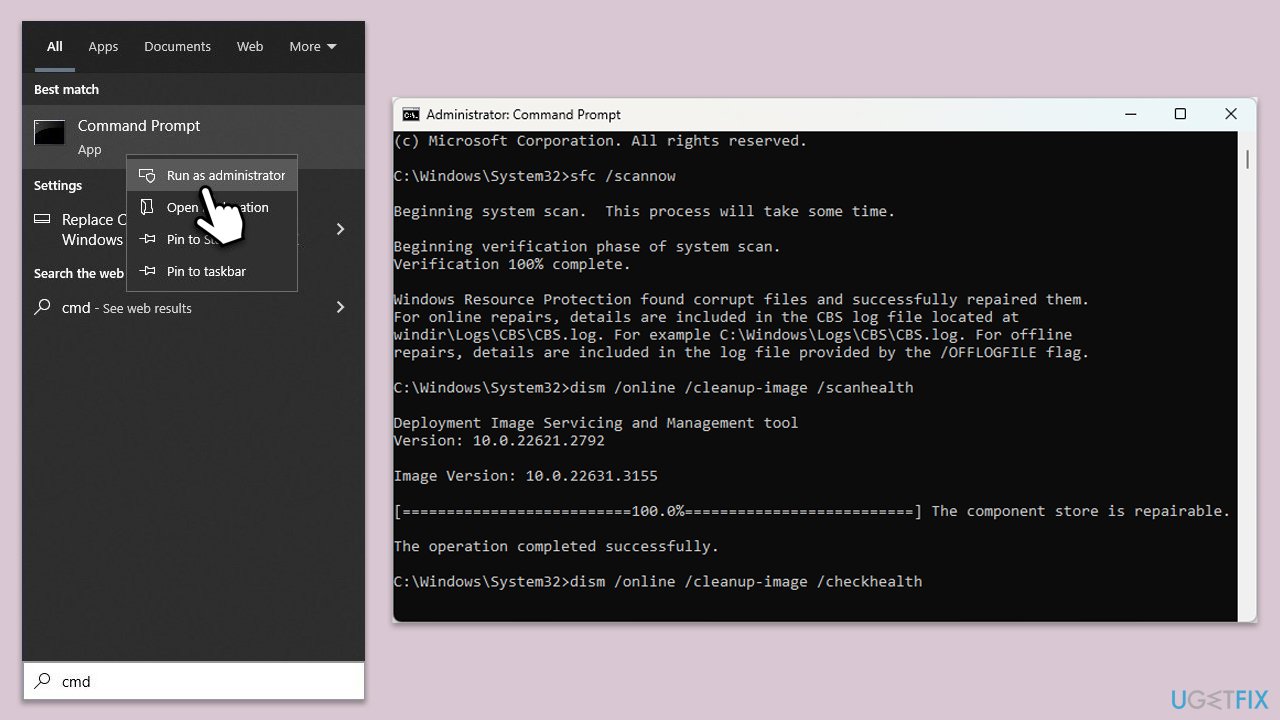
- Type cmd in Windows search.
- Right-click on Command Prompt and pick Run as administrator.
- User Account Control will ask you whether you want to allow changes – click Yes.
- Copy and paste this command and hit Enter:
sfc /scannow - Wait for the scan to finish.
- As soon as it finishes, Windows will report whether integrity violations were found and if they could be fixed. Regardless of the outcome, use these commands next, pressing Enter after each:
Dism /Online /Cleanup-Image /CheckHealth
Dism /Online /Cleanup-Image /ScanHealth
Dism /Online /Cleanup-Image /RestoreHealth - Close down the Command Prompt and restart your PC.
Fix 5. Reset Windows update components
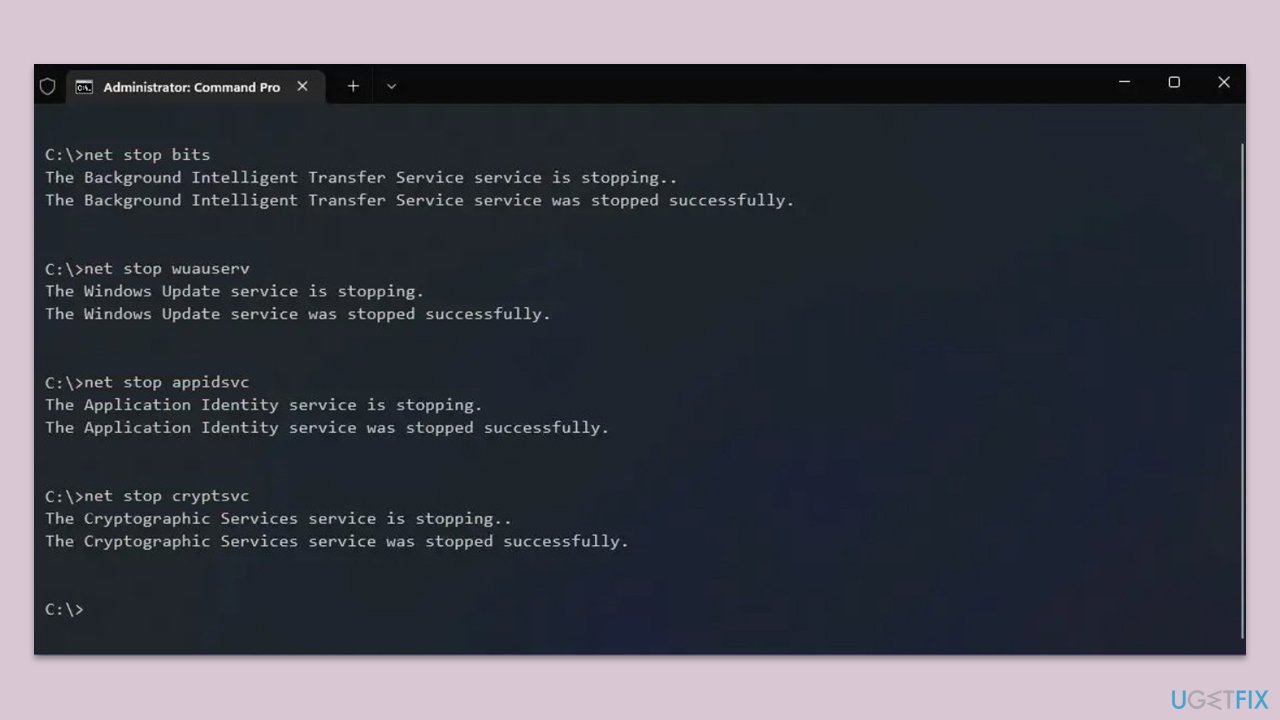
- Open Command Prompt as administrator.
- In the new window, use the following commands, pressing Enter after each:
net stop bits
net stop wuauserv
net stop appidsvc
net stop cryptsvc
Del “%ALLUSERSPROFILE%\Application Data\Microsoft\Network\Downloader\*.*”
rmdir %systemroot%\SoftwareDistribution /S /Q
rmdir %systemroot%\system32\catroot2 /S /Q
regsvr32.exe /s atl.dll
regsvr32.exe /s urlmon.dll
regsvr32.exe /s mshtml.dll
netsh winsock reset
netsh winsock reset proxy
net start bits
net start wuauserv
net start appidsvc
net start cryptsvc - Restart your system.
Fix 5. Repair or reset Microsoft Store
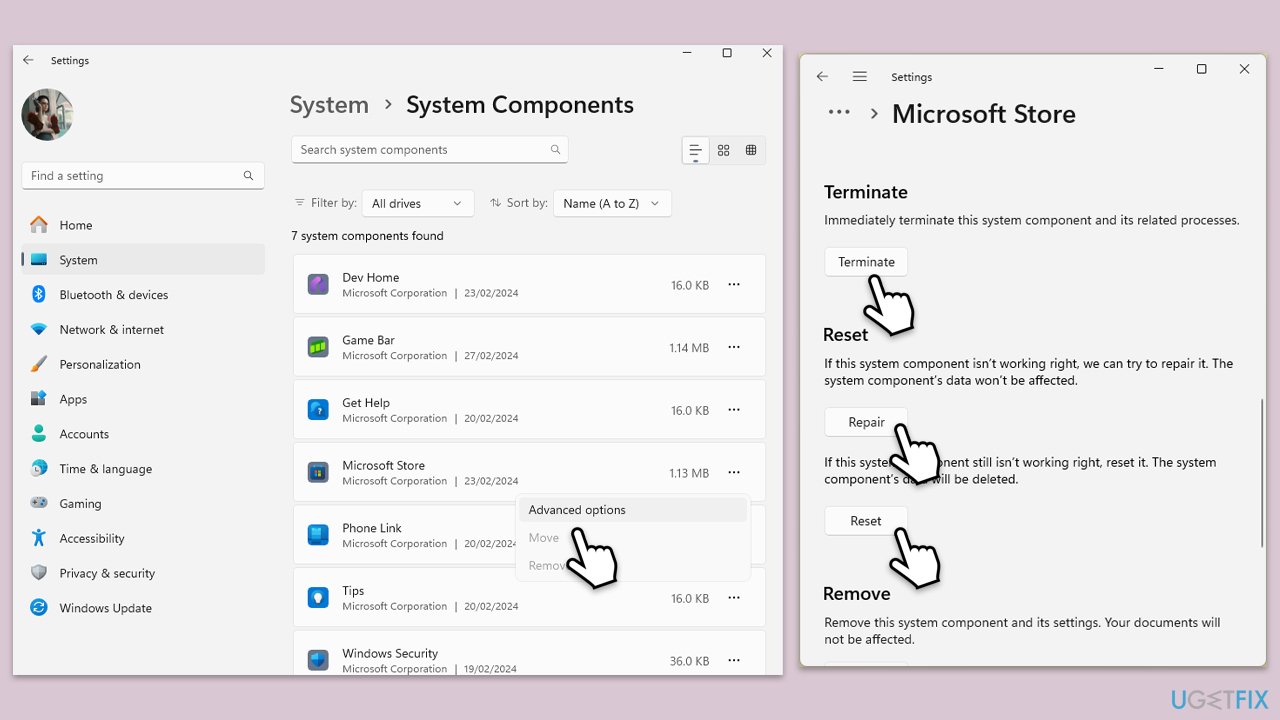
- Right-click on Start and select Apps & Features/Installed apps.
- Scroll down to find Microsoft Store and click Advanced options or go to Settings > System > System Components > Advanced options.
- Scroll down again and click Terminate and Repair.
- If that does not work, try using Reset.
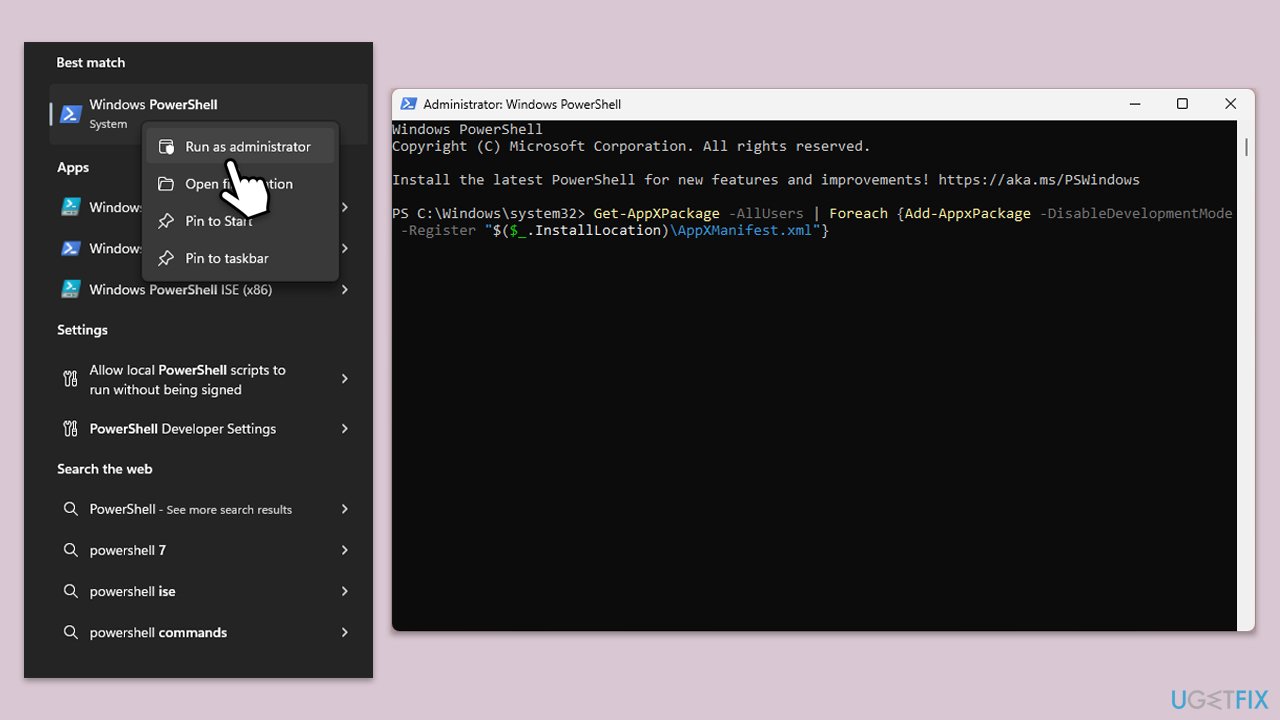
Fix 6. Re-register Microsoft Store
- Type PowerShell in Windows search.
- Right-click on PowerShell and select Run as administrator.
- When UAC shows up, click Yes.
- Type in the following and press Enter:
ren %localappdata%\Packages\Microsoft.WindowsStore_8wekyb3d8bbwe\LocalState cache.old - Then type the following and press Enter:
powershell -ExecutionPolicy Unrestricted
Get-AppXPackage -AllUsers | Foreach {Add-AppxPackage -DisableDevelopmentMode -Register "$($_.InstallLocation)\AppXManifest.xml"} - Restart your device.
Bottom line
To fix the 0x80246016 error, users should check their internet connection, review firewall and security settings, or reset the Microsoft Store cache. Additionally, ensuring the correct functionality of Windows Update components and using system troubleshooting tools may help. If these solutions do not work, consider using an automatic tool for assistance.
Frequently asked questions
The error 0x80246016 typically indicates a problem with the Microsoft Store app's ability to connect to the server or download updates. This can be due to network issues or corrupted store files.
You can reset the Microsoft Store by going to Settings > Apps > Apps & features, selecting Microsoft Store, and clicking 'Advanced options' to find the reset option. This action can help resolve the error.
Yes, ensure that your internet connection is stable, and check if any firewall or antivirus settings are blocking the Microsoft Store. Additionally, resetting your network settings may help resolve connectivity issues.




Report an issue
What's wrong with this guide? We review every report and update or remove content.
Report received — thank you. We'll review and fix it.
You need a free account to submit a report.
Be the first to comment