How to fix
Microsoft Store error 0x87E10BCF
on Windows
Resolve the Microsoft Store error 0x87E10BCF on Windows 10 and 11 effortlessly with our expert-tested solutions. Fix it in minutes!


What causes How to fix Microsoft Store error 0x87E10BCF in Windows?
- Cache glitches
- Update services issues
- Connectivity issues
- Corrupted files
- Registry issues
Repairs Windows system files, removes malware, and restores a clean OS state — without reinstalling.
Hello. I am trying to install an app from the Microsoft Store but I receive an error 0x87E10BCF. What could be the issue?
Microsoft Store was first introduced on Windows 8. Since then, users do not have to use torrent sites and peer-to-peer file-sharing platforms to install apps. Now, users can do it safely without having to go to third parties and risk infecting their devices with PUPs (potentially unwanted programs)[ref en-1] or malware. However, there have been many issues that users have encountered when trying to use the store.
Some users encounter an 0x87E10BCF error when they try to install certain apps. The error can appear on Windows 10 as well as machines running the newest version, Windows 11. This could happen for a number of reasons. Microsoft Store has been having problems with cache glitches, and update services. Sometimes users fail to install apps because of connectivity issues so you should check if your Internet connection is reliable first.
In this guide, you will find 6 steps that could help you get rid of Microsoft Store error 0x87E10BCF. However, manual troubleshooting can become a lengthy process so you can use a repair tool like [d1]. This powerful software can fix various system errors, BSODs,[ref en-2] corrupted files, registry issues, and optimize your machine by clearing cookies and cache[ref en-3] automatically. This tool can come in handy on many different occasions so we suggest you try it.

If you are ready to begin the process which could fix the Microsoft Store error 0x87E10BCF, please follow the steps below very carefully:
Method 1. Run Windows Store Apps Troubleshooter
A Troubleshooter is a tool that could help you resolve various issues on your Windows PC.
- Type Troubleshoot in Windows search and press Enter
- Click Additional troubleshooters if you can't see them listed
- Scroll down to find Windows Store Apps
- Click and select Run the troubleshooter
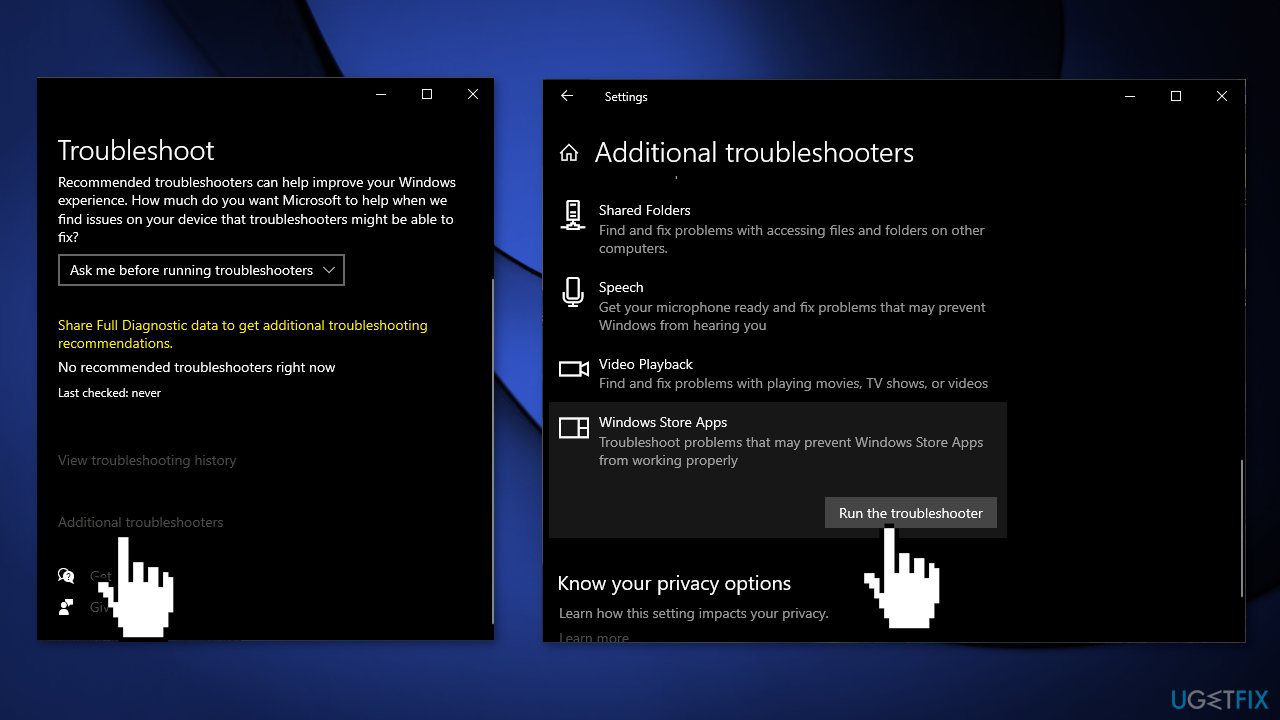
- Wait till the scan is over and the suggested fixes are applied
Method 2. Reset Microsoft Store
- Press Windows + I keys to bring up Windows Settings
- Go to Apps and click on Apps and features
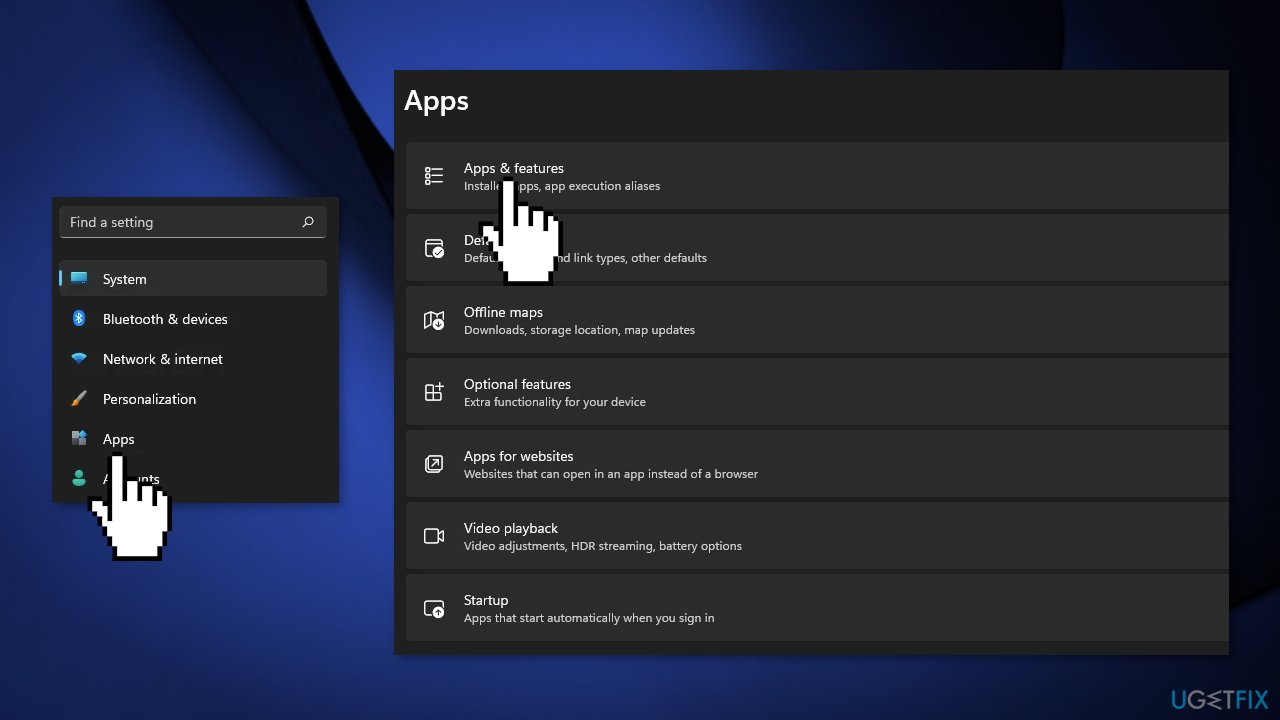
- Search for Microsoft Store in the search bar
- Click on the Advanced options and press Reset
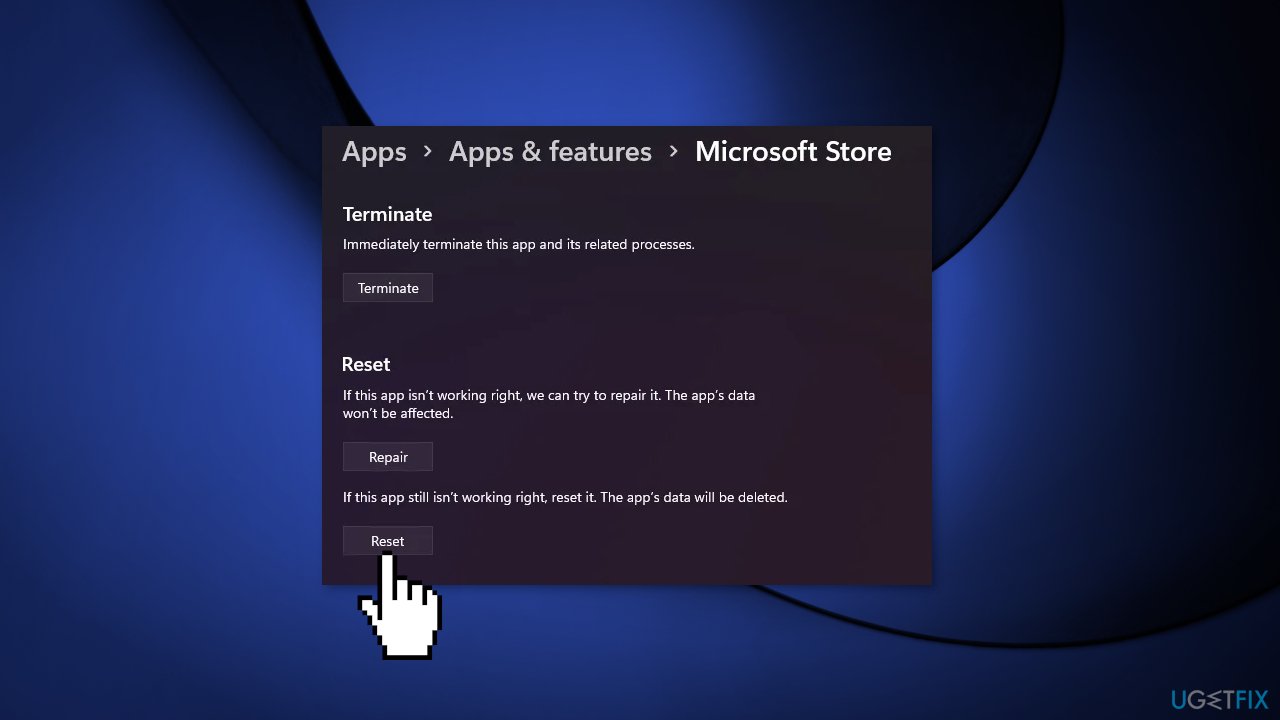
Method 3. Reset Windows Update Components
- Open Command Prompt (Admin)
- Copy and paste the following commands, pressing Enter each time:
net stop wuauserv
net stop cryptSvc
net stop bits
net stop msiserve
Ren C:\\Windows\\SoftwareDistribution SoftwareDistribution.old
Ren C:\\Windows\\System32\\catroot2 Catroot2.old
net start wuauserv
net start bits
net start msiserver
net start cryptsvc
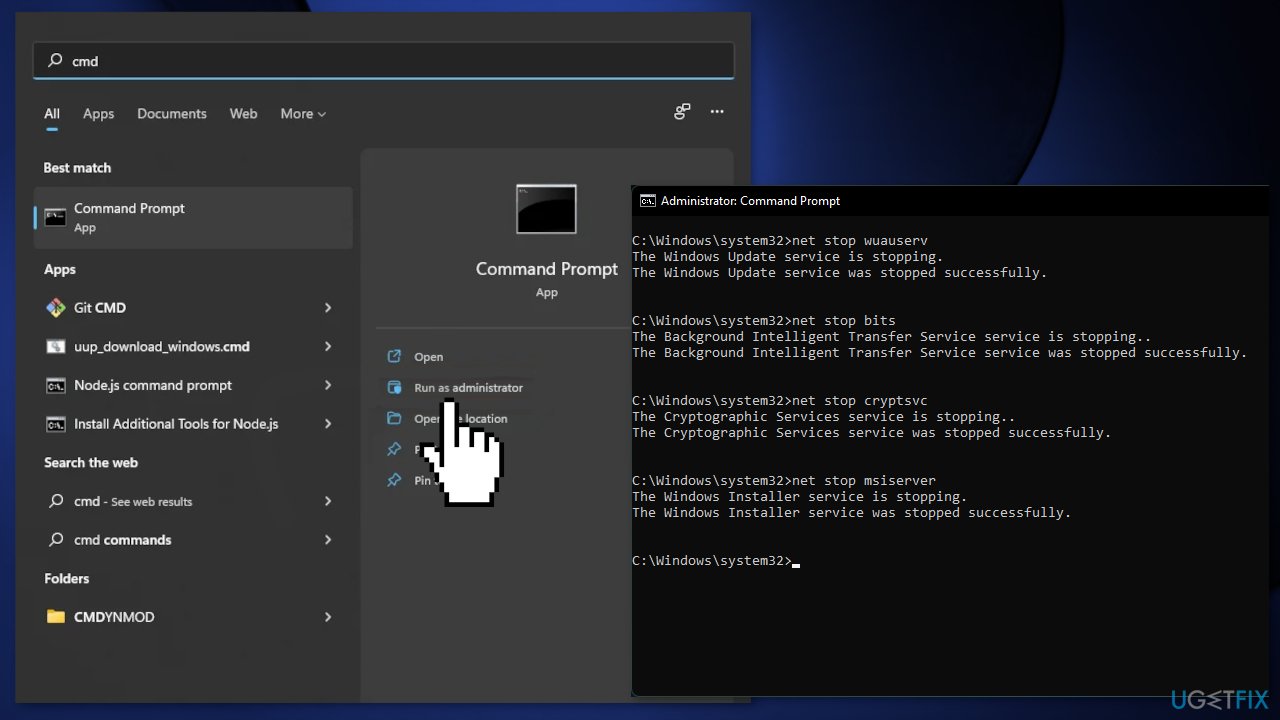
- Open up the Start Menu again and search for Powershell
- Choose the Run as administrator option
- Type in the following command and then hit Enter:
wuauclt.exe /updatenow
Method 4. Change Update Services Startup Type
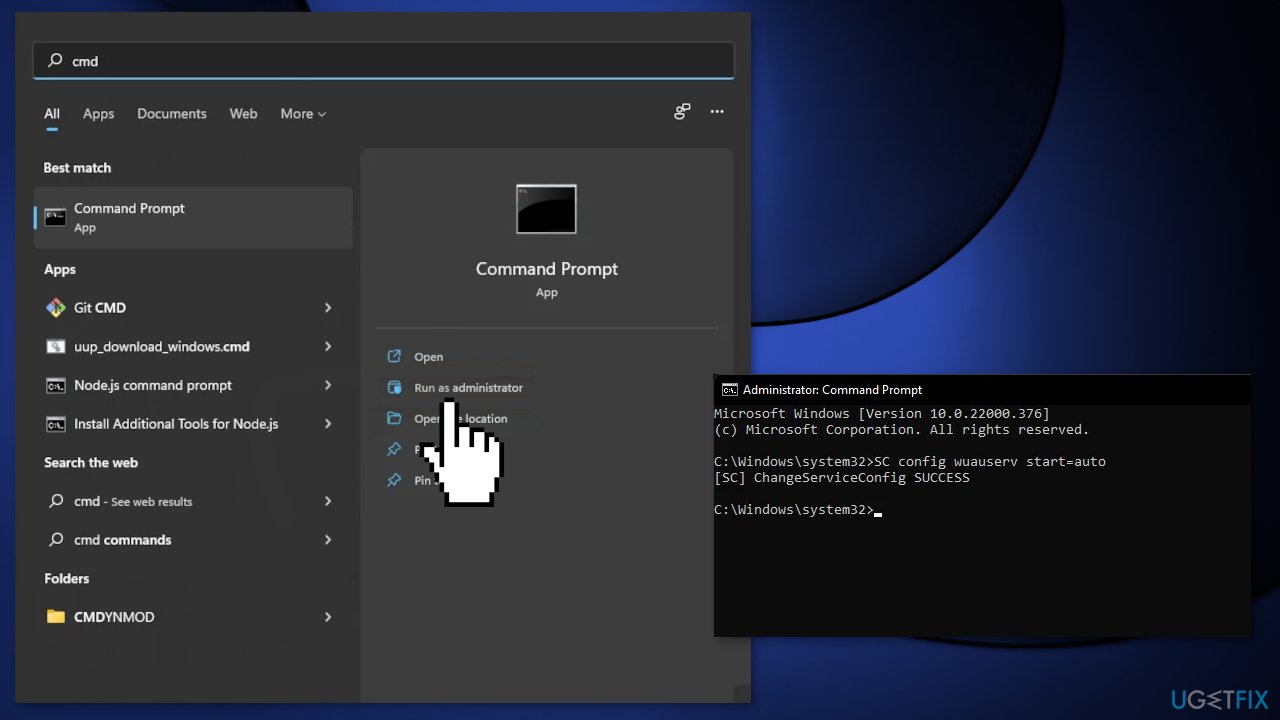
- Search for cmd in the Start Menu
- Choose Command Prompt by pressing the Run as administrator option
- Type in the following commands one by one:
SC config wuauserv start=auto
SC config bits start=auto
SC config cryptsvc start=auto
SC config trustedinstaller start=auto
- Restart your computer
Method 5. Reinstall Microsoft Store
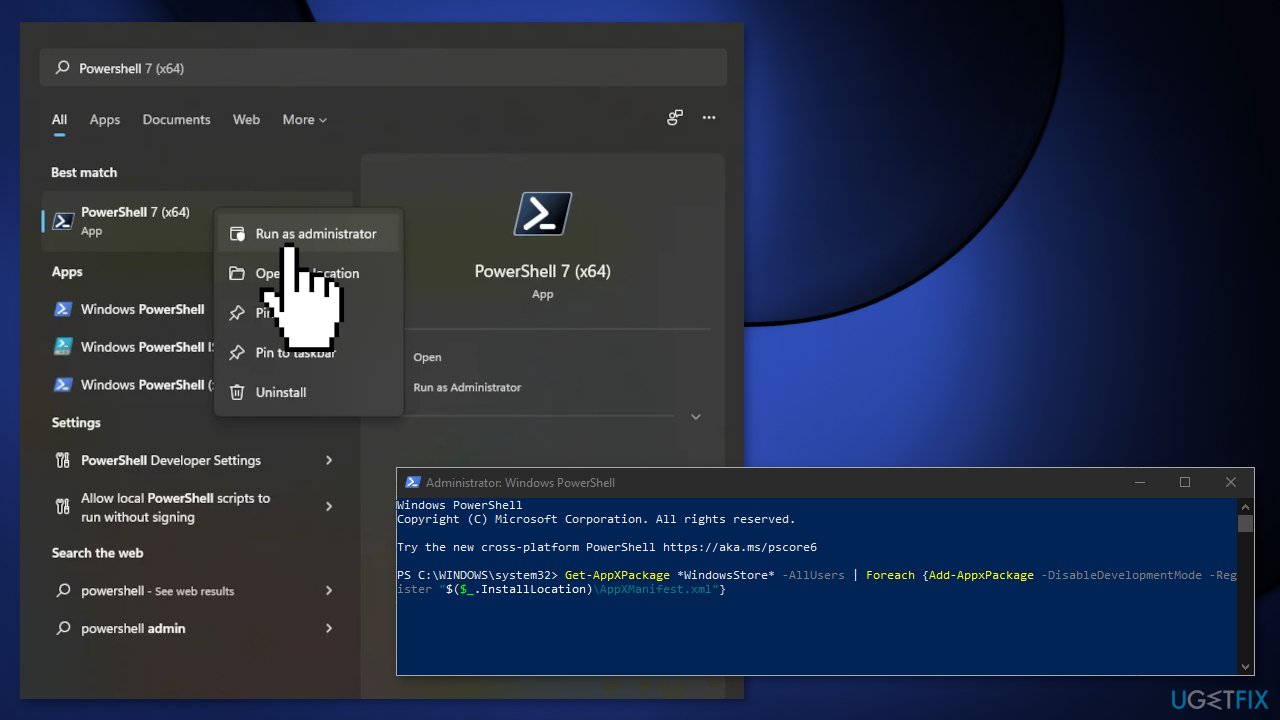
- Press Windows + X keys
- Click Windows PowerShell (Admin)
- At the prompt, type the following command and hit Enter:
Get-AppXPackage *WindowsStore* -AllUsers | Foreach {Add-AppxPackage -DisableDevelopmentMode -Register "$($_.InstallLocation)\\AppXManifest.xml"}
- Restart your PC
Method 6. Reset Windows
If none of the above helped you fix the 0x87E10BCF error, you could try resetting Windows altogether. You will not lose your personal files, but you might have to reinstall some programs. You can also check our How to reset Windows to factory settings article.
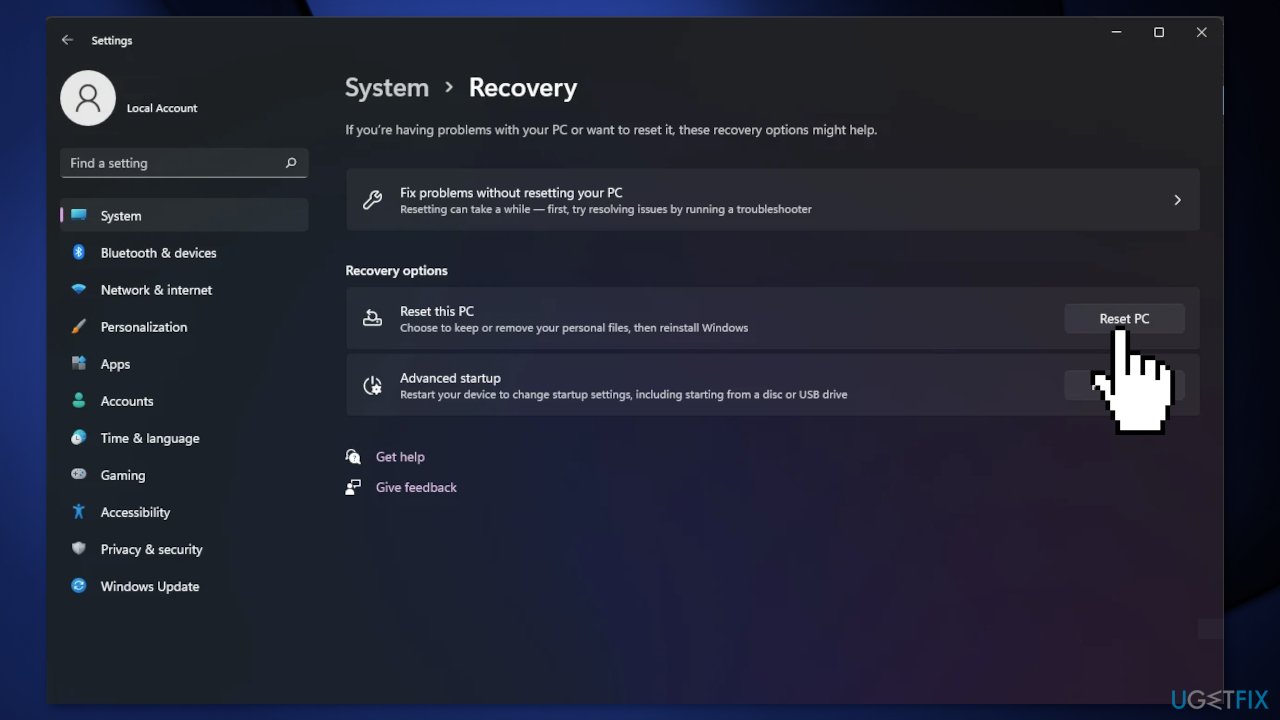
- Right-click on Start and pick Settings
- Go to Updates & Security
- Pick Recovery on the left
- Under Recovery options, select Reset PC
- Pick Keep my files
- Select Cloud Download and proceed with on-screen instructions to finalize the process
Bottom line
To fix the Microsoft Store error 0x87E10BCF, you can try running the Windows Store Apps Troubleshooter and resetting the Microsoft Store. If these methods do not resolve the issue, consider using a repair tool to fix various system errors.
Frequently asked questions
This error typically occurs due to issues with the Microsoft Store cache, network connectivity problems, or corrupted app files in Windows 10 and Windows 11.
You can clear the Microsoft Store cache by pressing Windows + R, typing 'wsreset.exe', and hitting Enter, which will reset the Store without changing your account settings.
Yes, ensure that your Windows 10 or Windows 11 system is updated, and check if the date and time settings are correctly configured, as incorrect settings can lead to this error.




Report an issue
What's wrong with this guide? We review every report and update or remove content.
Report received — thank you. We'll review and fix it.
You need a free account to submit a report.
Be the first to comment