How to fix
Microsoft Teams error 800080300
on Windows
Resolve Microsoft Teams error 800080300 on Windows 10 and 11 effortlessly. Get expert-tested solutions and fix it in minutes!

What causes How to fix Microsoft Teams error 800080300 in Windows?
- Outdated login credentials in Windows Credential Manager
- Corrupted login credentials in Windows Credential Manager
- Corrupted cache files in the Teams app
- Compatibility issues between the app and Windows operating system
- Network connectivity issues
- Temporary glitches within the app
Repairs Windows system files, removes malware, and restores a clean OS state — without reinstalling.
I can't log in to Teams for several days now. Every time, I receive a message "We're sorry - we've run into an issue" with the error code 800080300 at the bottom. What does that mean?
Understanding Microsoft Teams error 800080300
Microsoft Teams is a popular application for collaboration and communication that allows file sharing, video conferencing, and chat. Sometimes, the error code 800080300 may appear when you try to log into the application on Windows.
This issue stops you from accessing Teams, which interferes with your ability to interact with coworkers and participate in meetings. Without a doubt, the inability to access Teams can be detrimental for those who work remotely or participate in online classes.
Reasons behind Microsoft Teams error 800080300
The error code 800080300 typically occurs due to issues with authentication and credential management. Problems can arise from outdated or corrupted login credentials stored in Windows Credential Manager. Additionally, corrupted cache files within the Teams app can interfere with the login process.
Compatibility issues between the app and the Windows operating system, or the need for software updates, can also trigger this error. In some cases, network connectivity issues or temporary glitches within the app itself may cause login failures.
Several methods to fix the Teams error code 800080300
Most users have managed to fix the 800080300 error through several effective methods. Running Microsoft Teams in compatibility mode can resolve compatibility issues with the operating system. Deleting outdated or corrupted credentials from the Windows Credential Manager can help clear authentication errors.
Clearing the app cache files can eliminate corrupted data that might be interfering with the login process. Repairing or resetting the Teams app through the Windows settings can address underlying software issues. If these steps do not work, reinstalling Microsoft Teams can provide a fresh start, resolving persistent problems.
We provide a detailed guide on how to resolve Teams error code 800080300 below. As a more straightforward approach, you can try employing a PC repair and maintenance utility [d1].
Fix 1. Run Teams in compatibility mode
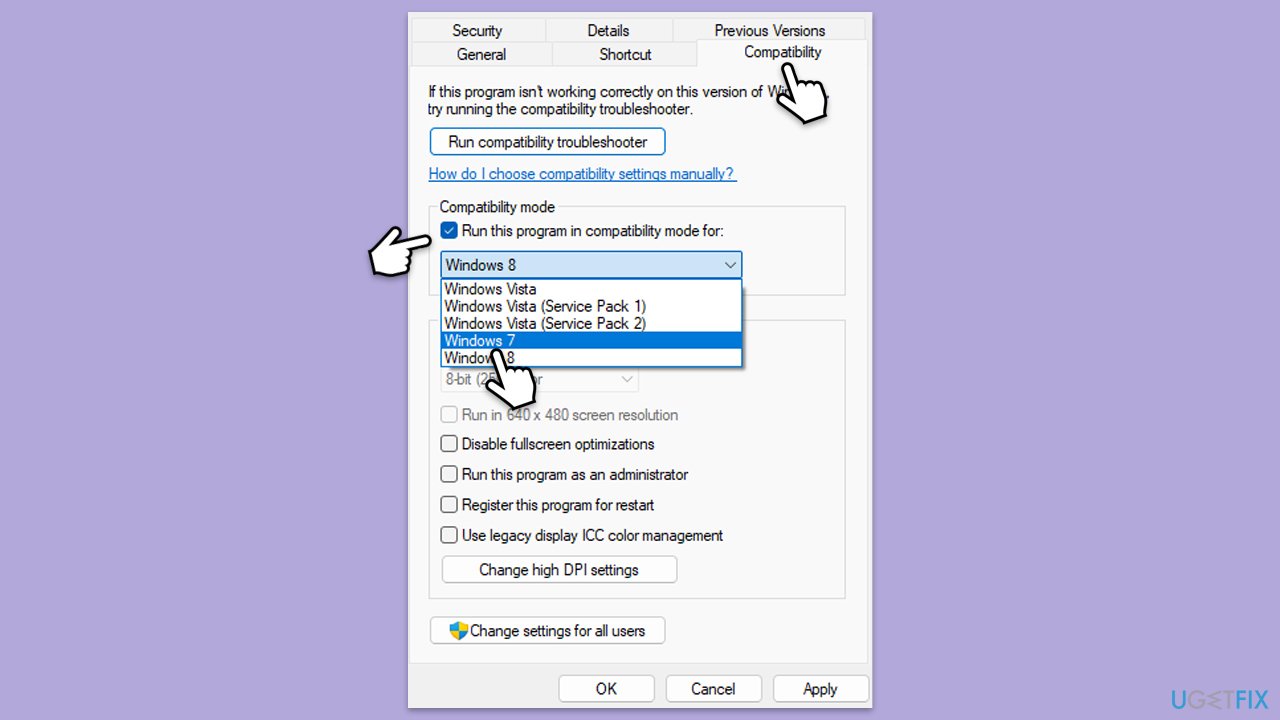
Running Microsoft Teams in compatibility mode can resolve issues caused by compatibility problems between the app and your version of Windows.
- Right-click the Teams shortcut or executable file.
- Select Properties.
- Go to the Compatibility tab.
- Check the box for Run this program in compatibility mode for.
- Choose another Windows version from the dropdown menu.
- Click Apply, then OK.
Fix 2. Delete credentials in Credential Manager
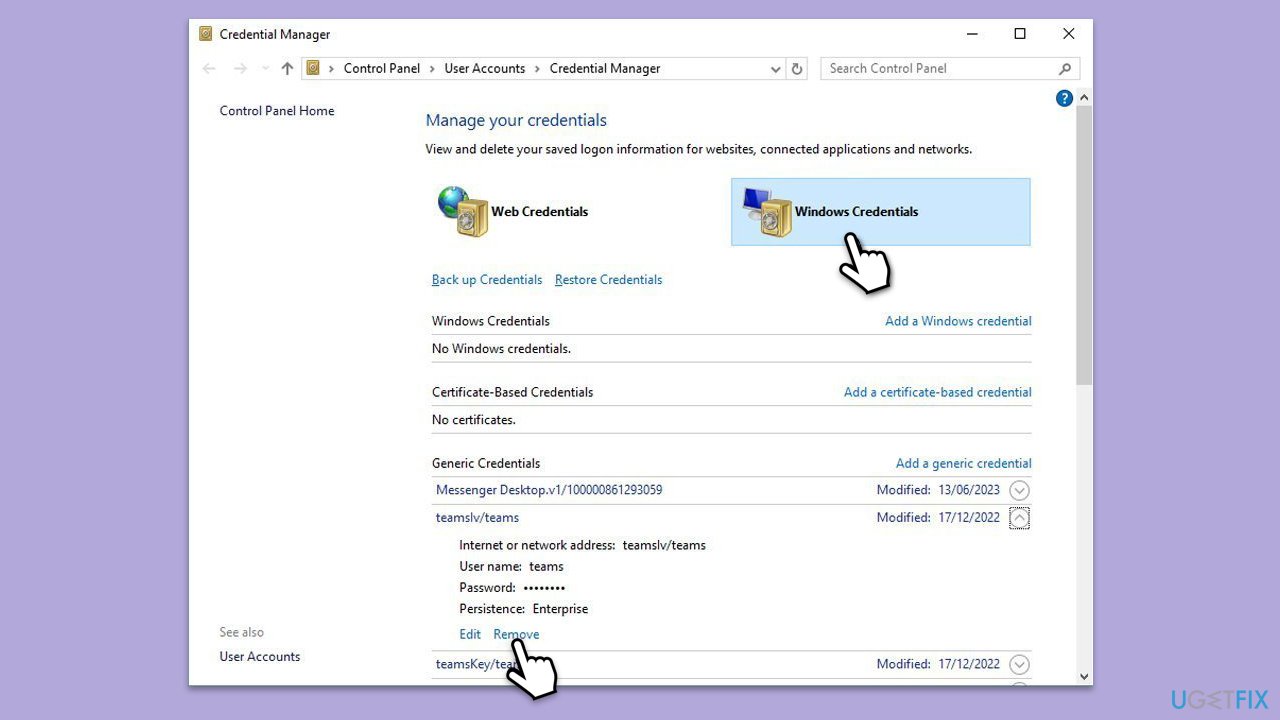
Outdated or corrupted login credentials stored in Windows Credential Manager can cause the 800080300 error. Deleting these credentials can help fix the issue.
- Type Credential Manager in Windows search and press Enter.
- Select Windows Credentials.
- Locate and remove any stored credentials related to Microsoft Teams or Office 365.
- Restart your PC.
- Attempt to log in again.
Fix 3. Clear app cache files
Corrupted cache files can interfere with the login process. Clearing these files can resolve the error.
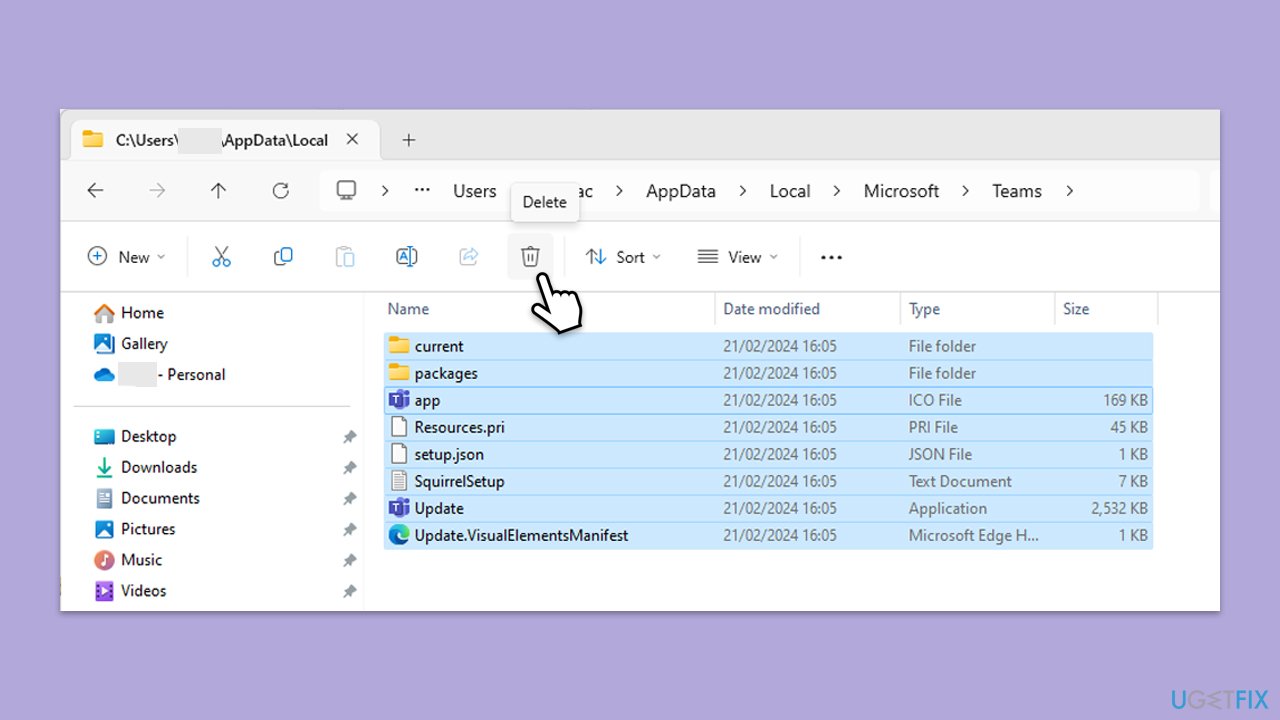
- Close Microsoft Teams.
- Press Win + R on your keyboard to open the Run dialog.
- Type %AppData% and press Enter or click OK.
- Go to the following location:
C:\Users\USERNAME\AppData\Local\Microsoft - Delete all the files and folders located in the Teams folder.
Fix 4. Repair or reset the Teams app
Repairing or resetting the Teams app can fix underlying software issues that might be causing the error.
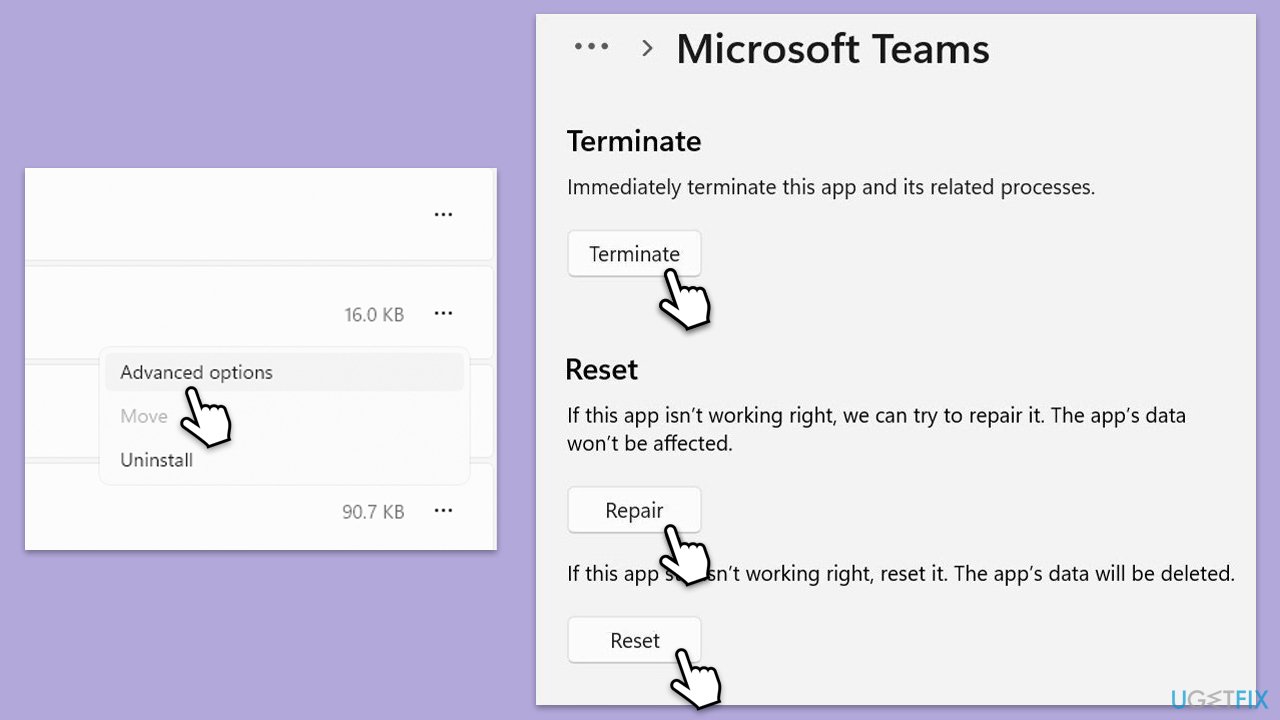
- Click on Start and pick Settings.
- Go to the Apps section.
- Locate Microsoft Teams from the list.
- Click on the three vertical dots and pick Advanced options.
- Click Terminate to ensure that the app is not running.
- Under the Reset section, click Repair and see if that solved your issue.
- If not, then try the Reset option.
Fix 5. Reinstall Microsoft Teams
Reinstalling Teams can provide a fresh start and resolve any persistent issues.
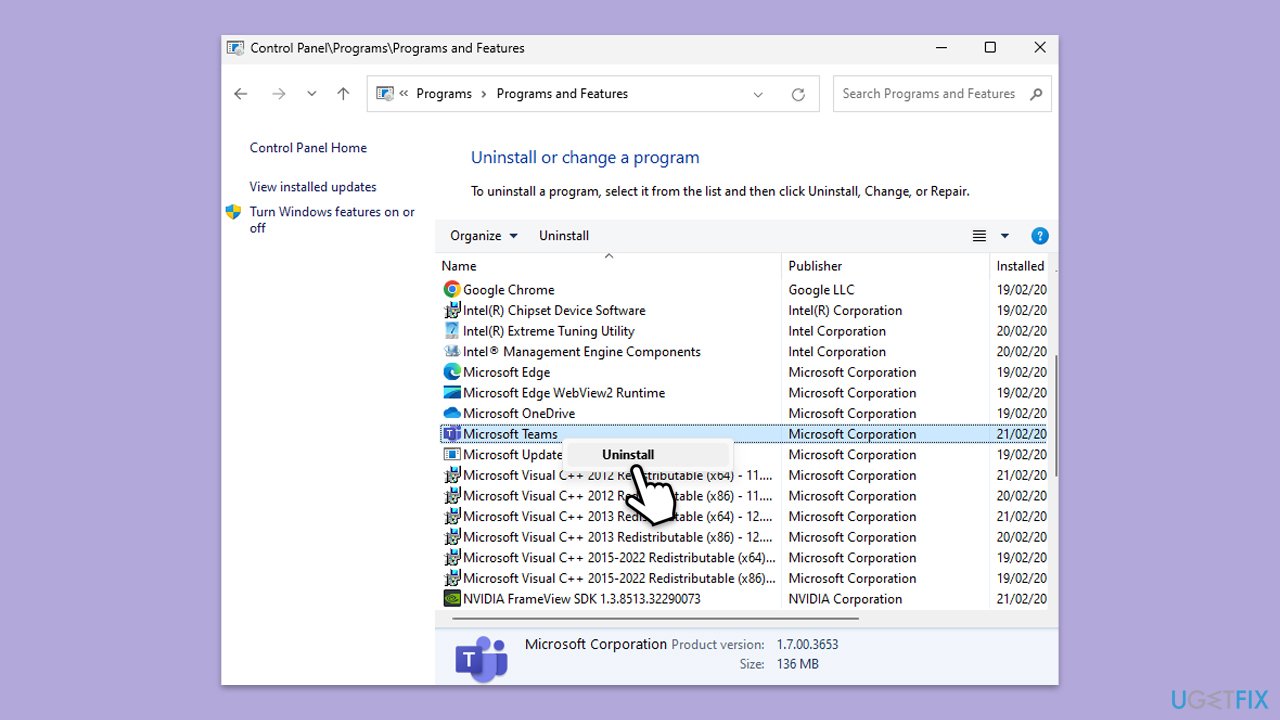
- Type Control Panel in Windows search and press Enter.
- Go to Programs > Uninstall a program.
- Find Microsoft Teams, right-click, and select Uninstall.
- Follow the prompts to remove the app.
- Once done, press Win + E to open File Explorer.
- In the View tab at the top of the window, enable Hidden Files.
- Go to C:\Program Files\WindowsApps location.
- Scroll down to find the Microsoft Teams folder and delete it (alternatively, you can rename it).
- Now type %AppData% in Windows search and press Enter.
- Delete the Teams folder here.
- Finally, restart your system and reinstall the app.
Fix 6. Update Windows
Ensuring your Windows operating system is up to date can prevent compatibility issues that might trigger the error.
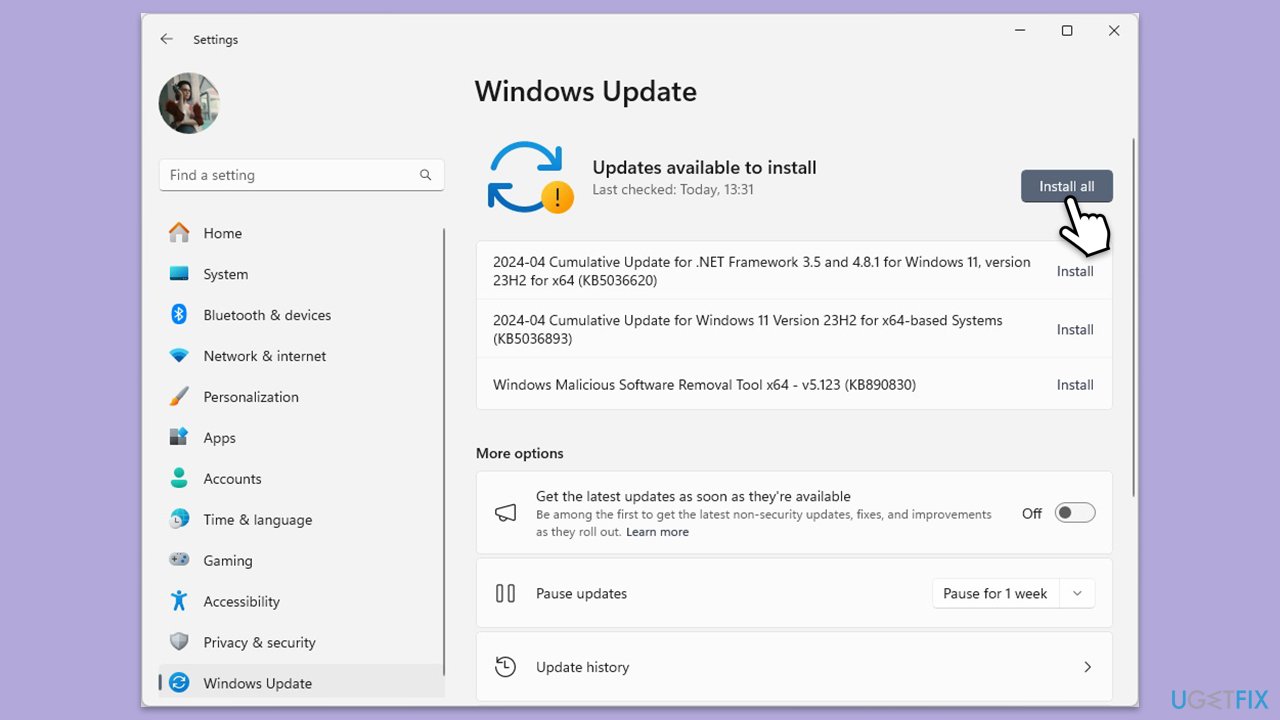
- Type Updates in the Windows search box and press Enter.
- Click Check for Updates or Install all.
- Ensure optional and pending updates are installed as well.
- Wait till the process is finished.
- Restart your device.
Fix 7. Check network connectivity
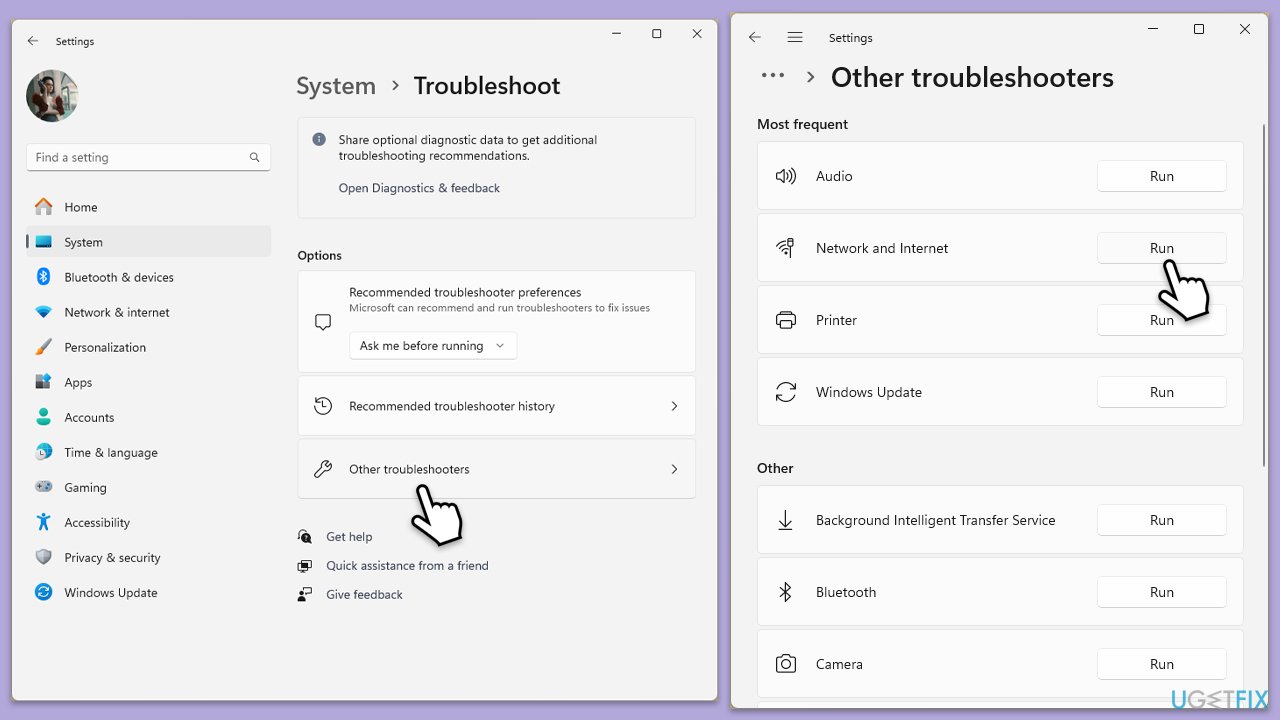
Network issues can prevent Teams from logging in properly. Running a Network troubleshooter is the easiest way to do this.
Windows 11
- Type Troubleshoot in Windows search and hit Enter.
- Select Other troubleshooters.
- Locate Network & Internet troubleshooter from the list and click Run.
- Wait till the process is finished and apply the recommended fixes.
- Restart your computer.
Windows 10
- Right-click on Start and pick Settings.
- Go to the Network & Internet section.
- On the right side, find the Advanced network settings section.
- Click Network troubleshooter and wait.
- The fixes will be automatically applied.
Bottom line
To fix the Microsoft Teams error 800080300, you can run Teams in compatibility mode, delete outdated or corrupted credentials from the Windows Credential Manager, clear the app cache files, or repair/reset the Teams app. If these methods do not resolve the issue, consider reinstalling Microsoft Teams for a fresh start.
Frequently asked questions
The error 800080300 typically occurs due to issues with the Teams application files, outdated graphics drivers, or conflicts with other software. Ensuring your Teams app is updated and checking for Windows updates can help resolve the issue.
To clear the Teams cache, close the app, then navigate to %appdata%\Microsoft\Teams in File Explorer and delete the contents of the folder. Restart Teams to see if the error persists.
Yes, reinstalling Microsoft Teams can effectively fix error 800080300, especially if the installation is corrupted or incomplete. Uninstall the app from Settings, then download the latest version from the official Microsoft website.




Report an issue
What's wrong with this guide? We review every report and update or remove content.
Report received — thank you. We'll review and fix it.
You need a free account to submit a report.
Be the first to comment