How to fix
Microsoft Teams error CAA50021
on Windows
Resolve the Microsoft Teams error CAA50021 on Windows 10 and Windows 11 quickly with expert-tested solutions. Fixed in minutes!


What causes How to fix Microsoft Teams error CAA50021 in Windows?
- Use of VPNs
- Third-party antivirus software
- Problems with Azure Active Directory (Azure AD)
- Corrupted temporary files
- Cached data
Repairs Windows system files, removes malware, and restores a clean OS state — without reinstalling.
I keep getting a CAA50021 error whenever I try to access my Microsoft Teams account. This is a huge problem to me so I need this fixes as soon as possible, please.
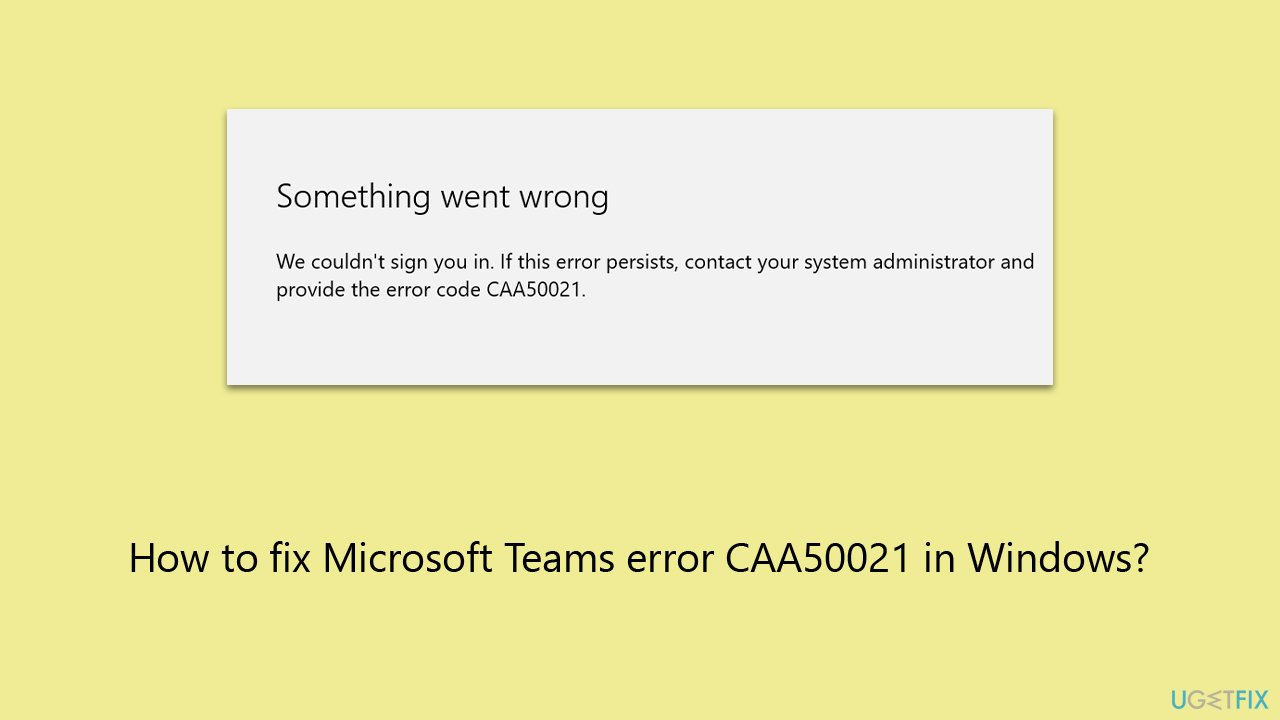
Microsoft Teams is a widely used communication and collaboration tool in the business world. Nevertheless, a few users have login issues that lead to the CAA50021 error message. The entire error message reads as follows: "An error occurred. We were unable to log you in. Please contact your system administrator and submit the error code CAA50021 if this error continues." It's also worth noting that it can occur in other Microsoft 365 apps, like OneDrive or Copilot.
There are many factors that might lead to the CAA50021 error. The use of VPNs or third-party antivirus software, which might obstruct the login procedure, is one frequent cause. This error can potentially be caused by problems with Azure Active Directory (Azure AD). Occasionally, corrupted temporary files and cached data can result in login issues.
The actions listed below can help you fix the CAA50021 error, instructions for which we provide below the article:
- Make sure your PC is free of any installed third-party VPN or antivirus programs.
- Inspect for Azure AD-related problems, and seek advice from your system administrator if required.
- Your system may work better if you clear up its temporary files and cache.
Please remember that these suggestions are only general recommendations and that specific fixes may differ based on the setup of your system and the error's precise cause.
Apart from the aforementioned procedures, you could contemplate employing the [d1] PC repair tool, as it possesses the potential to autonomously resolve fundamental Windows problems that could be causing the CAA50021 error.
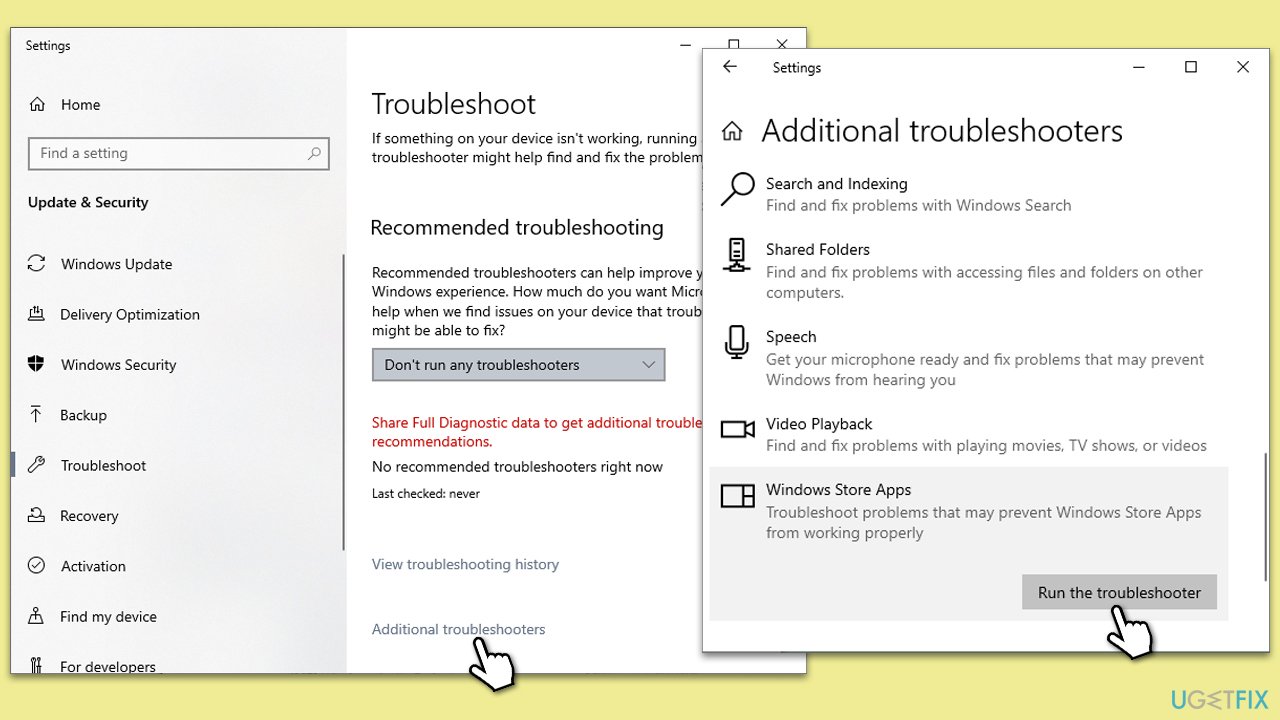
Fix 1. Run Windows Store Apps troubleshooter
One built-in feature of Windows is the Windows Store Apps troubleshooter, which can automatically detect and resolve problems with apps, including Microsoft Teams.
- Type Troubleshoot in Windows search and hit Enter.
- Click Additional troubleshooters/Other troubleshooters.
- Scroll down to find Windows store apps and select it.
- Click Run the troubleshooter/Run.
- Wait till the process is finished and apply the fixes.
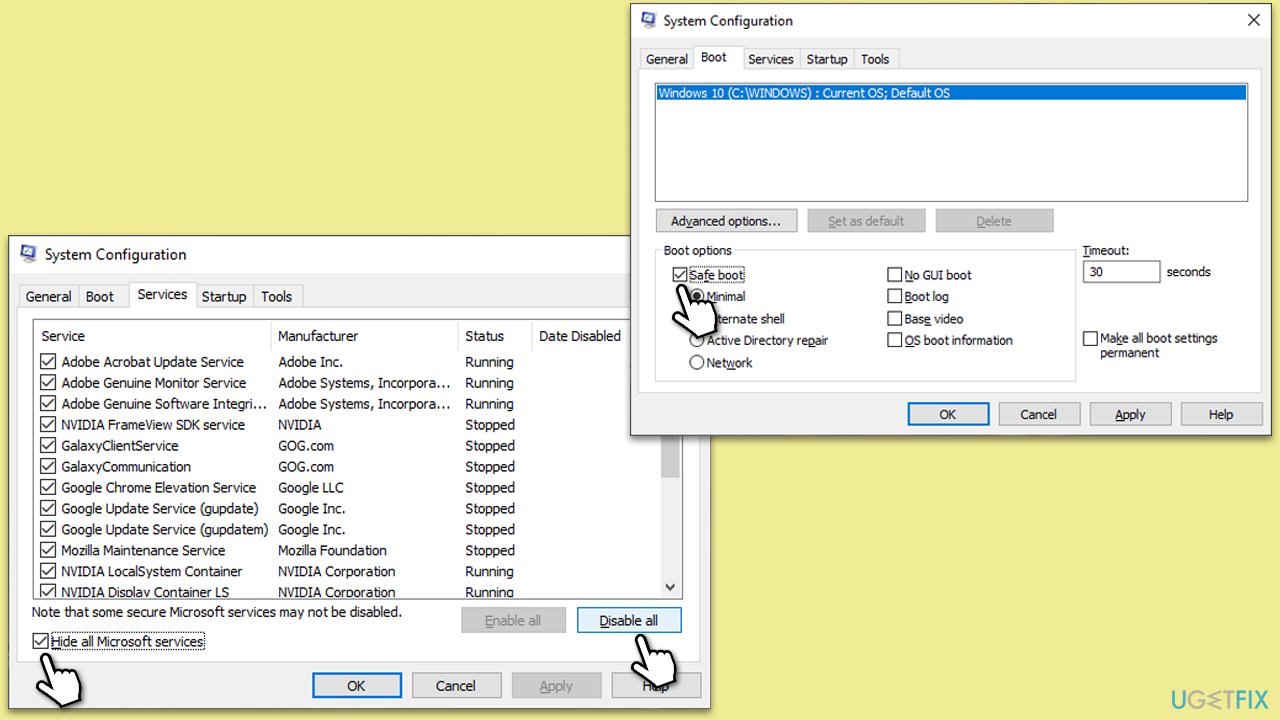
Fix 2. Disable antivirus/VPN or use Clean Boot
Antivirus software or VPNs can sometimes interfere with the login process. Disabling them temporarily or performing a Clean Boot can help determine if they are causing the CAA50021 error.
To disable antivirus or VPN:
- Locate the antivirus or VPN software icon in your system tray.
- Right-click on the icon and choose the option to disable or exit the software temporarily.
- Attempt to log in to Microsoft Teams again.
To perform a Clean Boot:
- Press Win + R, type msconfig, and hit Enter.
- Go to the Services tab and tick the Hide all Microsoft services checkbox.
- Select Disable all.
- Go to the Startup tab and click Open Task Manager.
- Here, right-click on each of the non-Windows entries and select Disable.
- Close down the Task Manager.
- Go to the Boot tab and tick the Safe boot option.
- Restart your device.
- Try logging in to Microsoft Teams.
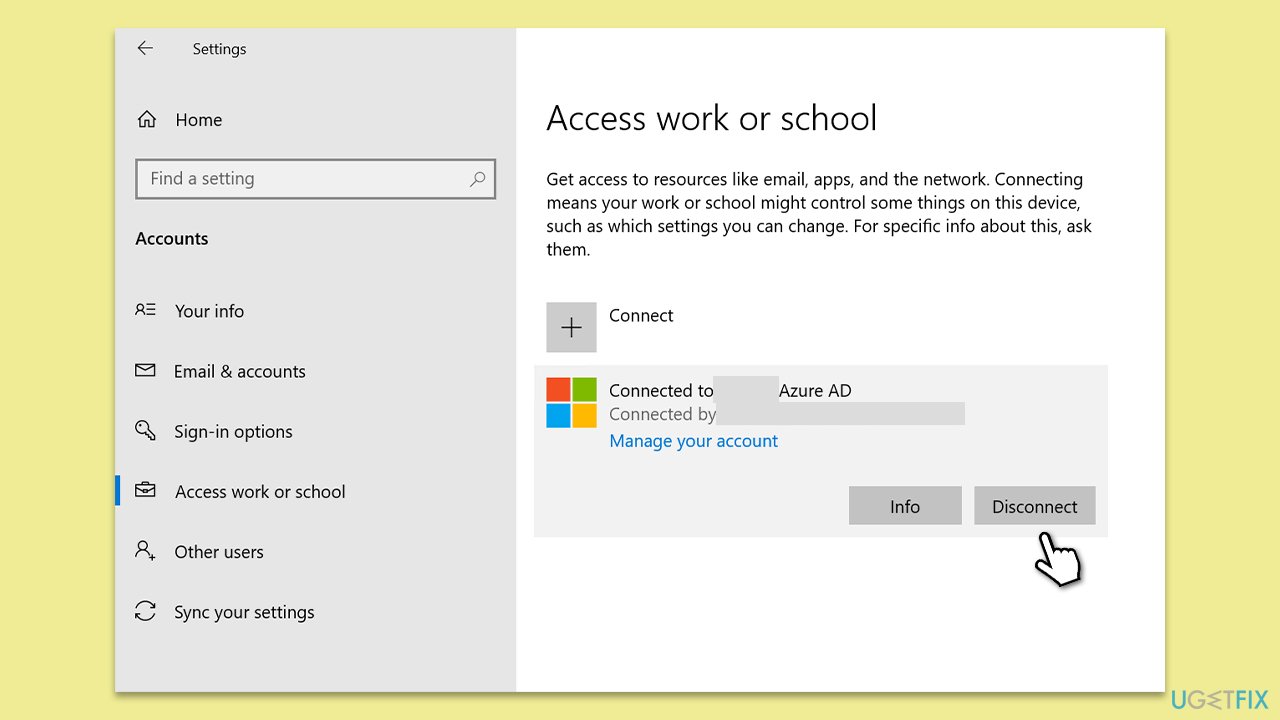
Fix 3. Link your device to your School or work account
Ensure that your device is correctly linked to your school or work account associated with Microsoft Teams. This can help resolve any authentication issues.
- Click on the Start menu.
- Go to Settings and select Accounts.
- Under Access work or school, click Connect and follow the prompts to sign in with your work or school account.
- If you are already connected, click Disconnect and then reconnect back again.
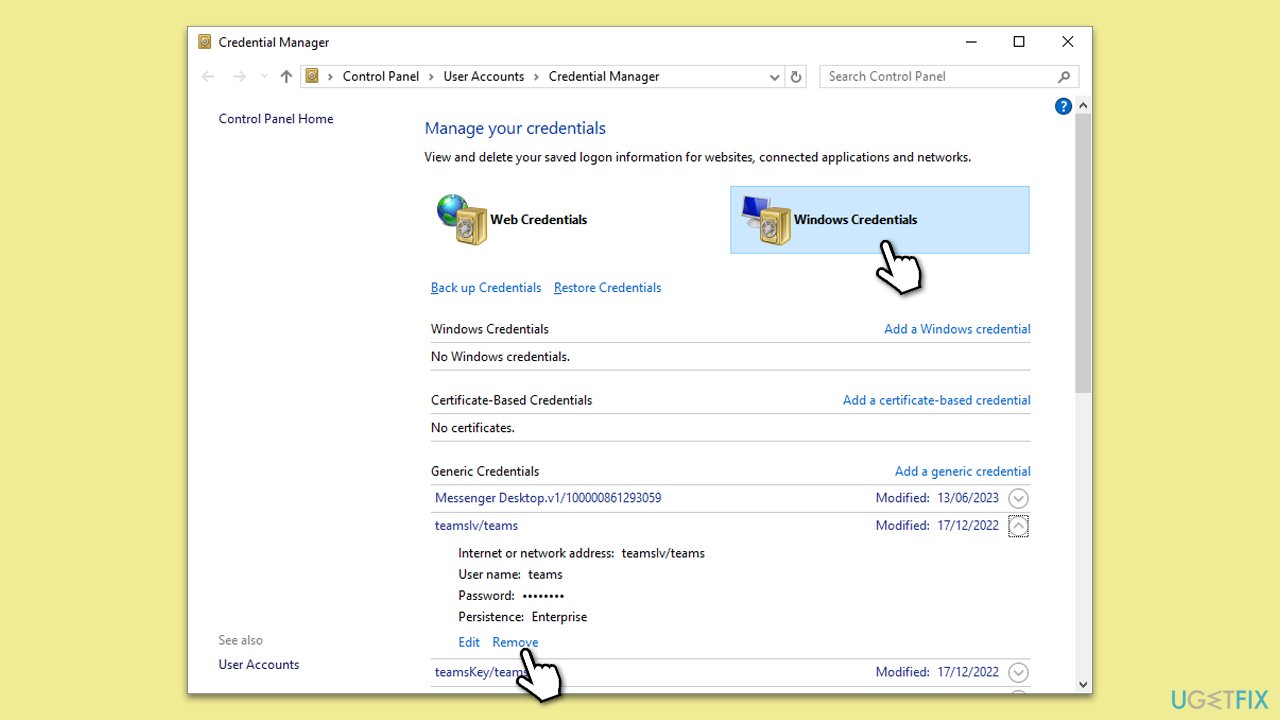
Fix 4. Clear Teams credential cache
Clearing the Teams credential cache can resolve login problems by removing any corrupted or outdated credentials.
- Type Credential Manager in Windows search and press Enter.
- Select Windows Credentials.
- Locate and remove any stored credentials related to Microsoft Teams.
- Restart Teams and re-enter your login details.
Fix 5. Re-register your device with Azure AD through Command Prompt
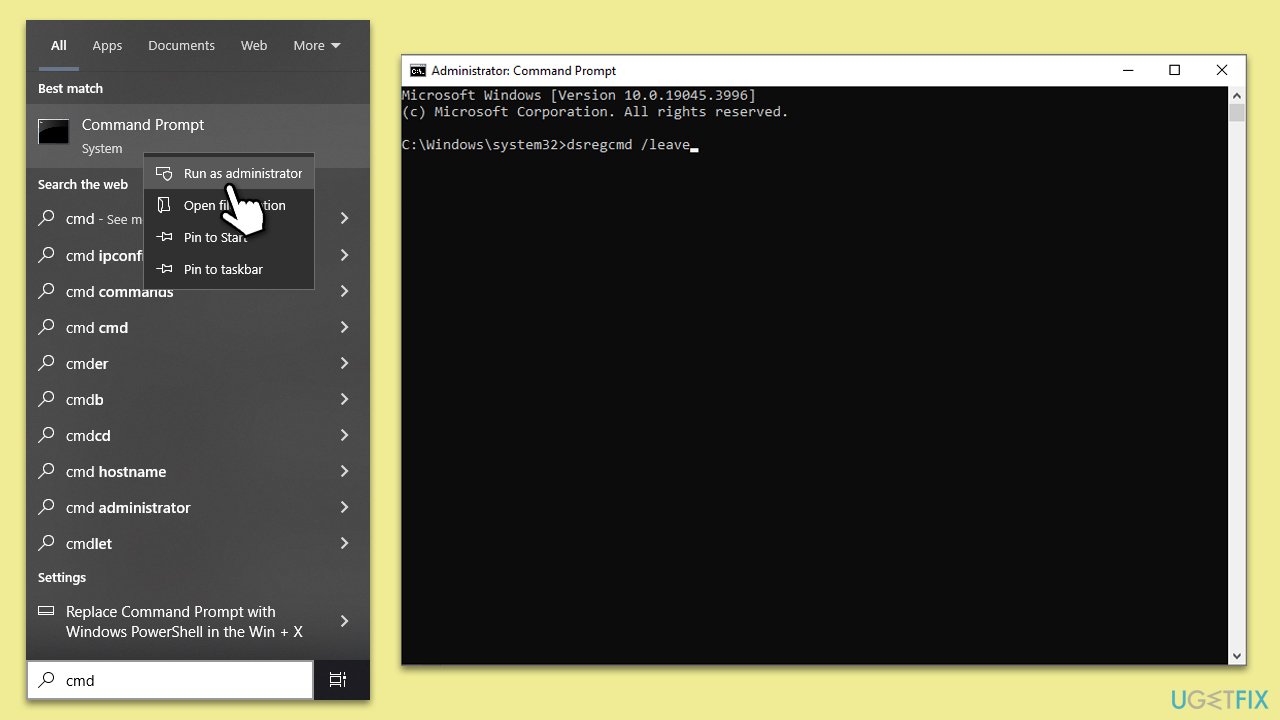
Re-registering your device with Azure AD can help resolve issues related to Azure Active Directory, which may be causing the CAA50021 error.
- Press Win + X and choose Windows Terminal (Admin) or Command Prompt (Admin).
- In the Command Prompt window, type the following command and press Enter:
dsregcmd /leave - Wait for the command to complete.
- Type the following command and press Enter:
dsregcmd /join - Restart your computer.
- Attempt to log in to Microsoft Teams again.
Fix 6. Reset Microsoft Teams
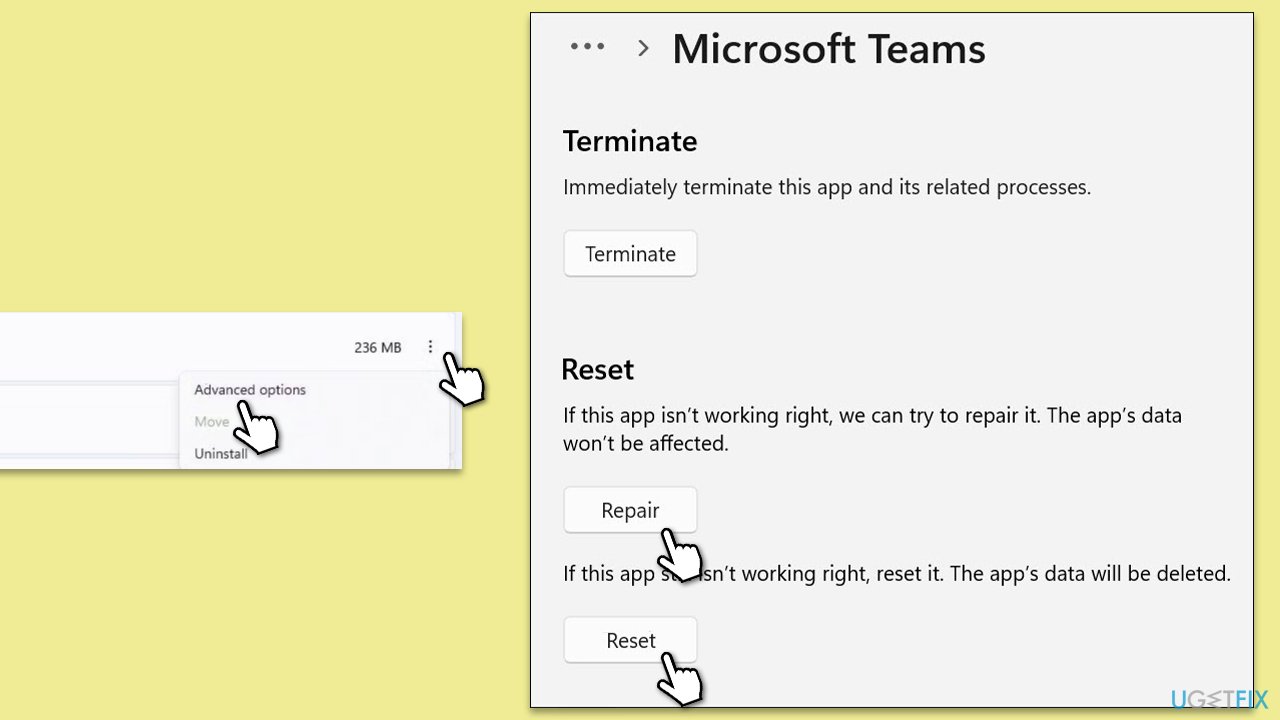
Resetting Microsoft Teams will remove all settings and cached data, essentially restoring it to its default state. This can be useful if repairing the application does not resolve the issue.
- Click on Start and pick Settings.
- Go to the Apps section.
- Locate Microsoft Teams from the list.
- Click on the three vertical dots and pick Advanced options.
- Click Terminate to ensure that the app is not running.
- Under the Reset section, click Repair and see if that solved your issue.
- If not, then try the Reset option.
Bottom line
To fix the CAA50021 error, you can run the Windows Store Apps troubleshooter, ensure no third-party VPN or antivirus programs are installed, and clear temporary files and cache. If these steps do not resolve the issue, consider consulting your system administrator or using a PC repair tool.
Frequently asked questions
The CAA50021 error is typically caused by issues with the Microsoft account authentication or incorrect configuration settings in Teams. It can also occur due to network connectivity problems.
To fix the CAA50021 error on Windows 11, try signing out of Microsoft Teams and signing back in, or clearing the Teams cache by deleting the contents of the 'Cache' folder found in the Teams app data directory.
Yes, reinstalling Microsoft Teams can resolve the CAA50021 error in Windows 10 by ensuring that you have the latest version and a fresh installation that may eliminate any corrupted files.




Report an issue
What's wrong with this guide? We review every report and update or remove content.
Report received — thank you. We'll review and fix it.
You need a free account to submit a report.
Be the first to comment