How to fix
“Microsoft Word has encountered a problem and needs to close” Error
on Windows
Resolve the "Microsoft Word has encountered a problem" error on Windows 10 and 11 effortlessly. Get expert-tested solutions that fix it fast!

What causes How to Fix “Microsoft Word has encountered a problem and needs to close” Error on Mac?
- Corruption of Word preferences
- Corruption of user account profile
- Corruption of the application files
- Other programs running in the background
Repairs Windows system files, removes malware, and restores a clean OS state — without reinstalling.
I cannot use MS Word for Mac 2011 anymore. It gives me "Microsoft Word has encountered a problem and needs to close" error every time I open documents. I did not have this issue before, but it appeared a few days ago. Is there a way to fix the problem?
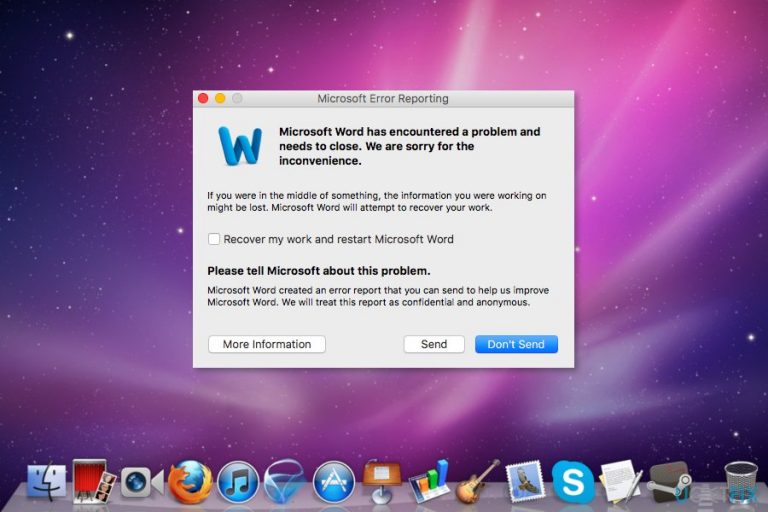
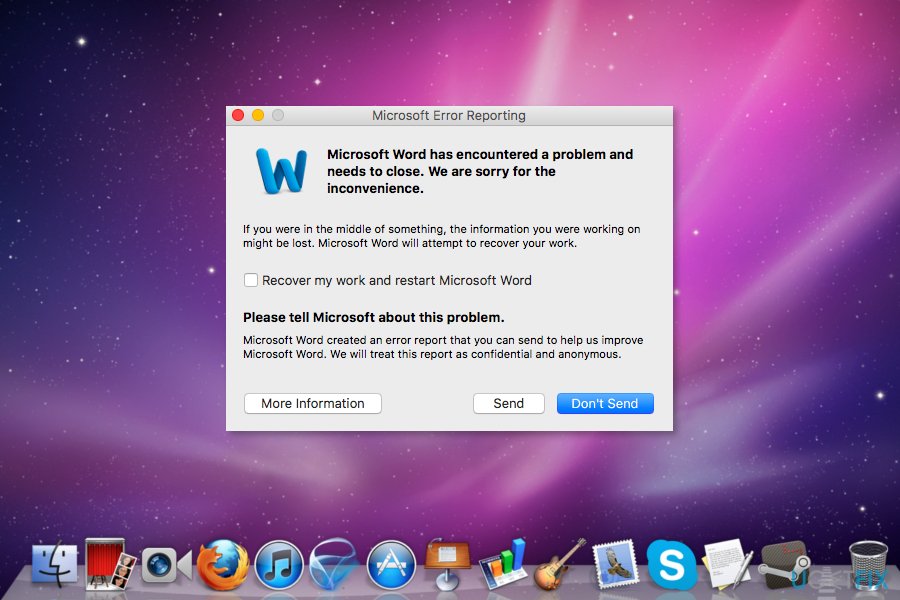
The "Microsoft Word has encountered a problem and needs to close” error most likely to occur on Mac 2011 and Mac 2008 versions when a user tries to open needed document. Due to the error message, users are unable to use Word for Mac[ref en-1] program. The full message of the alert says:
Microsoft Word has encountered a problem and needs to close. We are sorry for the inconvenience.
Sometimes the error is gone once users open the document again. However, the issue cannot be solved so easily if the sources of the problem are:
- Corruption of Word preferences;
- Corruption of user account profile;
- Corruption of the application files;
- Other programs running in the background prevents Word for Mac working properly.
There are several methods that can help to fix "Microsoft Word has encountered a problem and needs to close” error on Mac. Scroll down to try them out!
Methods that help to get rid of "Microsoft Word has encountered a problem and needs to close” error
Option 1. Reset Word for Mac preferences
One of the main reasons why the error occurs is corrupted Word preferences. Therefore, you have to reset them in order to solve the problem.
However, before you start following the guidelines, we have to warn you that resetting Word for Mac preferences leads to custom settings removal. Thus, if you have enabled specific keyboard shortcuts, you will need to set them again.
- Close all programs.
- Go to this location: Go > Home > Library.
OS X 10.7 (Lion) or above versions users should click GO > hold down the Option key on keyboard > click Library option. - Open the Preferences folder. Here you have to find com.microsoft.Word.plist entry. Drag and drop it on the desktop.
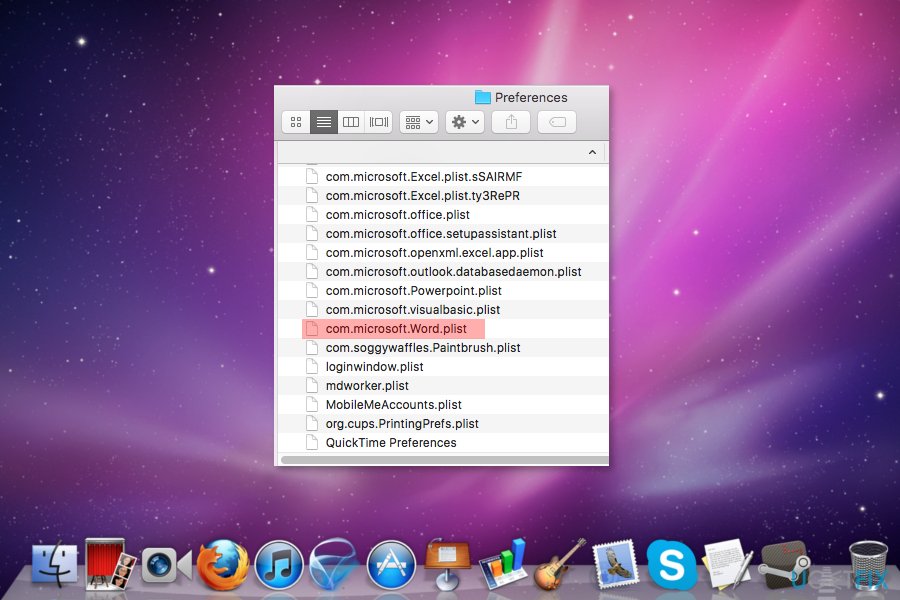
Find com microsoft word plist entry
If you cannot see the file, in the Preferences look up for Microsoft folder. The com.microsoft.Word.plist should be there. Thus drag and drop it on the desktop.
If you have Service Pack 2[ref en-2] installed, you should access Application Support > Microsoft > Microsoft.
Now you have to open the Word and check if you see the error. If the error is gone, close the program and drag one of the files to the default location. Open MS Word again. If you still do not receive an error, drag the other file from the desktop to the Trash. That would fix the problem.
However, if you received an error, follow these steps:
- Quit all programs.
- Go to Go > Home > Library.
The path for (Lion) or above users: Go > click Option key on keyboard > click Library. - Open Application Support folder > Microsoft folder > Office folder > User Templates folder.
- In the User Templates folder find Normal.dotm file. Drag and drop it to the desktop.
- Launch Word. If you do not receive an error, move this file to the Trash and forget about the error. If the "Microsoft Word has encountered a problem and needs to close” error appears again, try the Option 2.
Option 2. Create new account
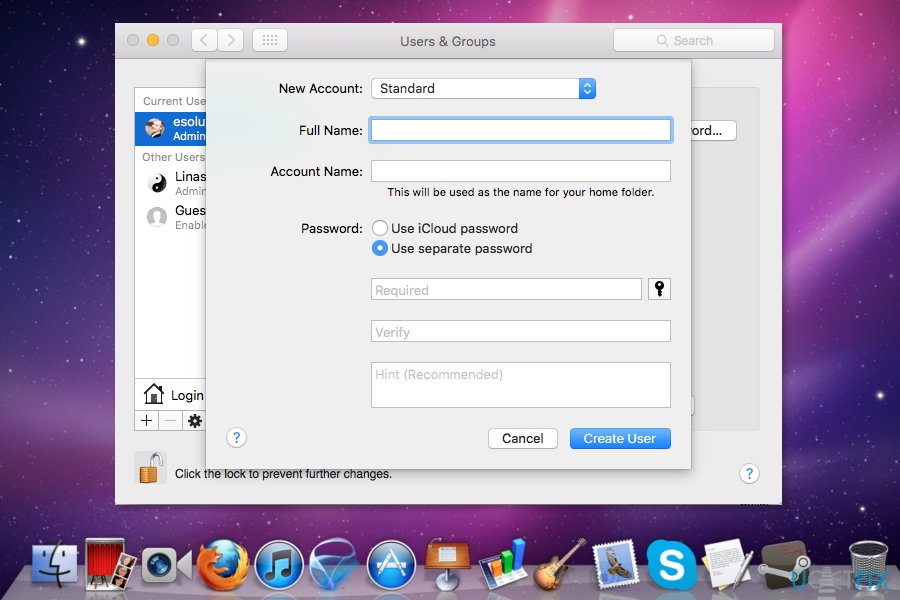
The source of the problem might be corrupted user account. Thus, to check if you are dealing with the same problem, you have to create a new user account. You can find instructions how to add new user accounts on Mac here.
Option 3. Run Repair Disk Permissions feature
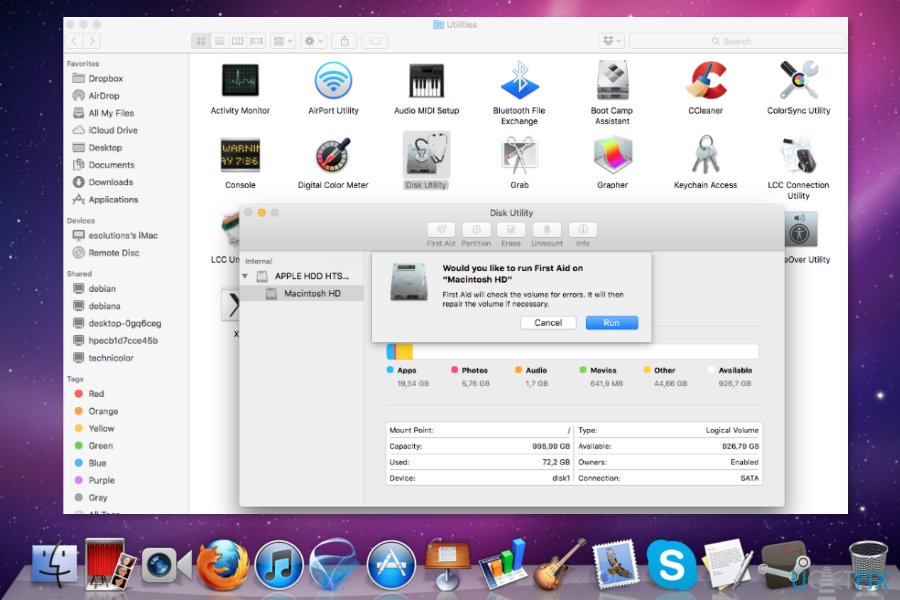
This Mac OS X feature is available in 10.2 or later versions. It allows troubleshooting the problems related to the operating system. Thus, it can help to figure out reasons of the "Microsoft Word has encountered a problem and needs to close” Mac error and fix it:
- Click Go and choose Utilities.
- Go to Disk Utility.
- Choose your computer’s primary disk drive.
- Open the First Aid tab.
- Choose Repair Disk Permissions.
Once the scan is over, open Word again. If the error is gone, congratulations! If not, try the 4th method.
Option 4. Clean start / Safe Boot the operating system
The source of the error might be some programs that interfere with Word for Mac, for instance, antivirus, system utilities or other software. Thus, when you boot in Safe Mode,[ref en-3]you will be able to identify what software might cause problems:
- Restart your Mac.
- Once you hear the startup tone, press and hold Shift key on the keyboard,
- As soon as Apple logo appears, release the Shift key.
- Safe Boot option will appear on the startup screen.
Note. In order to clean start your Mac, you have to be logged in Administrator account.
Option 5. Reinstall Office for Mac
Corruption of the application files can also give Word for Mac error. Therefore, you should uninstall and reinstall the whole Office package.
Bottom line
To fix the 'Microsoft Word has encountered a problem and needs to close' error, you can reset Word for Mac preferences, which may resolve issues caused by corrupted settings. If the problem persists after trying these methods, further investigation may be necessary.
Frequently asked questions
You can start by updating Microsoft Word to the latest version and repairing the Office installation through the Control Panel. Additionally, check for any Windows 10 updates that might resolve compatibility issues.
If the issue continues, consider disabling add-ins by launching Word in Safe Mode and then removing any problematic add-ins. You can also try deleting the Word preferences file to reset settings that may be causing the error.
Ensure that your Windows 11 has the latest updates installed and that your system meets the minimum requirements for running Microsoft Office. Also, check if your antivirus settings are not interfering with Word.




Report an issue
What's wrong with this guide? We review every report and update or remove content.
Report received — thank you. We'll review and fix it.
You need a free account to submit a report.
Be the first to comment