How to fix
Missing System Cooling Policy
on Windows
Resolve the missing System Cooling Policy in Windows 10 and 11 quickly. Follow our expert-tested guide for immediate results and zero traces left.


What causes How to fix missing System Cooling Policy in Windows?
- Change in settings made by another program
- Windows update
- Setting not enabled by default
- Registry corruption
- Power settings misconfiguration
Repairs Windows system files, removes malware, and restores a clean OS state — without reinstalling.
Hello. The System Cooling Policy is missing from the Power Options settings on my Windows PC. Is there a way to fix this?
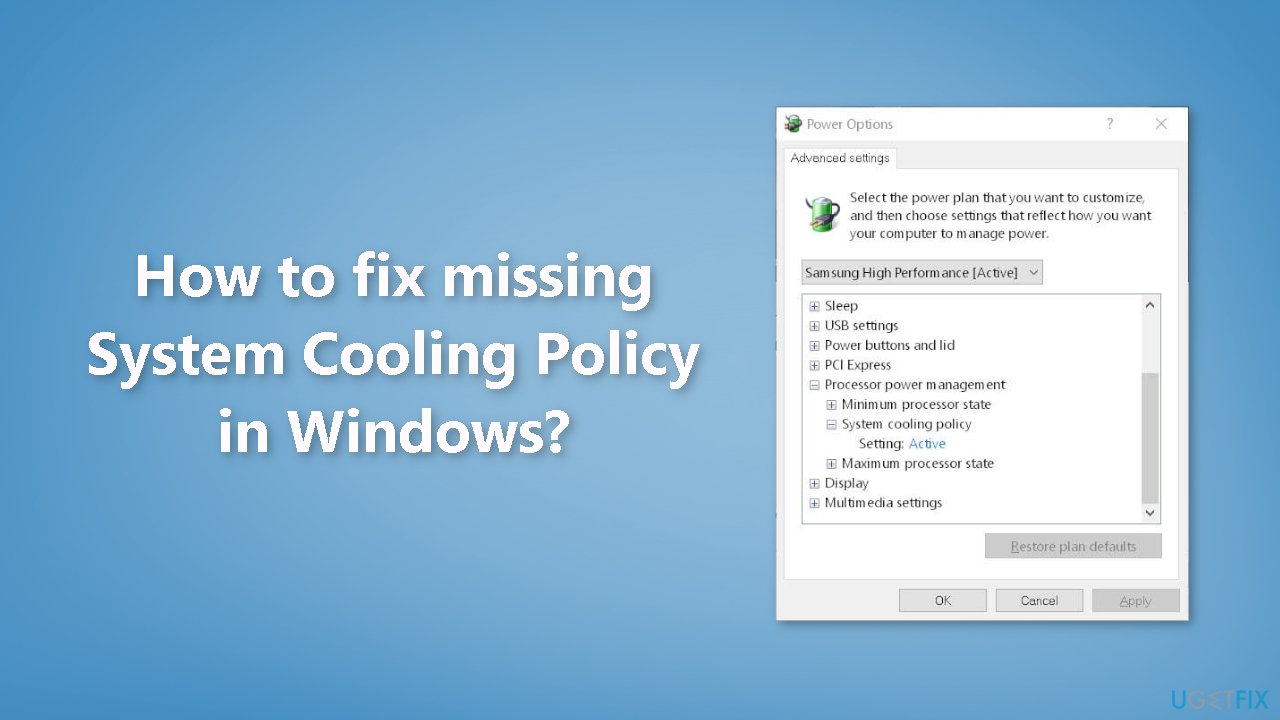
System Cooling Policy is a setting in Windows that allows the user to control how the system manages cooling when it is under heavy load. People might use System Cooling Policy to control the noise level of their computer or to extend the life of their components by reducing wear and tear on cooling systems. Some people also use it to save energy. The options available are "Active" and "Passive."
- Active - means that the system will use cooling methods like fans to cool down the system when the processor is working hard.
- Passive - means that the system will rely on natural convection to cool down the system.
The System Cooling Policy setting may be missing from Power Options in Windows due to a variety of reasons such as a change in the settings made by another program or Windows update, or the setting may not have been enabled by default.
People can add the System Cooling Policy setting in Windows by editing the registry[ref en-1] or running a command prompt. However, it is important to note that editing the registry can be risky if not done correctly and it is recommended to make a backup of the registry before making any changes. You can follow the detailed instructions in our article How to back up and restore the Windows registry? to back up the registry and recover it in case something goes wrong.
If you experience any other problems with your Windows operating system, you can use a maintenance tool like [d1] that can automatically fix most system errors, BSODs,[ref en-2] corrupted files, and registry issues. Otherwise, follow the step-by-step instructions below.
Method 1. Add the Setting via Registry Editor
- Click on the Search menu of your Windows PC
- Type regedit and press Enter
- Go to the 94d3a615-a899-4ac5-ae2b-e4d8f634367f Registry key using the full path: HKEY_LOCAL_MACHINE\SYSTEM\CurrentControlSet\Control\Power\PowerSettings\54533251-82be-4824-96c1-47b60b740d00\94d3a615-a899-4ac5-ae2b-e4d8f634367f
- In the right section, find the Attributes DWORD value
- If it is not present, right-click on an empty area, select New, and use DWORD (32-bit) Value option
- Rename that DWORD value to Attributes
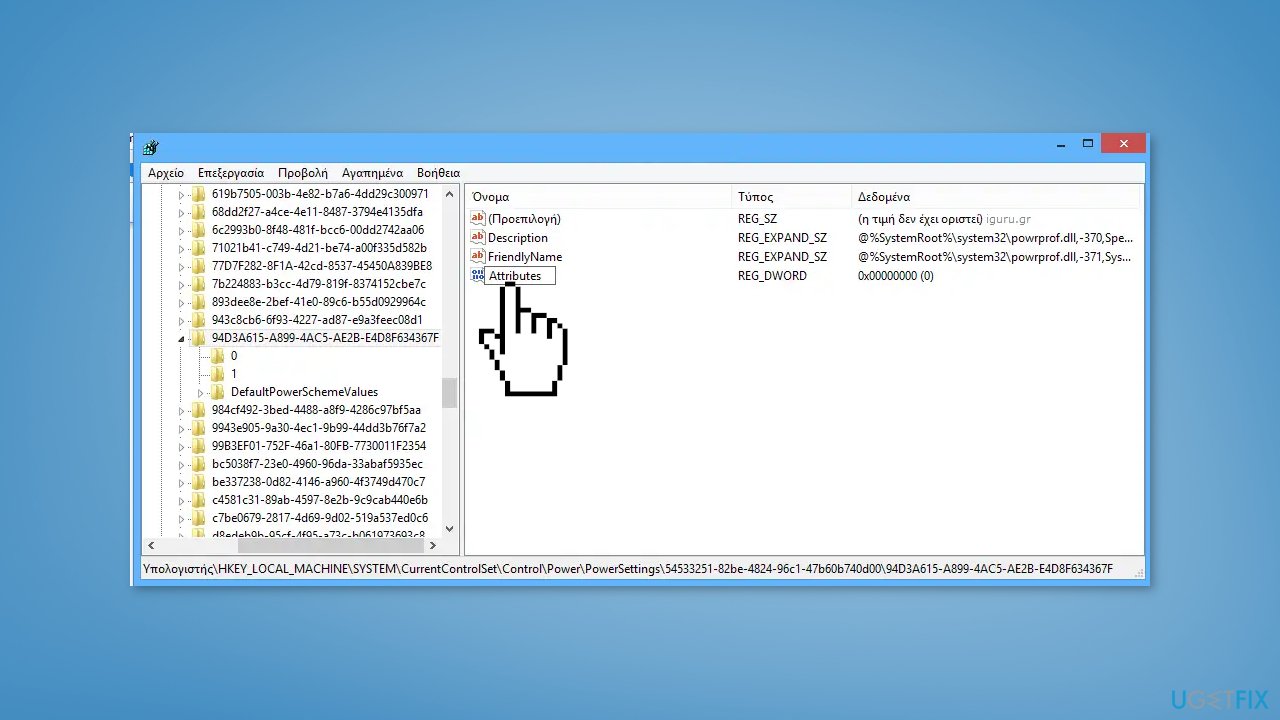
- Double-click the Attributes value to open the edit box
- Add 2 in the Value data field to add the System Cooling Policy in the Power Options box
- Press the OK button to close the window
- Close the Registry Editor
- This will work instantly and the System Cooling Policy option will be shown under the Processor power management section
- If it doesn’t, restart your system
Method 2. Enable System Cooling Policy via Command Prompt
- Press the Windows key + R to open the Run dialog box
- Type cmd and press Ctrl + Shift + Enter to launch the utility with administrator privileges
- Execute the following command to add 2 in the Value data field of Attributes DWORD value (in the Registry Editor):
REG ADD HKLM\SYSTEM\CurrentControlSet\Control\Power\PowerSettings\54533251-82be-4824-96c1-47b60b740d00\94d3a615-a899-4ac5-ae2b-e4d8f634367f /v Attributes /t REG_DWORD /d 2 /f
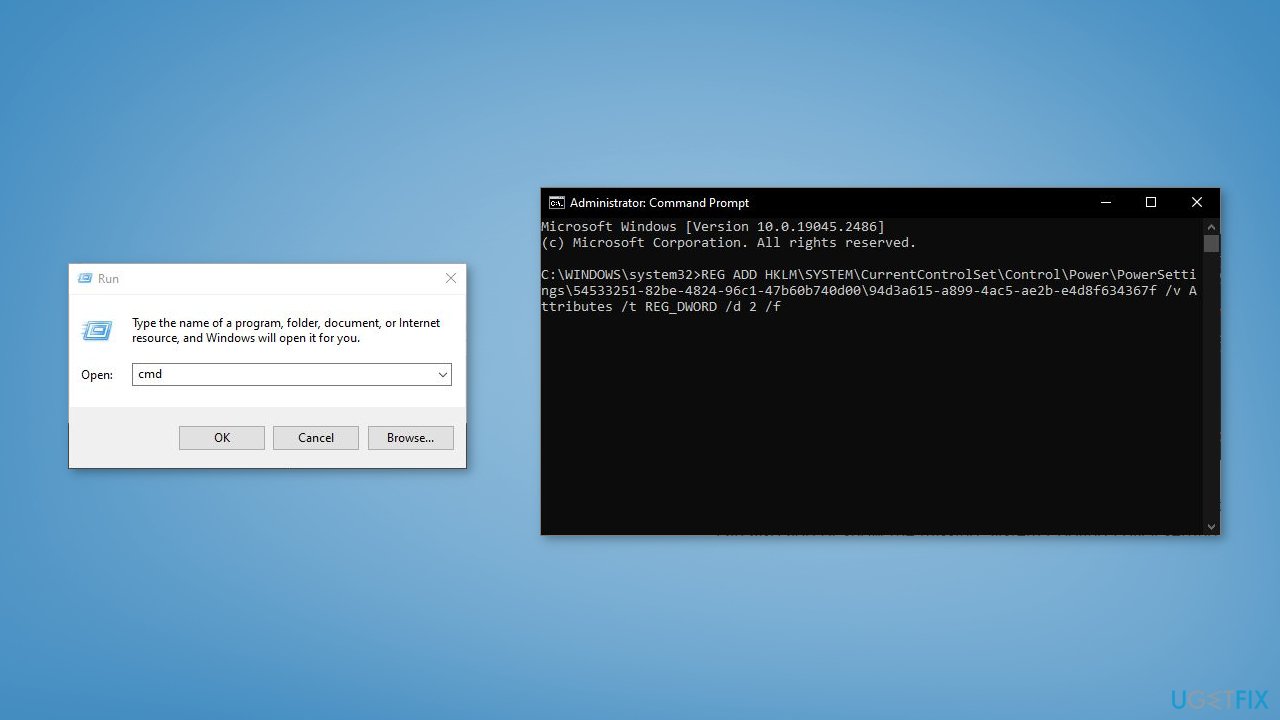
- Close the Command Prompt and check if System Cooling Policy appeared
Remove the System Cooling Policy
In case you want to hide or remove the System Cooling Policy setting from Power Options, follow these steps:
- Press the Windows key + R to open the Run dialog box
- Type cmd and press Ctrl + Shift + Enter to launch the utility with administrator privileges
- Use the following command:
powercfg -attributes SUB_PROCESSOR 94d3a615-a899-4ac5-ae2b-e4d8f634367f +ATTRIB_HIDE
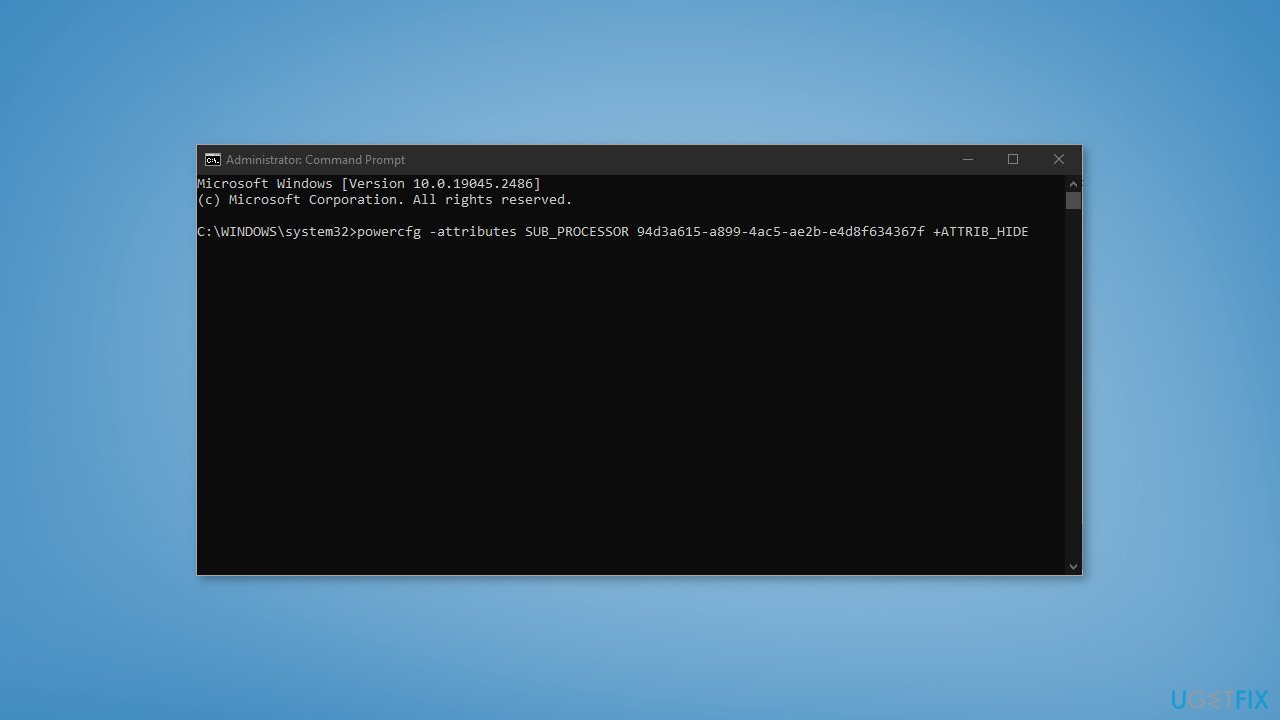
- This command changes the Value data of Attributes DWORD value in the Registry Editor from 2 to 1 to hide the System Cooling Policy
Bottom line
To fix the missing System Cooling Policy, you can add the setting via the Registry Editor or run a command prompt. It's important to back up the registry before making any changes. If these methods do not work, consider using a maintenance tool to automatically fix system errors.
Frequently asked questions
You can try updating your power management drivers or checking your BIOS settings to ensure that thermal management options are enabled.
You can access the Power Options in the Control Panel and select 'Change plan settings' to see if the option reappears after adjusting your power plan.
Yes, certain hardware configurations and power management settings must be supported by your device for the System Cooling Policy to be visible in Windows 10 or Windows 11.




Report an issue
What's wrong with this guide? We review every report and update or remove content.
Report received — thank you. We'll review and fix it.
You need a free account to submit a report.
Be the first to comment