How to fix
Missing Wi-Fi option
on Windows
Resolve the missing Wi-Fi option in Windows 10 or 11 effortlessly. Get expert-tested solutions and regain your connection in minutes!

What causes How to fix missing Wi-Fi option in Windows?
- Outdated Wi-Fi drivers
- Broken hardware
- Issues with the Windows operating system
- Frequent Wi-Fi connection drops
- Security concerns due to lack of Wi-Fi
Repairs Windows system files, removes malware, and restores a clean OS state — without reinstalling.
Hello. I wanted to connect to my Wi-Fi on Windows but the Wi-Fi option is completely missing. Is there a way to fix this?
The lack of a Wi-Fi option on Windows 11 PCs is a frequent problem users face. Numerous things could be the cause of this, such as outdated Wi-Fi drivers,[ref en-1] broken hardware, and possible issues with the Windows operating system. In addition, users may encounter frequent drops in their Wi-Fi connections, which exacerbates their irritation with the problem.
The device's connectivity and functioning are substantially hampered when Wi-Fi is unavailable, which has a considerable impact on consumers. Users encounter difficulties getting to the internet, online resources, and necessary apps that depend on a steady network connection in a time when being online is crucial for both work and play. If you rely on Wi-Fi for work-related activities, not having access to it might cause delays, disruptions, and decreased productivity.
Moreover, the problem might be more serious than just an annoyance and raise security issues. Alternative, less secure networks might be used by users, or they might be forced to utilize their own mobile data, which would result in more expenses. The issue is made worse by the frequent Wi-Fi connection dropouts, which cause disruptions to internet activities, dropped video conversations, and interrupted streaming.
It becomes critical to find a solution for the impacted users. Resolving faulty Wi-Fi drivers, looking into possible hardware issues, or fixing Windows OS glitches are some possible solutions. The precise actions differ based on the underlying problem, but finding a quick fix is essential to getting the user's computing experience back to normal.
In this guide, you will find 9 steps that should help you fix missing Wi-Fi option in Windows. You can also try running a maintenance tool like [d1] that can fix most system errors, BSODs,[ref en-2] corrupted files, and registry[ref en-3] issues. Otherwise, follow the step-by-step instructions below.
Solution 1. Run the Internet Connection Troubleshooter
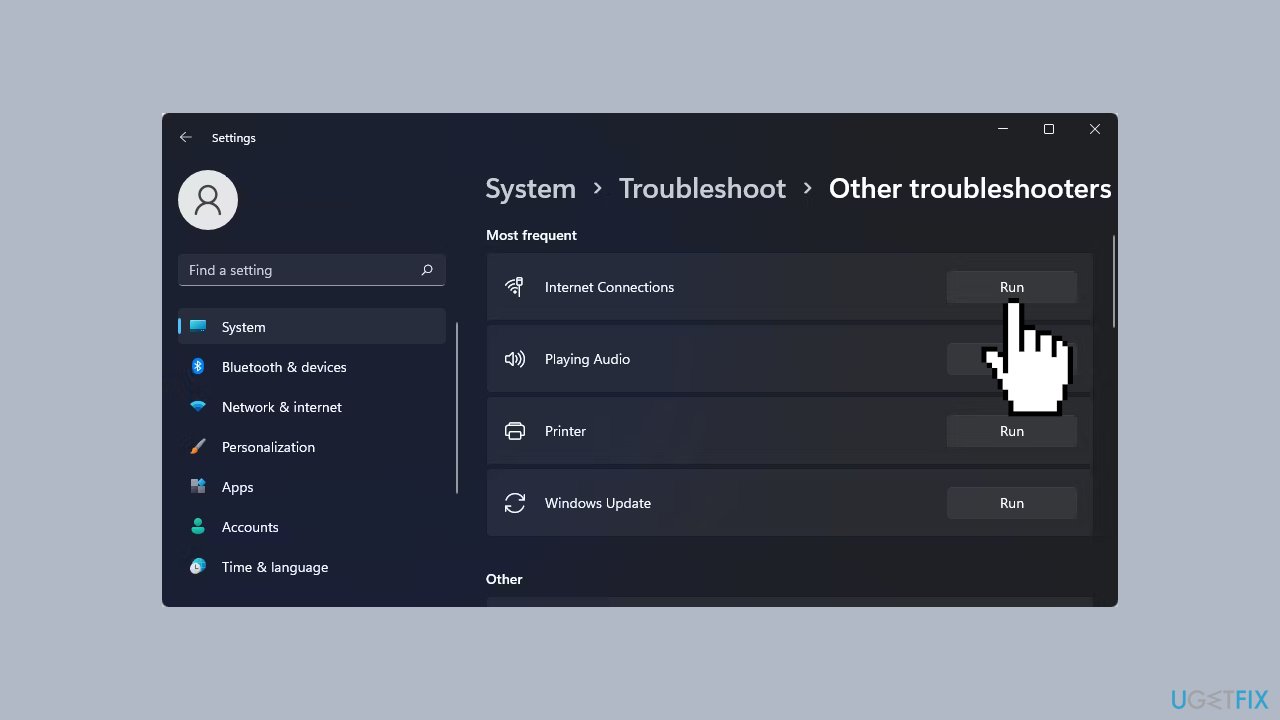
- Press the Windows key + I to open Settings.
- Open the System tab in the left pane.
- In the right pane, scroll down and click on Troubleshoot.
- Under Options, click on Other troubleshooters.
- Click the Run button for Internet Connections.
- Windows will launch the troubleshooter and show the issues that Windows can troubleshoot.
- Click on Troubleshoot my connection to the Internet.
- The troubleshooter will scan the system for issues and recommend potential fixes.
- Apply the fixes and check for any improvements.
- If the issues persist, run the Network Adapter troubleshooter.
- Press the Windows key + I to open Settings.
- In the System tab, go to Troubleshoot > Other Troubleshooters.
- In the troubleshooter window, select All network adapters and click Next.
Solution 2. Install Windows Updates
- Click Start and select Settings.
- Go to the Windows Update section.
- Click Check for updates and wait.
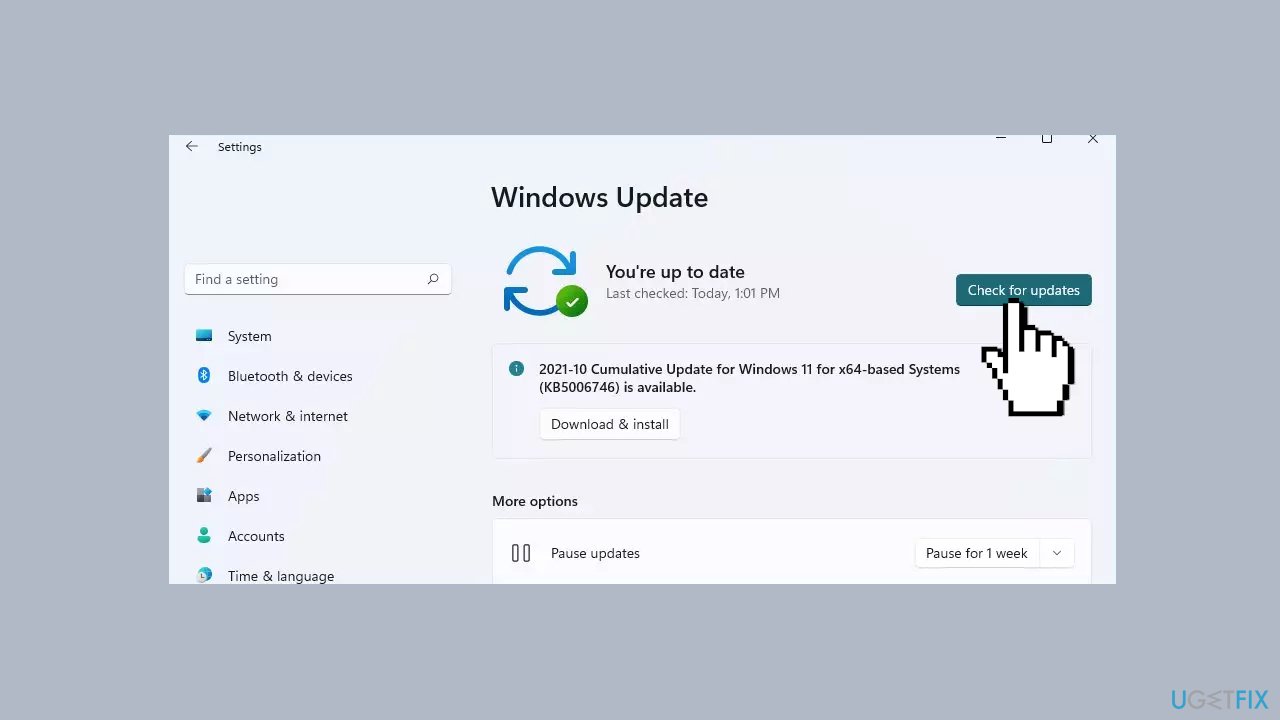
- Go to the Advanced options and install optional updates.
- Reboot your system.
Solution 3. Enable the Wi-Fi Adapter
- Press the Windows key + R to open the Run dialog.
- Type control and click OK to open the Control Panel. Alternatively, search for the Control Panel in Windows search and open it from the search results.
- In the Control Panel, go to Network and Internet > Network and Sharing Center.
- Click on Change adapter settings to view all the installed network devices in the left pane.
- Right-click on the Wi-Fi adapter and select Enable.
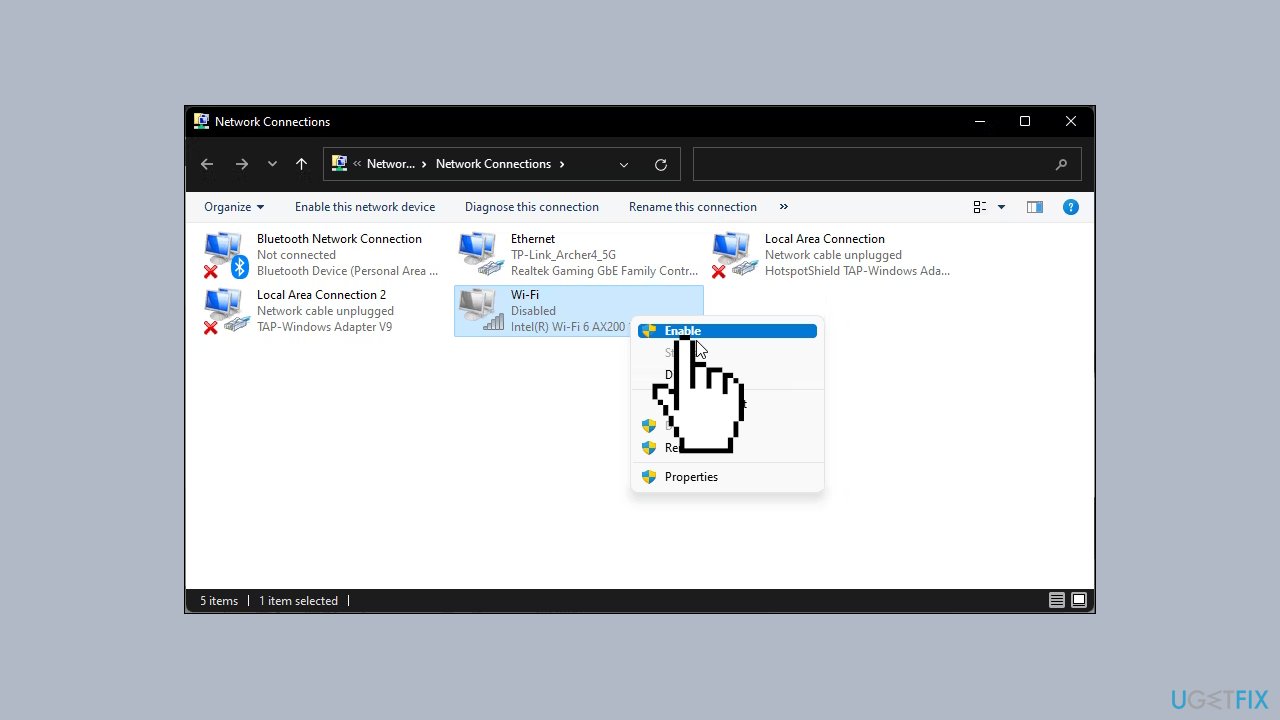
- Run the network diagnostic to troubleshoot the driver if it is already enabled.
- Right-click on the Wi-Fi adapter and select Diagnose.
- Windows will scan the device for issues and recommend a potential fix.
- Click on Apply this fix to resolve the problem.
Solution 4. Update the Network Adapter Driver
- Press the Windows key to open Windows search.
- Type device manager and open it from the search result.
- In the Device Manager, expand the Network adapters section.
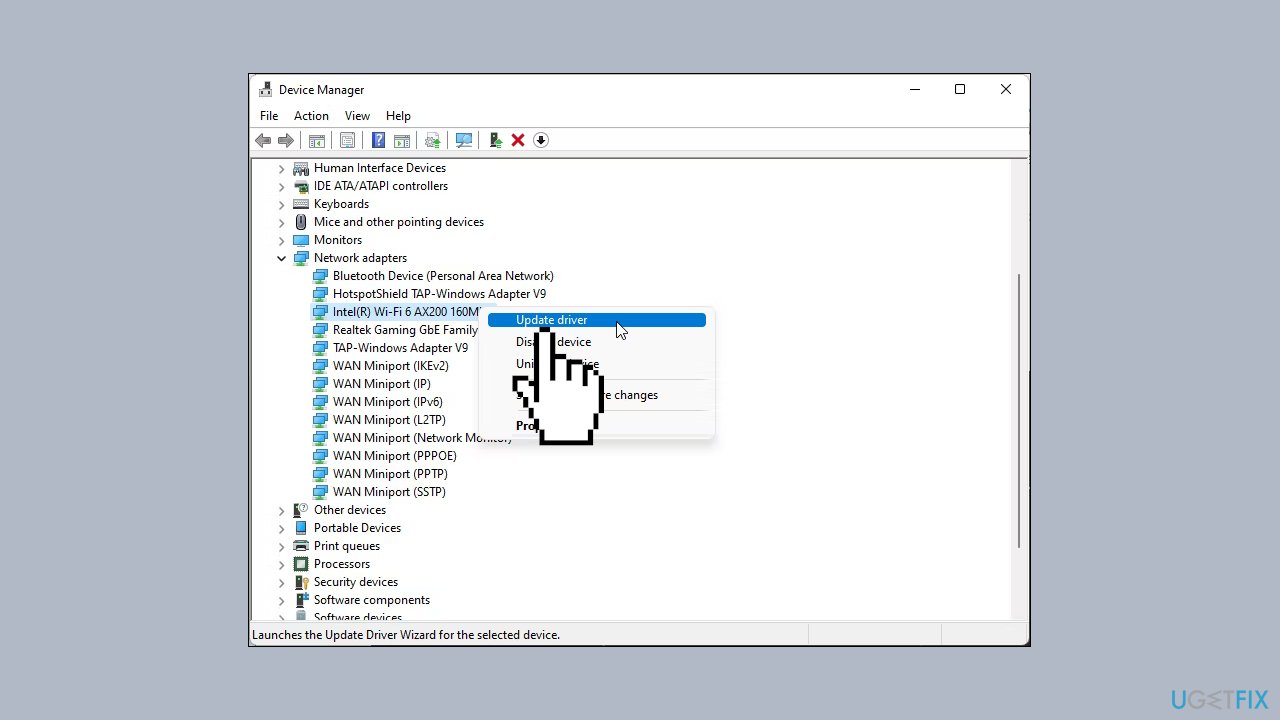
- Right-click on your Wi-Fi device. For example, Intel (R) Wi-Fi AX200, and select Update driver.
- Select Search automatically for drivers. Windows will scan for new drivers and install them if available.
- Close the Device Manager and check if the Wi-Fi option is restored.
Solution 5. Configure the Network Adapter Power Management Settings
- Open Device Manager and expand Network Adapters.
- Right-click on your Wi-Fi adapter and select Properties.
- Open the Power Management tab in the Properties dialog.
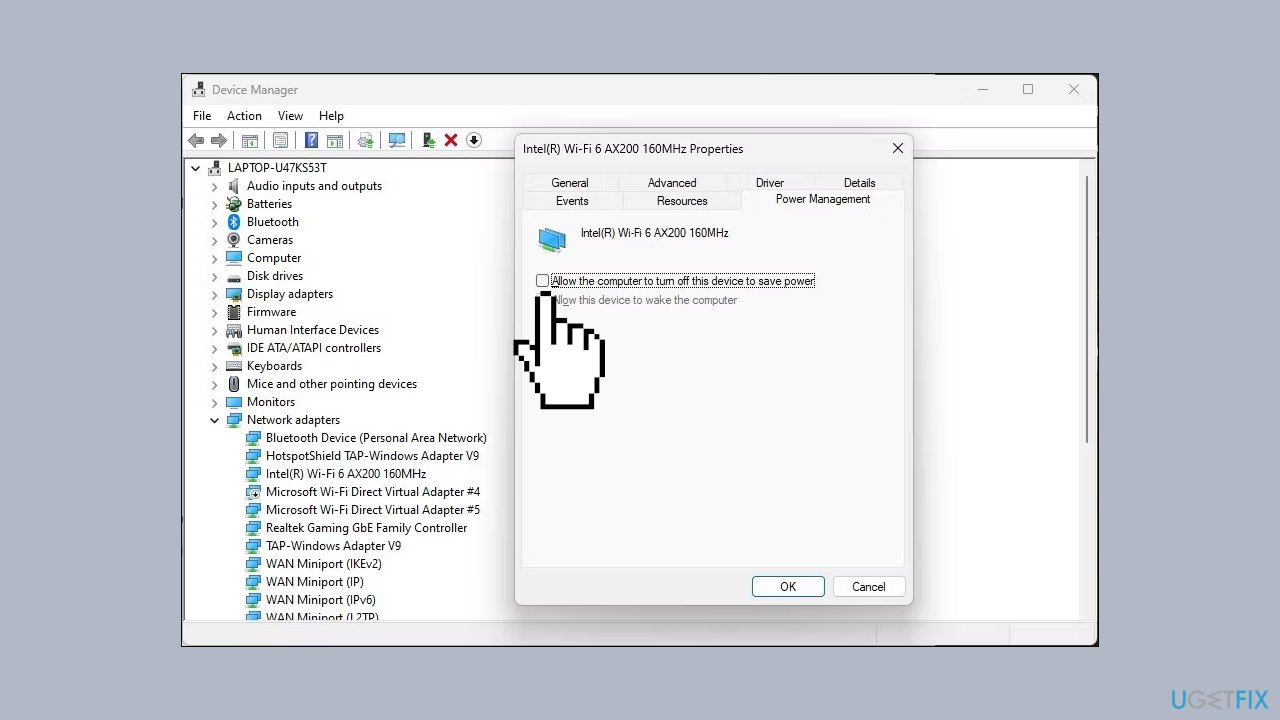
- Uncheck the Allow the computer to turn off this device to save power option.
- Click OK to save the changes and restart your computer to see if the issue is resolved.
Solution 6. Enable the WLAN Auto Config Service
- Press the Windows key + R to open Run.
- Type services.msc and click OK.
- In the Services window, locate the WLAN AutoConfig service and check if it is running. If not, right-click and select Properties.
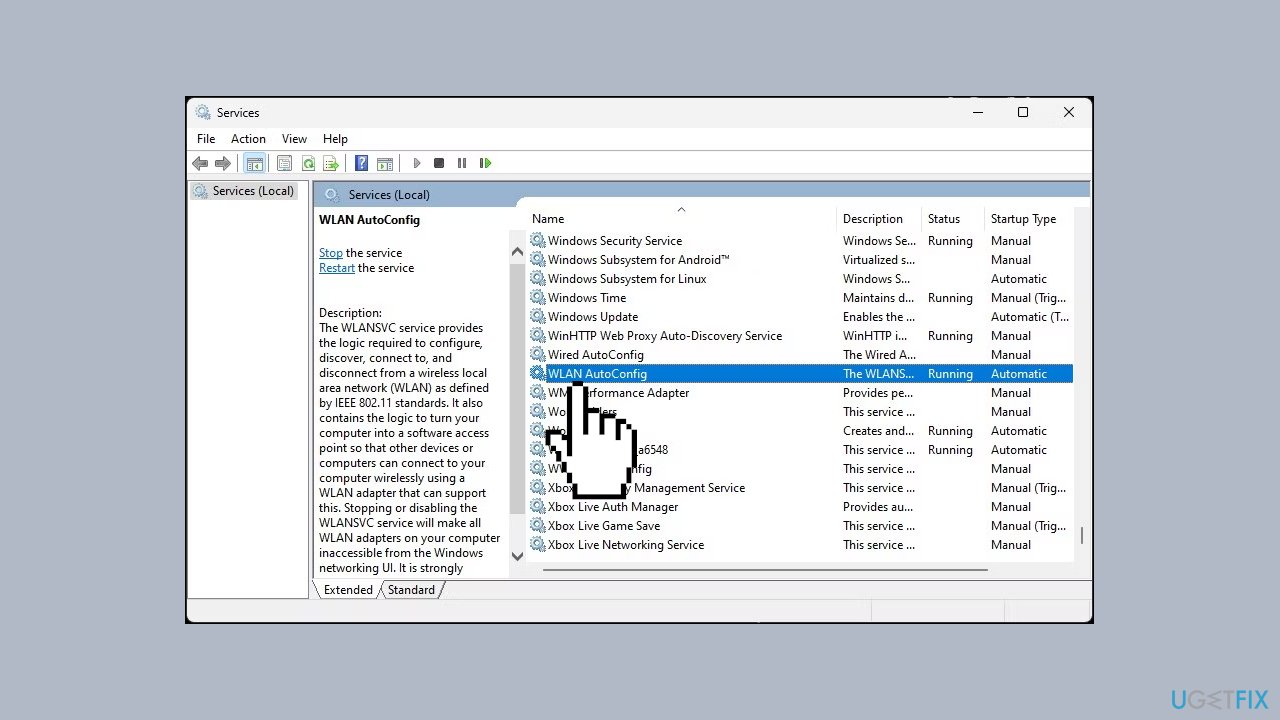
- In the Properties dialog, click the Startup type drop-down and select Automatic.
- Select Start.
- Choose Apply and OK to save the changes.
Solution 7. Enable All Services in the System Configuration Tool
- Press the Windows key + R to open Run.
- Type msconfig.msc and click OK.
- Next, open the Services tab in the System Configuration dialog.
- Click Enable all to enable all the services.
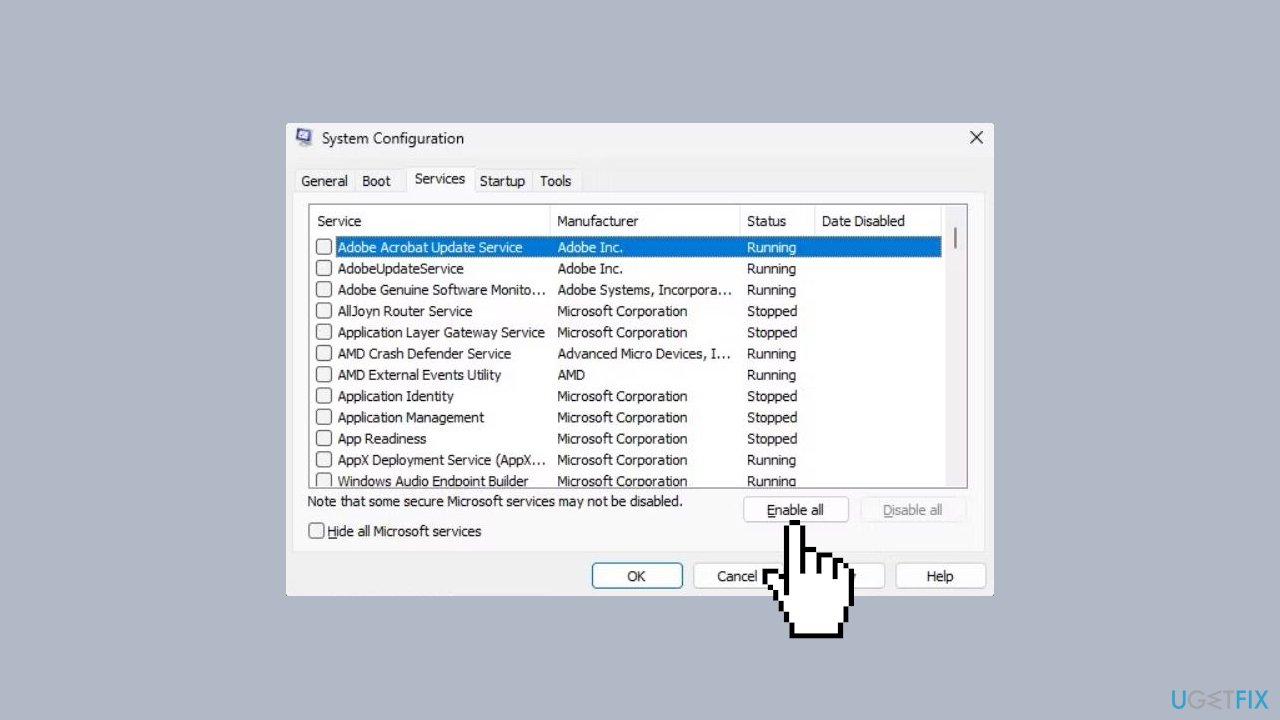
- Click Apply and OK to save the changes.
- Restart your computer to enable all the services.
Solution 8. Reinstall the Network Adapter Driver
- Open Device Manager and expand the Network adapter section.
- Right-click on the Wi-Fi device and choose Uninstall device.
- Click the Uninstall button to confirm the action.
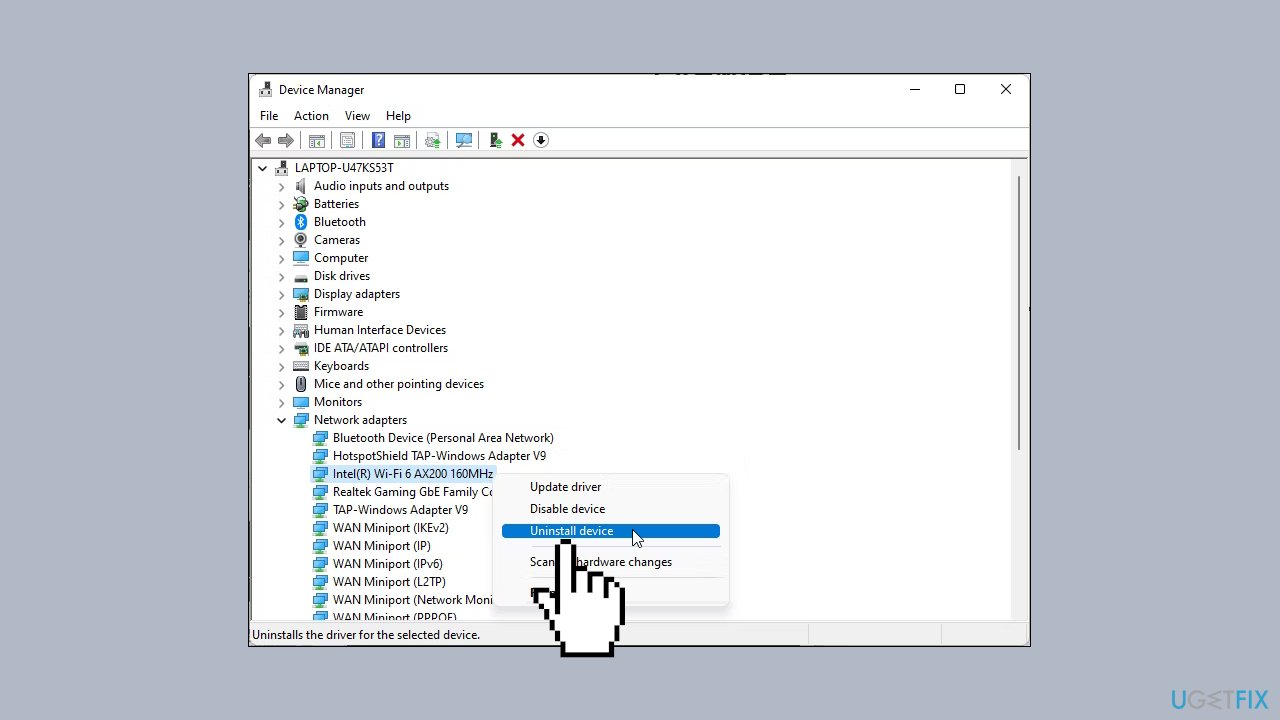
- Once uninstalled, click on Action in the Device Manager toolbar and select Scan for hardware changes. Windows will scan for missing but connected devices and reinstall the necessary drivers.
If the issue persists, follow these steps:
- Make sure to save any unsaved work or documents.
- Open Device Manager and uninstall the Wi-Fi adapter driver.
- Once uninstalled, press the Windows key and type cmd.
- Right-click on Command Prompt and select Run as administrator. In the Command Prompt window, type the following command to perform a total shutdown of your computer:
shutdown /s /f /t 0
- After the restart, Windows will automatically reinstall the Wi-Fi device driver and restore Wi-Fi connectivity.
Solution 9. Reset Network
- Open Settings and click on the Network & Internet tab in the left pane.
- Scroll down and click on Advanced network settings to view all network devices and the network reset option.
- Scroll down to the More settings section and click on Network reset.
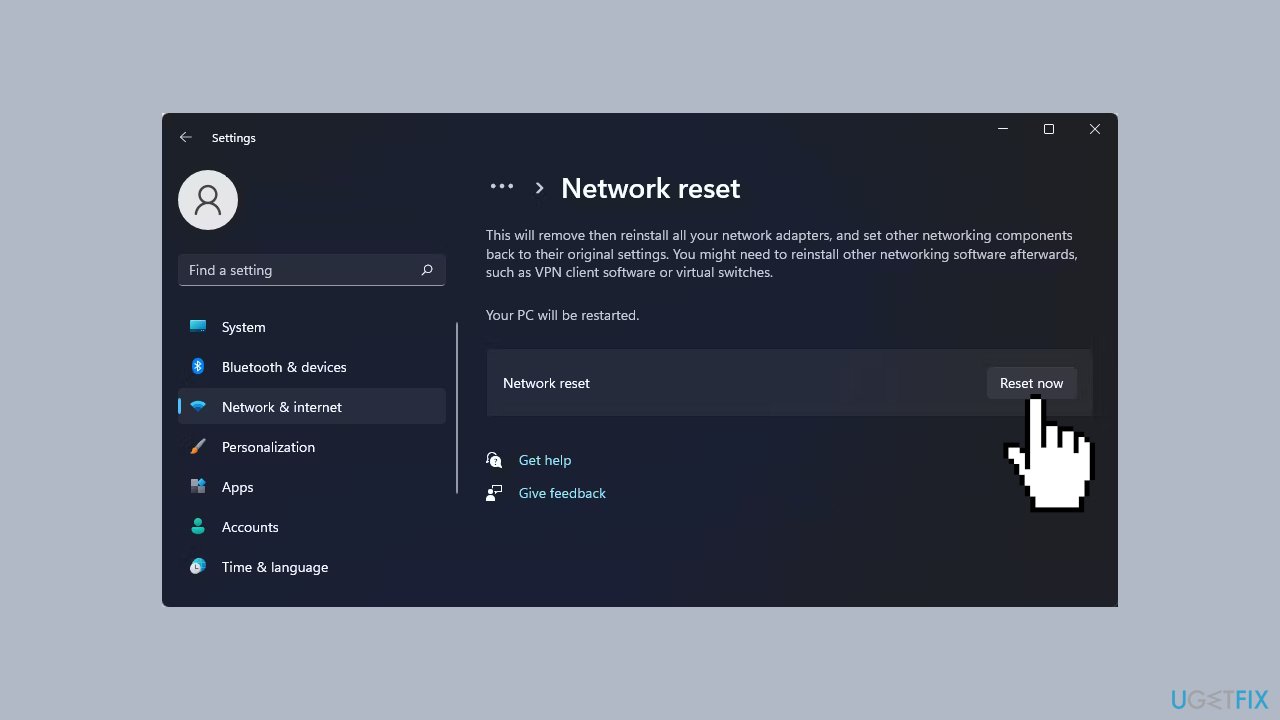
- Click the Reset now button for Network reset.
- Click Yes to confirm the action.
Bottom line
To fix the missing Wi-Fi option in Windows, users can run the Internet Connection Troubleshooter, check for faulty Wi-Fi drivers, investigate hardware issues, or address Windows OS glitches. If these steps do not resolve the issue, consider using a maintenance tool to fix system errors.
Frequently asked questions
First, try running the Network Troubleshooter by going to Settings > Update & Security > Troubleshoot. If that doesn't work, ensure that your Wi-Fi adapter is enabled in Device Manager.
You can restore it by checking for any pending updates under Settings > Windows Update, or by rolling back the problematic update if you suspect it caused the issue. Additionally, resetting your network settings might help.
Yes, you can use the Command Prompt to reset your TCP/IP stack by entering 'netsh int ip reset' and then reboot your PC, which often resolves the missing Wi-Fi option in both Windows 10 and Windows 11.




Report an issue
What's wrong with this guide? We review every report and update or remove content.
Report received — thank you. We'll review and fix it.
You need a free account to submit a report.
Be the first to comment