How to fix
Modern Warfare 2 error 14515
on Windows
Resolve Modern Warfare 2 error 14515 on Windows 10 and 11 effortlessly. Follow expert-tested tips for a smooth gaming experience, fixed in minutes.

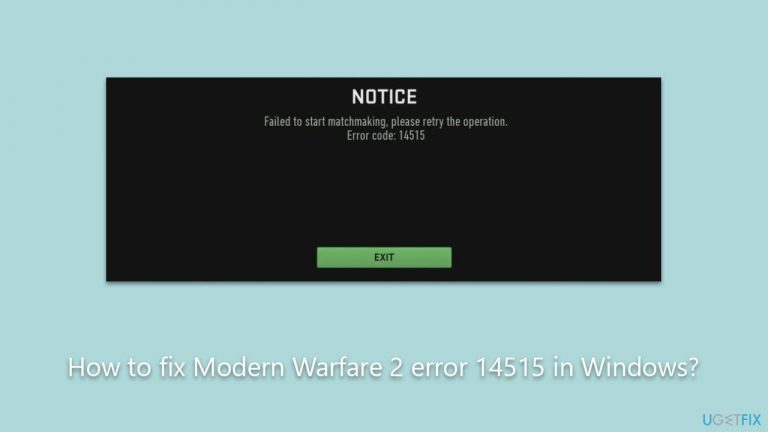
What causes How to fix Modern Warfare 2 error 14515 in Windows?
- Server-side issues
- Inconsistent internet connectivity
- Corrupted or missing game files
- Security software or firewalls blocking game components
- Outdated or incompatible graphics drivers
Repairs Windows system files, removes malware, and restores a clean OS state — without reinstalling.
I keep getting error 14515 when trying to play Modern Warfare 2 on Steam. Any idea on how to resolve this?
Introduced to the gaming community in 2022, Call of Duty: Modern Warfare II stands as the next installment in the world of first-person shooters. Developed by Infinity Ward and disseminated by Activision, this title is not just another game; it's the nineteenth chapter in the grand narrative of the Call of Duty series. A follow-up to its 2019 counterpart, Modern Warfare II has secured its spot in the hearts of gamers worldwide. But, as with every high-caliber product, some issues are inevitable.
A recurring challenge many players face is the error 14515 in Modern Warfare 2 - it can predominantly be traced back to two sources. Firstly, server-side issues often become the primary culprits. When the server hosting the game experiences disturbances, the problem lies outside the player's control, rooted deep within the infrastructure overseen by Activision. In such scenarios, the most pragmatic approach is patience, allowing Activision time to address and rectify the disruption.
On the flip side, the 14515 error in Modern Warfare 2 sometimes emerges from complications at the user's end. Here's where things become a tad more intricate. Issues like inconsistent internet connectivity can sever the game's link with its servers, causing the error. Another potential cause is the integrity of the game files. Corrupted or missing files can result in issues, and often, a fresh reinstallation or a repair via the game launcher can be the solution.

Furthermore, it's not uncommon for security software or firewalls to occasionally block critical game components. Players should ensure that the game has the necessary permissions and is not being hindered by any security settings. Lastly, the graphics drivers play a pivotal role in the game's performance. Ensuring that these drivers are updated and compatible can make a significant difference.
For those seeking an expedited solution or perhaps feeling overwhelmed with manual troubleshooting, external tools can come to the rescue. One such efficient tool is the [d1] PC repair tool, designed to diagnose and address common game-related anomalies, potentially offering a swift resolution to the error 14515.
Fix 1. Check server status
If you encounter login problems while playing Call of Duty, it's crucial to start by checking the status of the game's server. Websites like Down Detector or the official Activision Twitter account offer timely updates on any server disruptions. Unfortunately, if the servers are down, the issue is out of your hands, and waiting for Activision to address the situation is the only course of action.

Fix 2. Run Network troubleshooter
Windows comes with built-in troubleshooting tools that can detect and fix common internet issues automatically.
- Right-click on Start and pick Settings.
- Go to Network & Internet section.
- On the right side, find the Advanced network settings section.
- Click Network troubleshooter and wait.
- The fixes should be automatically applied.

Fix 3. Check the integrity of game files
Corrupted or missing game files can cause errors. Most game launchers provide an option to verify and repair the game files.
Battle.net
- Open the Battle.net client on your PC.
- Select Call of Duty Modern Warfare 2 in the client.
- Click on the gear icon next to the Play button and select Scan and repair from the menu.
- Wait for the scan to finish.
Steam
- Open Steam and go to your Library.
- Right-click on the game and select Properties.
- On the left side, pick Local files.
- Click Verify integrity of game files...
- Wait till the process is finished.

Fix 4. Reset your internet connection
A simple reset of your modem and router can refresh your connection and solve minor glitches.
- Type cmd in Windows search.
- Right-click on the Command Prompt result and select Run as administrator.
- When User Account Contol shows up, click Yes.
- In the new window, copy and paste the following command links, pressing Enter each time:
ipconfig /flushdns
ipconfig /registerdns
ipconfig /release
ipconfig /renew
netsh winsock reset - Close the Command Prompt.

Fix 5. Try alternative DNS settings
Using a different DNS can enhance your internet connection and resolve issues related to specific servers.
- Right-click on Start and pick Network Connections.
- Under Advanced network settings, pick Change adapter options.
- In the Network Connection window, right-click on your main connection (for example, Ethernet) and pick Properties.
- Select Internet Protocol Version 4 (TCP/IPv4) and click Properties below.
- Click Use the following DNS server address and type the following into the fields:
Preferred DNS server: 8.8.8.8
Alternate DNS server: 8.8.8.9 - Press OK.

Bottom line
To fix error 14515 in Modern Warfare 2, players should check for server issues, ensure stable internet connectivity, verify the integrity of game files, adjust security settings, and update graphics drivers. If these solutions do not resolve the issue, consider using external troubleshooting tools or waiting for server maintenance from Activision.
Frequently asked questions
Error 14515 typically indicates a connection issue or a problem with the game's server status, preventing players from accessing online features.
To fix error 14515, try restarting your router, checking the game's server status, or verifying the game files through the Battle.net app on Windows 10 or Windows 11.
Ensure that your Windows Firewall or antivirus is not blocking Modern Warfare 2, and consider adding it to the exception list to improve connectivity.




Report an issue
What's wrong with this guide? We review every report and update or remove content.
Report received — thank you. We'll review and fix it.
You need a free account to submit a report.
Be the first to comment