How to fix
Monitor stuck at 60Hz
on Windows
Resolve your monitor's 60Hz limit in Windows 10 or 11 with expert tips. Enjoy smoother visuals and enhanced performance—fixed in minutes!

What causes How to fix monitor stuck at 60Hz in Windows?
- Outdated graphics drivers
- Incompatible graphics drivers
- Incorrect configurations
- Incompatible cables
- Older HDMI versions
Repairs Windows system files, removes malware, and restores a clean OS state — without reinstalling.
Hi. I have been using a 144Hz monitor for a while but have recently noticed that my refresh rate is 60Hz, and I can't put it back to 144Hz. How can I fix this?
Monitors, essential devices in our daily digital interaction, have undergone significant evolution since their inception. Initially, they were bulky, with limited resolution and color depth, while contemporary models boast sleek designs, crisp visuals, and higher refresh rates, such as 120Hz, 144Hz, or even more. This evolution is not merely cosmetic. Higher refresh rates translate into smoother visuals and reduced eye strain, offering a distinct advantage in various applications, from general use to competitive gaming, where every fraction of a second counts.
However, an emerging issue perplexes many - monitors that are seemingly stuck at a 60Hz refresh rate, hindering the user from tapping into the improved visual experience that higher refresh rates provide. Often, this predicament arises even when both the monitor and the graphical hardware support higher refresh rates, which should, theoretically, permit a straightforward adjustment in the display settings of Windows.
So, why is the monitor stuck at 60Hz? Several factors might be at play. One prevalent cause is outdated or incompatible graphics drivers, which are crucial in facilitating communication between the operating system and the hardware. Additionally, incorrect configurations or incompatible cables (like older HDMI versions) can also handcuff your monitor to 60Hz. It's paramount to note that the pathway to smoother visuals isn’t barricaded permanently by this issue, and you have practical approaches at your disposal to troubleshoot and potentially resolve it.

Detailed step-by-step instructions for these solutions can be found below this article, guiding you through various checks and actions to free your monitor from being stuck at 60Hz. These steps involve checking physical connections, ensuring cables are capable and correctly seated, and software-based solutions like updating drivers and manually configuring display settings.
In some instances, underlying issues might run deeper within the system software or hardware, warranting more comprehensive diagnostic and repair tools. Utilizing a PC repair tool, such as [d1], could offer an accessible and efficient method for users to identify and rectify issues contributing to the performance limitations of their monitors.
Preliminary checks
- Reboot Your PC: Initiating a fresh start often resolves many minor glitches. Restart your computer to see if this rectifies the refresh rate problem.
- Inspect the Monitor Cable: Physical damages or bends in the cable can impede the signal. Ensure your monitor cable is in good condition without any visible signs of wear or damage.
- USB Connection: Some monitors connect via USB. If this applies to yours, test different USB ports, preferably shifting between USB 2.0 and USB 3.0, to determine if there's a disparity in performance.
- Use the Right Cable: Not all cables are created equal. Depending on your monitor and PC specifications, you might require specific cables like DisplayPort or HDMI. Moreover, for those seeking higher refresh rates, advanced cables such as HDMI 2.1 can provide enhanced performance. Ensure you're using the appropriate and compatible cable for your setup.
These preliminary checks can help discern the cause and potentially lead you toward a solution. If they do not help your situation and your monitor is still stuck at 60Hz, proceed with the solutions below.
Fix 1. Change adapter settings
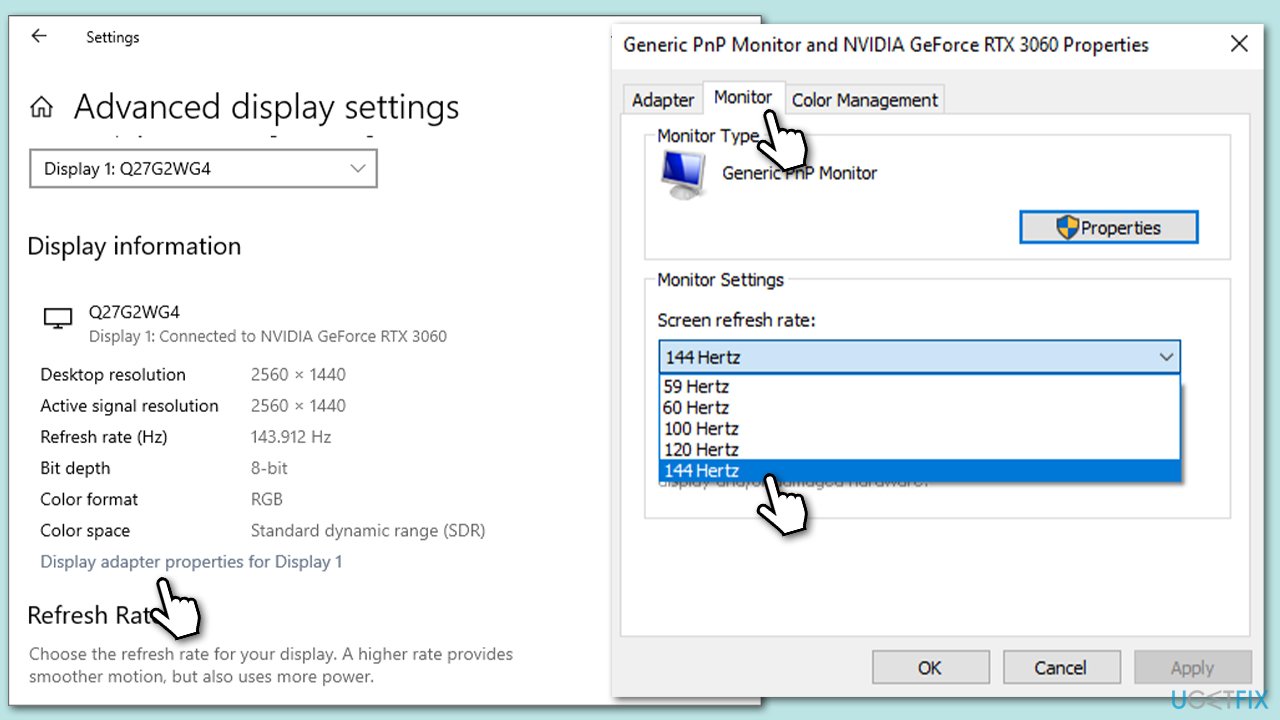
Sometimes, your graphics adapter settings may be limiting your monitor’s refresh rate. Adjusting these can enable higher rates.
- Right-click anywhere on your desktop and select Display settings.
- Scroll down to locate Advanced display settings and click it.
- Under the Display information section, find and click Display adapter properties for Display 1.
- Go to the Monitor tab.
- Select the desired refresh rate from the drop-down menu.
- Click Apply and OK.
Fix 2. Update display drivers
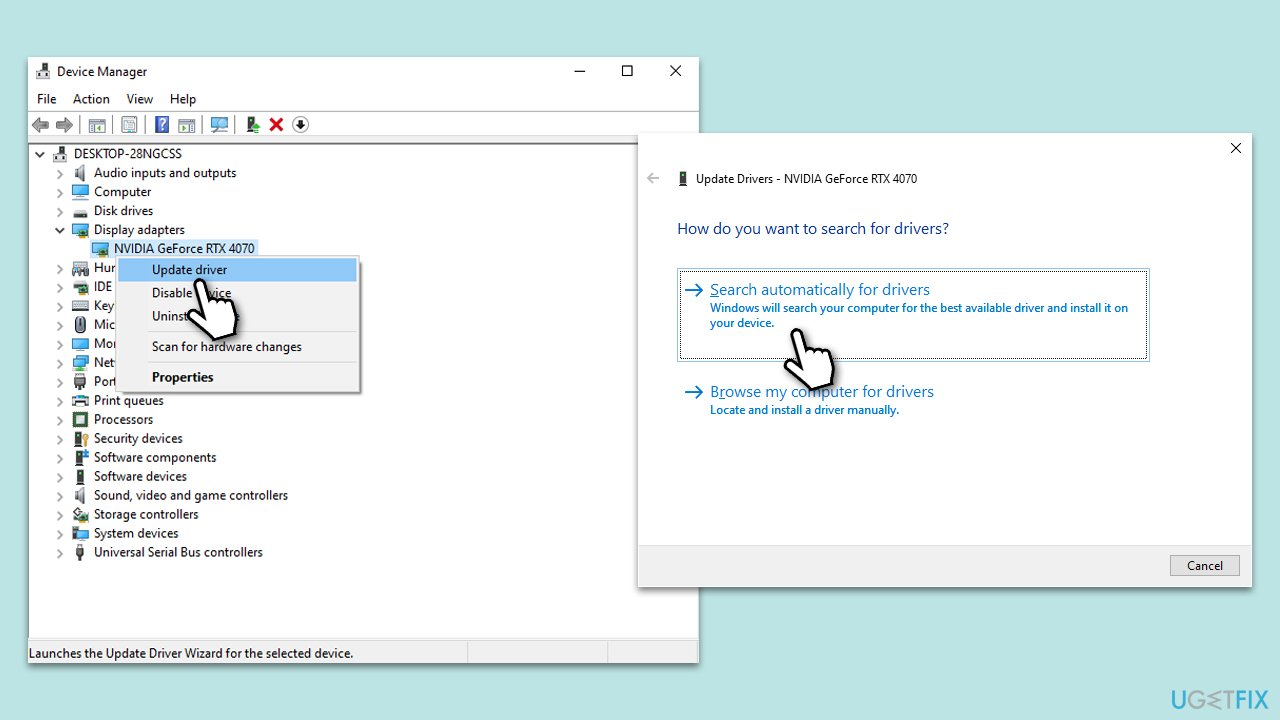
Outdated drivers can hinder the performance of your monitor. Keeping them up-to-date ensures optimal compatibility and performance. There are several ways you could do this, including downloading the driver manually from the official website, employing [rev id="DriverFix"] for an automatic approach, or simply relying on the Windows update feature:
- Right-click on Start and pick Device Manager.
- Expand the Display Adapters section.
- Right-click on your graphics card and select Update Driver.
- Select Search automatically for drivers and wait.
- Once done, restart your computer.
Fix 3. Reinstall display drivers
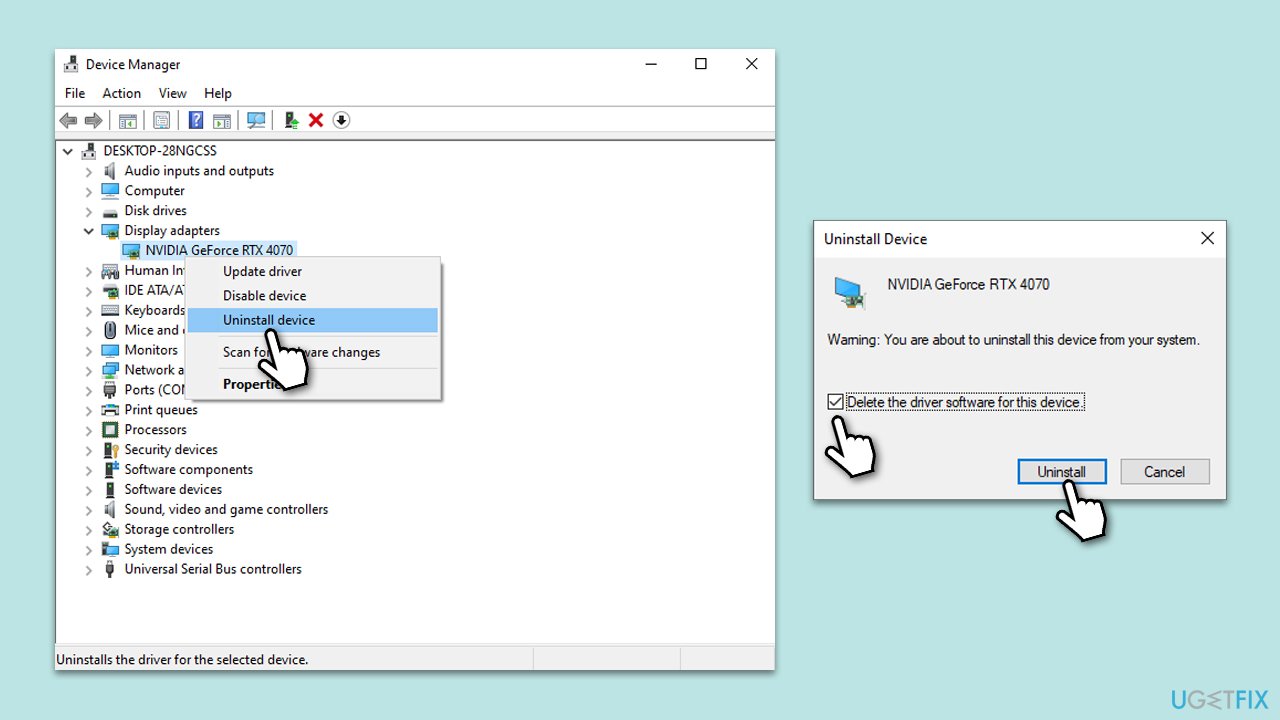
A corrupted driver installation can cause various issues. Reinstalling can help reset any problematic configurations.
- Right-click on Start and pick Device Manager.
- Expand Display adapters.
- Right-click on your GPU and select Uninstall device.
- Mark the Delete the driver software for this device tickbox.
- Click Uninstall and follow the instructions to finish the process.
- Restart your device and use one of the methods above to install the latest drivers.
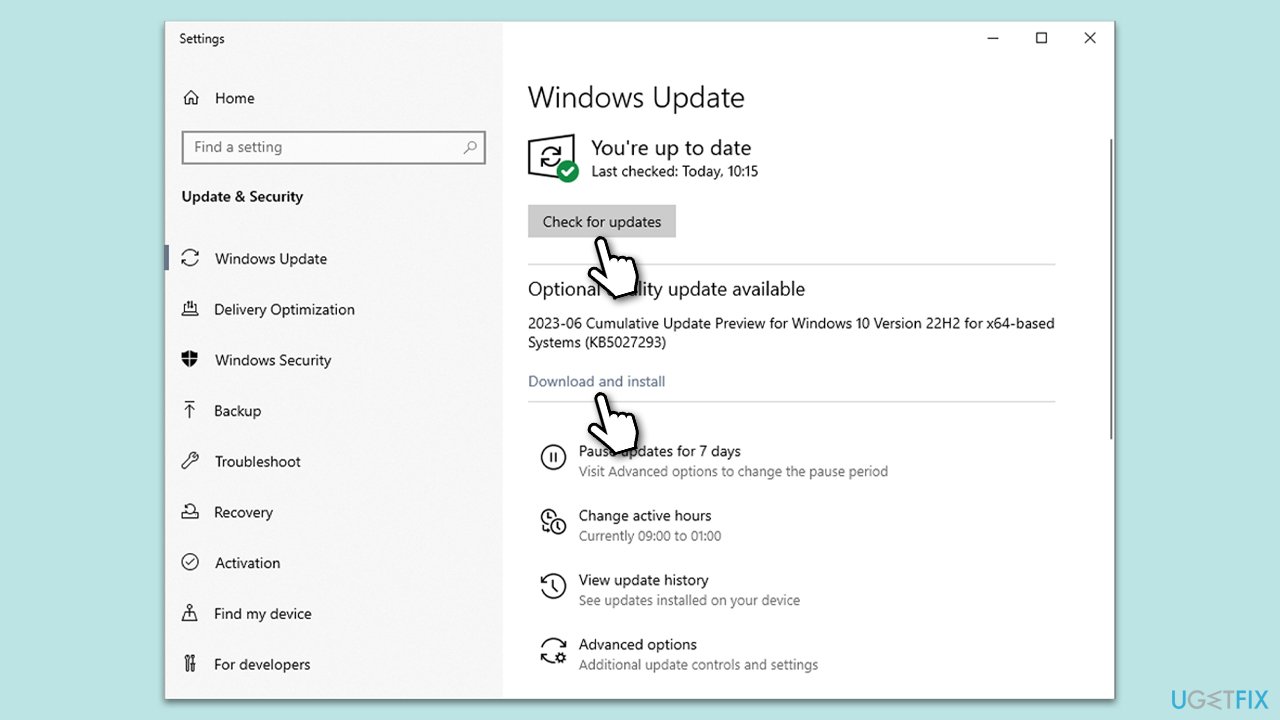
Fix 4. Install all Windows updates
Windows updates can resolve compatibility issues and improve overall system performance.
- Type Updates in Windows search and press Enter.
- Click Check for updates and wait.
- Install all the optional updates as well.
- Restart your system.
Fix 5. Disable G-Sync in Nvidia Control Panel
G-Sync, though beneficial for some gaming scenarios, can occasionally conflict with certain refresh rates.
- Right-click on your desktop and select NVIDIA Control Panel.
- Under Display, click on Set up G-SYNC.
- Uncheck the box next to Enable G-SYNC.
- Click Apply and close the control panel.
Fix 6. Adjust in-game settings
Some games have built-in settings that can override system display settings.
- Launch the game causing the issue.
- Go to the game’s settings or options menu.
- Look for display or graphics settings.
- Adjust the refresh rate or disable any limiters present (including disabling V-Sync).
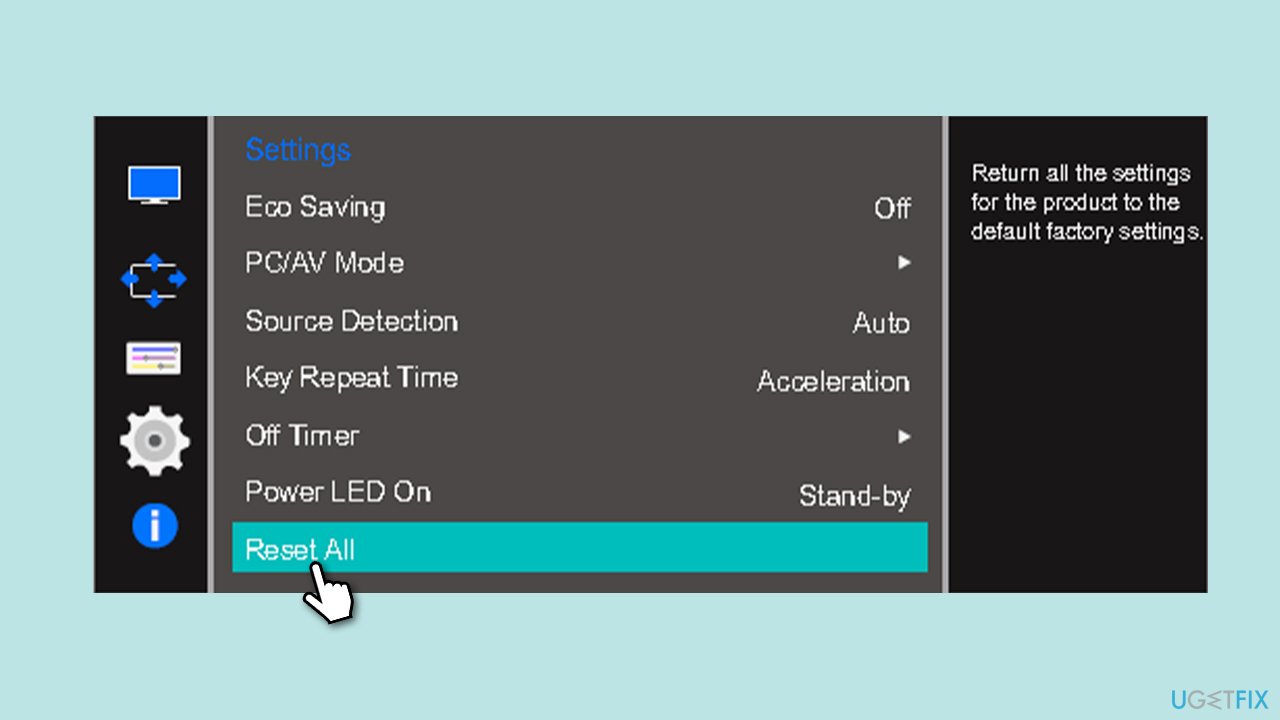
Fix 7. Reset monitor to factory settings
Monitors have internal settings, and restoring them can resolve hidden configuration issues.
- Use the buttons or on-screen menu of your monitor.
- Navigate to the Settings or System section.
- Choose the Reset or Factory Reset option.
- Follow on-screen instructions to complete the reset.
Bottom line
To fix the monitor stuck at 60Hz, you can check physical connections, ensure cables are capable and correctly seated, update drivers, and manually configure display settings. If these steps do not resolve the issue, consider using a PC repair tool for deeper diagnostics.
Frequently asked questions
Right-click on the desktop, select 'Display settings', scroll down to 'Advanced display settings', and then choose a higher refresh rate from the 'Refresh rate' dropdown menu.
Ensure that your graphics drivers are up to date and check if the monitor supports a higher refresh rate through its specifications.
Yes, using HDMI 2.0 or DisplayPort cables is recommended to support refresh rates higher than 60Hz on compatible monitors.




Report an issue
What's wrong with this guide? We review every report and update or remove content.
Report received — thank you. We'll review and fix it.
You need a free account to submit a report.
Be the first to comment