How to fix
Monitor turning off when playing games
on Windows
Discover effective solutions for your Windows 10 or Windows 11 monitor issues while gaming. Get expert-tested tips for a seamless experience!

What causes How to fix monitor turning off when playing games?
- Technical glitch with the graphics card
- Outdated graphics driver
- Power settings in Windows
- Problems with the game software
- Faulty monitor cables
- Issues with the monitor
Repairs Windows system files, removes malware, and restores a clean OS state — without reinstalling.
Hi. I have an issue where my monitors turn off after some time when I play games. I thought that it was my PSU, so I replaced it, but the problem persists, so I'm not sure what to do next.
Monitors and gaming are two intertwined concepts that contribute to the overall gaming experience. The digital landscapes that players traverse, the intense firefights they engage in, the mesmerizing spell effects in fantasy realms - all of these scenarios unfold on the monitor.
However, the seamless integration of these two elements can sometimes experience hitches, thus disrupting the gaming experience. For instance, some Windows users report their monitors suddenly turning off while playing games. This issue typically occurs a few moments after the game has been launched, prompting confusion and frustration as the vivid gaming world fades into an unanticipated blackness.
This phenomenon is not entirely uncommon and could be attributed to various causes. First and foremost, it could be due to a technical glitch with the graphics card. These cards, integral for rendering high-definition visuals in gaming, might be overheating or may not be compatible with the game's requirements, thereby causing the monitor to turn off as a fail-safe.
Secondly, an outdated graphics driver could also be a potential culprit. Drivers act as the communication bridge between the operating system and the hardware. An out-of-date driver might not properly relay information, causing the monitor to shut down during gaming sessions abruptly.
Lastly, power settings in Windows could also be causing the problem. Certain settings might interpret the high resource utilization during gaming as an idle state and respond by turning off the monitor. Furthermore, other issues could stem from problems with the game software itself, faulty monitor cables, or even the monitor.
Despite the seeming complexity of these issues, potential solutions exist. These range from updating graphics drivers and adjusting power settings to replacing hardware components. While this exposition provides an overview of the problem and its possible causes, further detailed guidance on how to implement these solutions will follow below the article. This will help gamers swiftly return to their immersive digital worlds without the fear of abrupt disruptions.
It is also important to note that if you are having issues with Windows itself, [d1] PC repair tool can be a great aid, which can find and replace damaged system files automatically.
Fix 1. Check for overheating
Overheating graphics cards can cause safety mechanisms to trigger, turning off the monitor to prevent damage.
- Monitor your GPU temperature using adequate software.
- Ensure your computer is well-ventilated and clean of dust.
- If the GPU consistently overheats, consider using a cooler or limiting the game's graphical settings.
Fix 2. Update graphics drivers
Graphics drivers enable your operating system to communicate with the graphics card. Updating them ensures the smooth exchange of information, reducing the chances of your monitor turning off. There are several ways you could do this: download from the manufacturer's website, update automatically with software like [rev id="DriverFix"], or employ the Windows update feature (which is the least effective method, by the way).
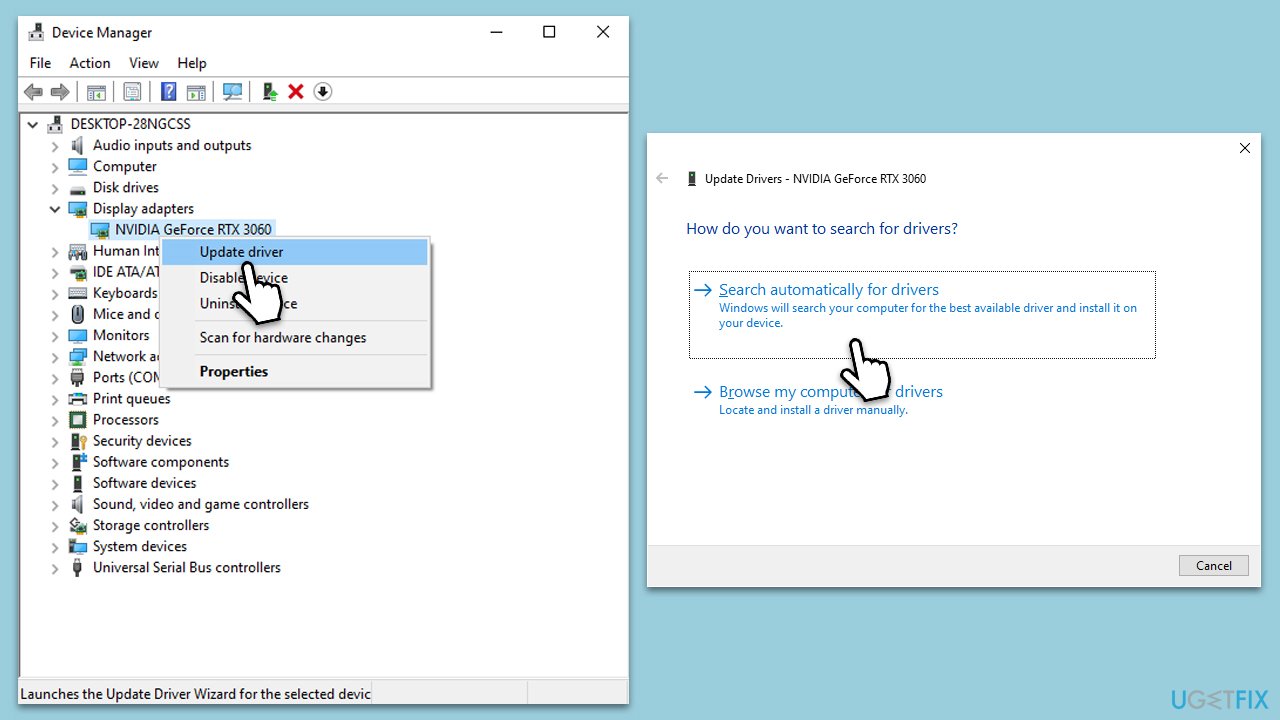
- Right-click on the Start button and select Device Manager.
- Expand the Display adapters category, right-click on your GPU, and select Update Driver.
- Select Search automatically for updated driver software.
- Repeat the process for all devices.
- Once done, reboot your system.
Fix 3. Reinstall graphics drivers
Occasionally, simply updating your graphics drivers might not solve the issue. Completely uninstalling and then reinstalling them can rectify any deep-seated errors.
- Uninstall the current graphics drivers from your computer:
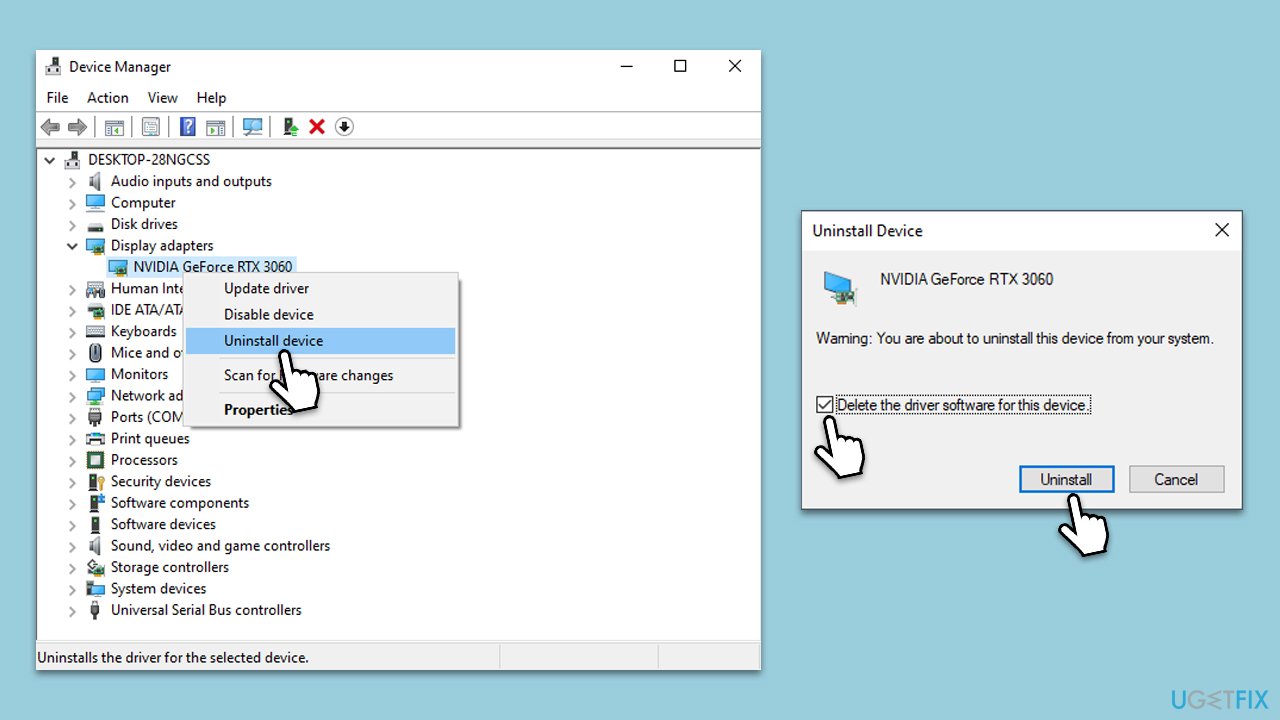
- Right-click on Start and pick Device Manager from the menu.
- Expand the Display adapters category.
- Right-click your graphics card and select Uninstall device.
- Mark the Delete the driver software for this device.
- Confirm by clicking Uninstall.
- Restart your computer.
- Follow one of the methods described above to download and install the latest GPU drivers.
- Restart your computer again after the installation is complete.
Fix 4. Replace monitor cables
Faulty cables can cause intermittent connection issues, leading to the monitor turning off.
- Purchase a new cable compatible with your monitor and graphics card.
- Replace the existing cable with the new one.
- Check if the problem persists.
Fix 5. Verify game requirements
The game you're playing may require a level of graphics processing that your hardware can't provide. Verify that your system meets the game's minimum requirements.
- Check the game's official website or store page for its system requirements.
- Compare these requirements with your system's specifications. To check them, simply type in System Information in Windows search and press Enter.
- If necessary, consider upgrading your hardware or lowering the game's settings.
Other topics you might be interested in:
Bottom line
To fix the issue of the monitor turning off while playing games, consider updating your graphics drivers, adjusting power settings, and checking for any hardware problems. If these solutions do not resolve the issue, further investigation into the game software or monitor itself may be necessary.
Frequently asked questions
This issue may be caused by power settings or graphics driver conflicts; check your power options and ensure your graphics drivers are up to date.
Adjust the power settings by going to Settings > System > Power & battery and set the screen timeout to 'Never' while gaming.
Check the game’s settings for any resolution or graphics options that may be incompatible with your display, and ensure your Windows is updated.




Report an issue
What's wrong with this guide? We review every report and update or remove content.
Report received — thank you. We'll review and fix it.
You need a free account to submit a report.
Be the first to comment