How to fix
Mouse lagging on the second monitor
on Windows
Resolve mouse lagging issues on your second monitor in Windows 10 or 11 effortlessly. Expert-tested solutions ensure smooth performance, fixed in minutes!

What causes How to fix mouse lagging on the second monitor in Windows?
- Inadequate USB power supply
- Outdated graphics drivers
- Incorrect display settings
- Hardware compatibility issues
- Mouse hardware malfunction
Repairs Windows system files, removes malware, and restores a clean OS state — without reinstalling.
Hello. When I push my mouse pointer to the second monitor, it starts lagging. The main display works fine. Is there any way to fix this?
When using multiple displays to increase productivity and multitasking, users may find it annoying to have mouse lag on a second monitor in Windows. Although adding an additional display can greatly increase workspace productivity and organization, this particular issue can degrade the user experience as a whole.
On the second display, the problem appears as a lag or delay in mouse movement, which makes it feel less precise and responsive. When users try to drag and drop items, navigate among applications, or carry out any other action requiring precise cursor control, this lag can be very inconvenient. The fluidity and ease of multitasking that numerous monitors are supposed to provide are disrupted.
Additionally, mouse lag on the additional monitor can result in less productivity and more annoyance. Users can discover that they need to change their workflow frequently, struggle to line up windows and apps, and encounter delays that disrupt their workflow. This not only reduces productivity but may also cause unneeded stress and make computing less fun.
Users frequently need to troubleshoot their system settings or device setups in order to solve this problem. It's important to keep in mind that correcting this issue can differ based on the unique hardware and software setup, even though potential solutions may involve tweaking display settings, updating graphics drivers,[ref en-1] or ensuring sufficient power supply to USB ports. As a result, users would need to investigate several troubleshooting techniques to discover the best answer for their unique situation.
In this guide, you will find 4 steps that should help you fix mouse lagging on the second monitor in Windows. You can also run a maintenance tool like [d1] that can fix most system errors, BSODs,[ref en-2] corrupted files, and registry[ref en-3] issues. Otherwise, follow the step-by-step instructions below.

Solution 1. Try another USB Port
Occasionally, a mouse-related issue may arise due to an inadequate USB port power supply. If your mouse is currently connected through a USB hub, consider plugging it directly into your computer. Alternatively, test if the mouse functions properly by switching to a different USB port.
Solution 2. Update or Reinstall Drivers
- Press the Windows key + X and select Device Management from the WinX menu.
- Expand the Display adapters option and right-click on the graphics driver.
- Choose Update driver from the context menu.
- Click on Search automatically for drivers in the prompt window.
- Open Device Management again.
- Expand the Mice and other pointing devices selection to locate your mouse device.
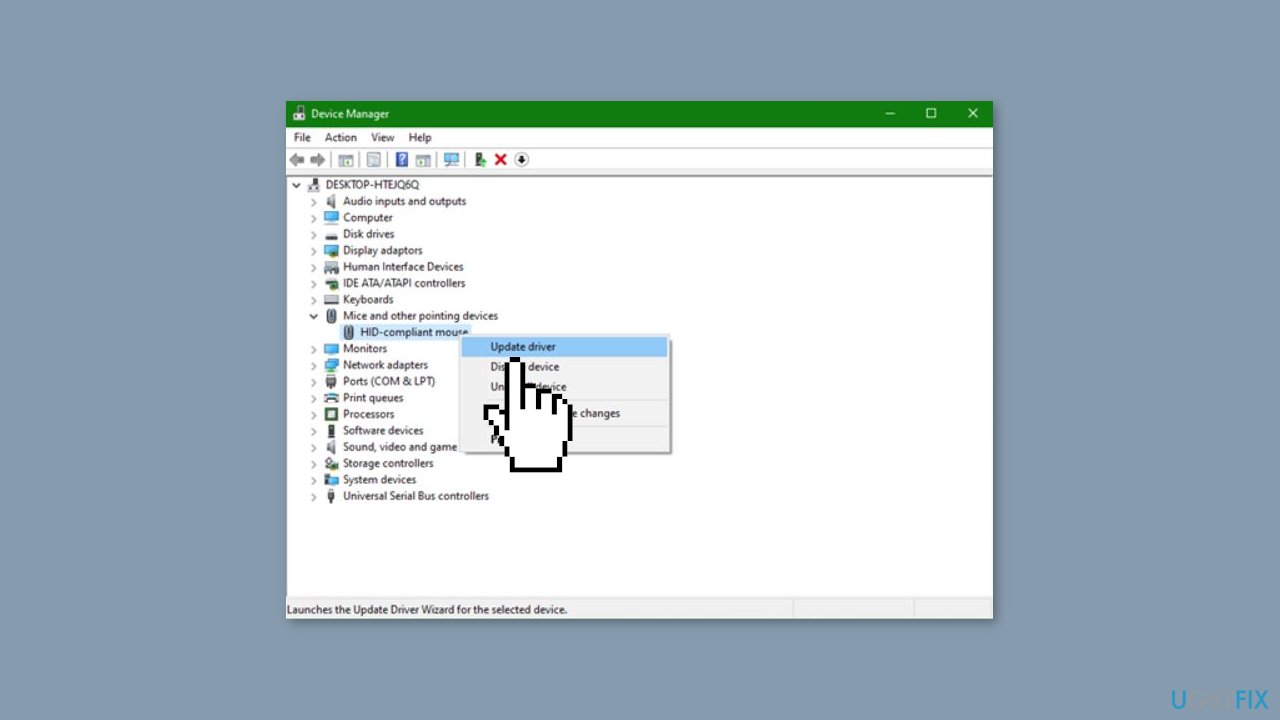
- Right-click on the mouse device and select Update driver from the context menu.
- If the mouse lag on the second monitor issue persists, attempt to resolve it by reinstalling these drivers.
- Right-click on the problematic device.
- Choose Uninstall device from the same right-click menu.
- Restart your computer.
- During the reboot process, your computer will automatically install the latest corresponding driver.
You can also use a dedicated utility like [rev id="DriverFix"] that can find the best drivers for your machine and install them automatically.
Solution 3. Disable Mouse Pointer Shadow
- Click on the search icon at the left corner.
- Type Control Panel into the search bar and press Enter to open the Control Panel window.
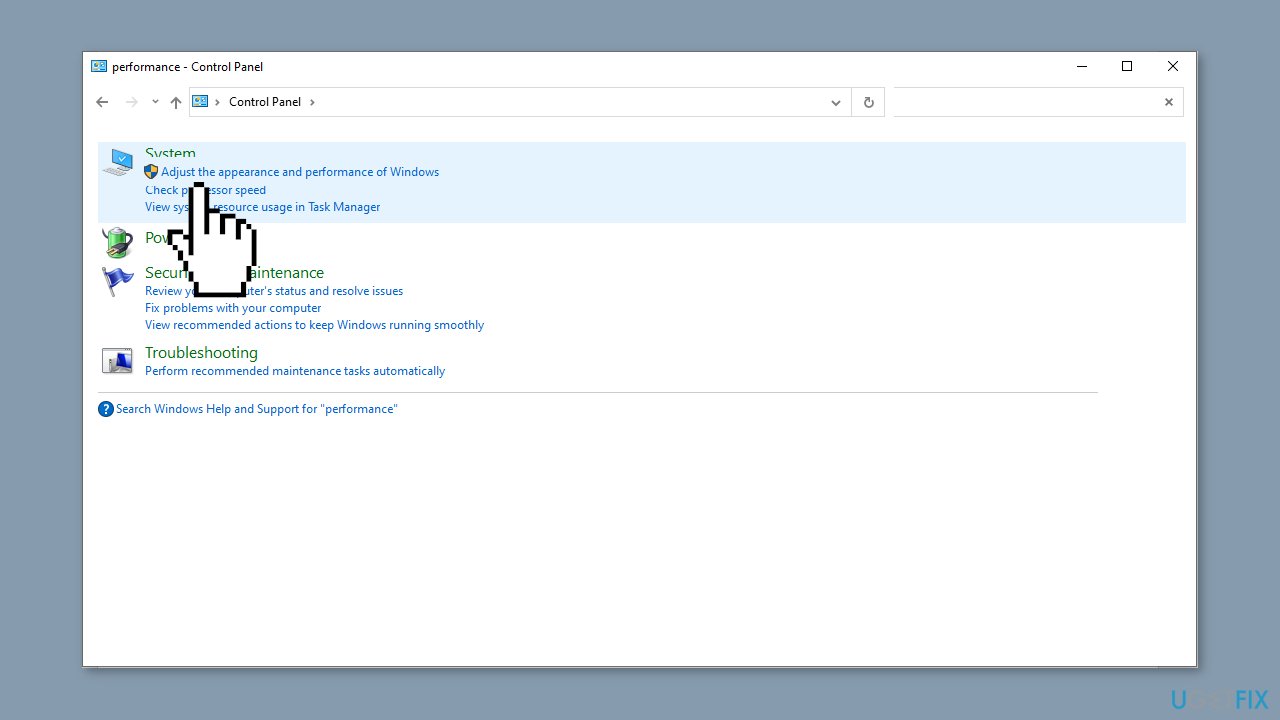
- Type performance into the search bar on the top right of the Control Panel.
- Select Adjust the appearance and performance of Windows.
- In the Performance Options window, uncheck the Show shadows under the mouse pointer option.
- Click Apply and OK to confirm this change.
Solution 4. Change the Monitor Refresh Rate
- Press the Windows key + I to open Windows Settings.
- Choose System > Display.
- On the right pane, click on the Advanced display settings under the Multiple displays section.
- Select the monitor you need to change from the drop-down menu of the Choose display section. Then, click on the Display adapter properties for Display x.
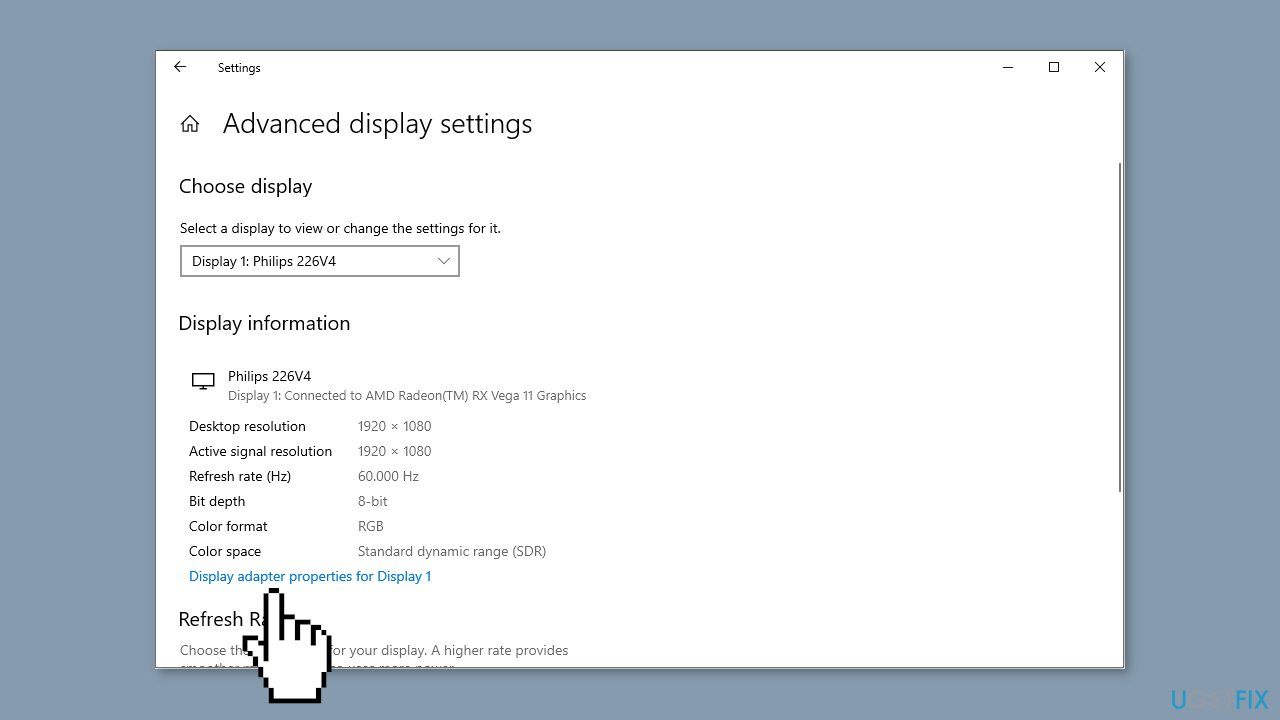
- Turn to the Monitor tab and adjust the monitor refresh rate to match the main display.
- Click Apply > OK to apply this change.
Bottom line
To fix mouse lagging on the second monitor in Windows, users can try changing the USB port for their mouse, updating graphics drivers, and adjusting display settings. If these solutions do not resolve the issue, consider running a maintenance tool or further troubleshooting based on your specific hardware and software setup.
Frequently asked questions
Common causes include outdated graphics drivers, incorrect display settings, or performance issues due to high system resource usage.
You can update your graphics drivers by accessing Device Manager, expanding the Display adapters section, right-clicking your graphics card, and selecting 'Update driver'.
Yes, ensure that the refresh rates and resolutions of both monitors are set correctly and match the capabilities of your graphics card in the Display settings.




Report an issue
What's wrong with this guide? We review every report and update or remove content.
Report received — thank you. We'll review and fix it.
You need a free account to submit a report.
Be the first to comment