How to fix
NET HELPMSG 2182 error
on Windows
Resolve the NET HELPMSG 2182 error on Windows 10 quickly and efficiently. Our expert-tested solutions ensure smooth system performance. Fixed in minutes!


What causes How to fix NET HELPMSG 2182 error in Windows 10?
- Corrupted services
- Broken files
- Issues with Background Intelligent Transfer Service
- Problems with downloading updates
- Altered system processes
Repairs Windows system files, removes malware, and restores a clean OS state — without reinstalling.
Hello. I need help with the NET HELPMSG 2182 Windows Store error. I needed a program update, but the downloading cannot happen. I waited for a few hours, and nothing happens. I also receive a suggestion that service registration is missing. I have no idea what the issue is. Troubleshooting is not giving any tips. Can you help me fix the NET HELPMSG 2182 error?
NET HELPMSG 2182 error is the issue that confuses users during program installs or updates via Microsoft Store. It appears when people try to update the existing operating system or install particular applications.[ref en-1] Numerous reports on the issue and questions online show that this error appears in various instances. Investigating the issue helped to determine that there are three particular reasons for the error.
The error often comes with a short message that states about problems with the BITS service. The issue is triggered by the problem with Background Intelligent Transfer Service.[ref en-2] This service assists in downloading updates from Microsoft servers so that users can get applications and Windows OS updates. But that is not possible when the NET HELPMSG 2182 App Store error occurs.
The first possible trigger for the annoying and frustrating update error is corrupted services. There are various processes responsible for downloading, installing, and managing new updates for operating systems and programs. Once those services get broken or altered/ corrupted, the operation cannot happen properly, and the NET HELPMSG 2182 error is triggered.
Another problem that can trigger the corrupted downloading of the update or the program installation - broken files. System data can get corrupted, so the update process or installation glitches, and the NET HELPMSG 2182 error appears.
Windows cannot process the task needed for the update services, so the issue occurs, and the way to fix that is to use a tool like [d1]. Such applications can repair files needed for system functions. It can find DLL files and replace them with fresh ones or fix other issues related to unwanted system alterations.
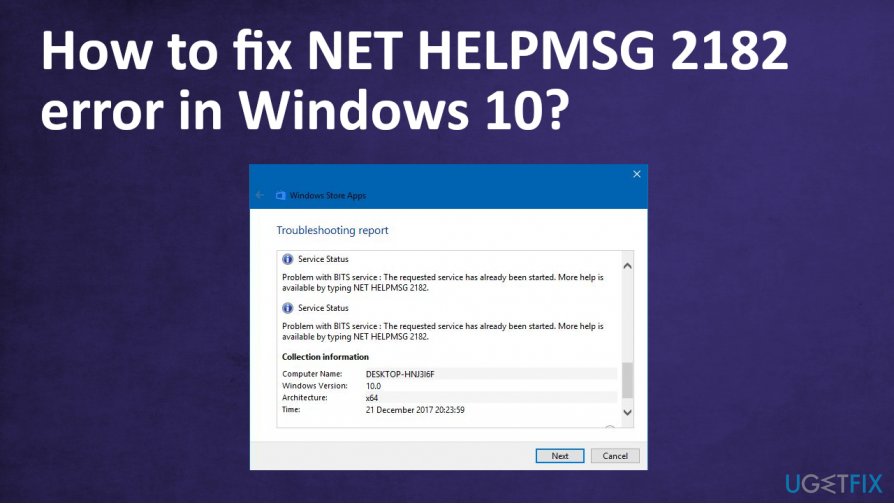
NET HELPMSG 2182 Windows Update error code 0x80070020
The error that users report encountering is mainly related to bad updates. Microsoft can release buggy updates for the Windows operating system. It is known that there were many bad updates to Windows 10 over the years.[ref en-3] The NET HELPMSG 2182 error results from a faulty update with the 0x80070020 error code that we have researched before. The problem is related to the same BITS service so that you might find a few helpful solutions in the article and down below.
When there is no new release of a Windows OS and a fix to the bad update, users encounter the error message and have a difficult time to update or install programs via MS App Store:
“Problem with BITS Service: The requested service has already been started. More help is available by typing NET HELPMSG 2182”
Since the issue is related to Microsoft Store, corrupted files, bad updates, and broken services, you can find various ways to fix the NET HELPMSG 2182 error in Windows 10. You might want to disable your antivirus tool before proceeding with solutions. The same goes for Windows Defender.
How to fix NET HELPMSG 2182 Windows 10 App Store error
It might be difficult to fix the NET HELPMSG 2182 error in Windows 10 in the first glimpse. However, users need to determine the particular issue and root cause for the problem and then follow the methods listed below. Particular issues need your attention, but there are also simple fixes.
Since the issue is related to Microsoft App Store, you may need to reset that service, find particular problems with the store or disable third-party applications, antivirus solutions. This is the way to fix the NET HELPMSG 2182 error. Also, tools like [rev id="DriverFix"] and our upper mentioned PC repair software can help you with a quick solution related to outdated pieces or corrupted files. More in-depth fixes – rely on the listed methods and do not skip through until you tried all of them.
Restart Services
- Press Windows and R keys to open the Run box.
- Type cmd and press shift + ctrl + Enter to run the command line with administrative rights.
- Type the following commands and hit Enter after each one:
net stop wuauserv
net stop cryptSvc
net stop bits
net stop msiserver - Do the same with these commands:
ren C:\\Windows\\SoftwareDistribution SoftwareDistribution.old
ren C:\\Windows\\System32\\catroot2 Catroot2.old - Run these again:
net stop wuauserv
net stop cryptSvc
net stop bits
net stop msiserver - Close the Command Prompt, restart the PC and check if the issue occurs again.
Troubleshoot Windows Updates
- Search the word troubleshoot in the search box.
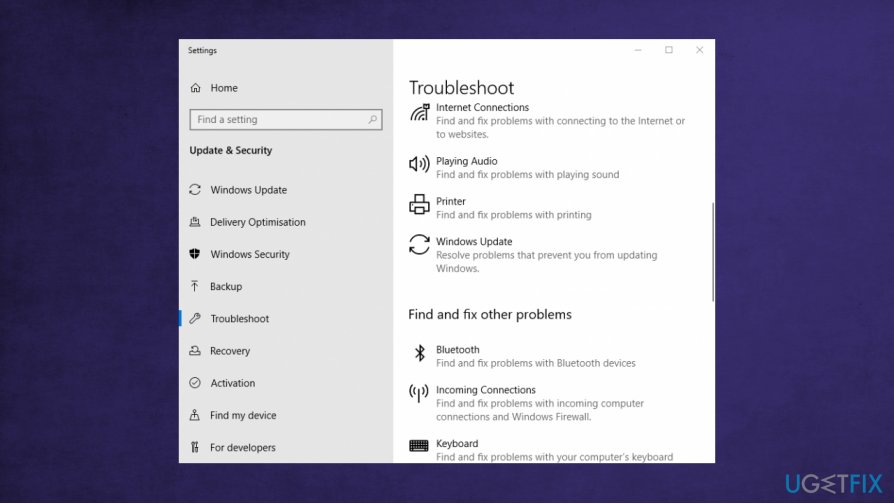
Microsoft store error helpmsg 2182 fix update troubleshooter - Click Troubleshoot settings and select Windows Update to find the option Run the troubleshooter.
- Look for possible issues and fixes.
Troubleshoot BITS to fix NET HELPMSG 2182 error in Windows
- Go to Control Panel and click Troubleshooting to open the window.
- Choose View all on the left.
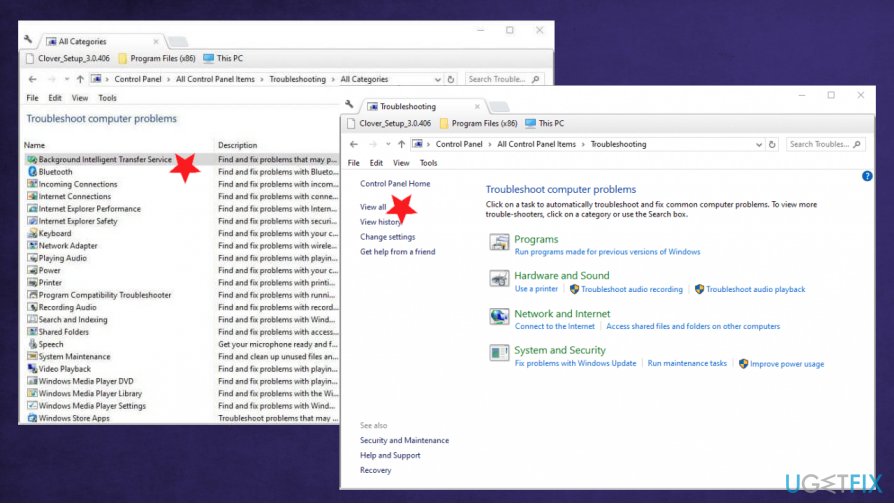
Microsoft store error helpmsg 2182 fix troubleshooter - Select Background Intelligent Transfer Service to open the troubleshooter.
- Choose Advanced and select Apply repairs automatically.
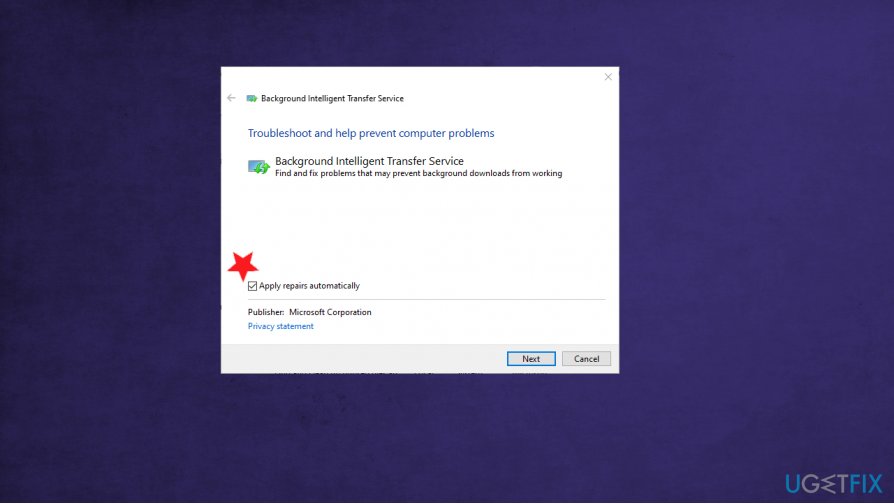
Microsoft store error helpmsg 2182 fix troubleshooter bits - Pres Next to confirm.
Run System File Checker
- Open Command prompt with admin rights.
- Type DISM /Online /Cleanup-Image /RestoreHealth
- Hit Enter.
- Then type sfc /scannow.
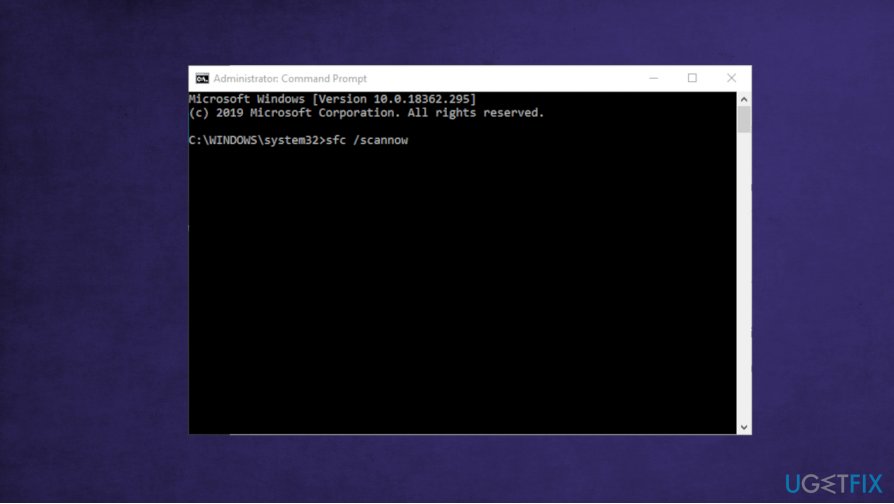
Microsoft store error helpmsg 2182 fix sfc - Allow the process to run and restart the computer after it.
Restore Microsoft Store cache to fix NET HELPMSG 2182 error in Windows 10
- Open Command prompt with Administrator rights.
- Type wsreset.exe in the window and press Enter.
- Once the cache is cleared, restart the PC.
Bottom line
To fix the NET HELPMSG 2182 error, users can repair corrupted services and files using specialized tools that can replace or fix DLL files. If these solutions do not resolve the issue, further investigation into the system's update processes may be necessary.
Frequently asked questions
The NET HELPMSG 2182 error typically indicates that a specified service is not running or cannot be found. This can occur when trying to manage network services or access certain features.
To fix the NET HELPMSG 2182 error in Windows 11, ensure that the relevant service is installed and running, or you can try re-registering the service using Command Prompt with administrative privileges.
Yes, you can use commands like 'sc query' to check the status of the service and 'net start [service_name]' to attempt to start it, which may help resolve the NET HELPMSG 2182 error.




Report an issue
What's wrong with this guide? We review every report and update or remove content.
Report received — thank you. We'll review and fix it.
You need a free account to submit a report.
Be the first to comment