How to fix
No web results when using Windows search
on Windows
Resolve the "no web results" issue in Windows 10 and 11 easily. Get expert-tested solutions to enhance your search functionality today! Fixed in minutes.

What causes How to fix no web results when using Windows search?
- Incorrect search settings
- Network connectivity issues
- Outdated or corrupted system files
- Third-party antivirus or firewall settings
- Problems with Microsoft account
- Issues with Bing search engine integration
Repairs Windows system files, removes malware, and restores a clean OS state — without reinstalling.
I was wondering if you could help me with the Windows search problem. I used to be able to see web results when typing in queries in Windows search. Well, this is no longer the case, and Windows search is not providing any web results anymore. I noticed this a couple of weeks ago and I am not sure how to get them back.
Windows Search is a powerful tool that allows you to quickly find files, applications, and web results directly from your desktop. However, you might encounter an issue where Windows Search fails to display web results. This can be frustrating, as it limits the functionality of the search tool and hinders your ability to access online information directly from your search bar.
Reasons behind the no web results in Windows Search
The absence of web results in Windows Search can be attributed to several factors. Incorrect search settings can prevent web results from appearing. Network connectivity issues might also block the search feature from accessing online information. Additionally, outdated or corrupted system files can disrupt the functionality of Windows Search.
Sometimes, third-party antivirus or firewall settings can interfere with the search process, blocking web results. Furthermore, problems with your Microsoft account or issues with the Bing search engine integration can lead to this issue.
How to resolve Web Search results missing in Windows Search?
To resolve the problem of no web results in Windows Search, various troubleshooting steps can be undertaken. Firstly, examining and modifying your search settings can ensure that the feature is correctly enabled, which is essential for web results to appear. Ensuring network connectivity is stable helps eliminate any internet-related problems that might be preventing web searches.
Updating Windows is another crucial step, as it keeps your system files up to date and addresses known issues that could affect search functionality. Running the Windows Search troubleshooter can help diagnose and resolve common search-related problems by identifying specific issues within the search feature.
Additionally, reviewing and adjusting your antivirus and firewall settings is important, as these security tools can sometimes block the search functionality inadvertently. Ensuring your Microsoft account is properly synced and addressing any issues with the Bing search engine integration can also help restore the ability to retrieve web results through Windows Search.
Using the [d1] repair app can automatically detect and fix underlying Windows issues, restoring full search functionality.
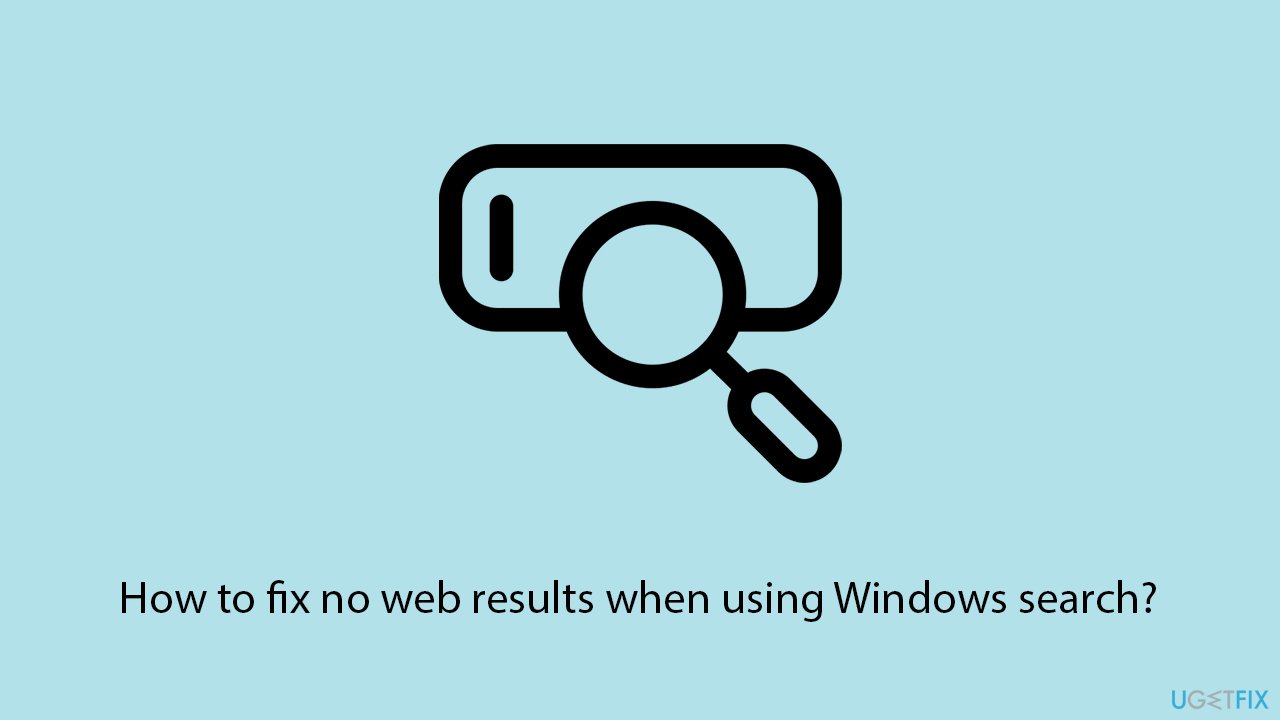
Fix 1. Enable Cloud content search
Ensuring that the search settings are correctly configured is essential for web results to appear in Windows Search.
- Right-click on Start and pick Settings.
- Go to the Privacy & Security section.
- Select Search permissions.
- Scroll down to the Cloud content search section.
- Ensure that the Microsoft account and Work or School account are enabled.
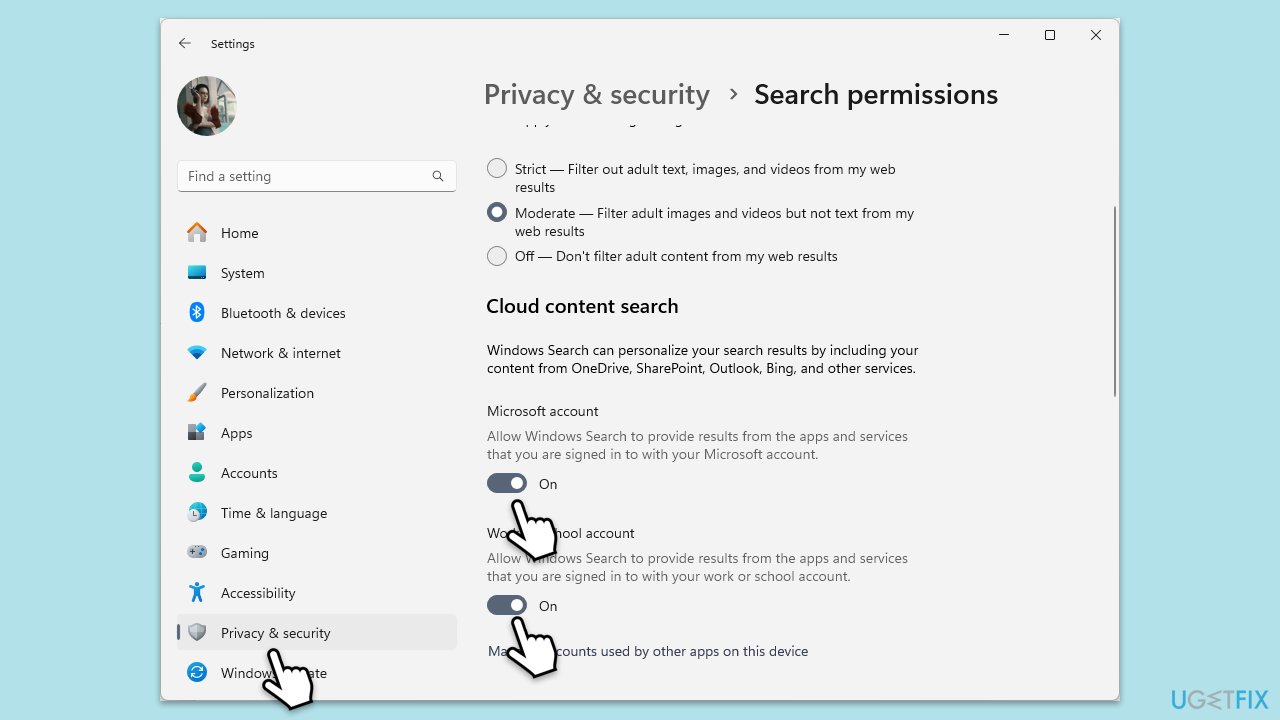
Fix 2. Update Windows
Keeping your Windows operating system up to date can fix known issues that may affect search functionality.
- Type Updates in Windows search and press Enter.
- If updates are available, click Install updates.
- Otherwise, click Check for updates.
- If optional updates are available, install them as well.
- When all the update processes are complete, restart your computer.
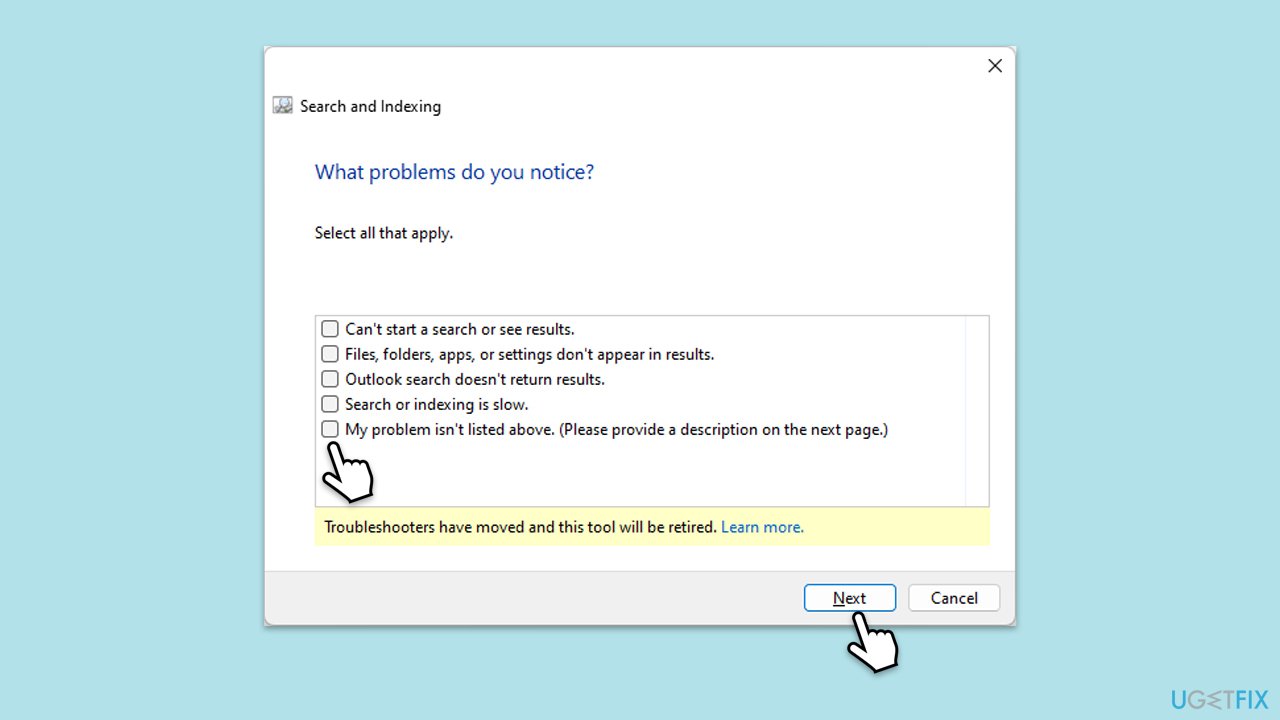
Fix 3. Run Windows Search troubleshooter
The Windows Search troubleshooter can diagnose and resolve common issues affecting the search feature.
- Type Troubleshoot in Windows search and press Enter.
- Choose Other troubleshooters/Additional troubleshooters.
- Find Search and Indexing and click Run the troubleshooter/Run.
- Apply the recommended changes.
Fix 4. Adjust antivirus/firewall settings
Antivirus or firewall settings can sometimes block search functionality. Adjusting these settings can restore access to web results.
- Open your antivirus/firewall software.
- Check for any blocked applications or features.
- Ensure Windows Search is not being restricted.
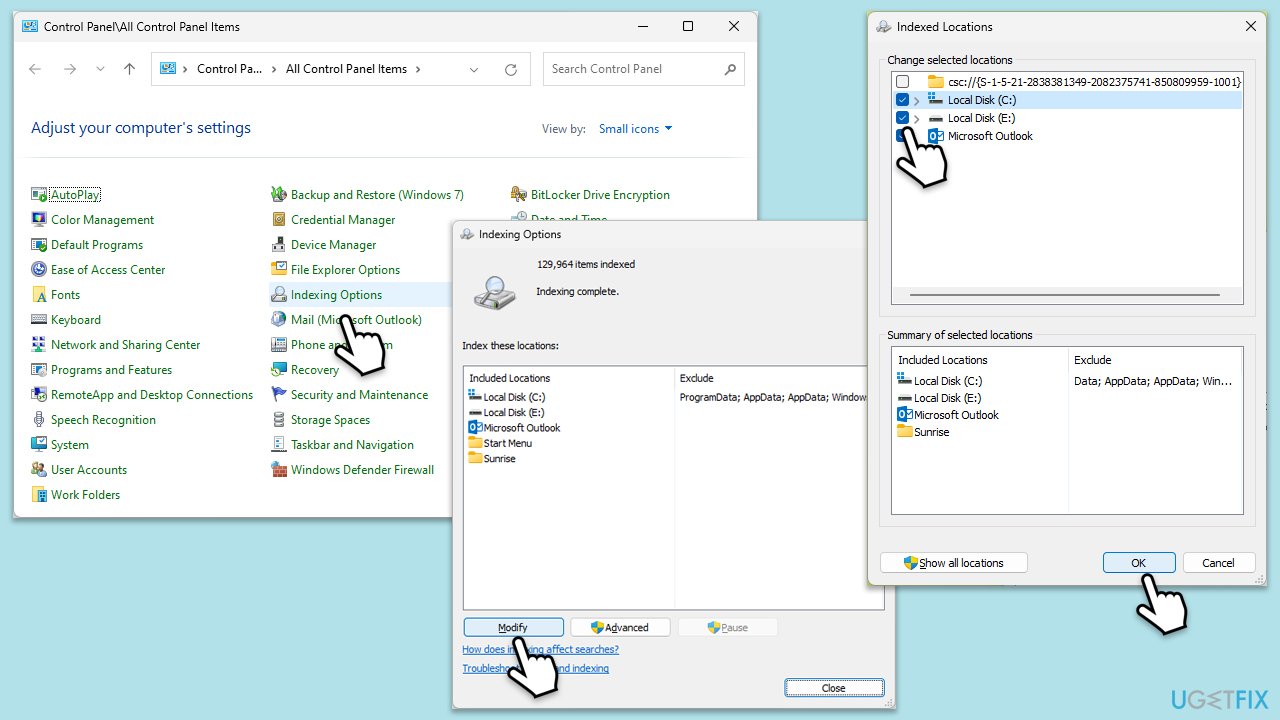
Fix 5. Rebuild search index
A corrupted search index can cause issues with Windows Search. Rebuilding the index can resolve these problems.
- Open Control Panel.
- On the top-right corner, click on View by option and select Small icons.
- Pick Indexing options.
- Click Modify.
- Mark the locations that you want to be indexed and click OK (you can also use Show all locations at the bottom-left of the window if you can't see the location you are looking for).
- In the Indexing Options window, click Advanced.
- Click Rebuild under Delete and rebuild index. This might take a while, depending on how large your drives are. During the rebuilding process, you might not be able to use the search bar or receive incomplete results.
- Click OK.
Fix 6. Repair corrupted system files
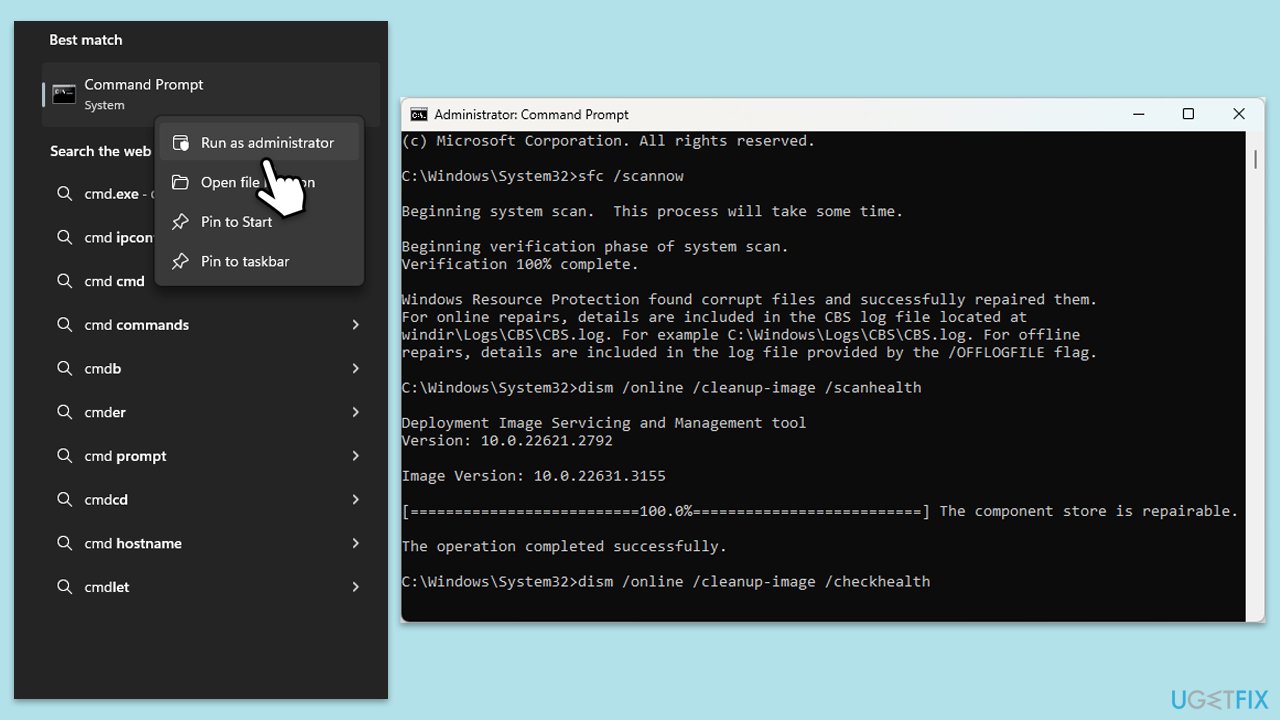
The easiest way to do this is by running commands using elevated Command Prompt:
- Type in cmd in Windows search.
- Right-click the Command Prompt result and pick Run as administrator.
- User Account Control will ask whether you want to allow changes - click Yes.
- Type this command and press Enter:
sfc /scannow - Wait for the scan to finish.
- Then, use the following commands, pressing Enter after each:
Dism /Online /Cleanup-Image /CheckHealth
Dism /Online /Cleanup-Image /ScanHealth
Dism /Online /Cleanup-Image /RestoreHealth - Restart your computer.
Fix 7. Check Windows search service
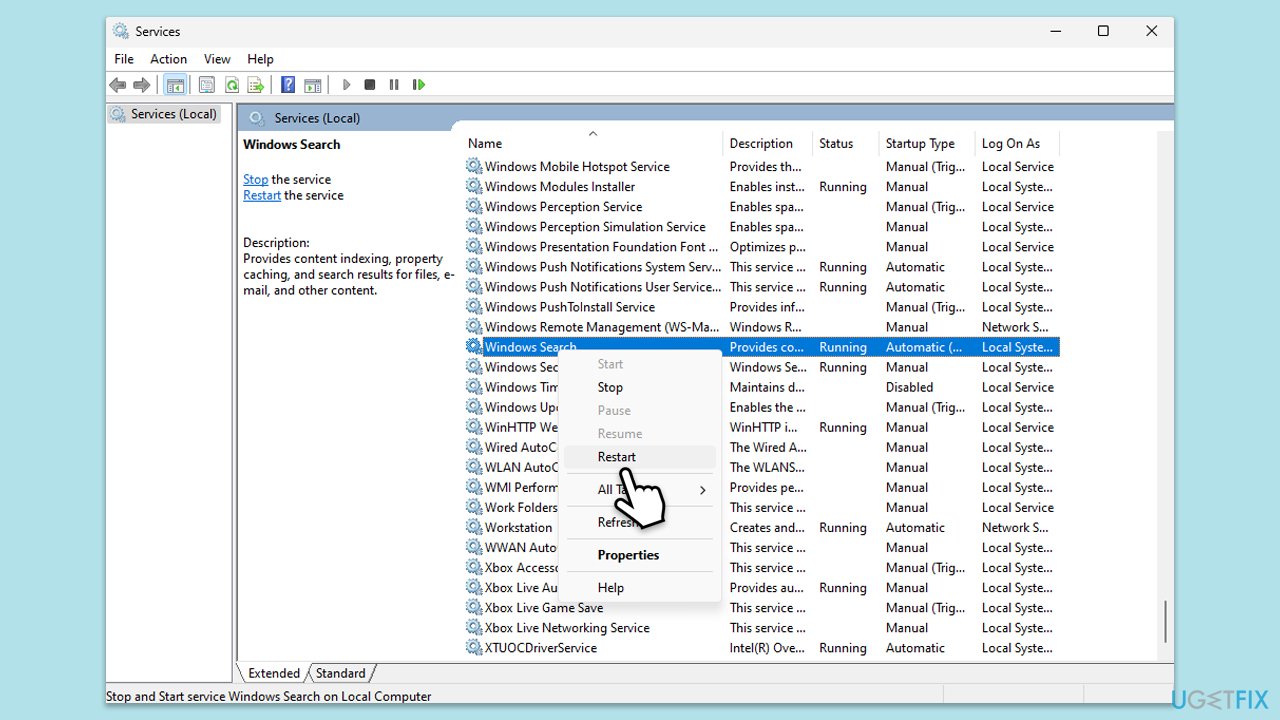
Resetting Windows Search can resolve persistent issues by restoring the feature to its default state.
- Type Services in Windows search and press Enter.
- Locate Windows Search Service.
- If it is already running, right-click and select Restart.
- if the service is not running, double-click it, and pick Automatic under the Startup type from the drop-down menu.
- Click Start, Apply, and OK.
Fix 8. Change Group Policy settings
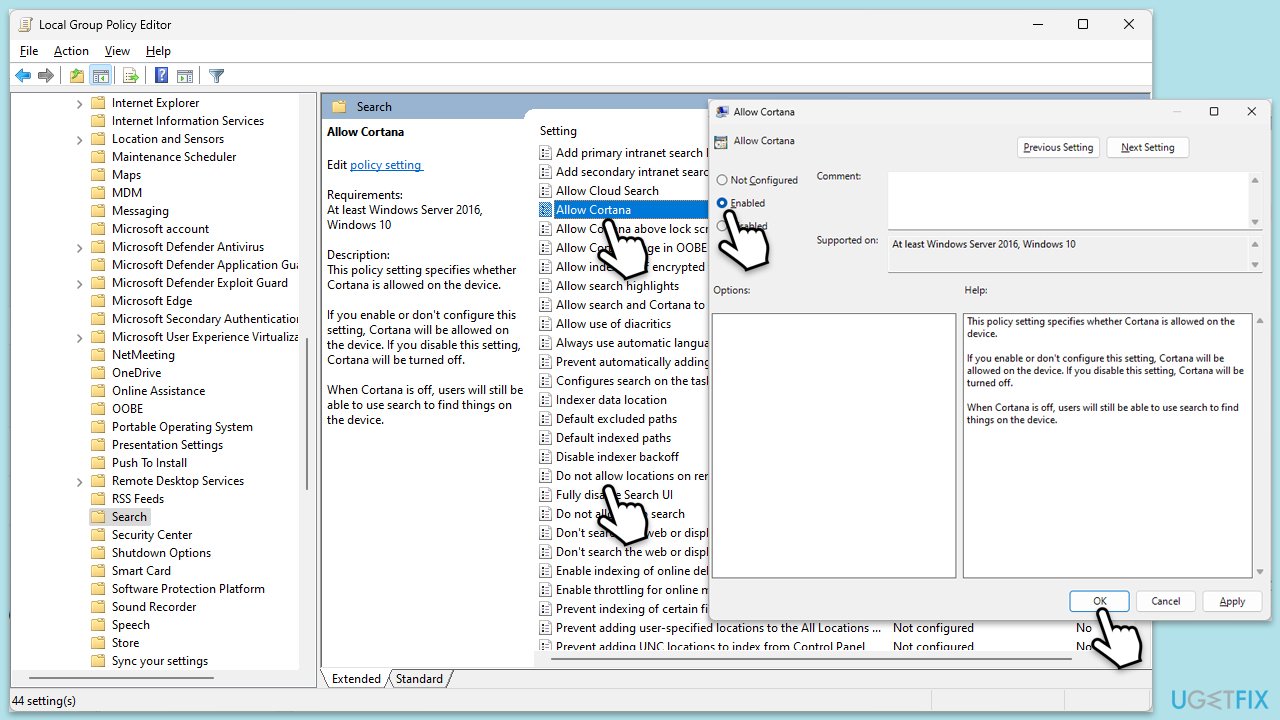
Incorrect Group Policy settings can disable web results in Windows Search. Adjusting these settings can re-enable web searches.
- Type Group Policy in Windows search and press Enter.
- Navigate to the following location:
Computer Configuration > Administrative Templates > Windows Components > Search - Double-click Allow Cortana and set it to Enabled.
- Double-click Do not allow web search and set it to Disabled.
- Click Apply, then OK.
Fix 9. Change your region to US
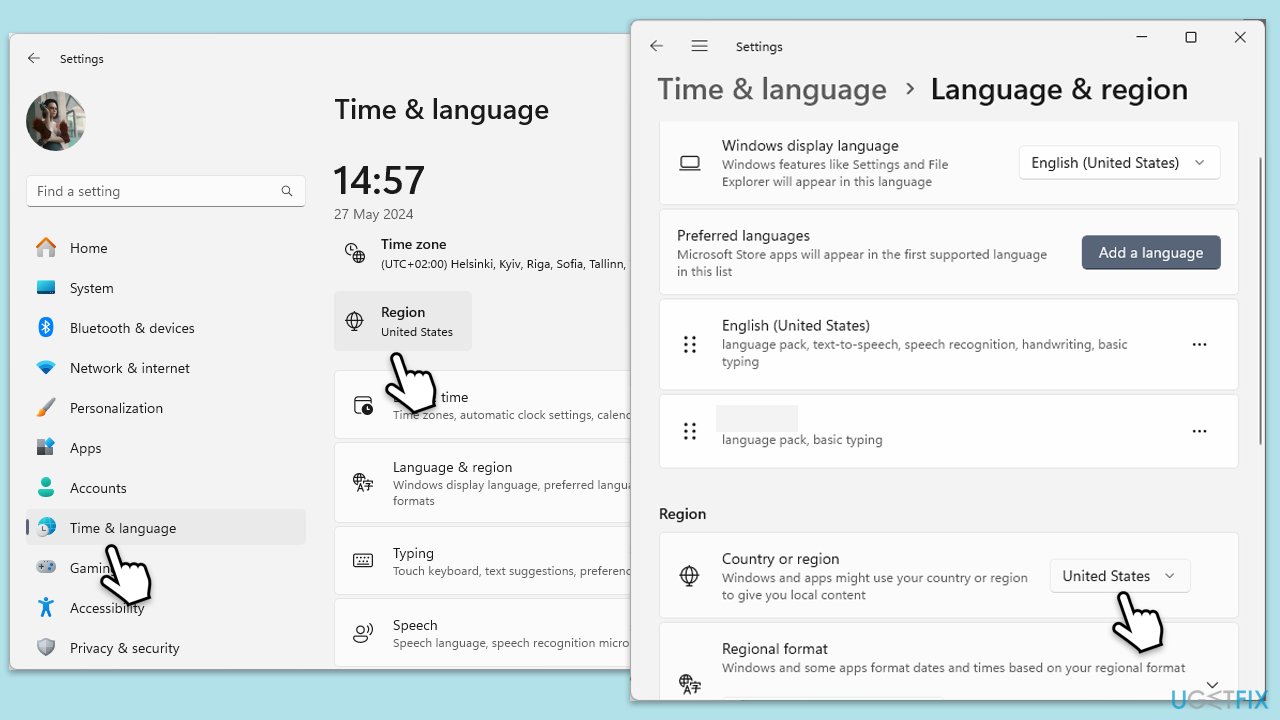
Sometimes, Windows Search settings are optimized for certain regions. Changing your region to the US can help restore web results functionality.
- Open Settings.
- Select Time & Language.
- Click Region.
- Under Country or region, select United States from the dropdown menu.
- Restart your computer.
Bottom line
To resolve the issue of missing web results in Windows Search, you can modify your search settings, ensure stable network connectivity, update Windows, and run the Windows Search troubleshooter. Additionally, reviewing your antivirus and firewall settings may help. If none of these solutions work, further investigation may be necessary.
Frequently asked questions
This issue may occur due to a corrupted search index or incorrect search settings. Try rebuilding the search index or ensuring that web results are enabled in your search settings.
You can resolve this by checking the privacy settings to ensure that online search results are allowed. Additionally, running the Search and Indexing troubleshooter can help identify and fix the problem.
If the issue arose after an update, consider rolling back the update or resetting the Windows search feature. Ensure that your system is fully updated and that all relevant services are running.




Report an issue
What's wrong with this guide? We review every report and update or remove content.
Report received — thank you. We'll review and fix it.
You need a free account to submit a report.
Be the first to comment